Upload this year's students and staff for a new school year
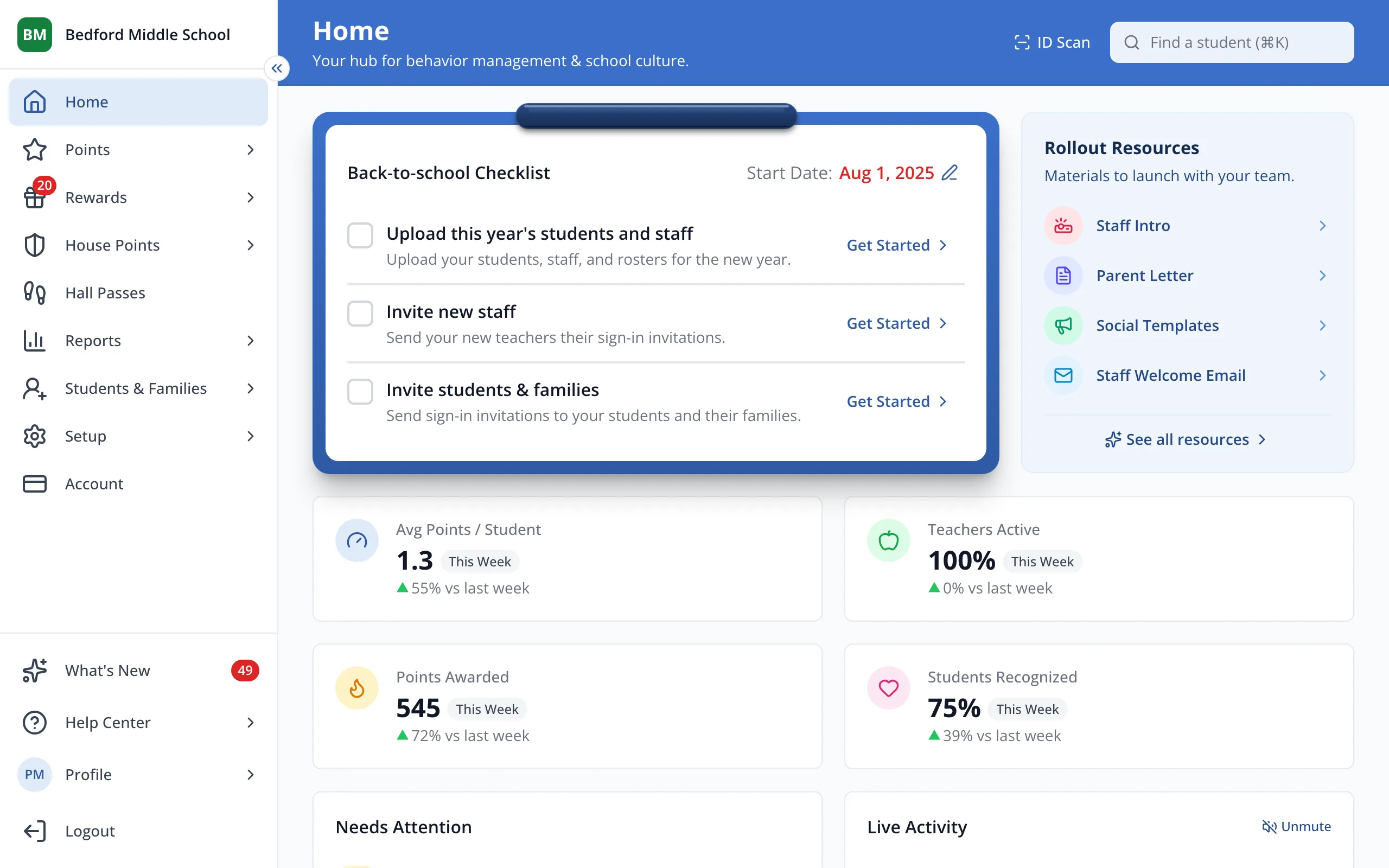
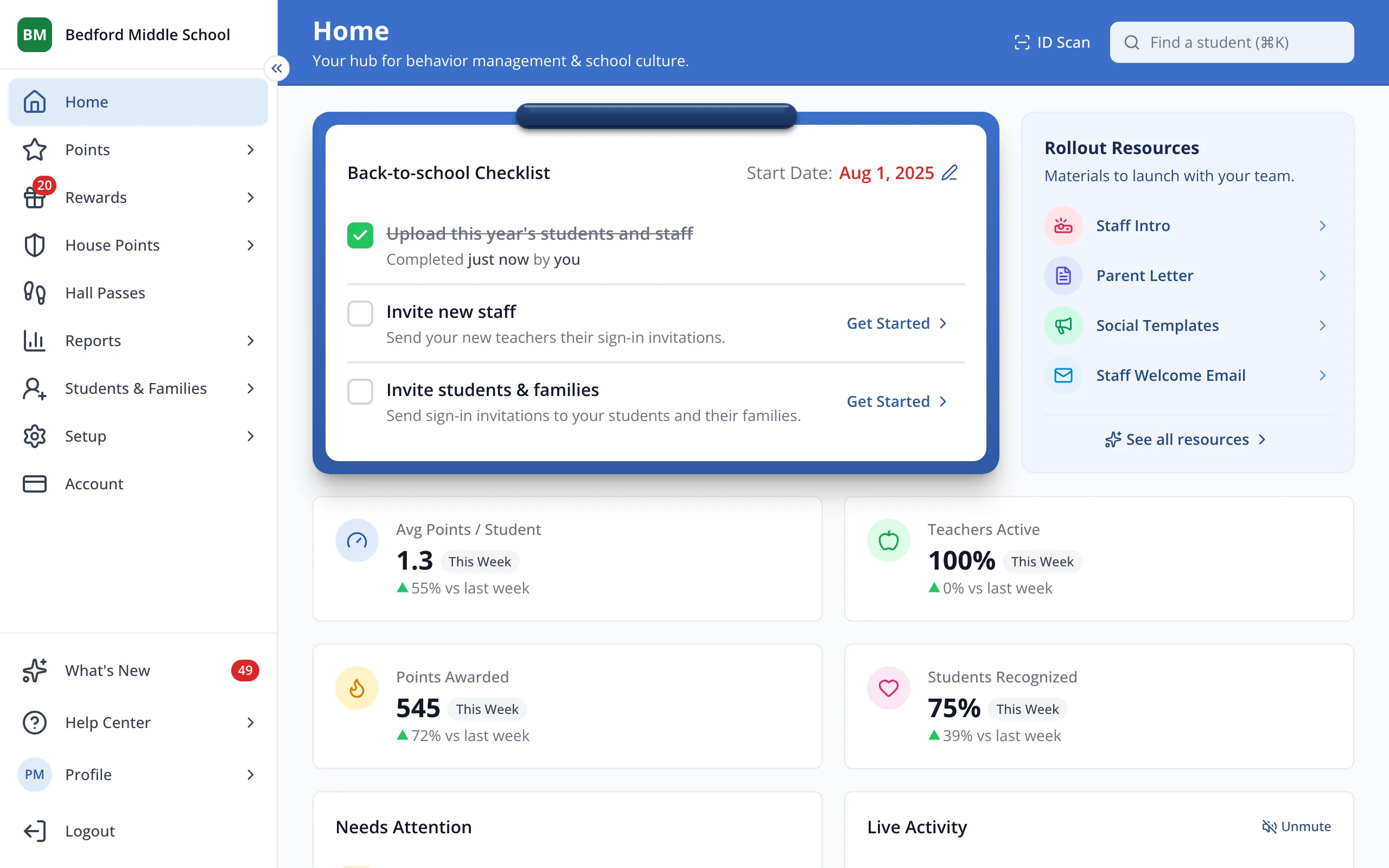
Your Back-to-school Checklist on Home walks you through the new year. Uploading this year's students and staff comes first.
AdminSite Leader
Open in LiveSchool
Already signed in? Open this guide inside LiveSchool.
Use the Left and Right arrow keys to move between steps, and Space to play or pause.
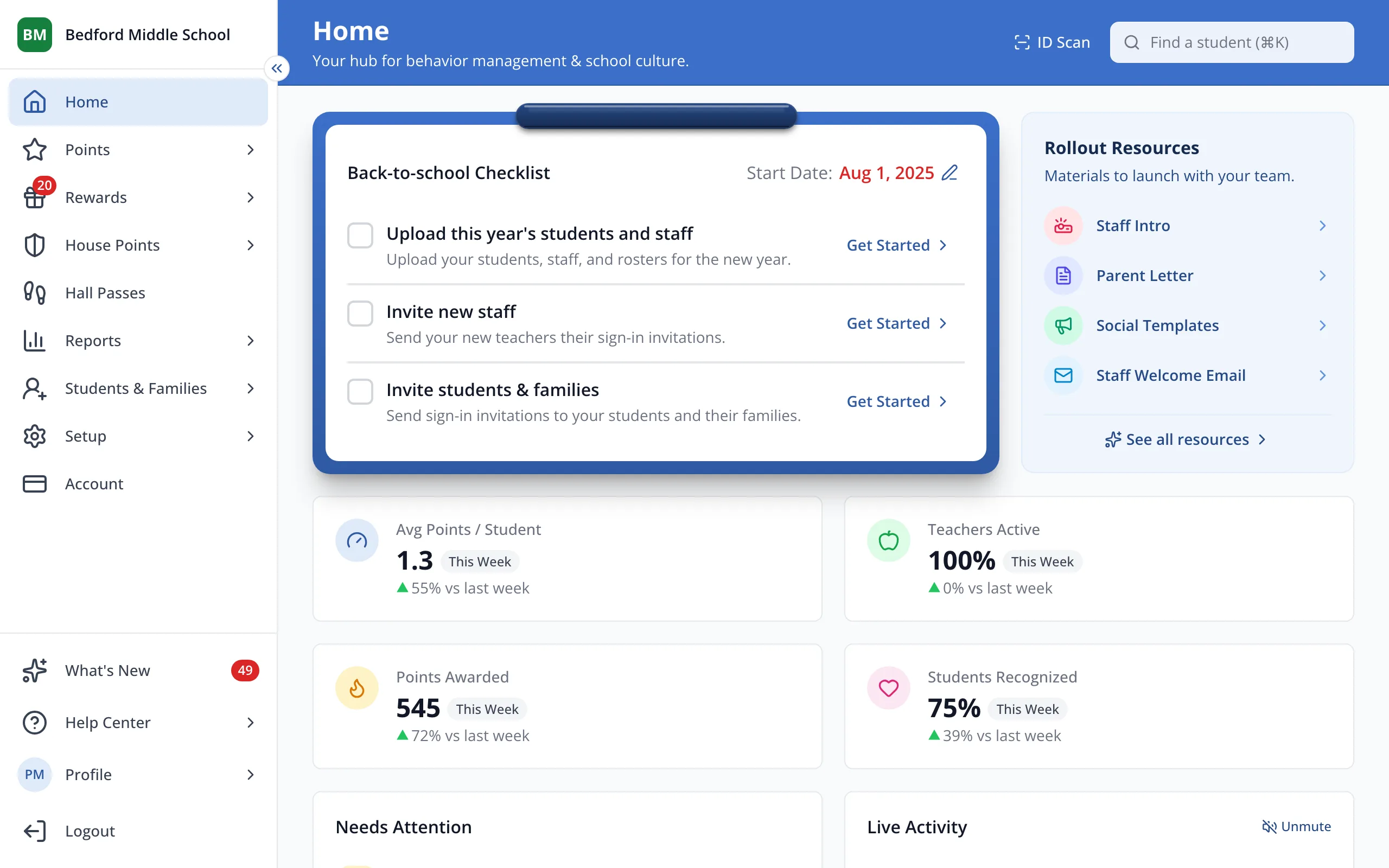
1.On Home, under Back-to-school Checklist, click Get Started next to Upload this year's students and staff.
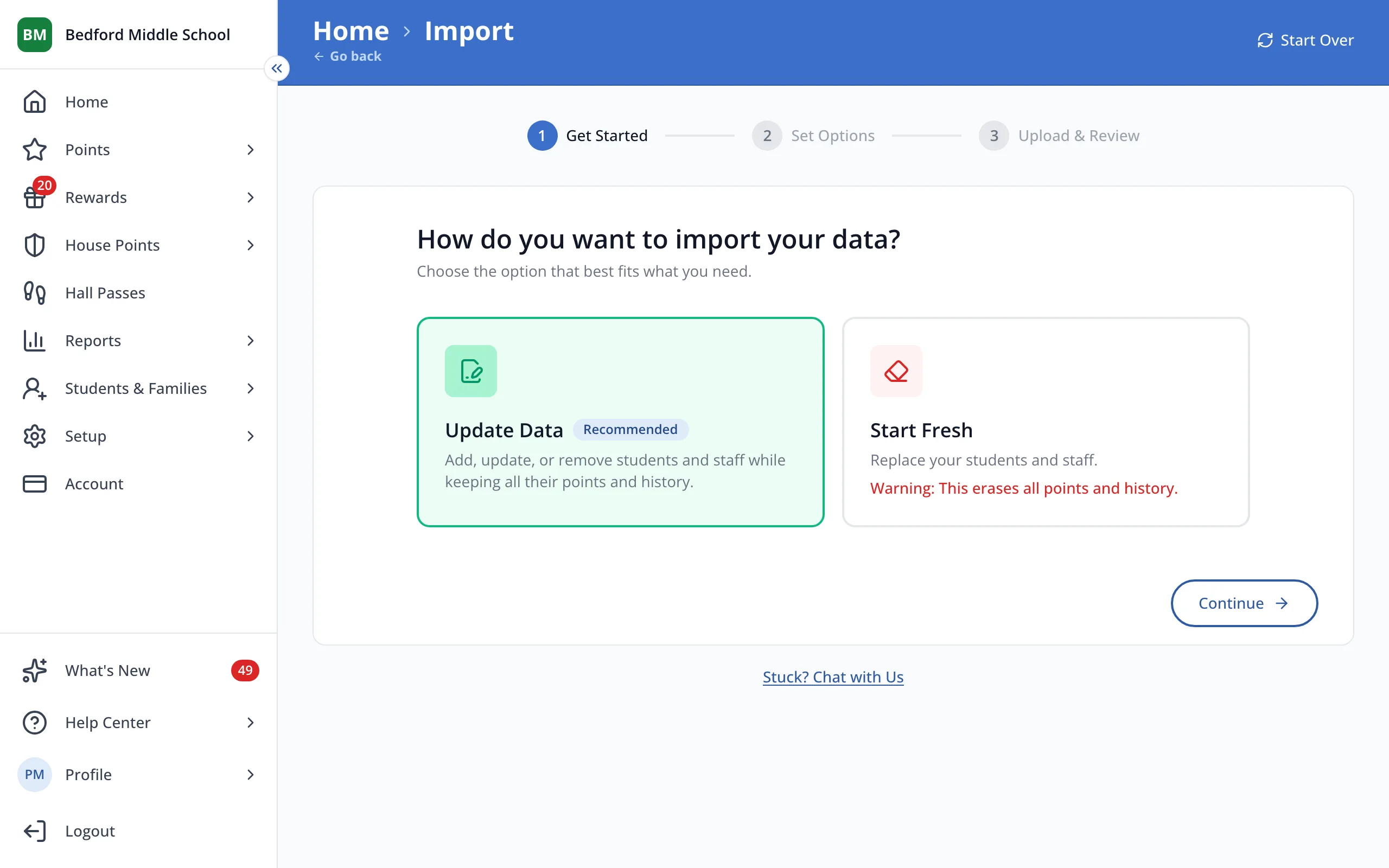
2.On the Import page, click Update Data, then follow the steps to upload your students, staff and rosters.
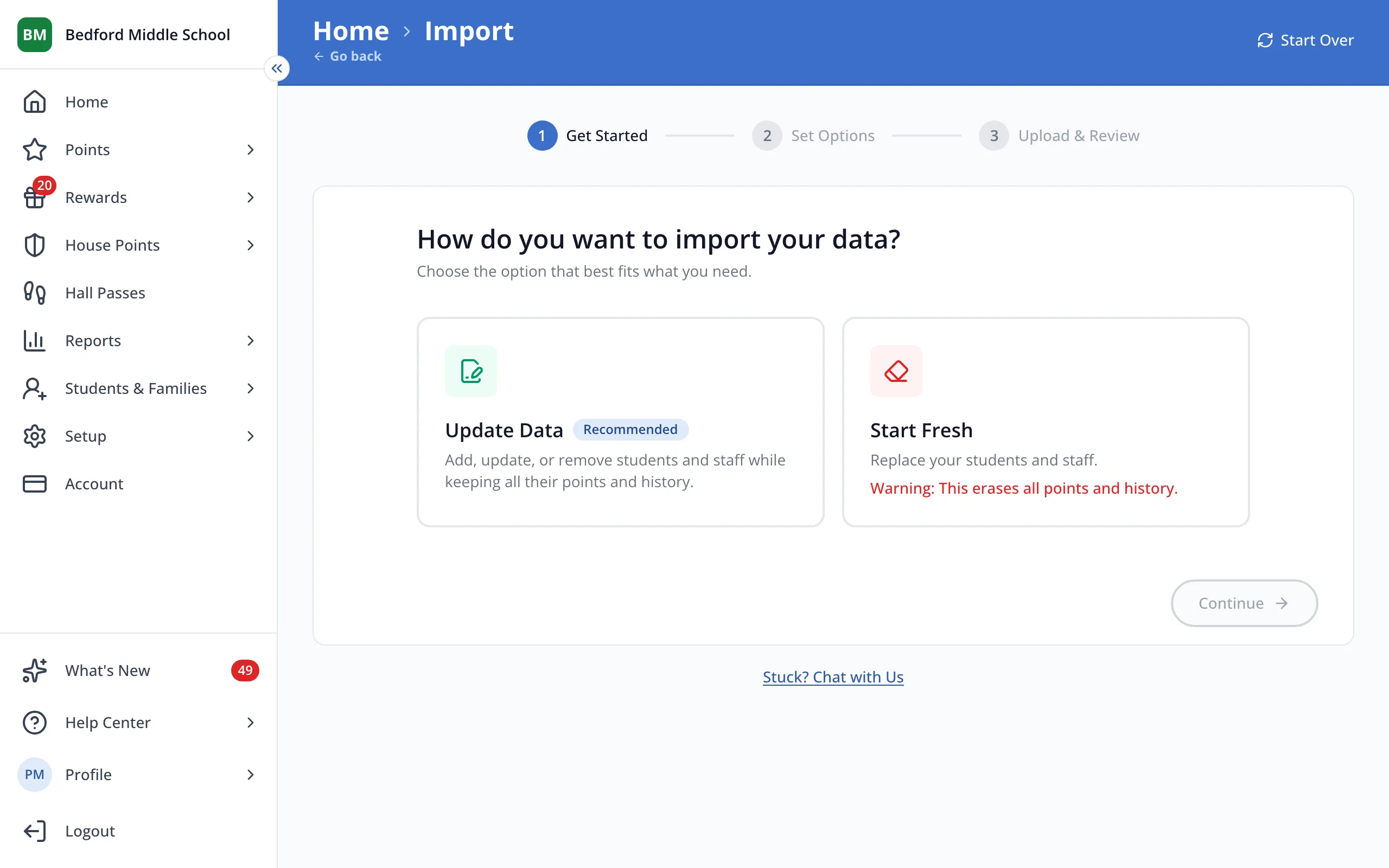
Did you know? Start Fresh erases all points and history.
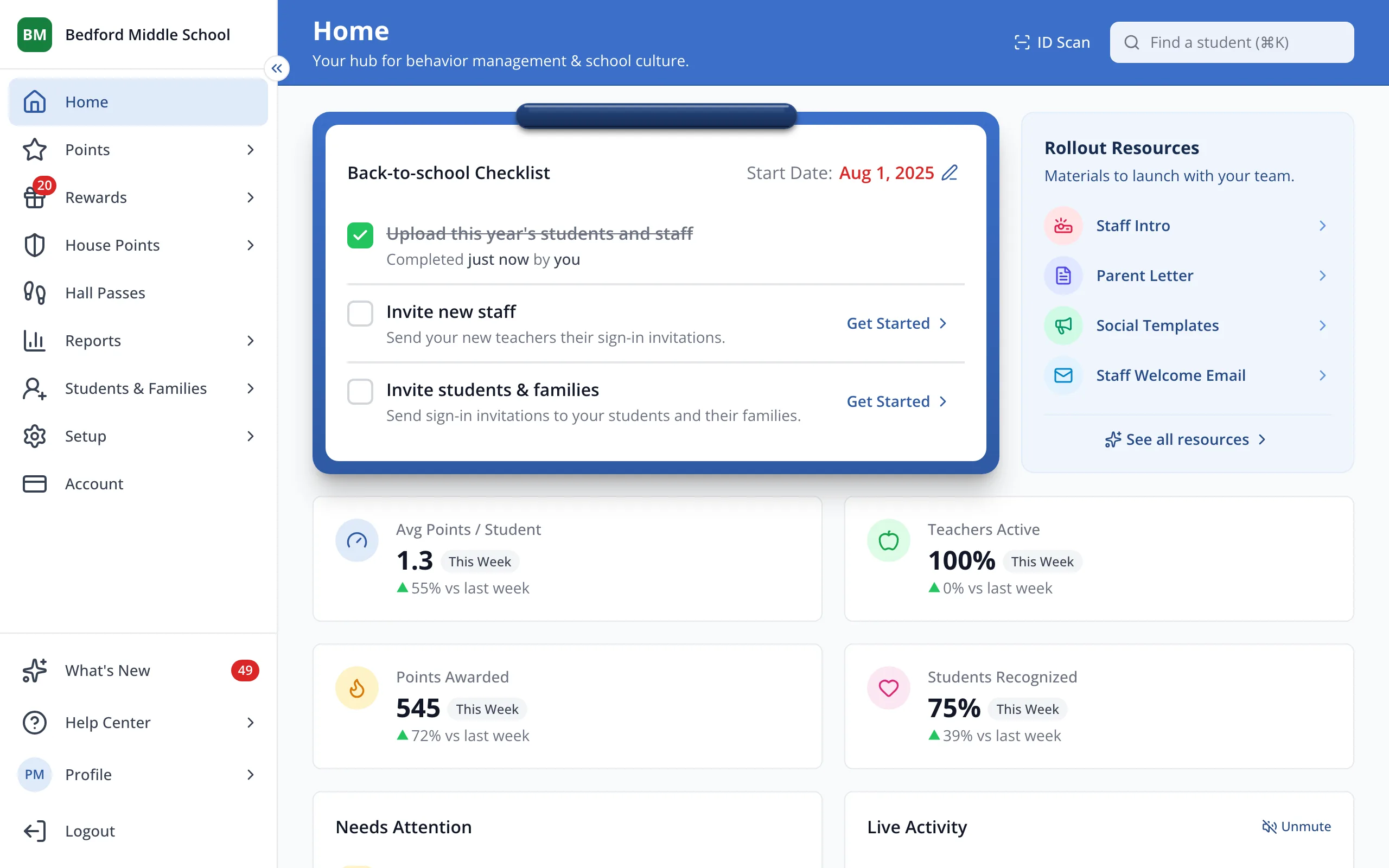
3.When everything's uploaded, go back to Home and check Upload this year's students and staff.