
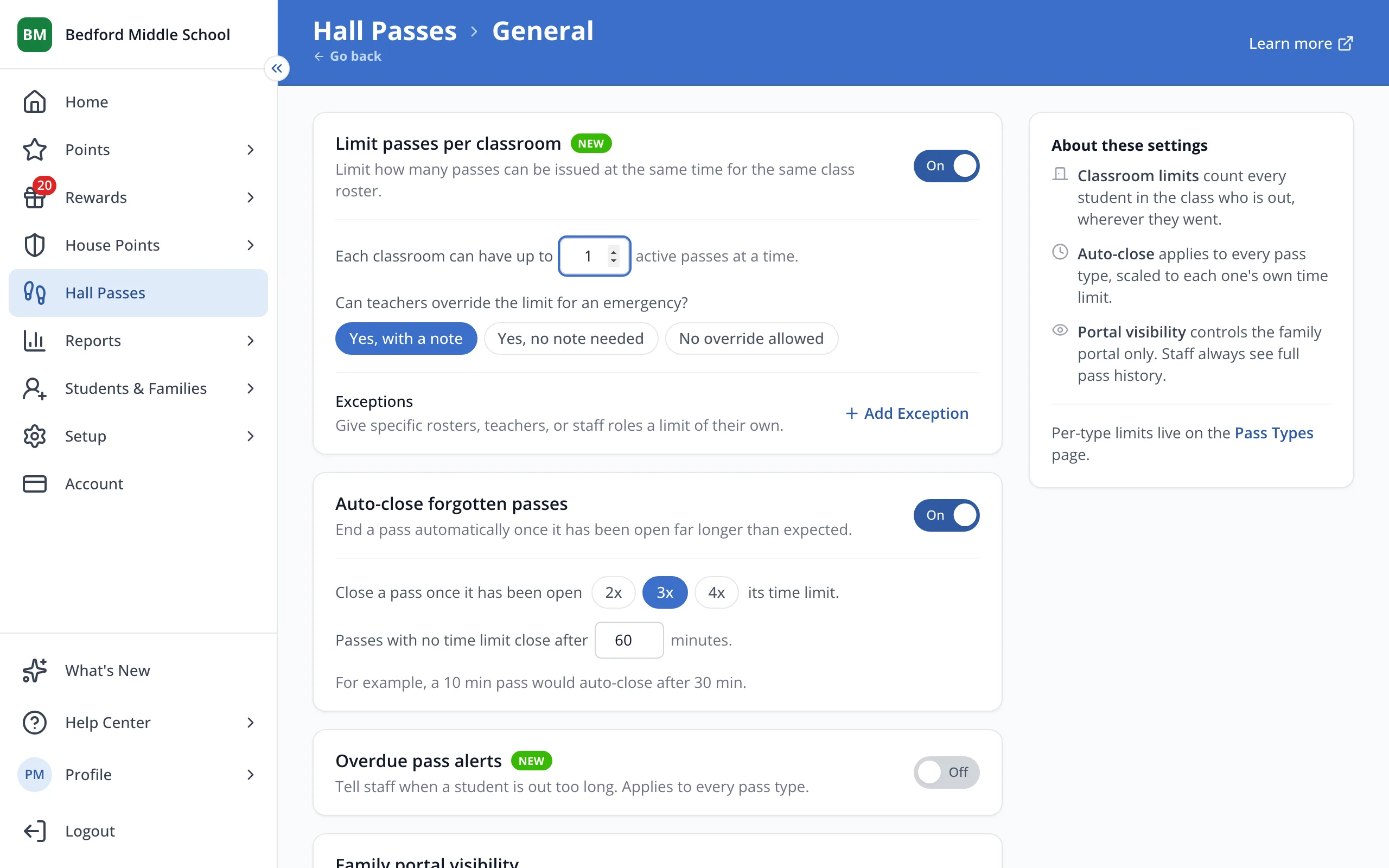
Limit how many students from one classroom can be out
The limit counts every student from the class who is out, wherever they went.
AdminSite Leader
Use the Left and Right arrow keys to move between steps, and Space to play or pause.
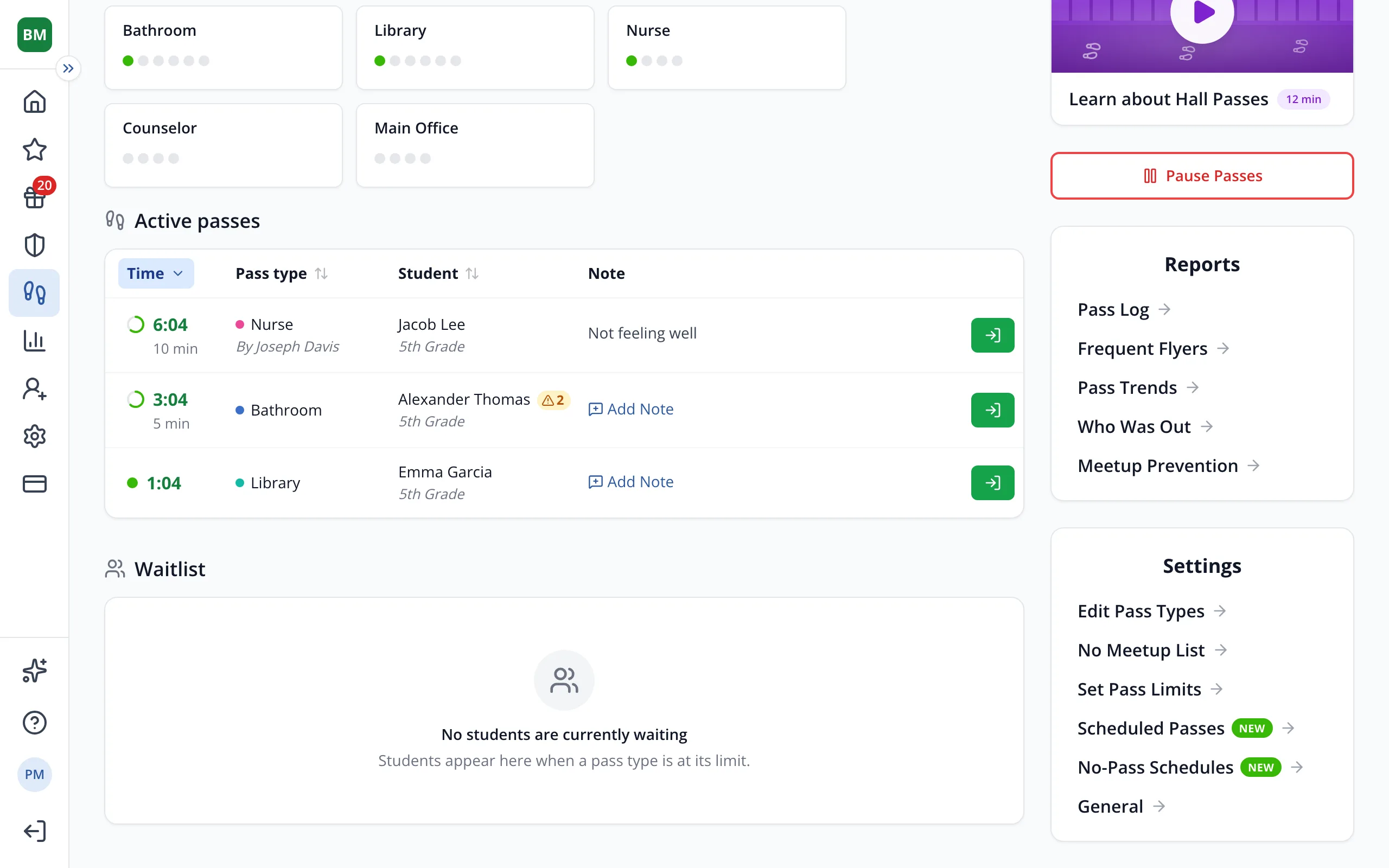
1.On the Hall Passes page, under Settings, click General.
Did you know? On a smaller screen, click More to find these links.
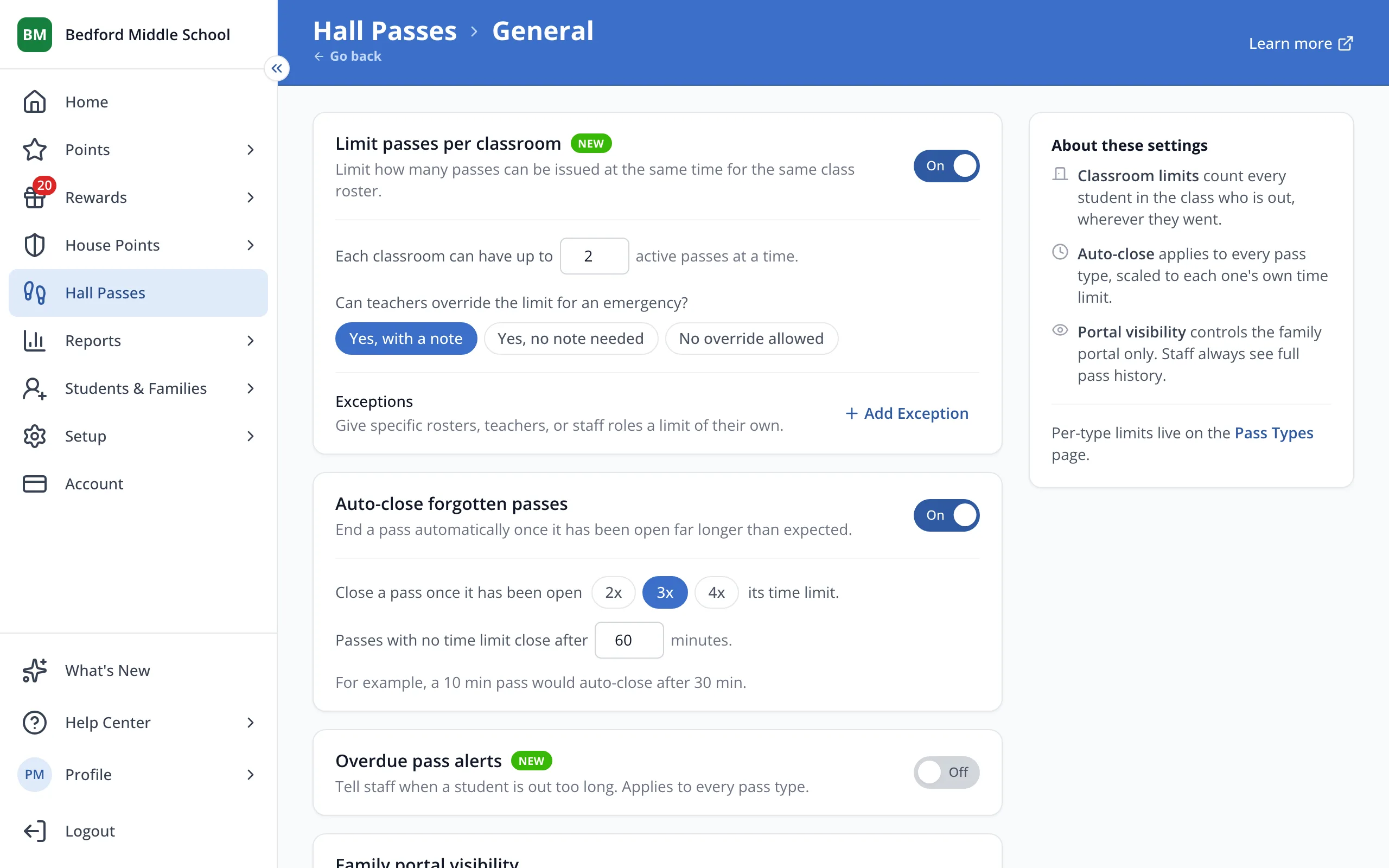
2.Turn on Limit passes per classroom.
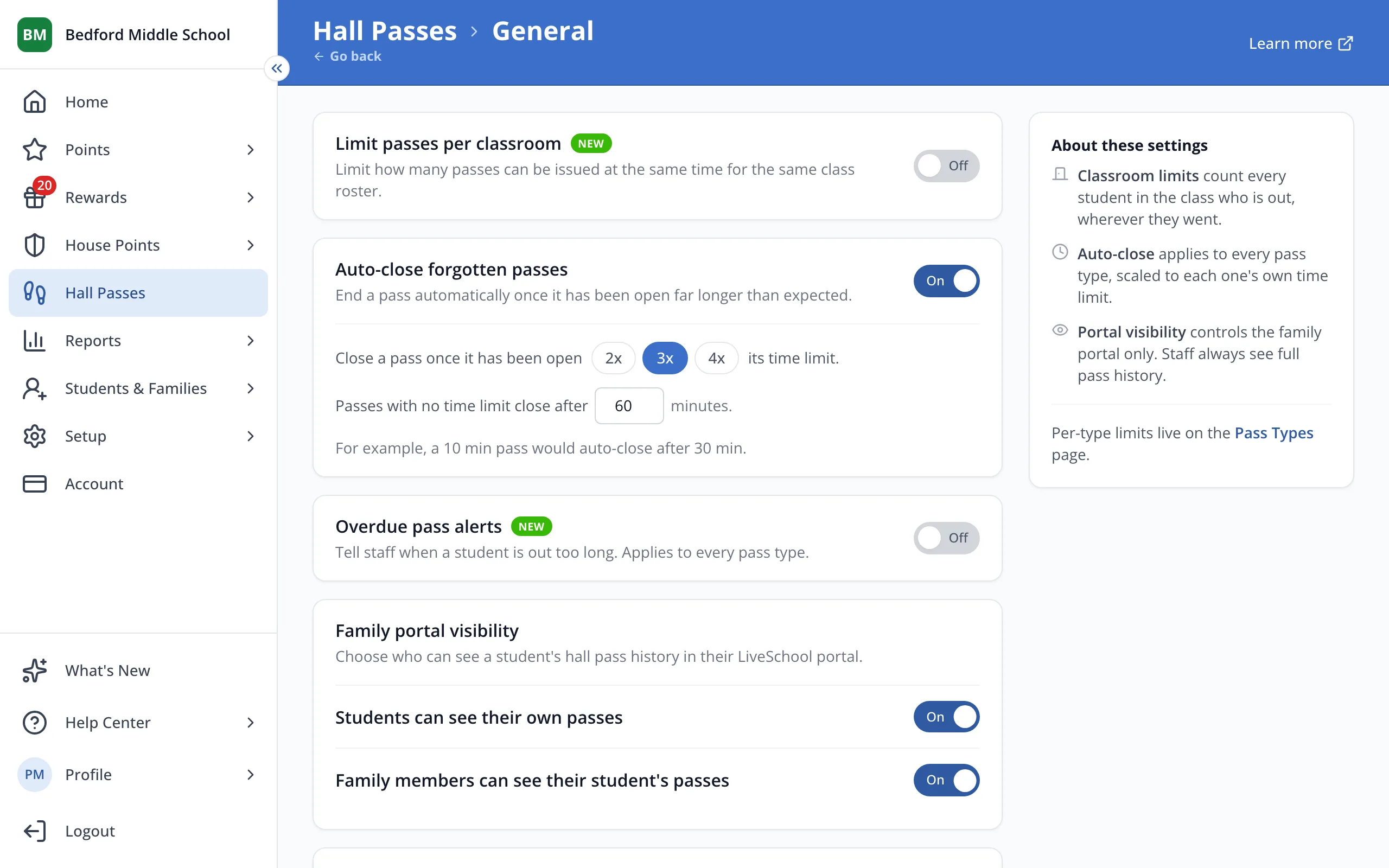
3.Type how many students from one class can be out at a time.
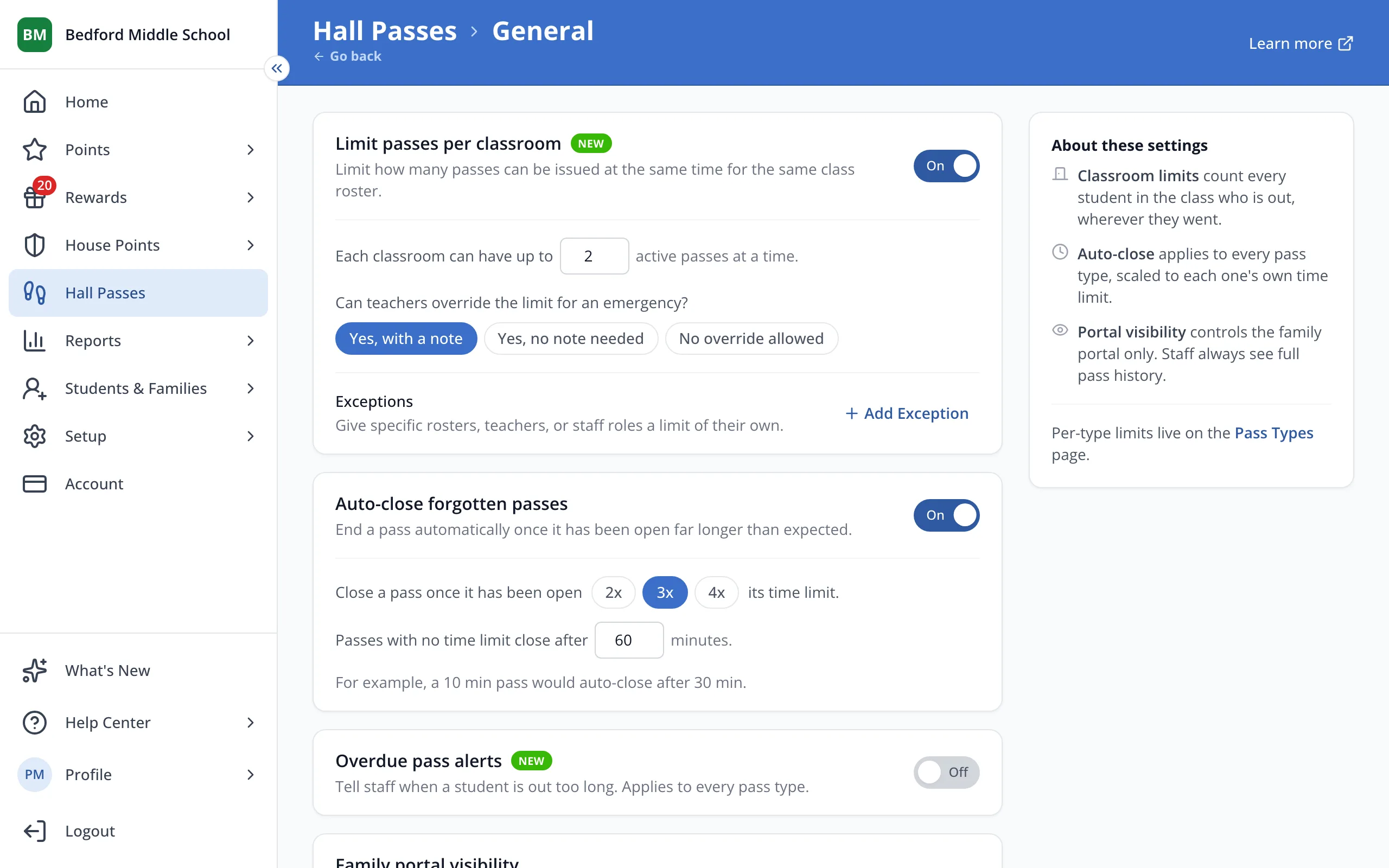
4.Choose whether teachers can go over the limit in an emergency.
Did you know? Classroom limits are only applied to passes started by a teacher or in kiosk mode. Passes started by a student in the student app do not have a classroom limit applied.