Set a different limit for a grade or a student
Grade limits replace the school-wide limit, and student limits replace both.
AdminSite Leader
Use the Left and Right arrow keys to move between steps, and Space to play or pause.
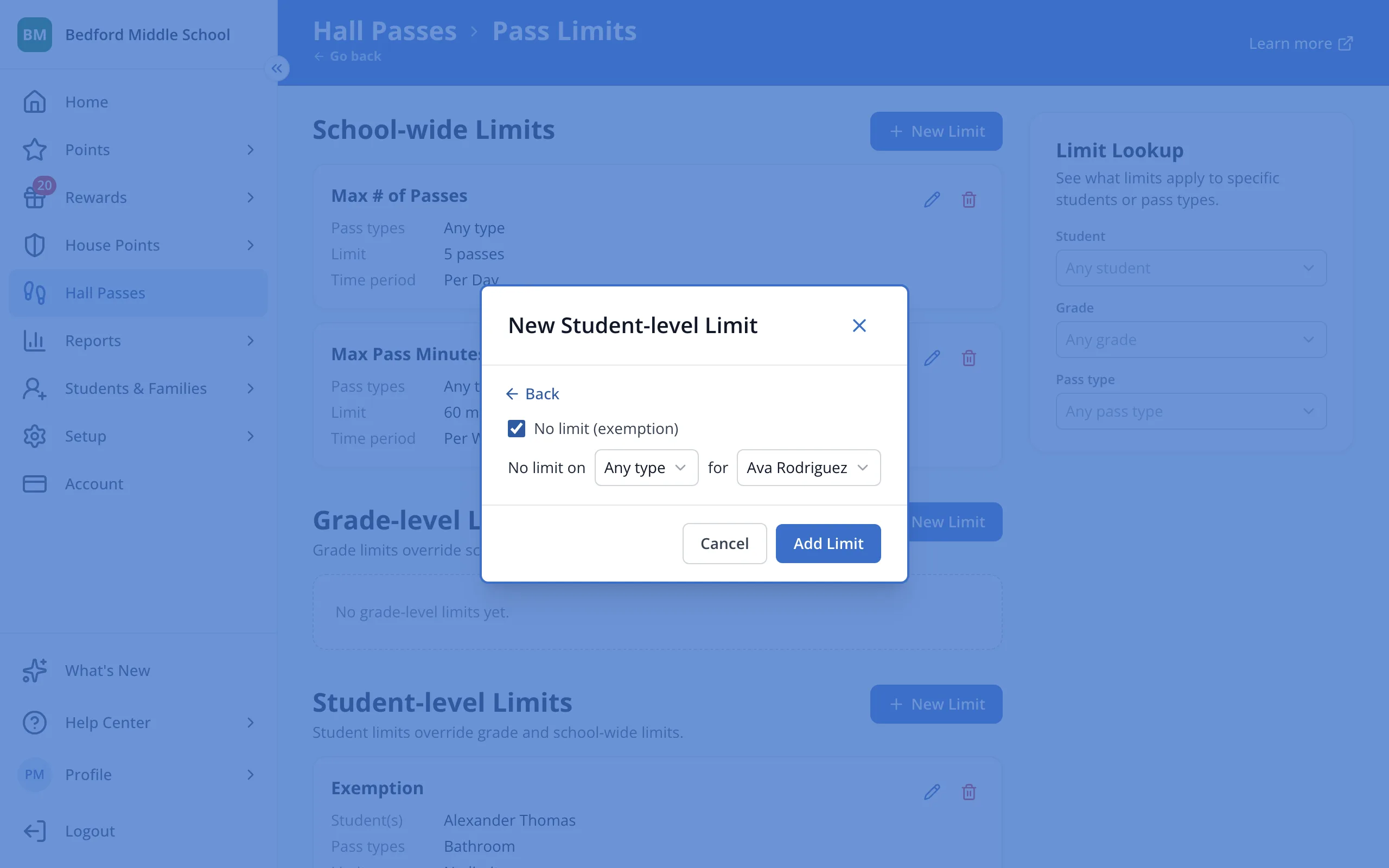
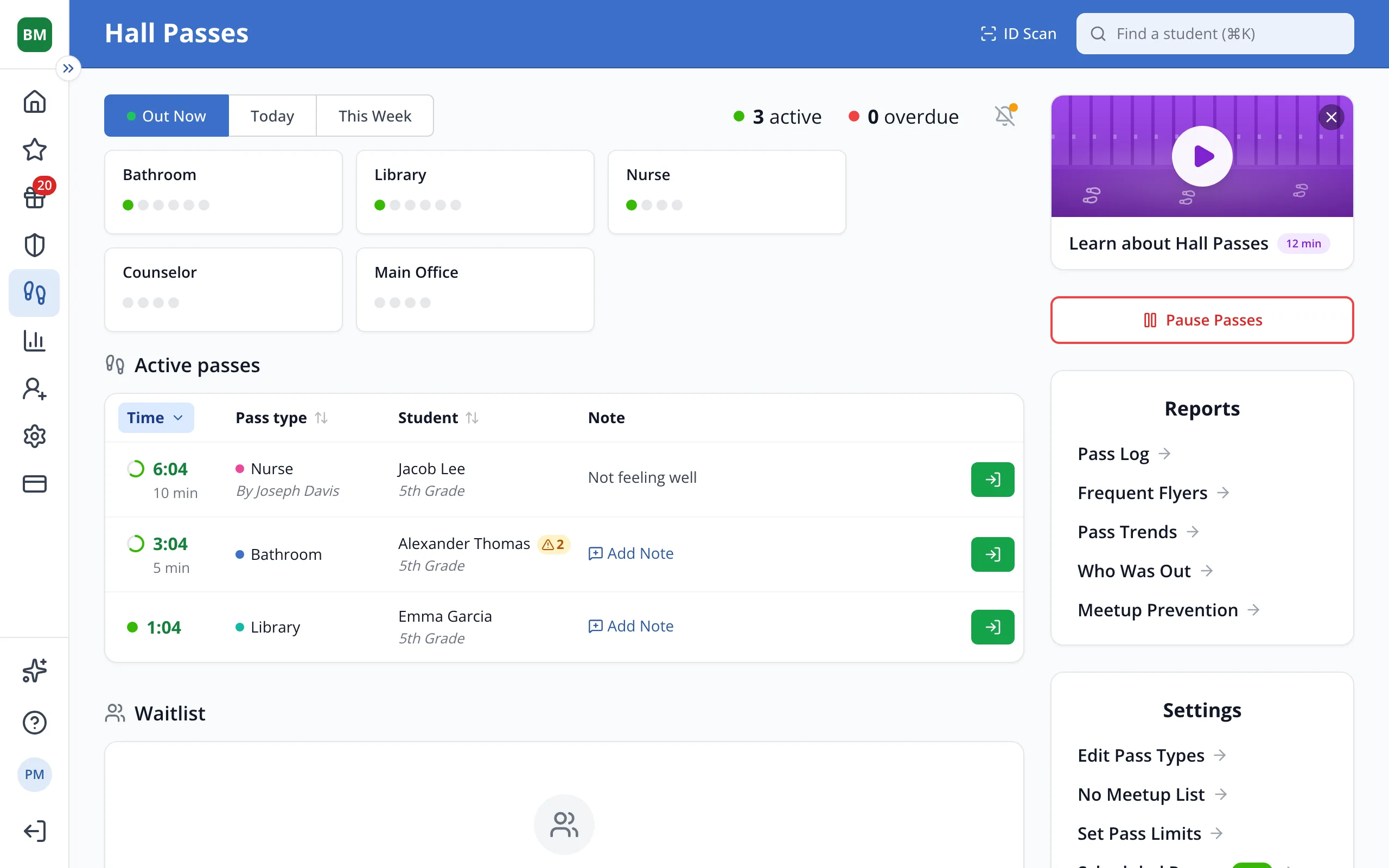
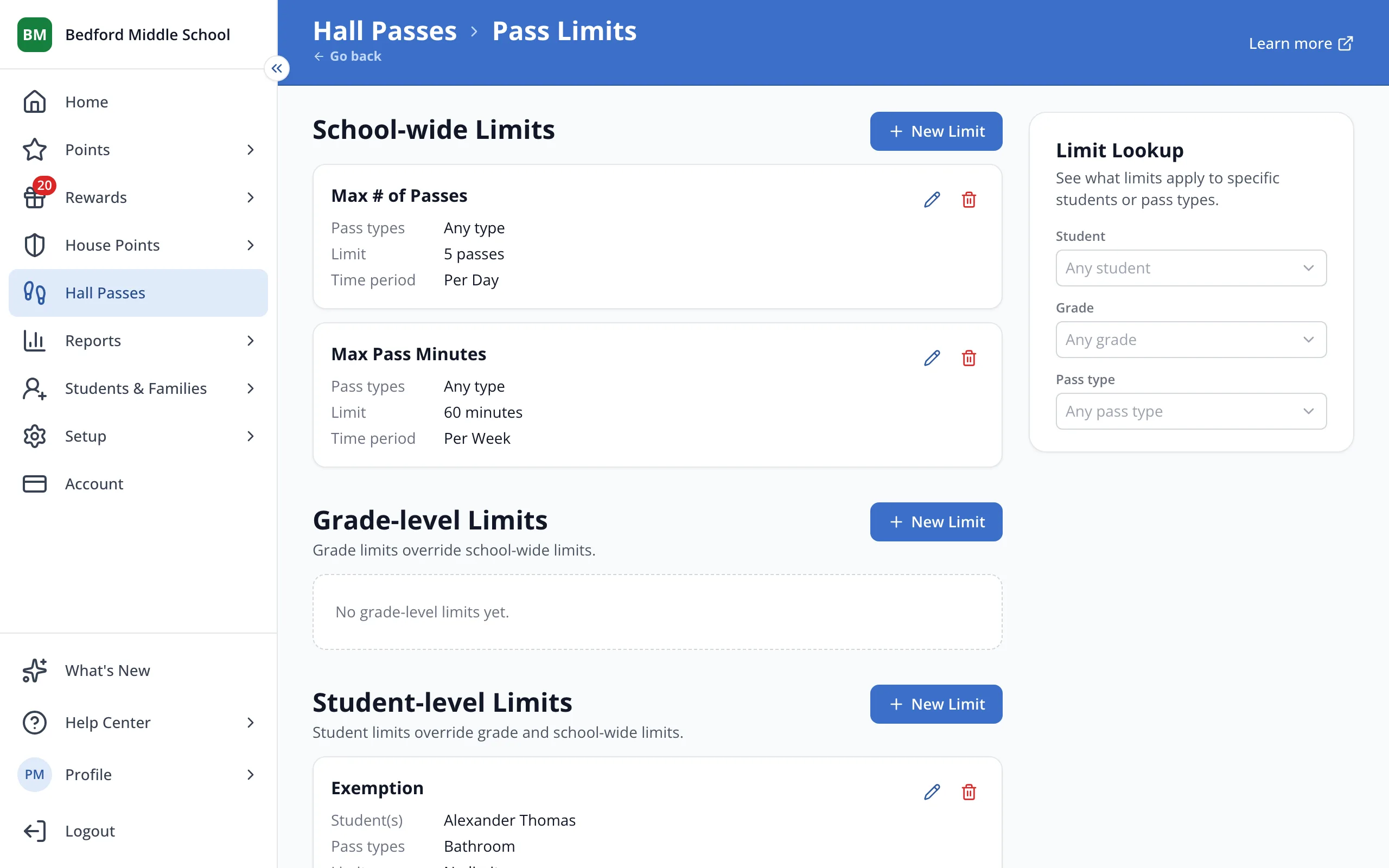
1.On the Hall Passes page, under Settings, click Set Pass Limits.
Did you know? On a smaller screen, click More to find these links.
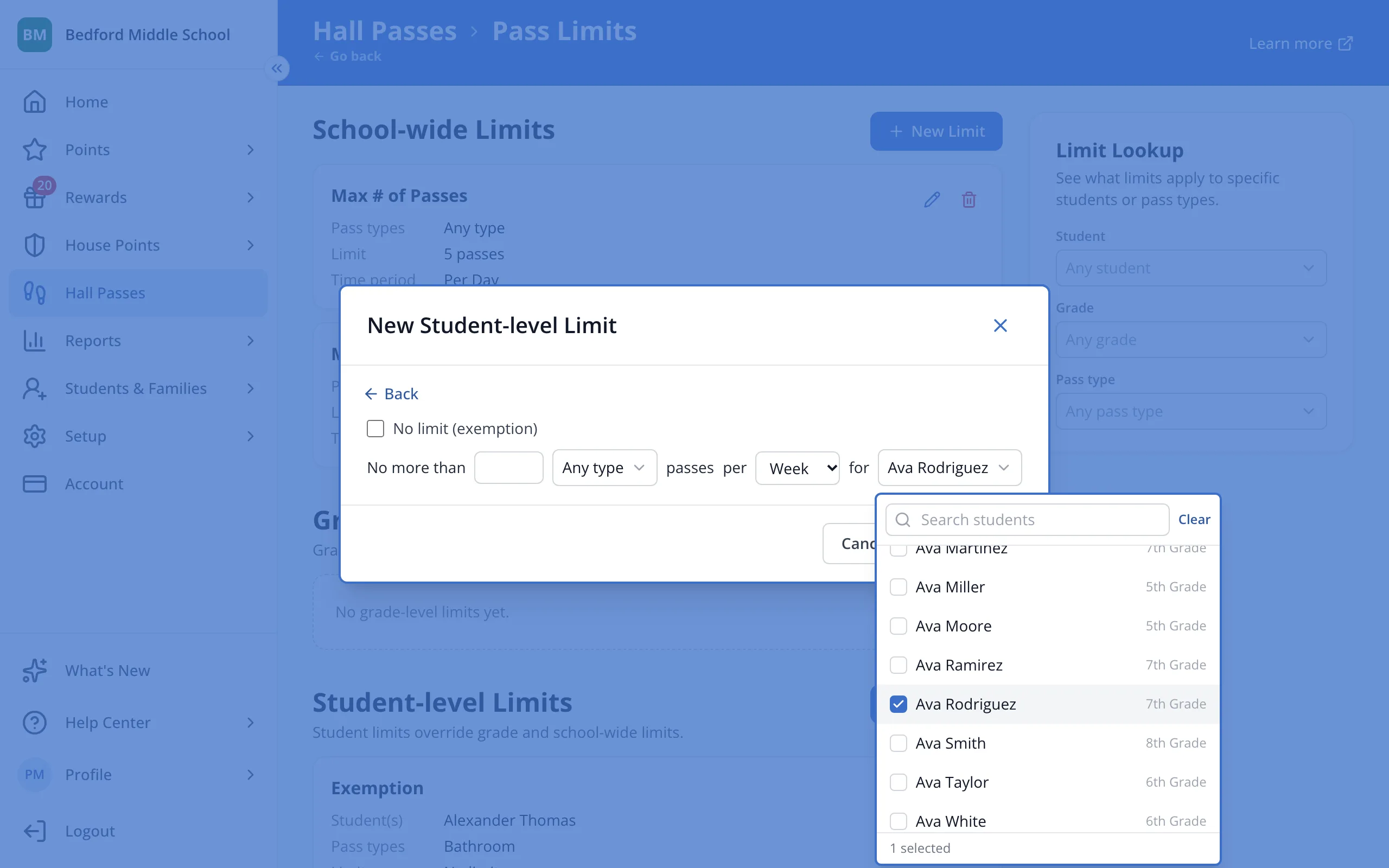
2.Under Student-level Limits, click New Limit. For a grade, use New Limit under Grade-level Limits.
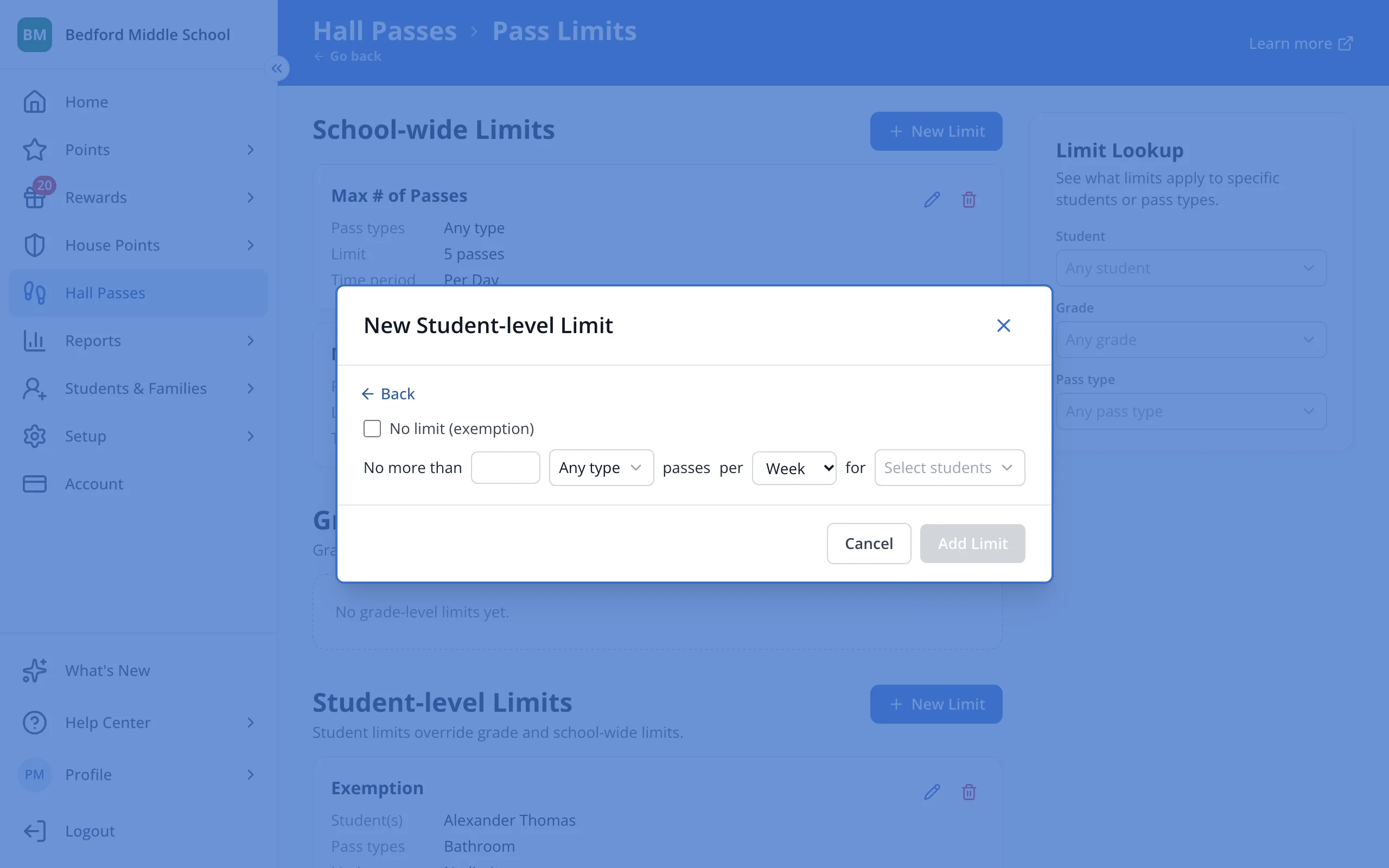
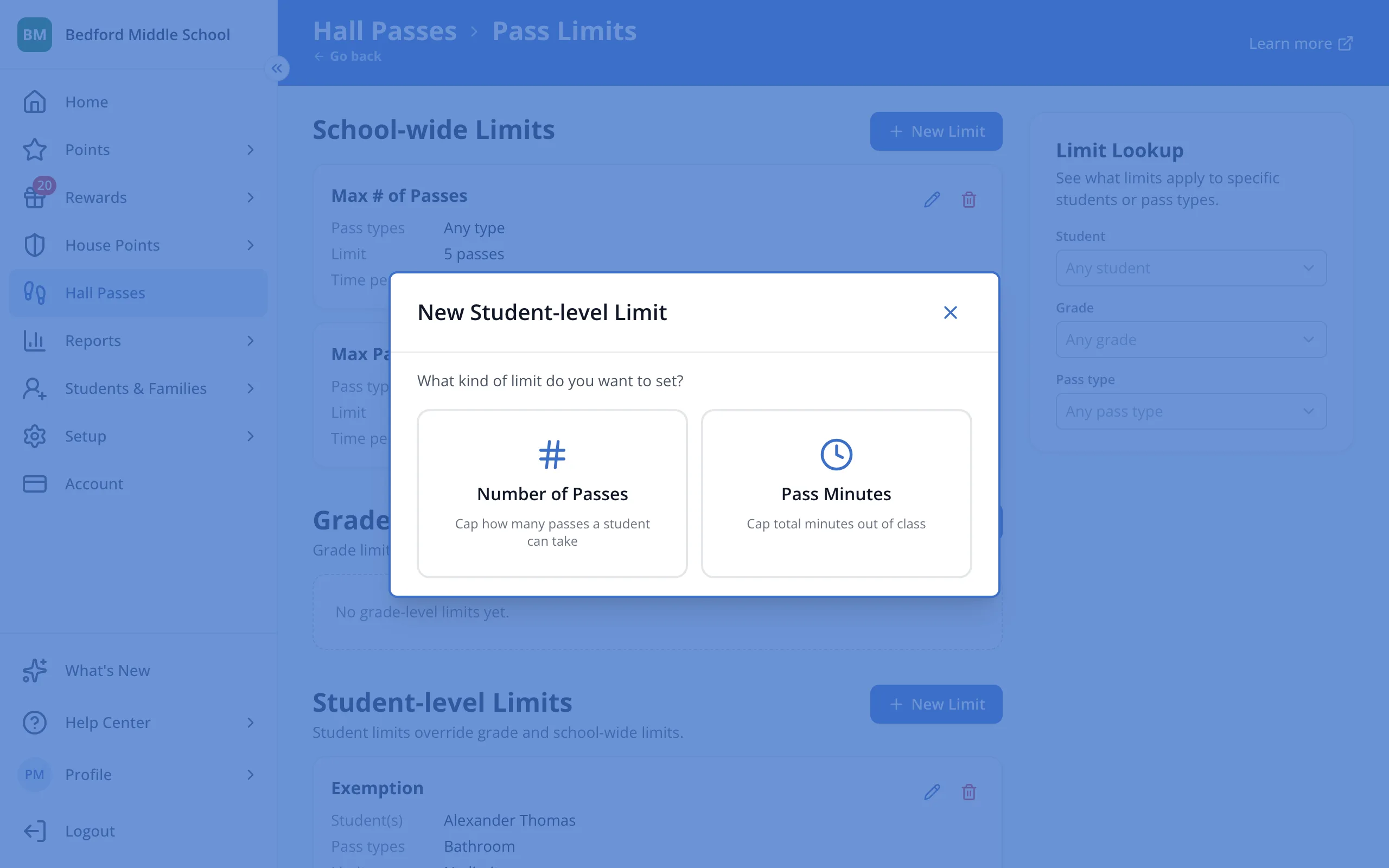
3.Click Number of Passes, or Pass Minutes to limit time out.
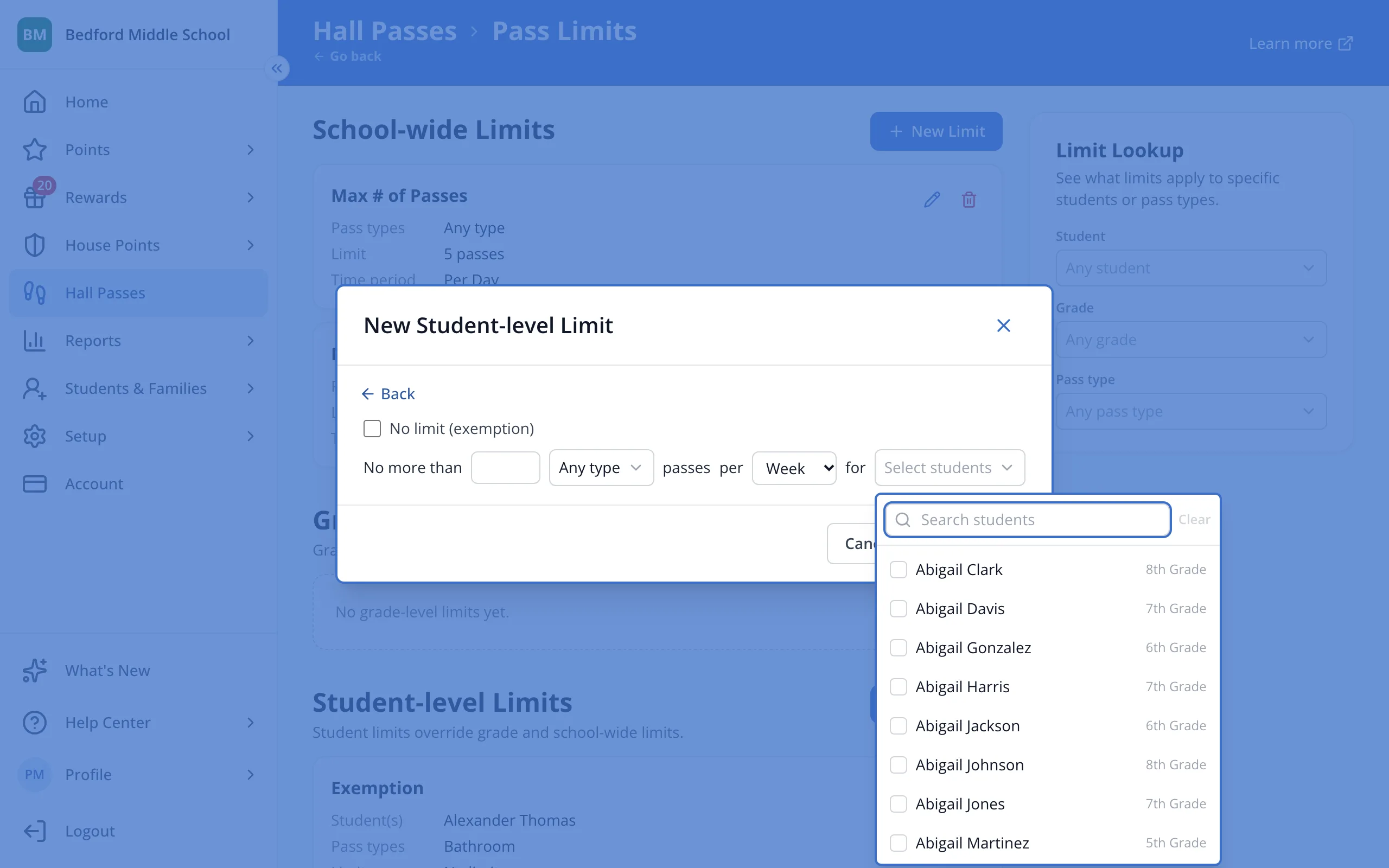
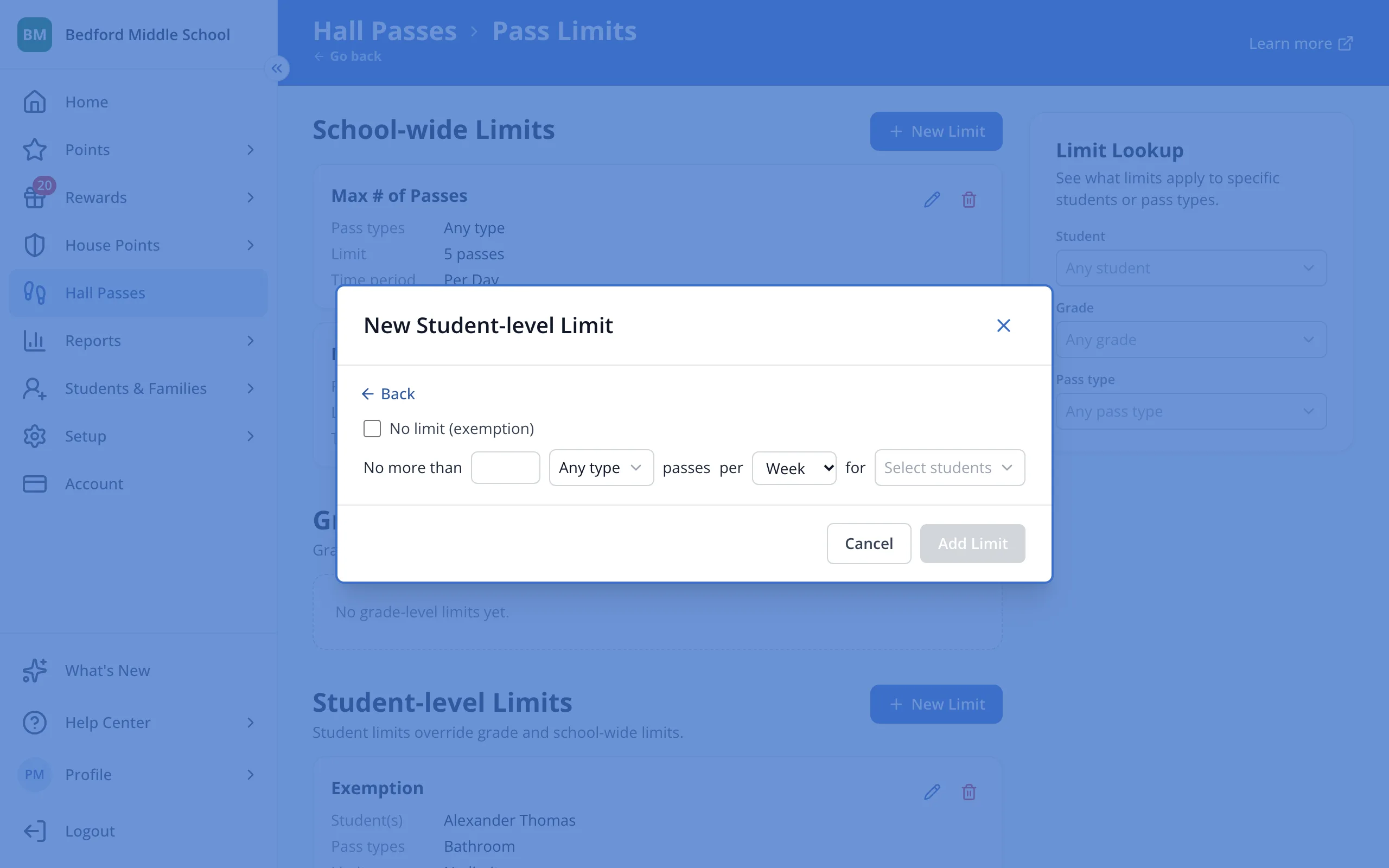
4.Click Select students.
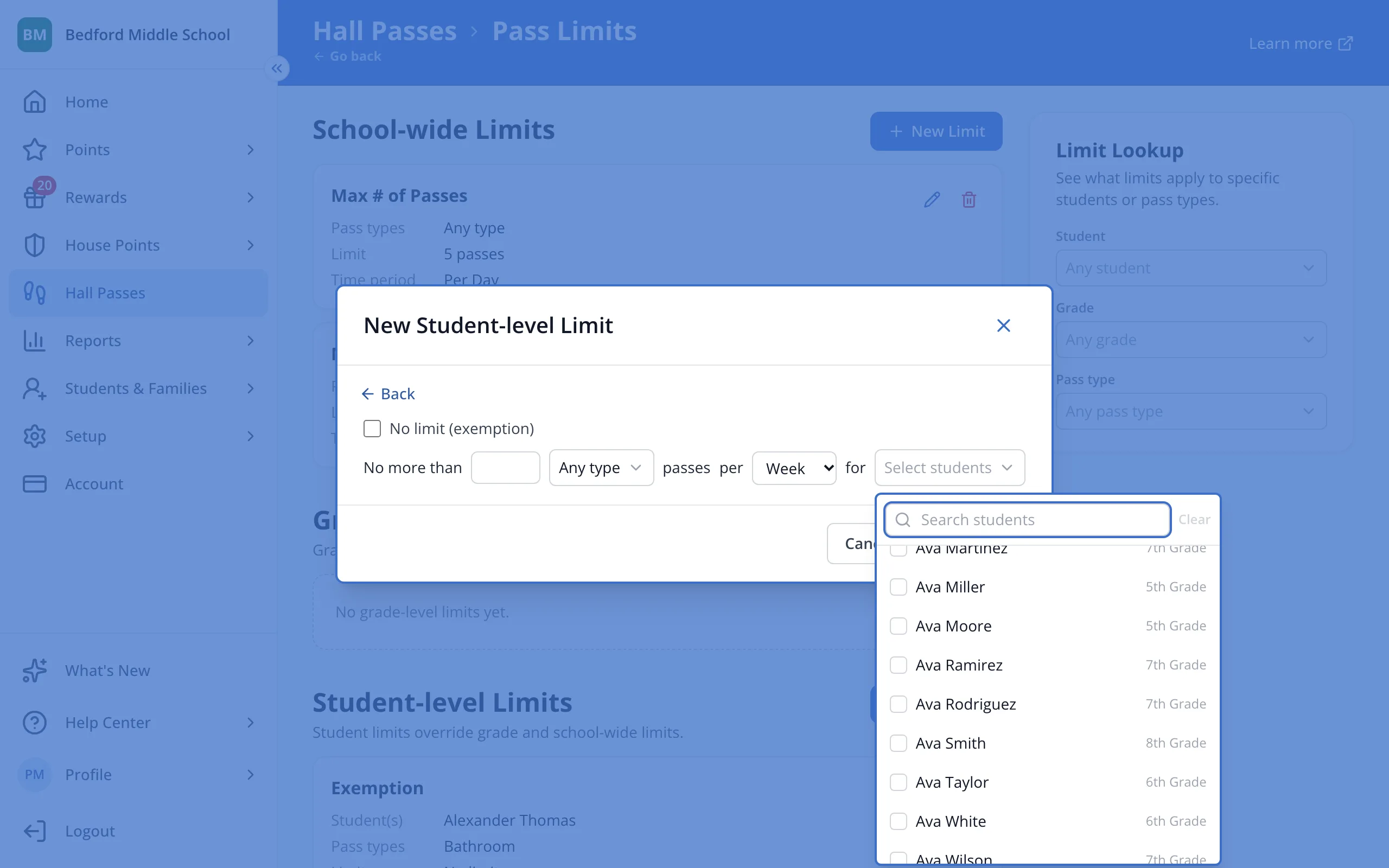
5.Click the student.
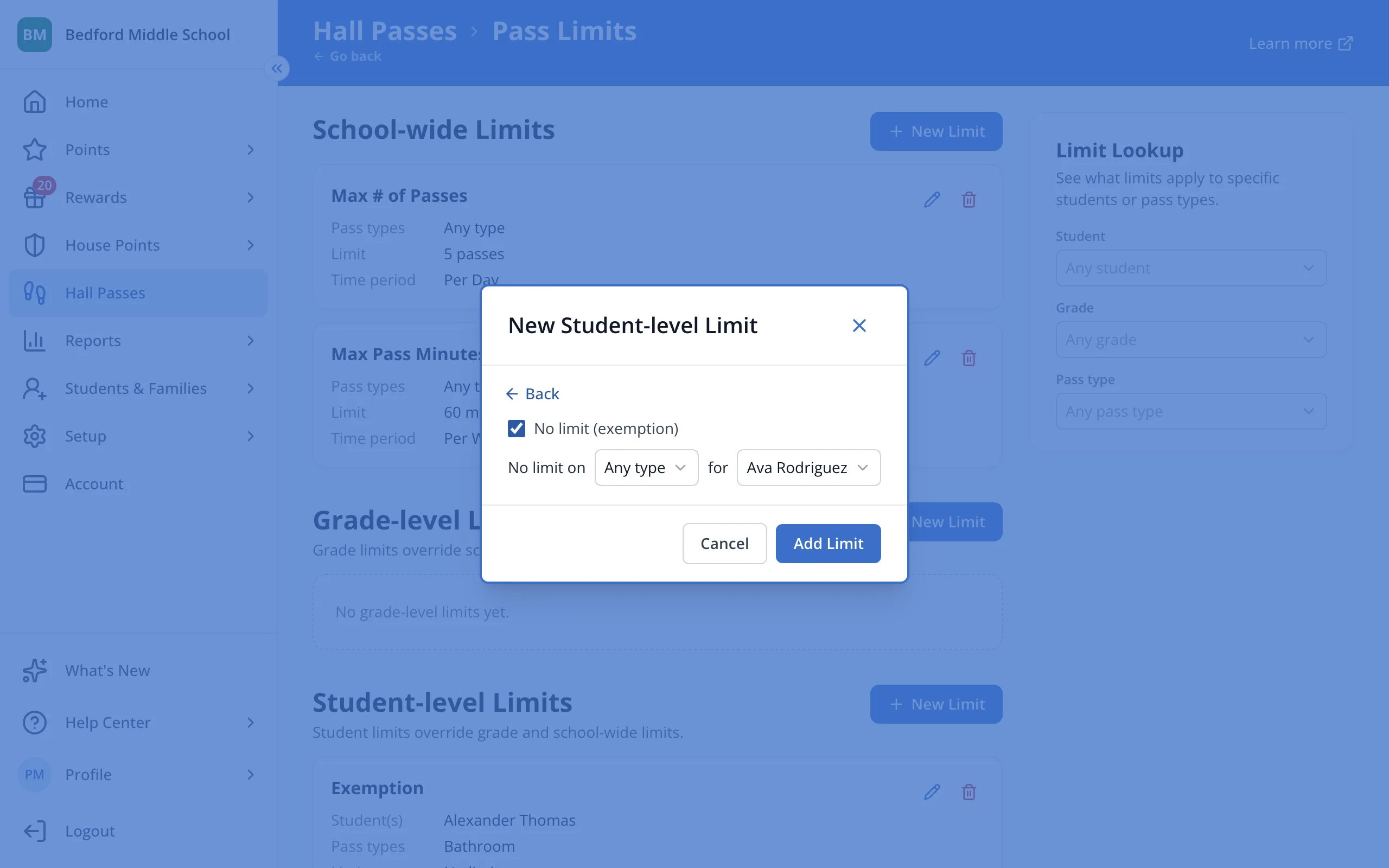
6.Click No limit (exemption), or type a different amount.
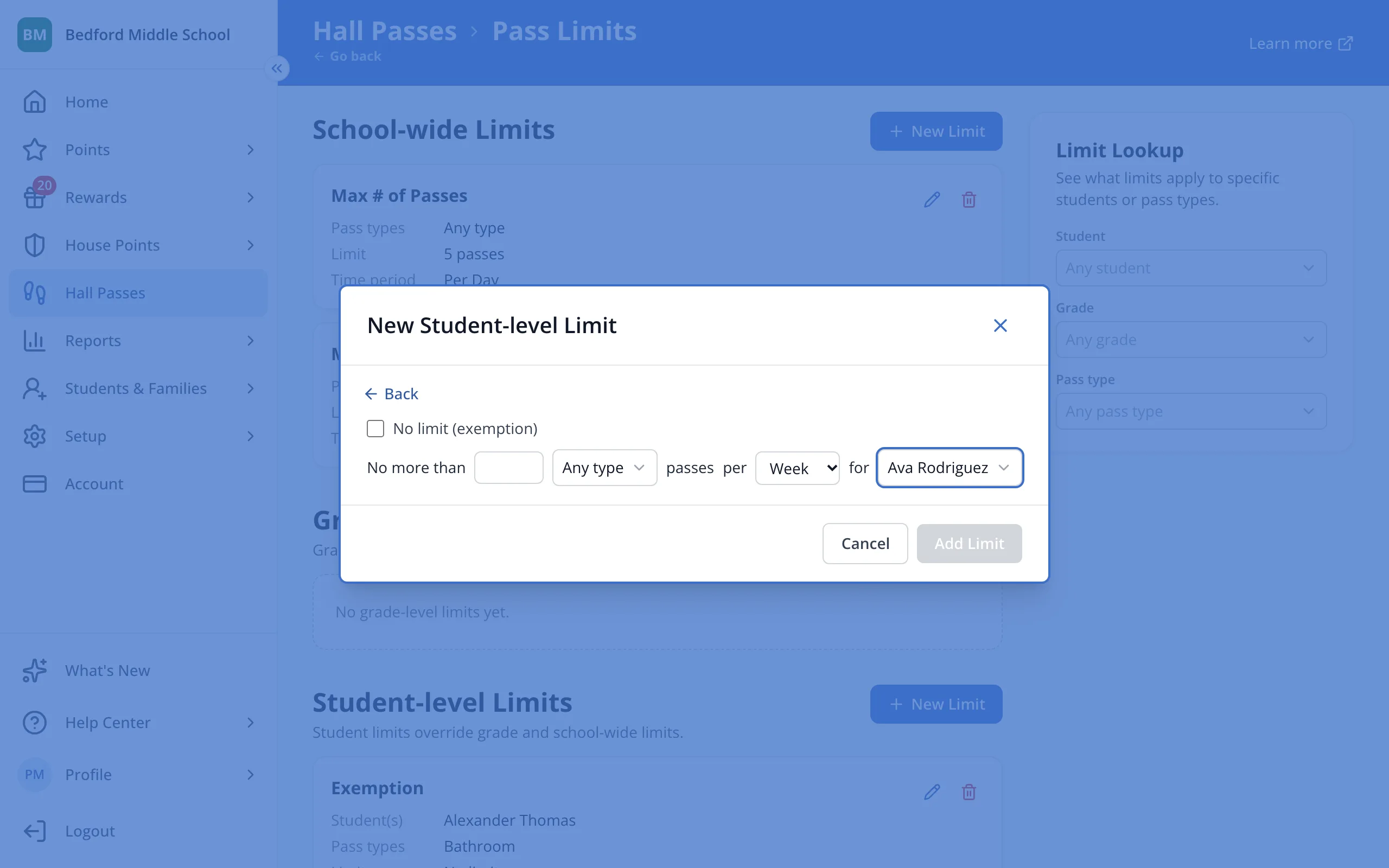
7.Click Add Limit.