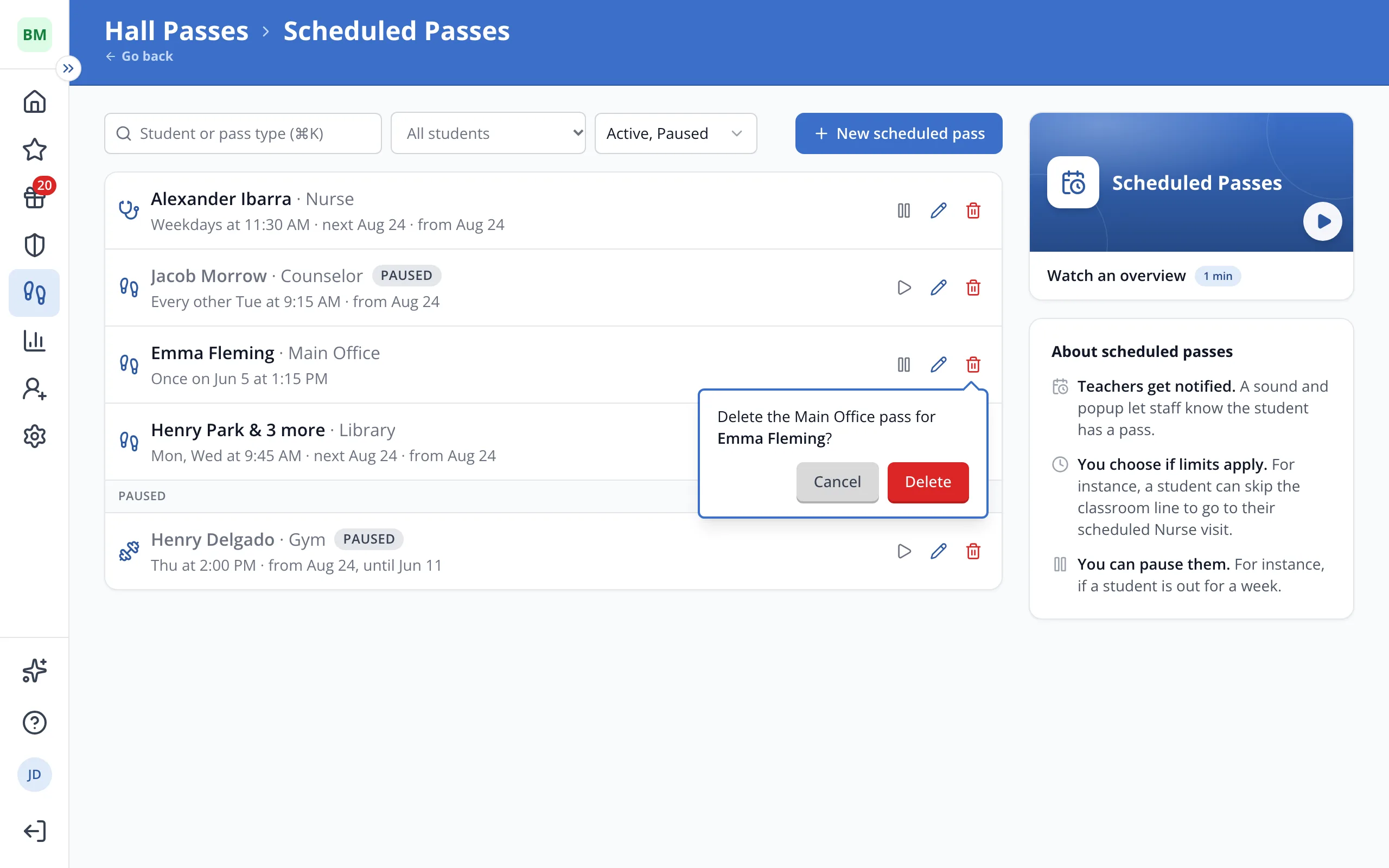
Pause, edit or delete a scheduled pass
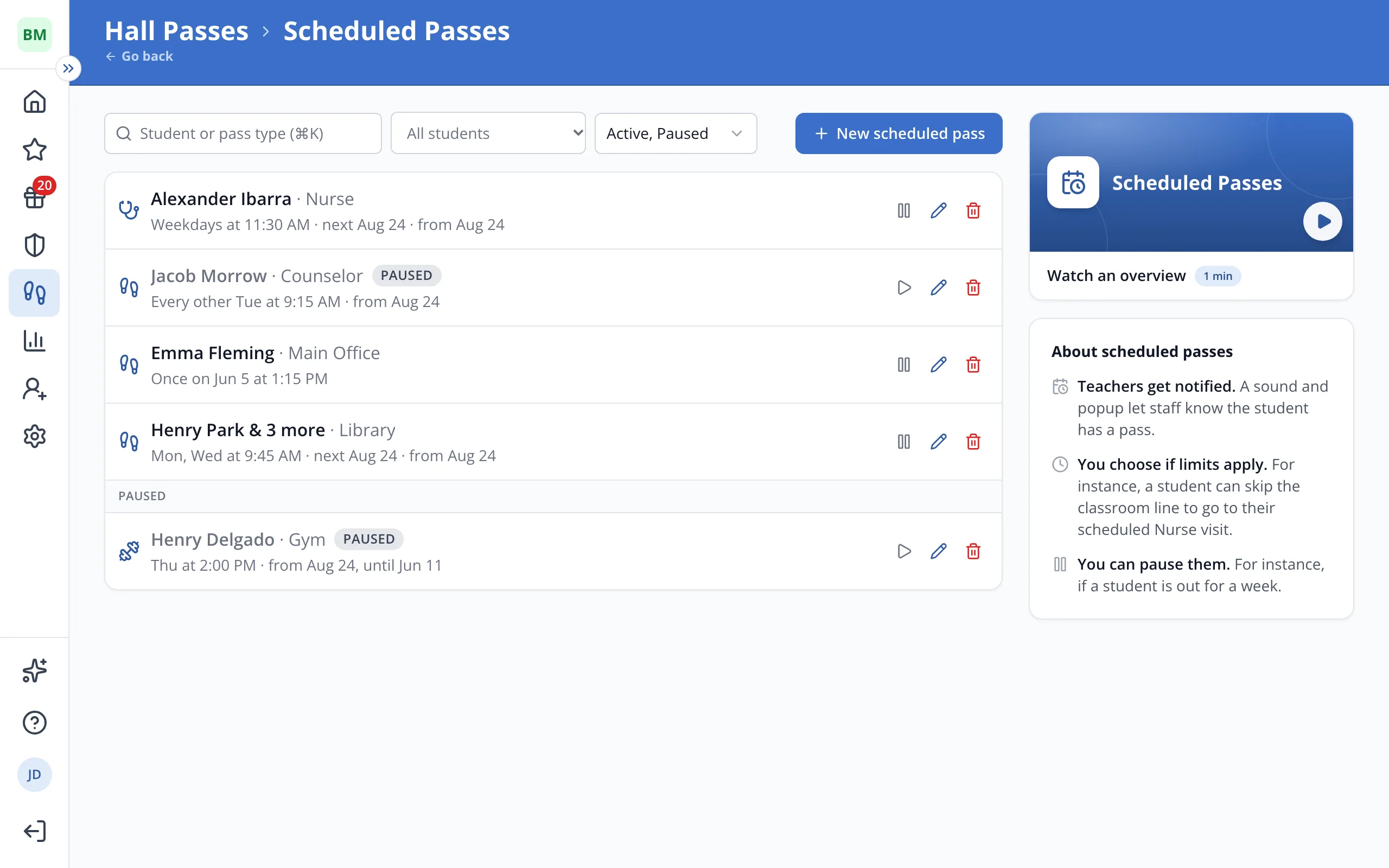
Pause a pass while a student is away, like out sick for a week. A paused pass keeps its schedule.
AdminSite Leader
Use the Left and Right arrow keys to move between steps, and Space to play or pause.
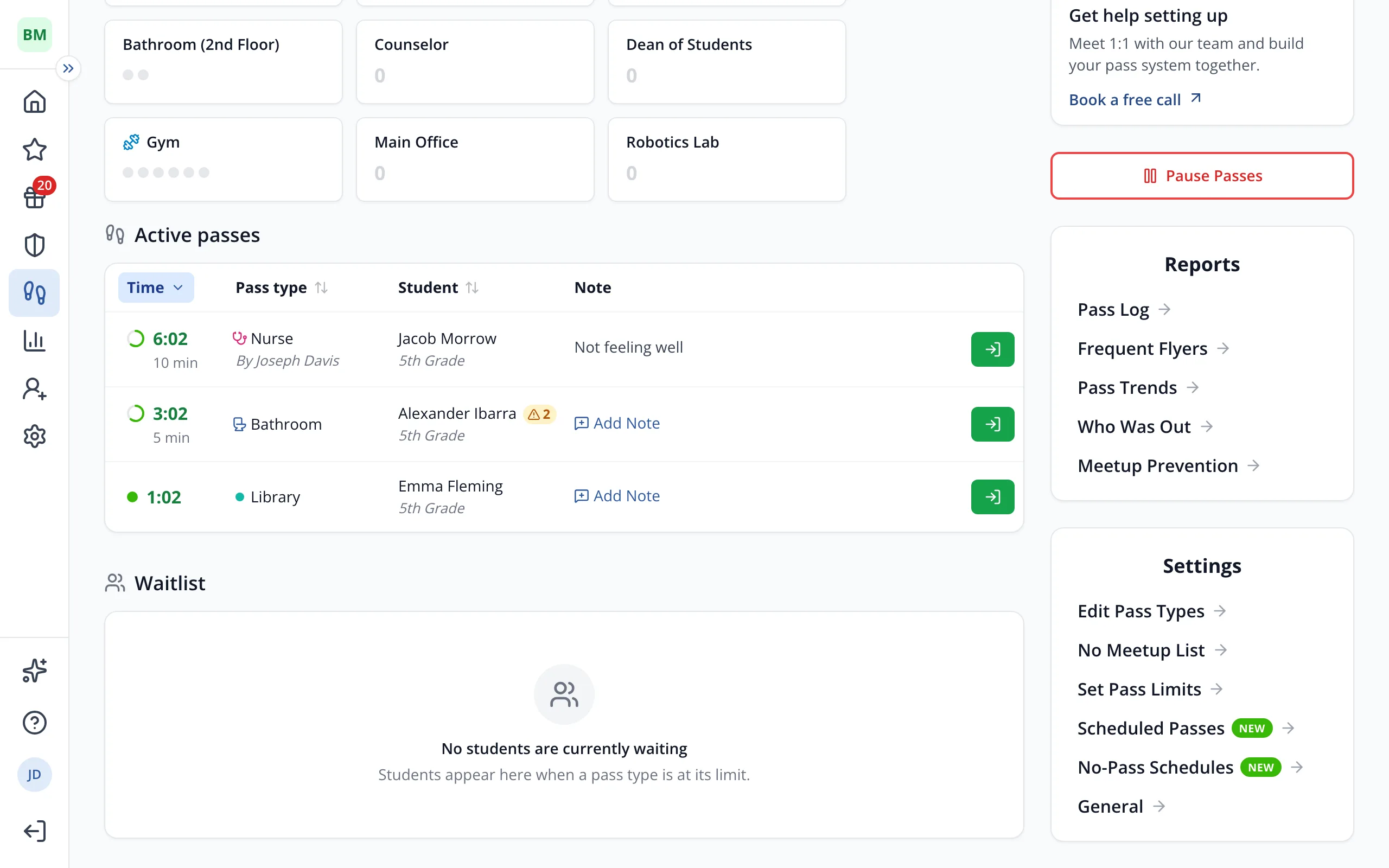
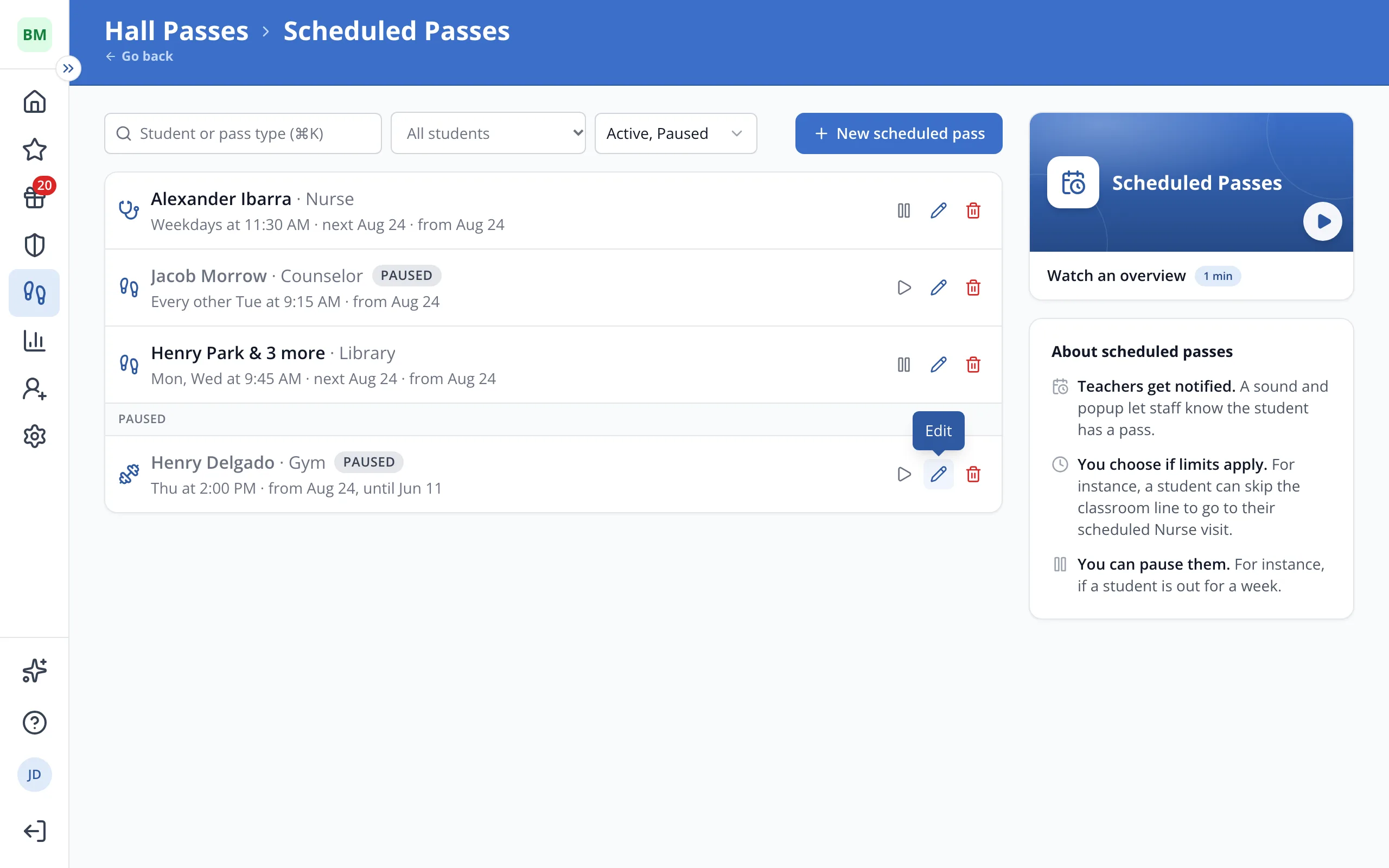
1.On the Hall Passes page, under Settings, click Scheduled Passes.
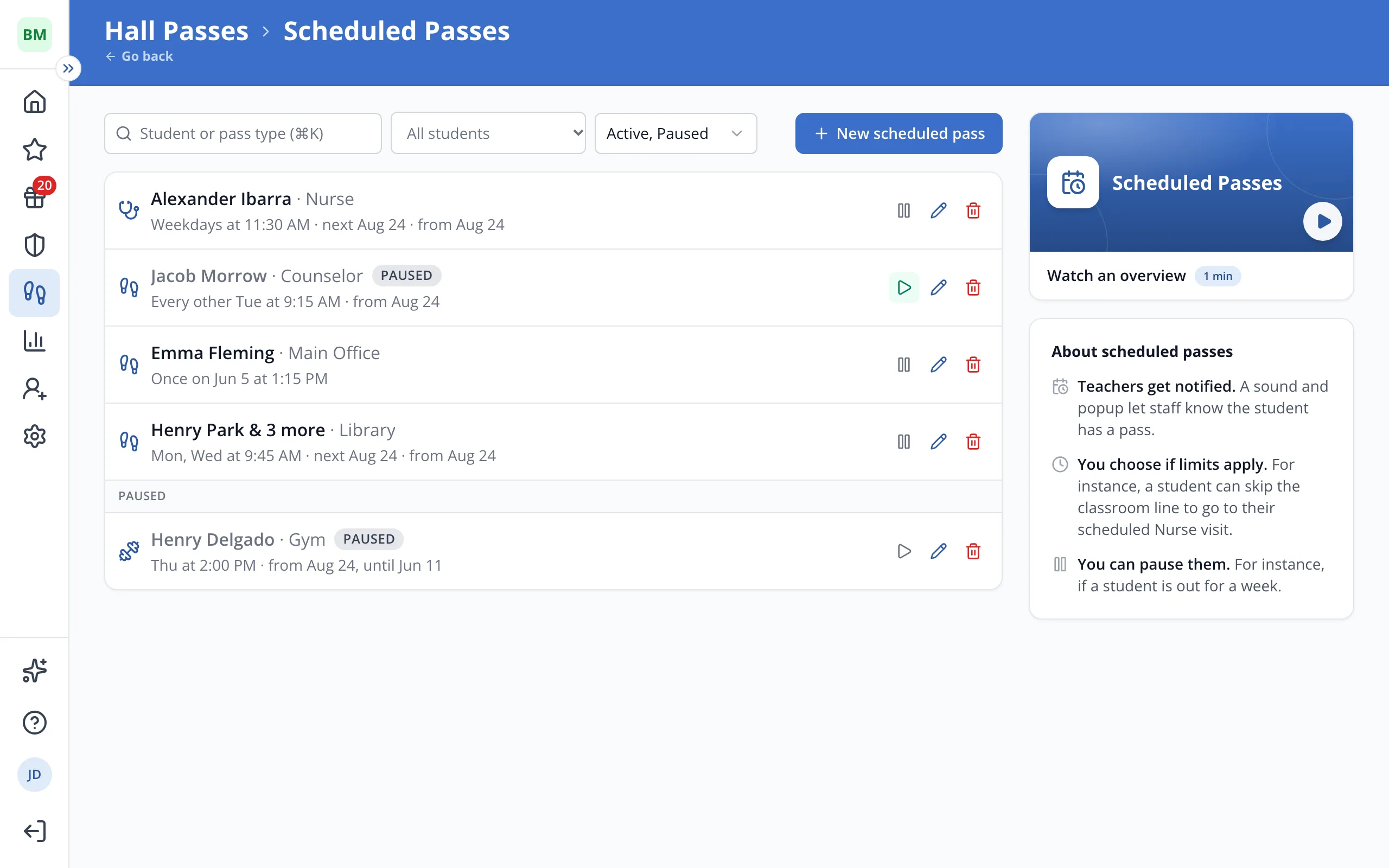
2.Next to the pass, click Pause to stop it for a while.
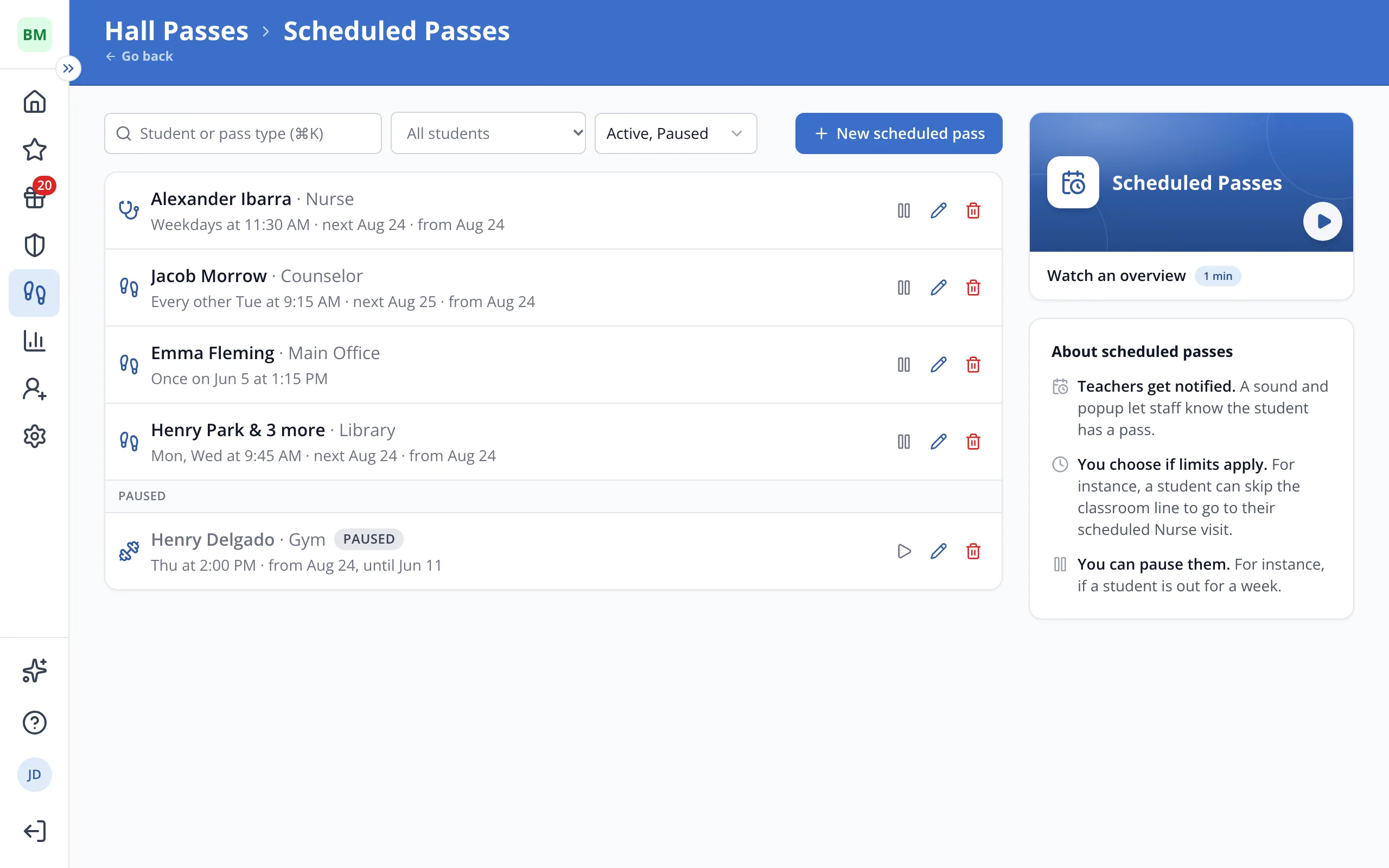
3.Click Resume when you'd like the pass to start again.
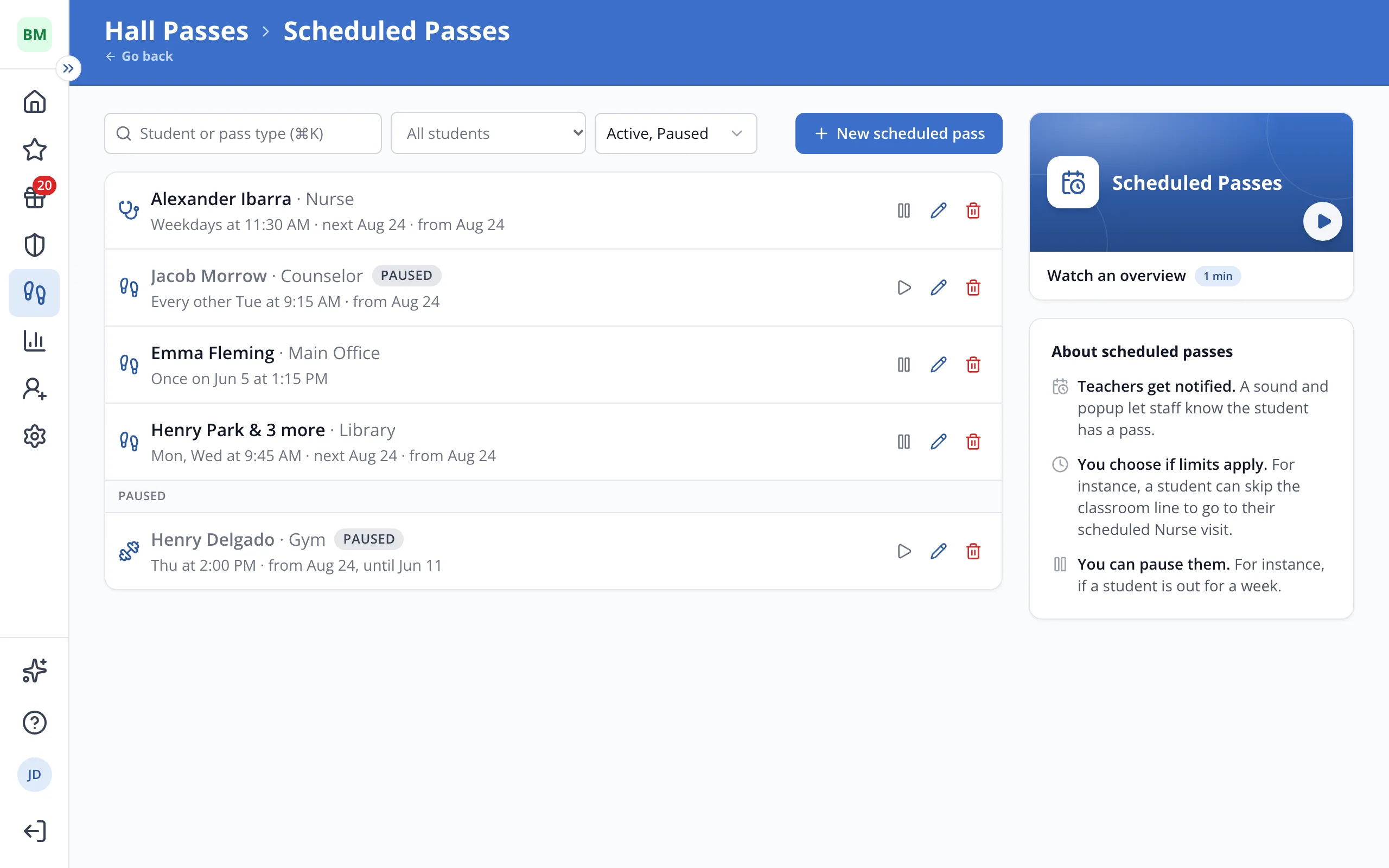
4.Click Edit next to a pass to change its students, days or times.
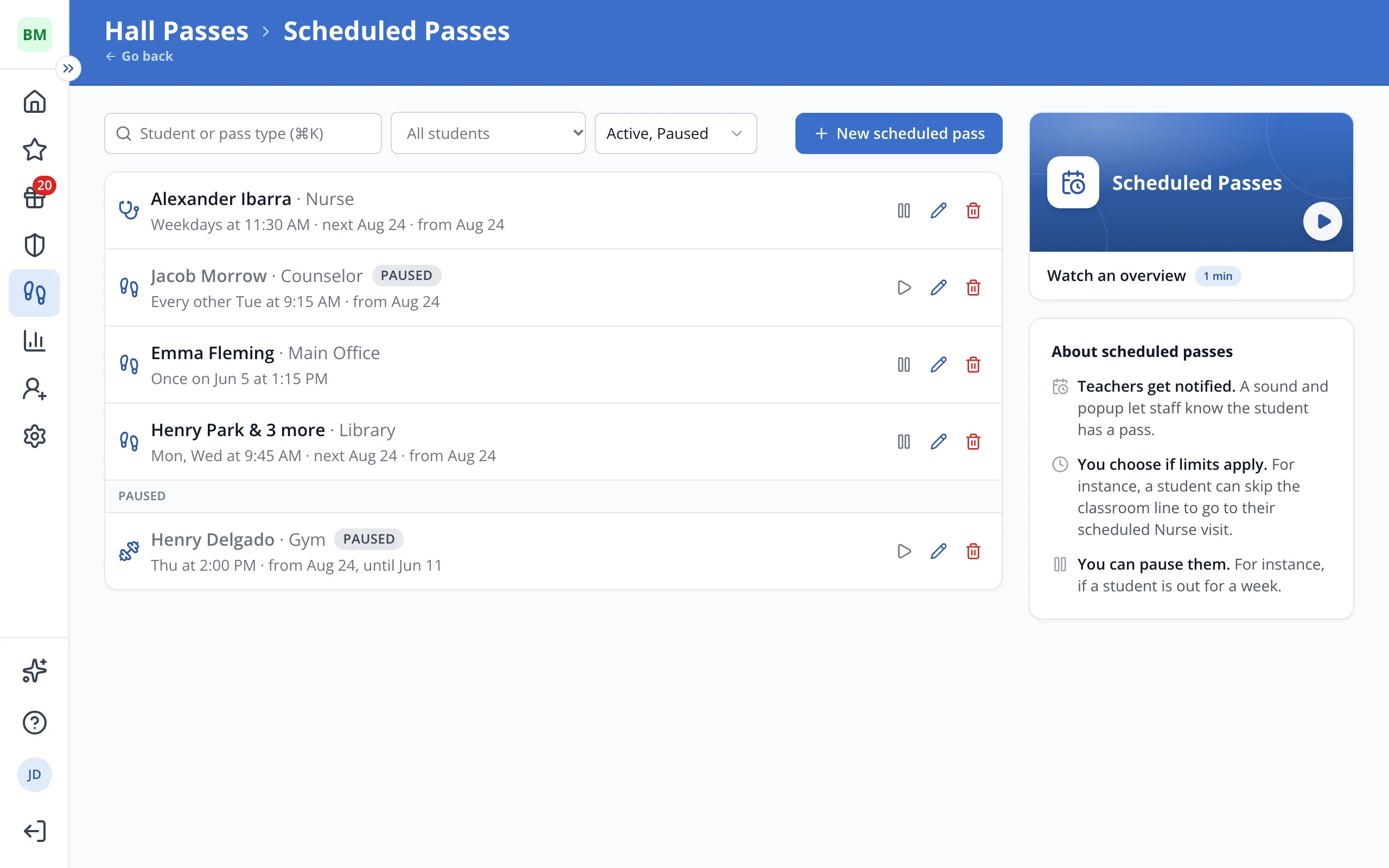
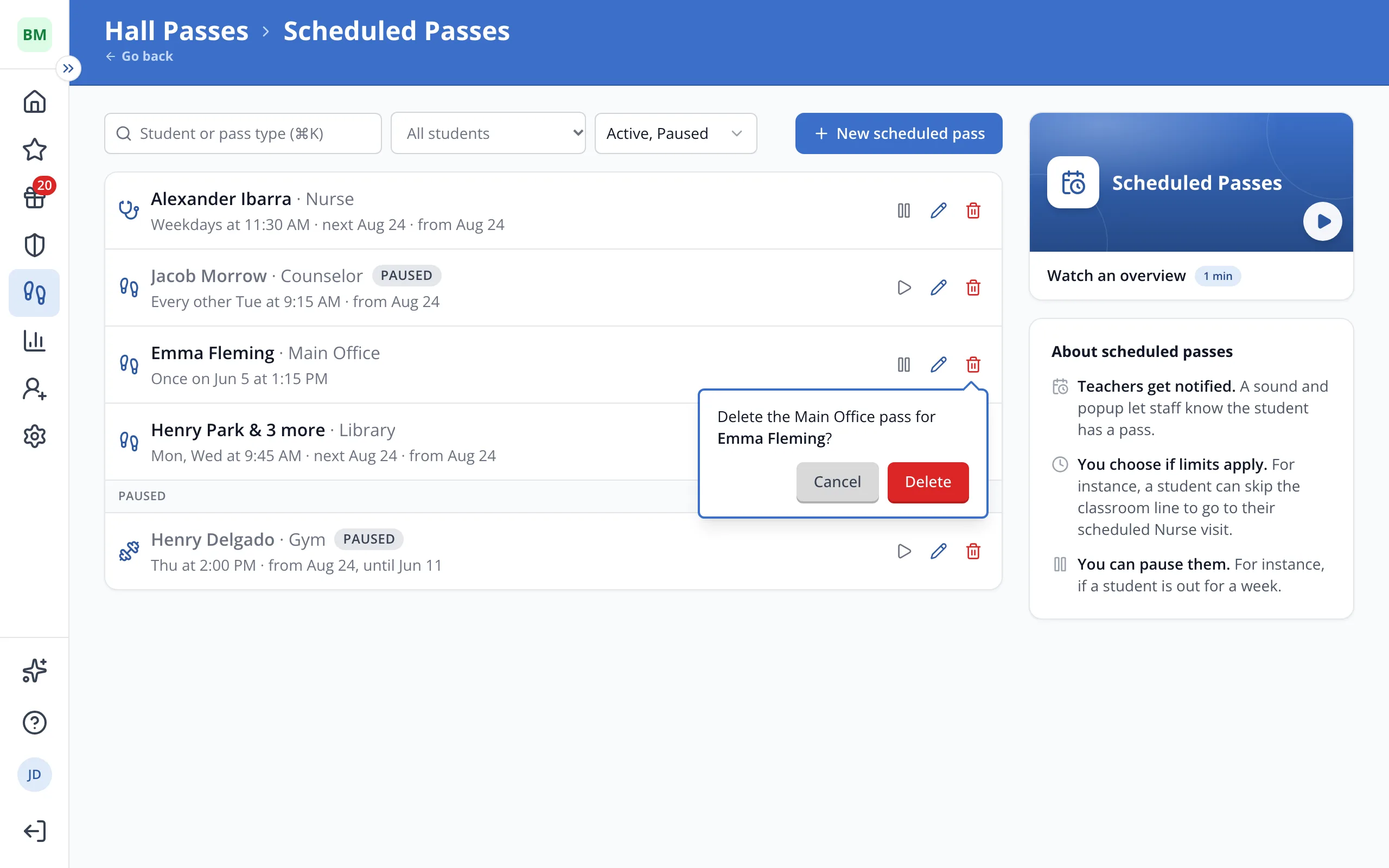
5.To delete a pass, click Delete next to it.
6.Click Delete again to confirm.