
Import points from a spreadsheet
Add points to many students' Bank Accounts at once from a spreadsheet, or set each Bank Account to an exact amount.
AdminSite Leader
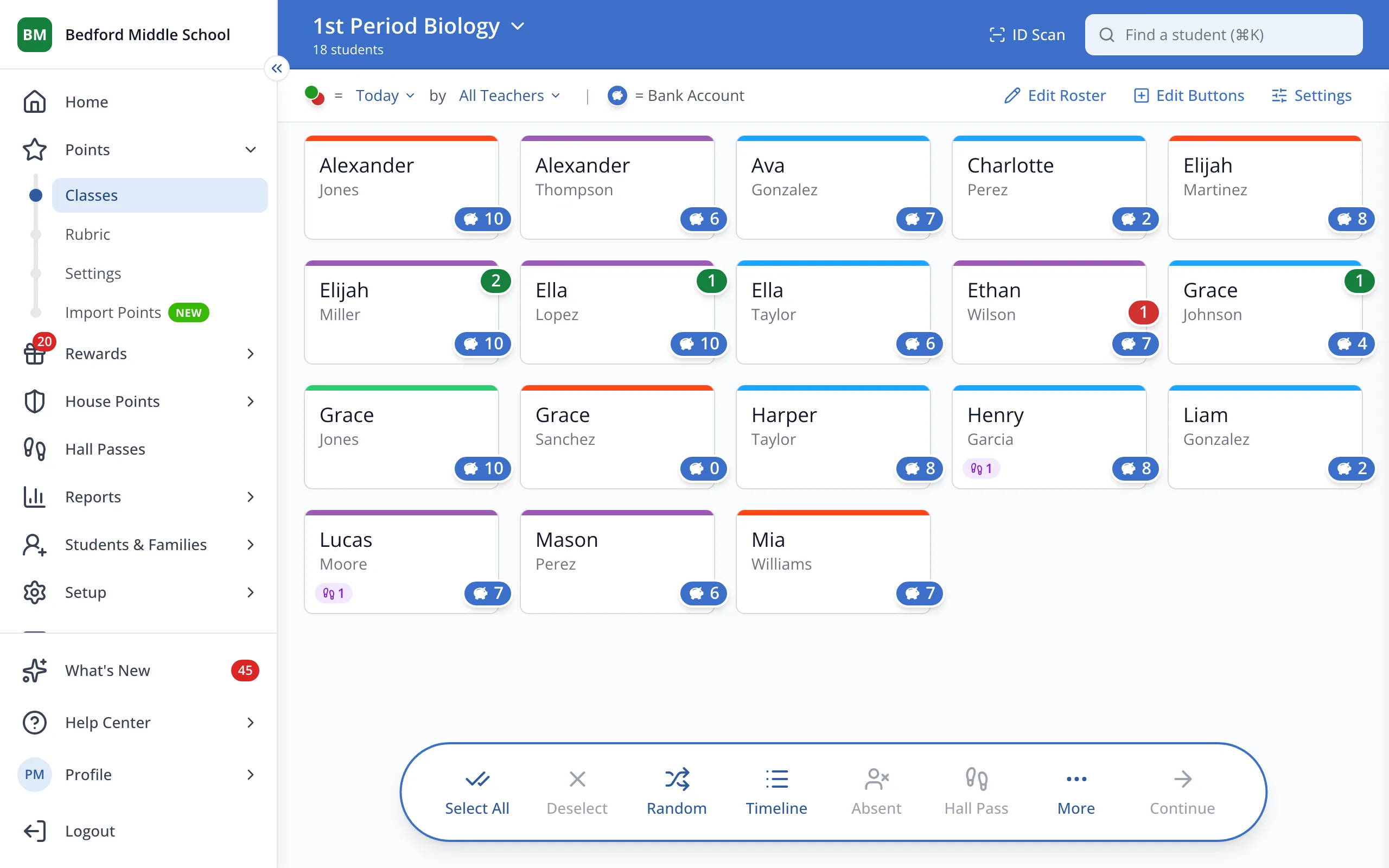
1 / 6In the sidebar, under Points, click Import Points.
1.In the sidebar, under Points, click Import Points.
2.Drag your spreadsheet onto the box, or click it to choose a file.
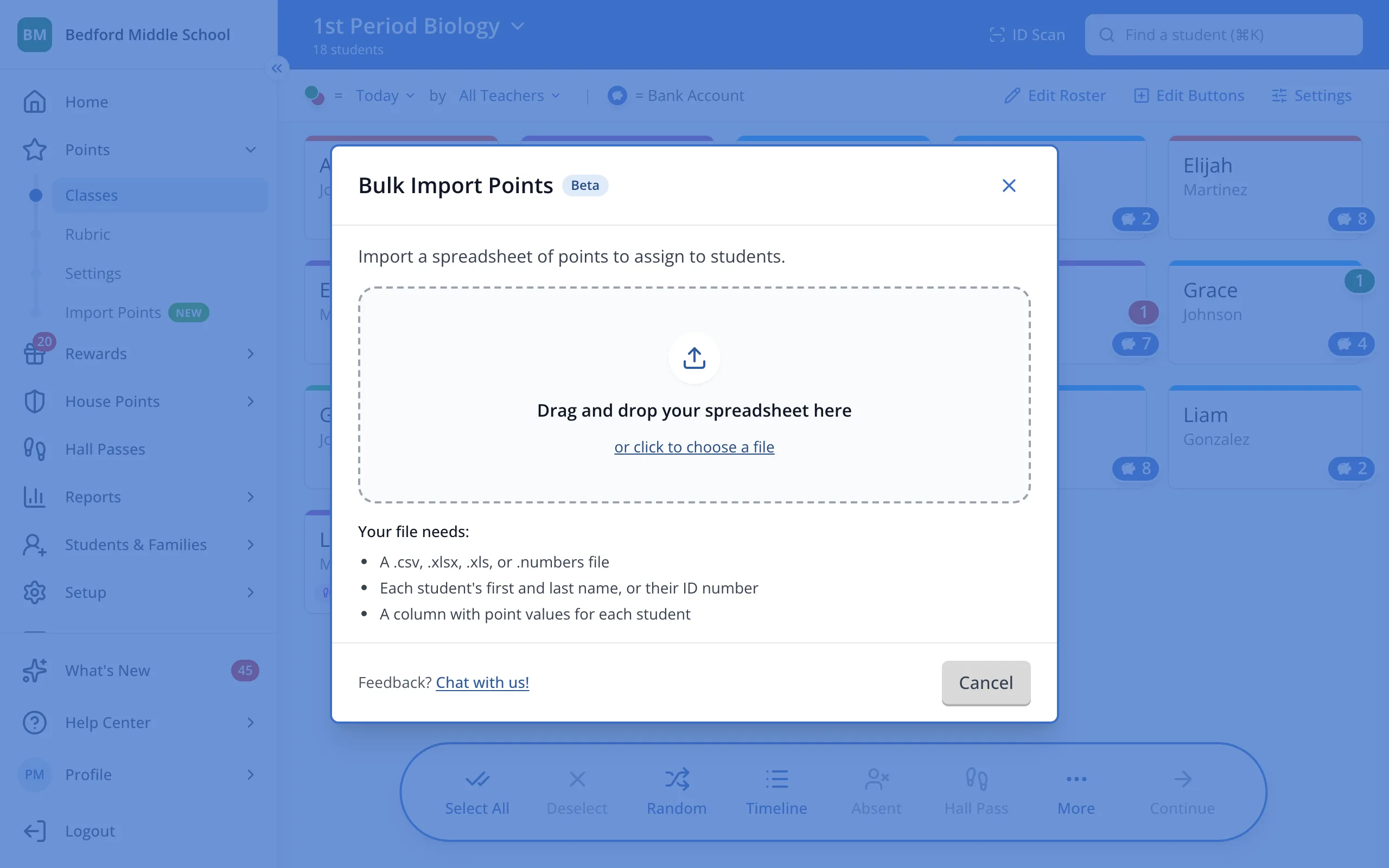
3.Check how many students matched, then click Continue.

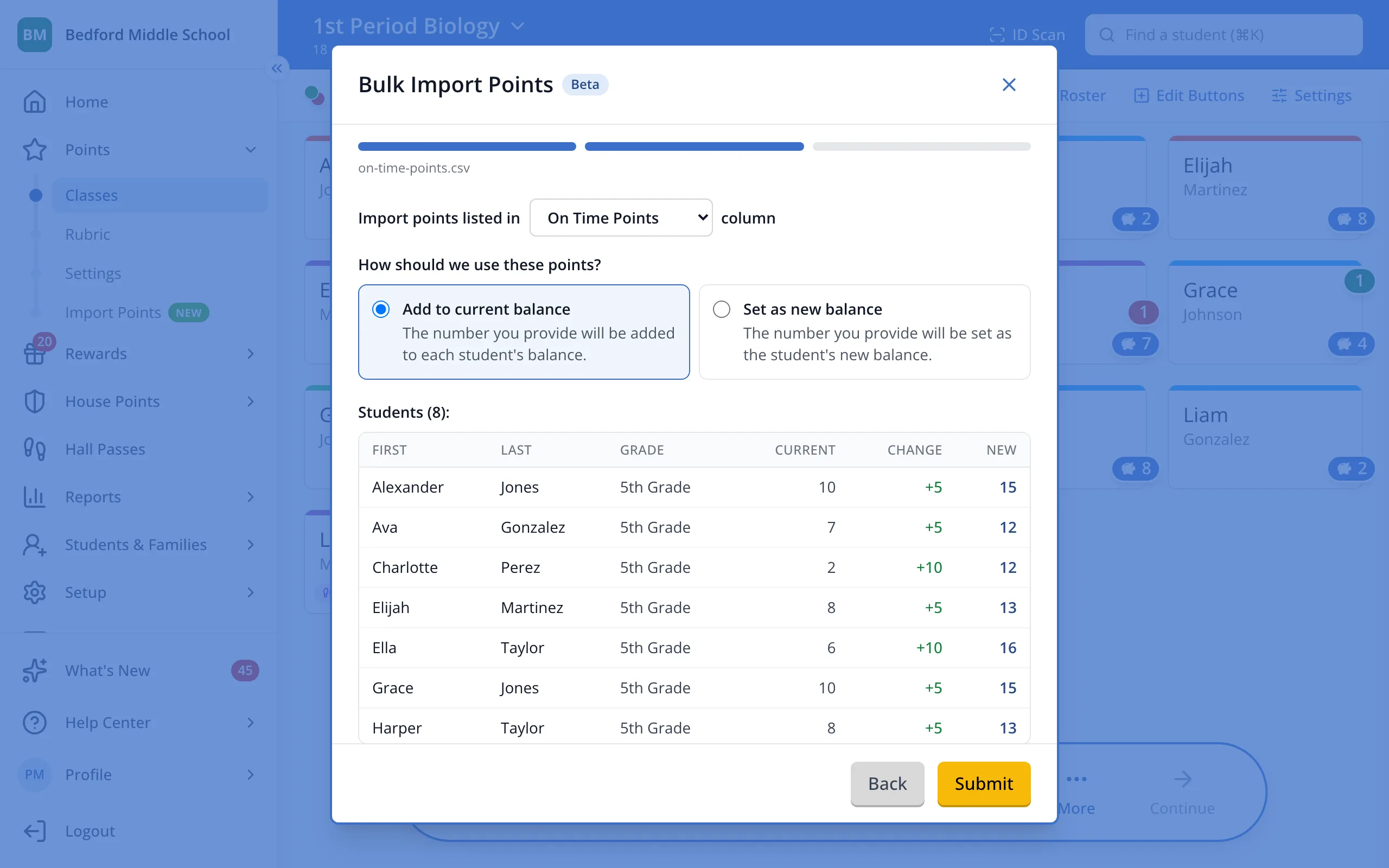
4.Choose Add to current balance to add each number to the student's Bank Account, or Set as new balance to replace it.
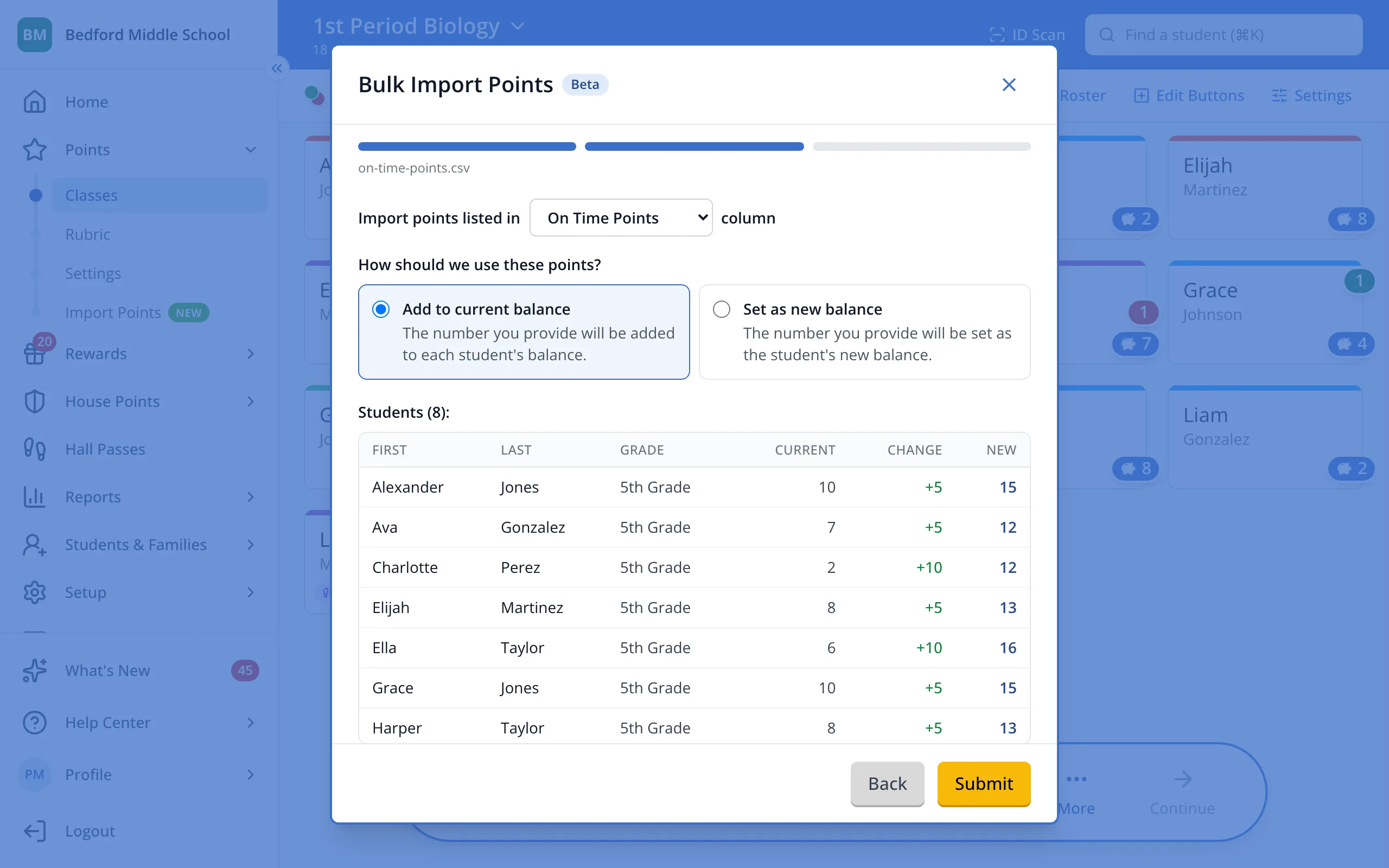
Tip: If your file has more than one number column, pick the right one next to Import points listed in.
5.Check the New column, then click Submit.
Was this helpful?