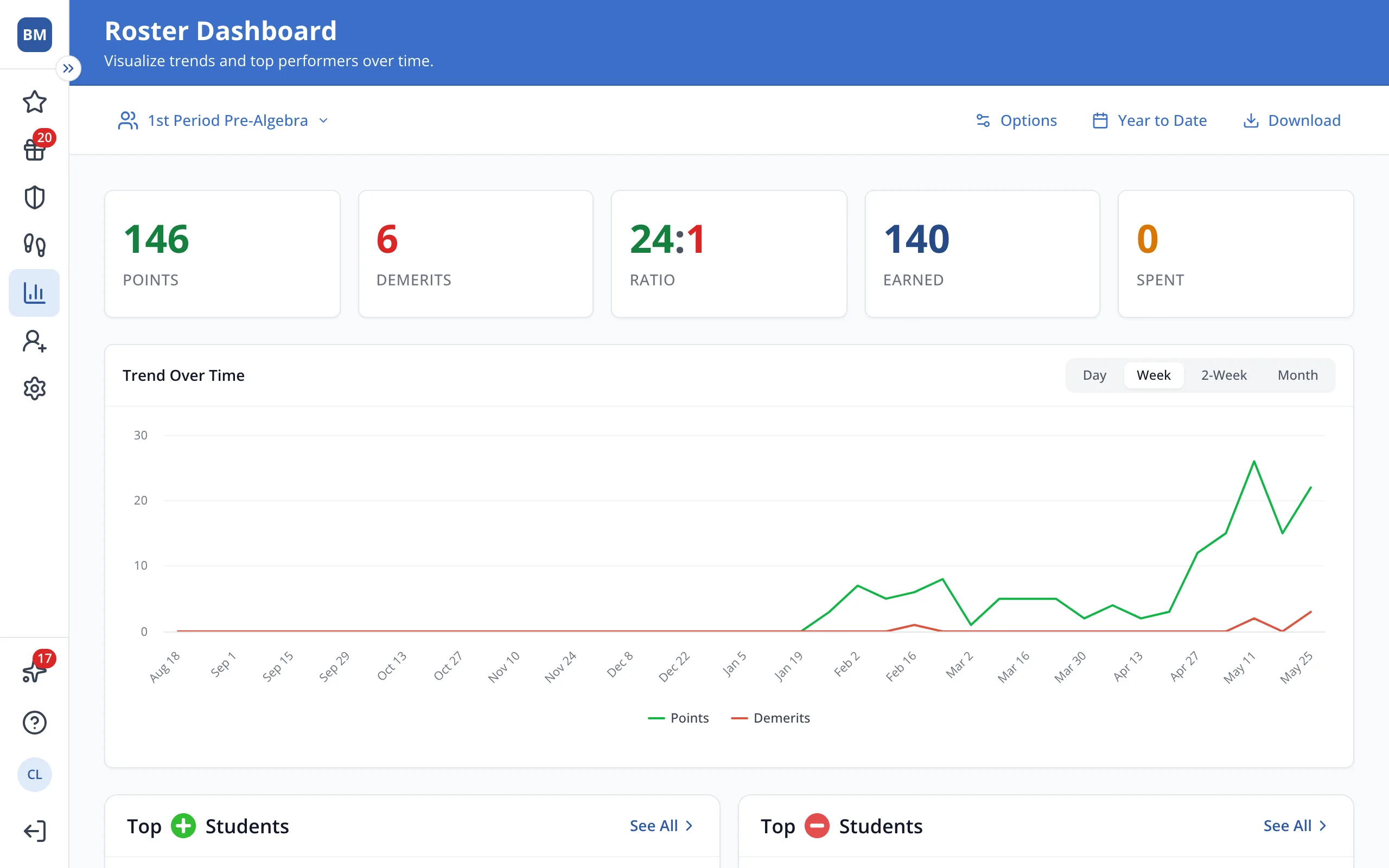
See a dashboard for a roster, grade, or house
A roster, grade, or House dashboard shows that group's totals, trend chart and top students, behaviors and rewards.
Use the Left and Right arrow keys to move between steps, and Space to play or pause.
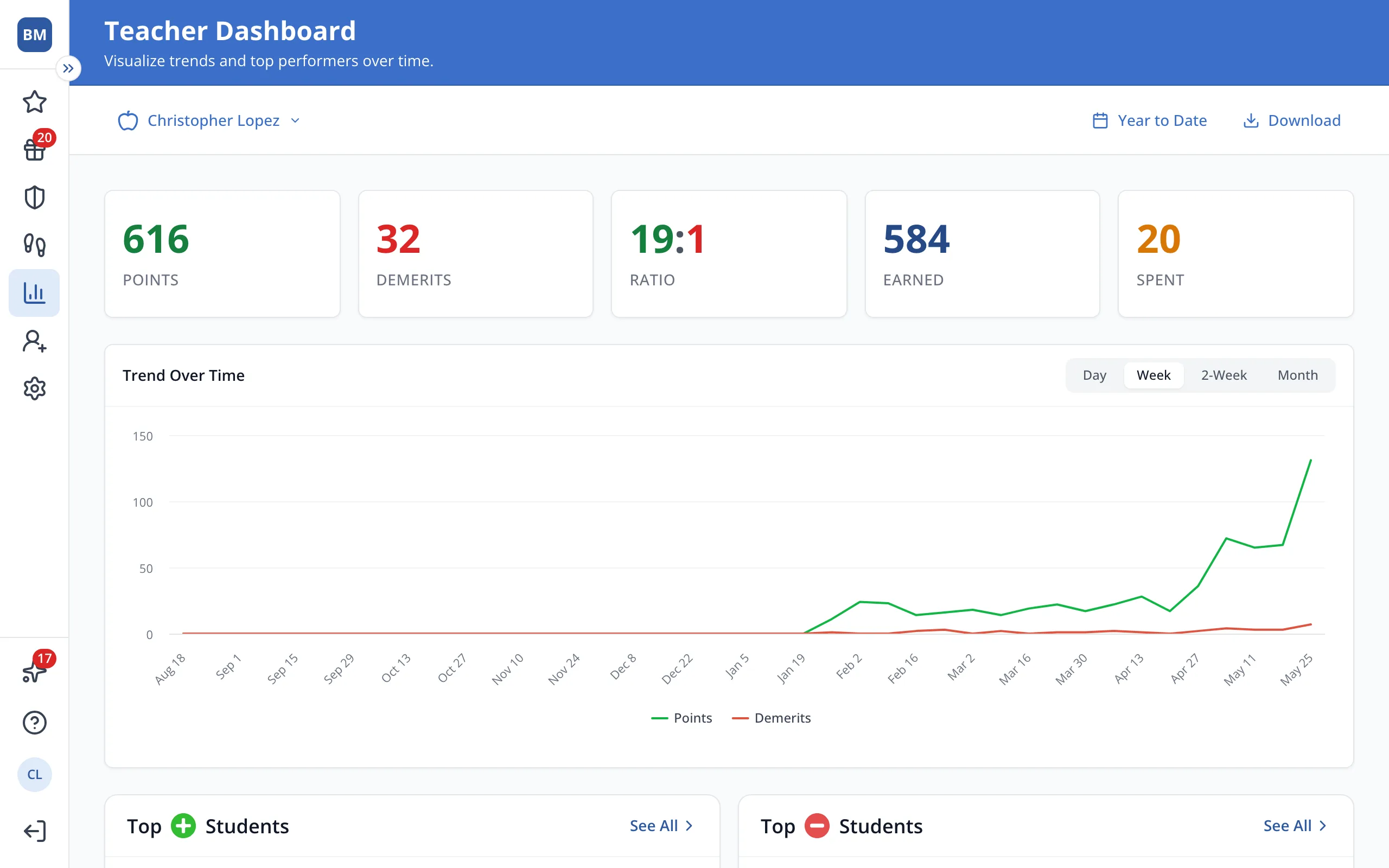
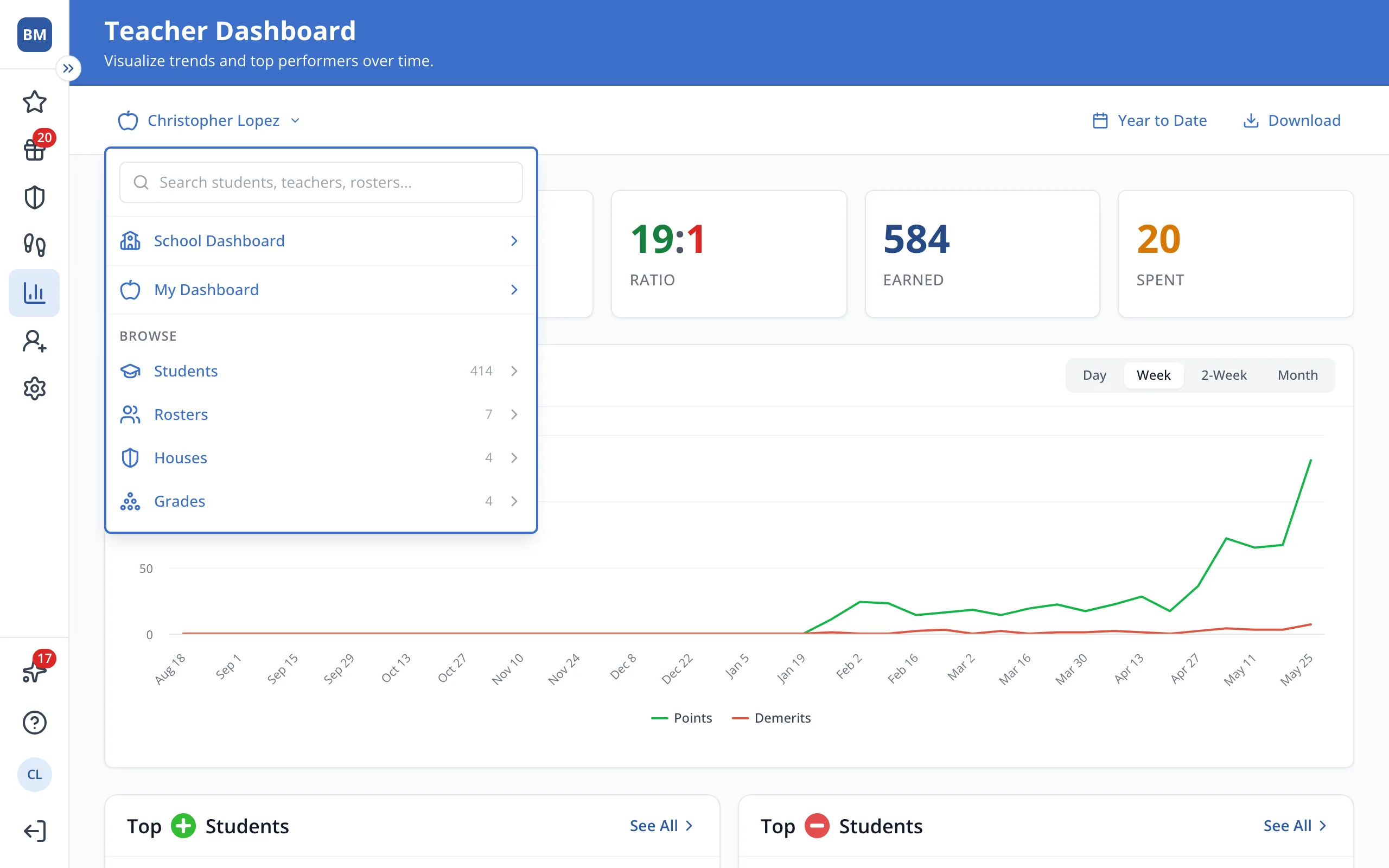
1.On the Dashboards page, click the name at the top left.
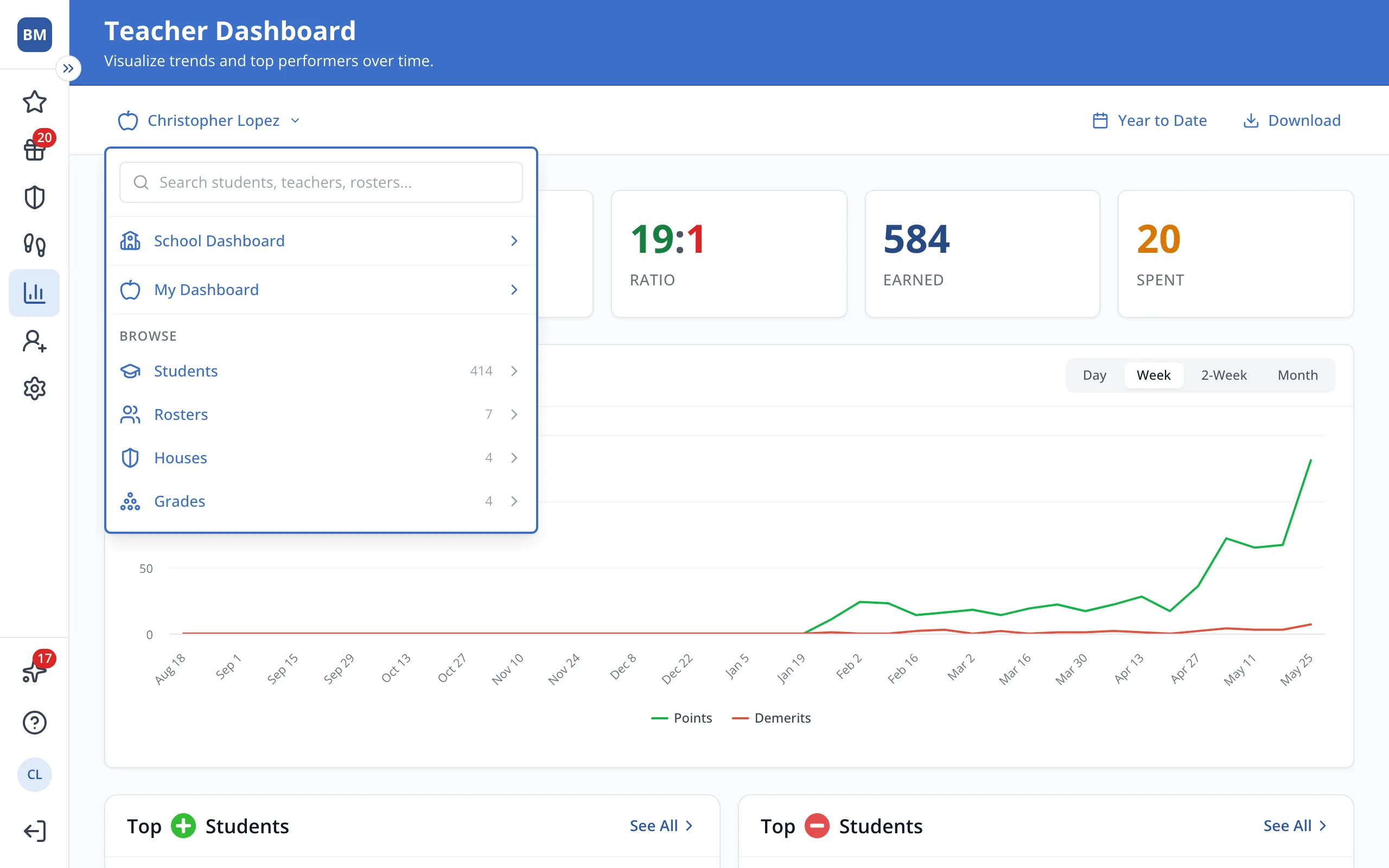
2.Under Browse, click the kind of group you'd like, such as Rosters.
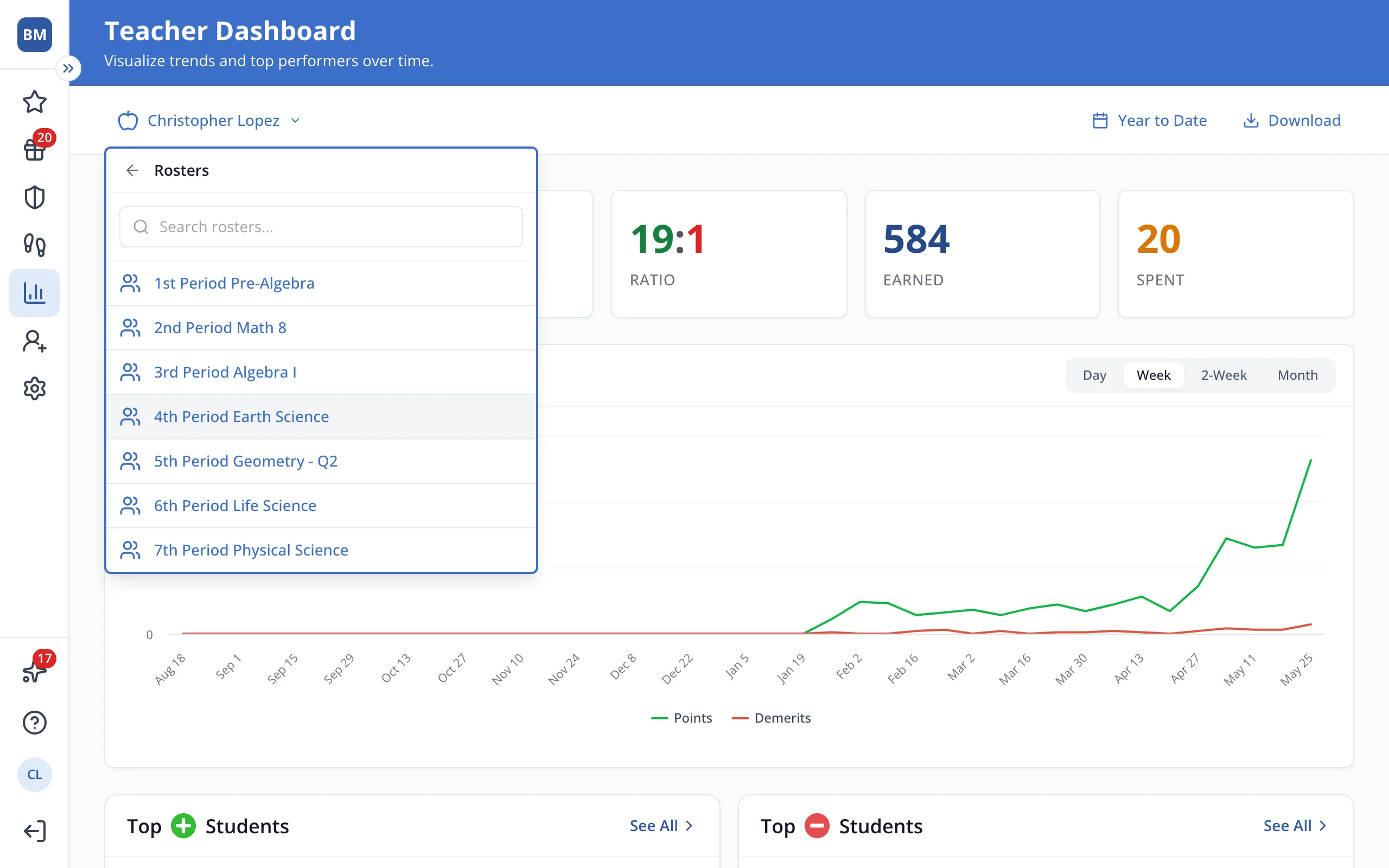
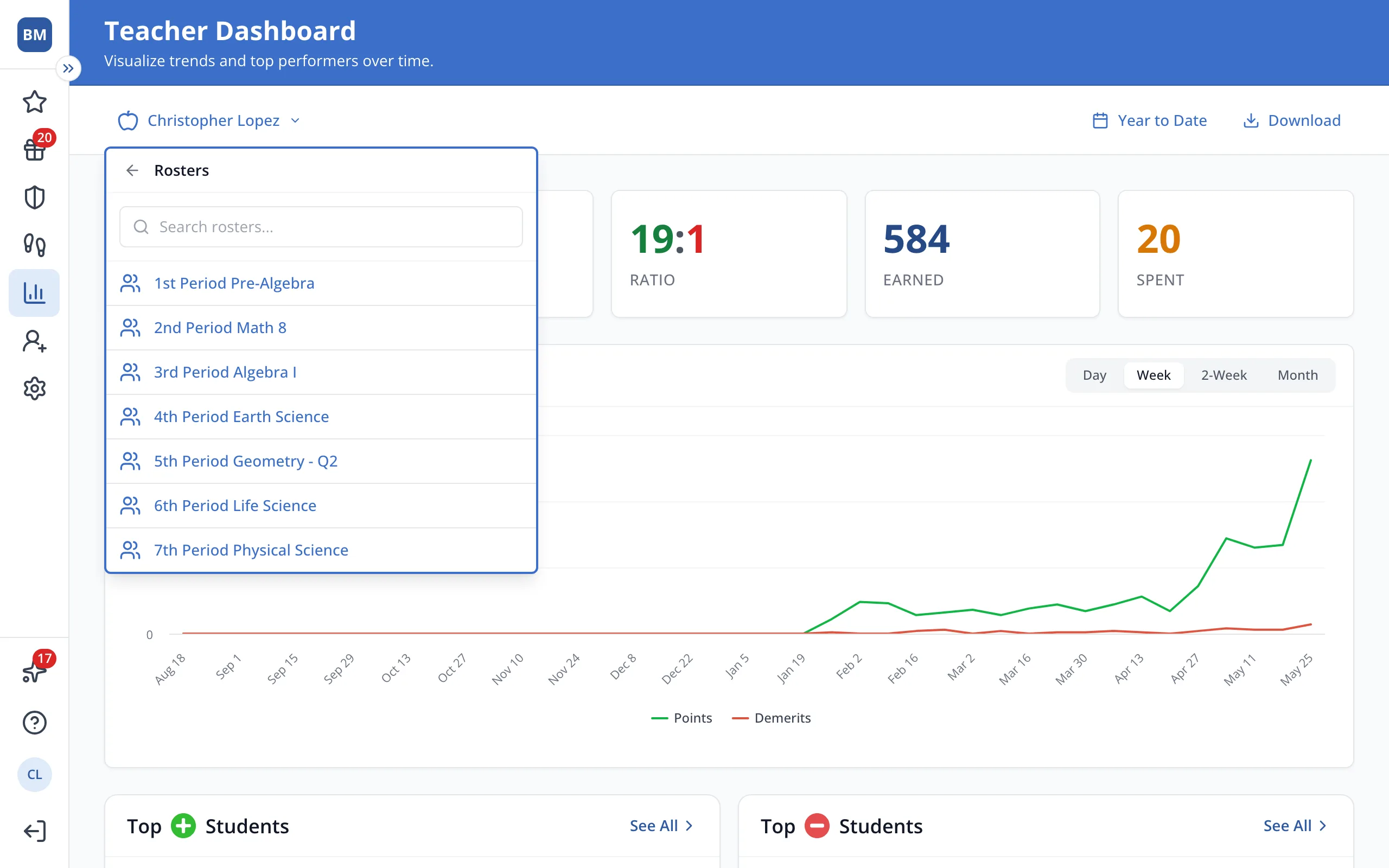
3.Click the one you'd like to see.
4.Click Year to Date to see a different time period.