
Give points for an earlier day
Forgot to give points on the day? Record them for the day they happened, so your reports stay accurate.
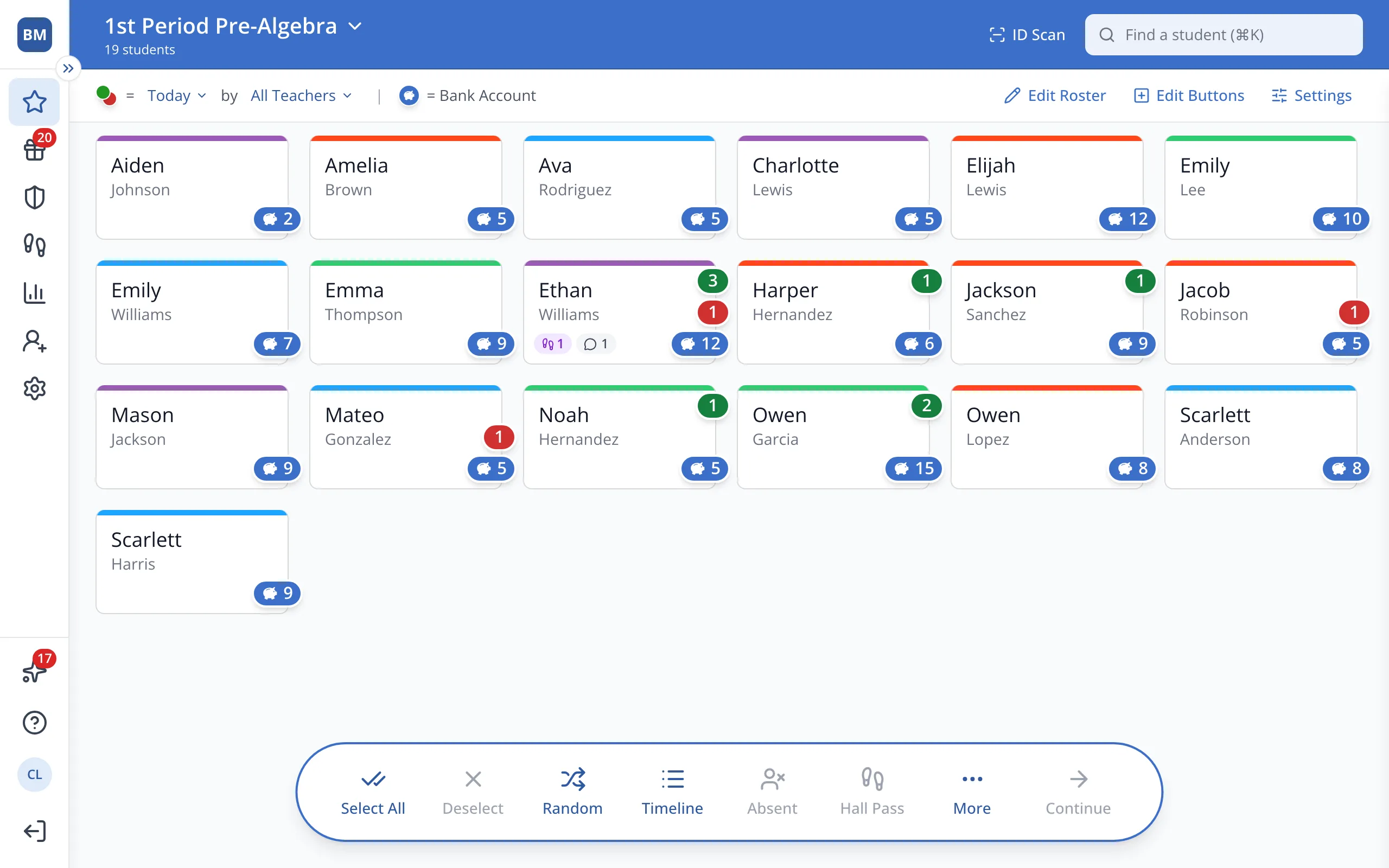
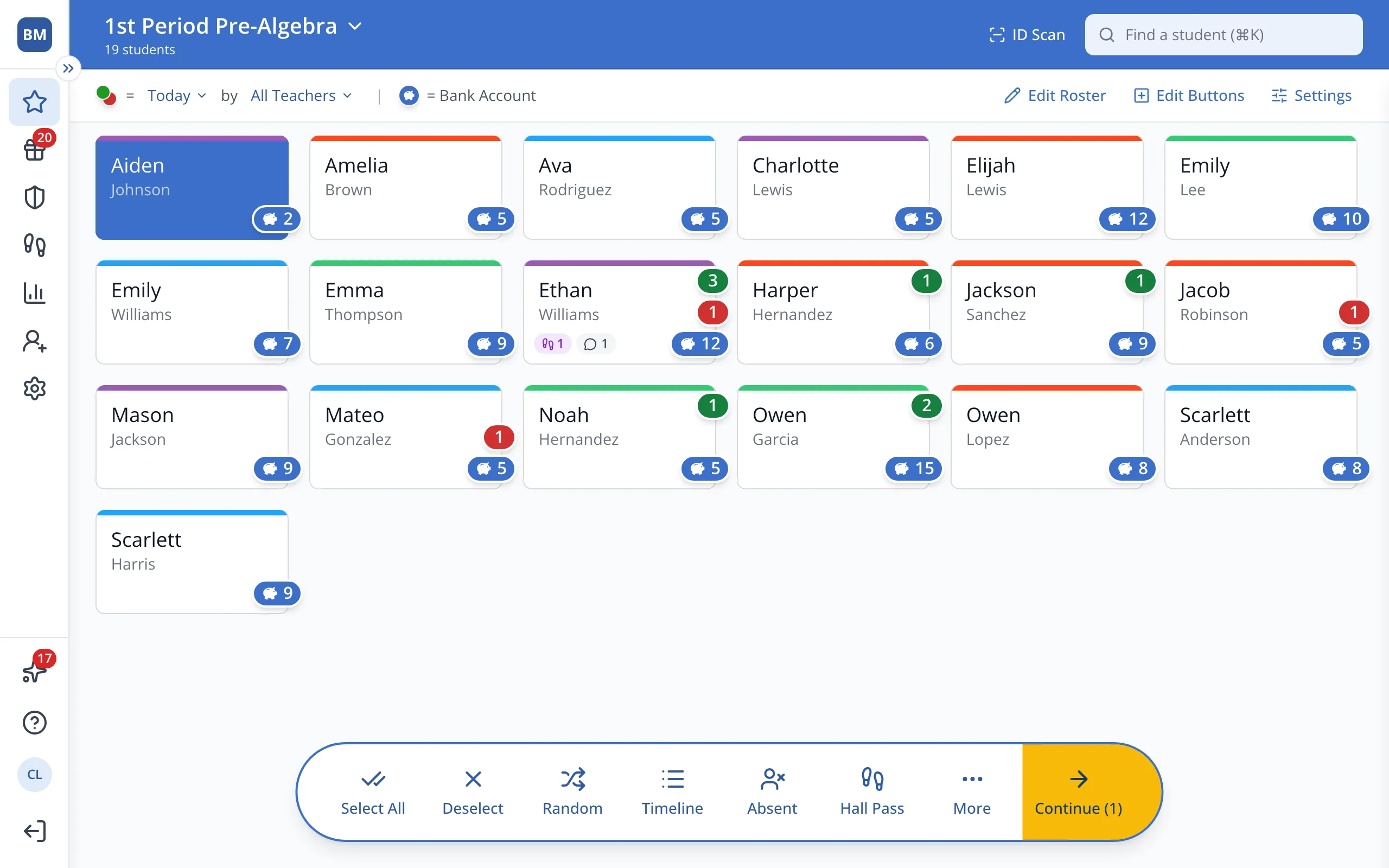
1 / 8On the Points page, click the student.
1.On the Points page, click the student's button.
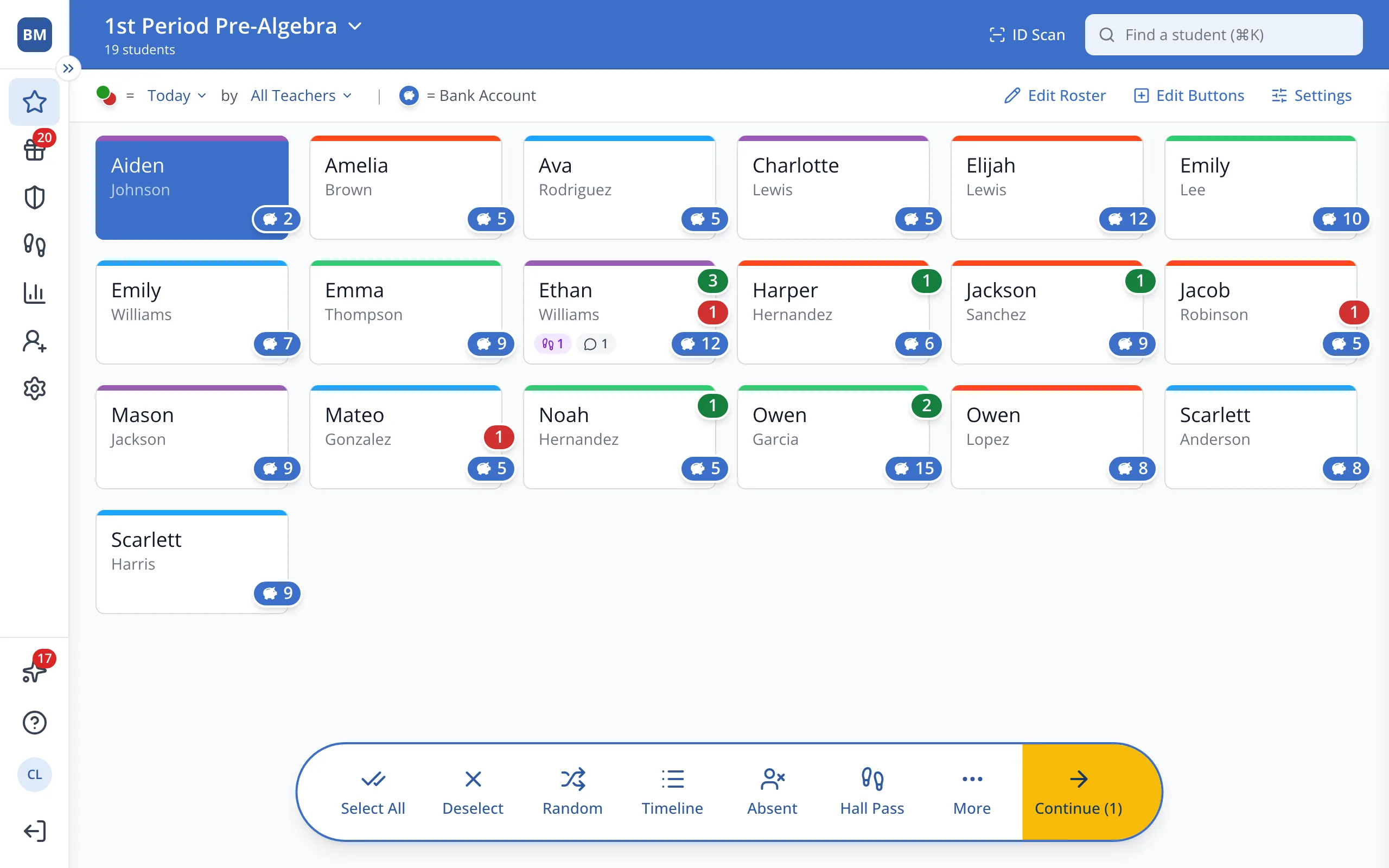
2.In the bar at the bottom, click Continue.
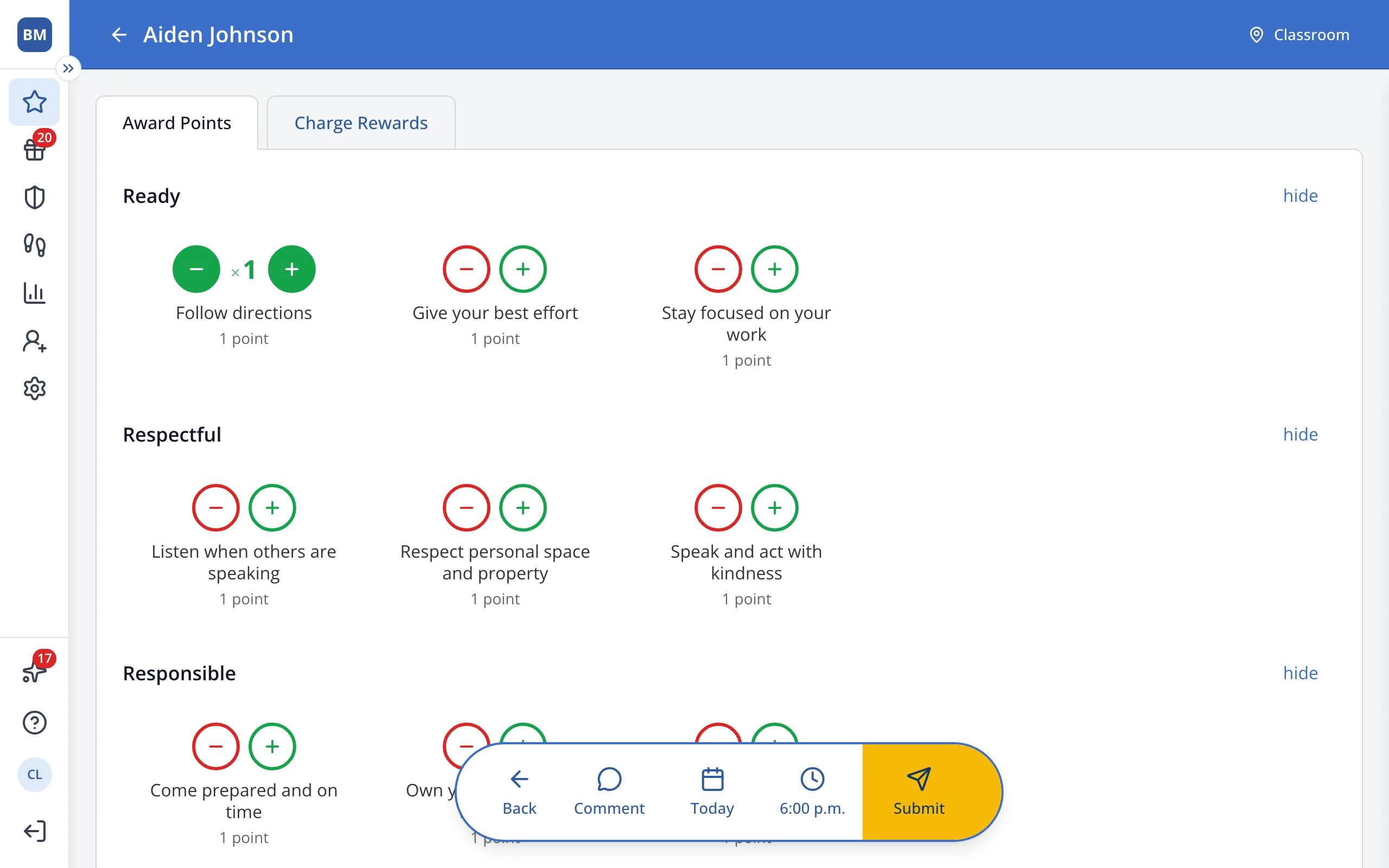
3.Click the green plus next to the behavior you'd like to give.
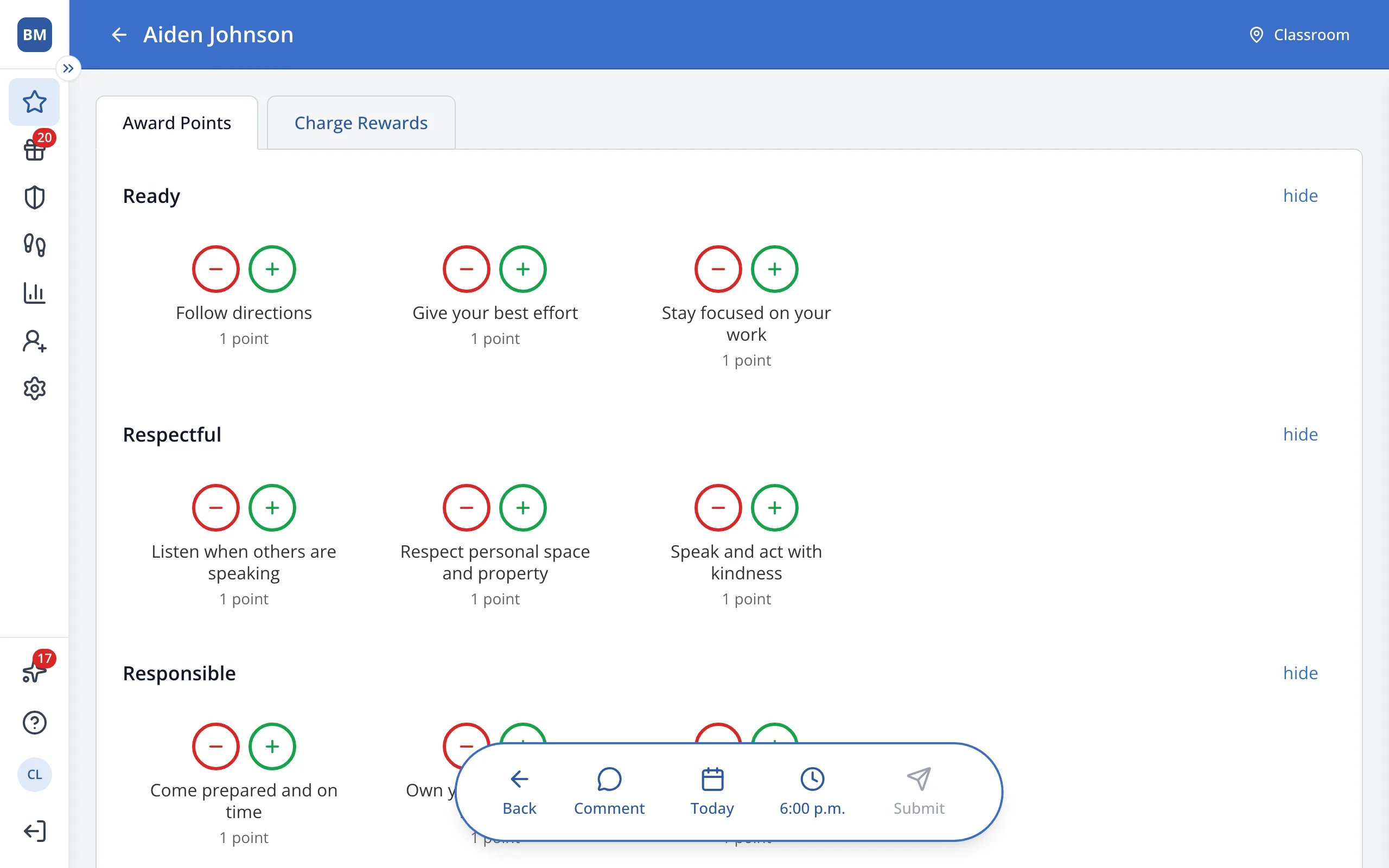
4.In the bar at the bottom, click Today.
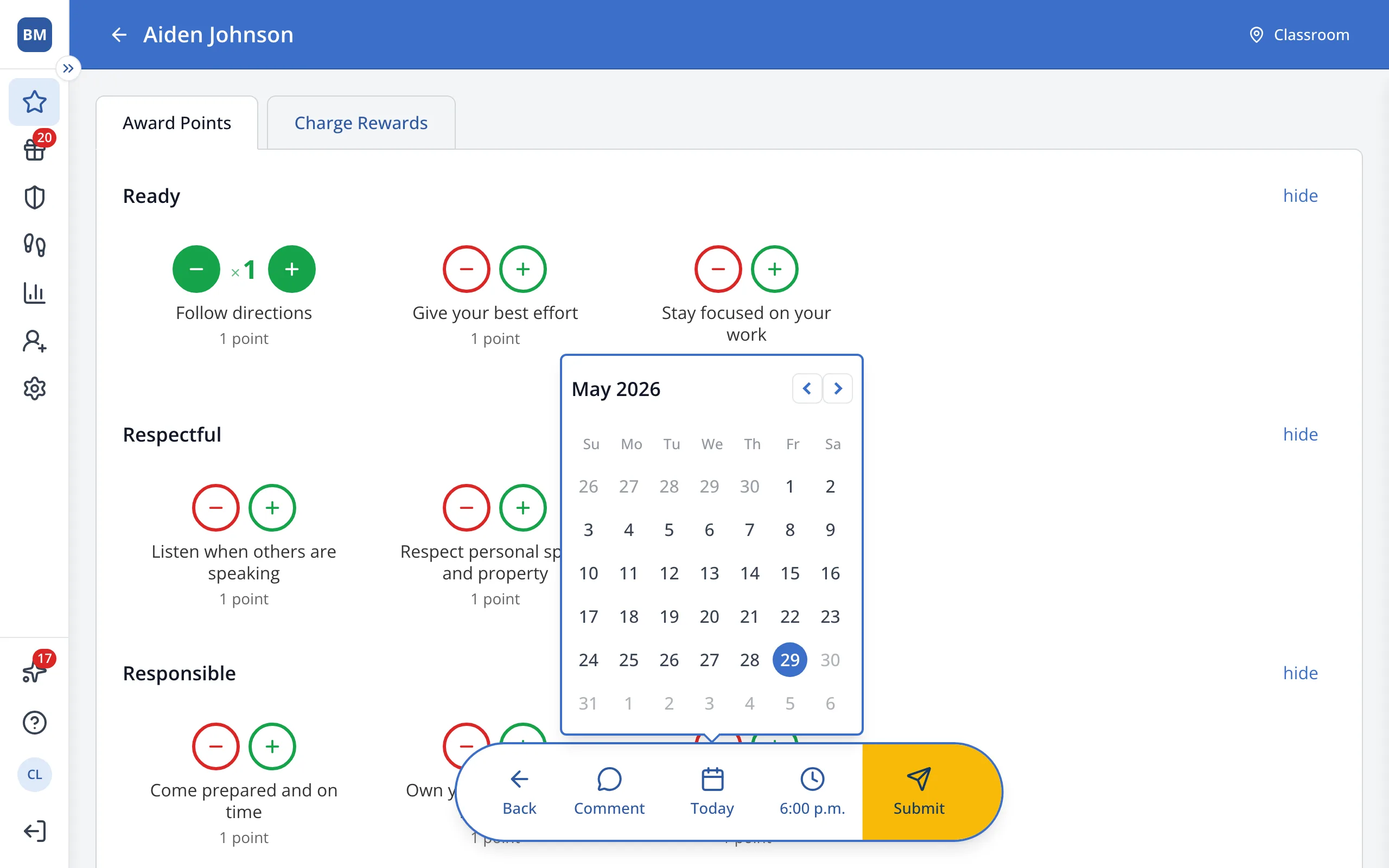
5.Pick the day the student earned the point.
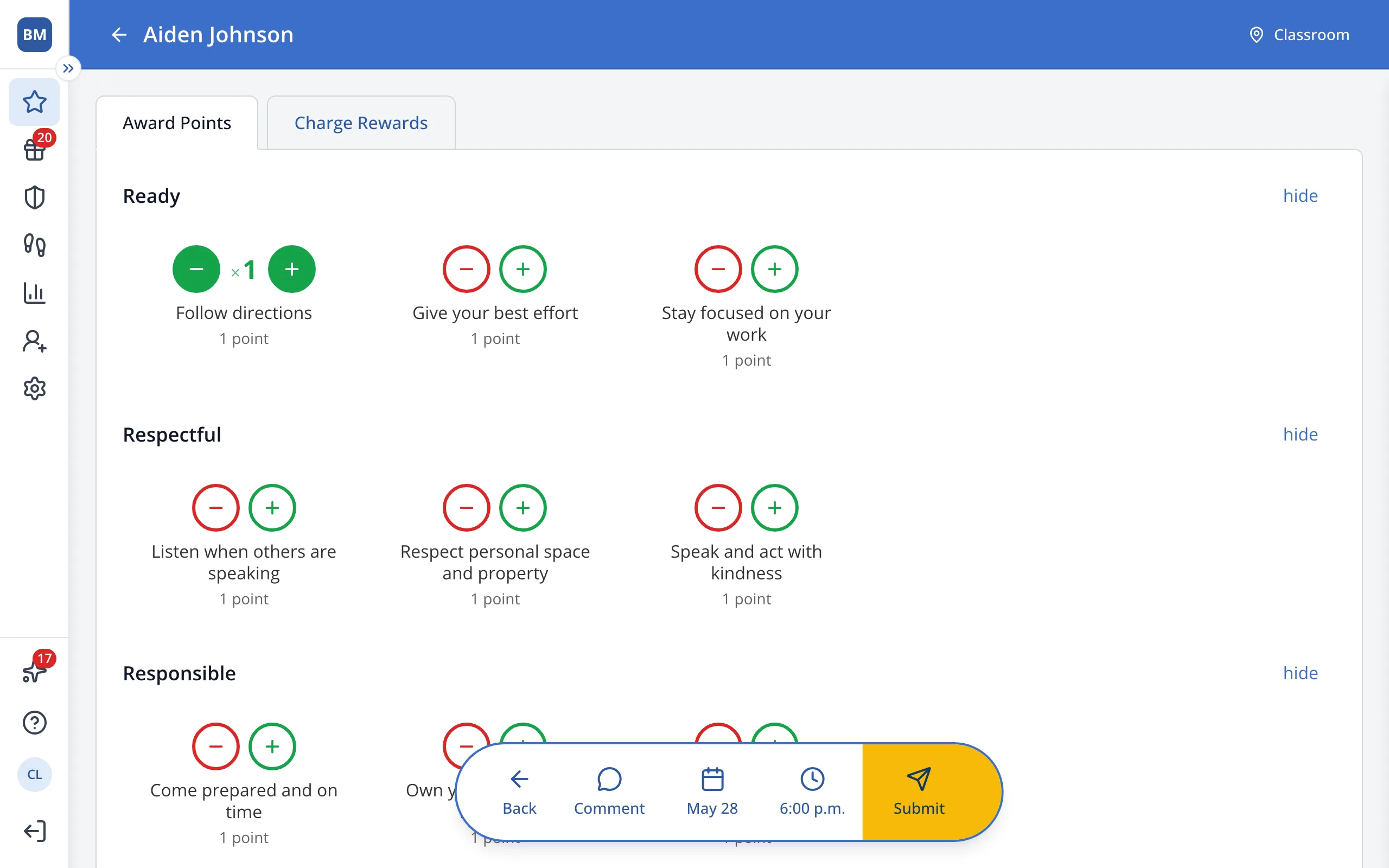
6.Click Submit.
7.Look for the point in the student's blue bubble, not the green one.
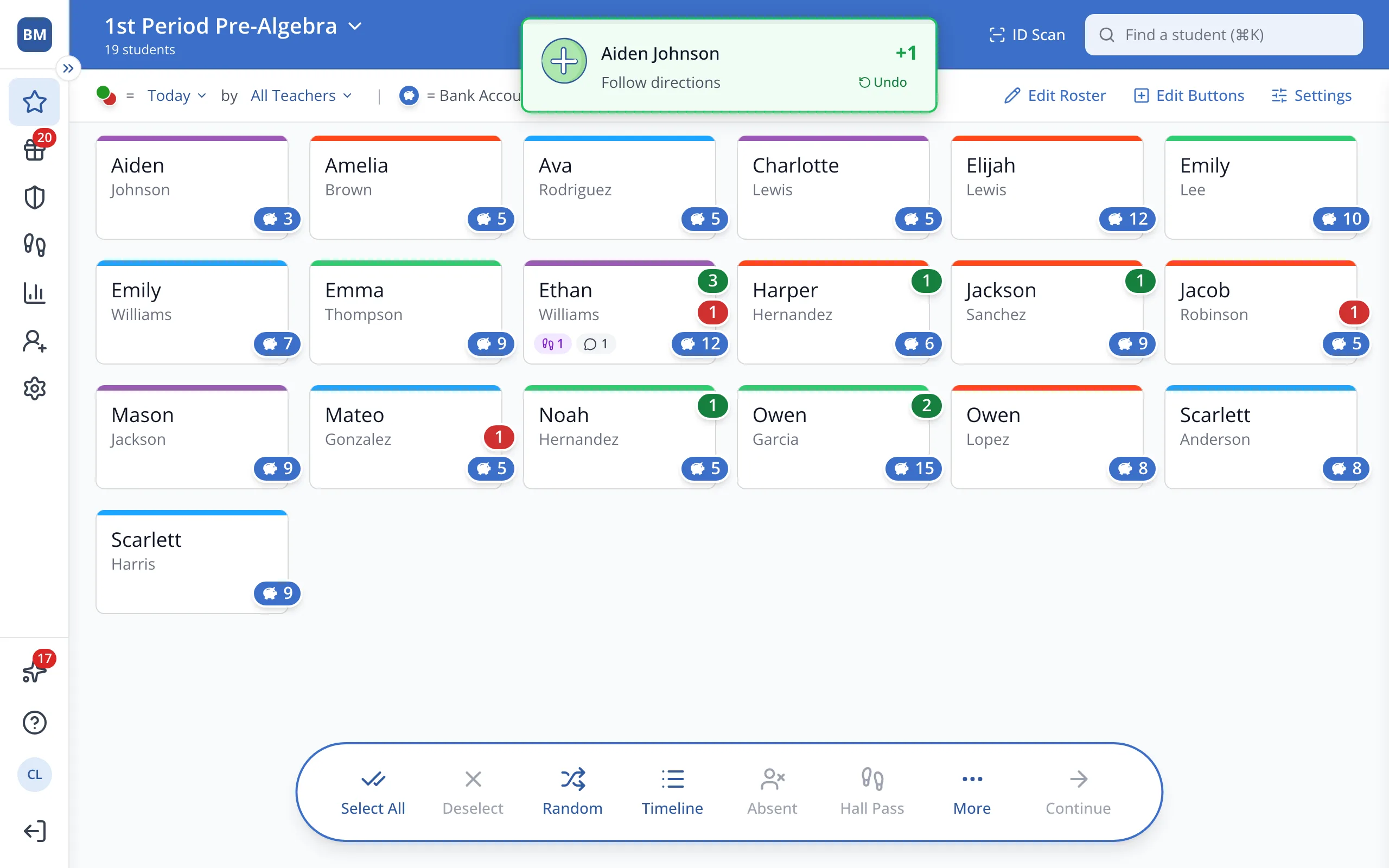
Tip: The green bubble counts only the time period at the top of the page (Today unless you change it), so an earlier day's point shows there only if that period includes that day.
Was this helpful?