
Change the size of student buttons and what they show
Make buttons bigger to read from across the room, or smaller to fit your whole class on one screen.
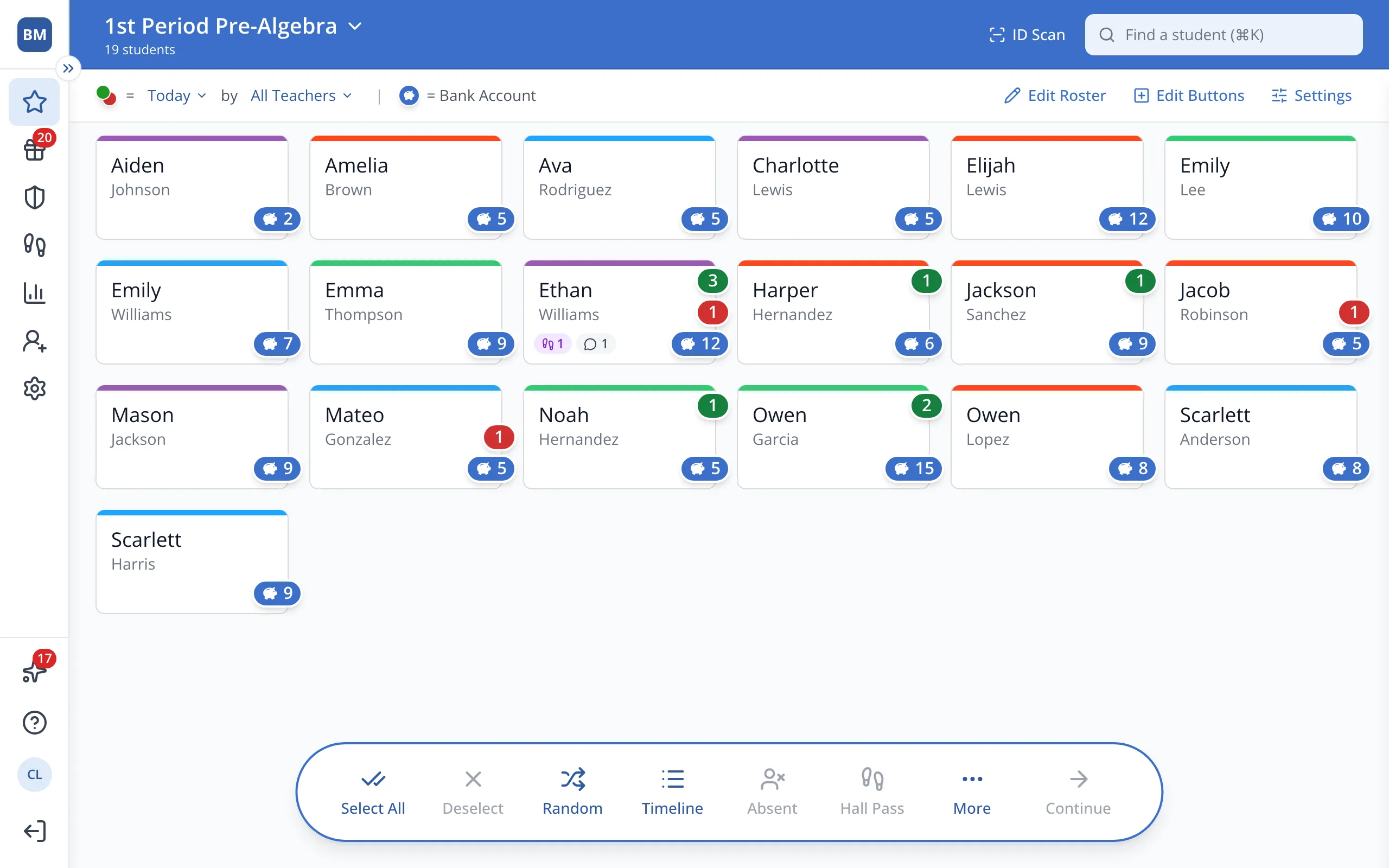
1 / 3At the top right of the Points page, click Edit Buttons.
1.At the top right of the Points page, click Edit Buttons.
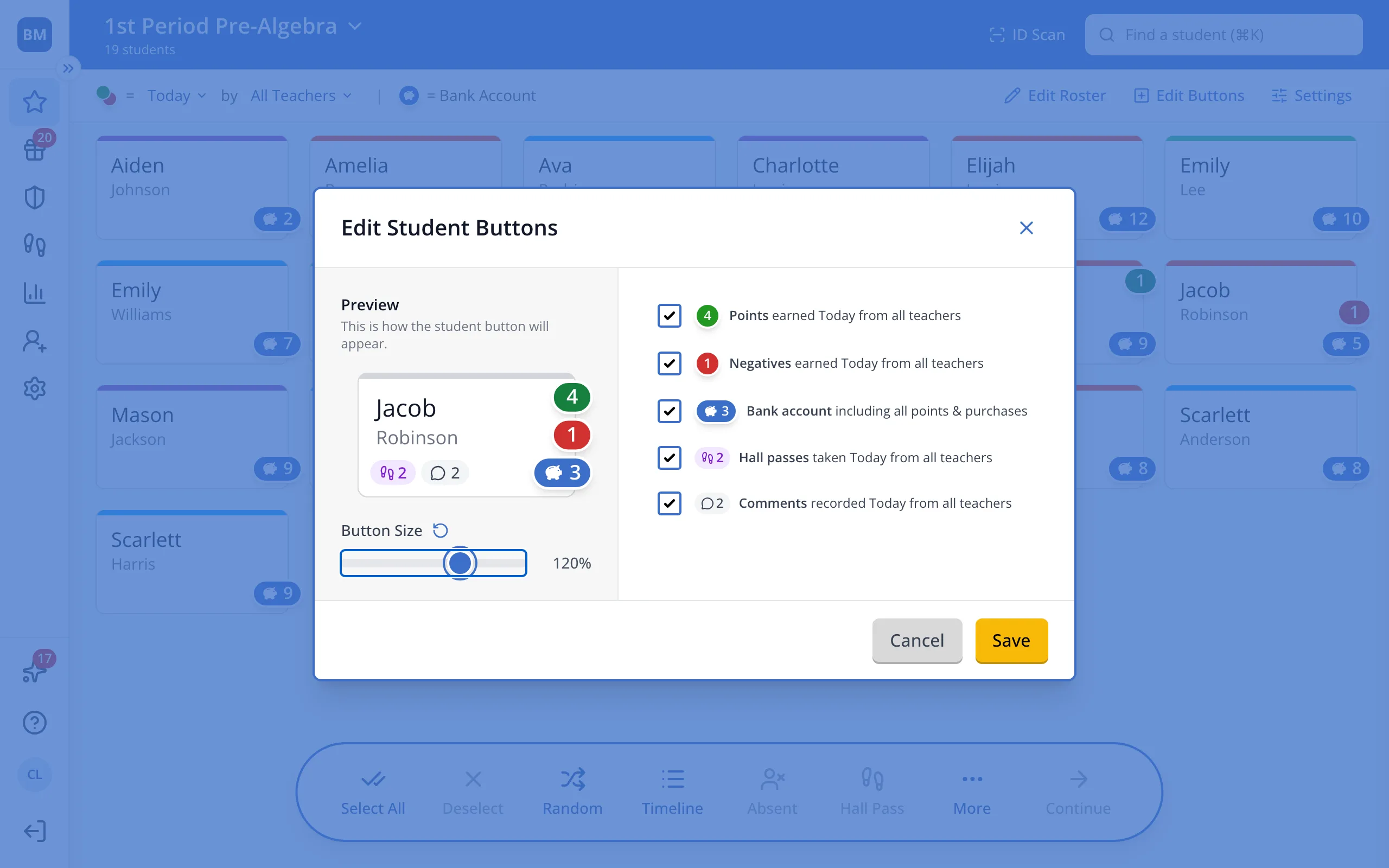
2.Drag the Button Size slider. The preview shows how it will look.
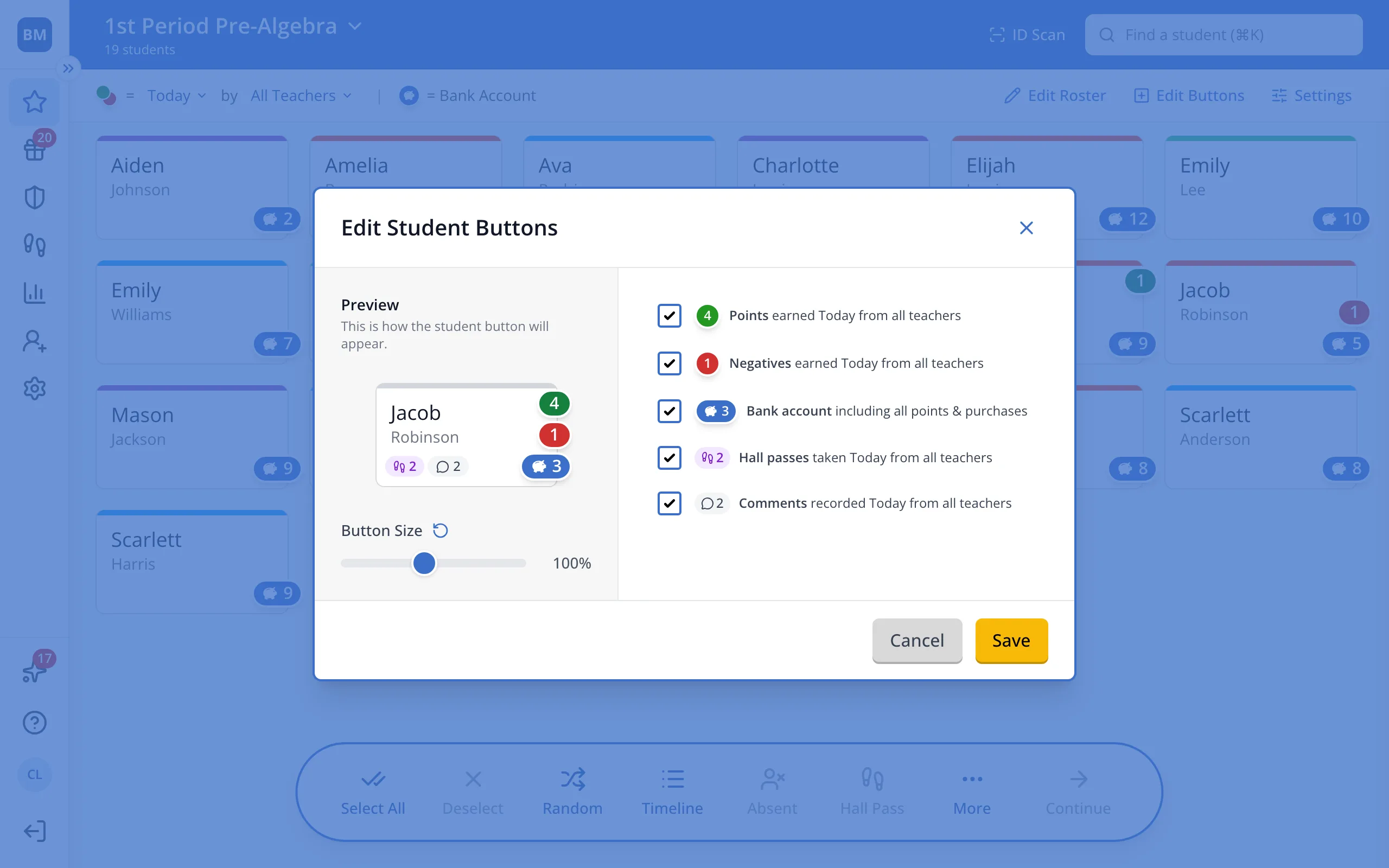
Tip: You can also edit which bubbles display on the student button. Uncheck any bubbles you don't want to see.
3.Click Save.
Was this helpful?