
Quickly award a point to a student through the search option
Search any student in your school, even one who isn't on the roster you have open.
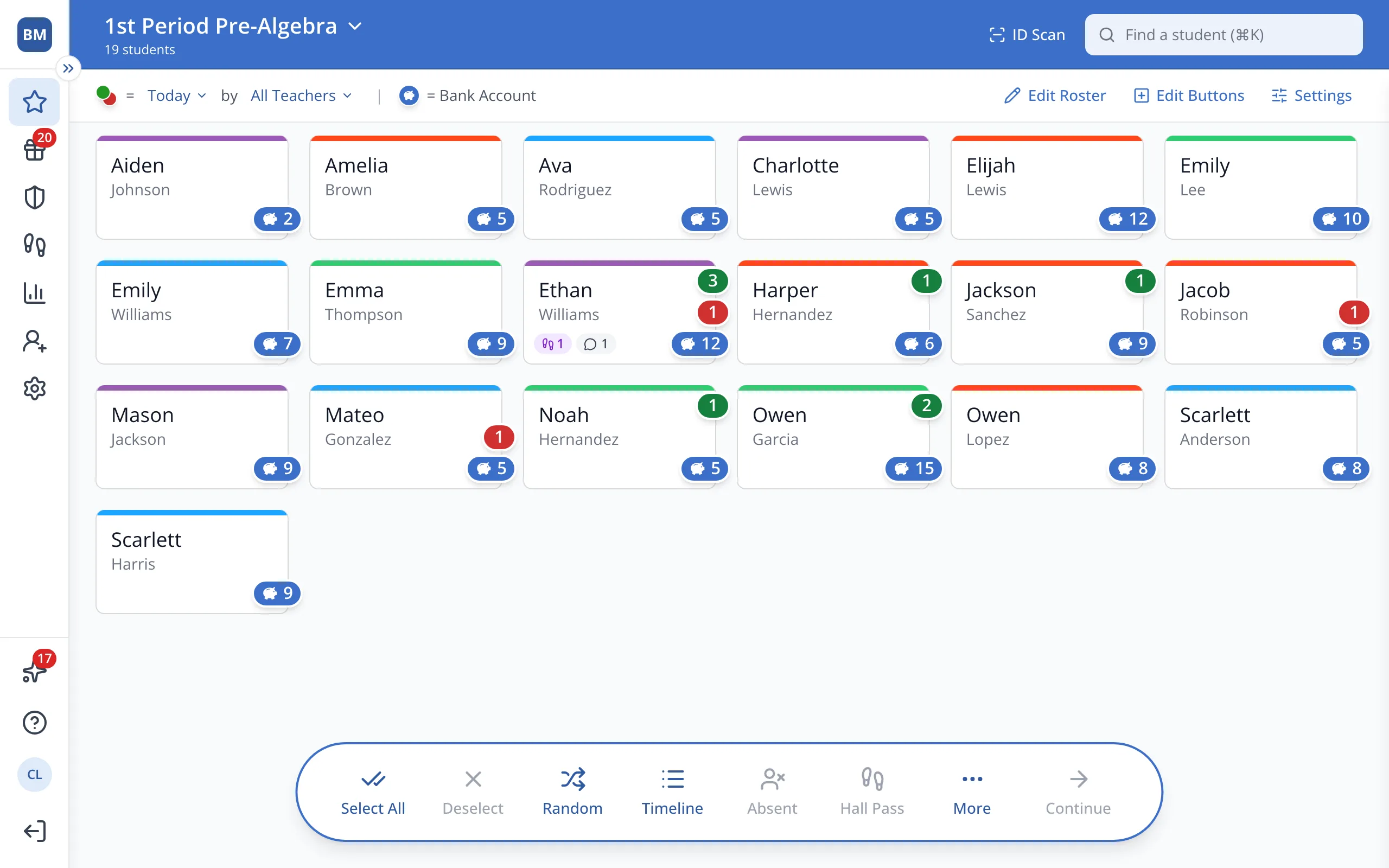
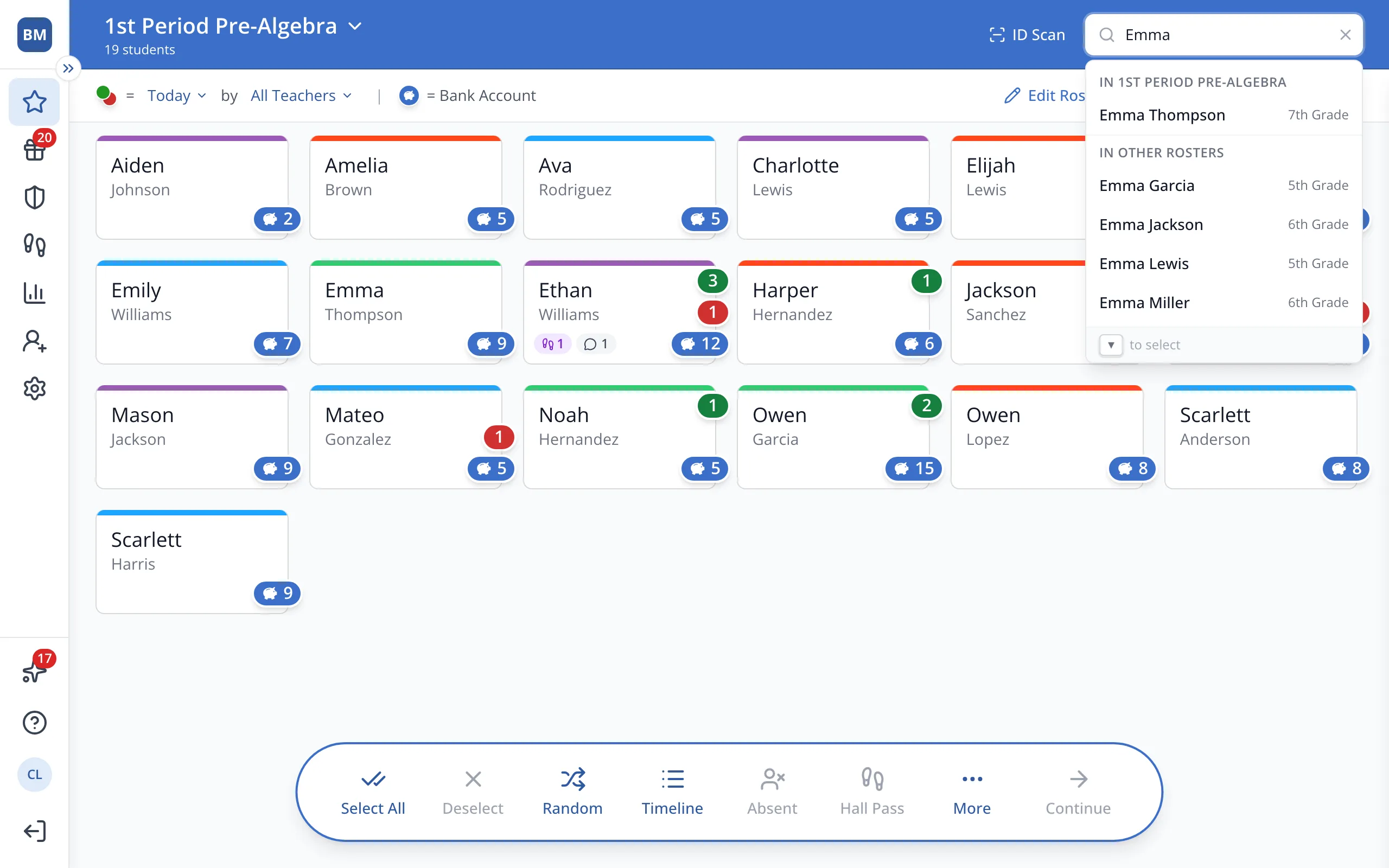
1 / 3At the top of the Points page, type the student's name in Find a student.
1.At the top of the Points page, type the student's name in Find a student.
Tip: Press ⌘K (Ctrl+K on Windows) to jump to the search.
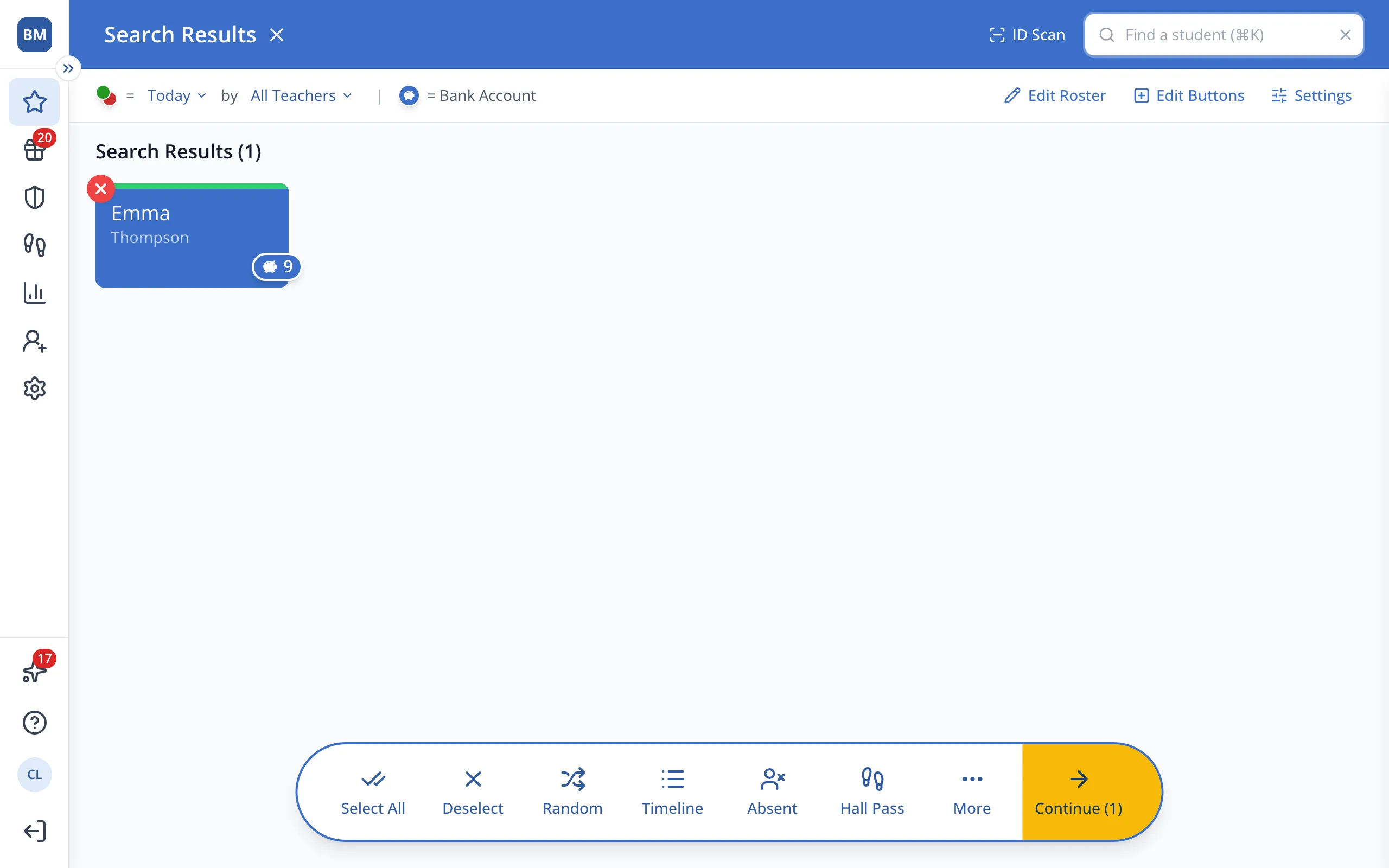
2.Click the student to select them.
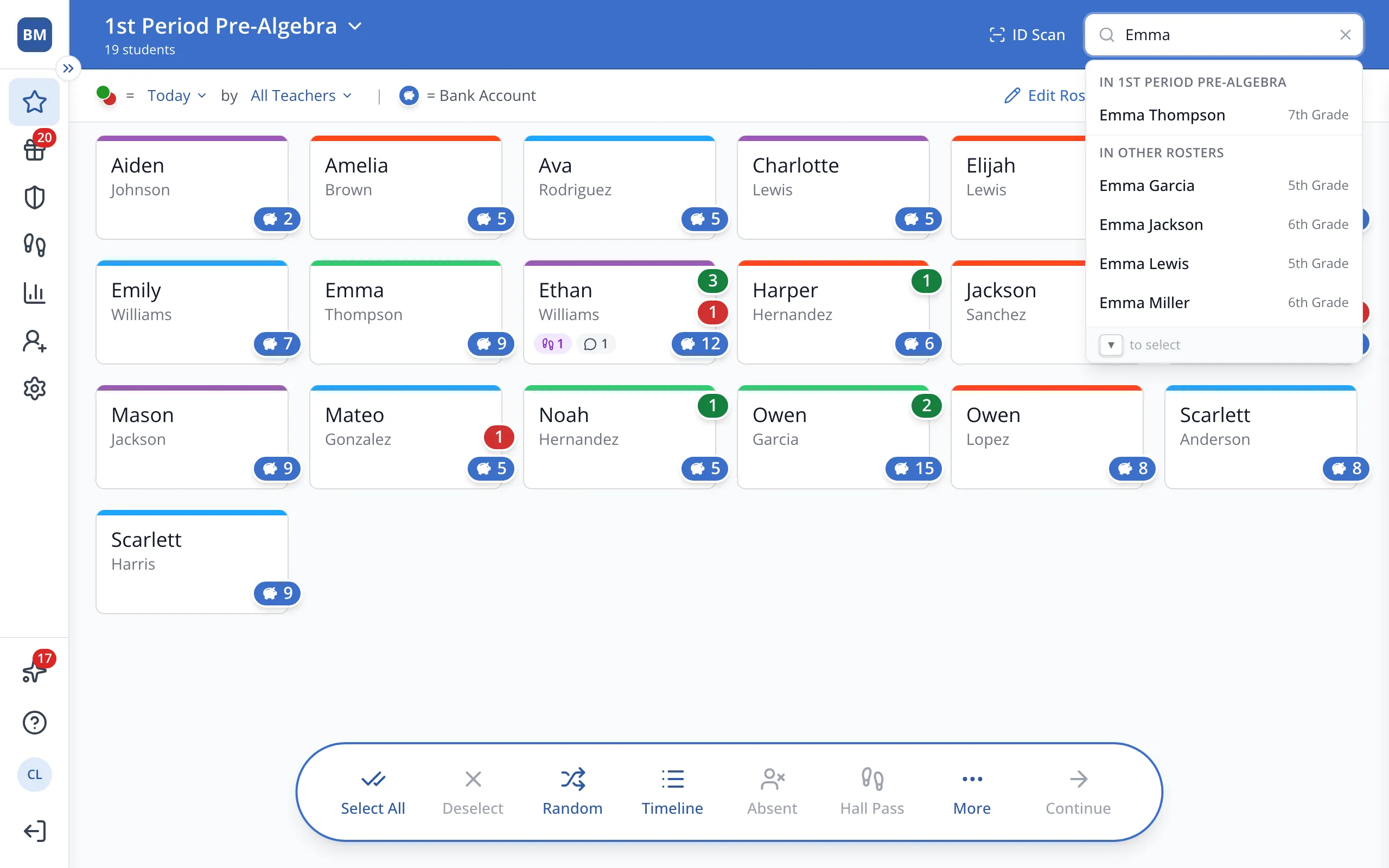
3.Choose an action from the Action Bar. For example, you can award a point, begin a hall pass, or view their timeline of transactions.
Was this helpful?