
Choose which features your school will use
Turning a feature off hides it from everyone except site leaders. Nothing is deleted, so you can turn it back on anytime.
AdminSite Leader
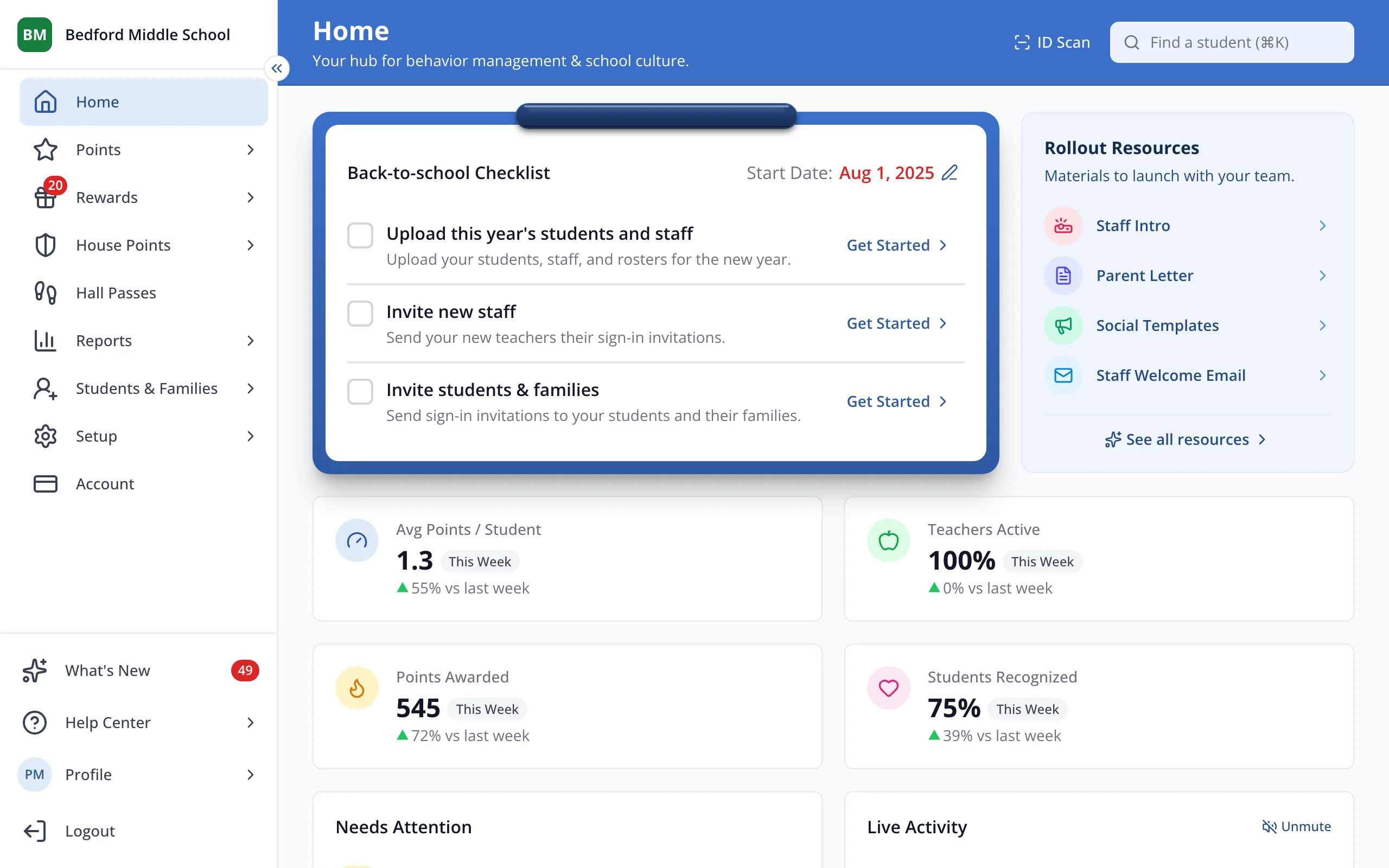
1 / 5In the sidebar, click Account.
1.In the sidebar, click Account.
2.Under Feature Visibility, click a feature's switch to turn it on or off.
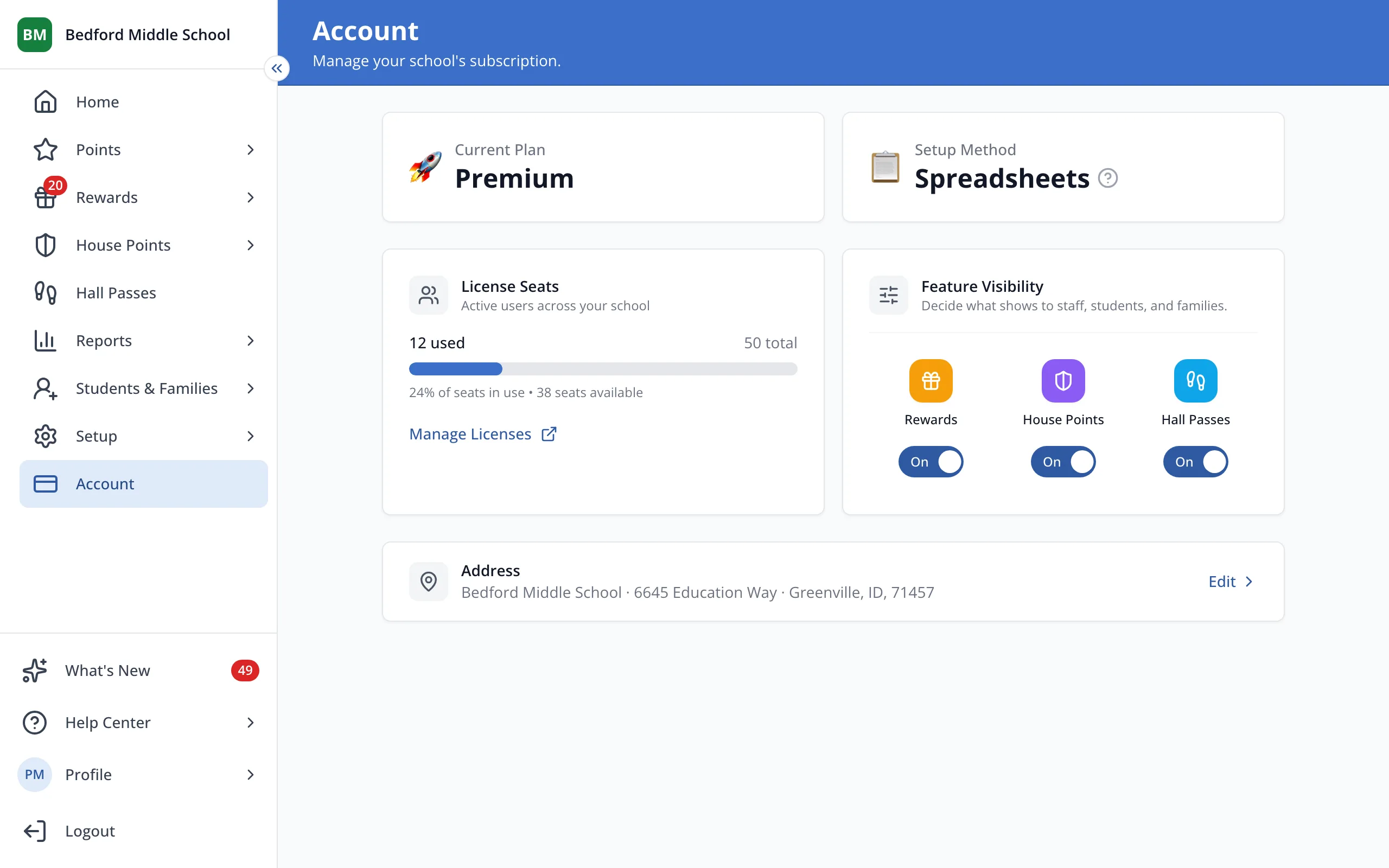
Tip: A dimmed switch means that feature isn't in your plan. Click it for details.
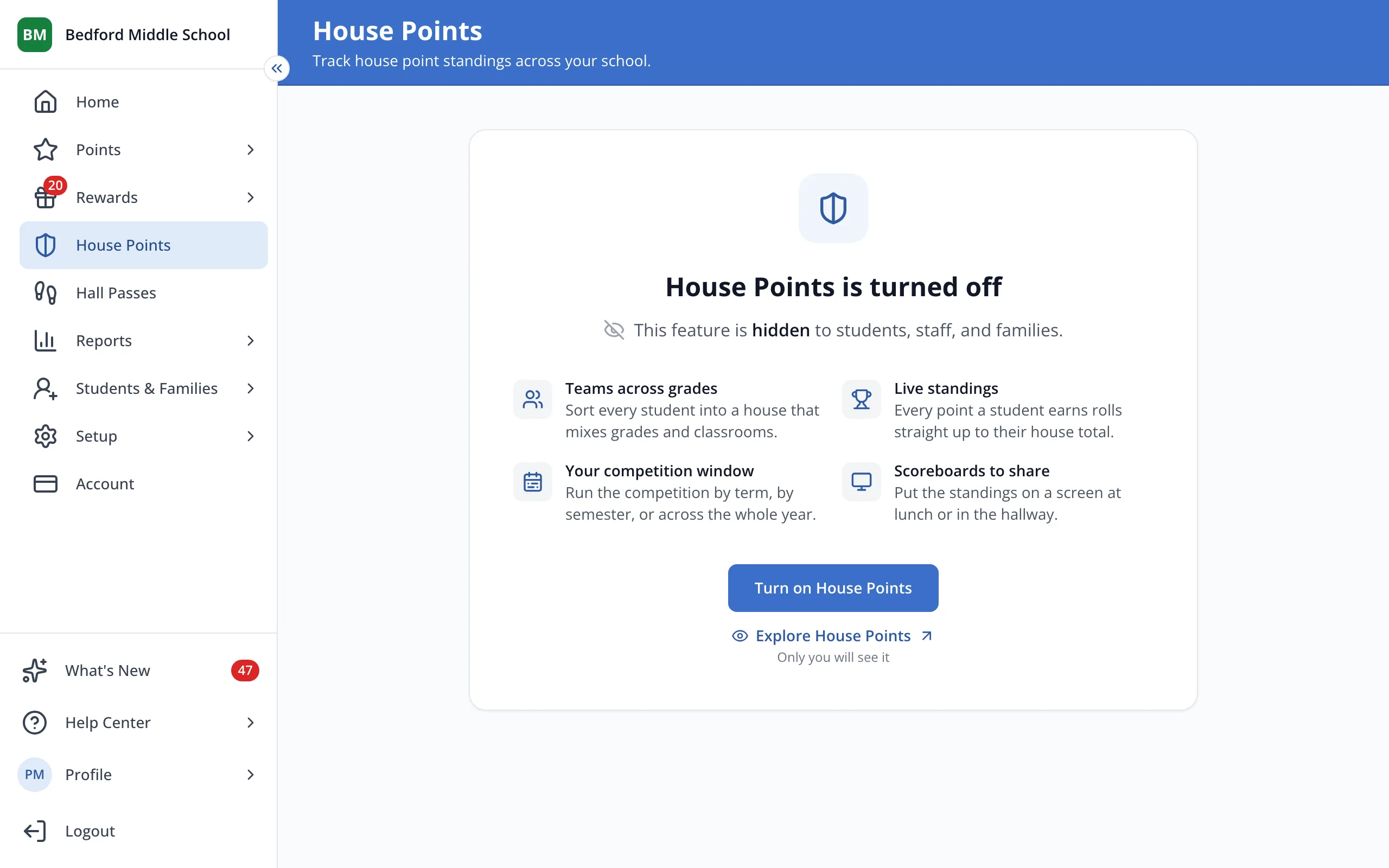
3.Site leaders still see a turned-off feature in the sidebar. Let's click on House Points.
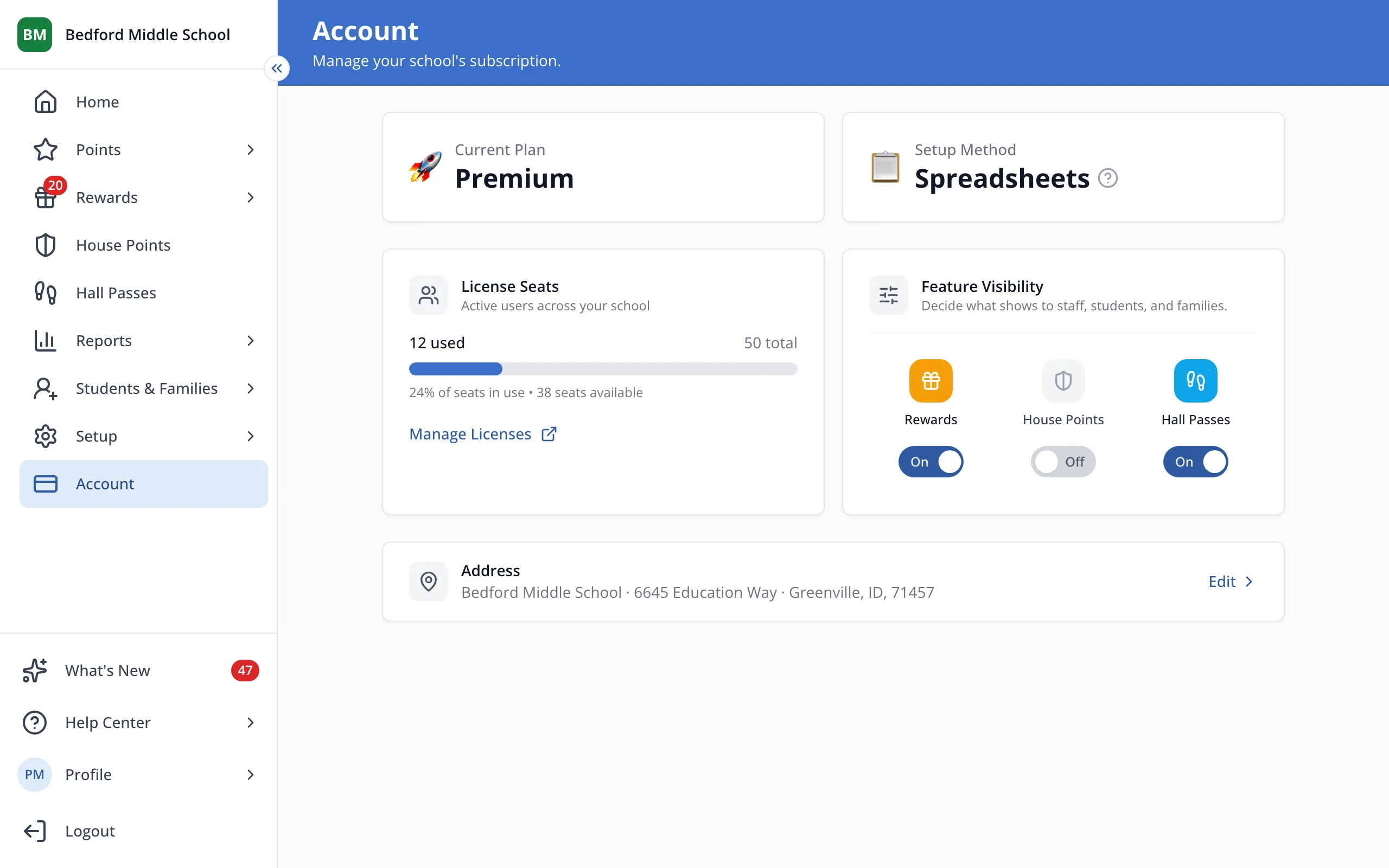
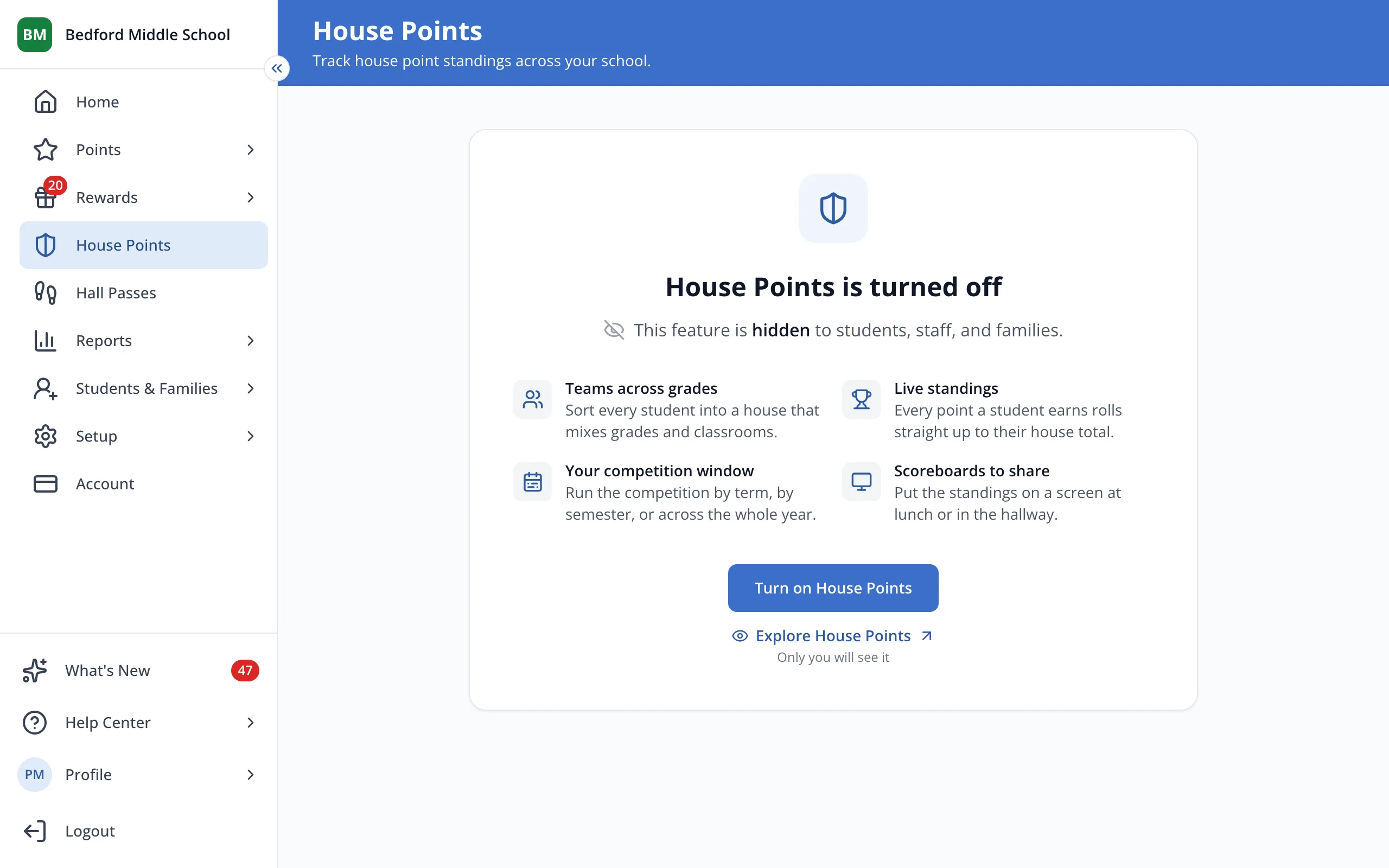
4.Administrators, teachers, students and families no longer see House Points. Your Houses and points are kept.
Tip: Teachers also lose the Houses tab and House colors on the Points page.
5.Click Turn on House Points to bring it back for everyone, or Explore House Points to look around where only you can see it.
Was this helpful?