
Set up your school for the first time with Clever or ClassLink
Your students come from Clever or ClassLink, so your district has to turn on syncing. Your behaviors and rewards don't have to wait.
AdminSite Leader
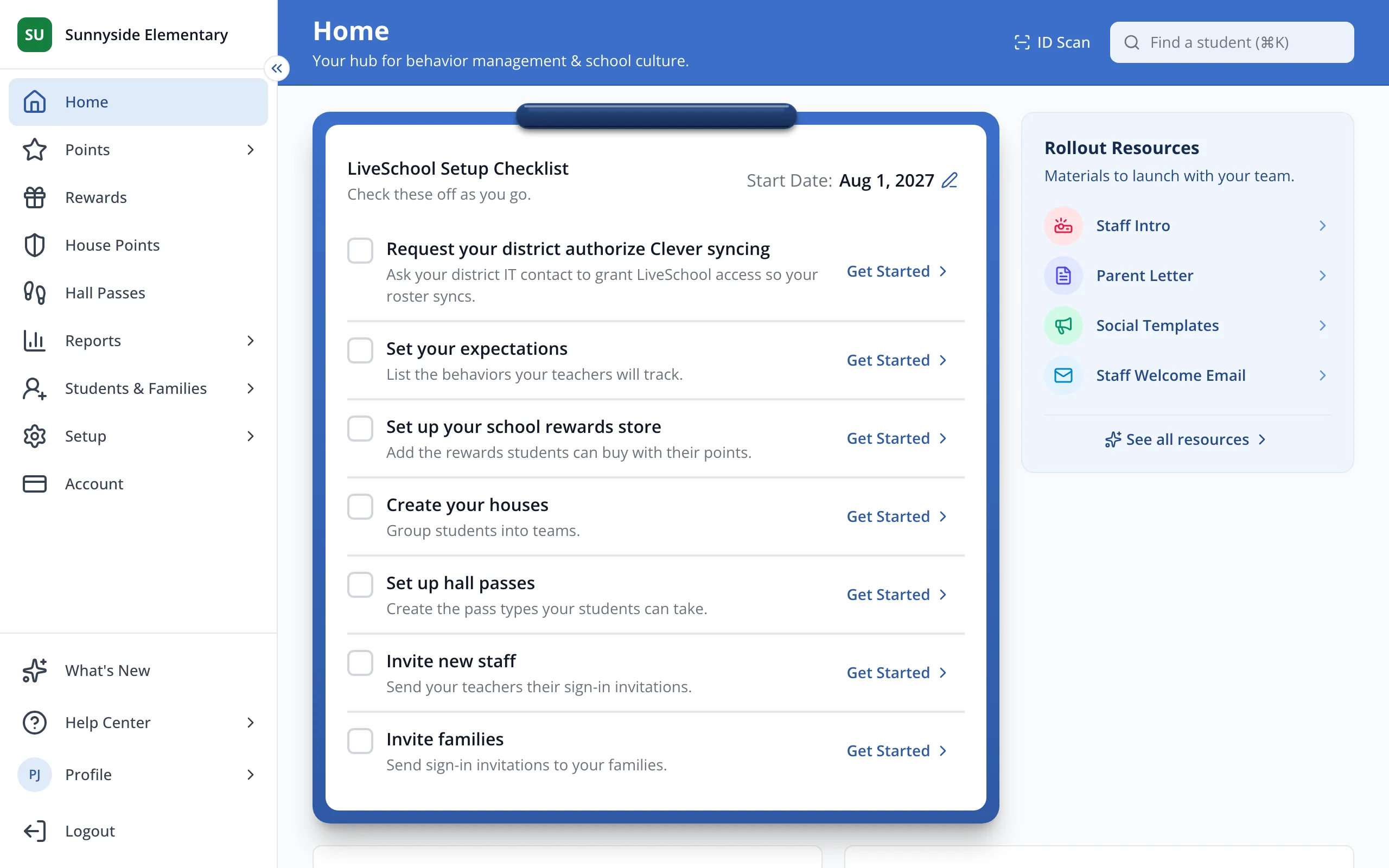
1 / 5On Home, in your LiveSchool Setup Checklist, click Get Started next to the task asking your district to authorize syncing.
1.On Home, in your LiveSchool Setup Checklist, click Get Started next to Request your district authorize Clever syncing.
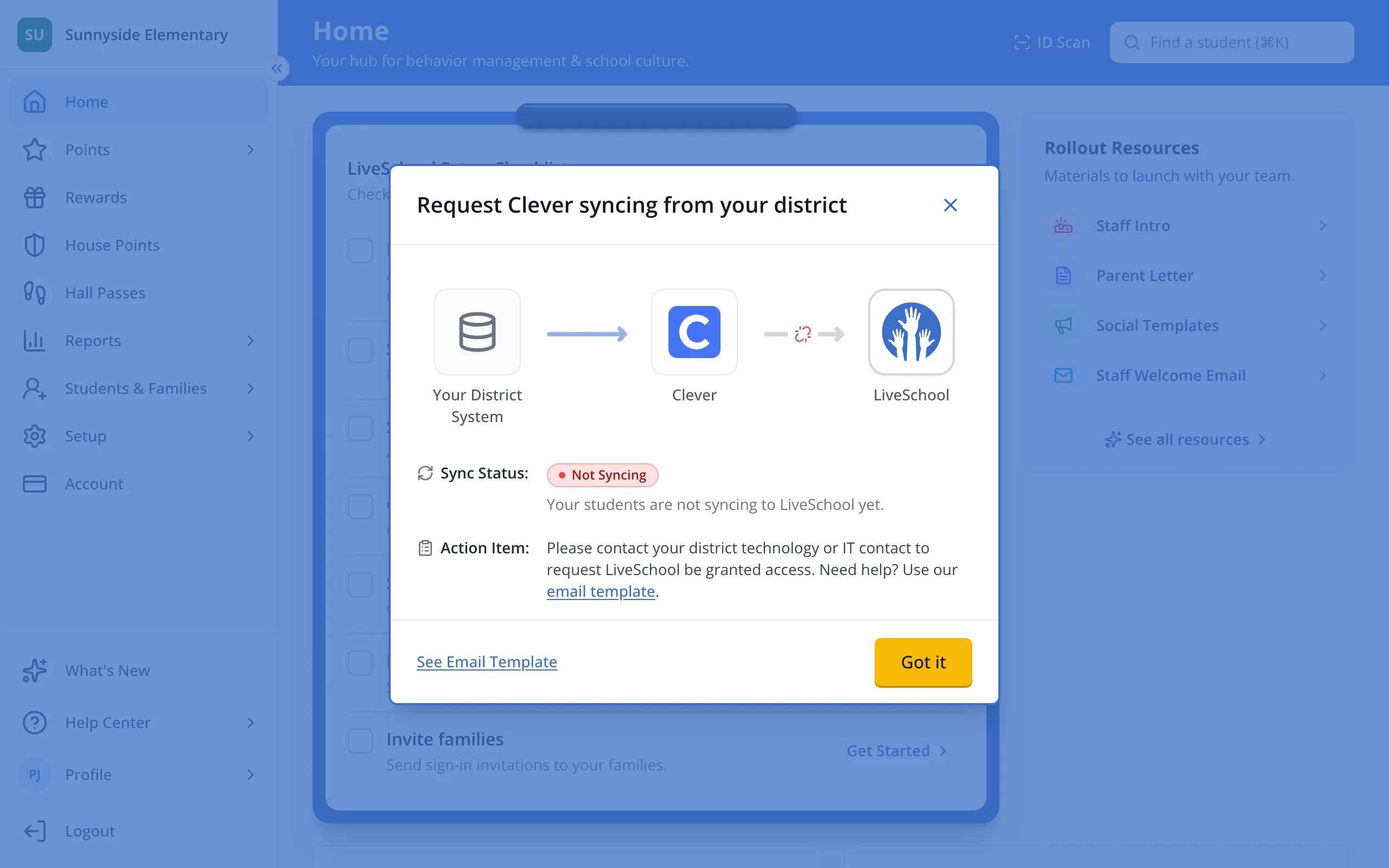
2.Click See Email Template.
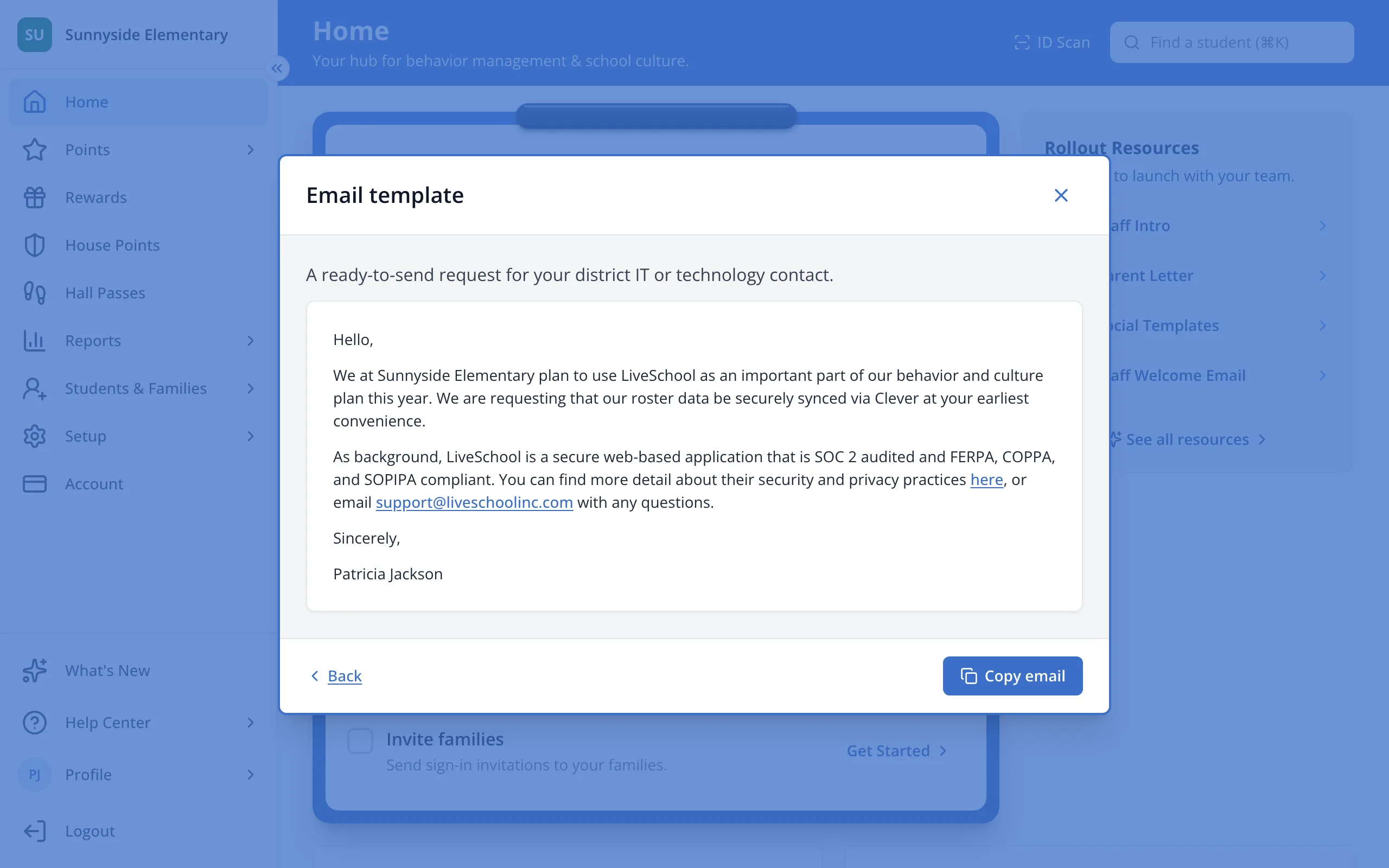
3.Click Copy email, then paste it into an email to your district's IT contact.
4.This task checks itself off once your students start syncing.
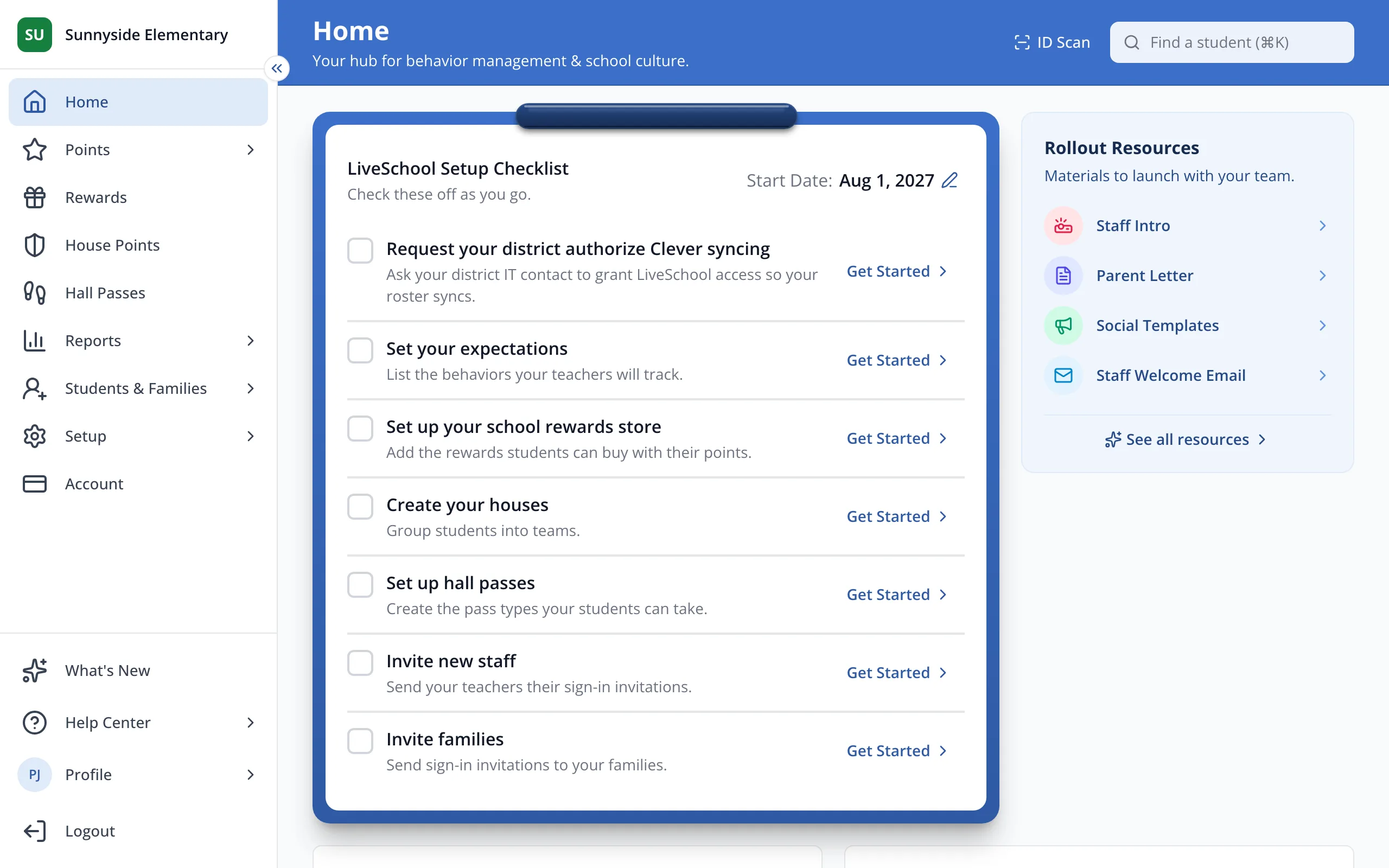
5.While you wait for your district, you can start the other tasks on your checklist. Click a task's box when you've finished it.
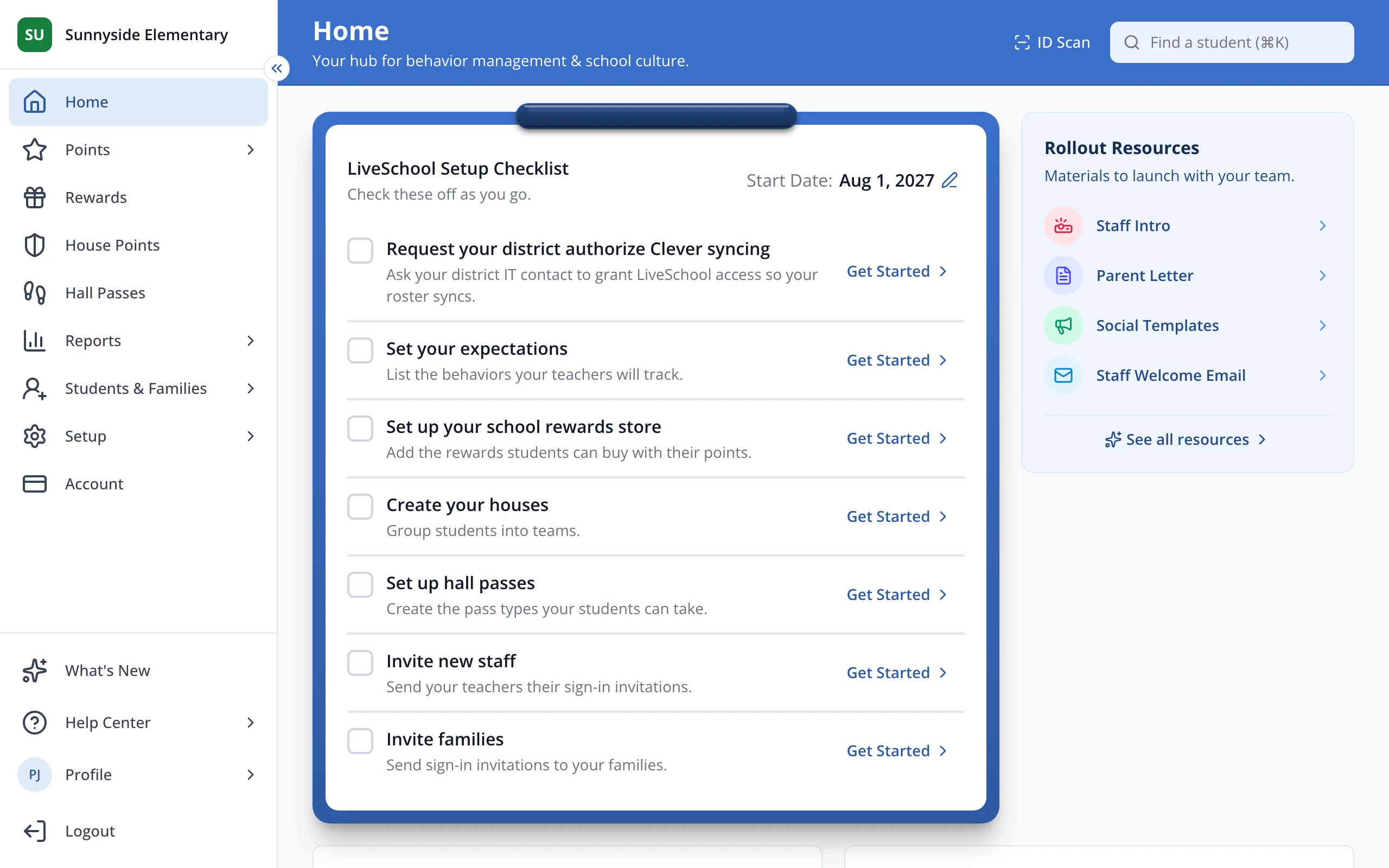
- Only site leaders see the setup checklist on Home.
Was this helpful?