
Complete the welcome wizard for a new school year
Set your new year's dates, update your Site Leader list, and decide how to handle last year's Bank Accounts.
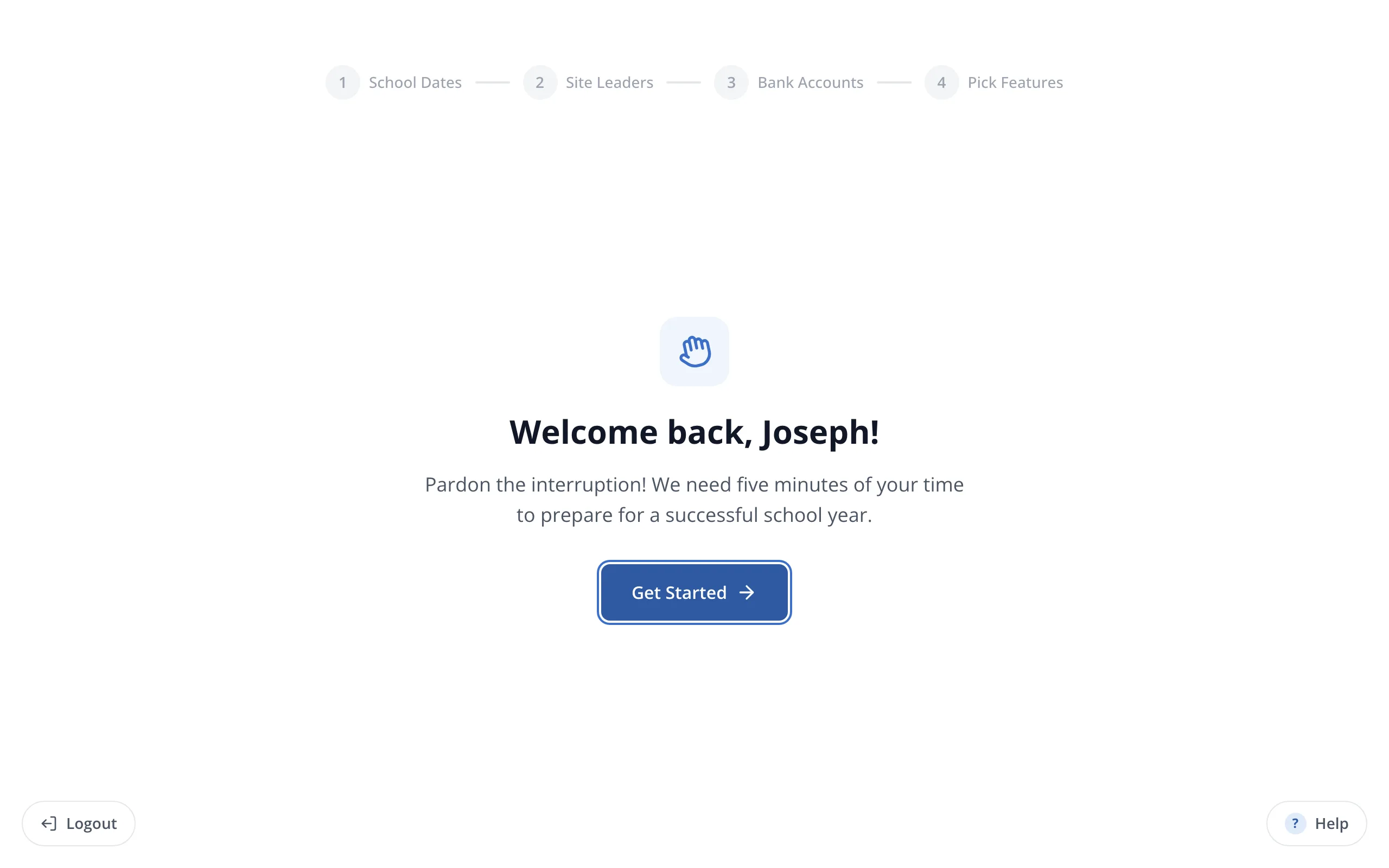
1 / 10On the Welcome back screen, click Get Started.
1.On the Welcome back screen, click Get Started.
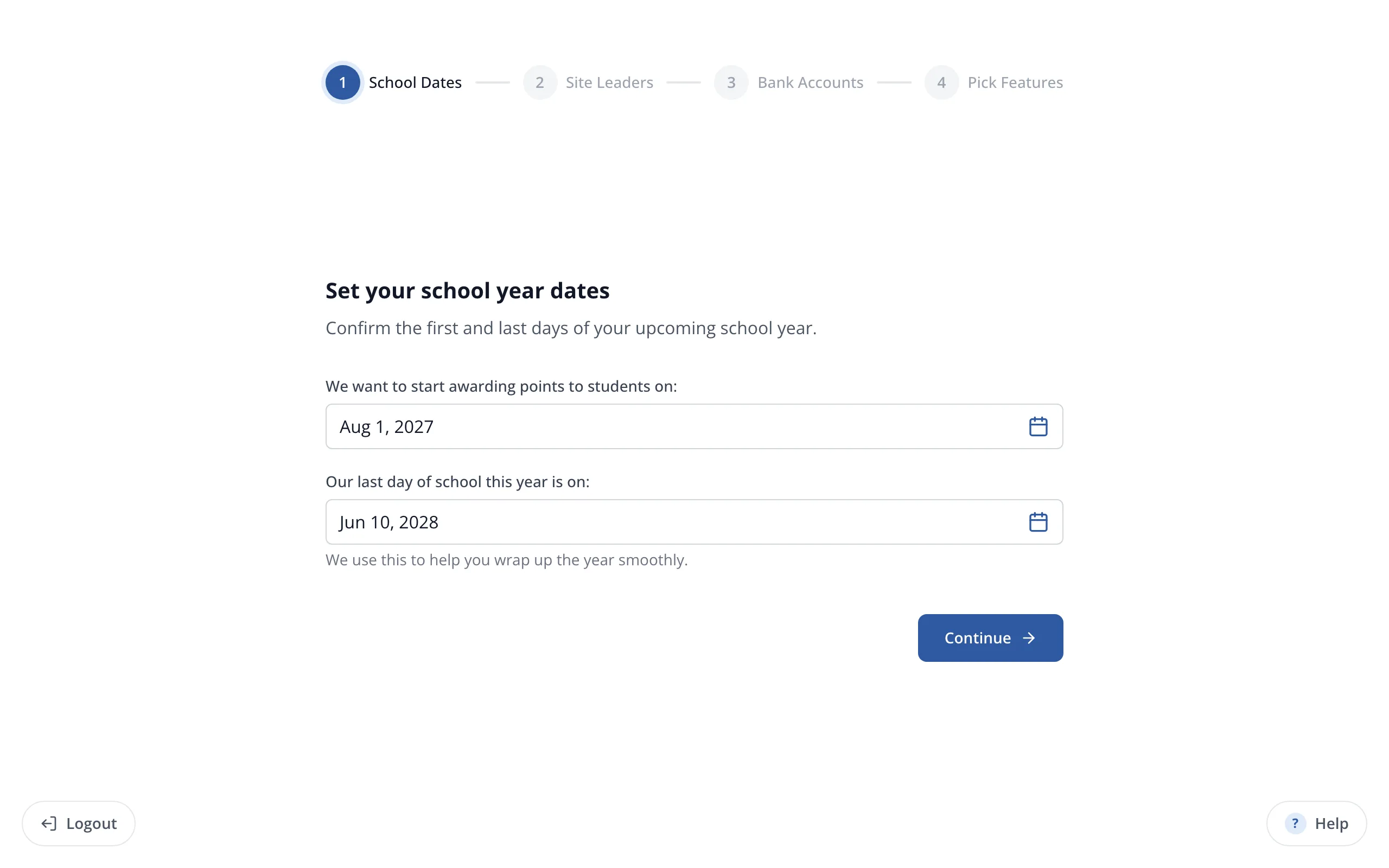
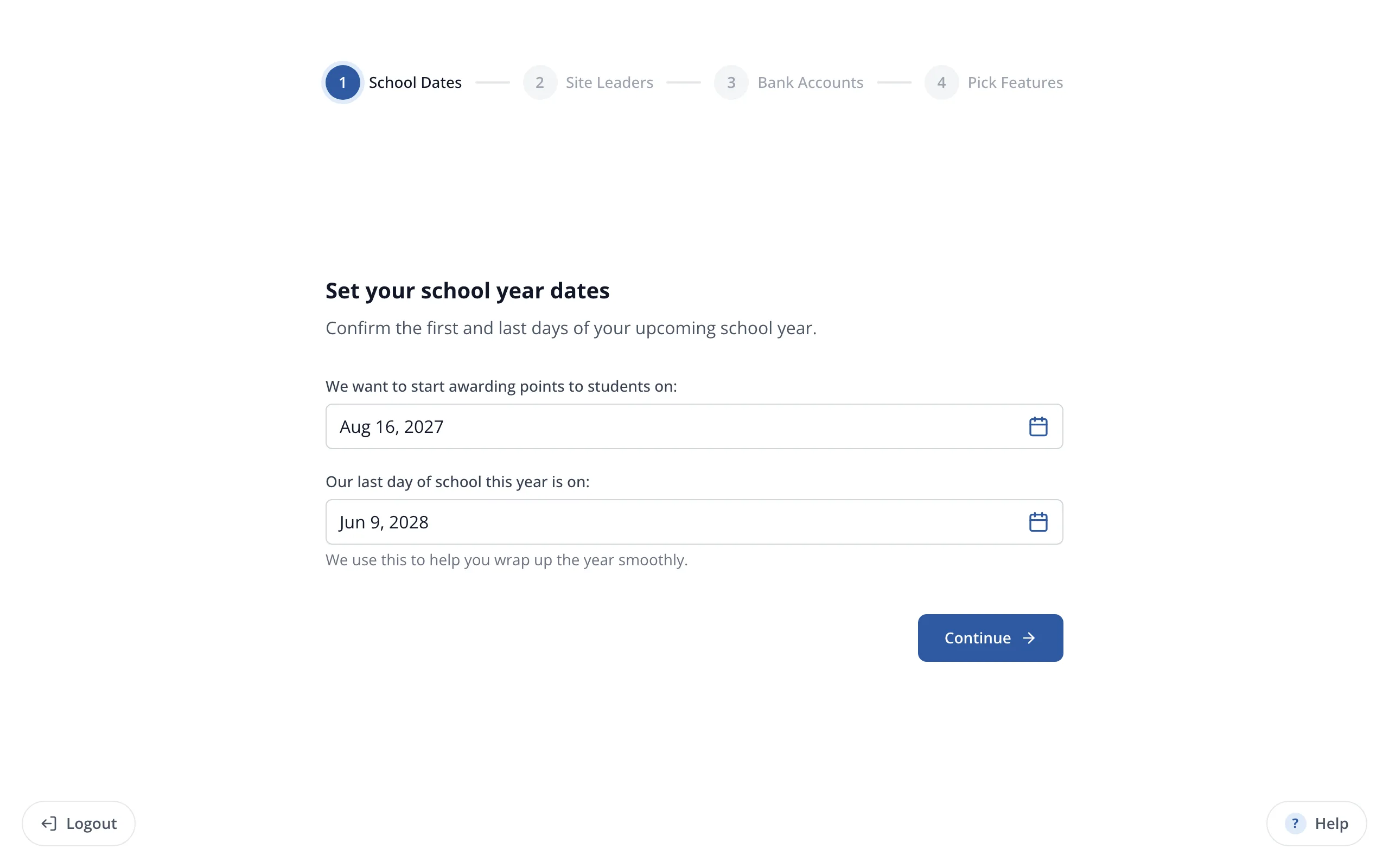
2.Set the first day you'd like to start awarding points.
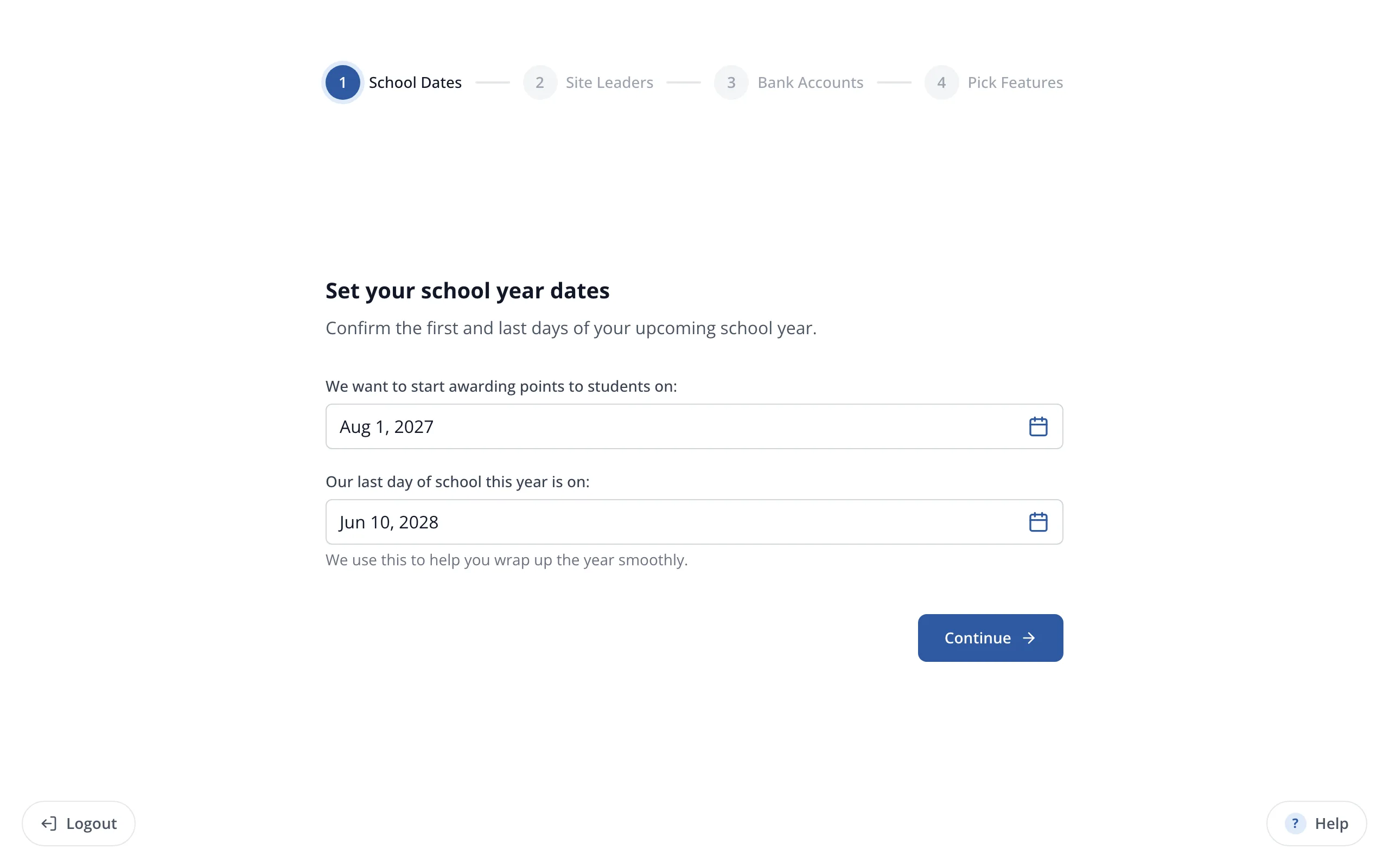
3.Set your last day of school.
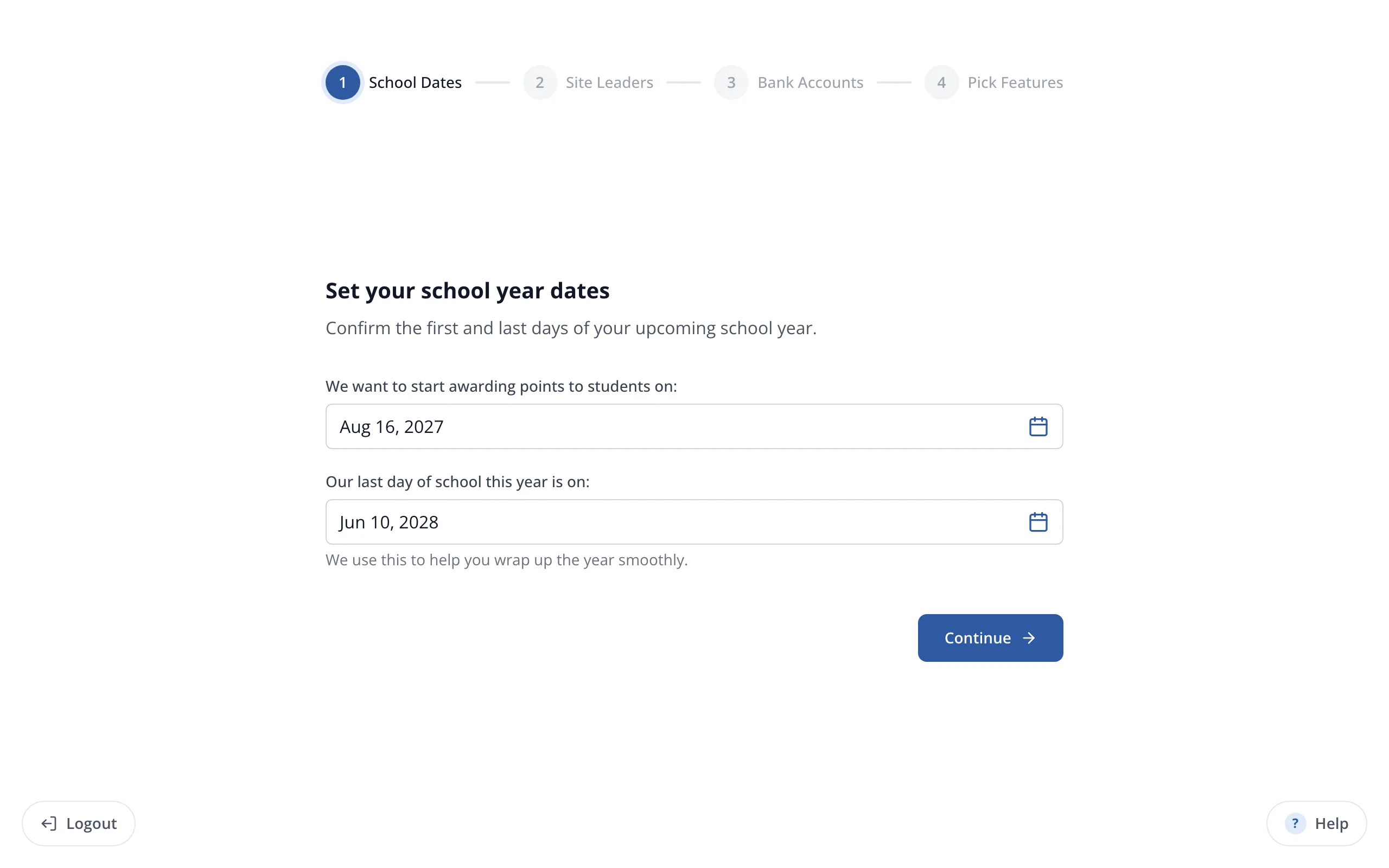
4.Click Continue.
5.Review your Site Leaders: remove anyone who has left and add anyone new, then click Continue.
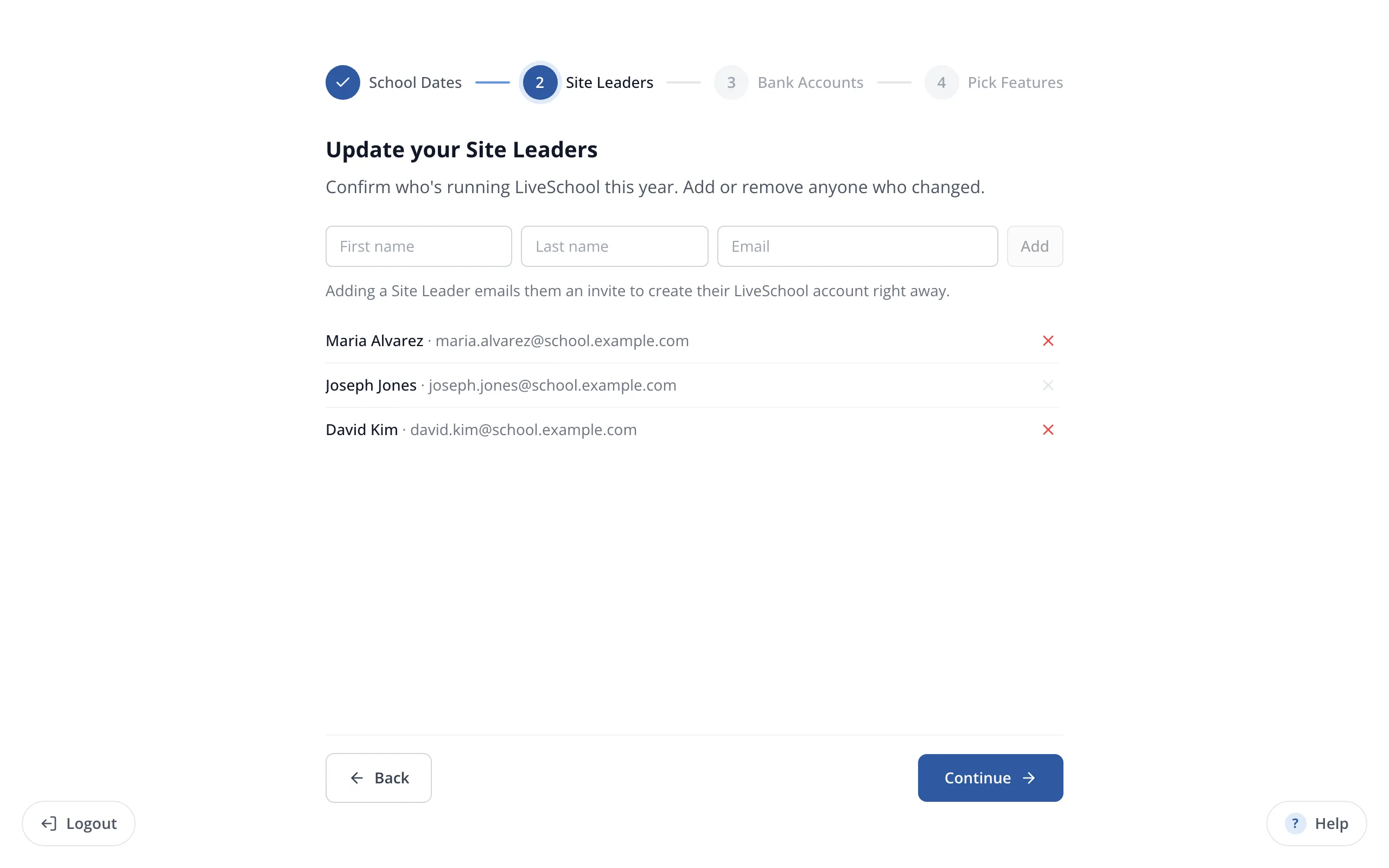
Tip: When you remove someone who is still at your school, choose Still at our school, no longer a site leader to keep their account.
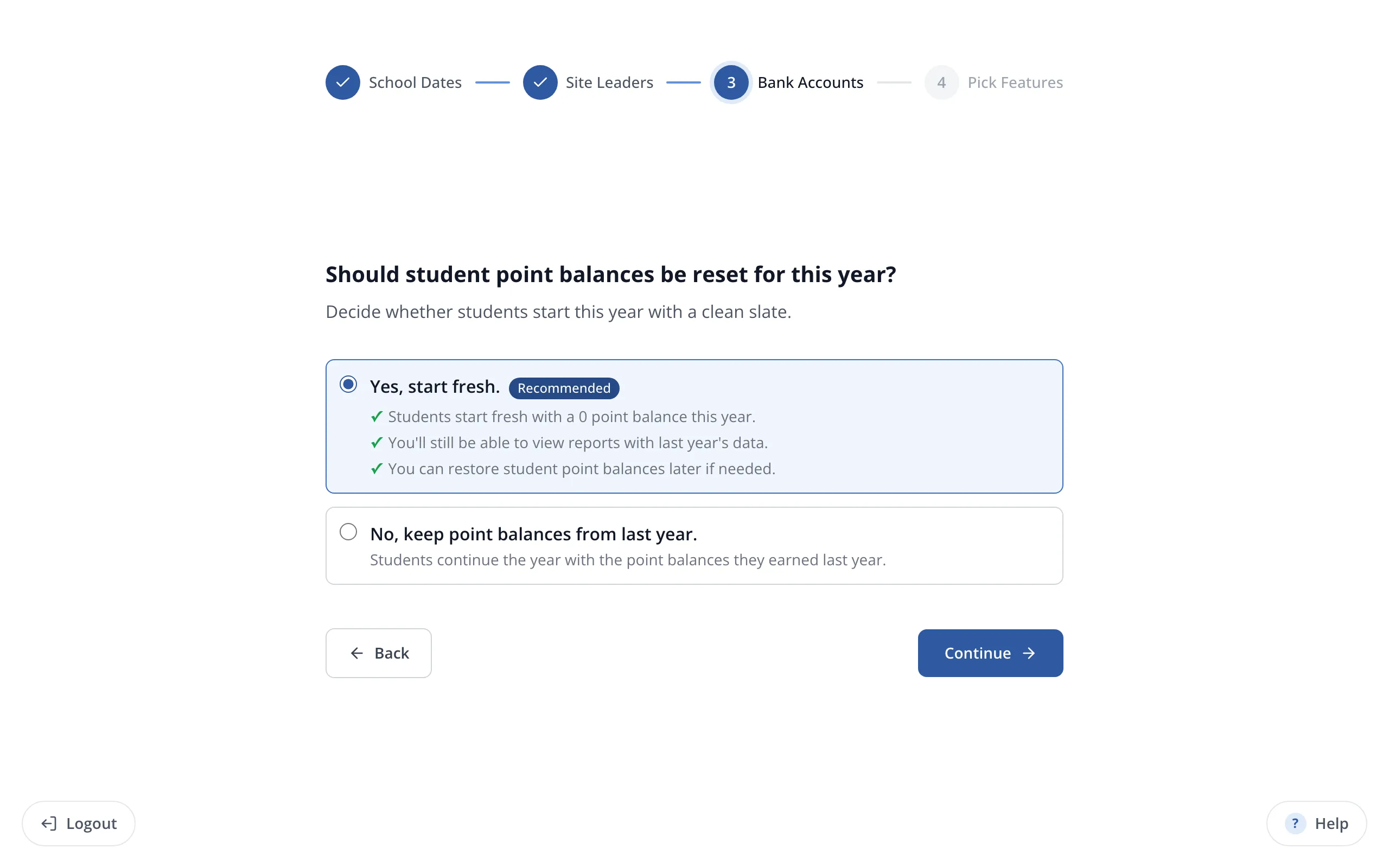
6.Click Yes, start fresh to reset every Bank Account to 0, or click the option below it to keep last year's points.
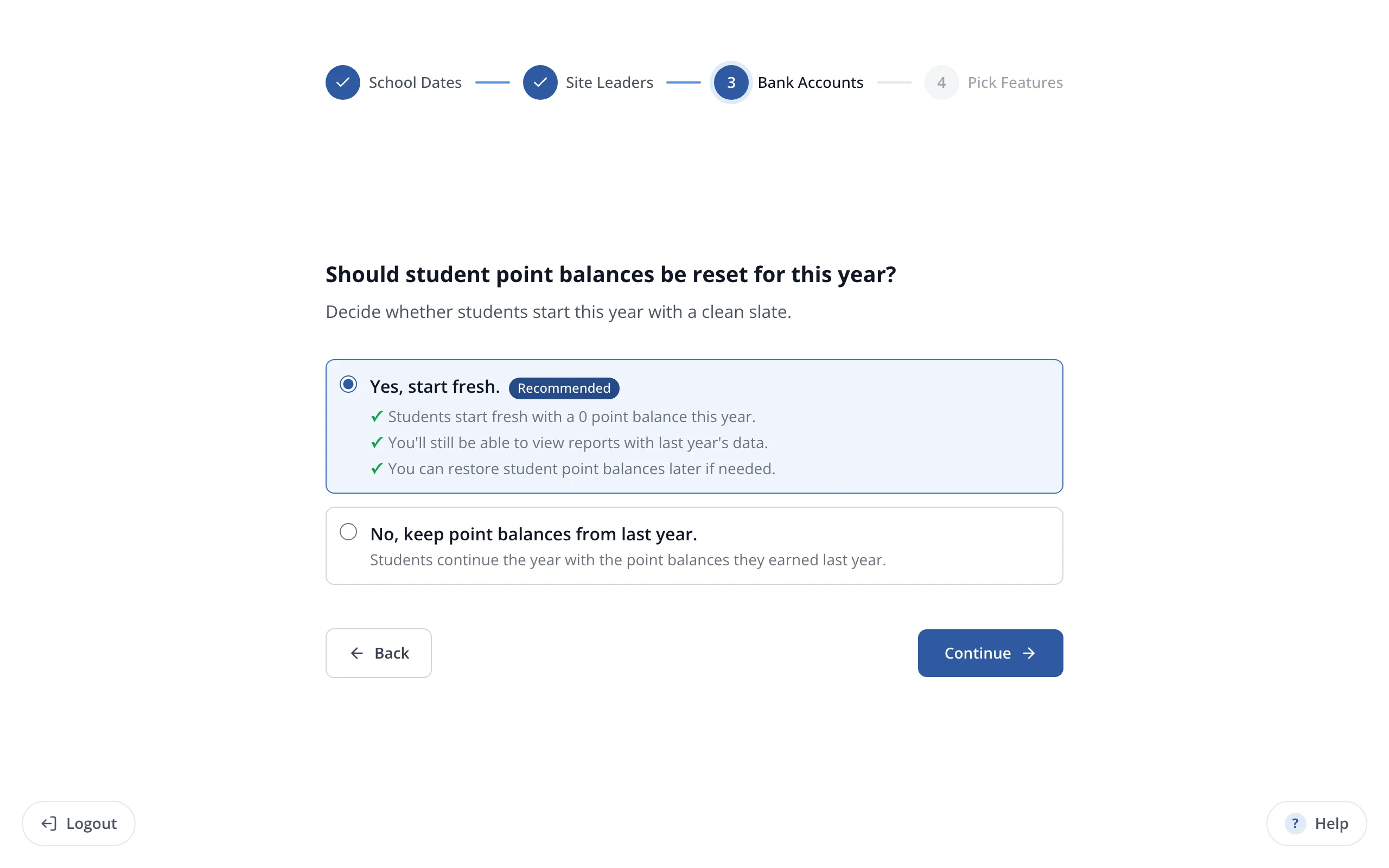
7.Click Continue.
8.Choose the features your school will use this year. Click a feature to turn it on or off.
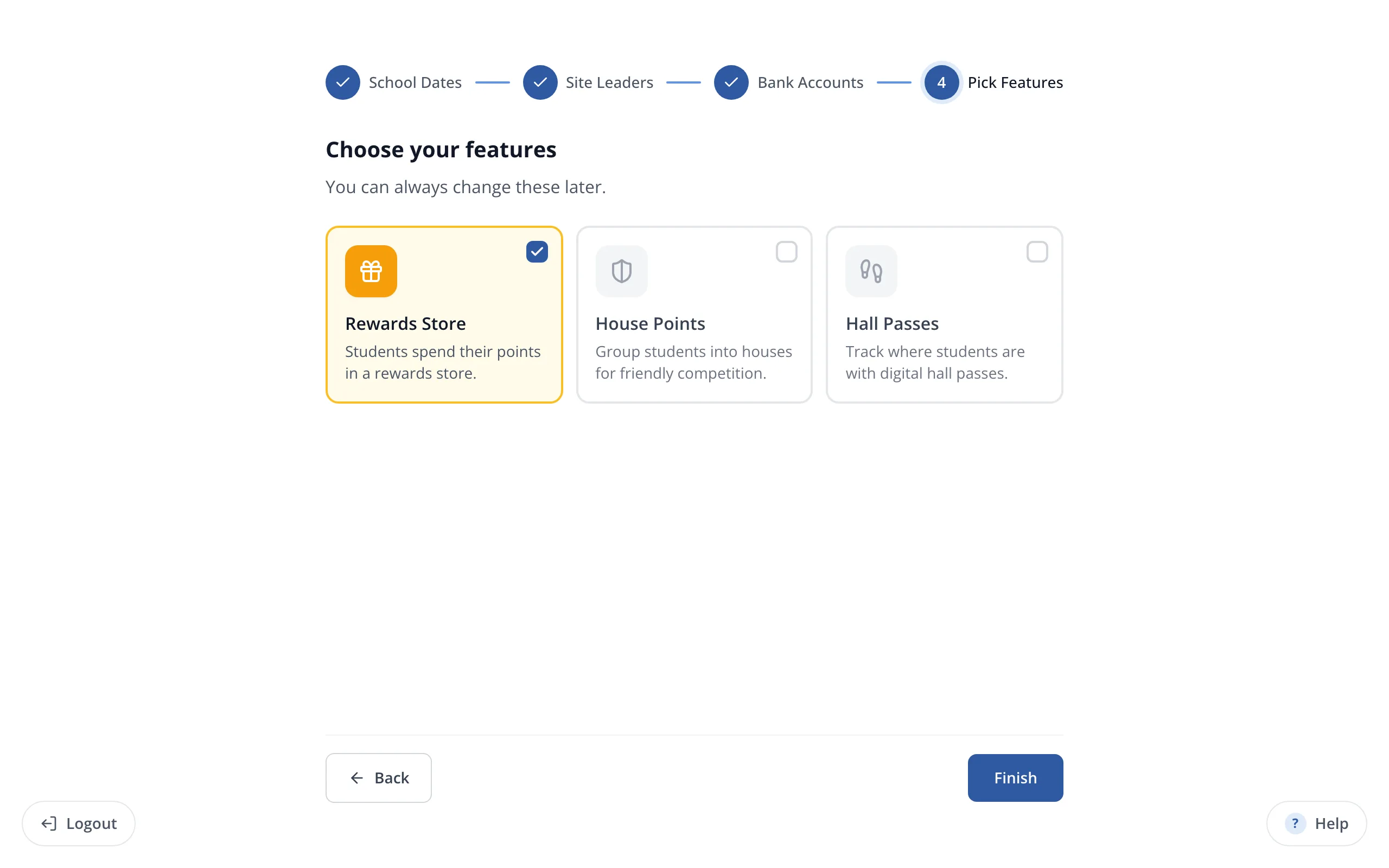
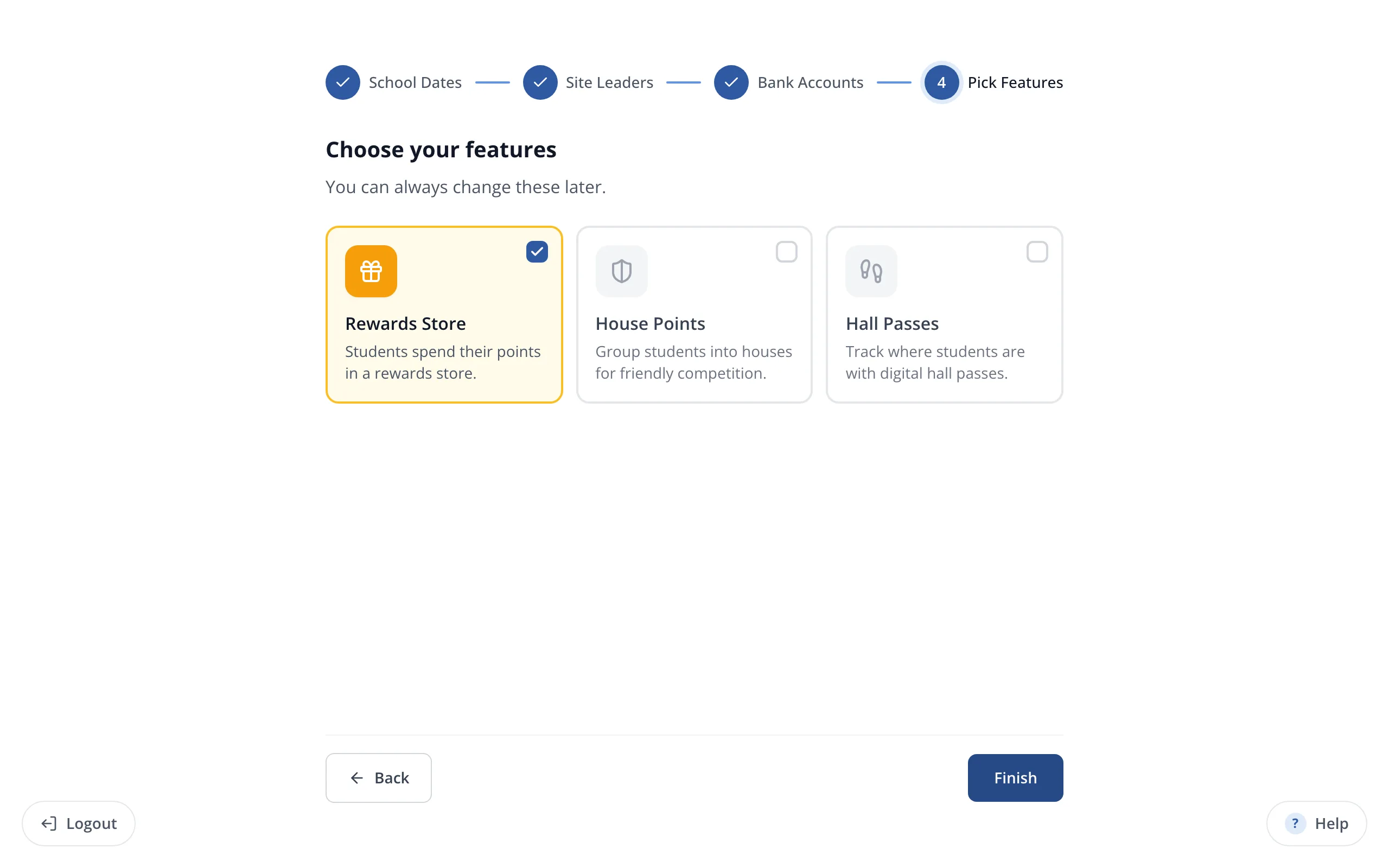
9.Click Finish.
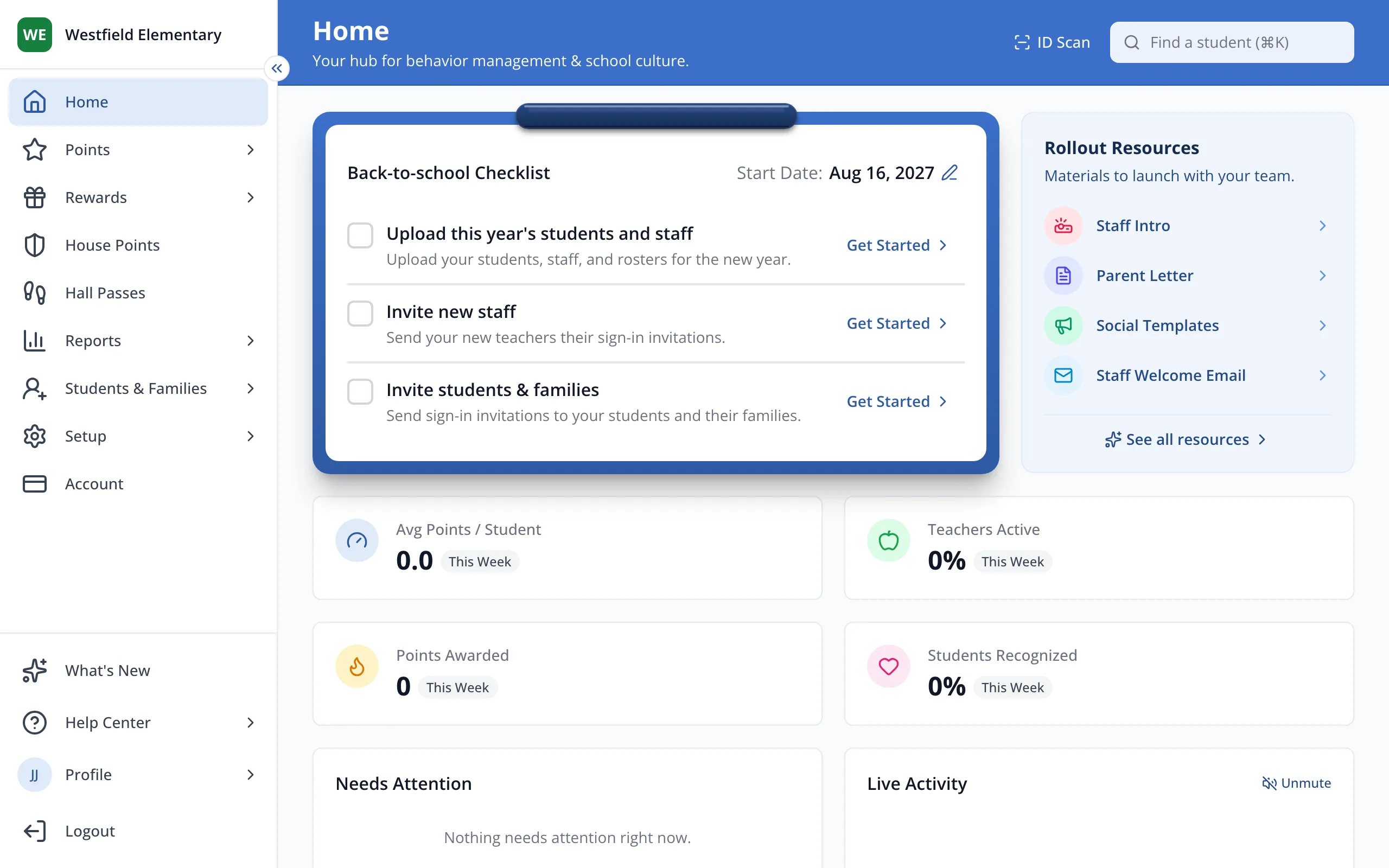
10.Your Back-to-school Checklist on Home lists what to do next.
- The wizard opens on its own for site leaders once your school year has ended.