
Give a point to your whole class
Recognize the whole class at once when everyone earns it, like a quiet transition.
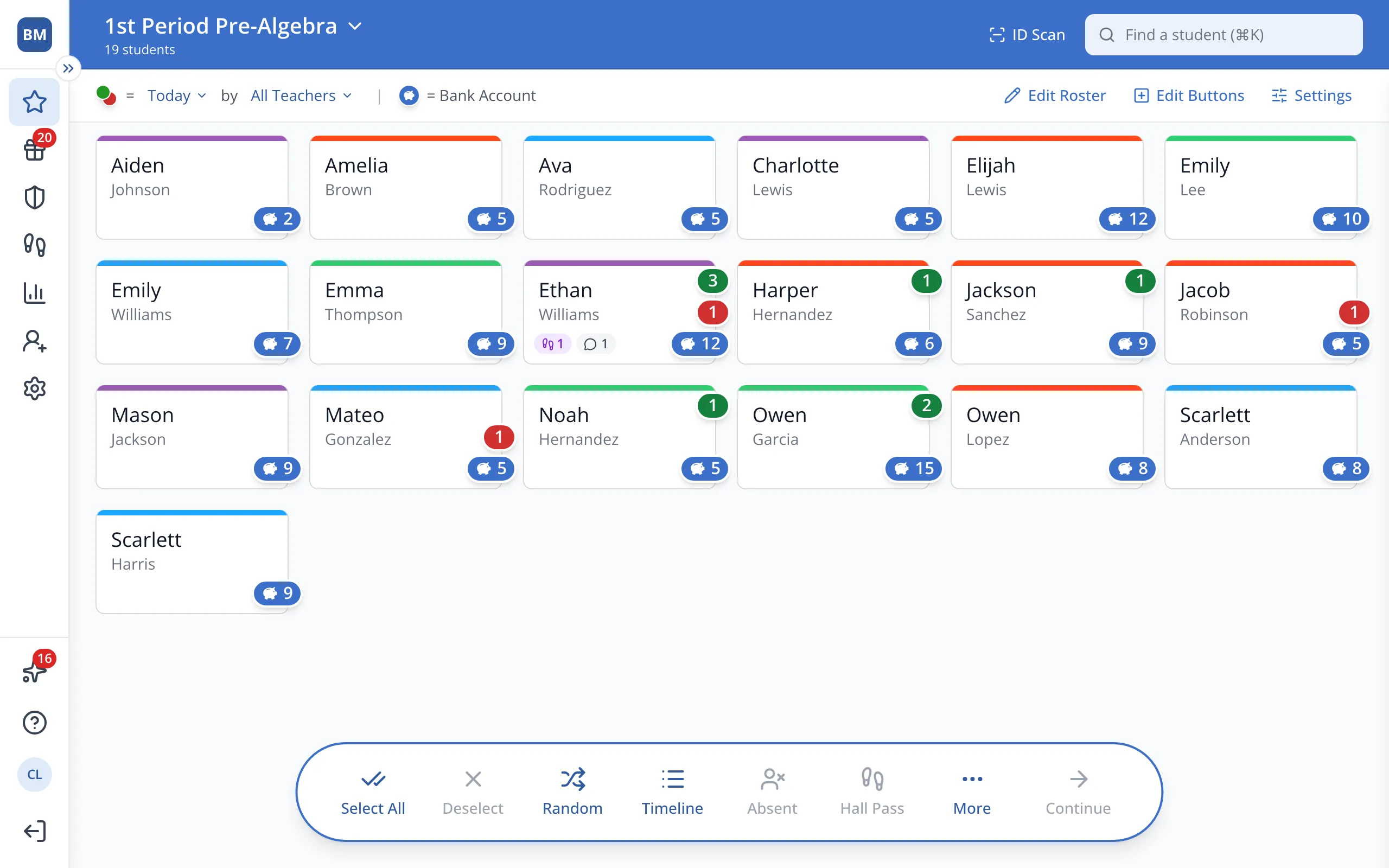
1 / 7At the top of the Points page, click your roster's name.
1.At the top of the Points page, click your roster's name.
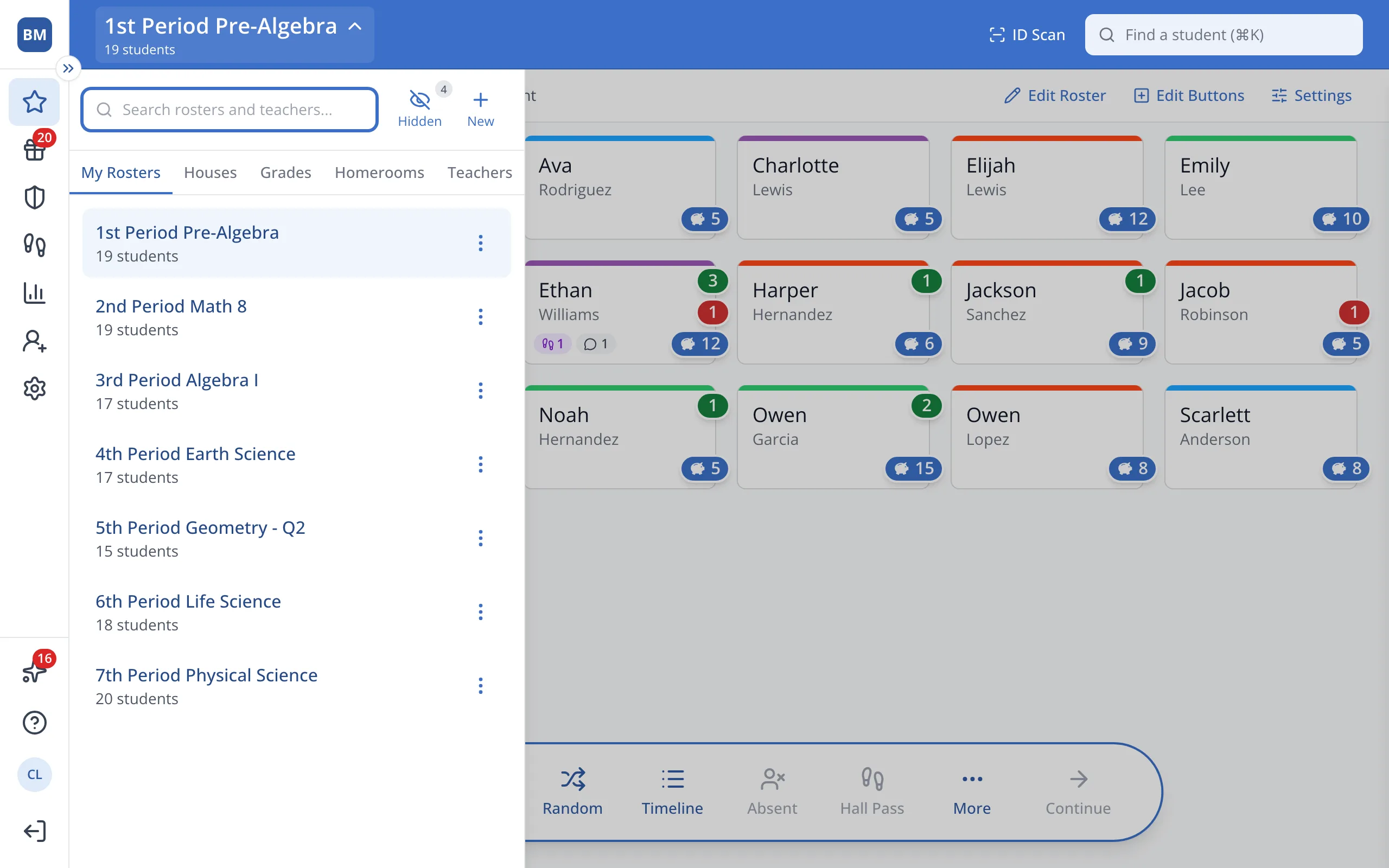
2.Click the roster you'd like to give points to.
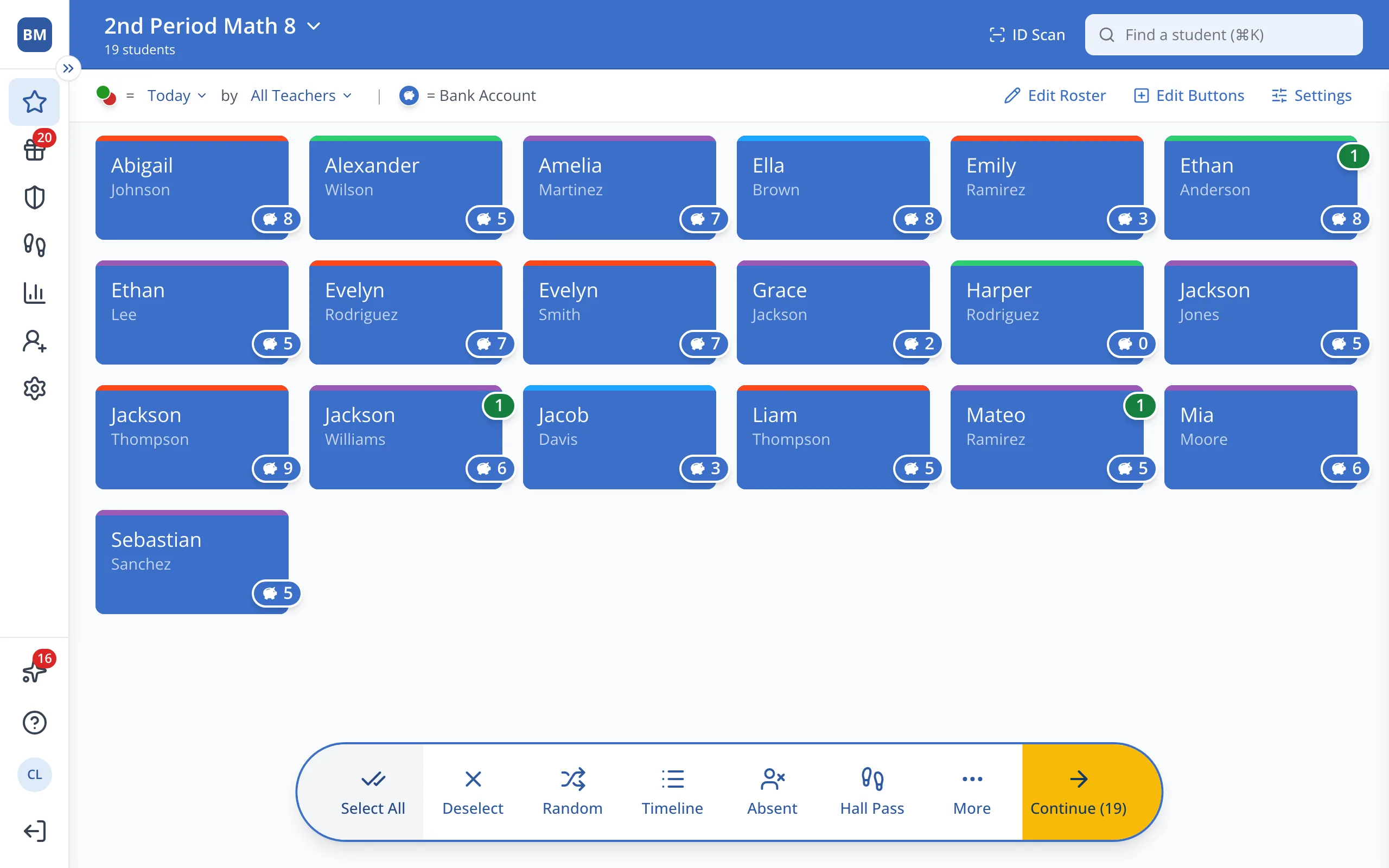
3.In the bar at the bottom, click Select All. Every student button will be selected.
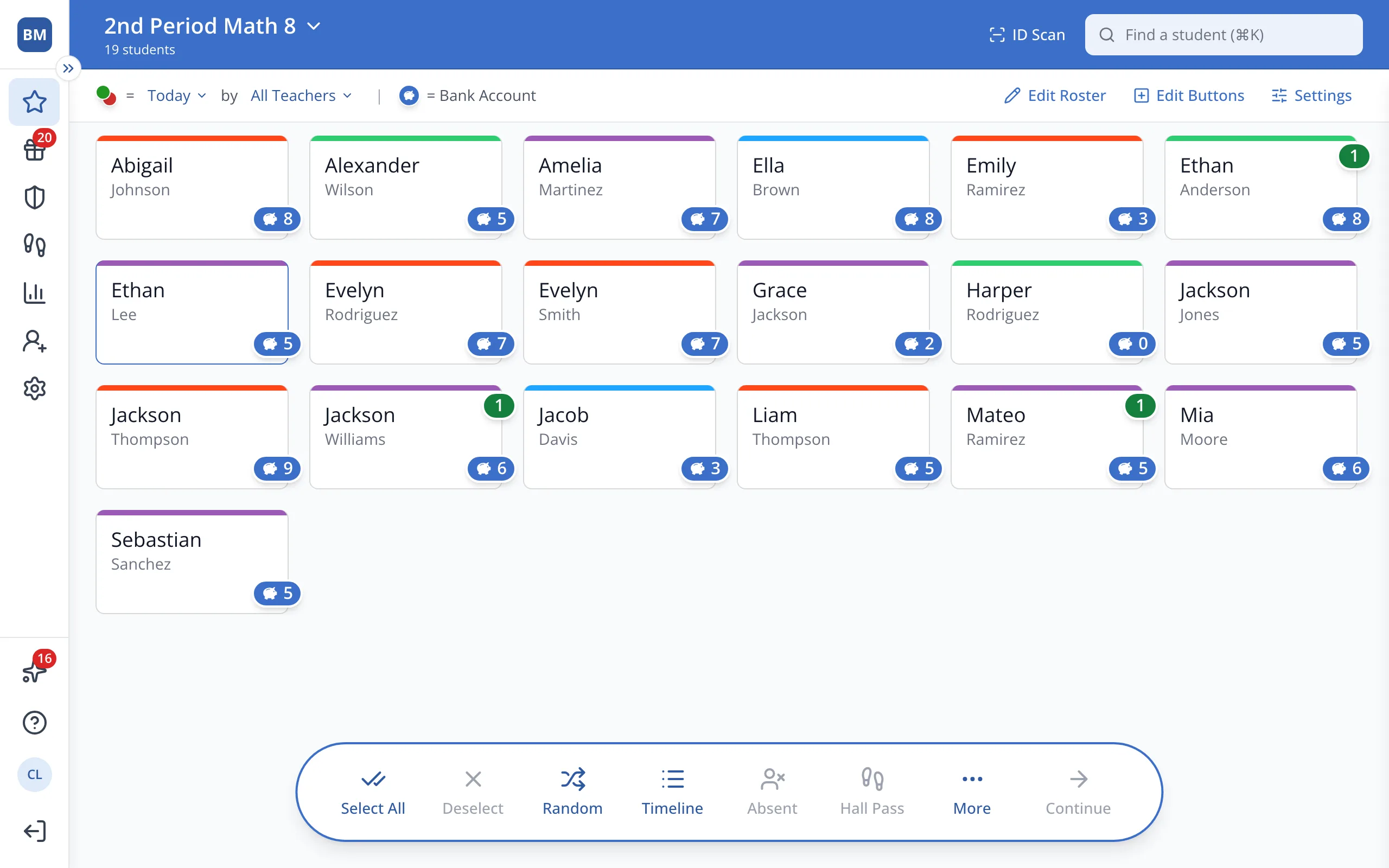
Tip: Students marked absent or out on a hall pass won't be selected.
4.Click Continue in the bar at the bottom.
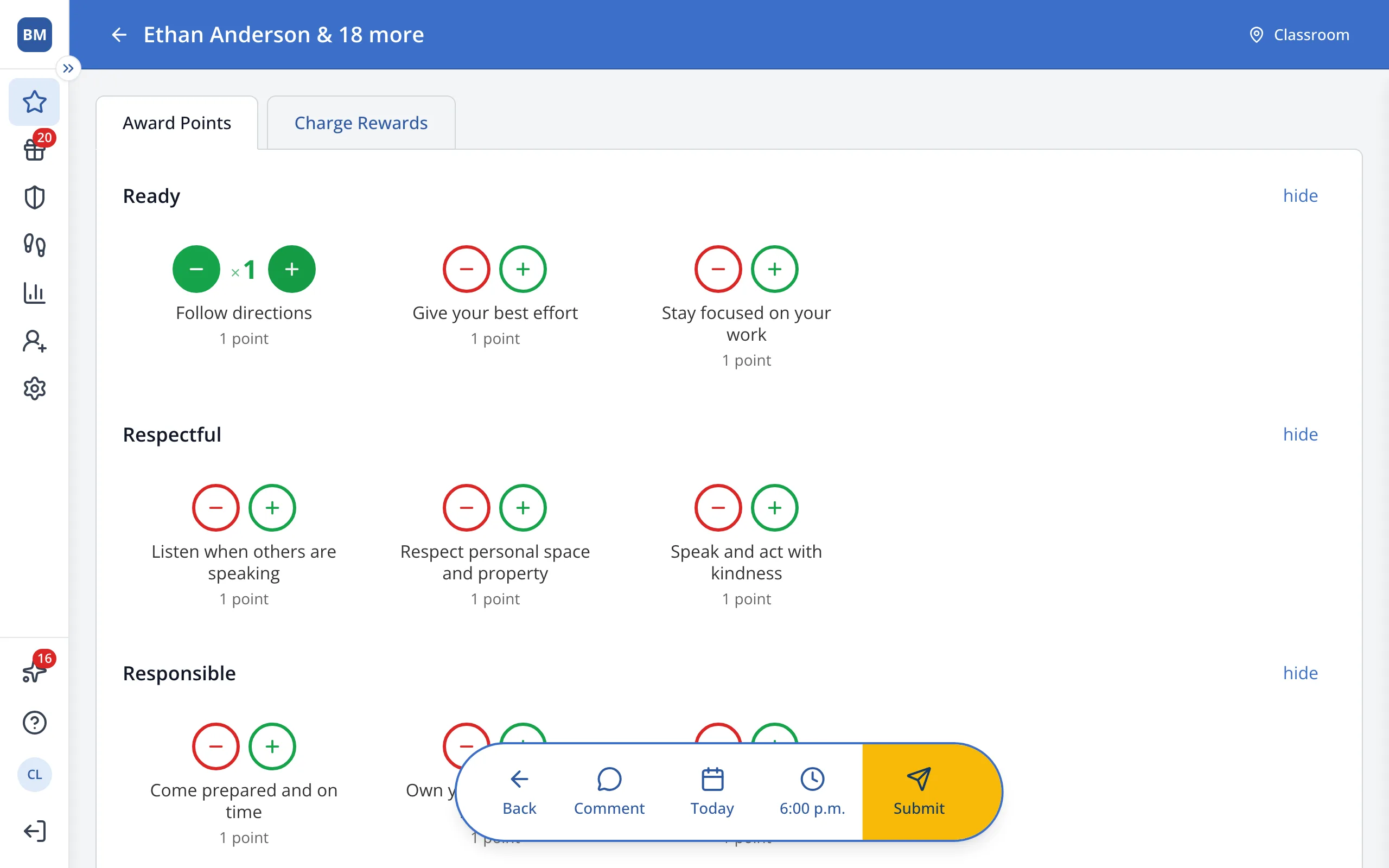
5.Click the green + under the behavior you'd like to reward.
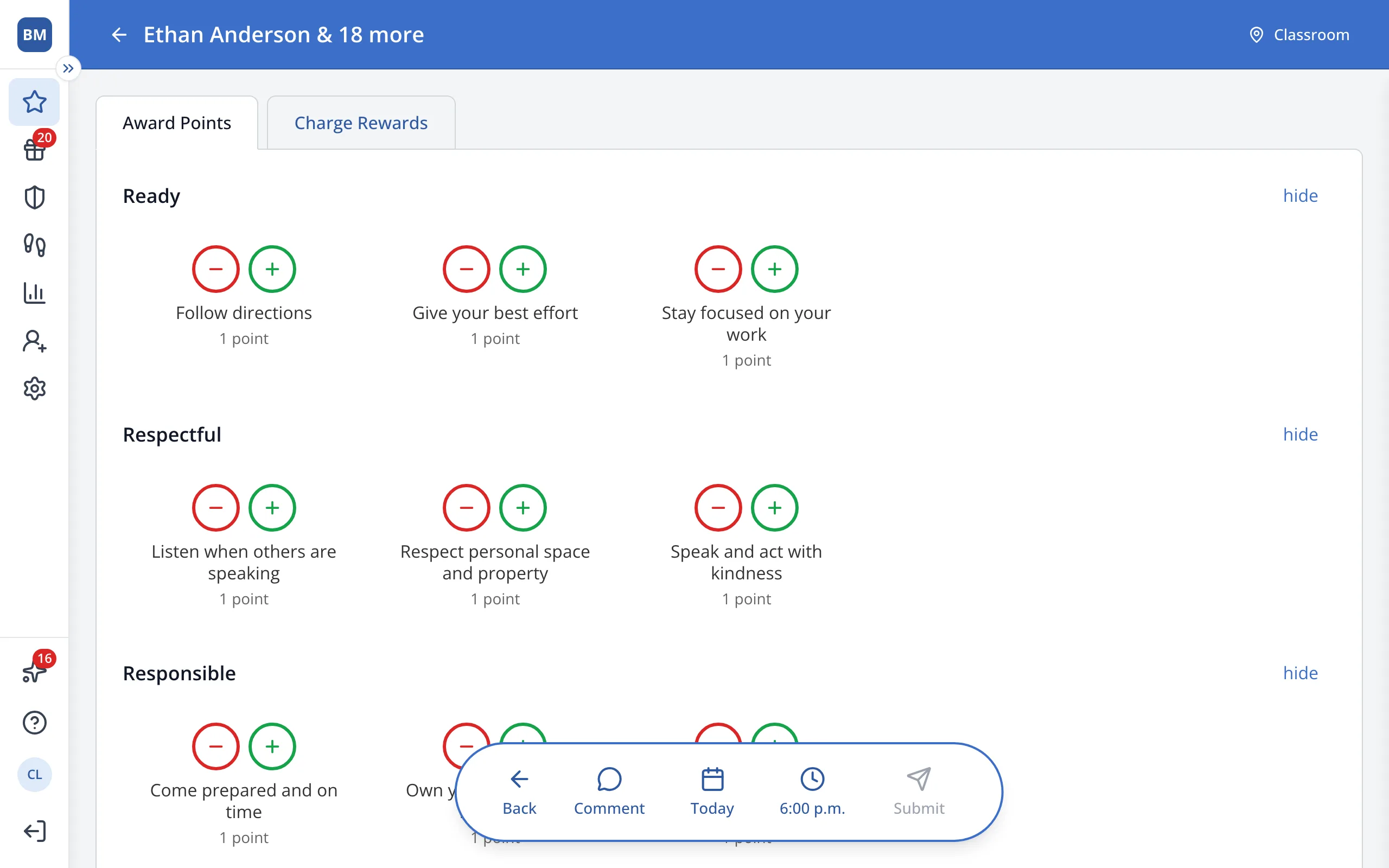
6.In the bar at the bottom, click Submit.
Was this helpful?