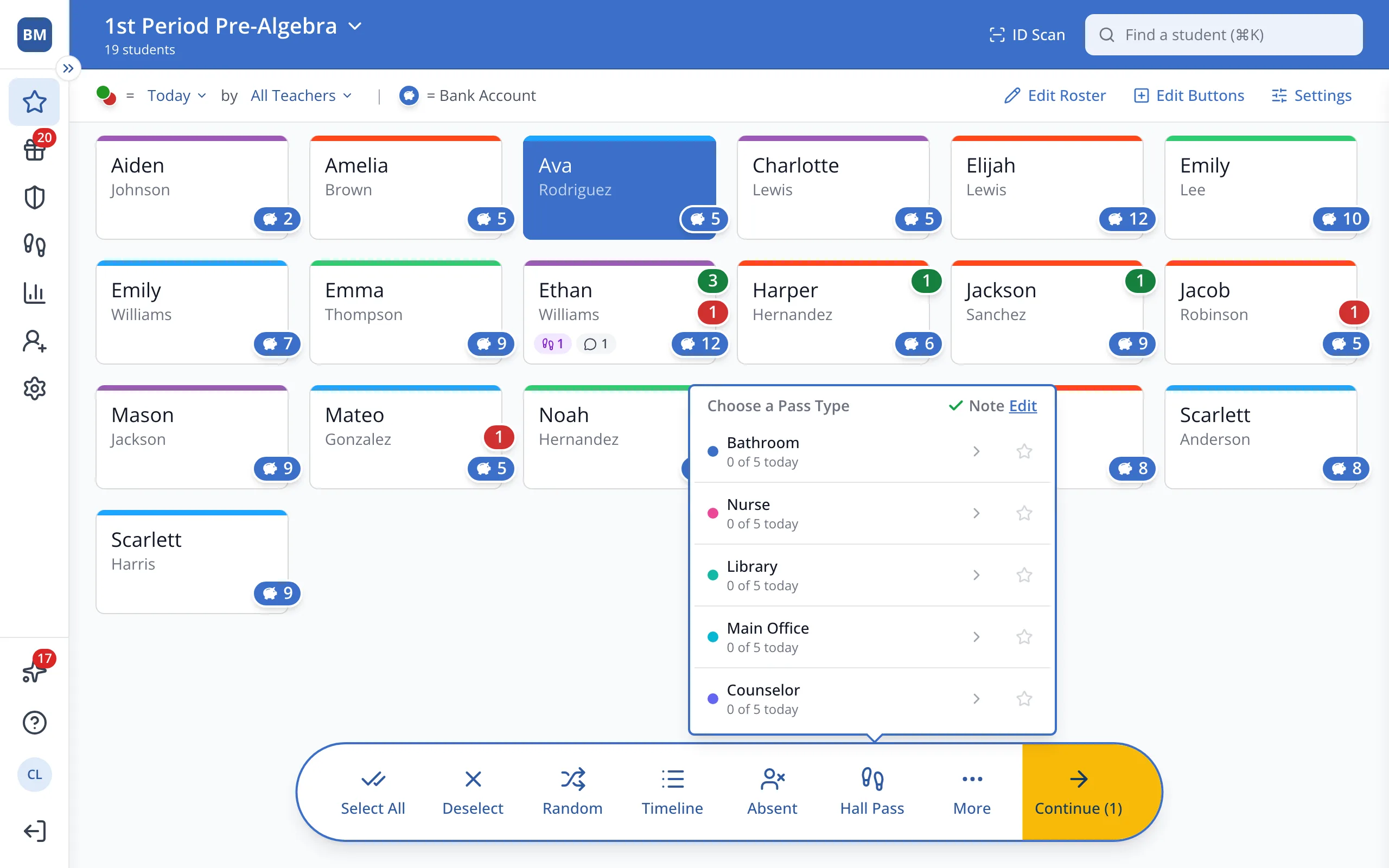
Add a note to a pass
Add details the pass type doesn't say, like why the student is going or who they're meeting.
Use the Left and Right arrow keys to move between steps, and Space to play or pause.
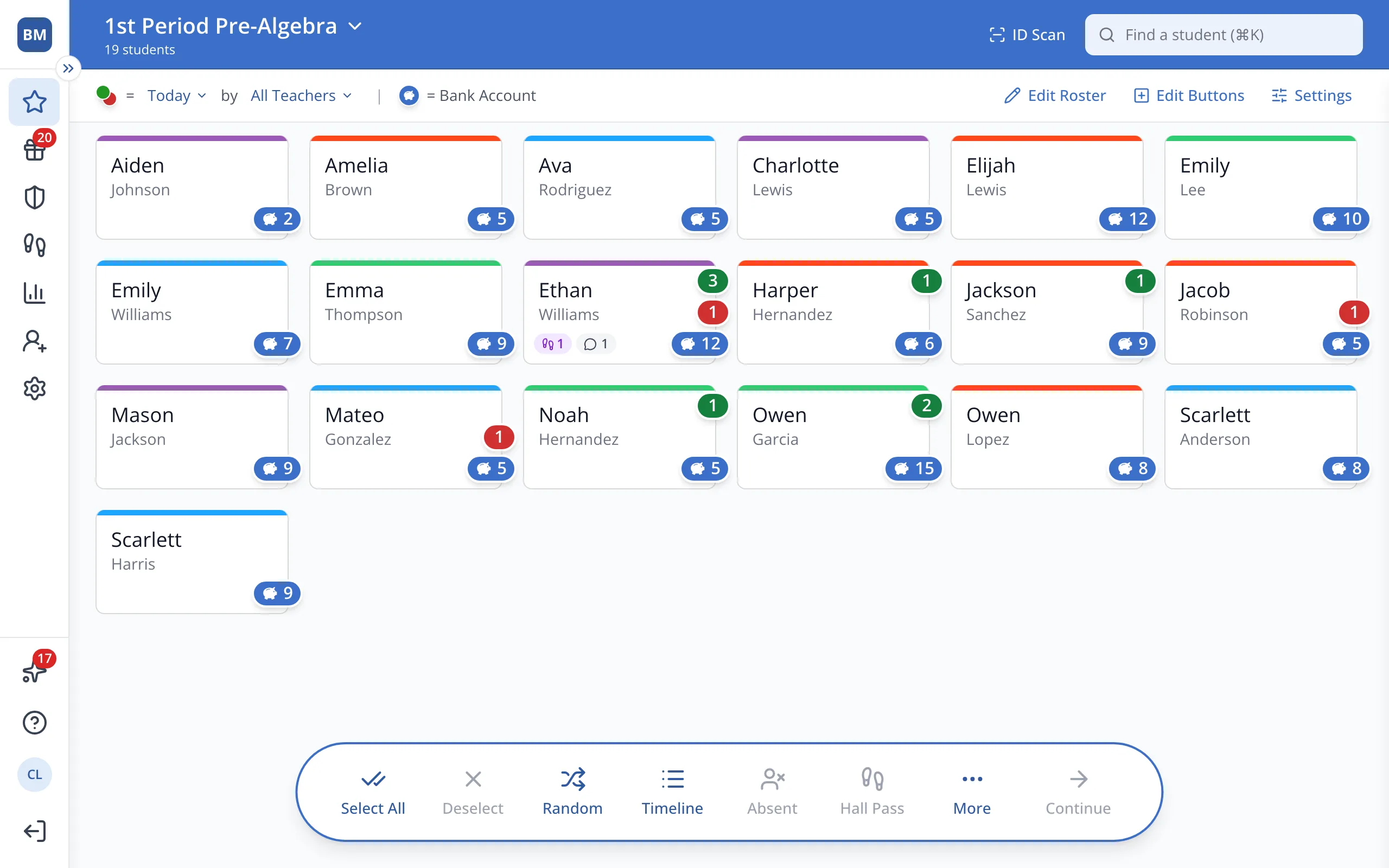
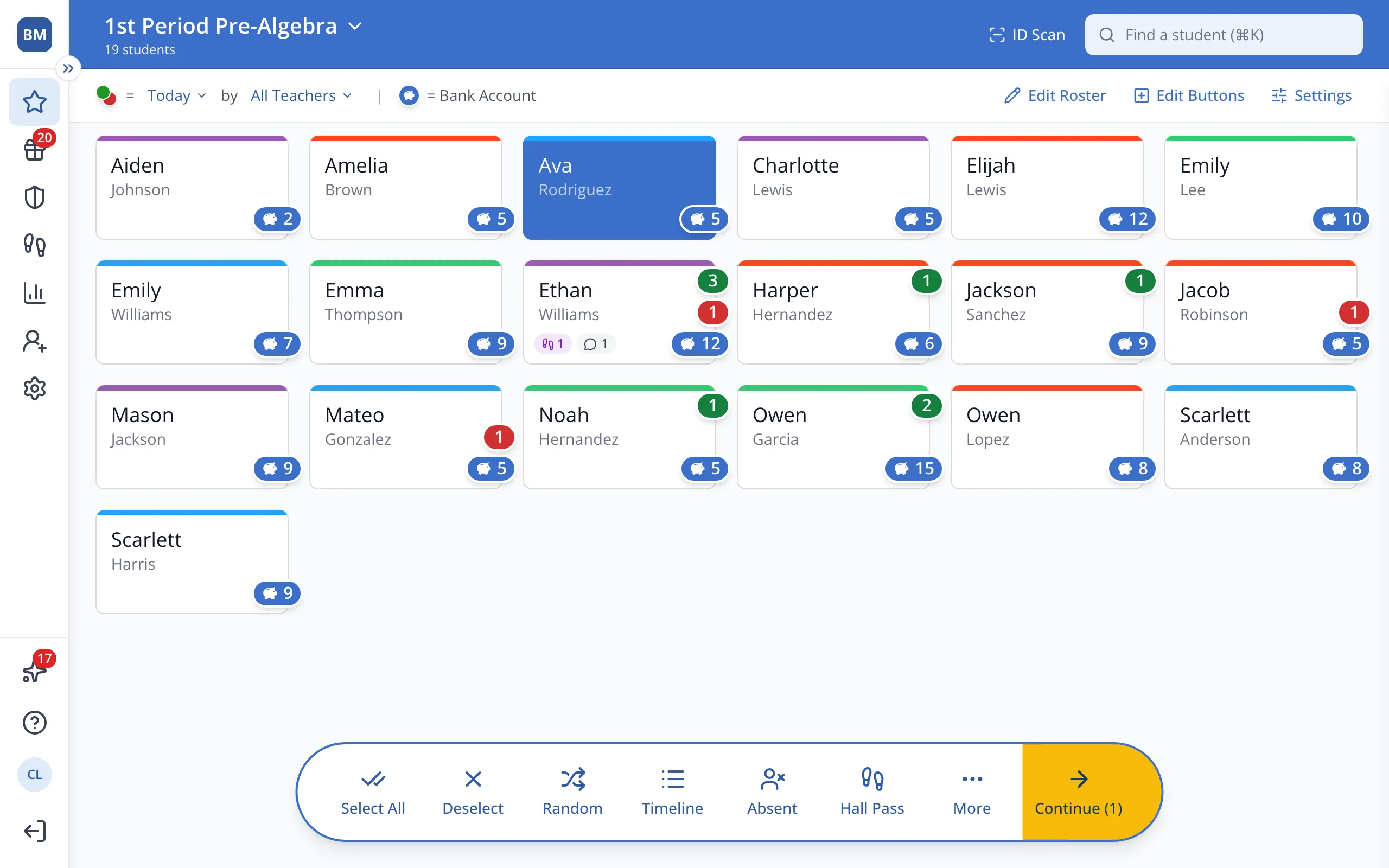
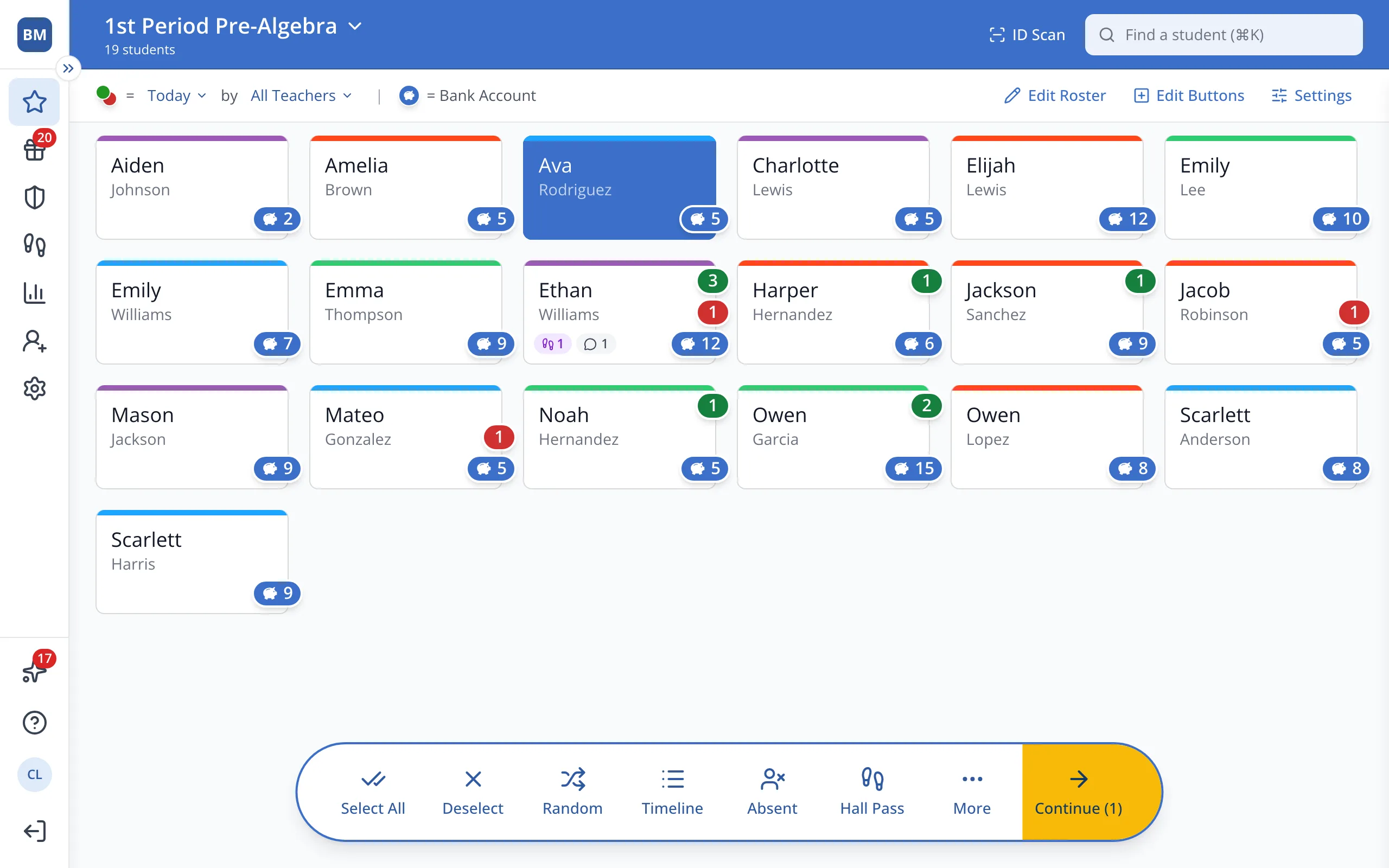
1.On the Points page, click the student's button.
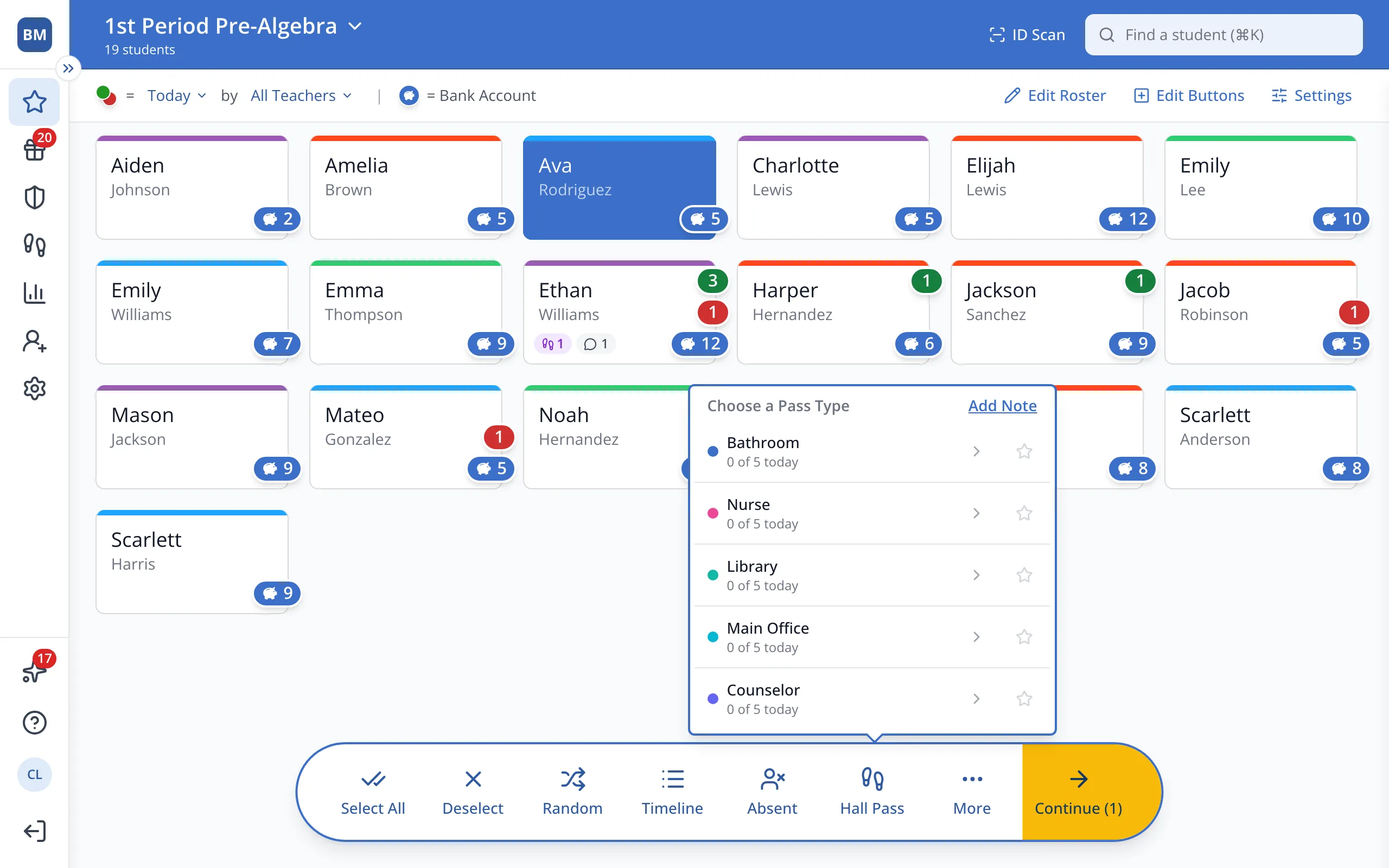
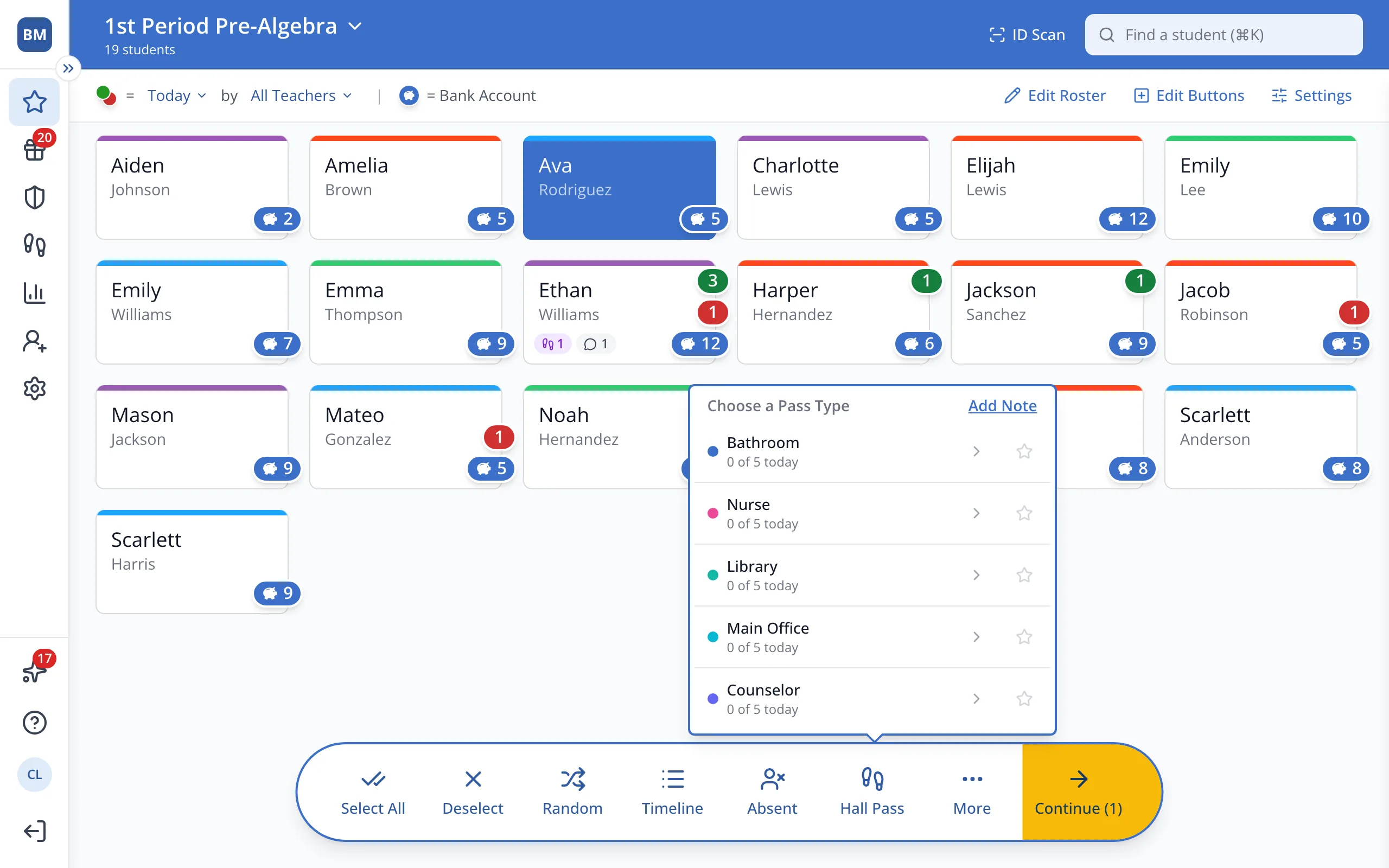
2.In the bar at the bottom, click Hall Pass.
3.Click Add Note.
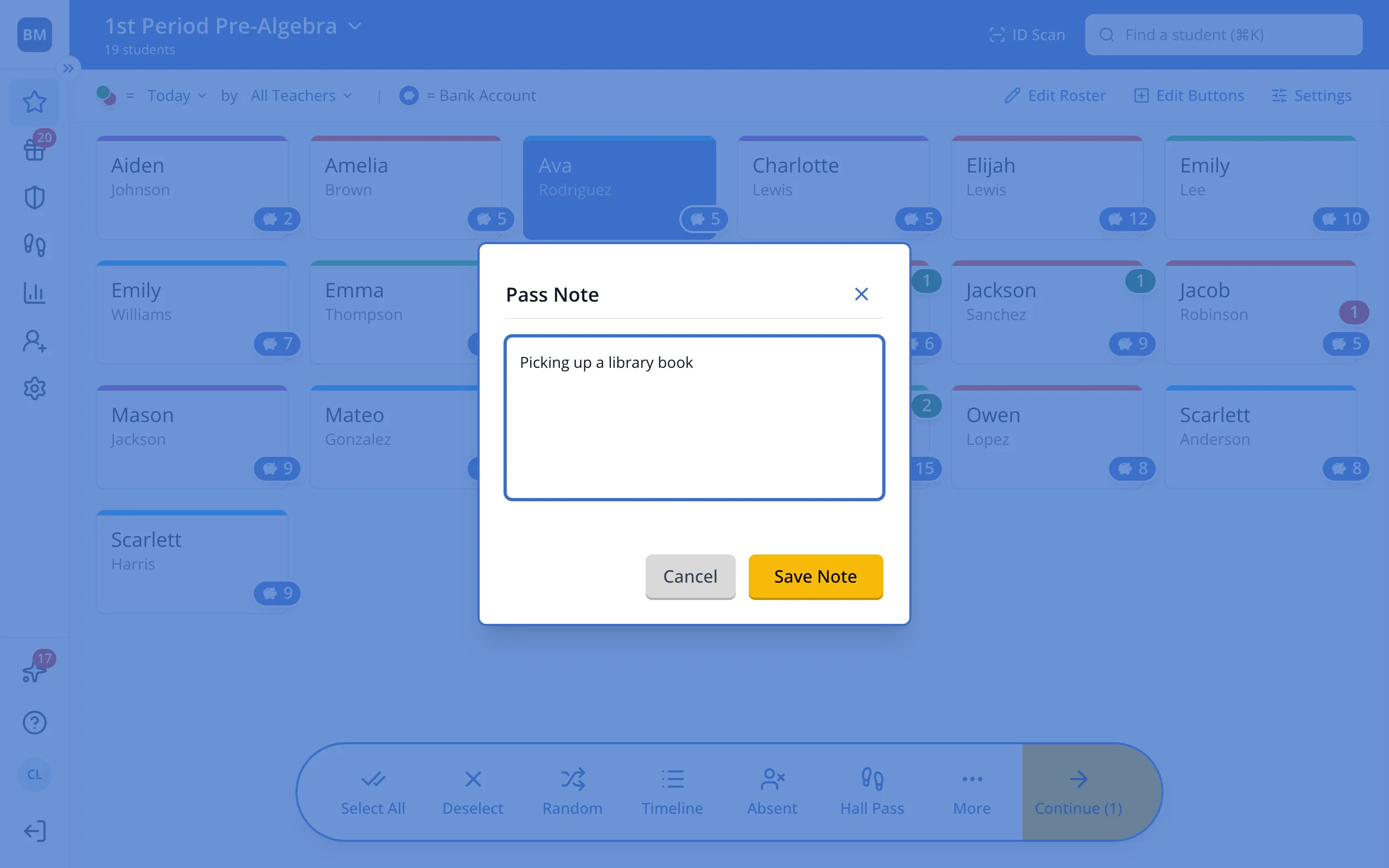
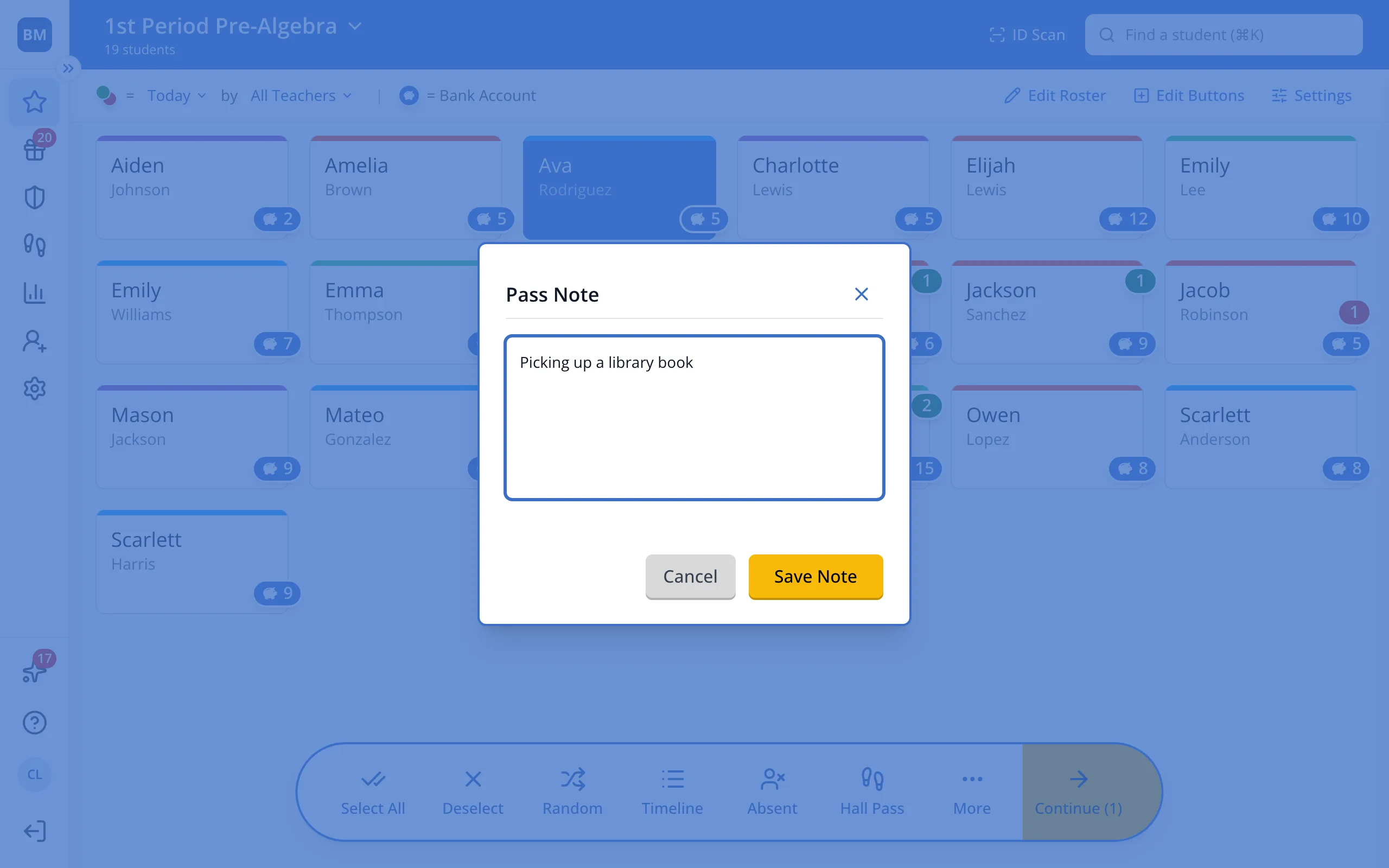
4.Type your note.
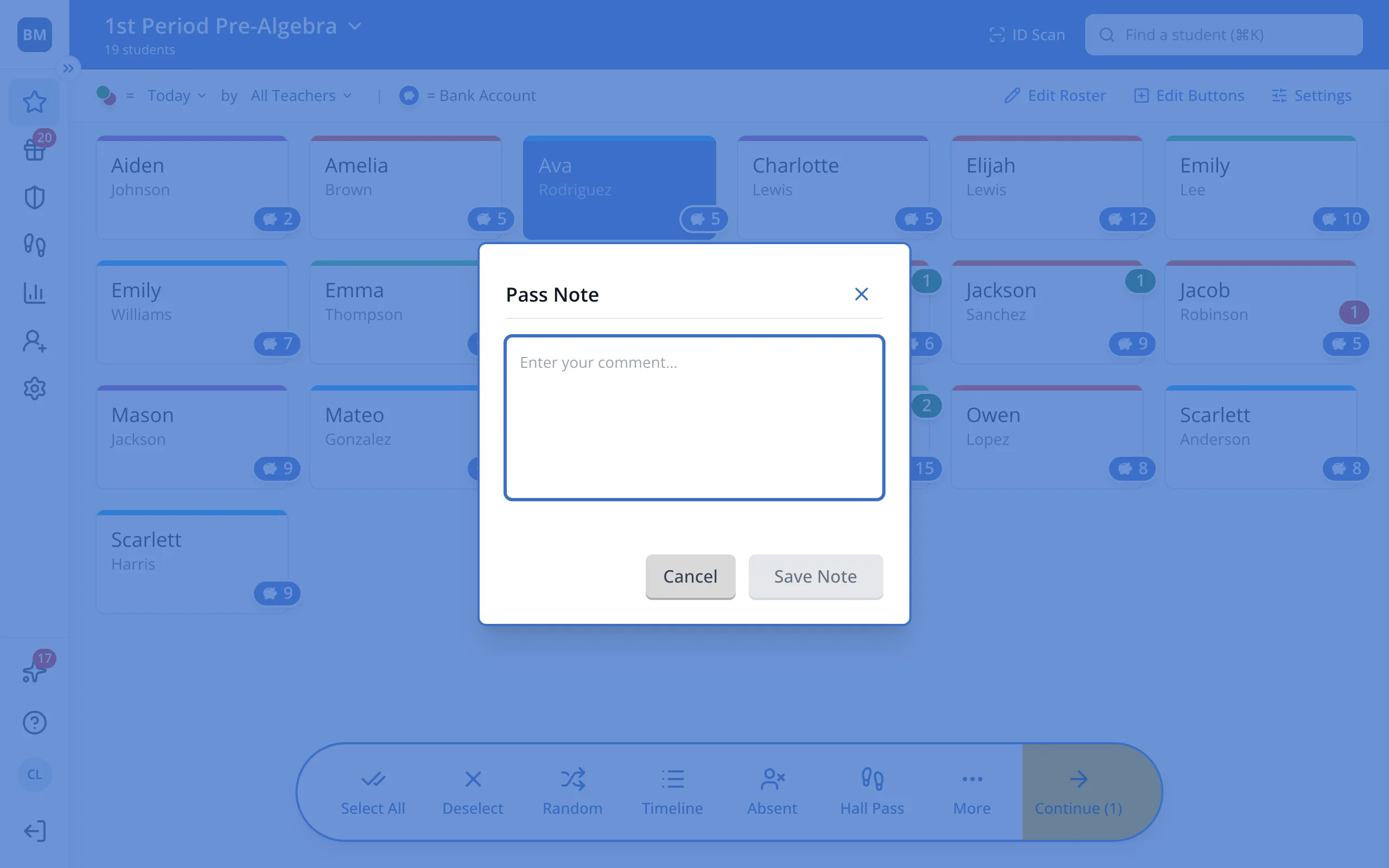
5.Click Save Note.
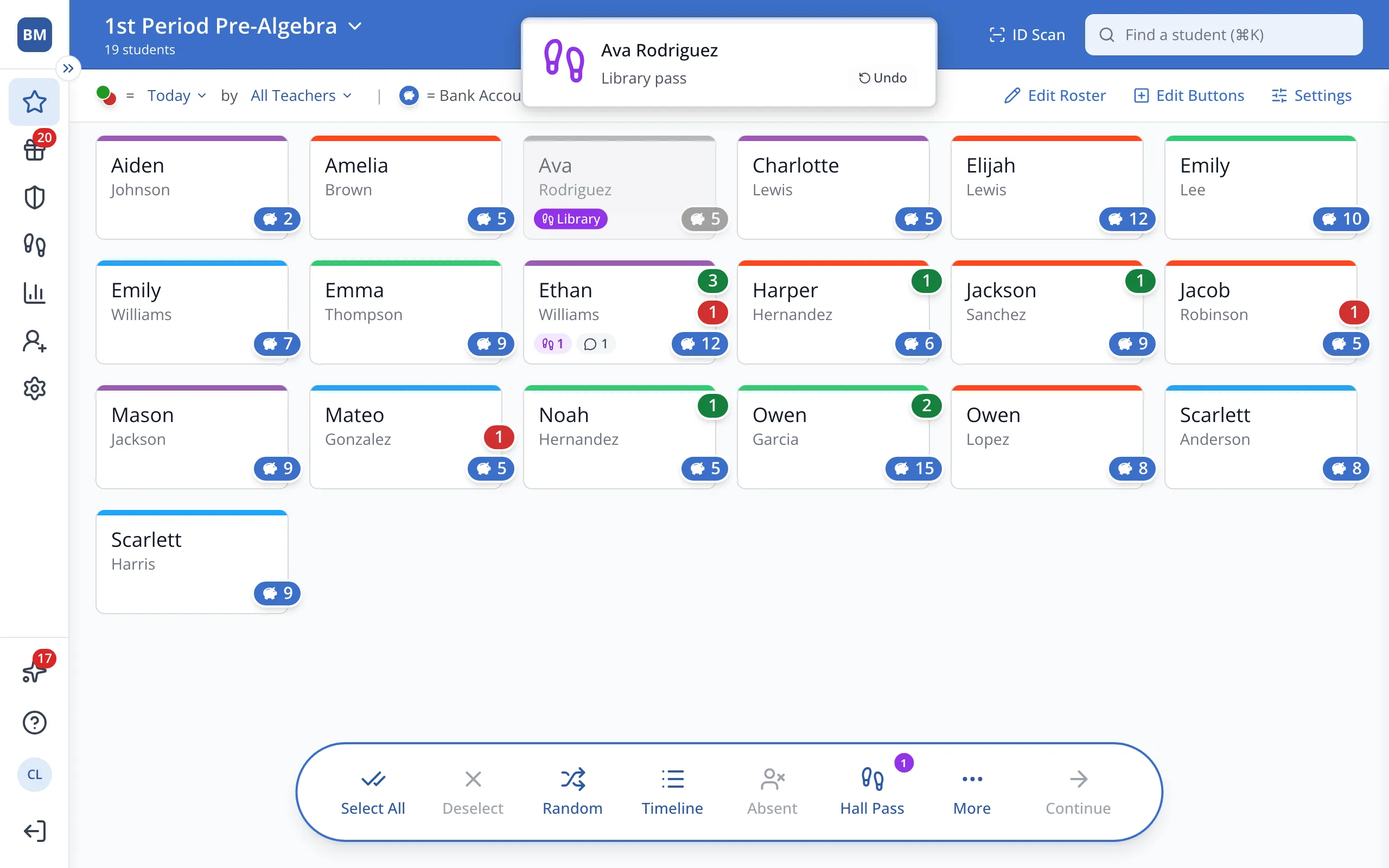
6.Click the pass type you'd like to use.