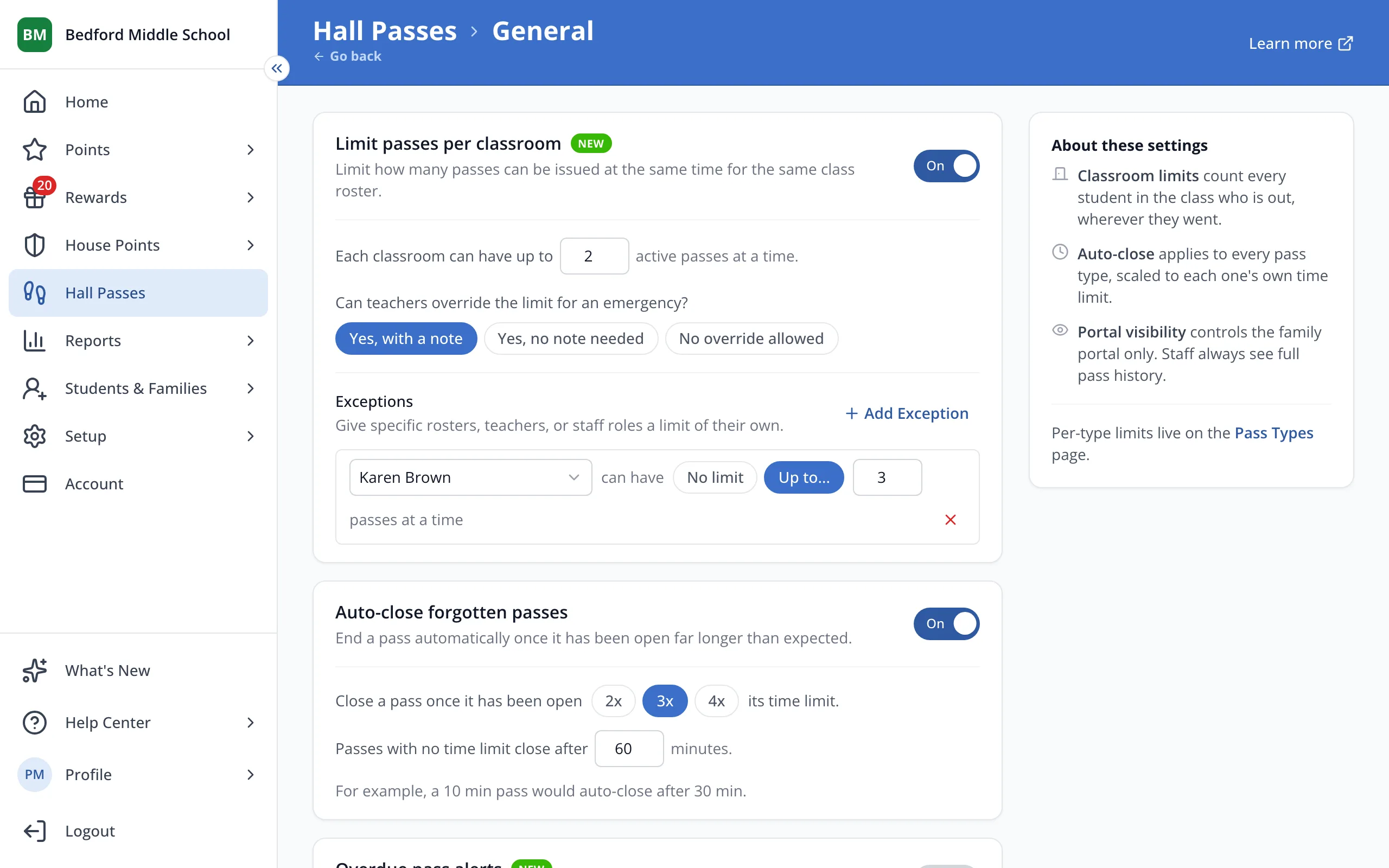
Give certain teachers, rosters, or roles a different classroom limit
Useful for big classes, like specials or PE, that need more students out at once than everyone else.
AdminSite Leader
Use the Left and Right arrow keys to move between steps, and Space to play or pause.
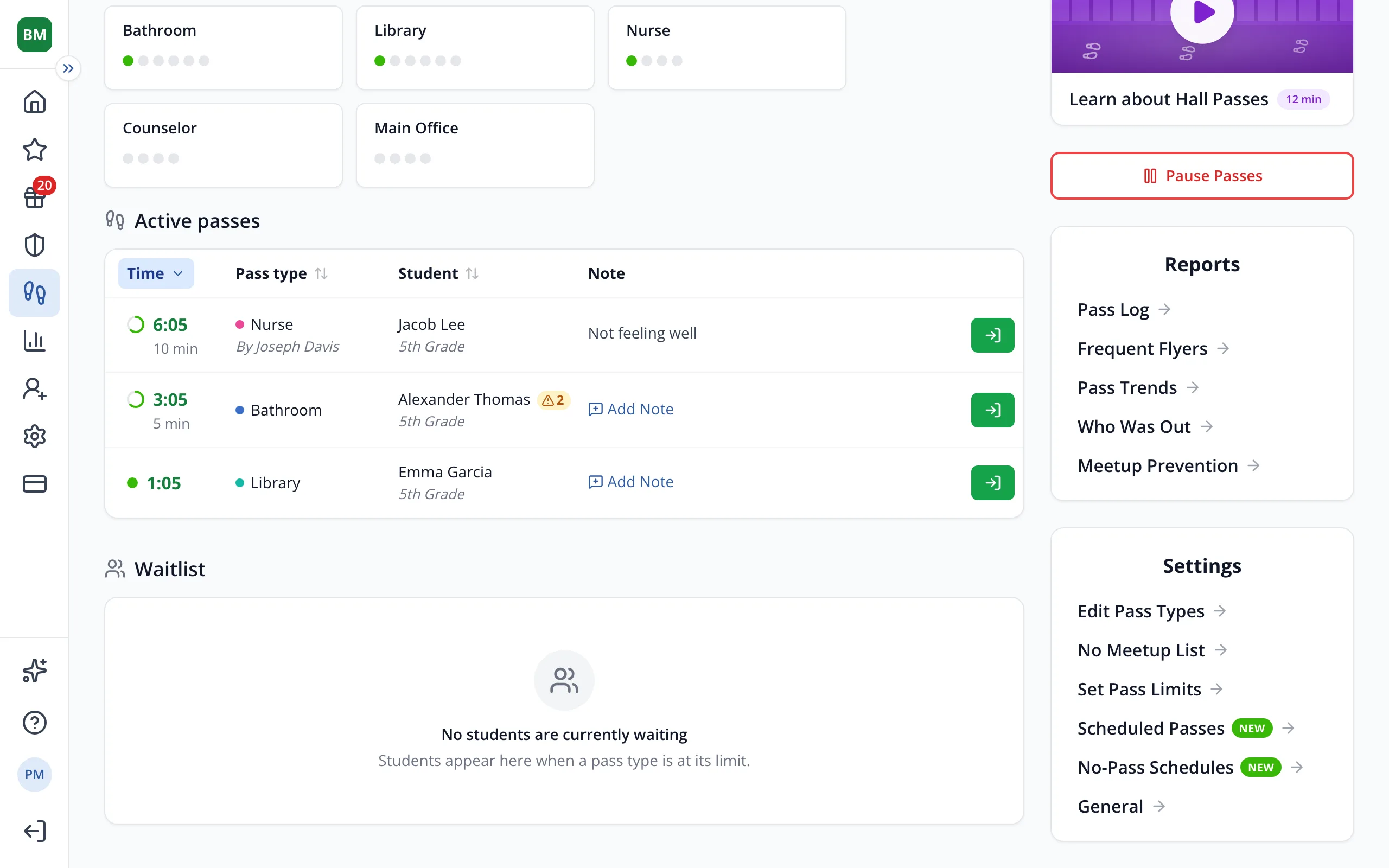
1.On the Hall Passes page, under Settings, click General.
Did you know? On a smaller screen, click More to find these links.
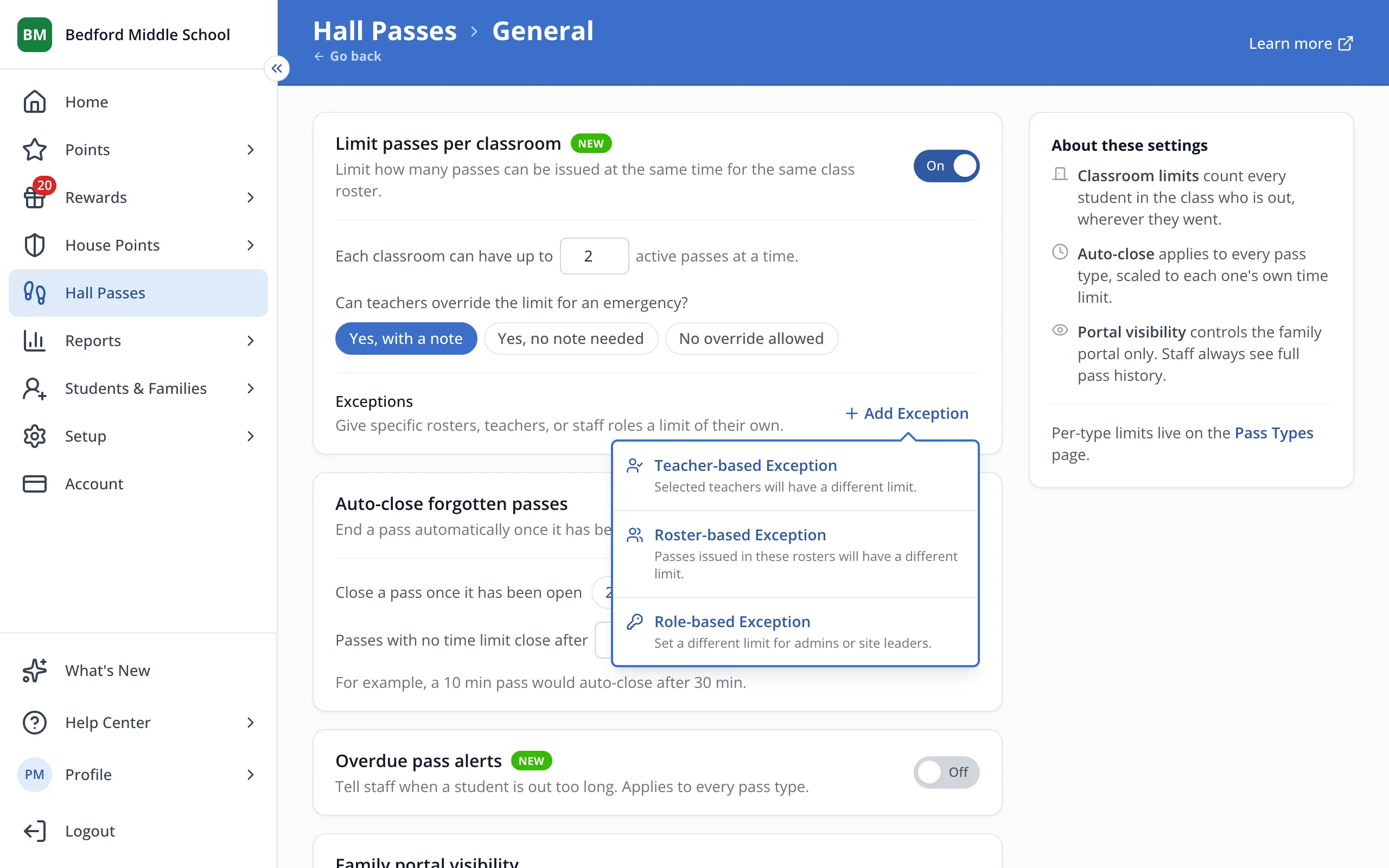
2.Under Exceptions, click Add Exception.
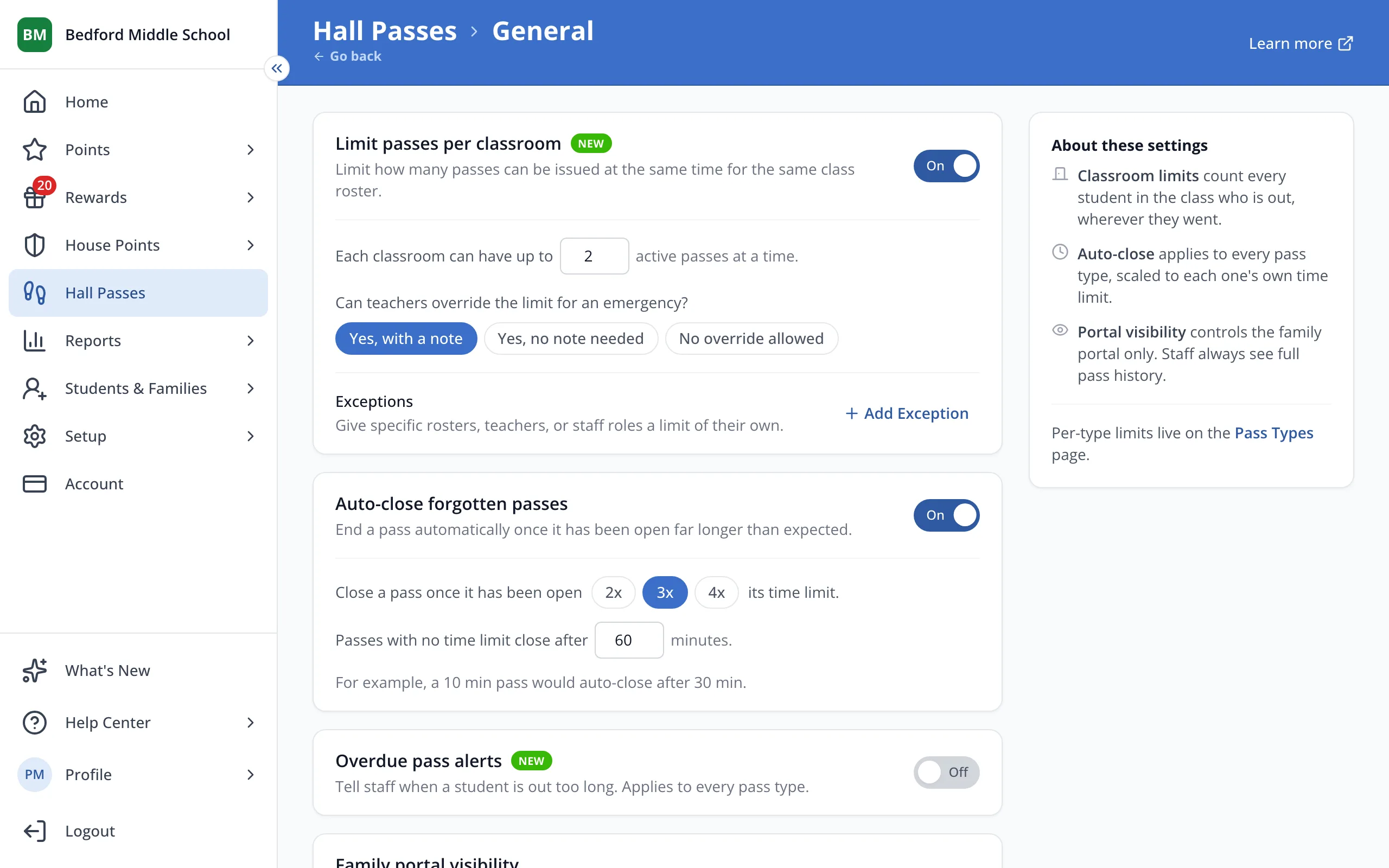
3.Click the kind of exception you'd like: teachers, rosters or a staff role.
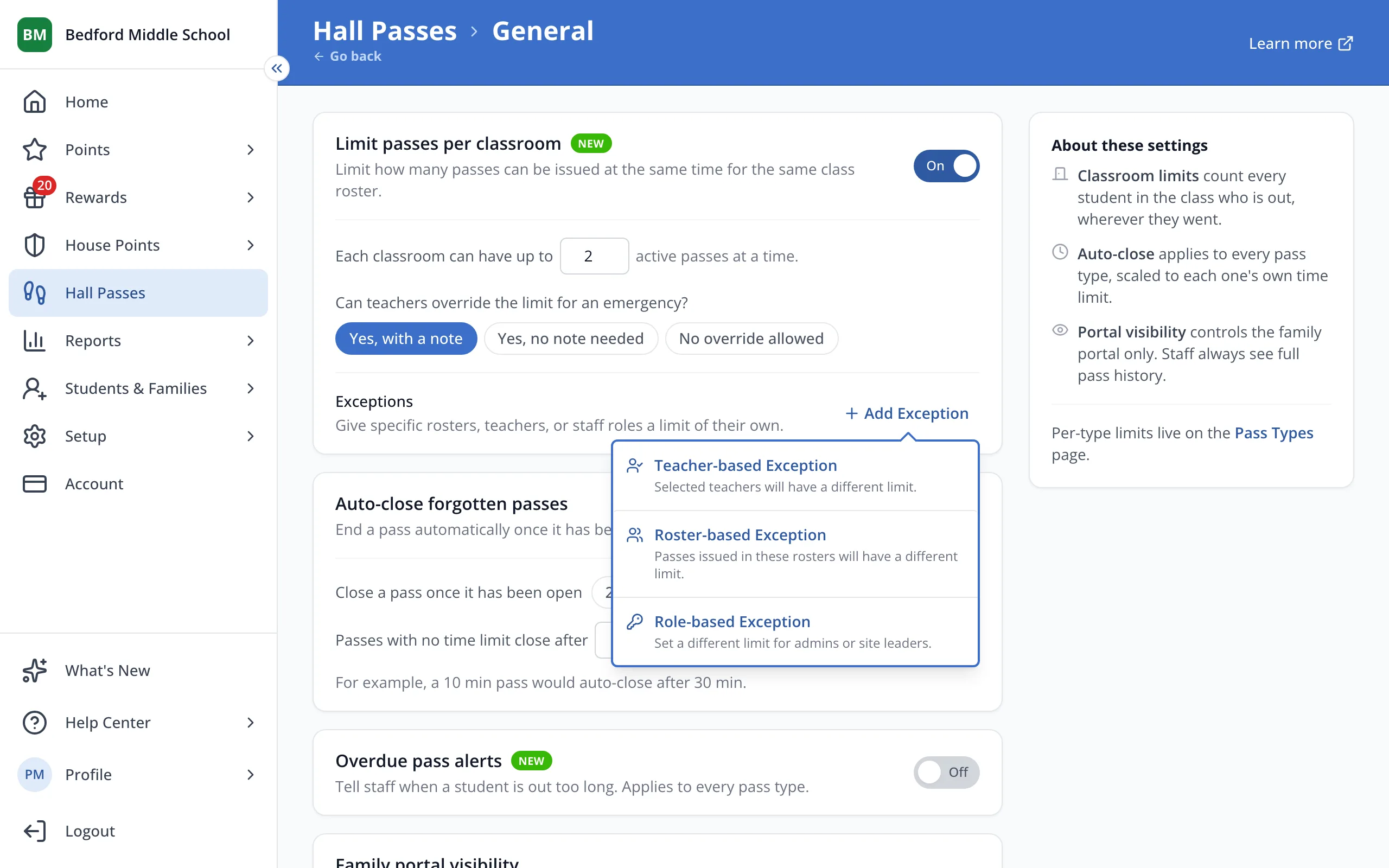
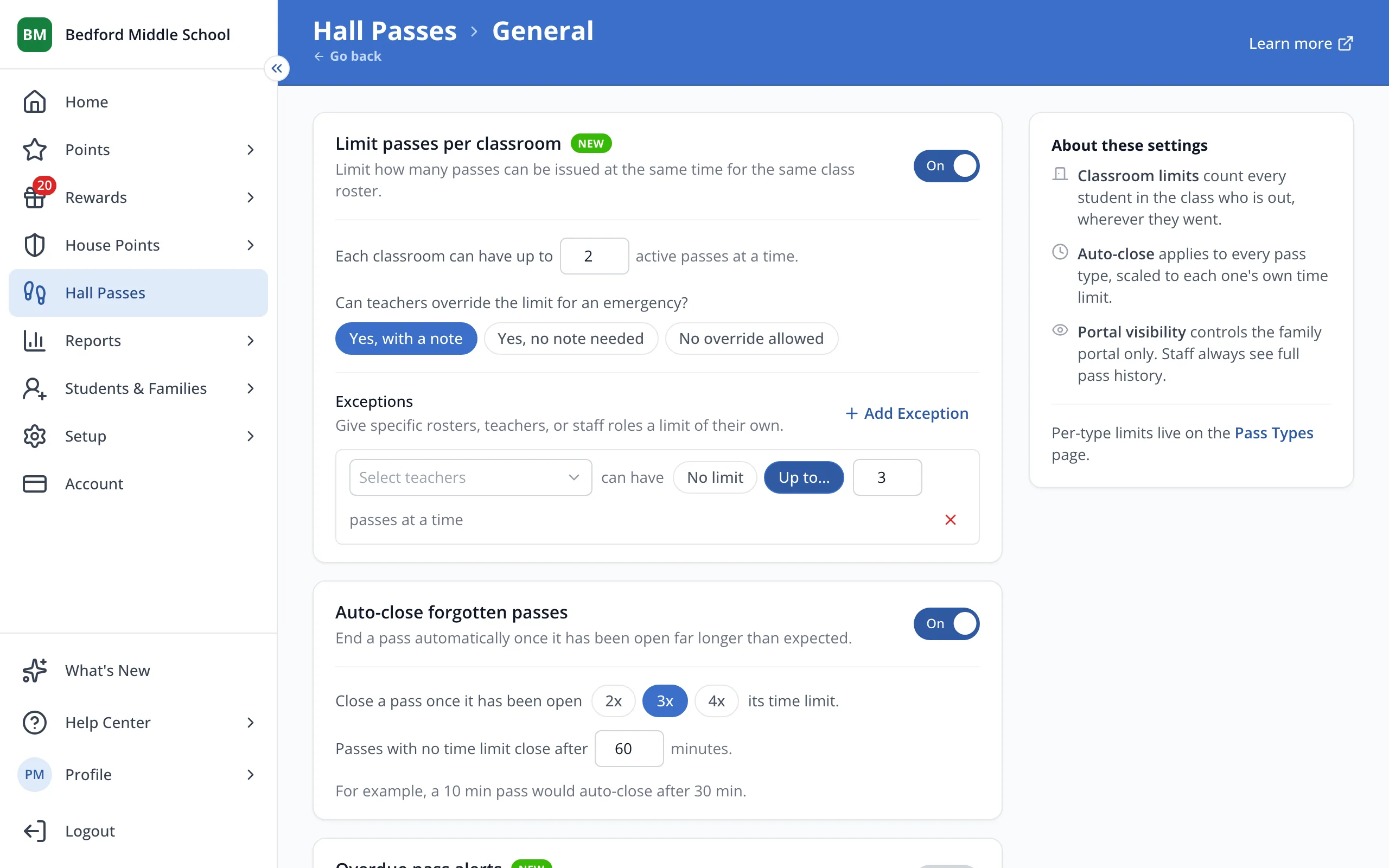
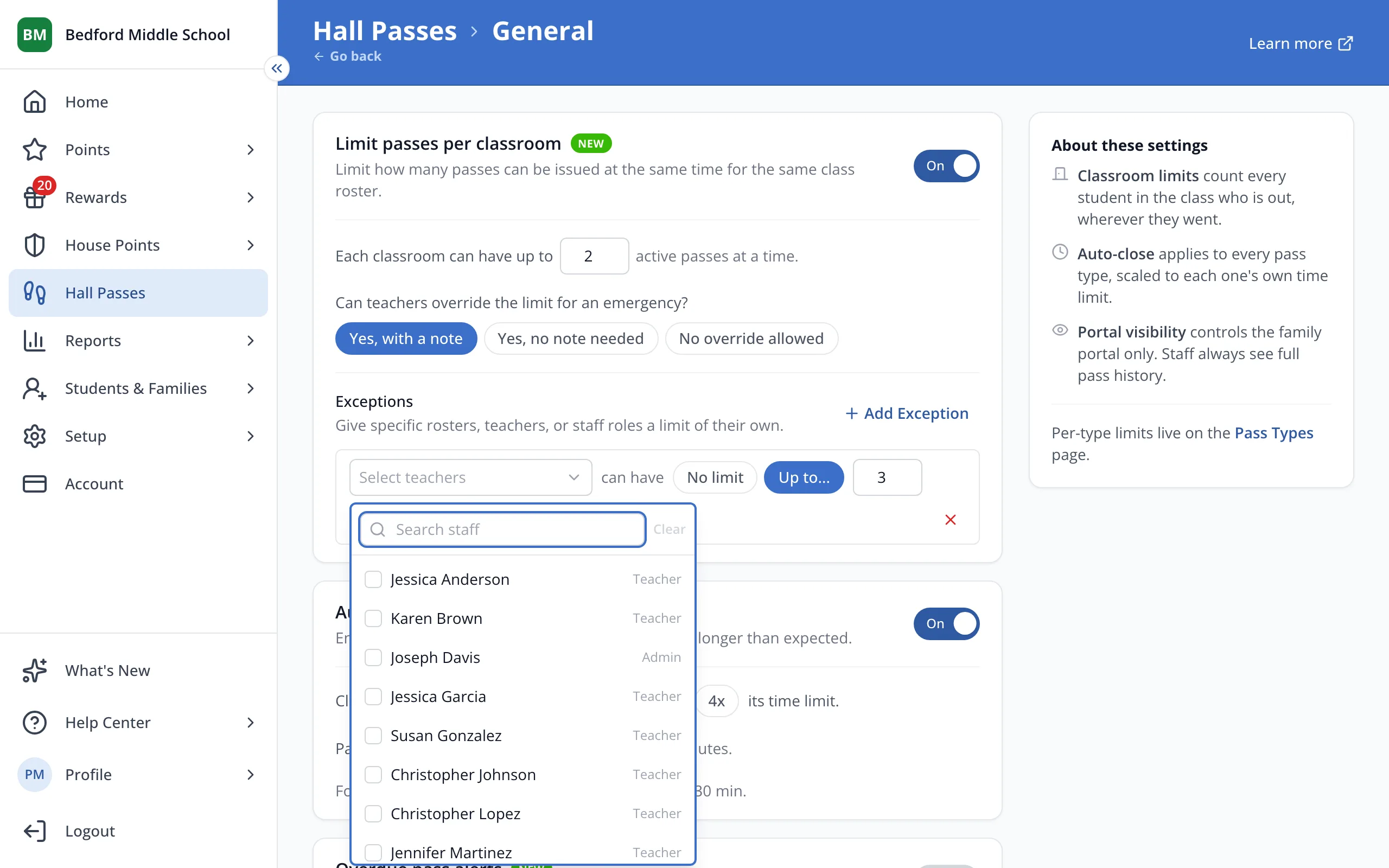
4.Click Select teachers.
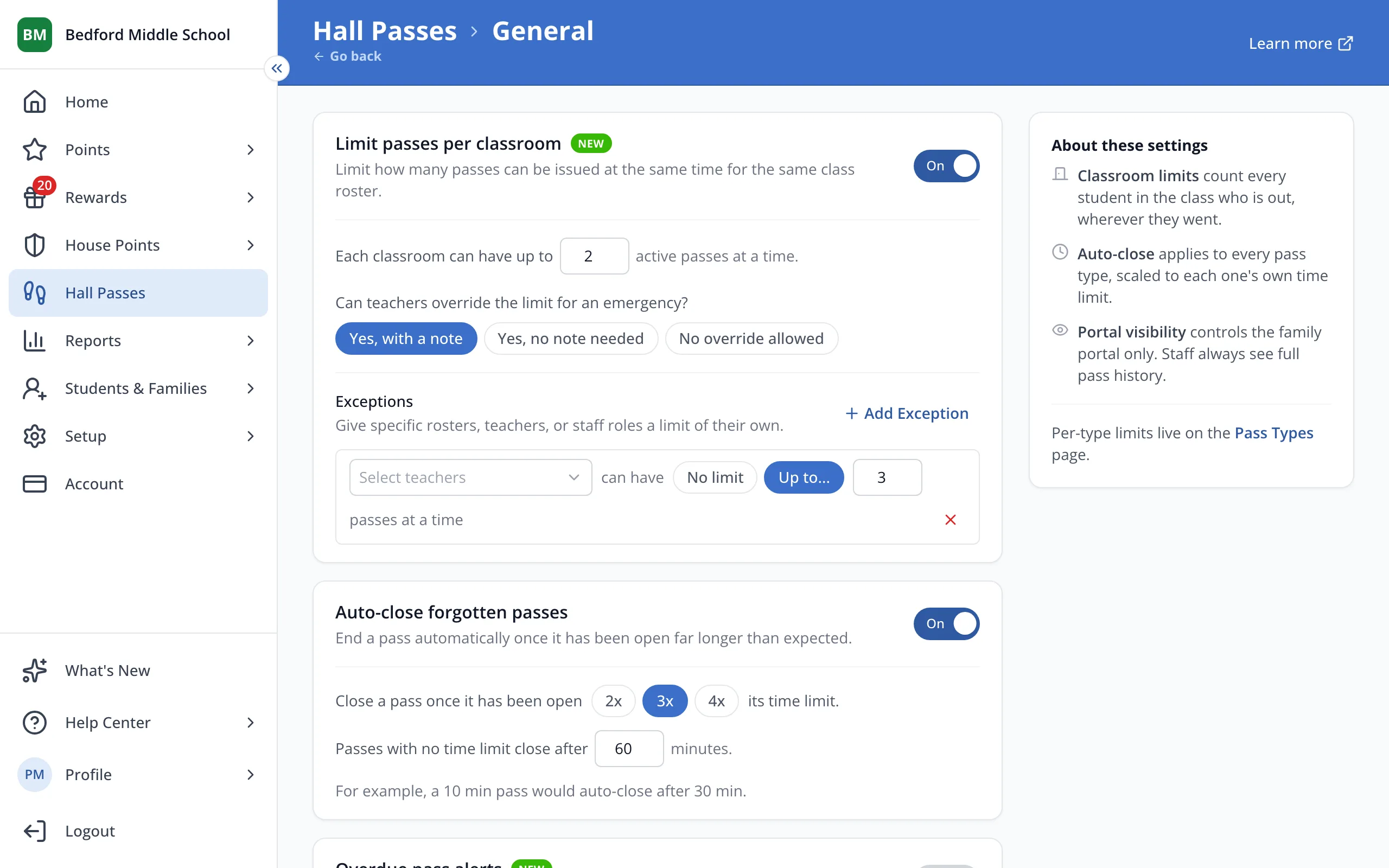
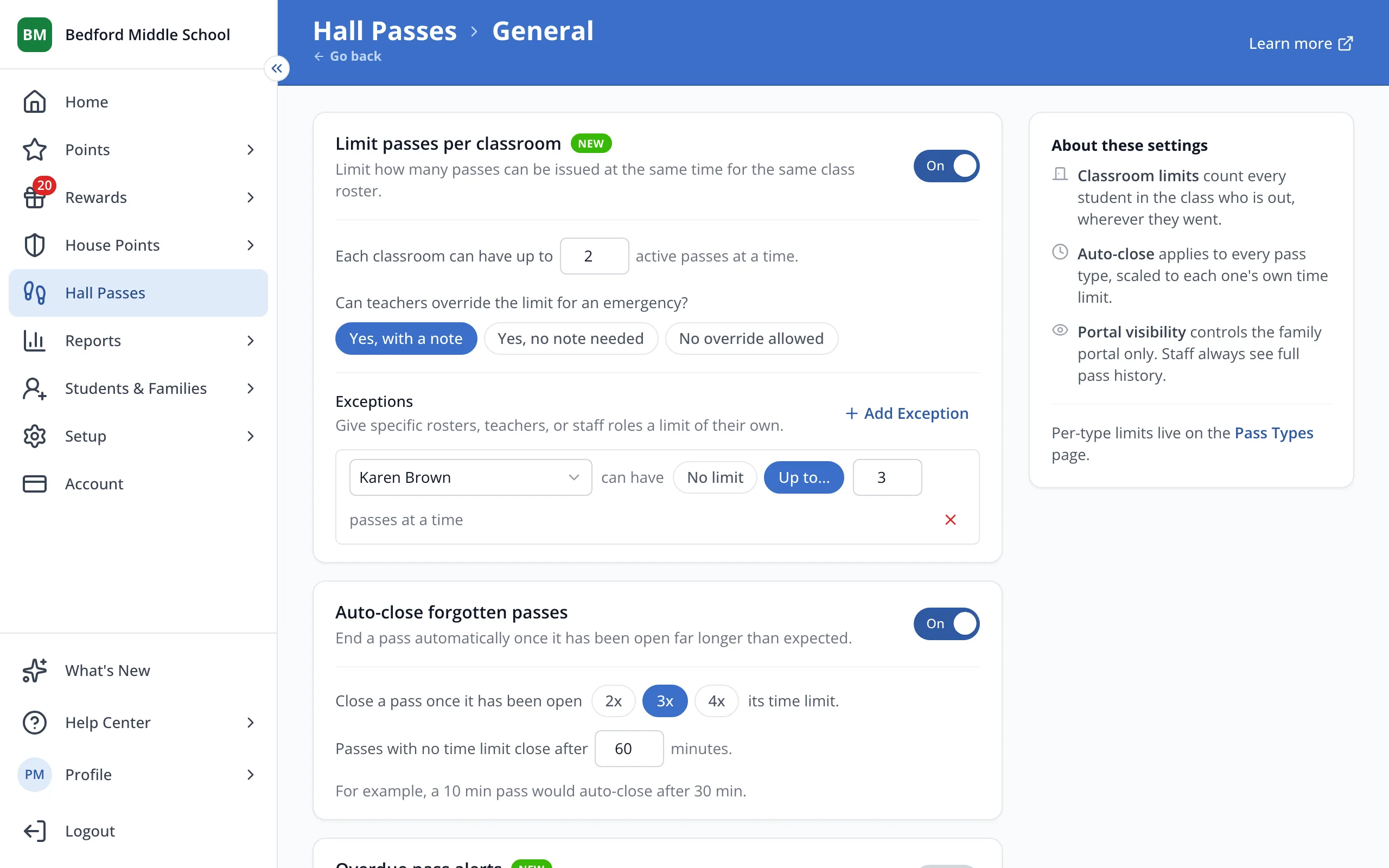
5.Click the teachers who get a different limit.
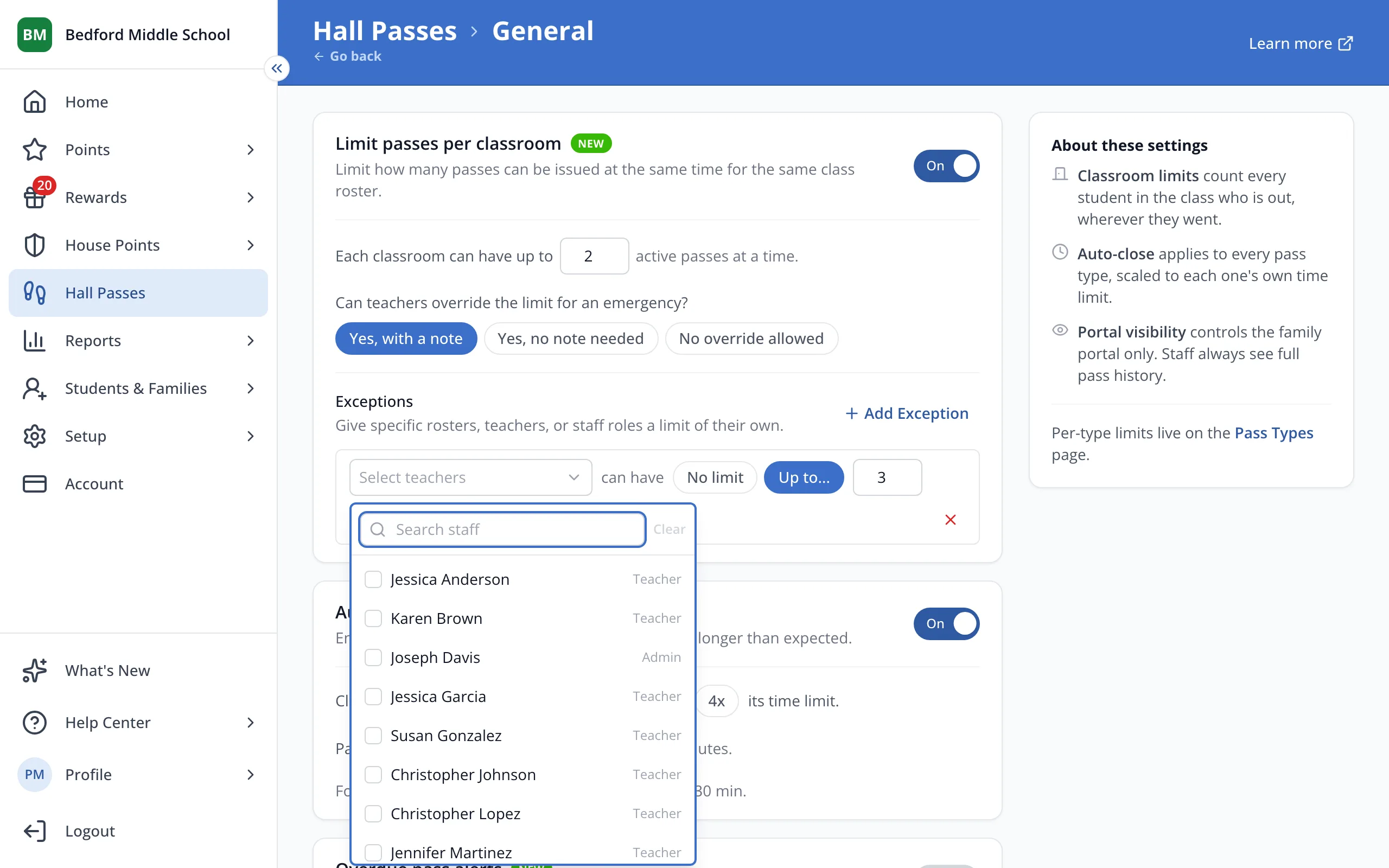
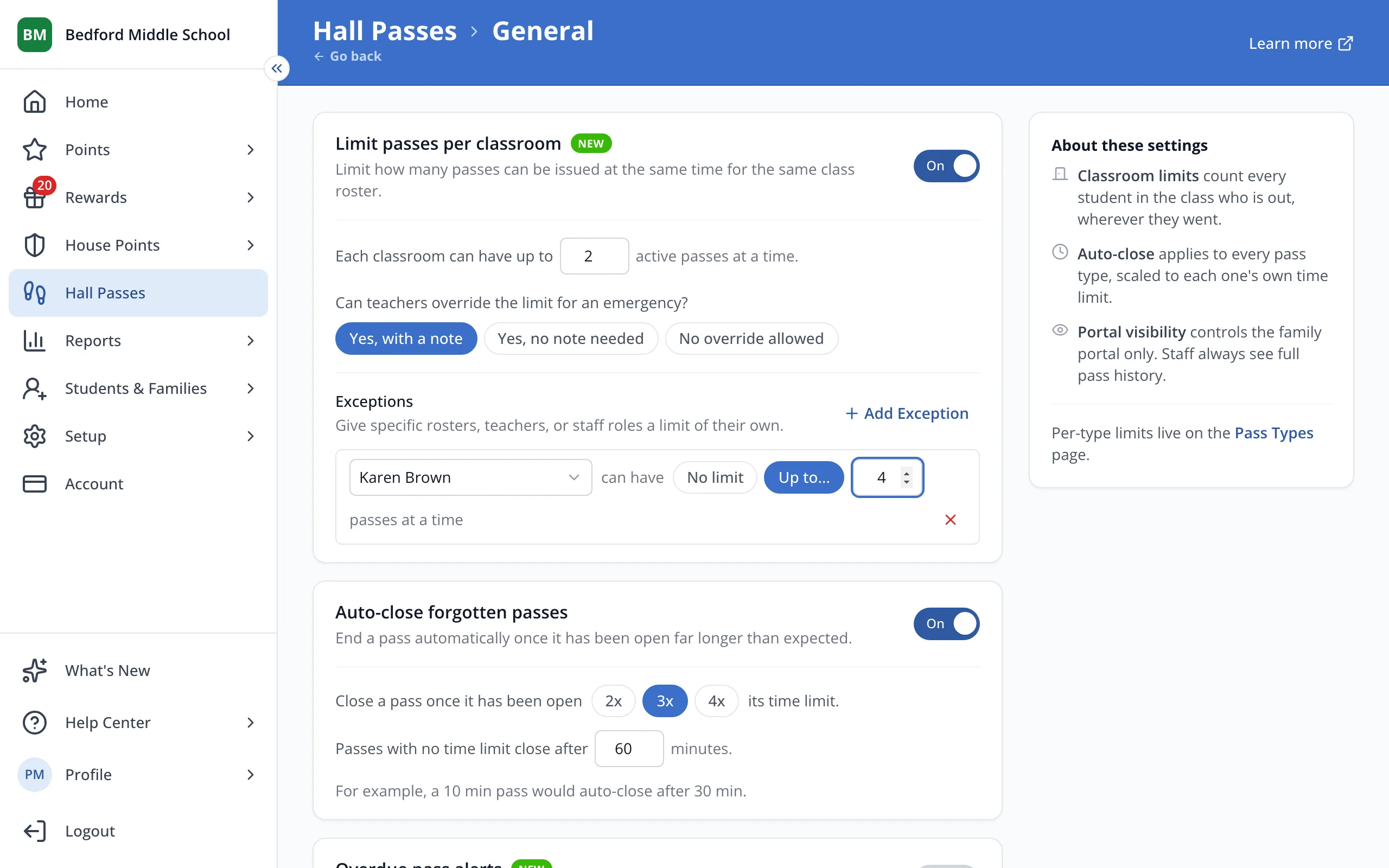
6.Type their limit, or click No limit.