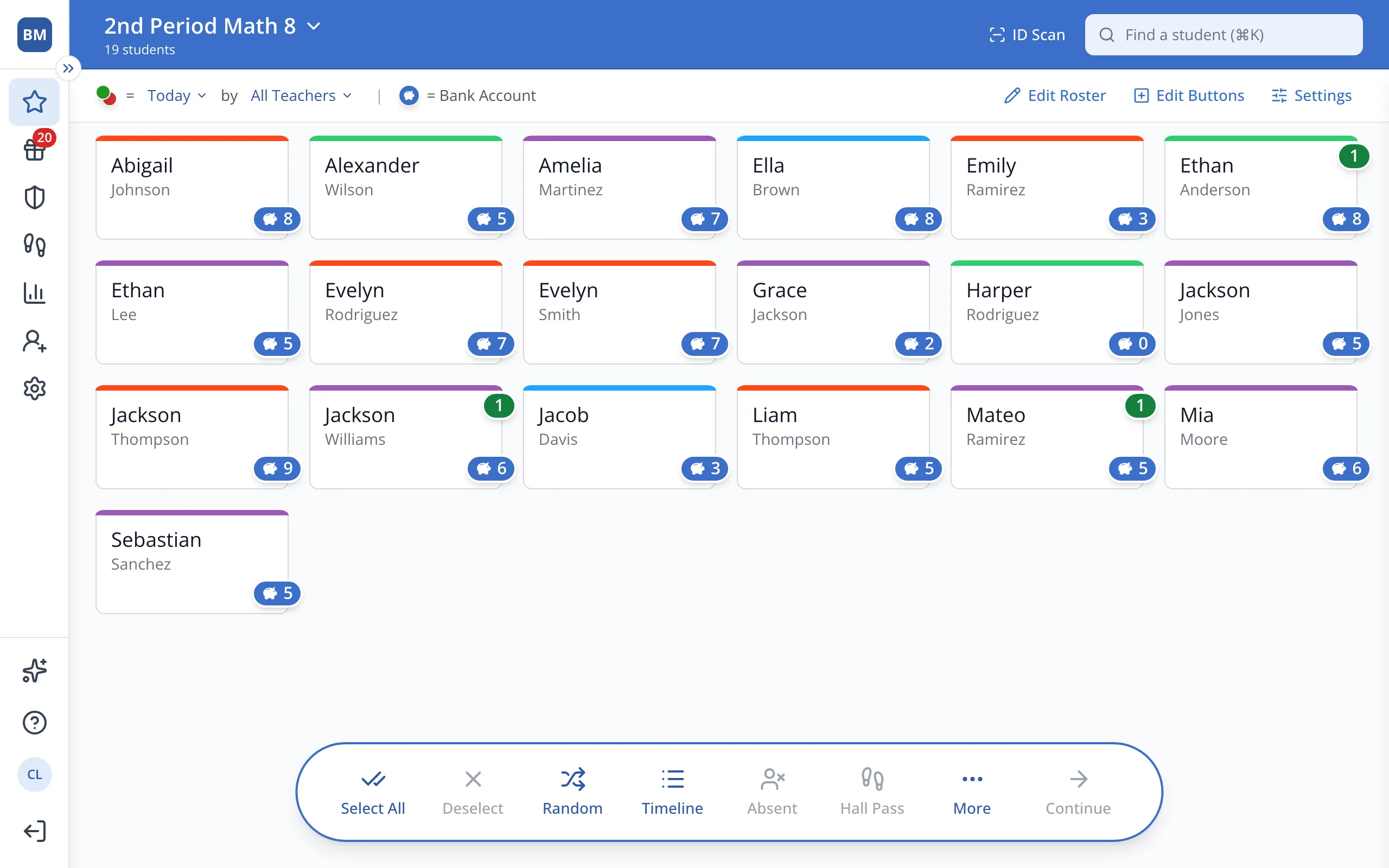
Switch your hall pass kiosk when you switch rosters
Change class without walking over to the kiosk. Each time you switch rosters, you choose whether the kiosk follows.
Use the Left and Right arrow keys to move between steps, and Space to play or pause.
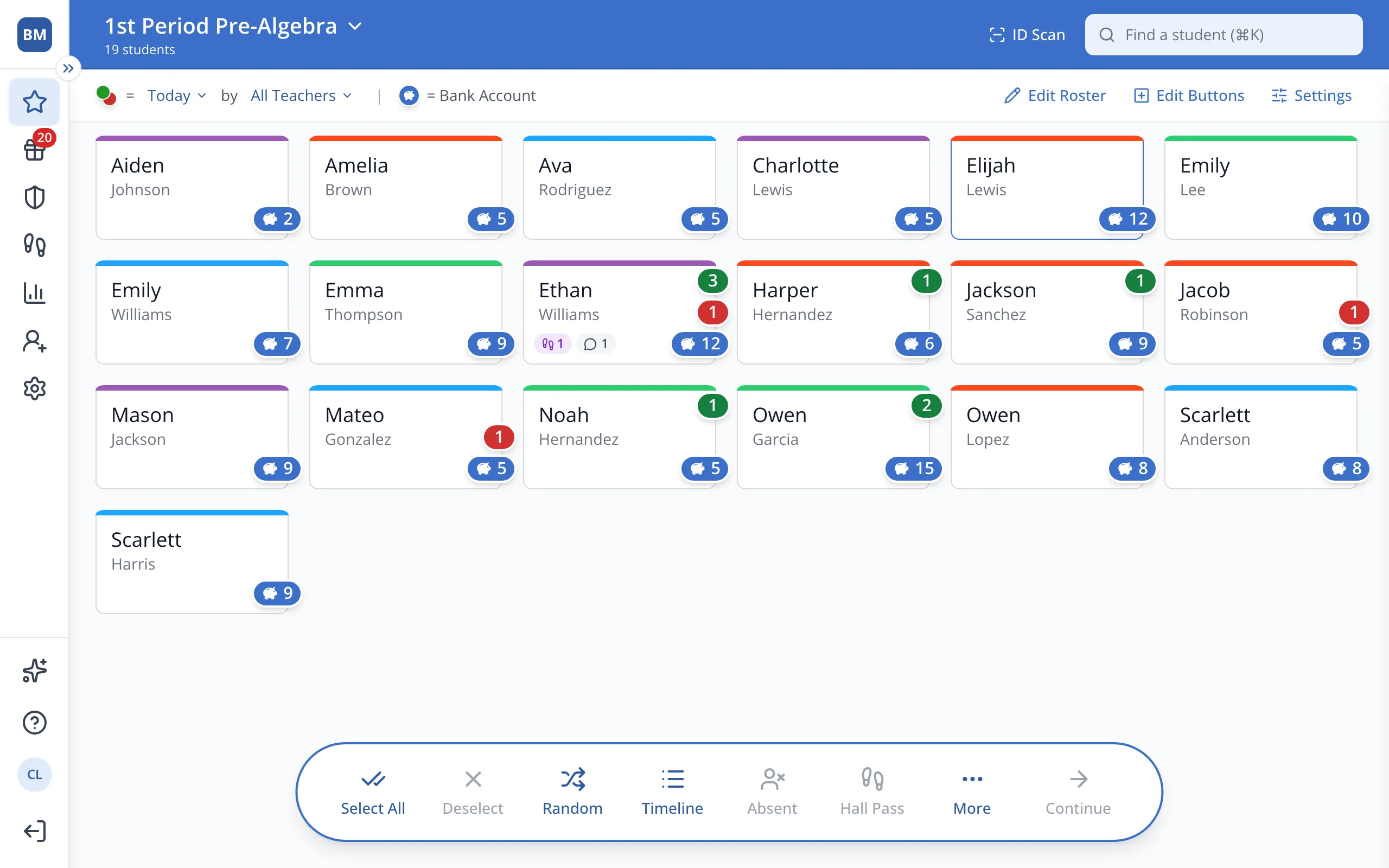
1.At the top of the Points page, click your roster's name.
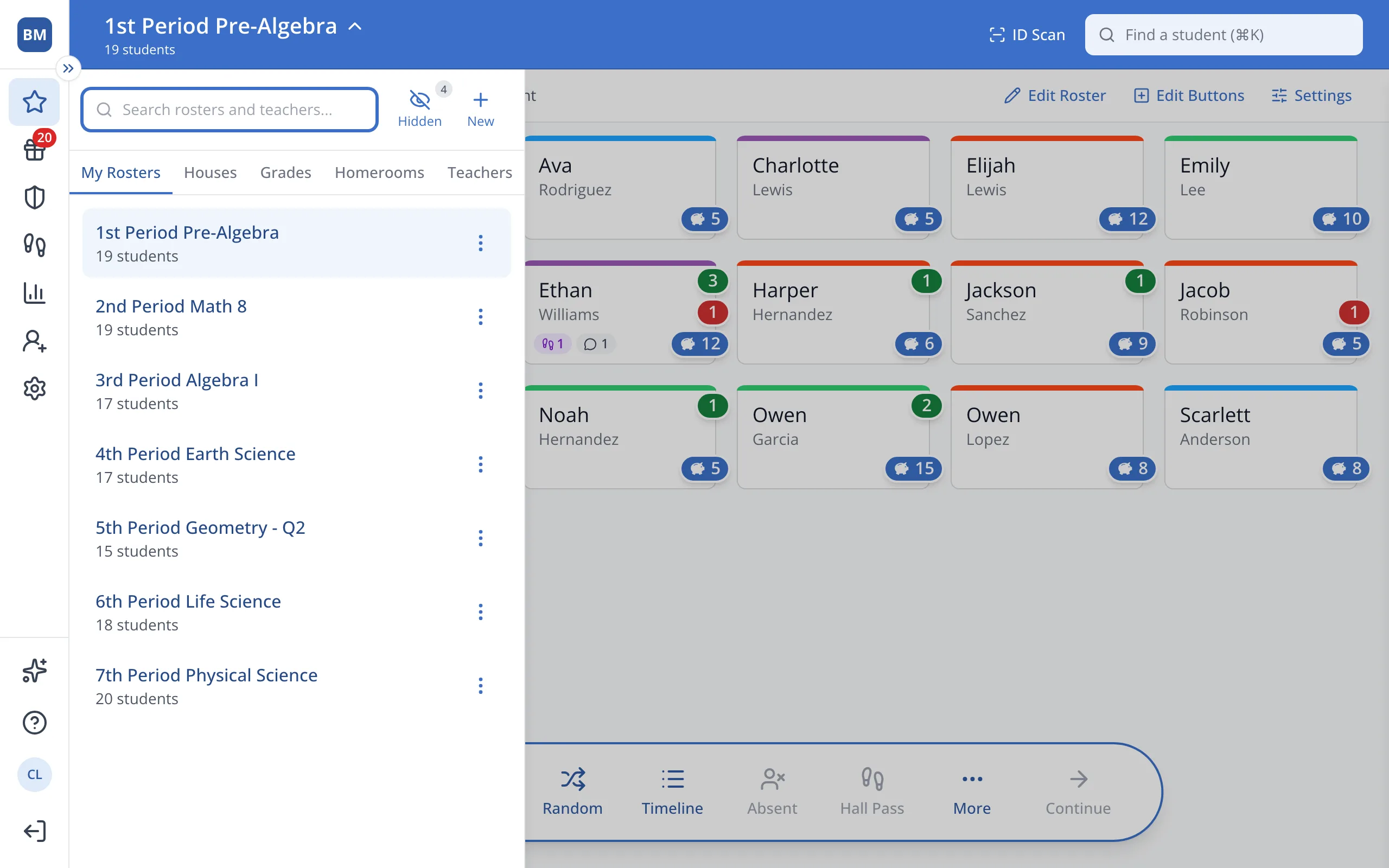
2.Click the roster you'd like to switch to.
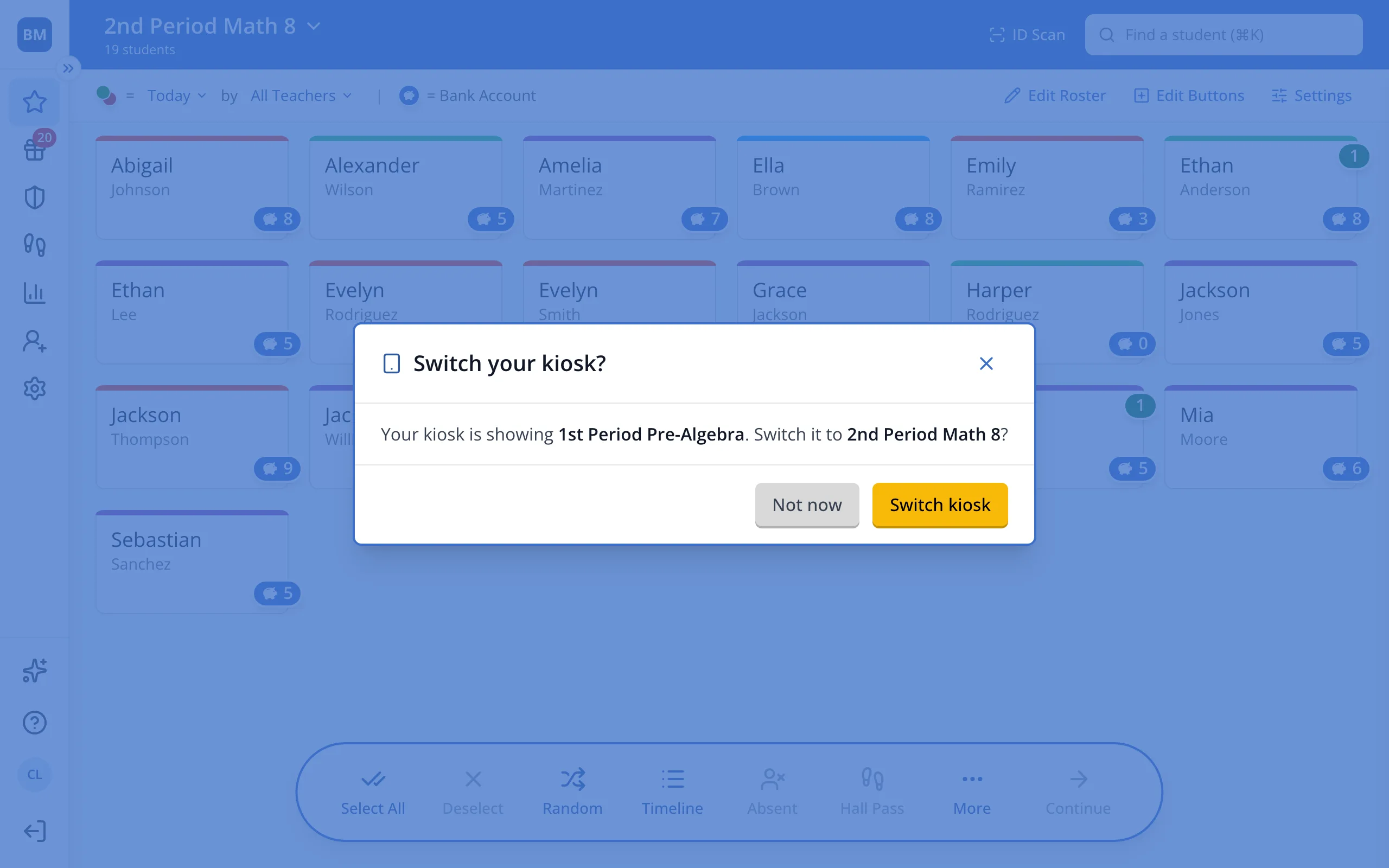
3.You'll be asked if your kiosk should switch too. Click Not now to keep it where it is.
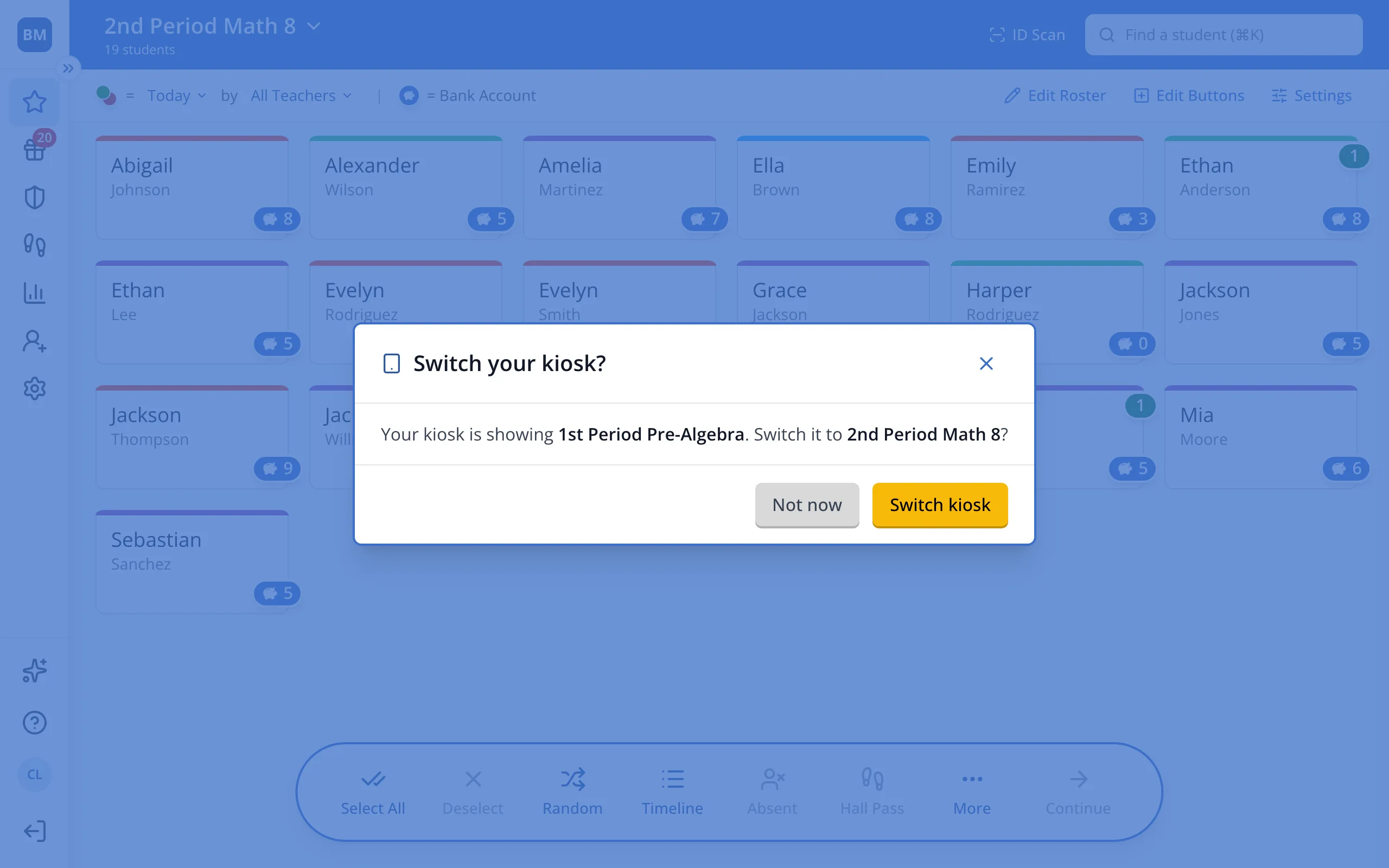
4.Click Switch kiosk to move your kiosk to the new roster.
5.Your kiosk switches as soon as no student is using it.