Launch a hall pass kiosk from the points page
Students start and end their own passes on this device, and the rest of the app stays locked until you exit.
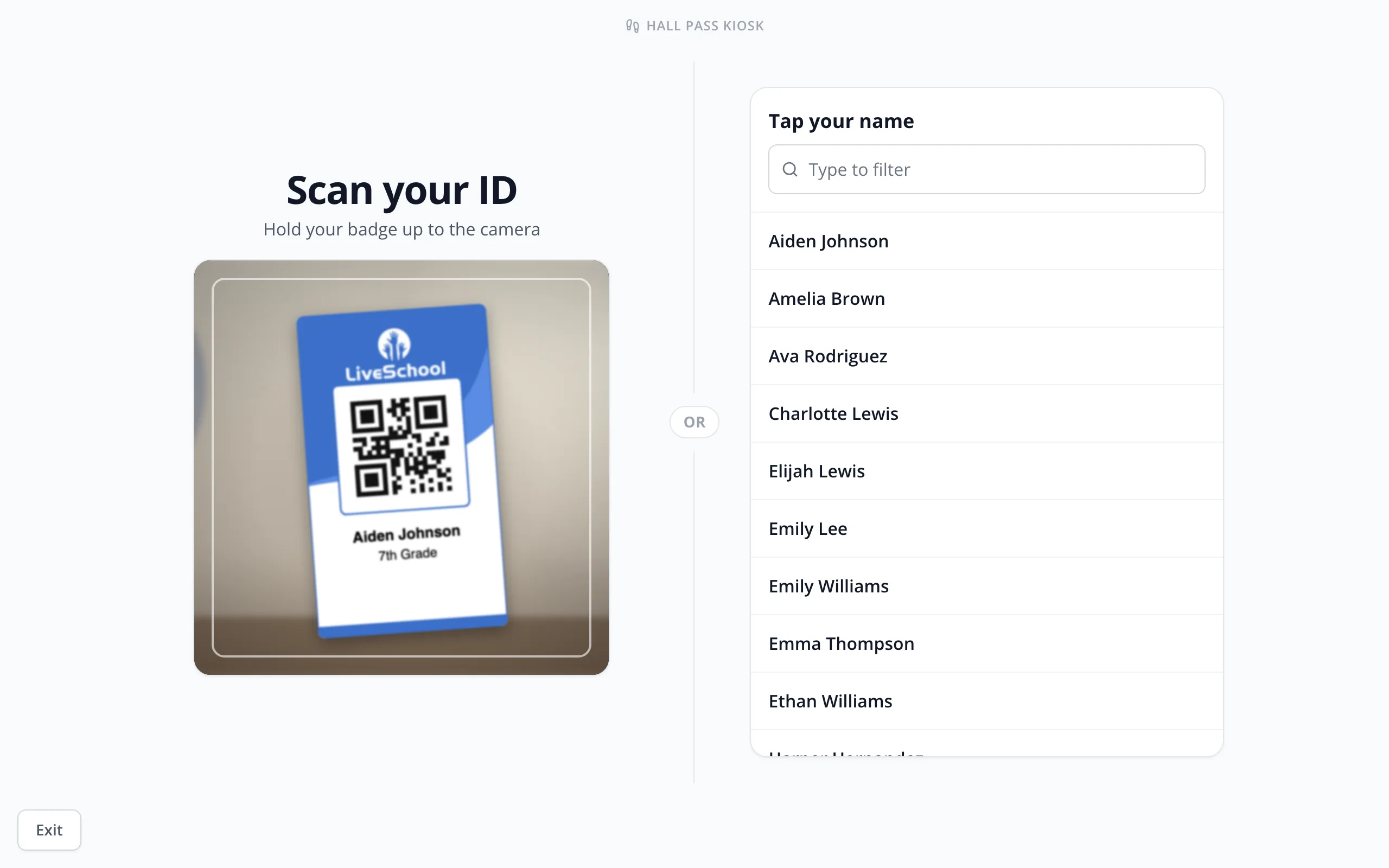
Use the Left and Right arrow keys to move between steps, and Space to play or pause.
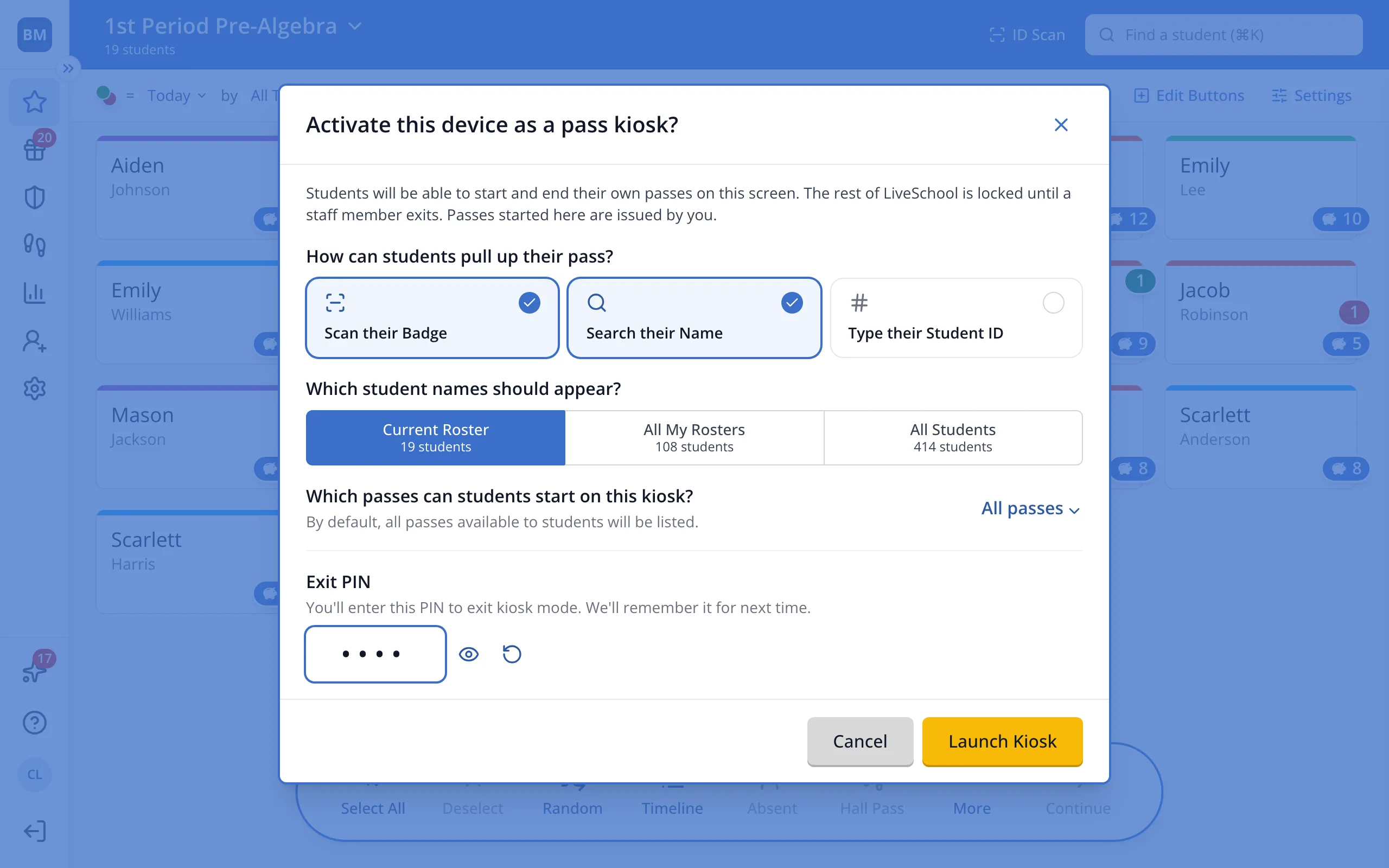
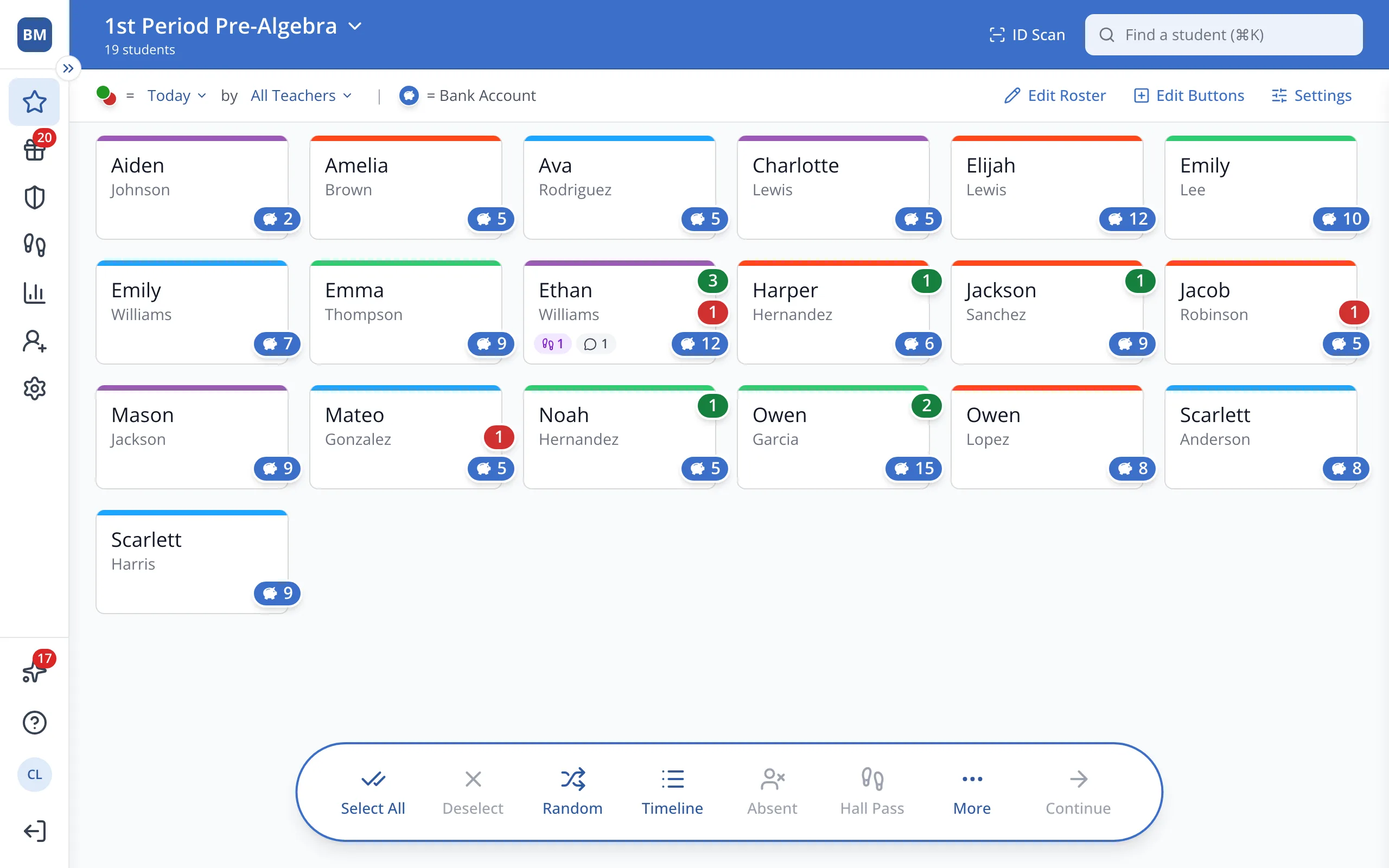
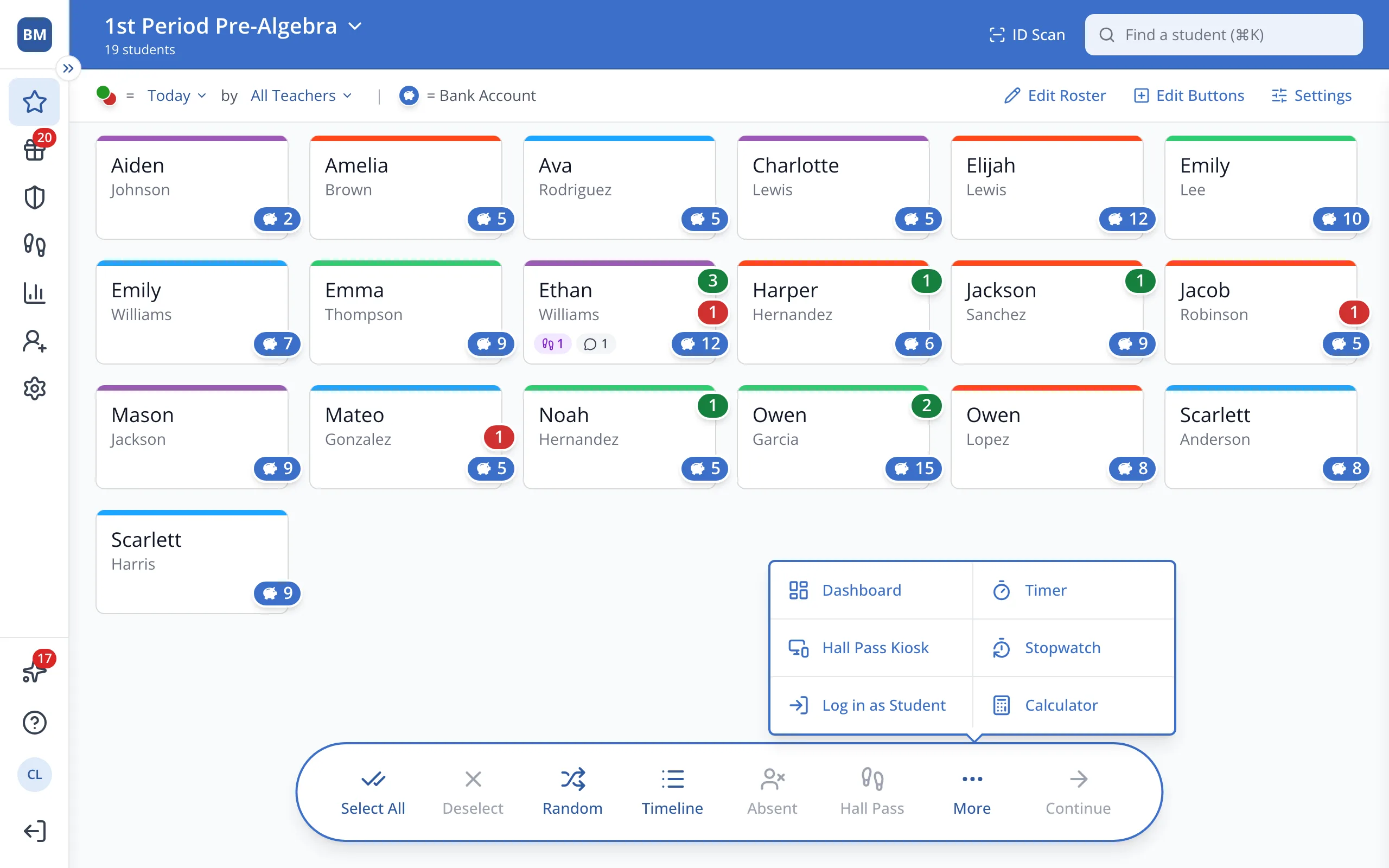
1.In the bar at the bottom of the Points page, click More.
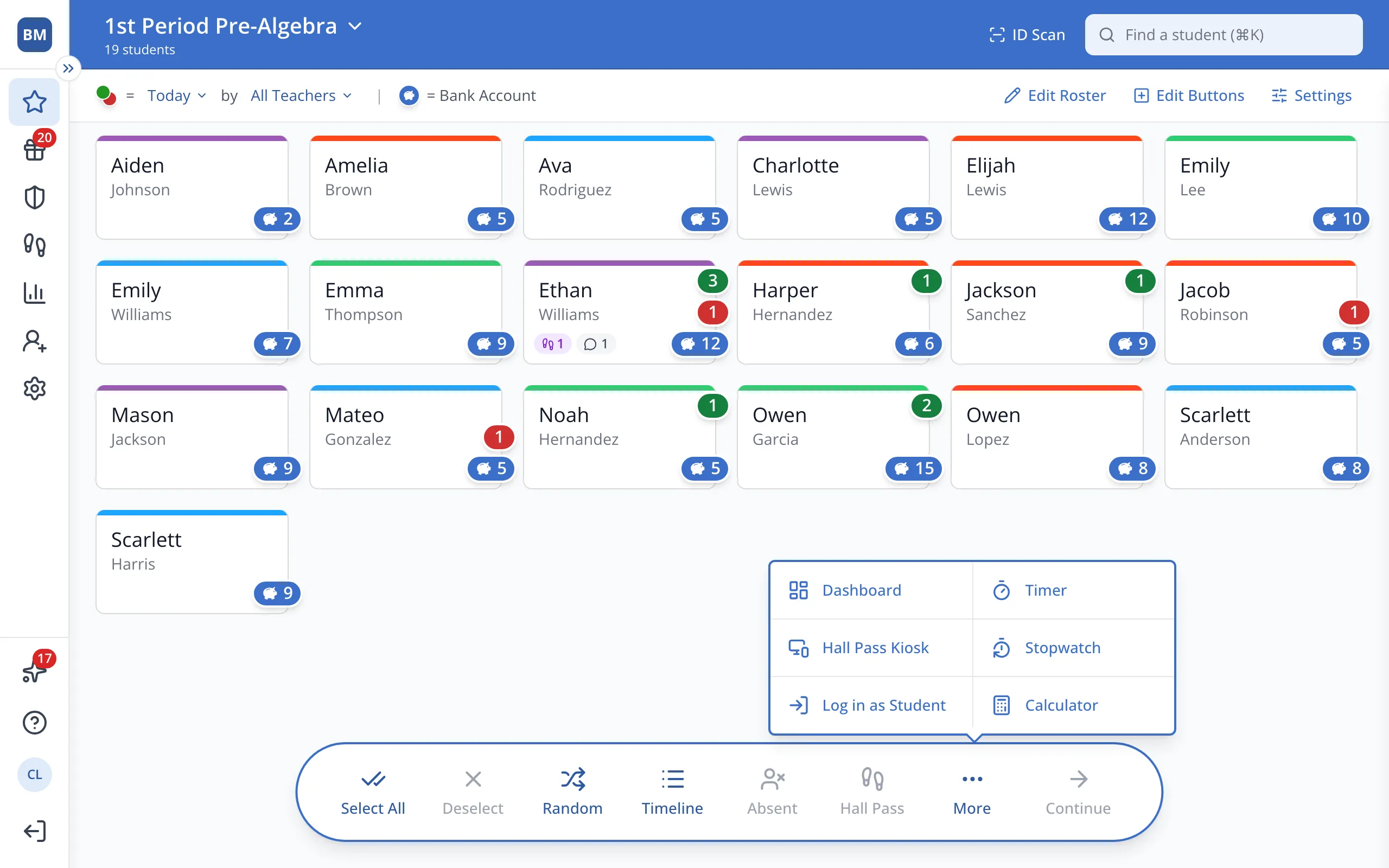
2.Click Hall Pass Kiosk.
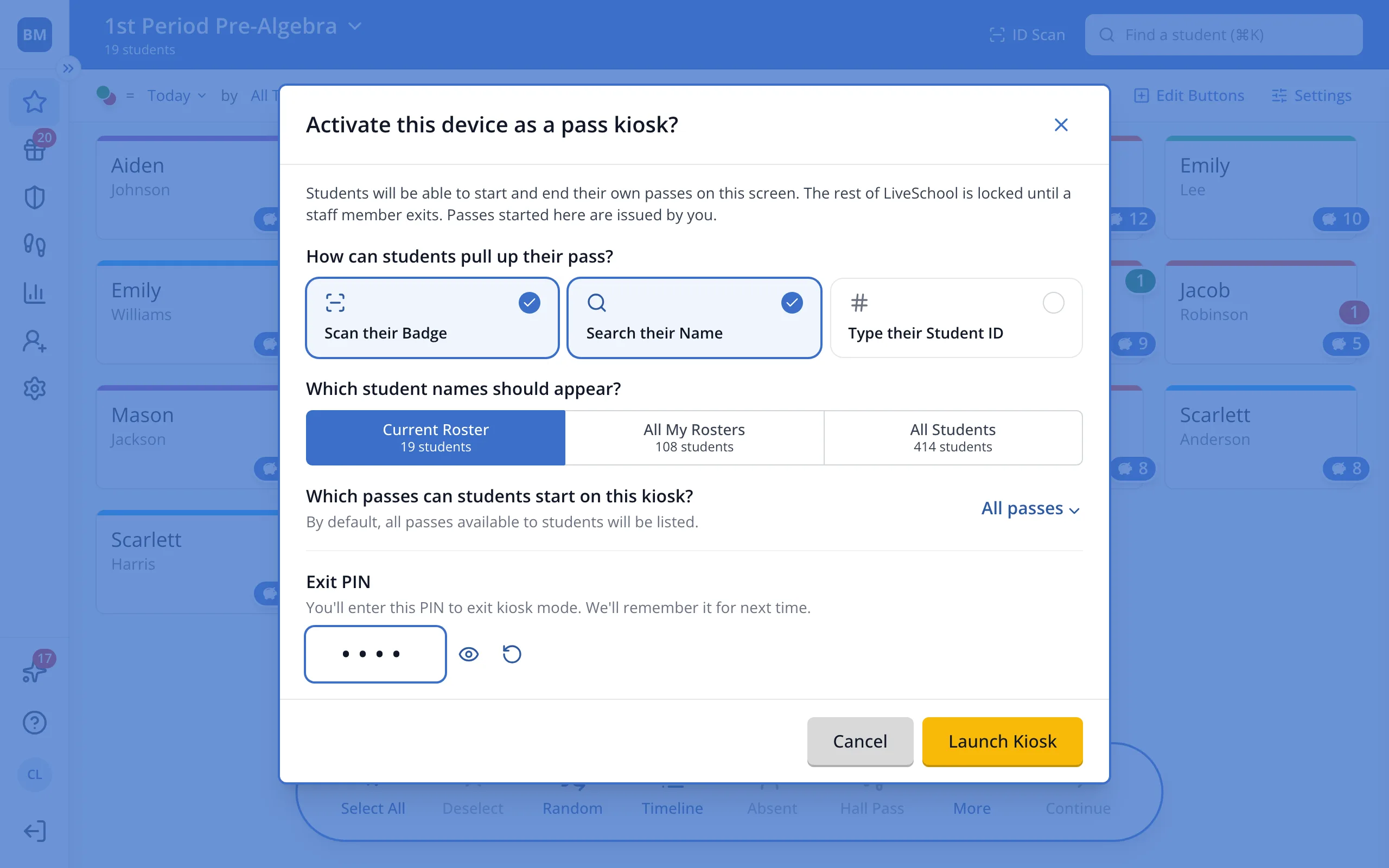
3.Type a 4-digit exit PIN. You'll need it to leave the kiosk.
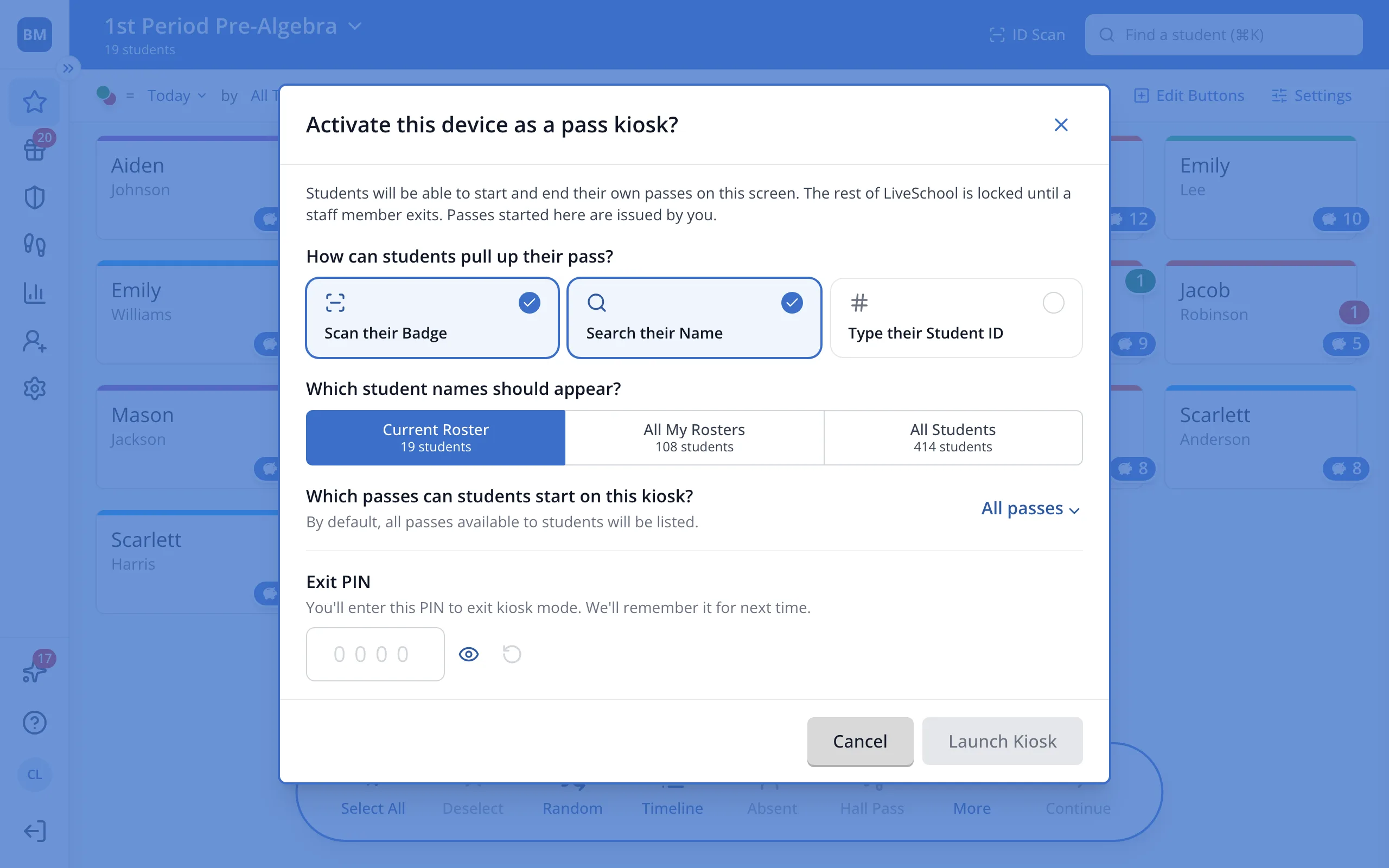
4.Click Launch Kiosk.