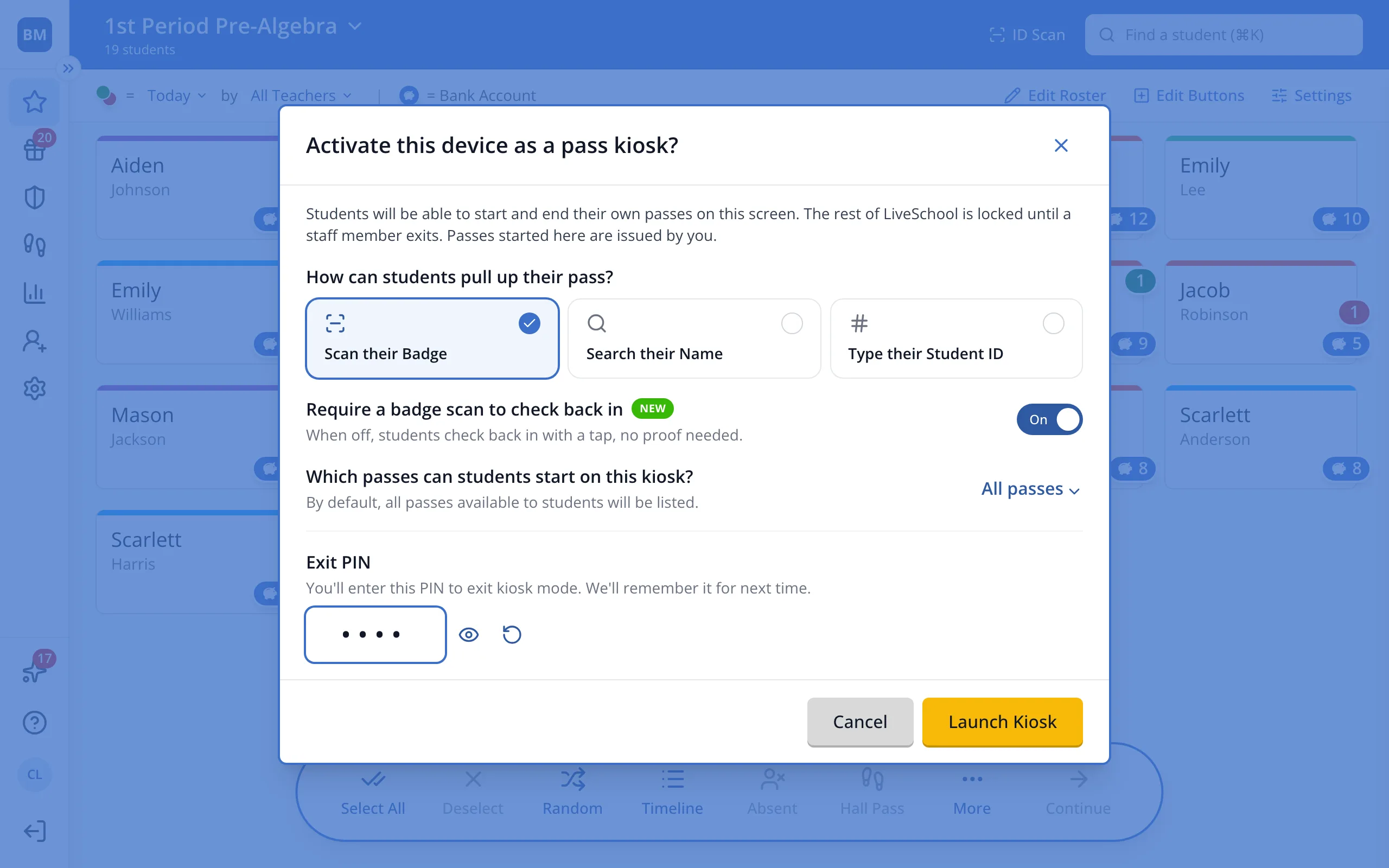
Require a badge or ID to check back in at a kiosk
By default, a student who's out can tap their name to check back in. Turn this on to ask for their badge or ID instead.
Use the Left and Right arrow keys to move between steps, and Space to play or pause.
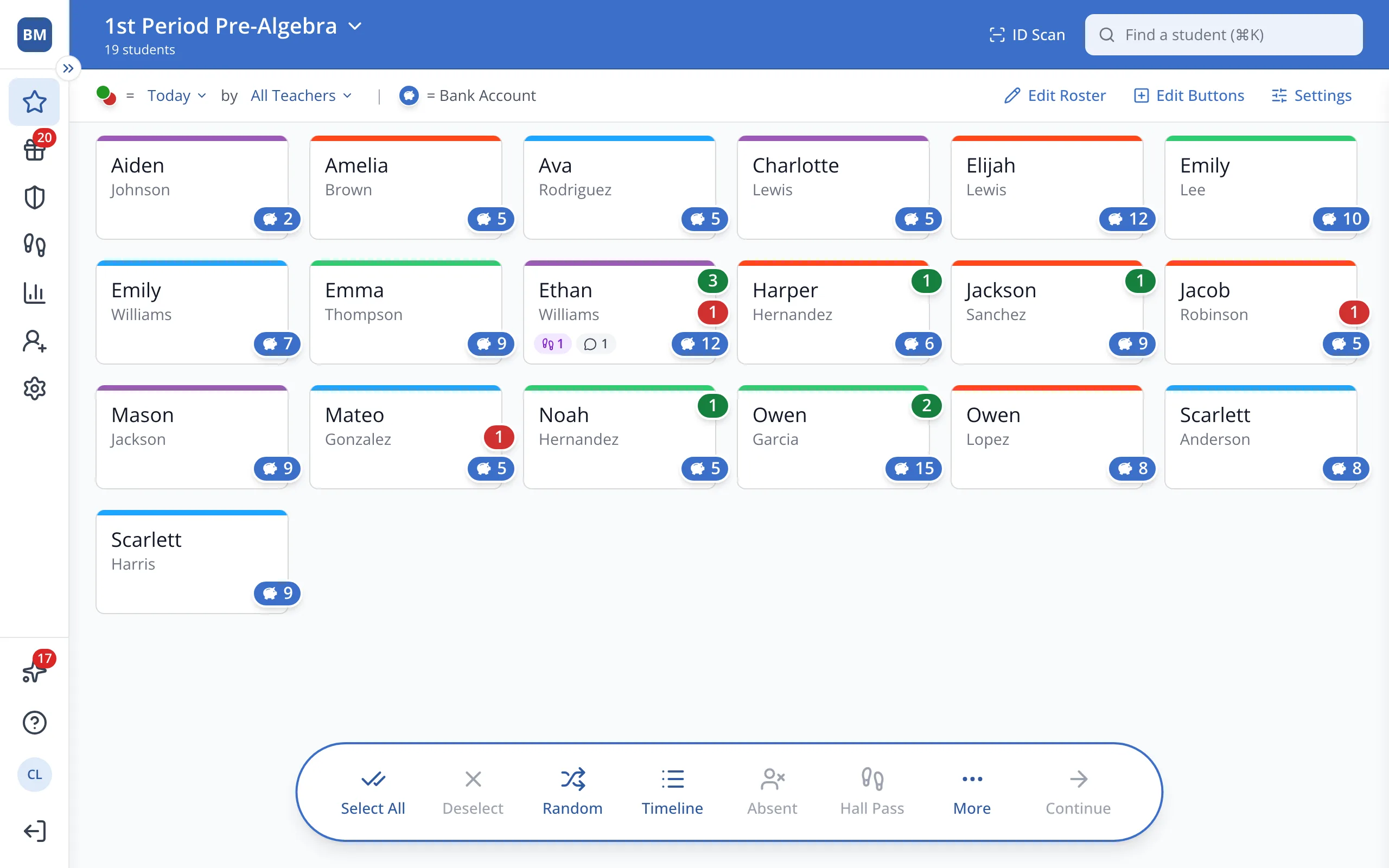
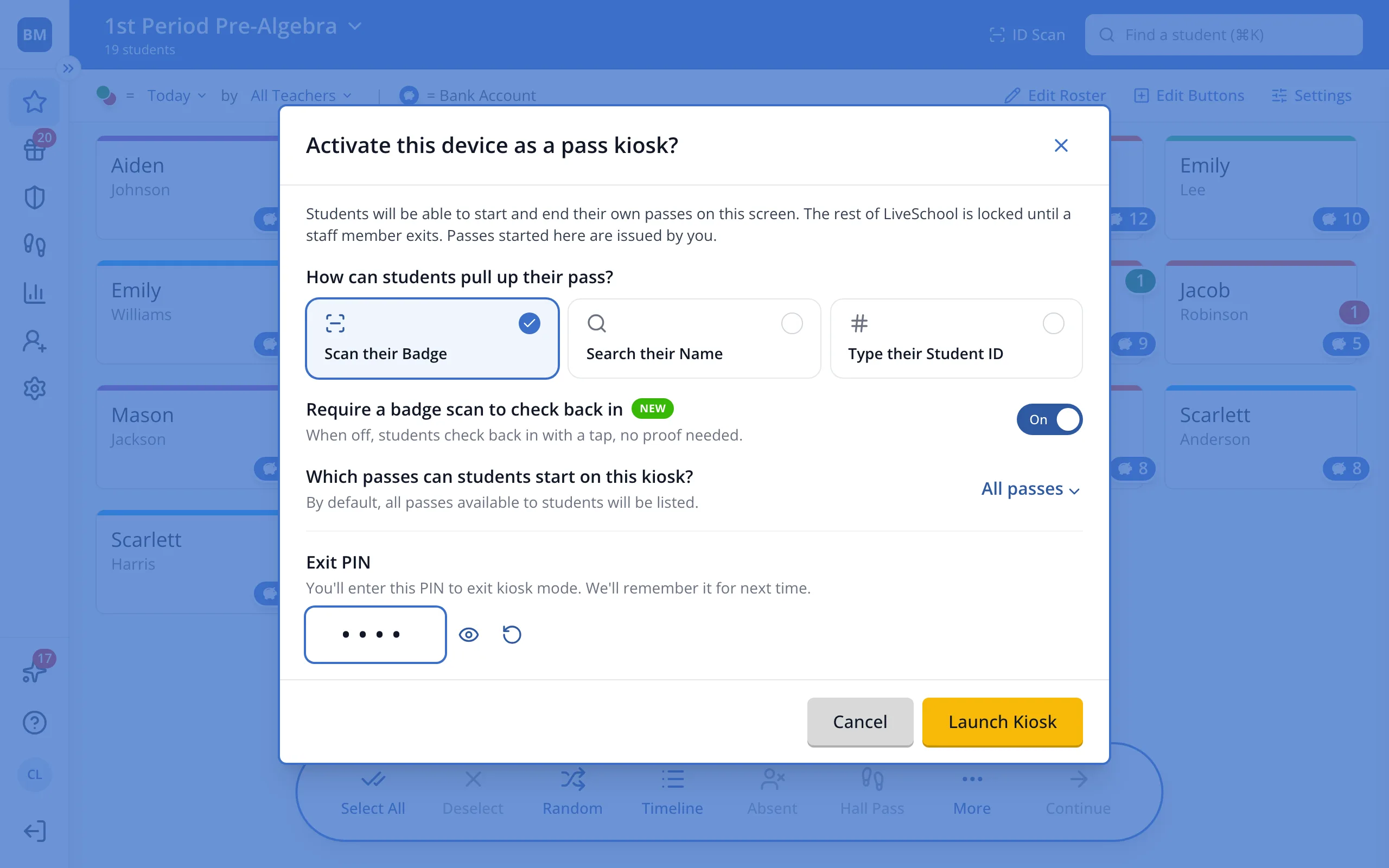
1.In the bar at the bottom of the Points page, click More.
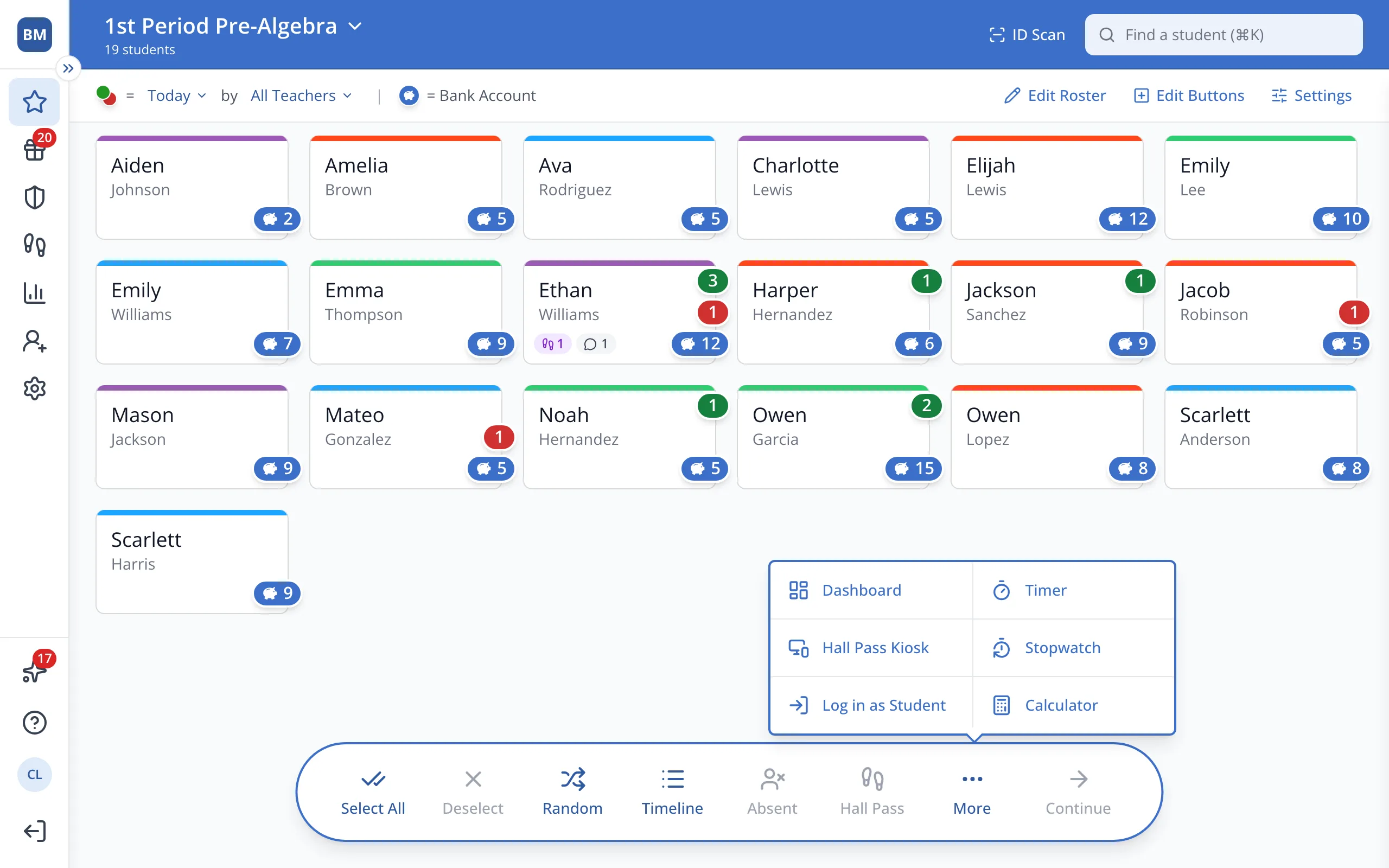
2.Click Hall Pass Kiosk.
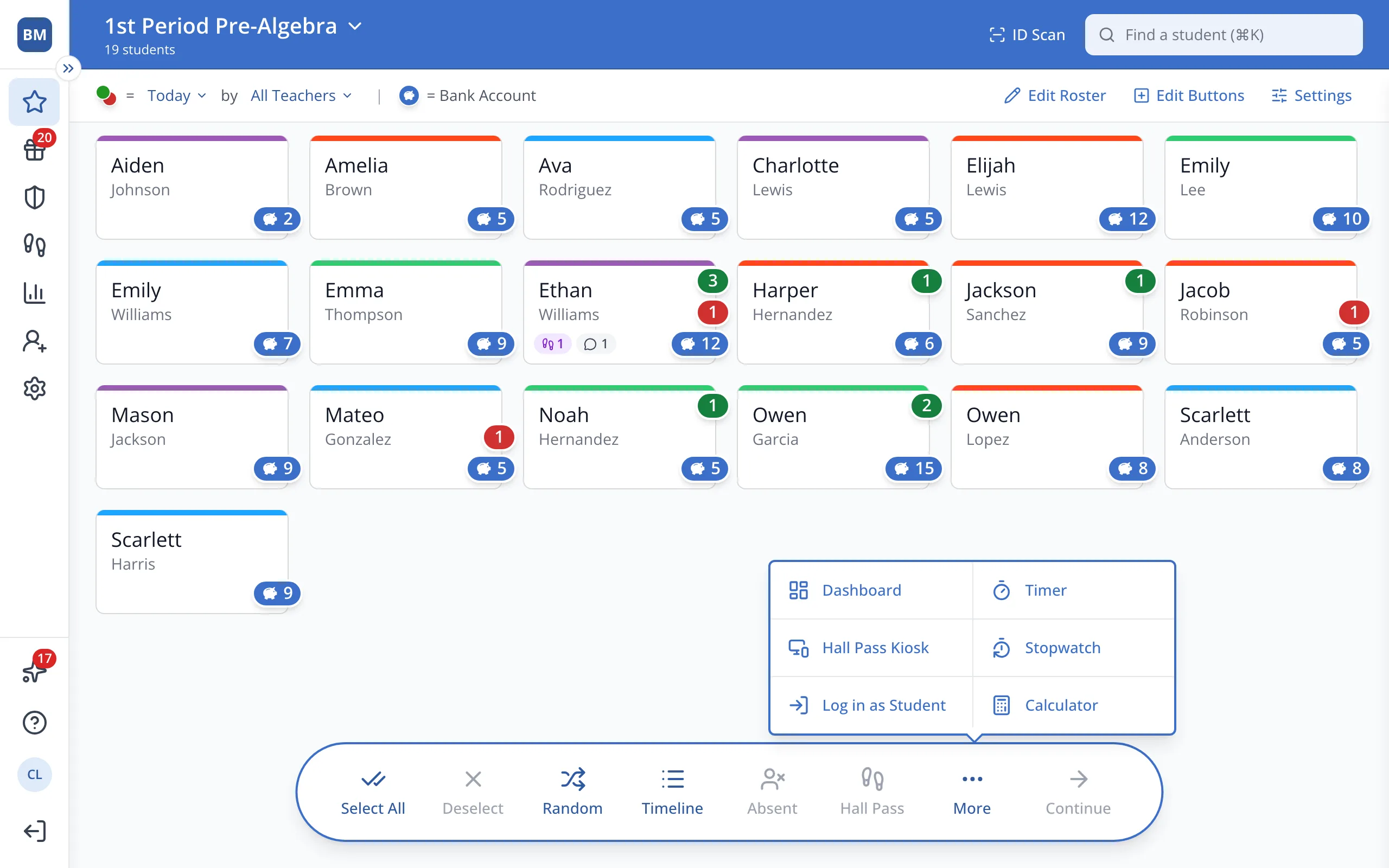
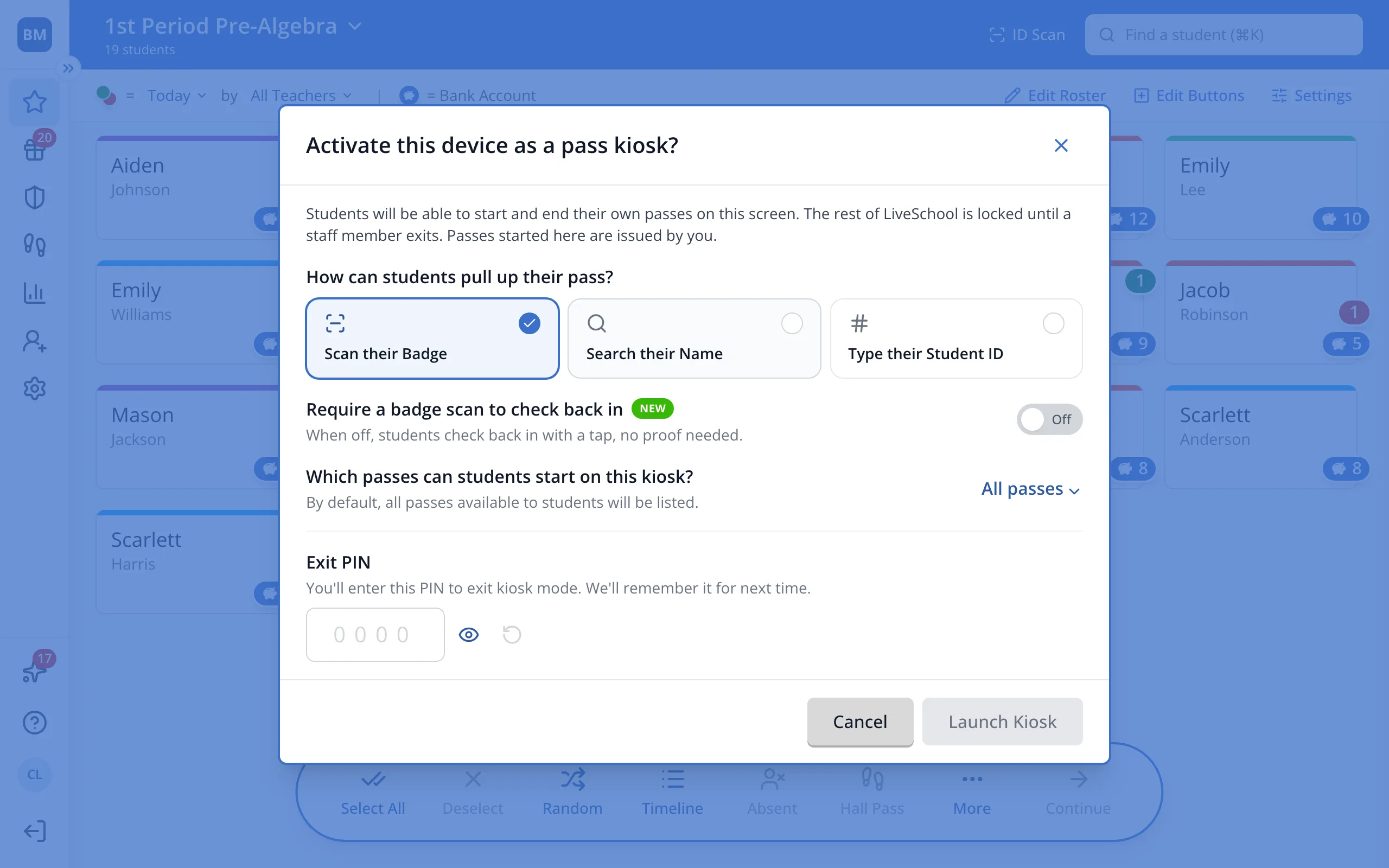
3.Turn off Search their Name, so students scan a badge or type an ID.
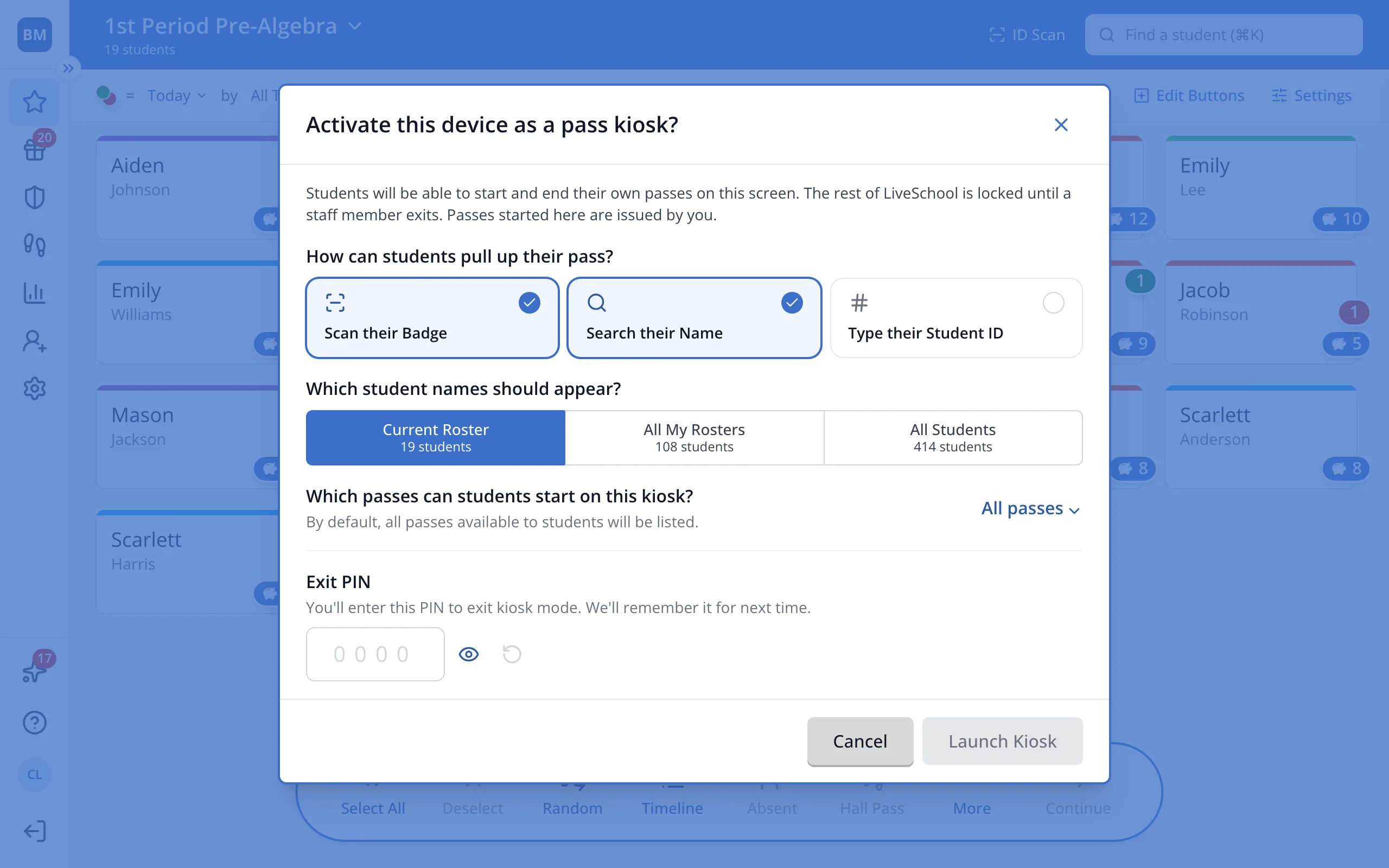
4.Turn on Require a badge scan to check back in.
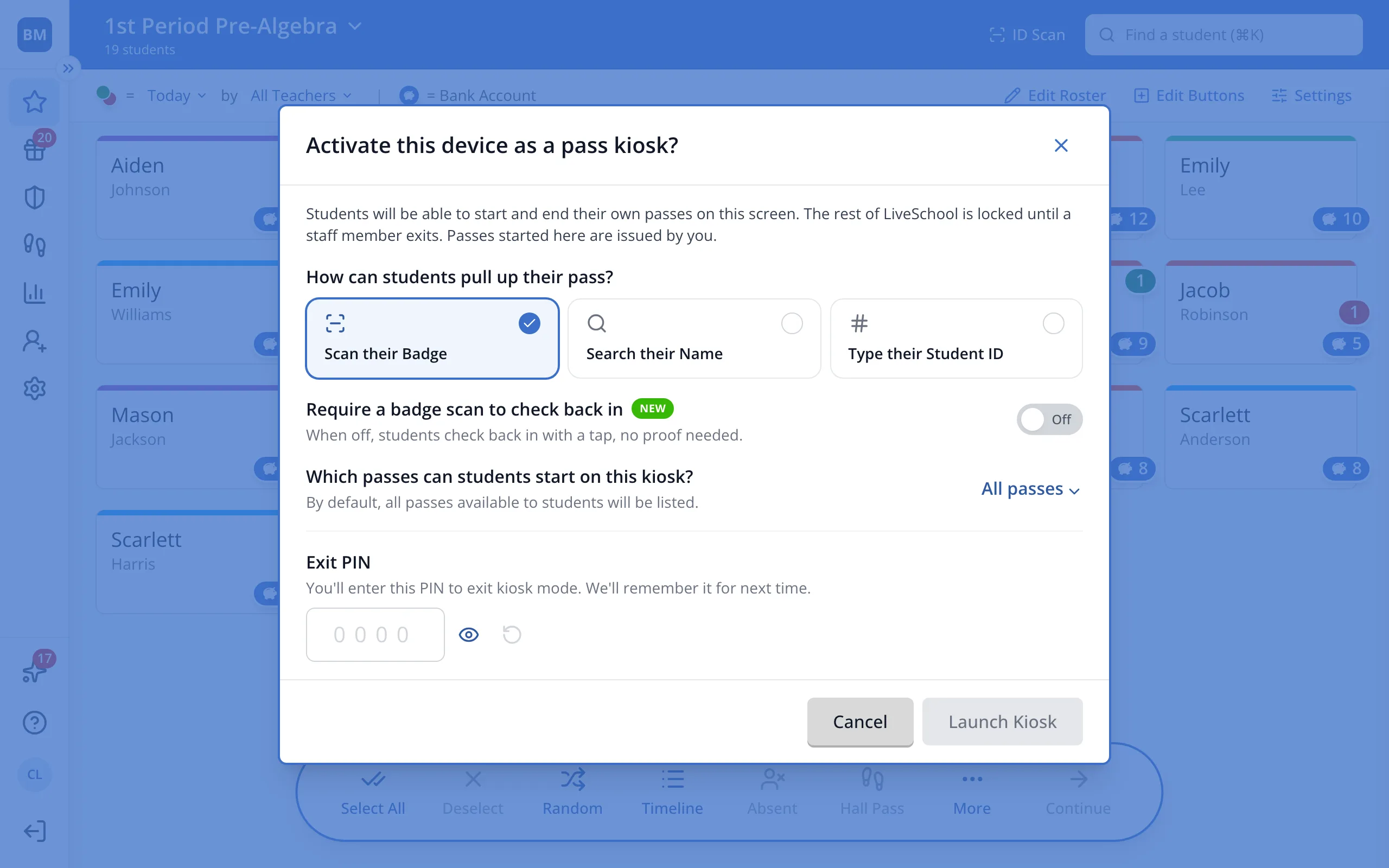
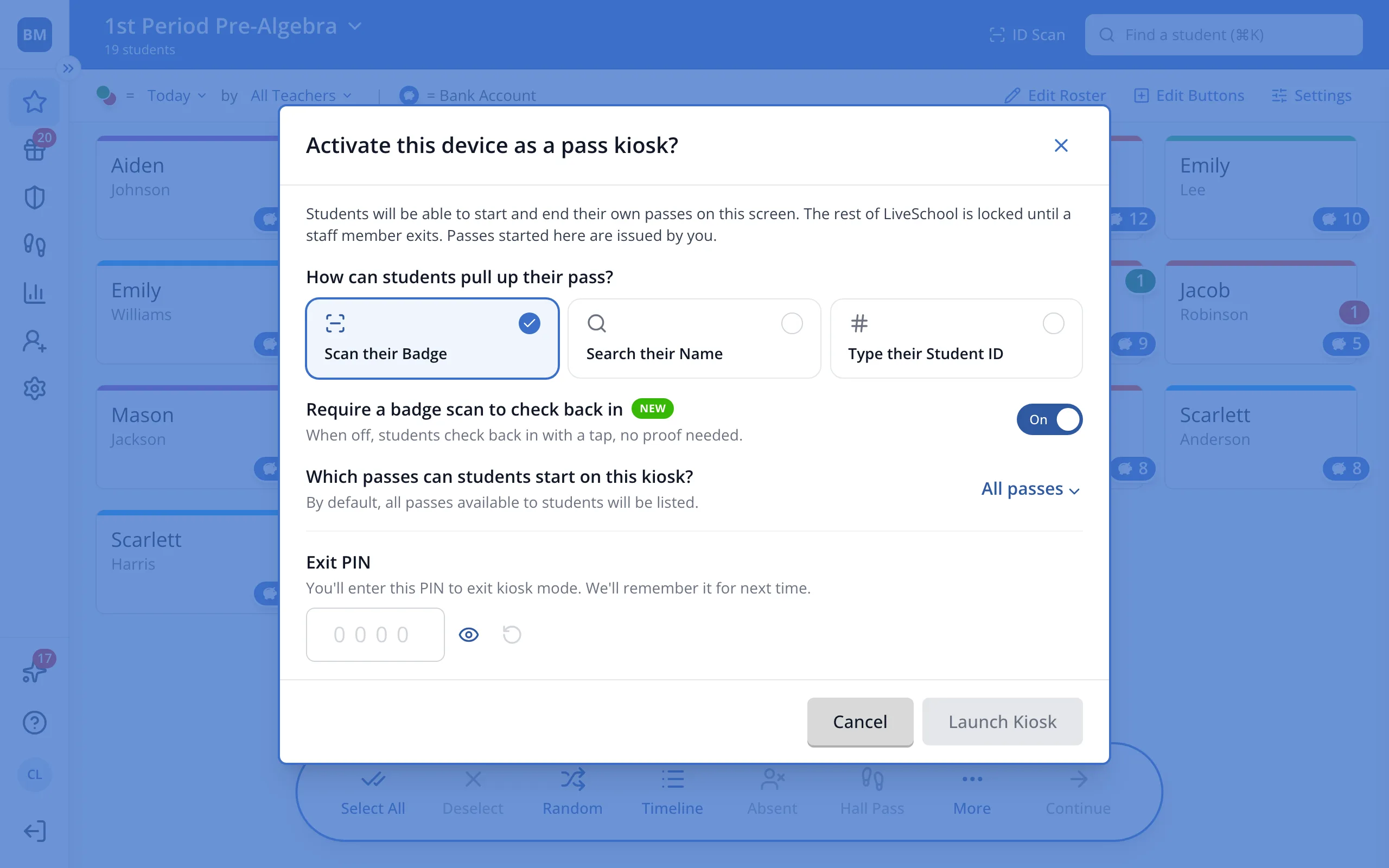
5.Type a 4-digit exit PIN. You'll need it to leave the kiosk.
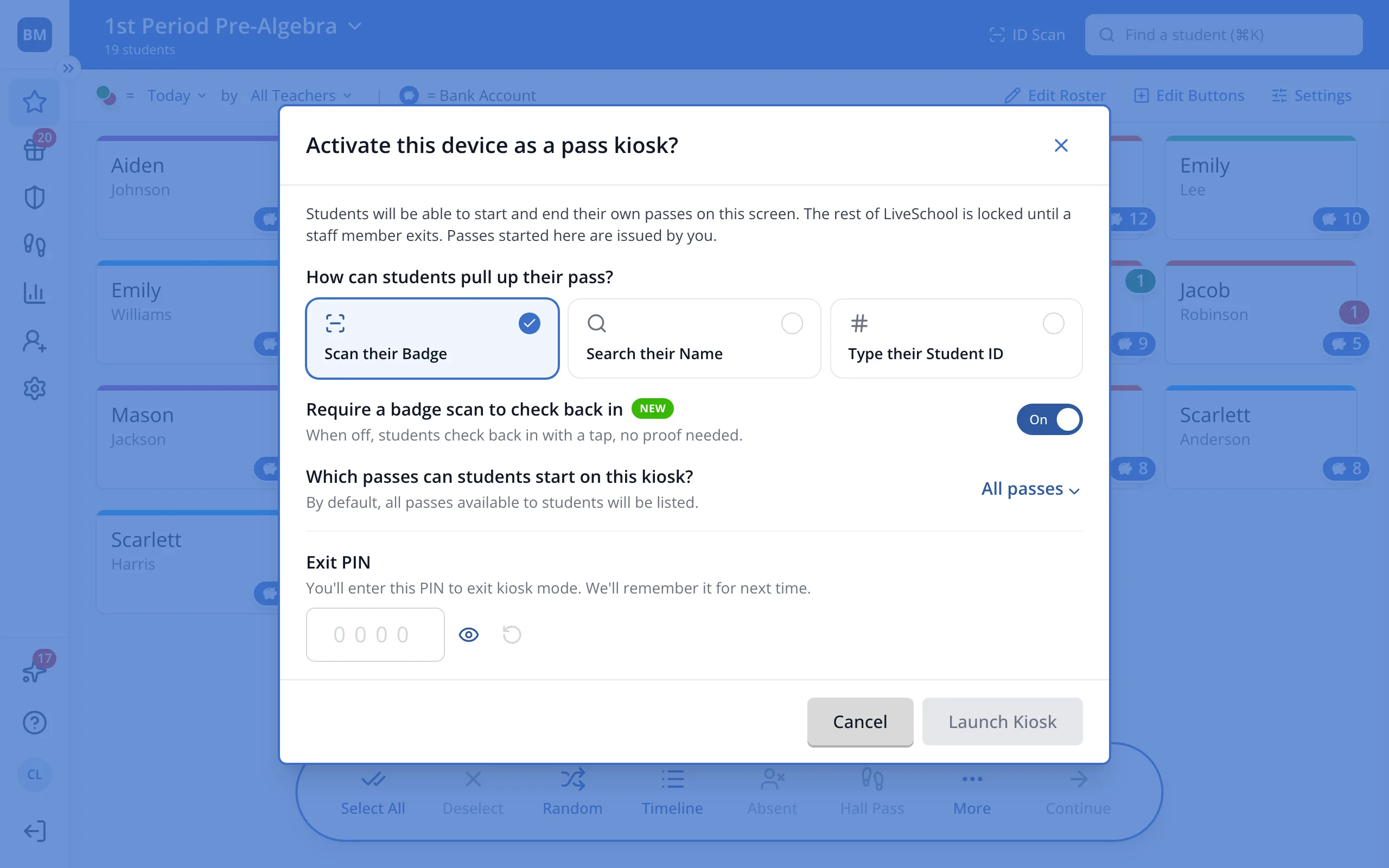
6.Click Launch Kiosk.