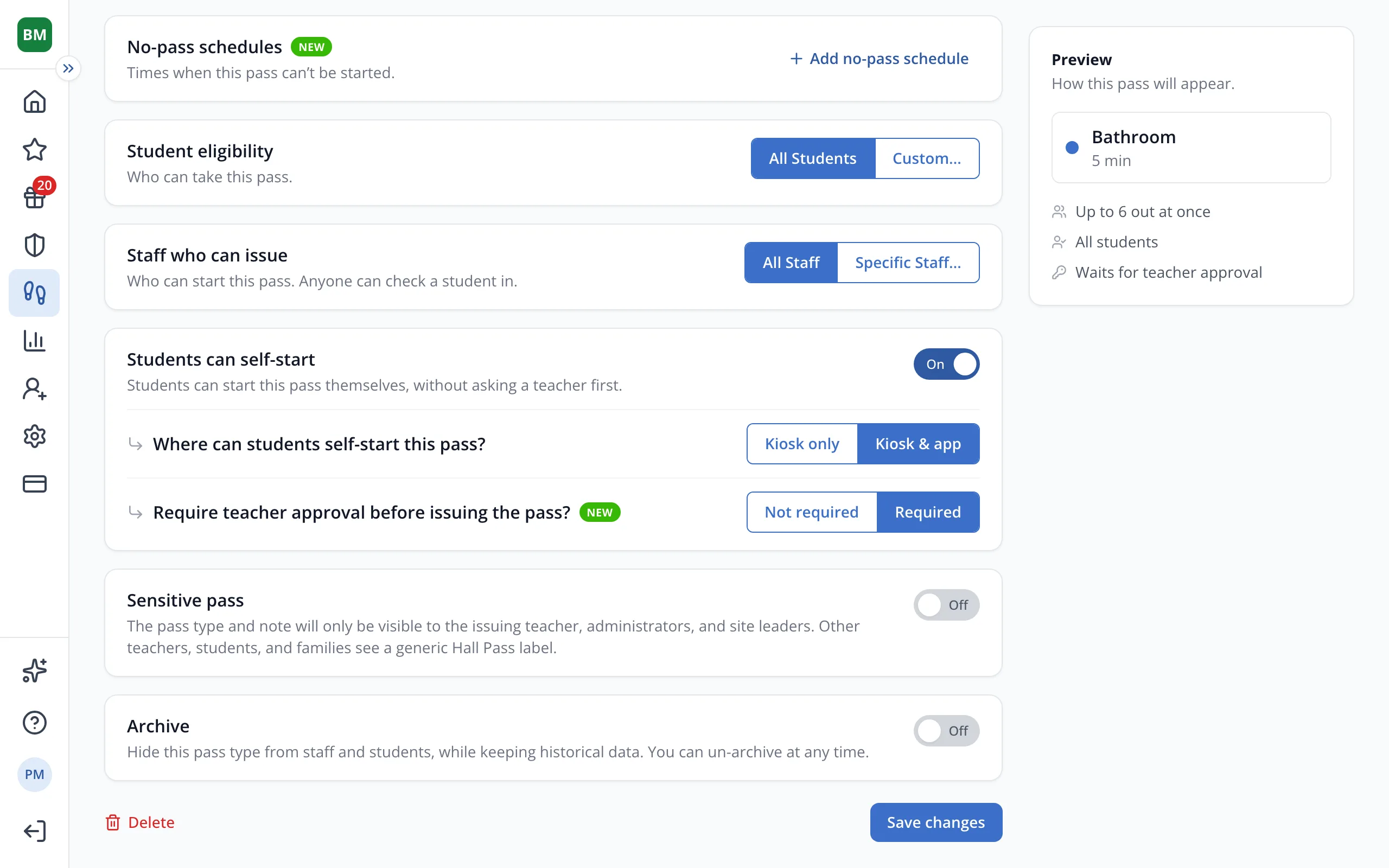
Require teacher approval for a pass type
When a student asks for this pass from a kiosk or the app, their teacher gets an alert to approve or deny it before it starts.
AdminSite Leader
Use the Left and Right arrow keys to move between steps, and Space to play or pause.
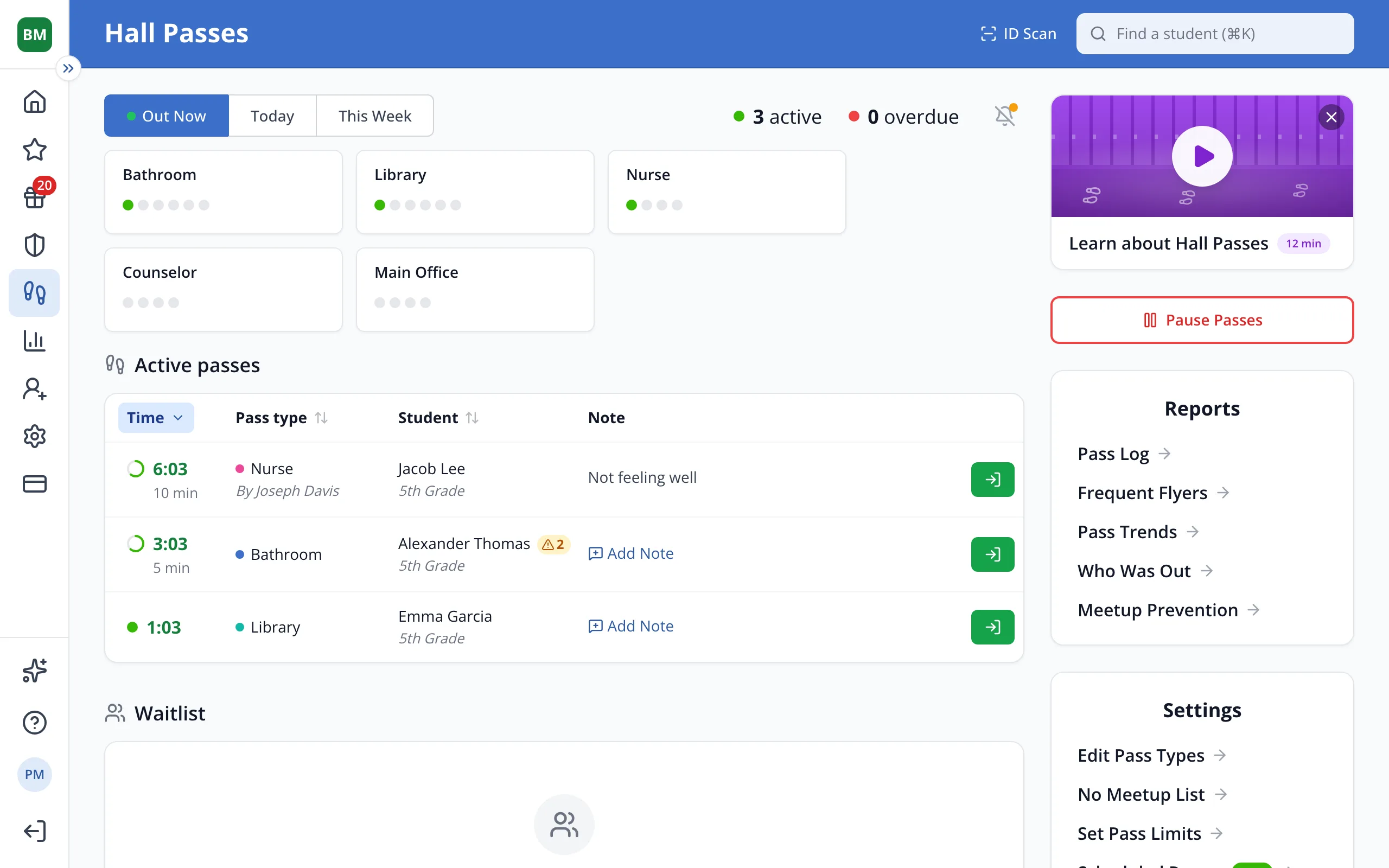
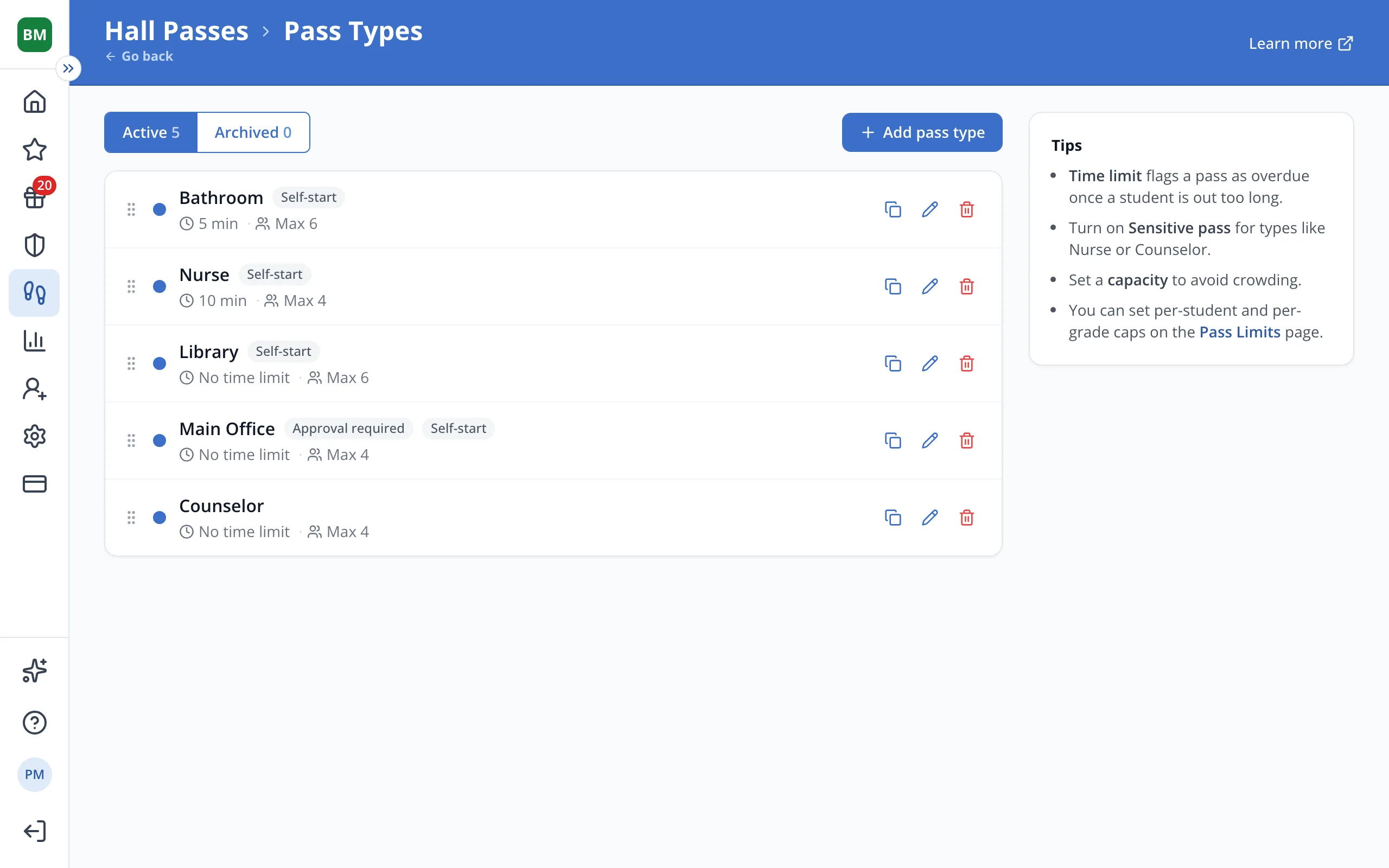
1.On the Hall Passes page, under Settings, click Edit Pass Types.
Did you know? On a smaller screen, click More to find these links.
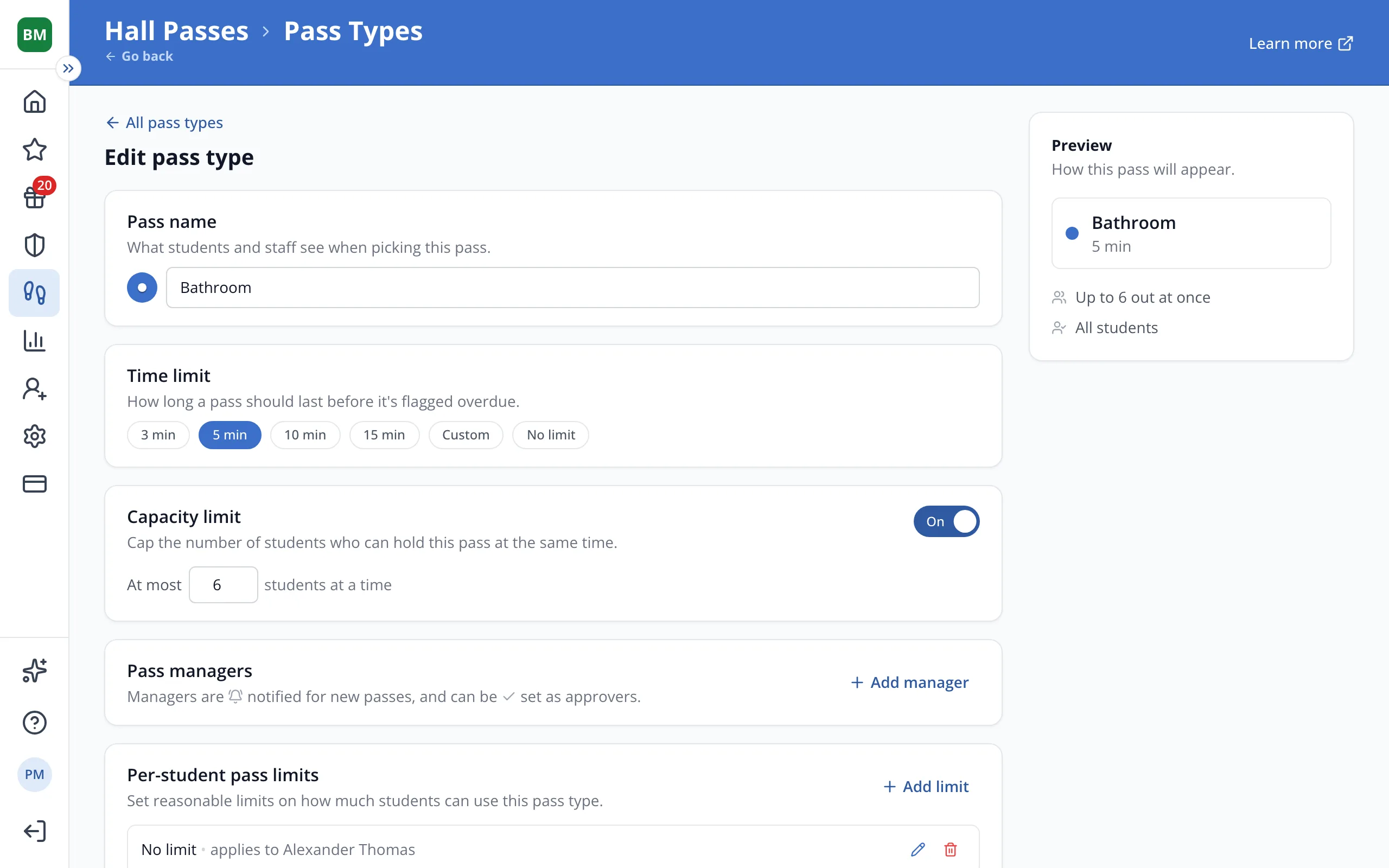
2.Click the pencil next to the pass type you'd like to change.
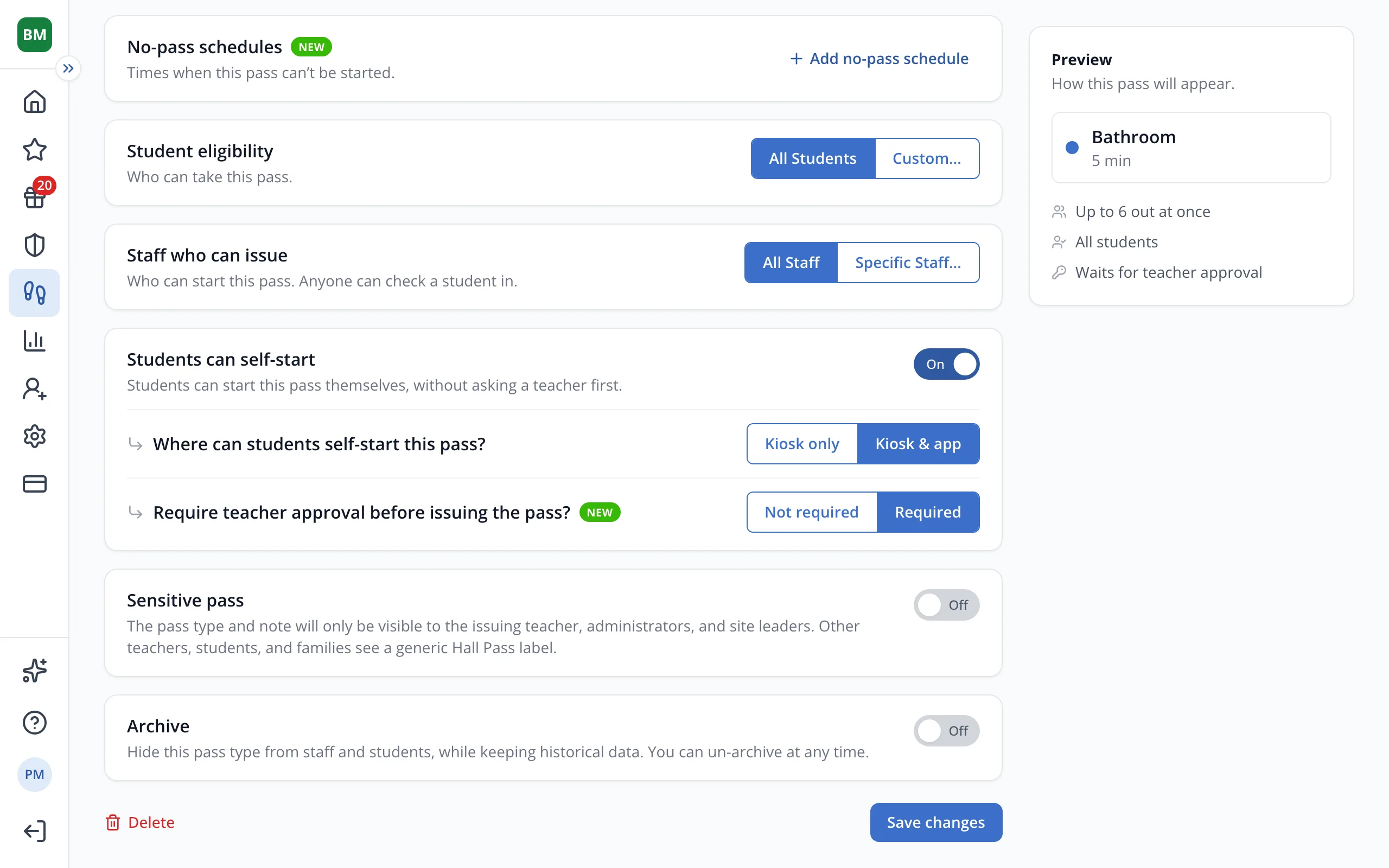
3.Under Require teacher approval before issuing the pass?, click Required.
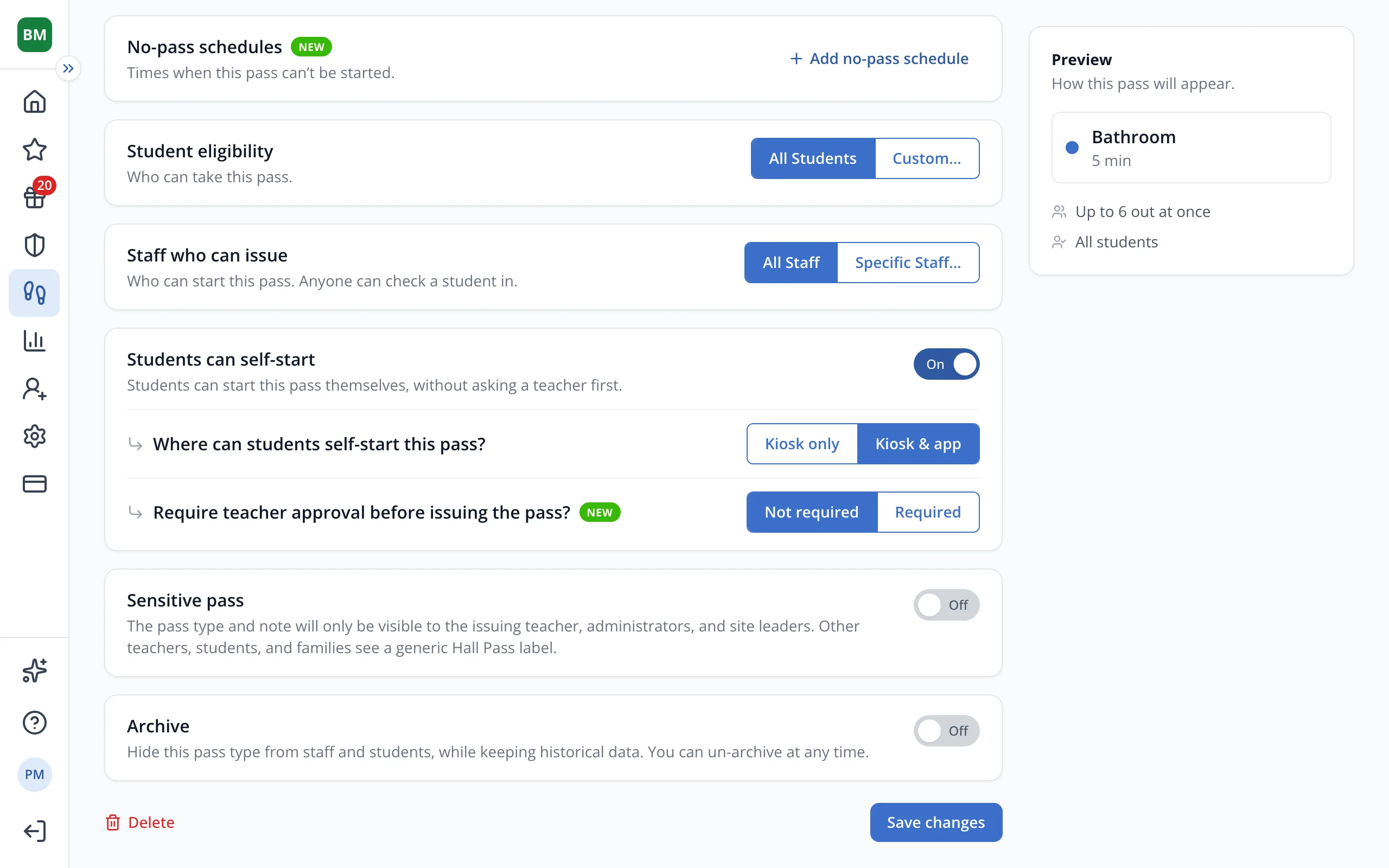
4.Click Save changes.