Limit how many students can use a pass type at once
When a pass type is full, new students wait in line until a spot opens.
AdminSite Leader
Use the Left and Right arrow keys to move between steps, and Space to play or pause.
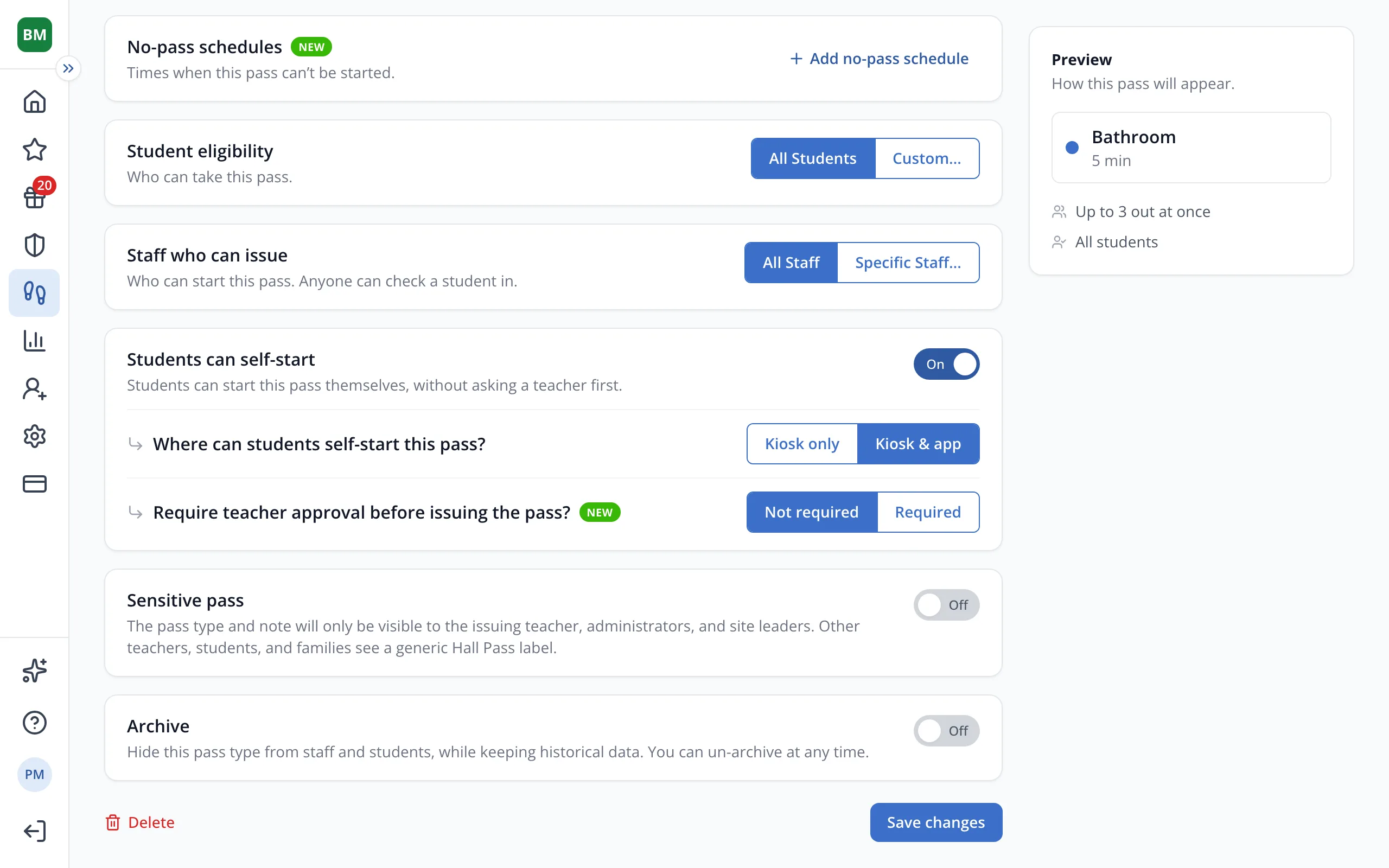
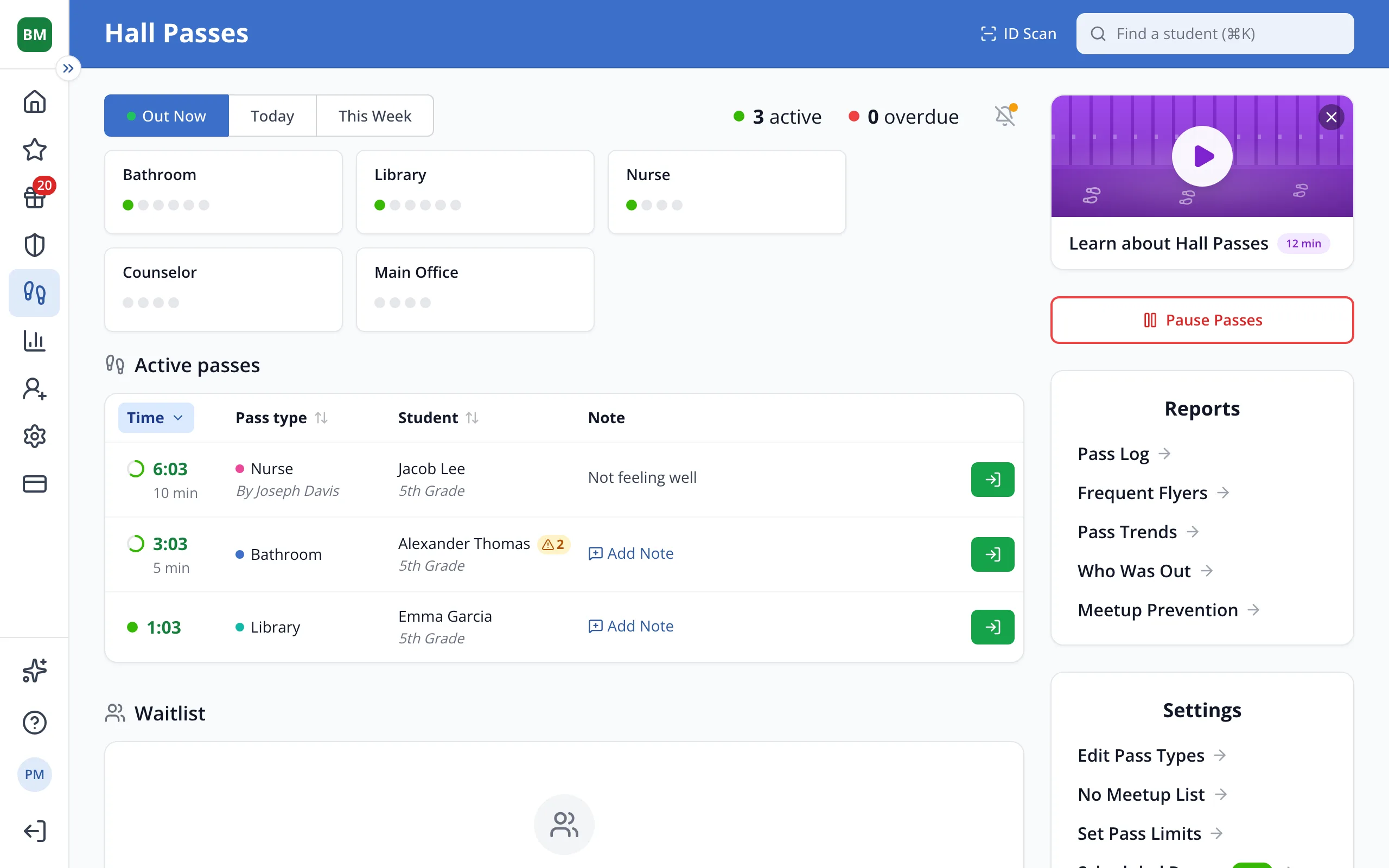
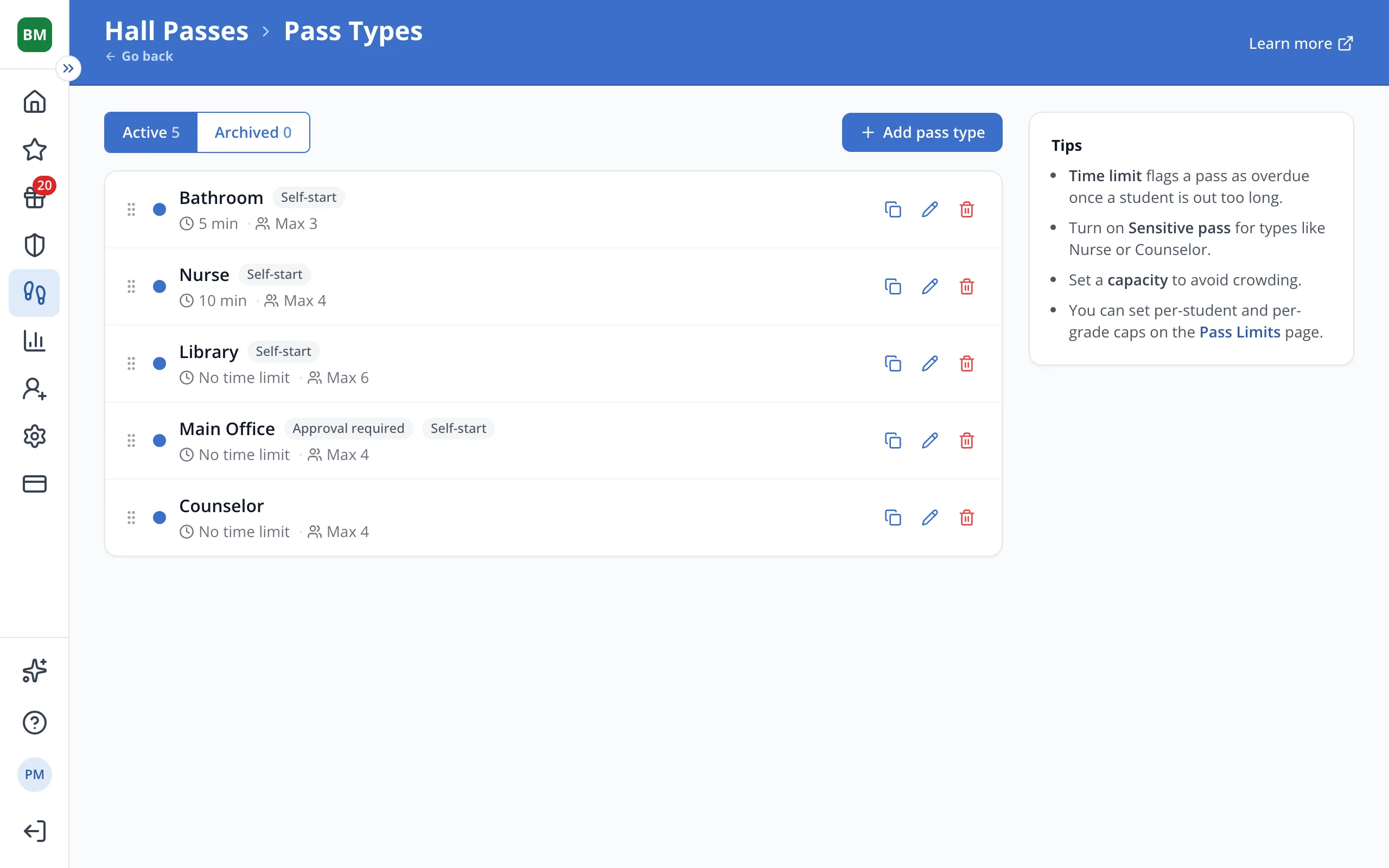
1.On the Hall Passes page, under Settings, click Edit Pass Types.
Did you know? On a smaller screen, click More to find these links.
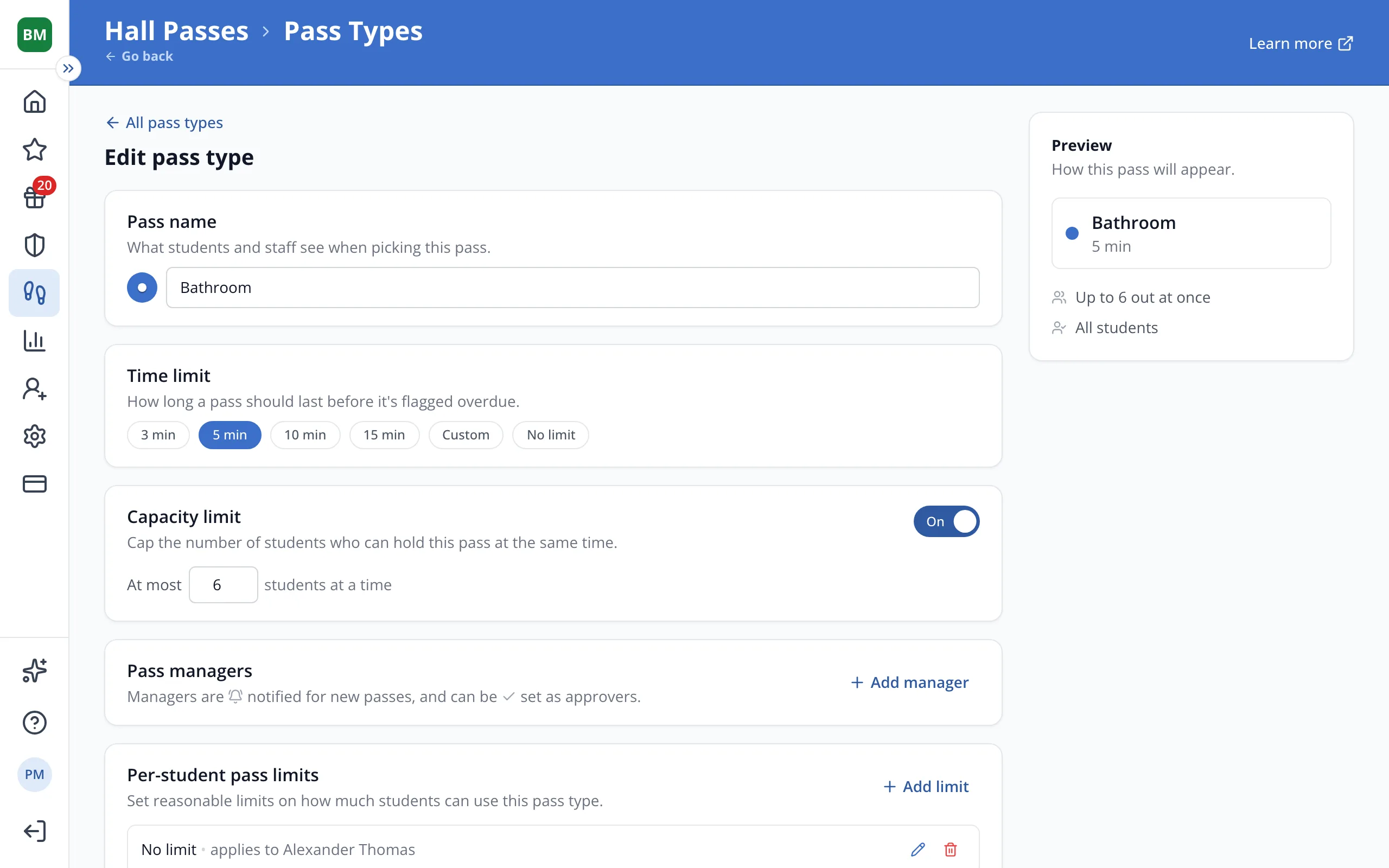
2.Click the pencil next to the pass type you'd like to change.
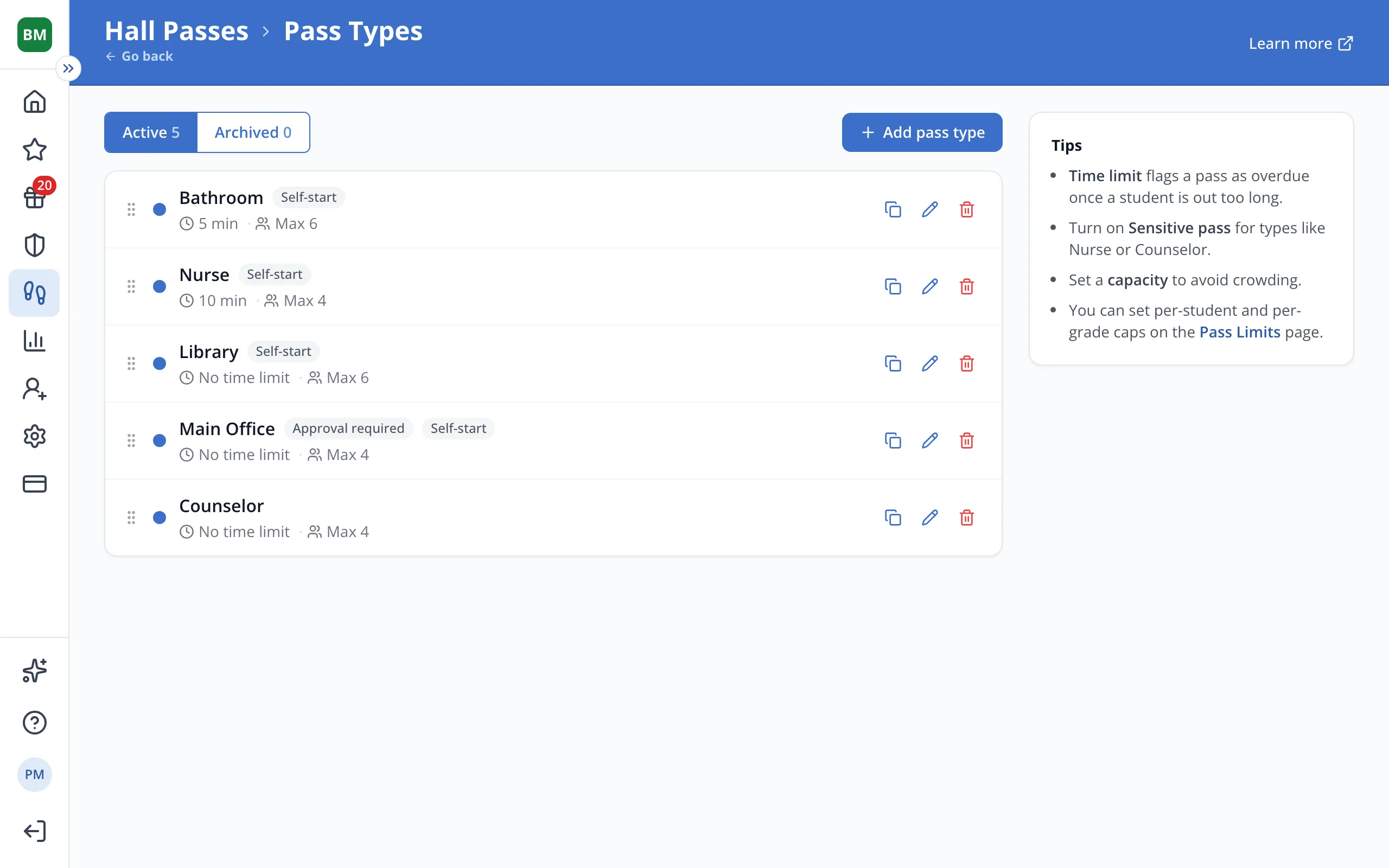
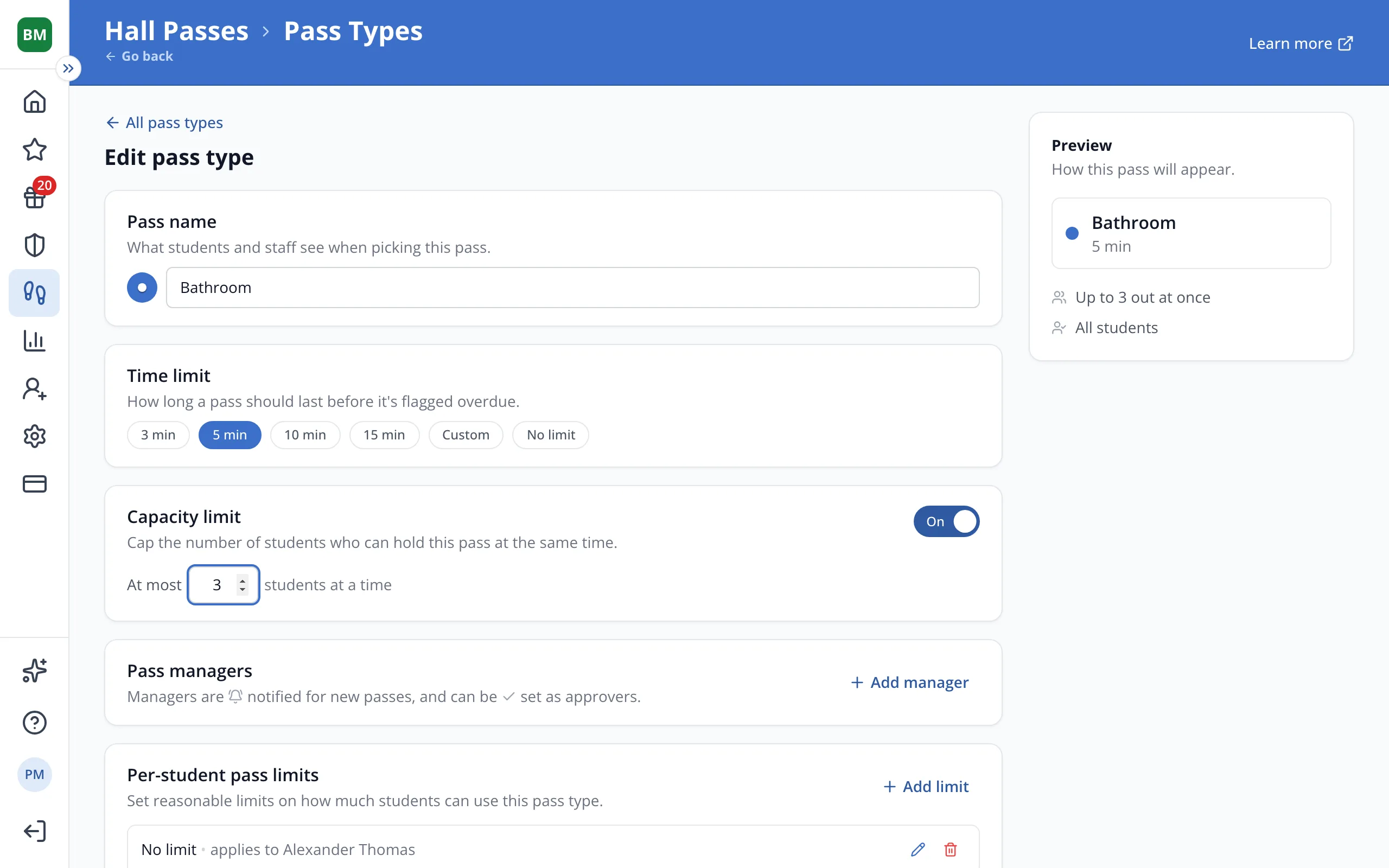
3.Under Capacity limit, make sure the switch is on, then type how many students can be out at once.
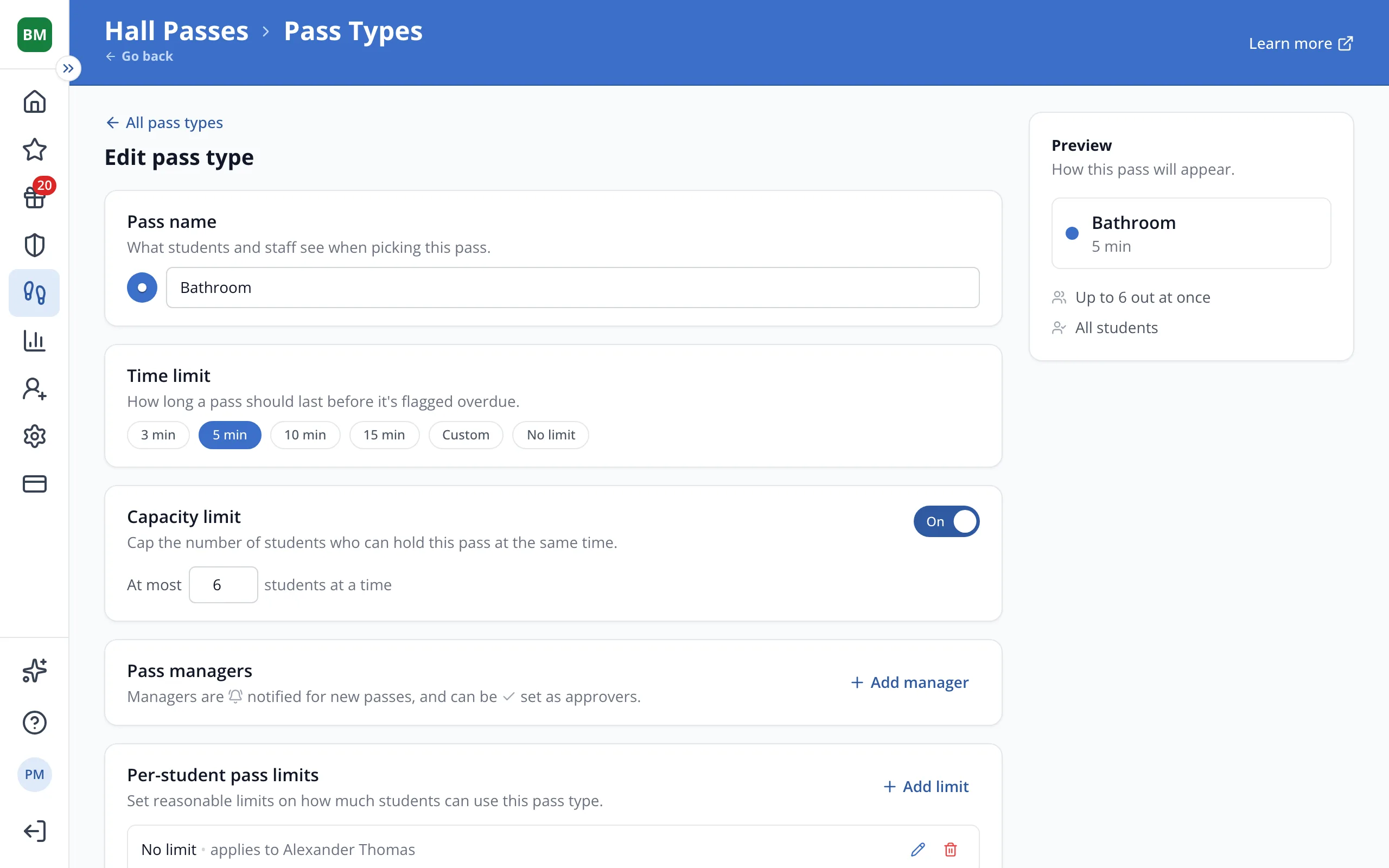
4.Click Save changes.