
Customize the welcome letter text and logo
Write your own message and add your school logo to your welcome letters.
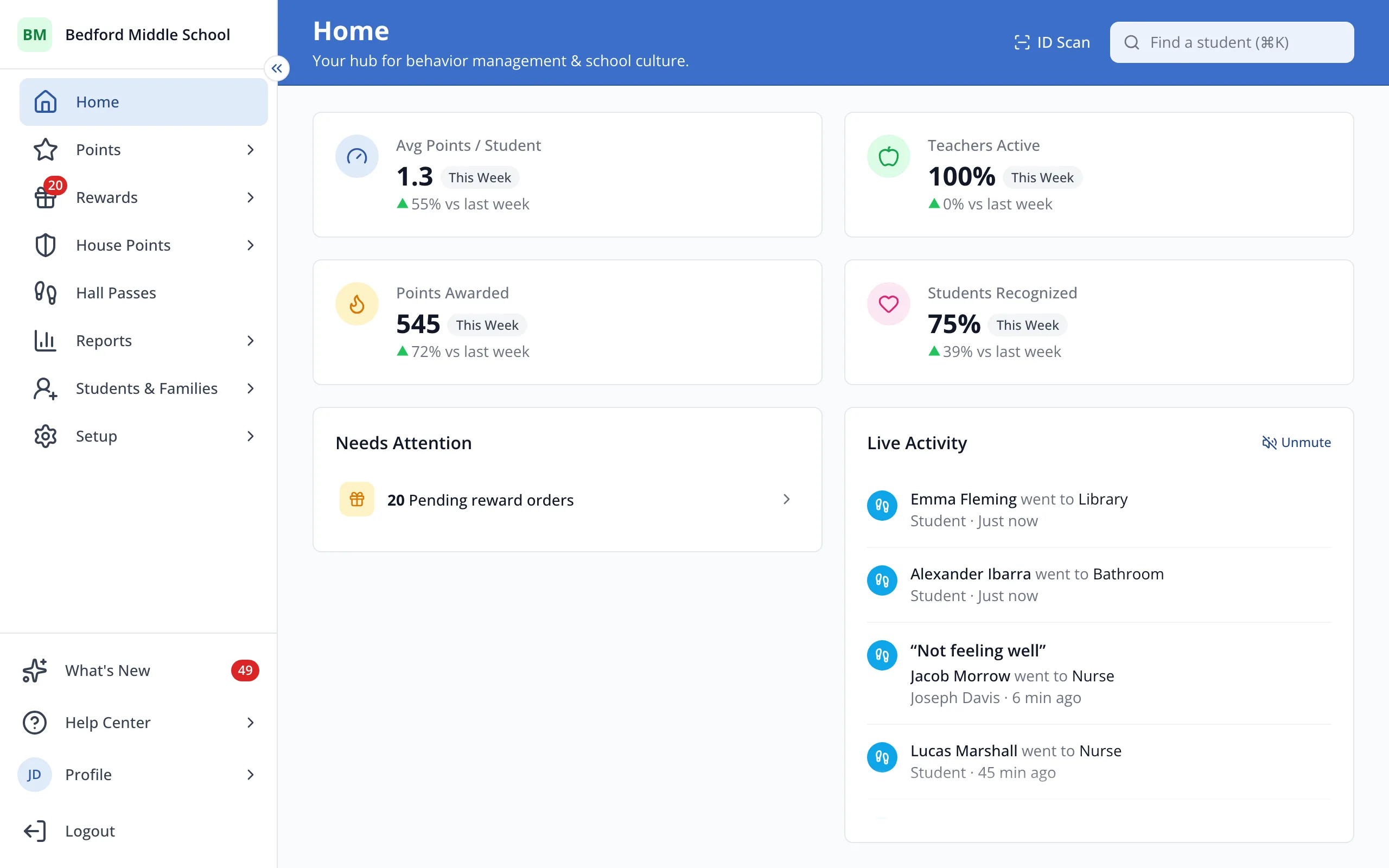
1 / 8In the sidebar, click House Points.
1.In the sidebar, click House Points.
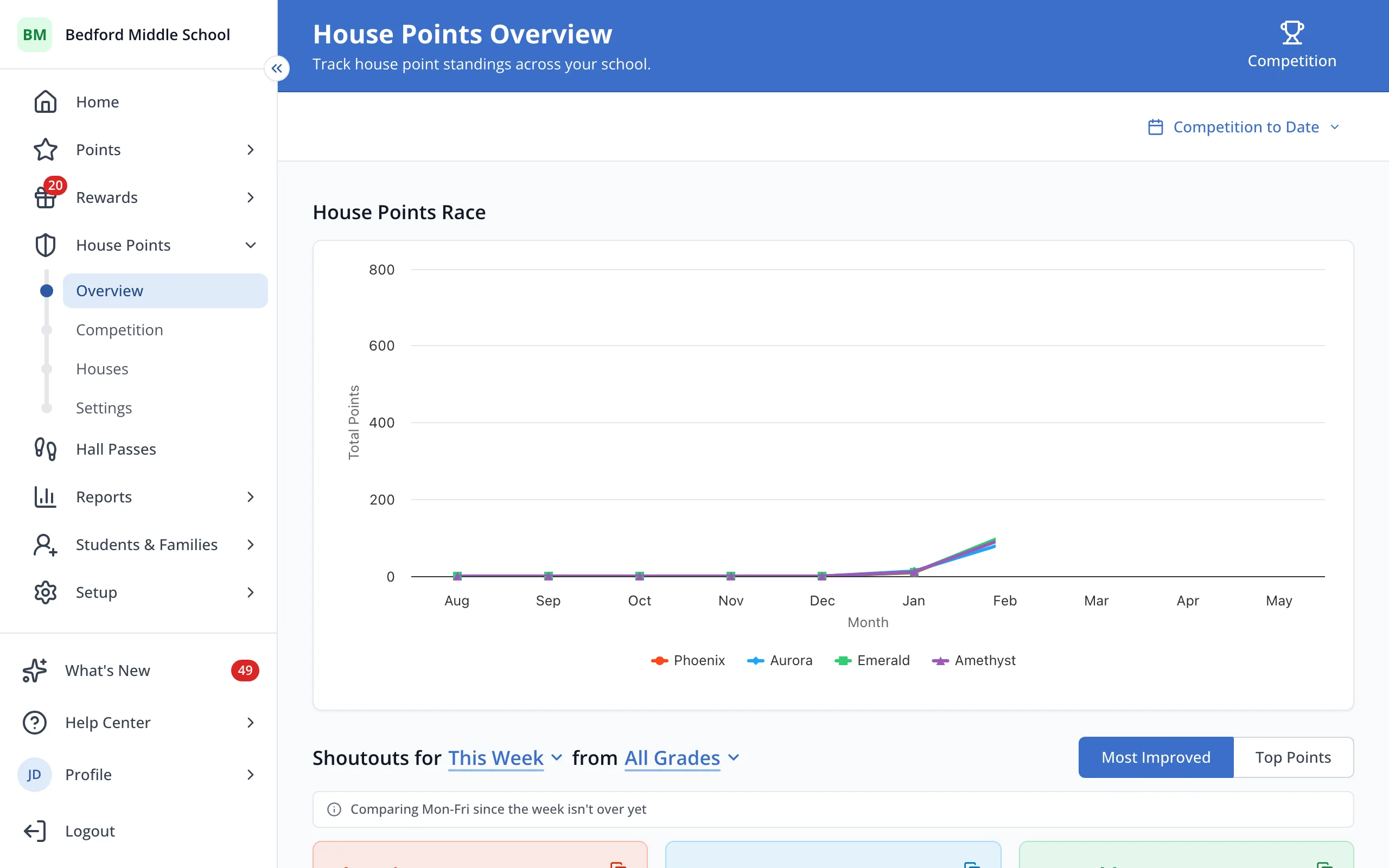
2.Click Houses.
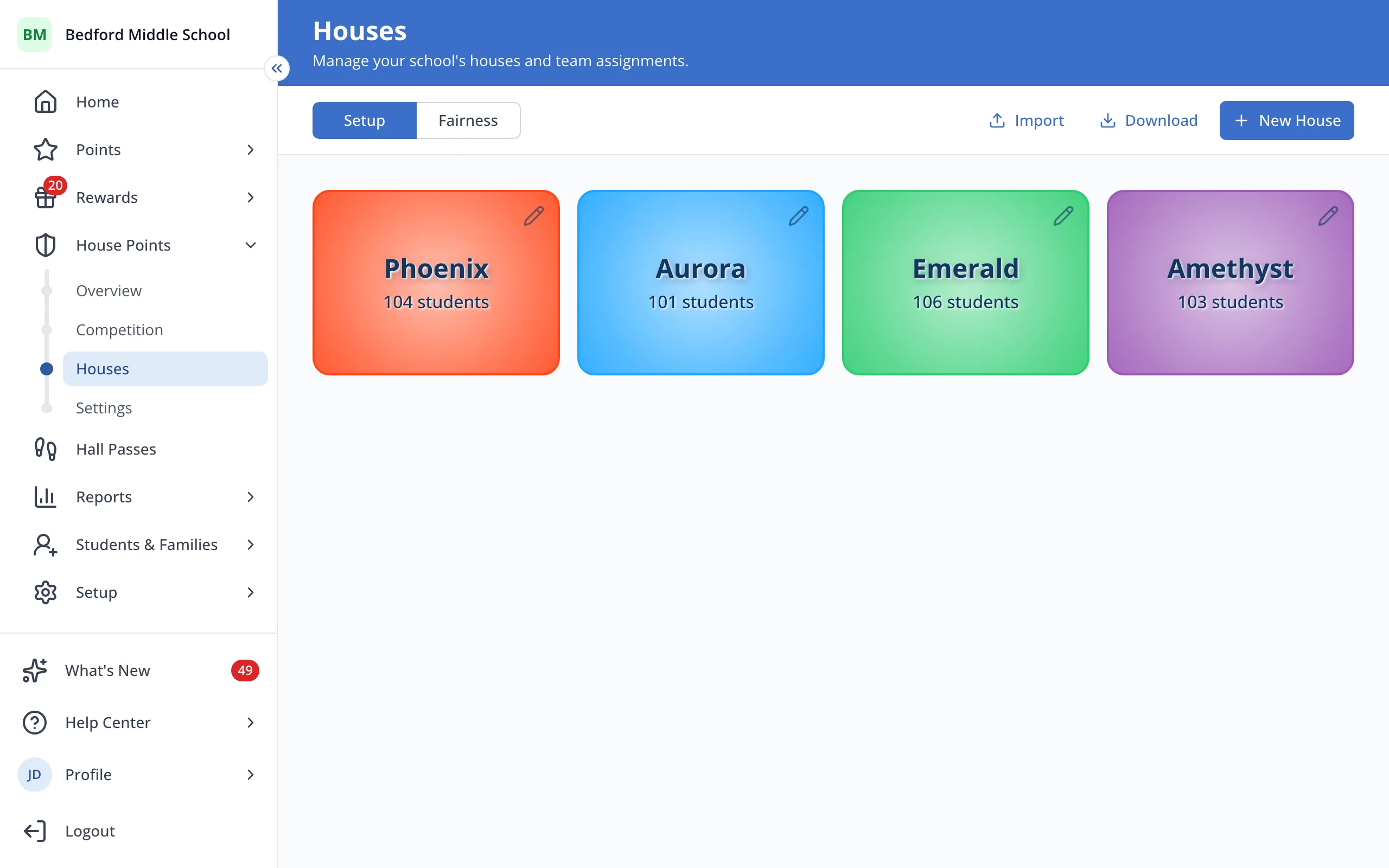
3.At the top right, click Download.
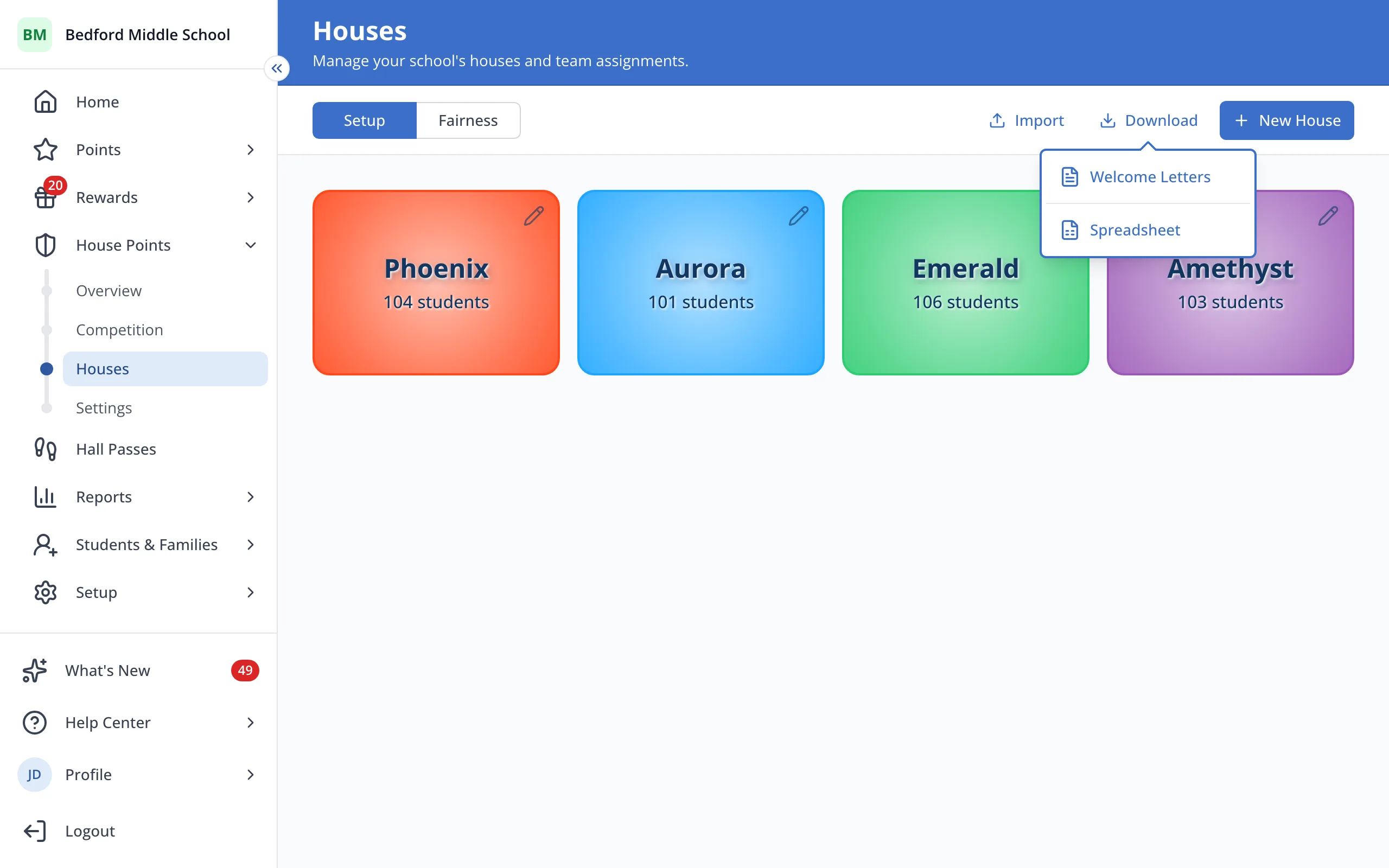
4.Click Welcome Letters.
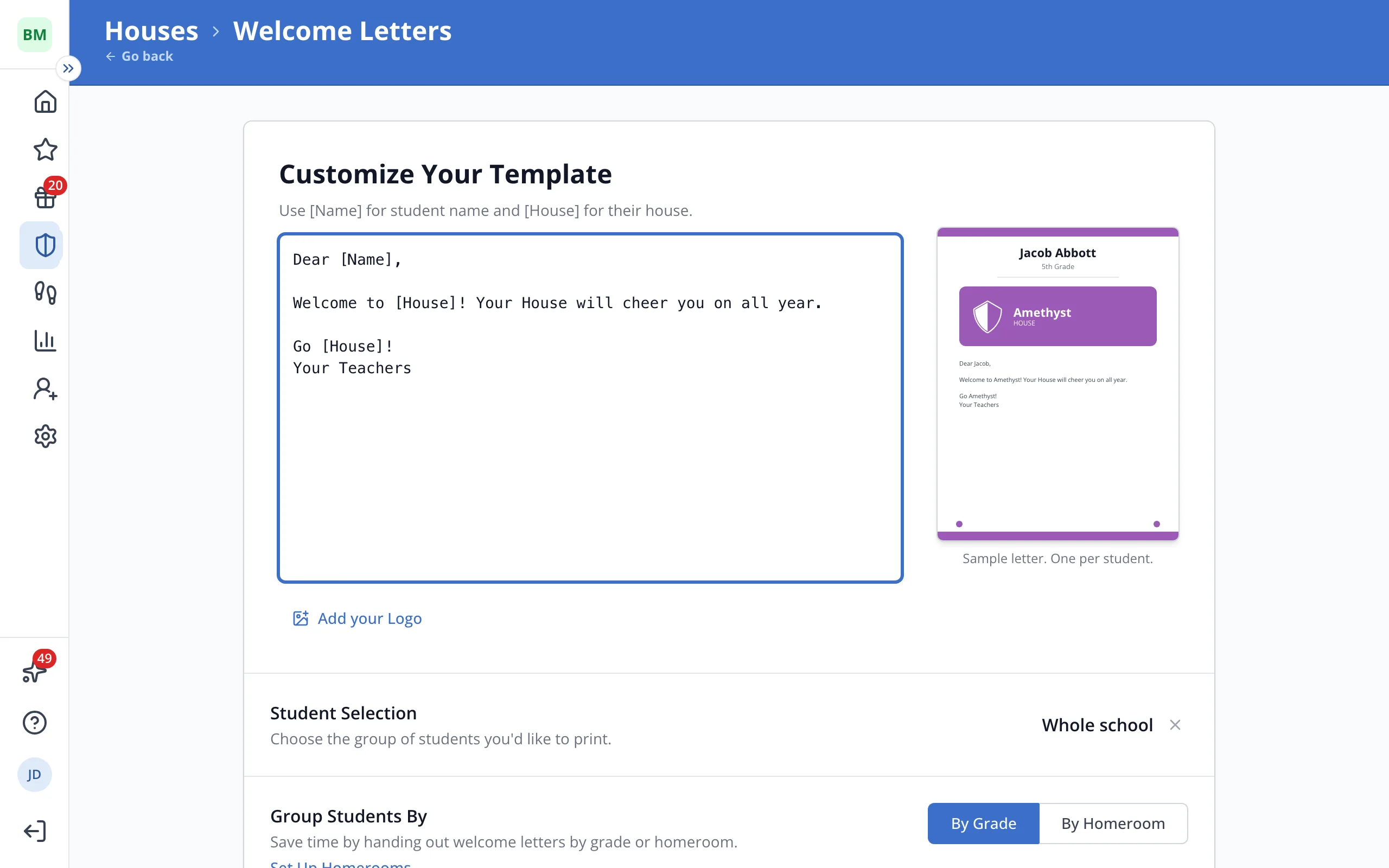
5.Under Customize Your Template, type your letter. Use [Name] for the student's name and [House] for their House.
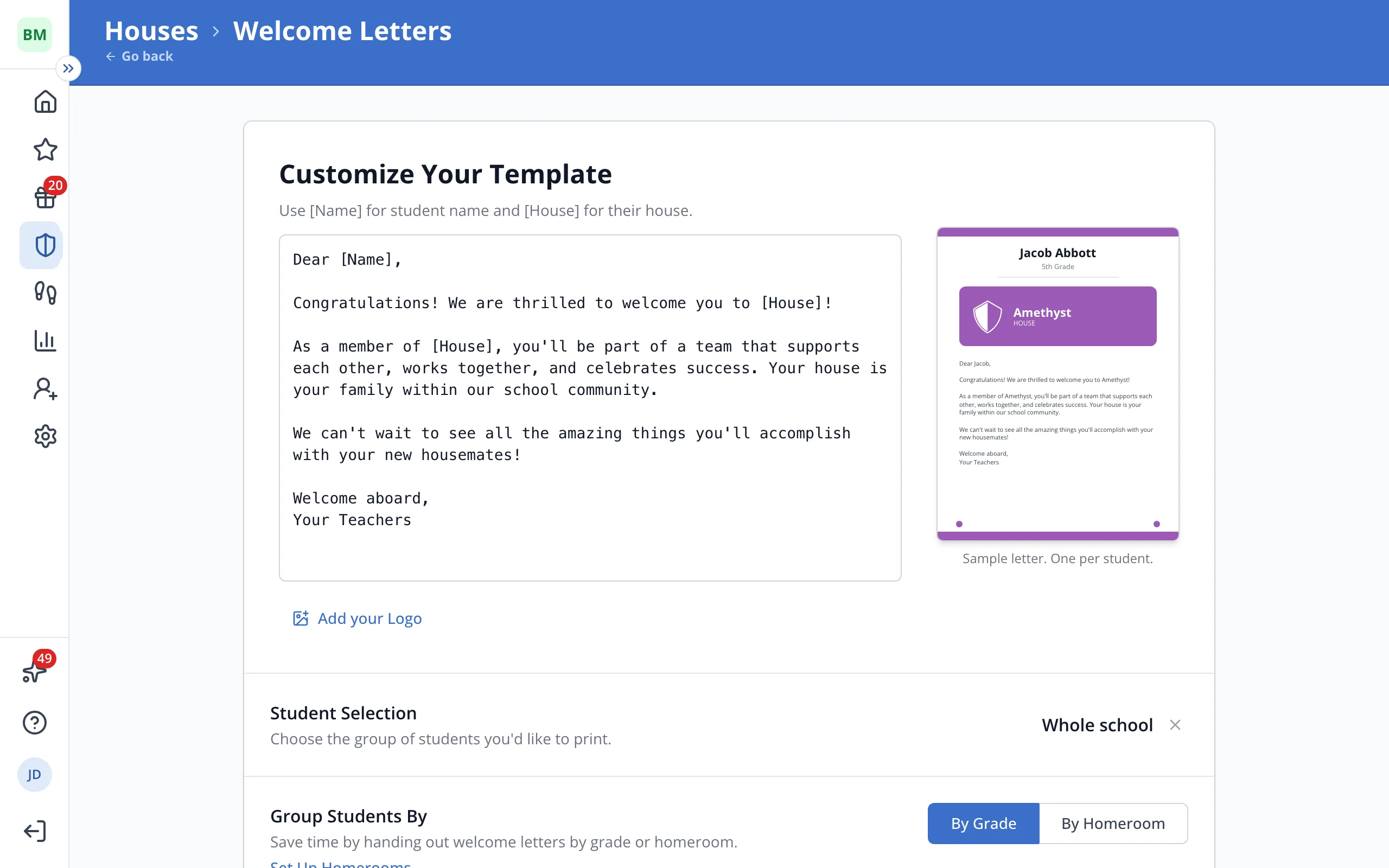
6.Check the sample letter on the right to see how it will look.
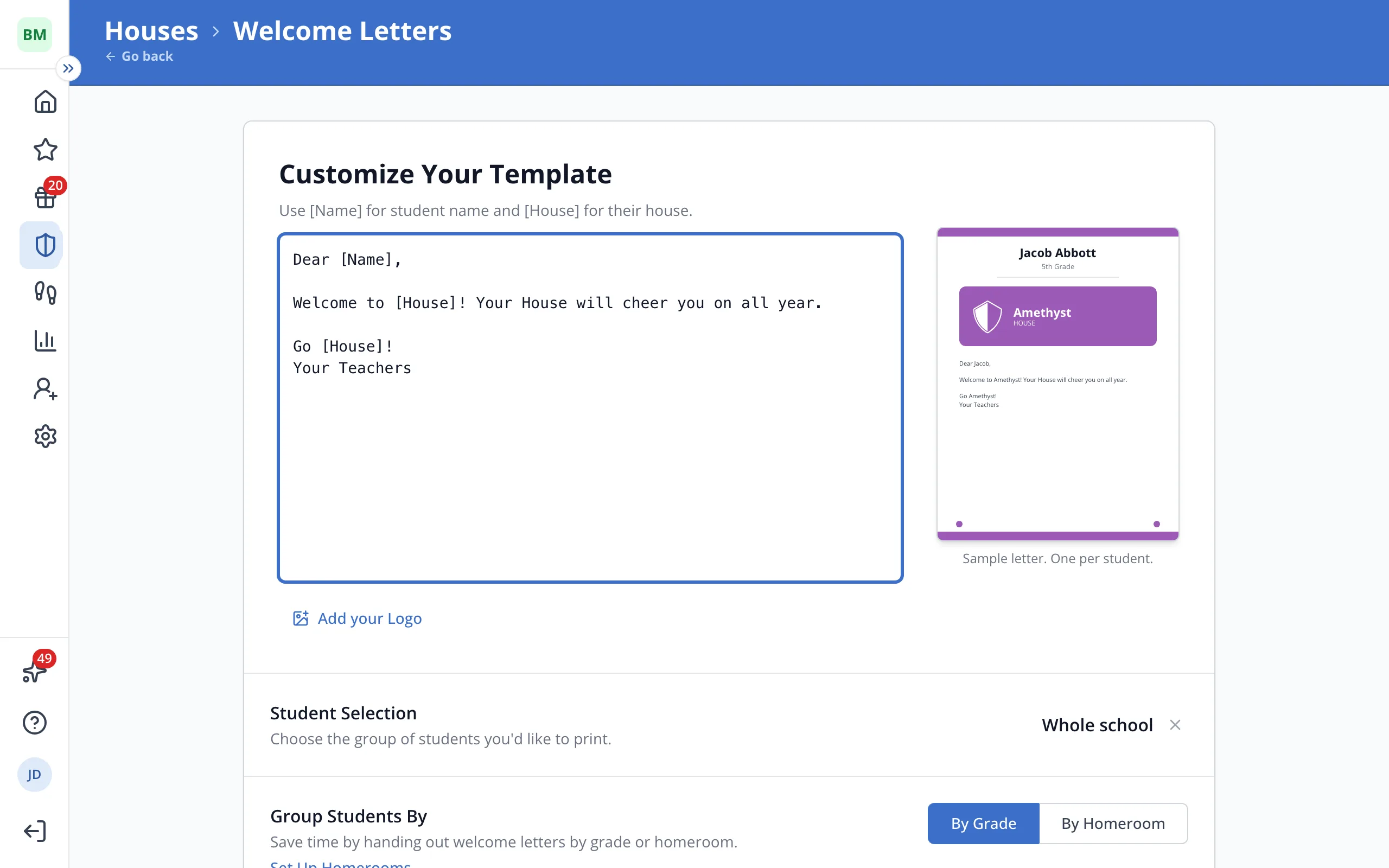
7.Click Add your Logo to print your school logo at the top of every letter.
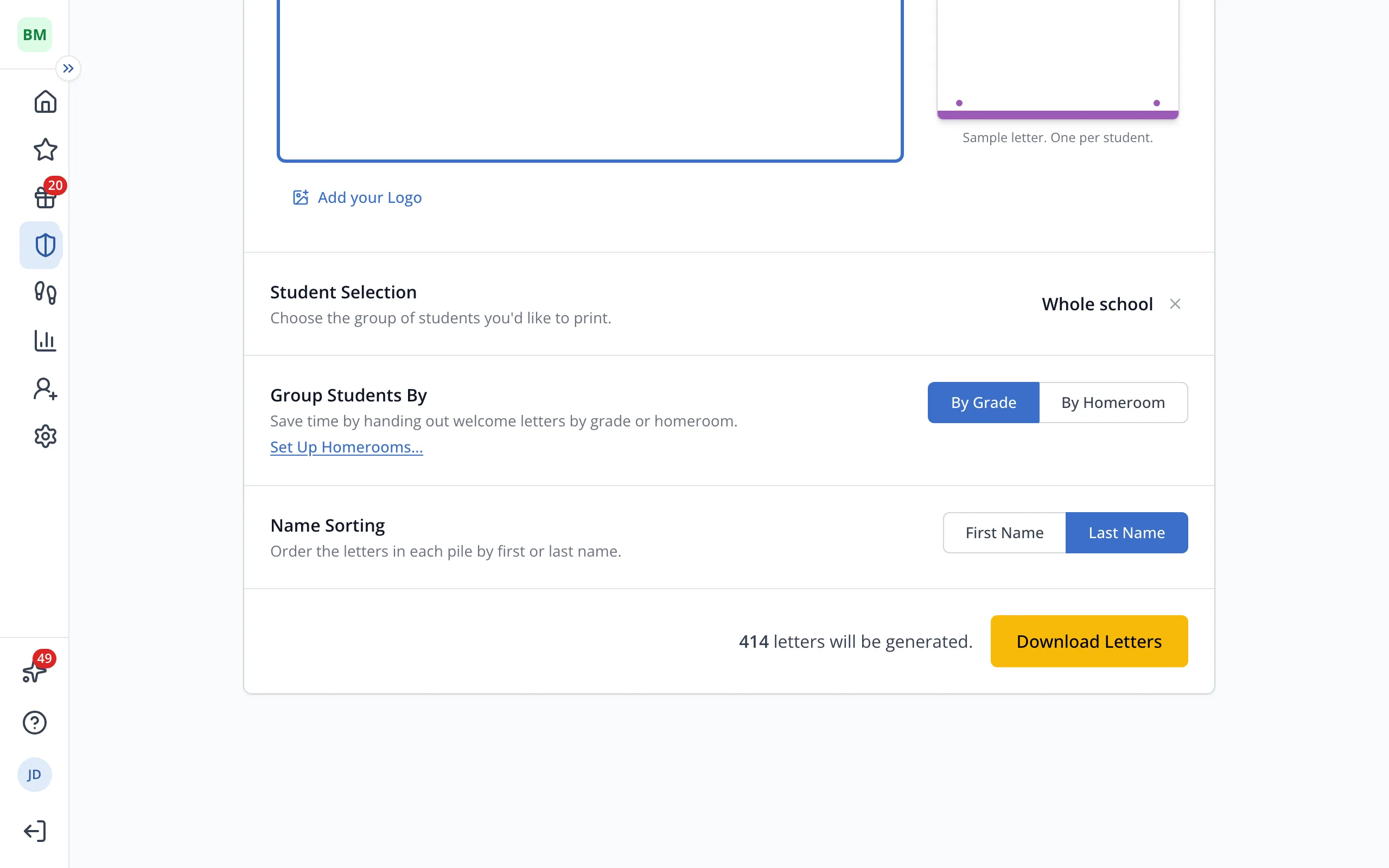
8.Click Download Letters. Your letter text is saved for next time.
Was this helpful?