Control the points screen from another device
Give points from your phone or tablet while your Points page is up on the board. Both screens stay in sync.
Open in LiveSchool
Already signed in? Open this guide inside LiveSchool.
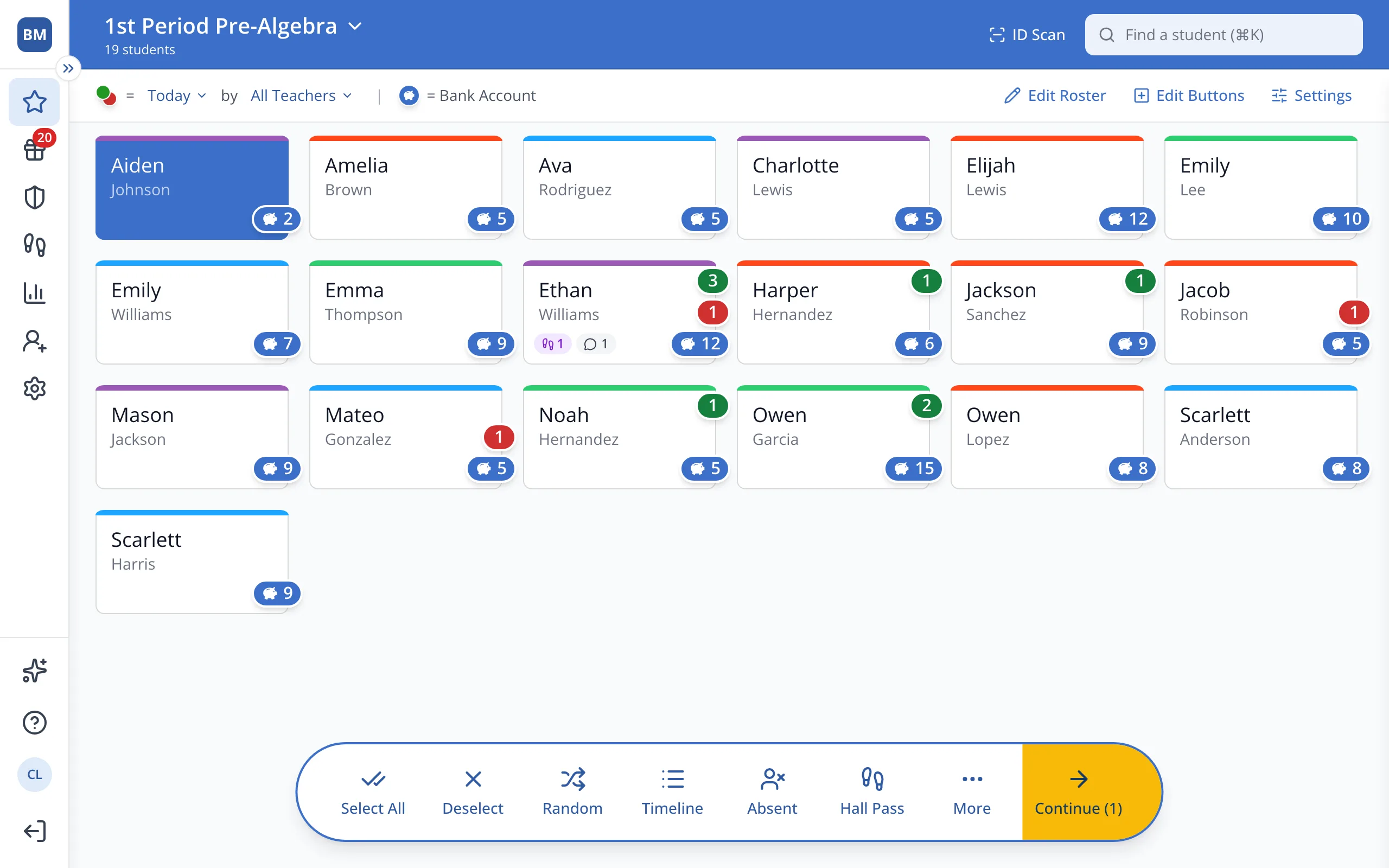
Use the Left and Right arrow keys to move between steps, and Space to play or pause.
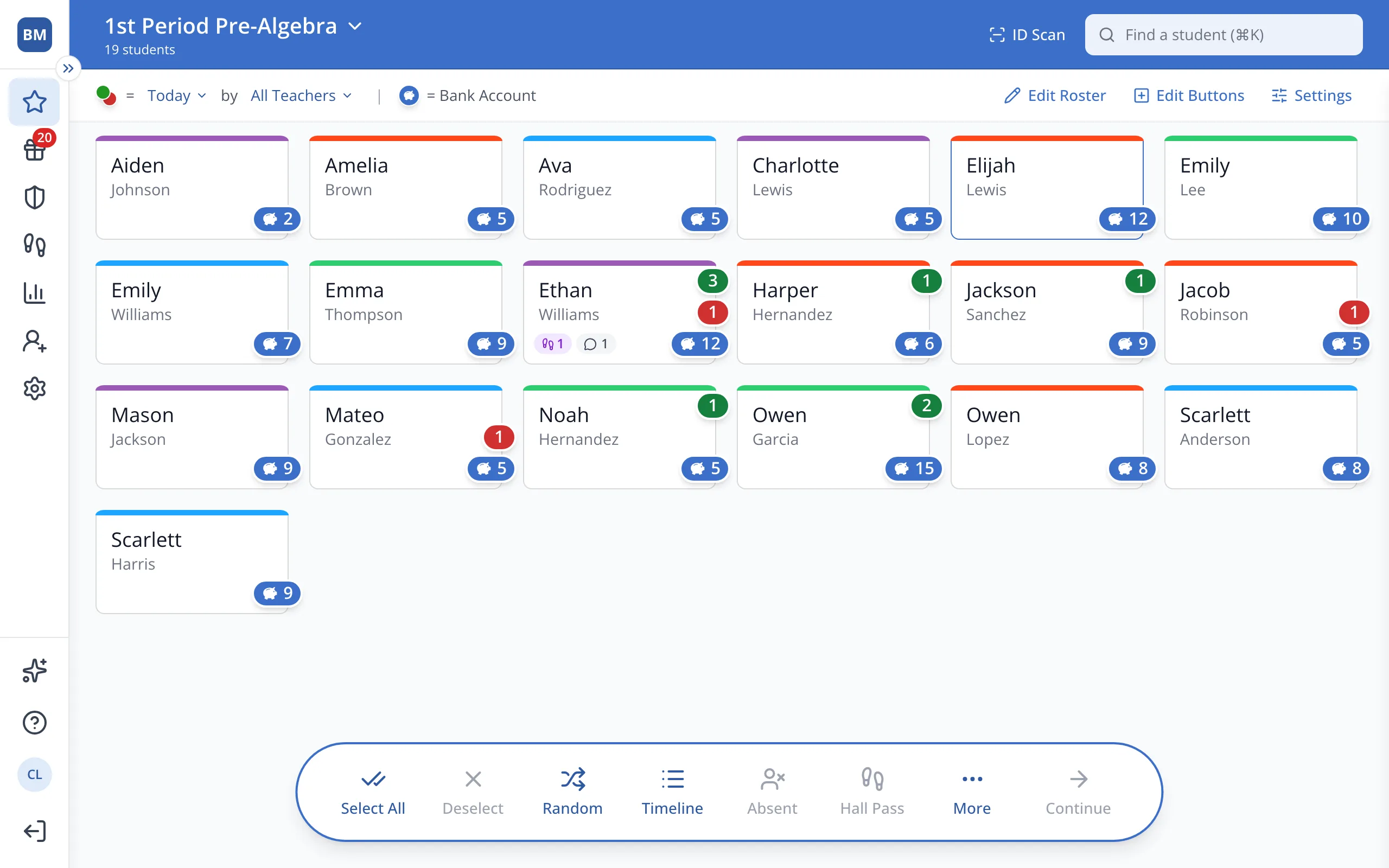
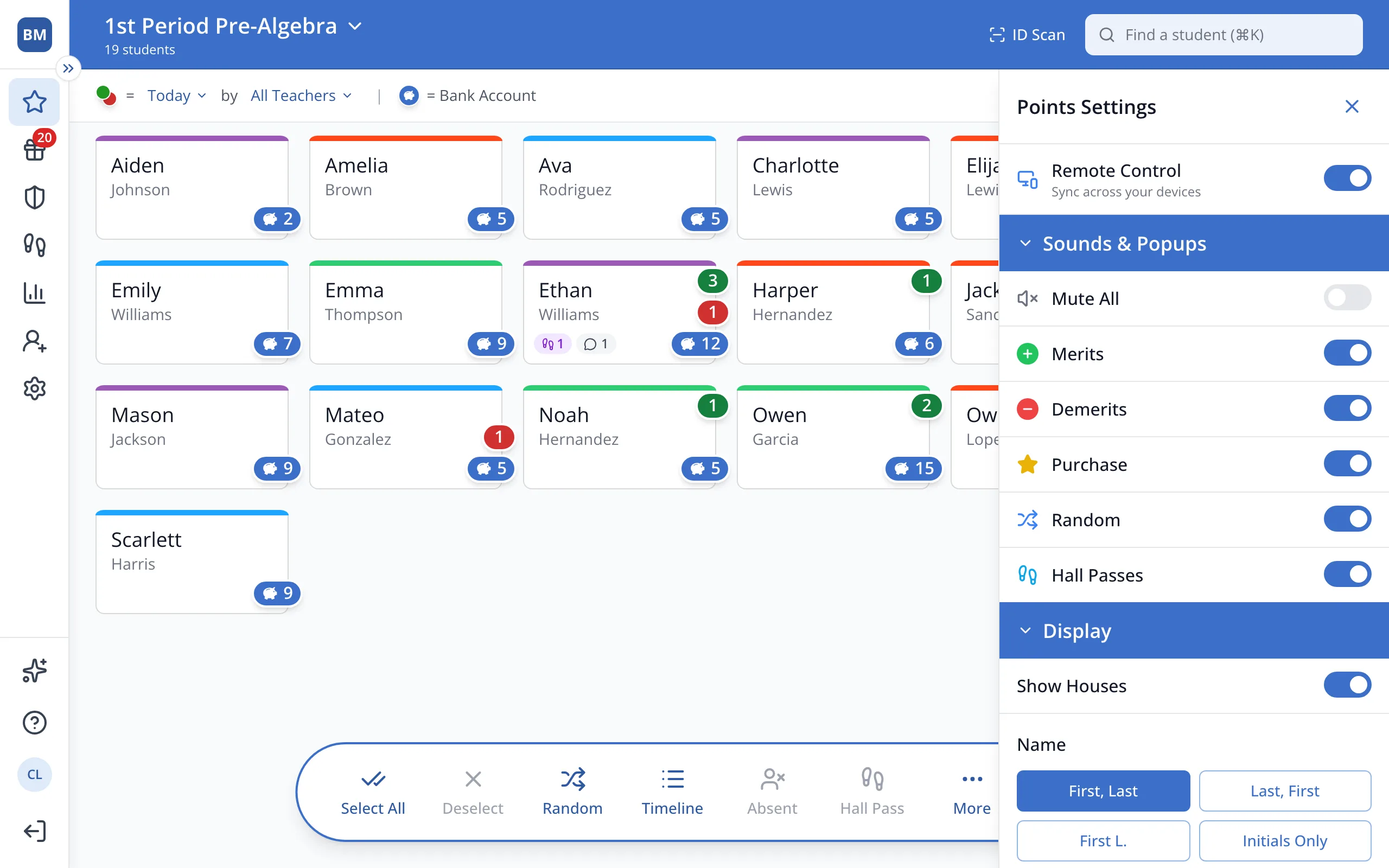
1.In the top right of the Points page, click Settings.
2.Make sure the Remote Control switch is on.
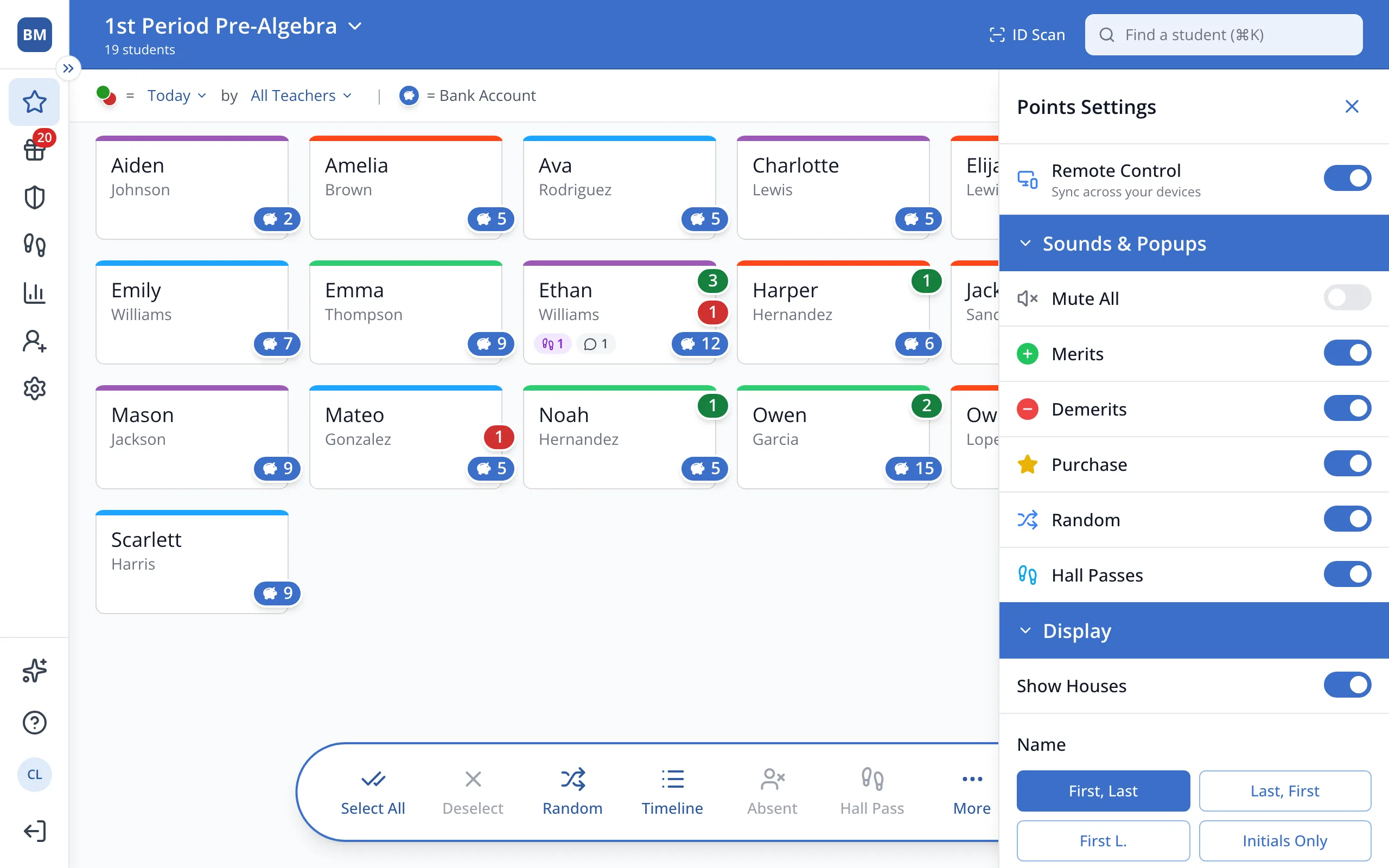
Did you know? Turn it off on any device that shouldn't follow along.
3.On your phone or tablet, sign in with the same account and open the Points page.
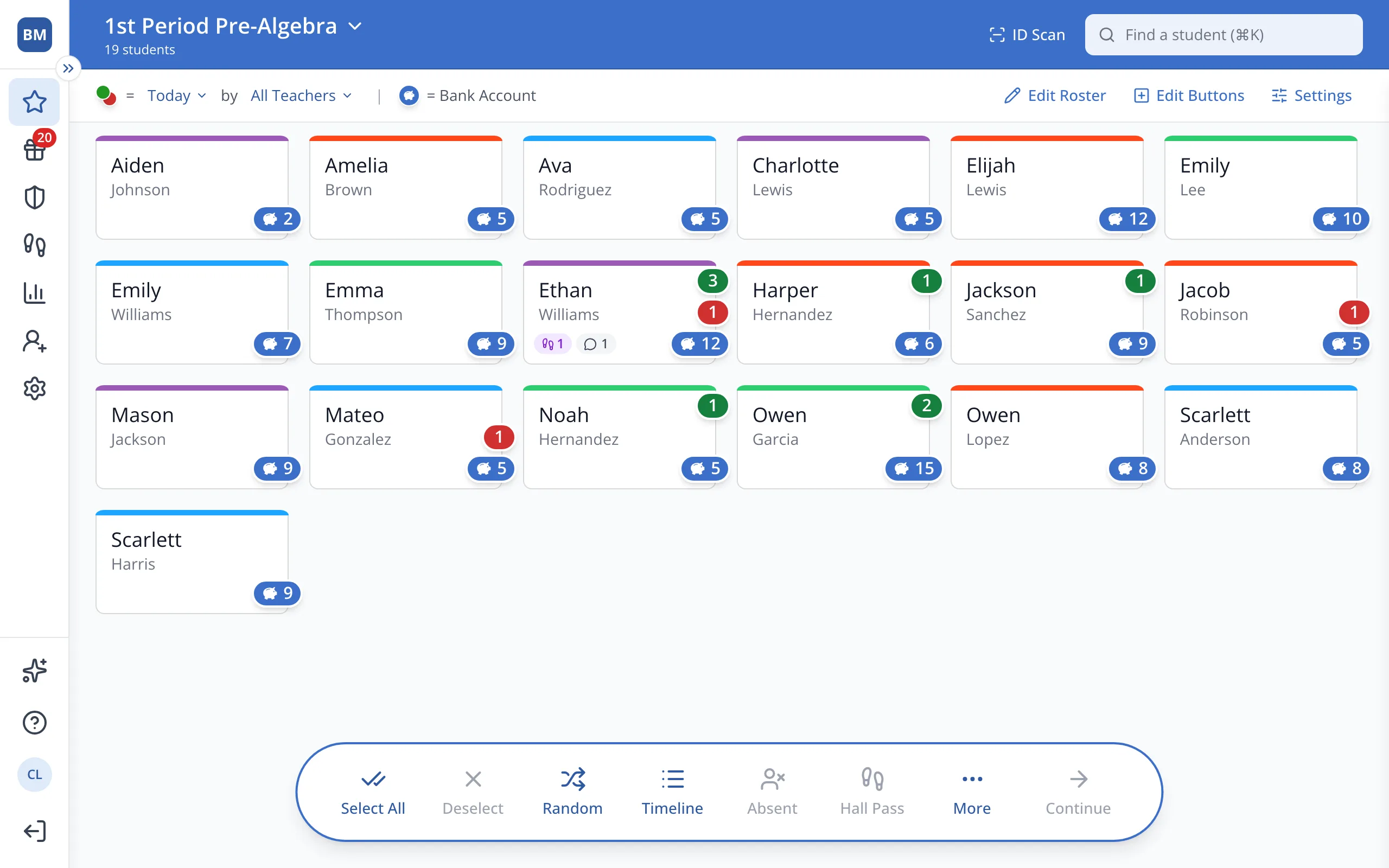
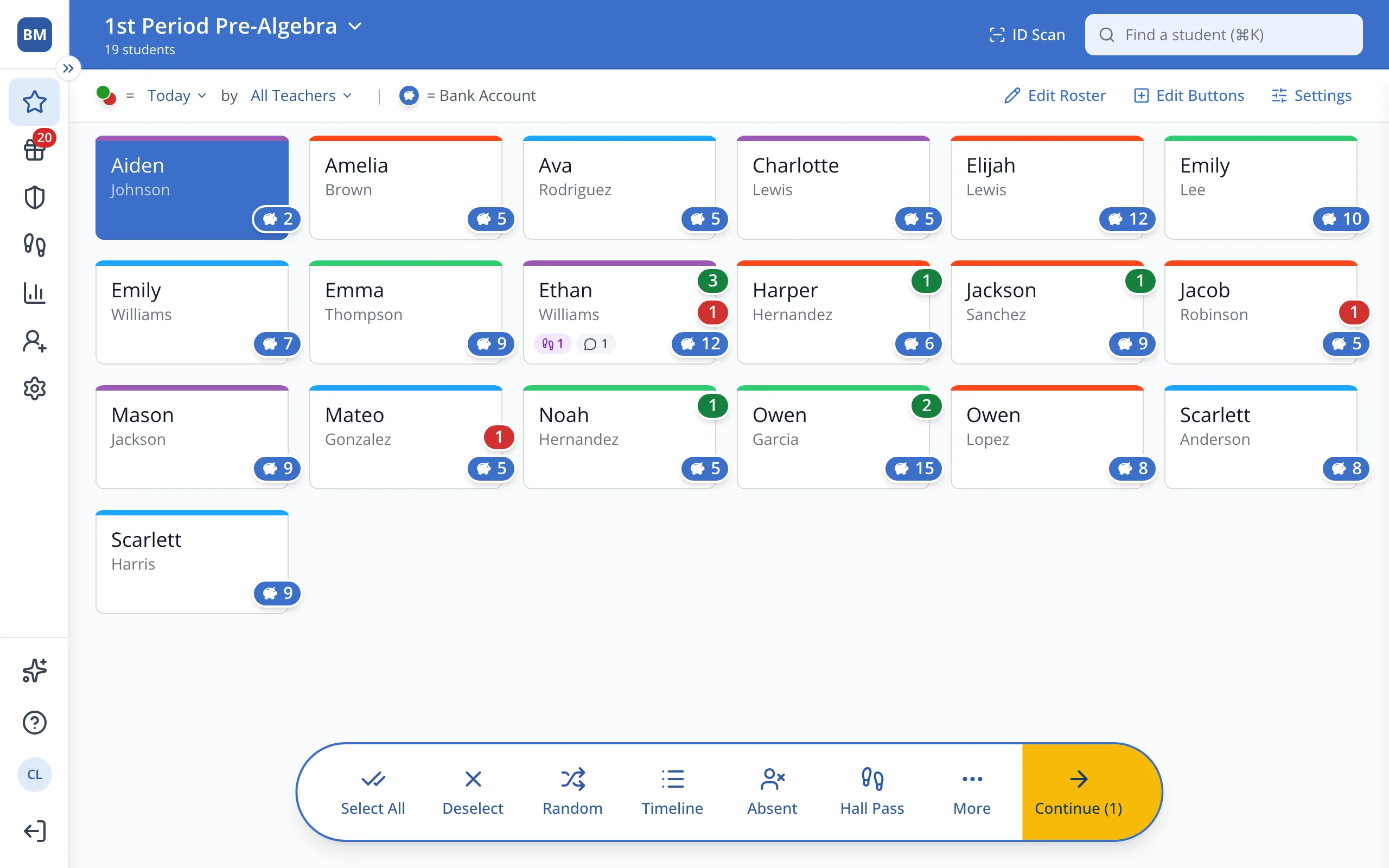
4.Click a student on either device. They'll be selected on both.
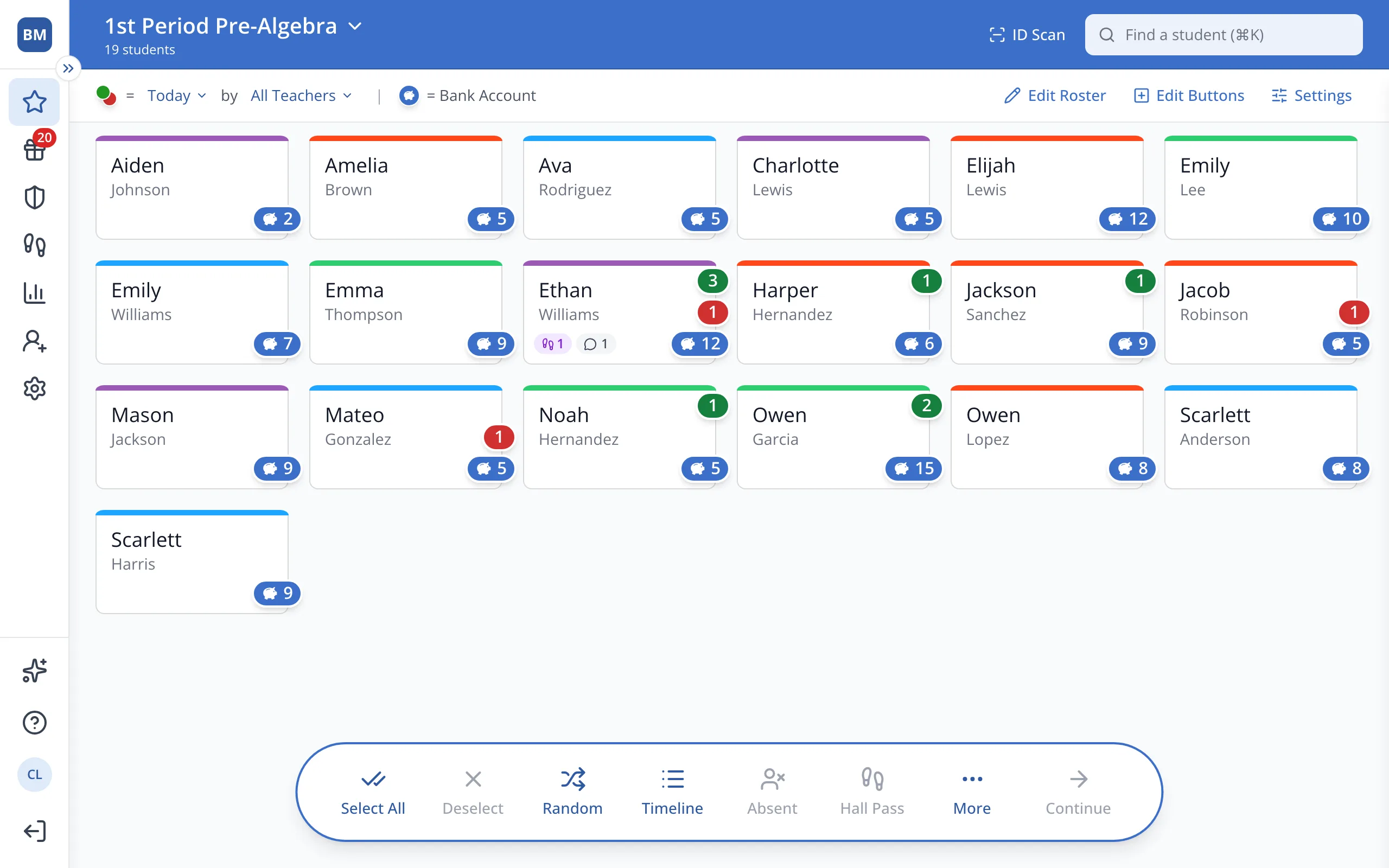
5.Click Continue on either device to give the student points.