Set the CSV download columns for all staff
Every staff member's downloads then use your columns, and only admins and site leaders can change them. Set Scoreboards and the Timeline separately.
AdminSite Leader
Use the Left and Right arrow keys to move between steps, and Space to play or pause.
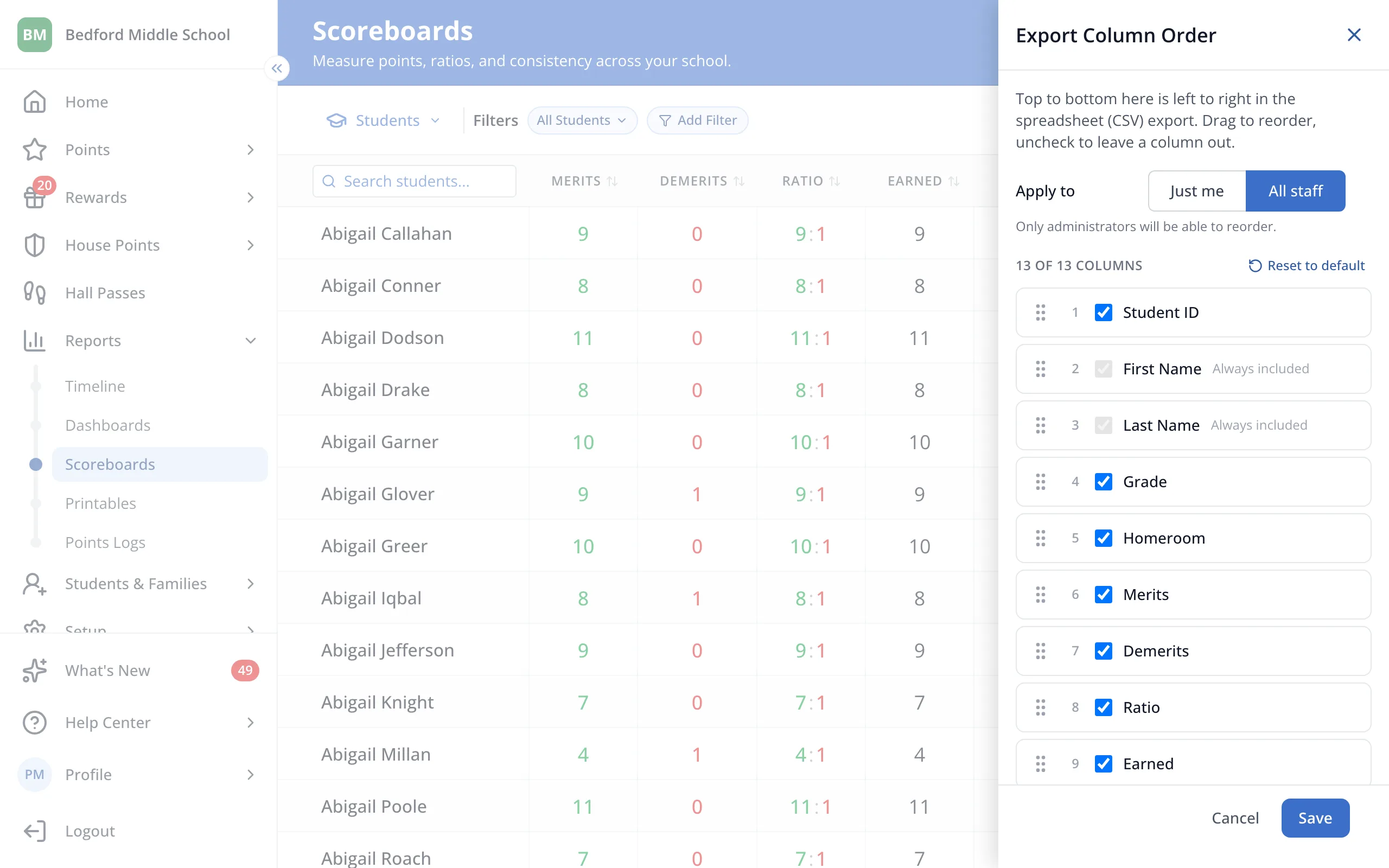
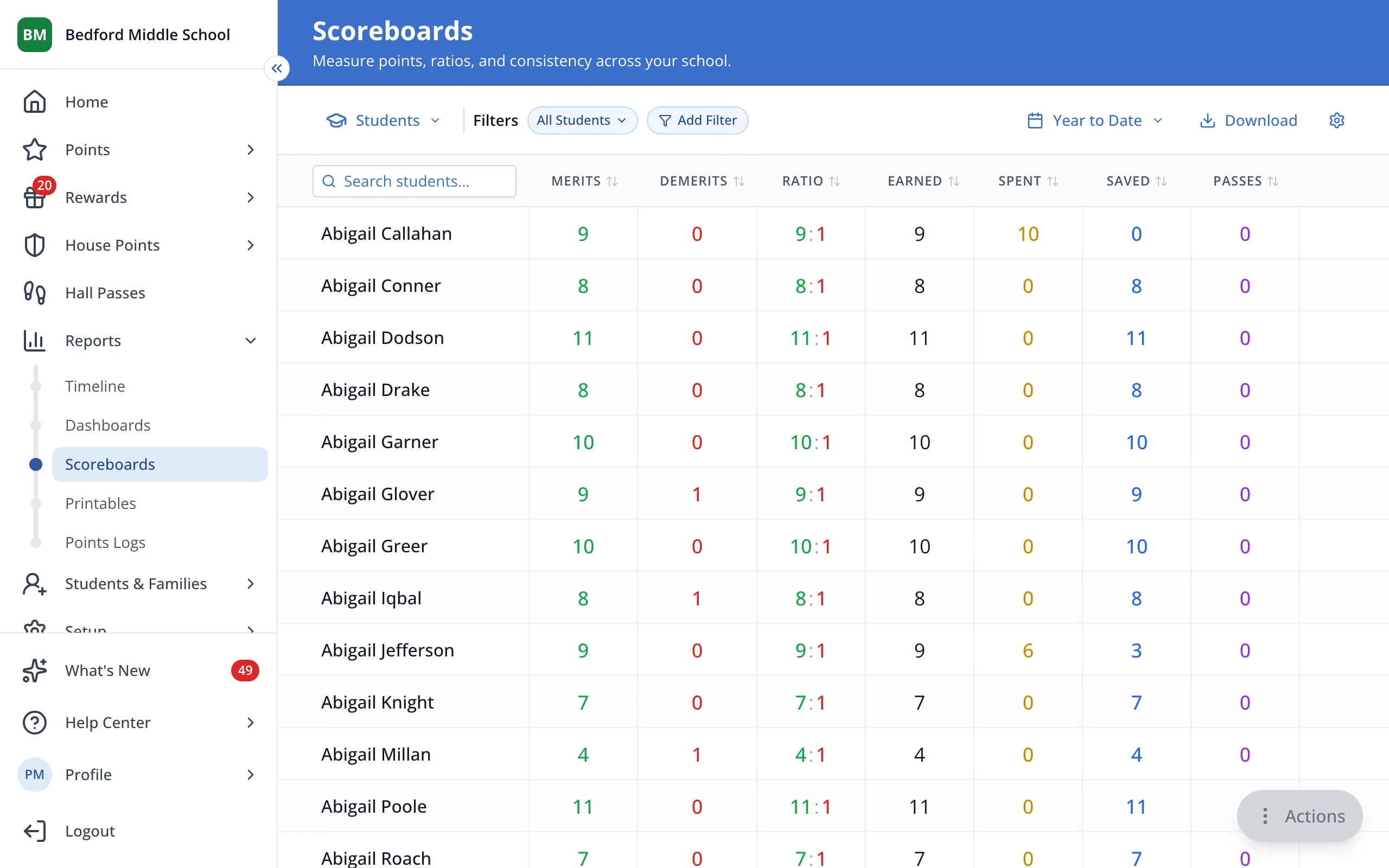
1.On the Scoreboards page, click the gear next to Download.
Did you know? For the Timeline, click Settings, then Customize on the Timeline page.
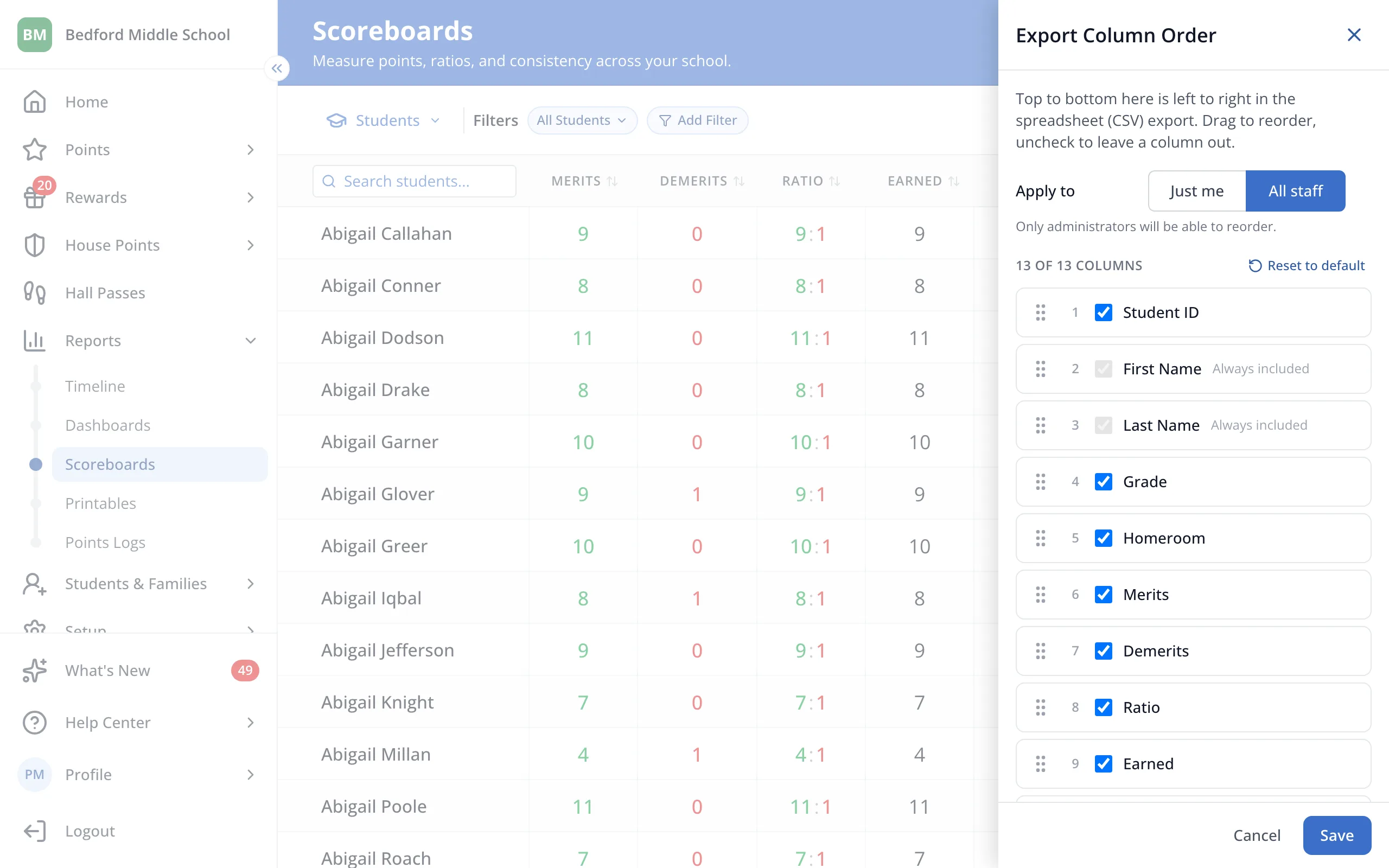
2.Drag and uncheck columns until the list looks the way your school needs it.
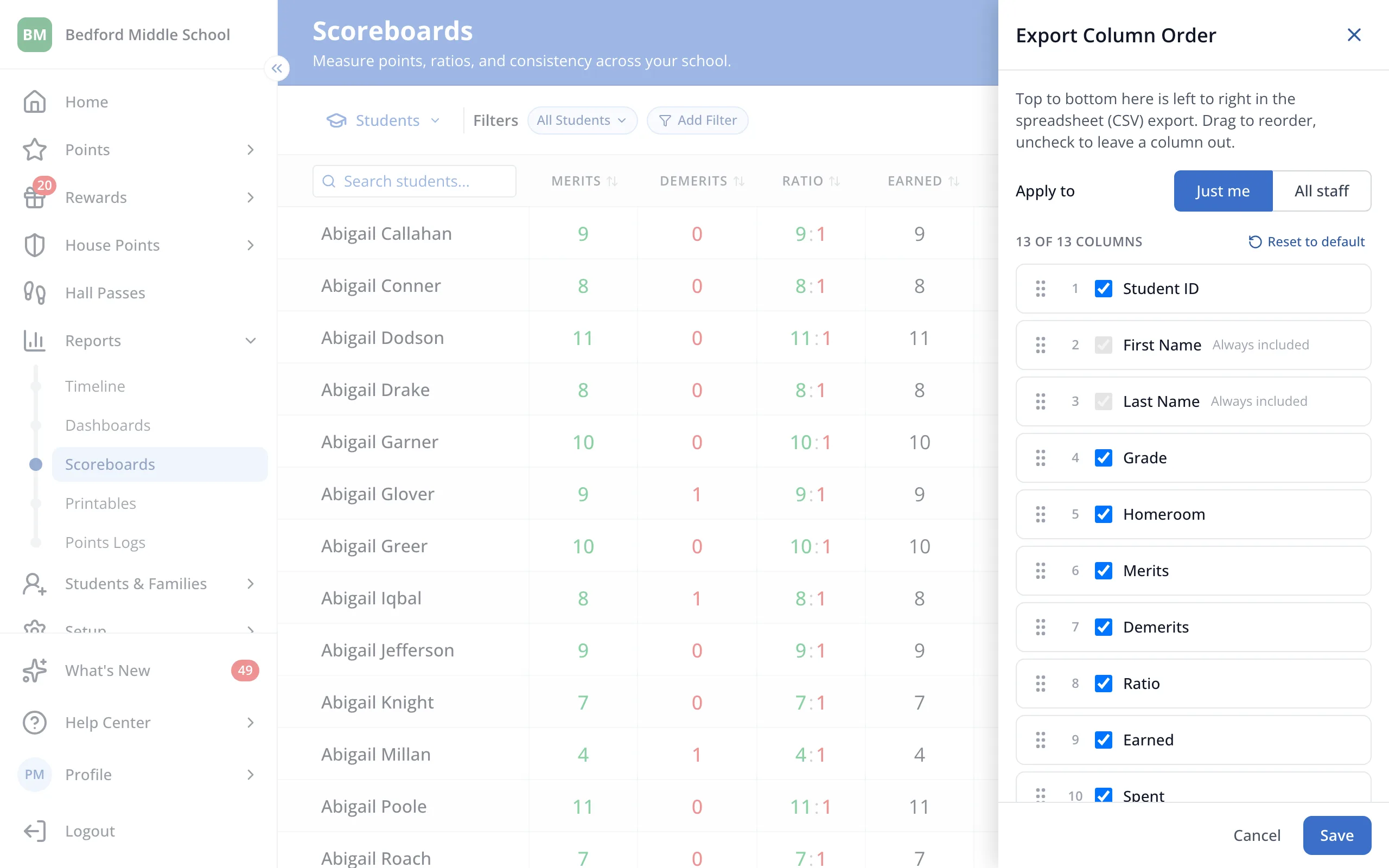
3.Next to Apply to, click All staff.
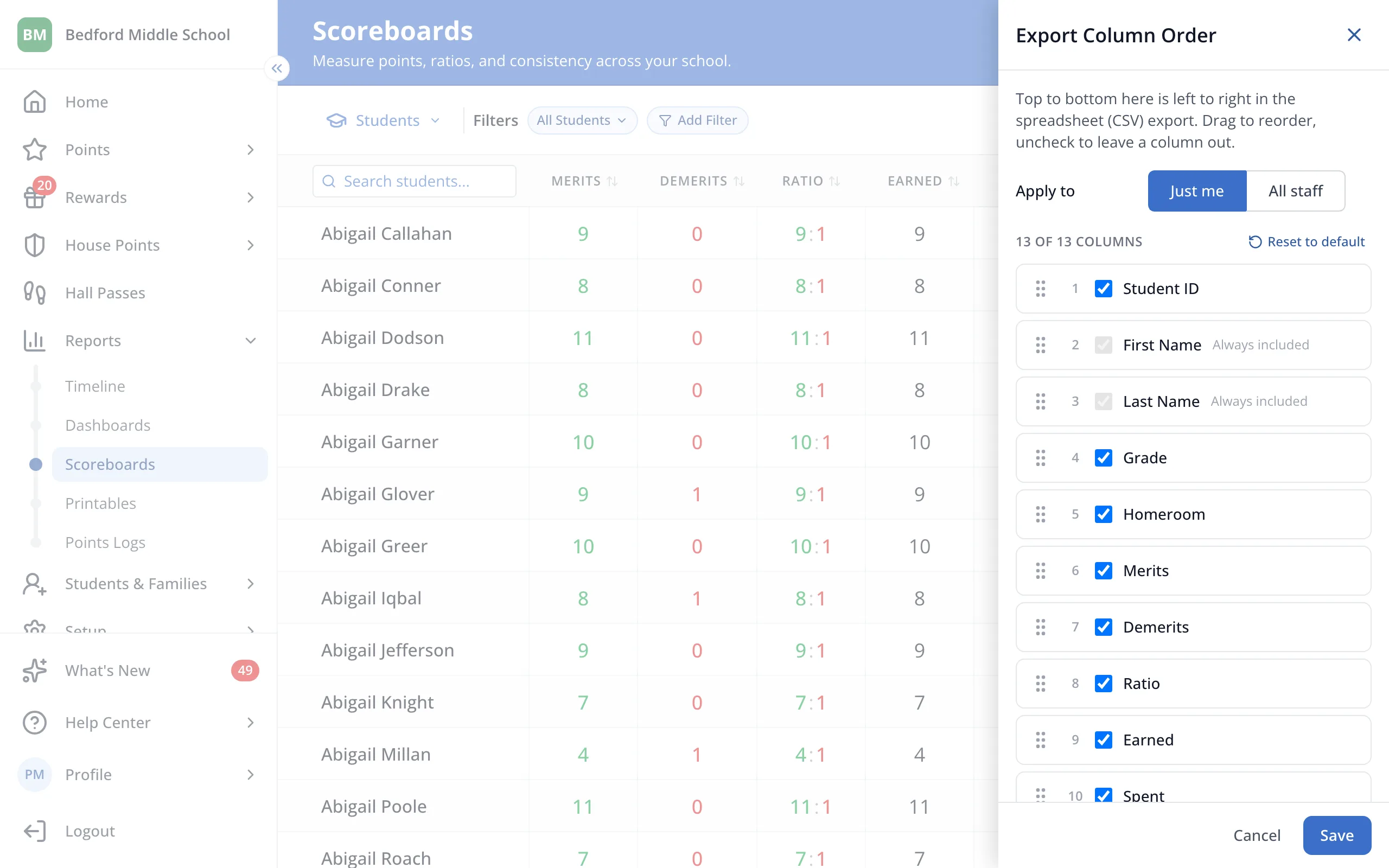
4.Click Save.