
See which rewards and stores students spend points on
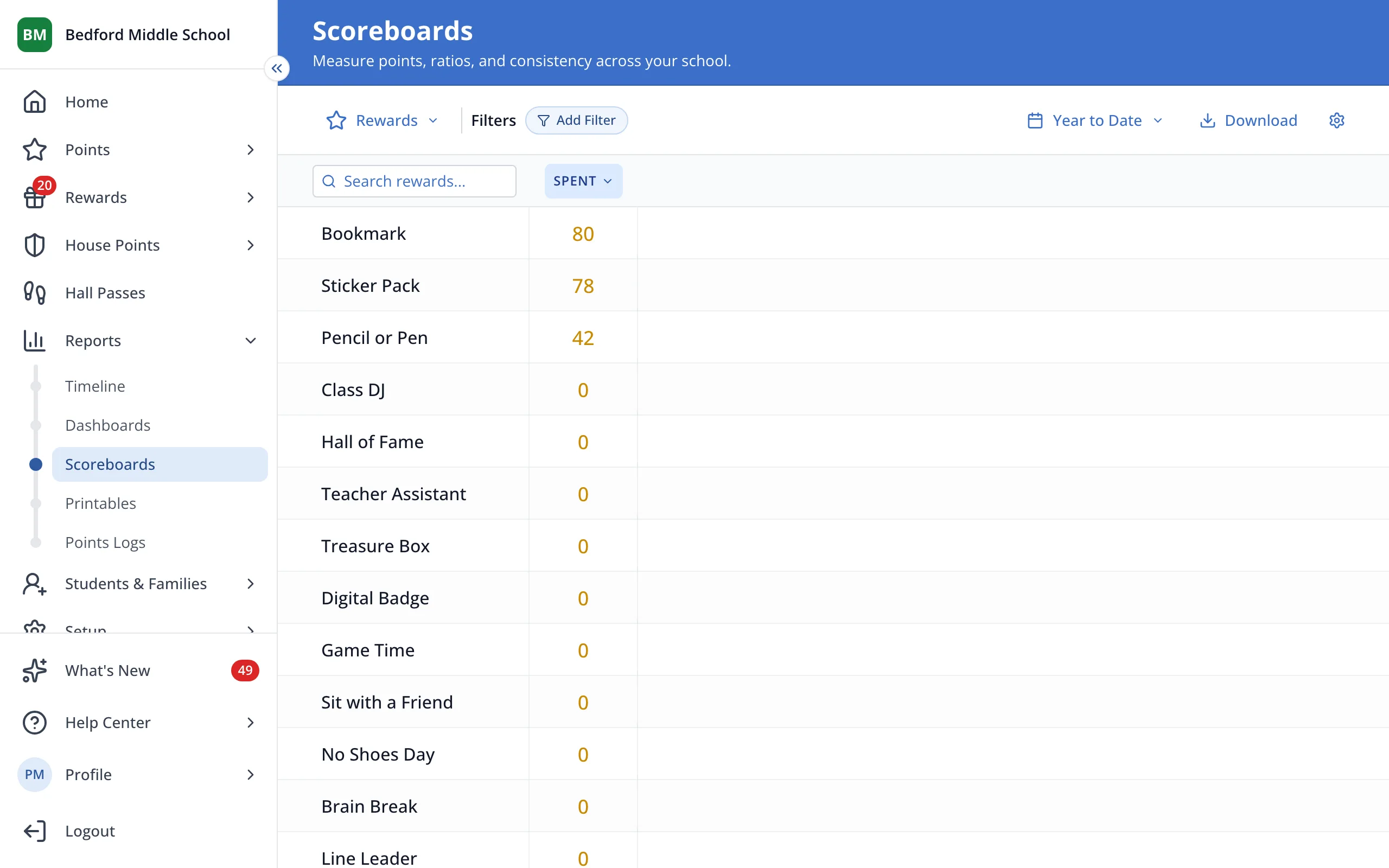
The Rewards scoreboard shows how many points went to each reward, so you can see what students really want and restock it.
Use the Left and Right arrow keys to move between steps, and Space to play or pause.
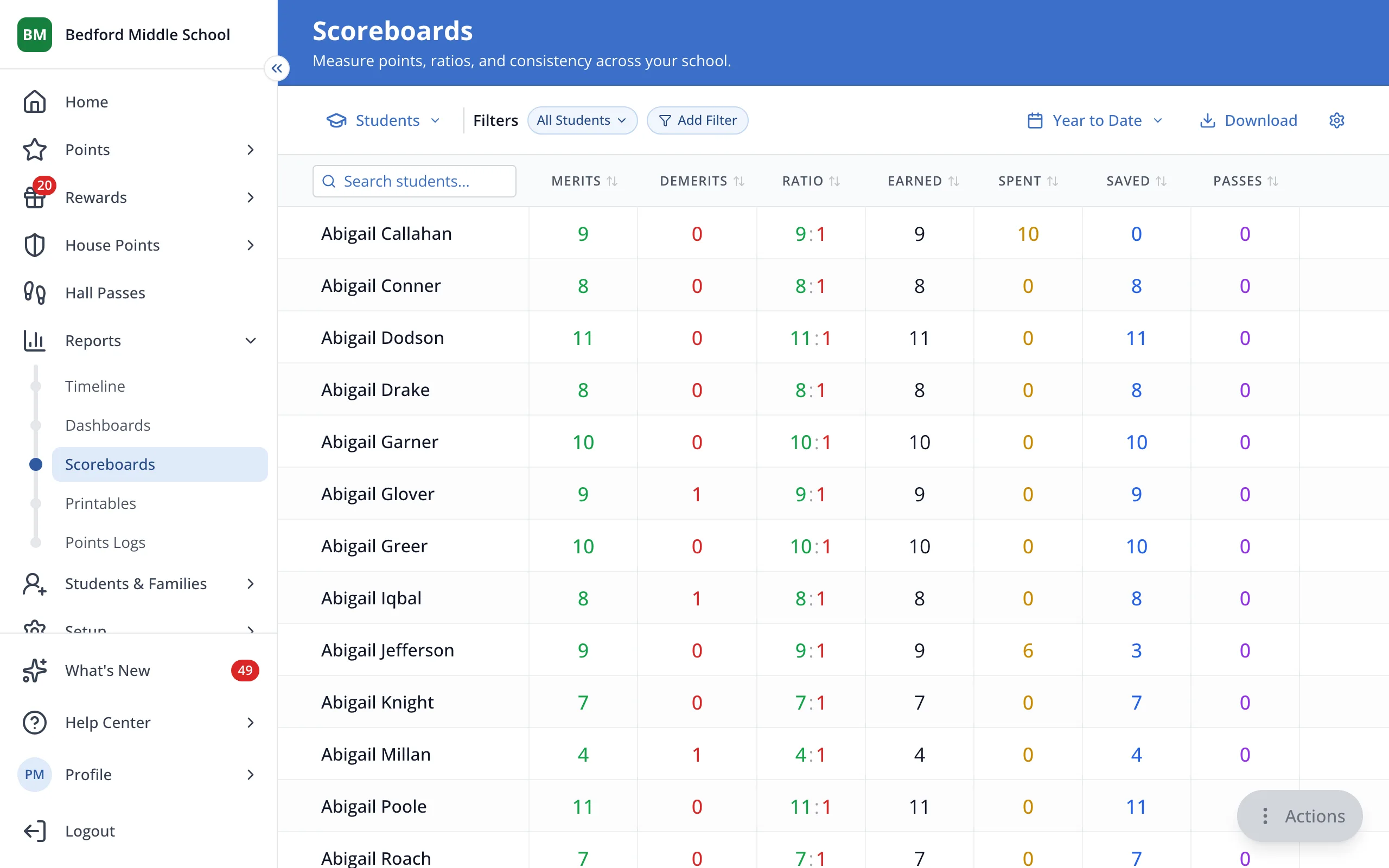
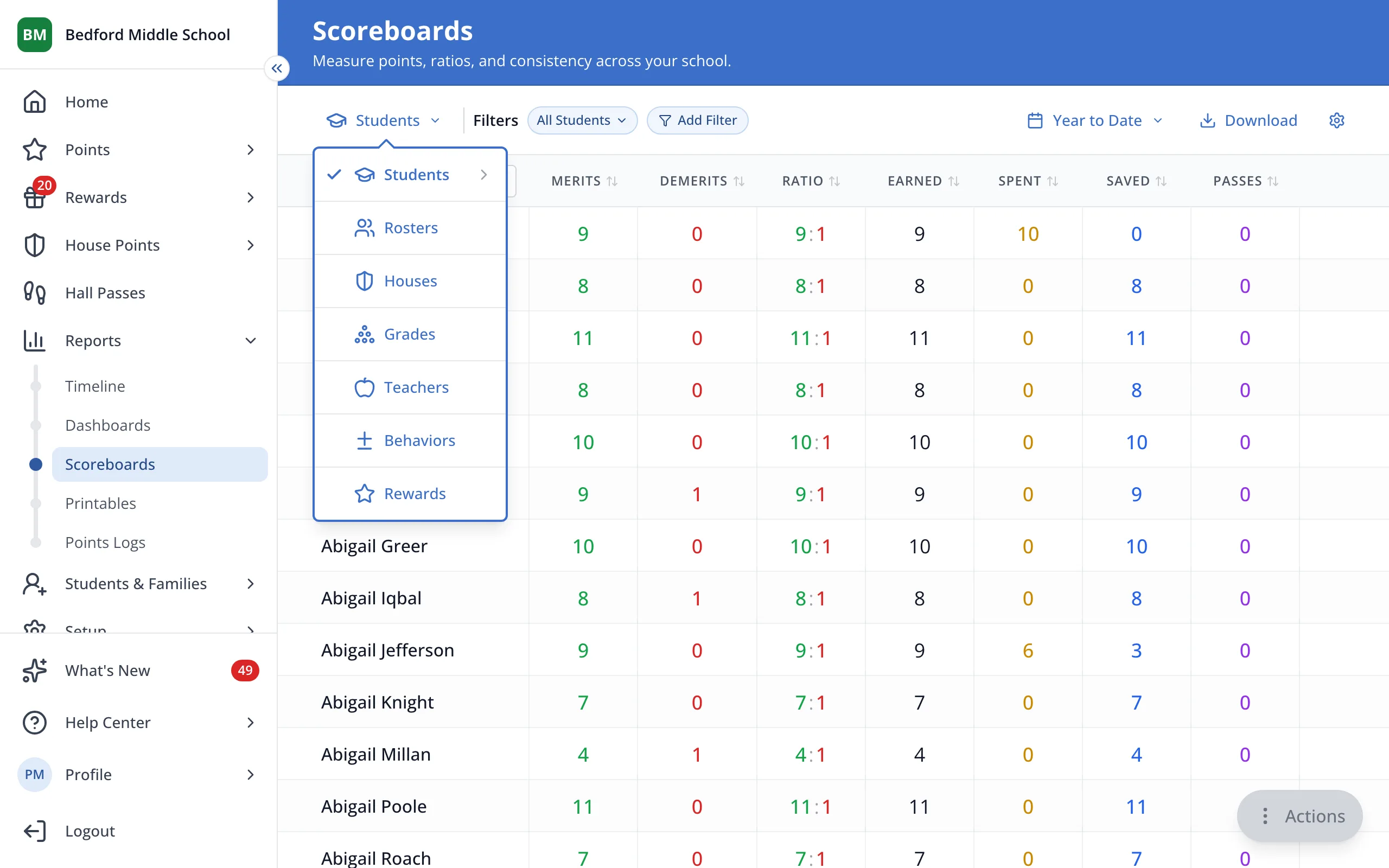
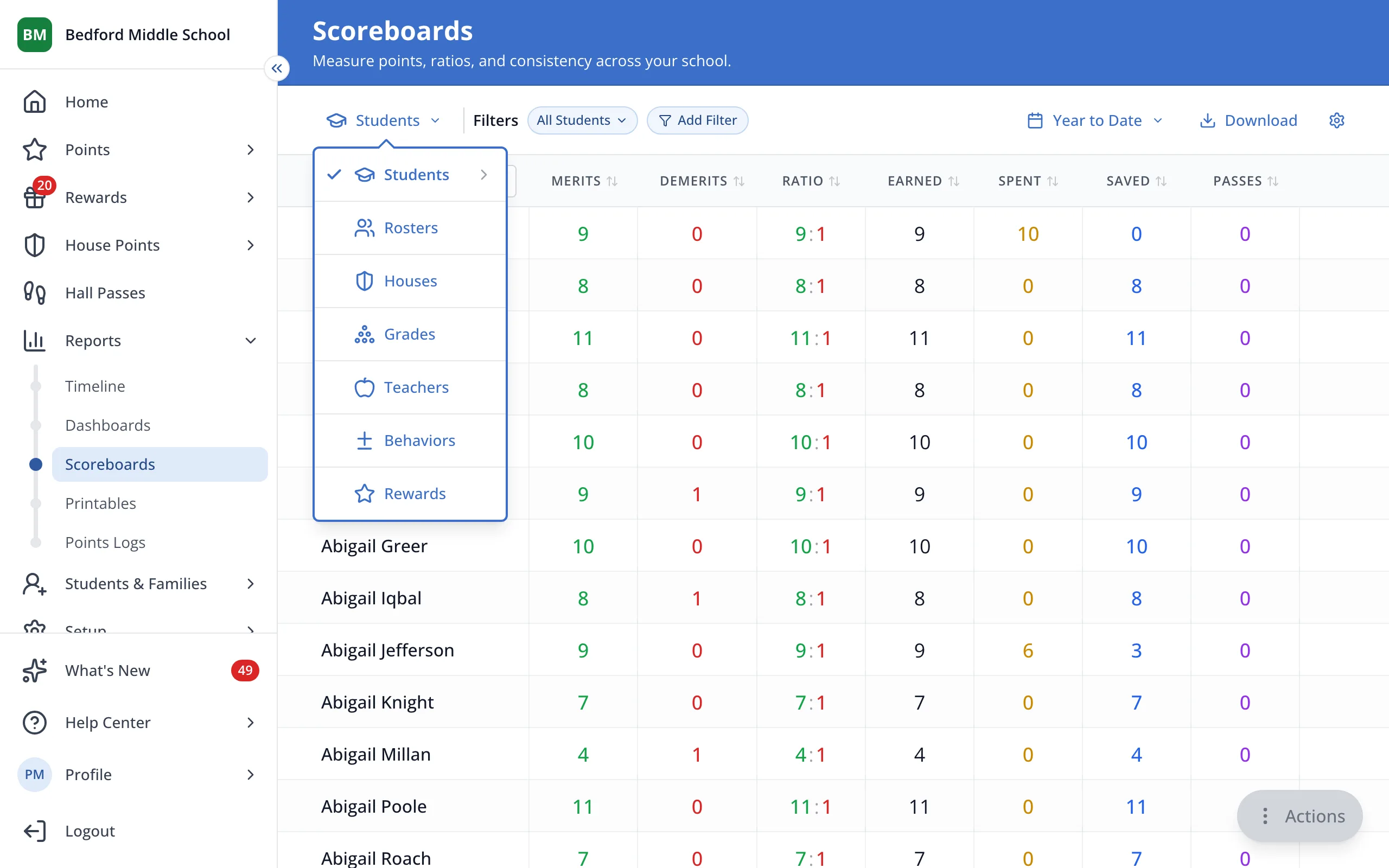
1.On the Scoreboards page, click Students at the top left.
2.Click Rewards.
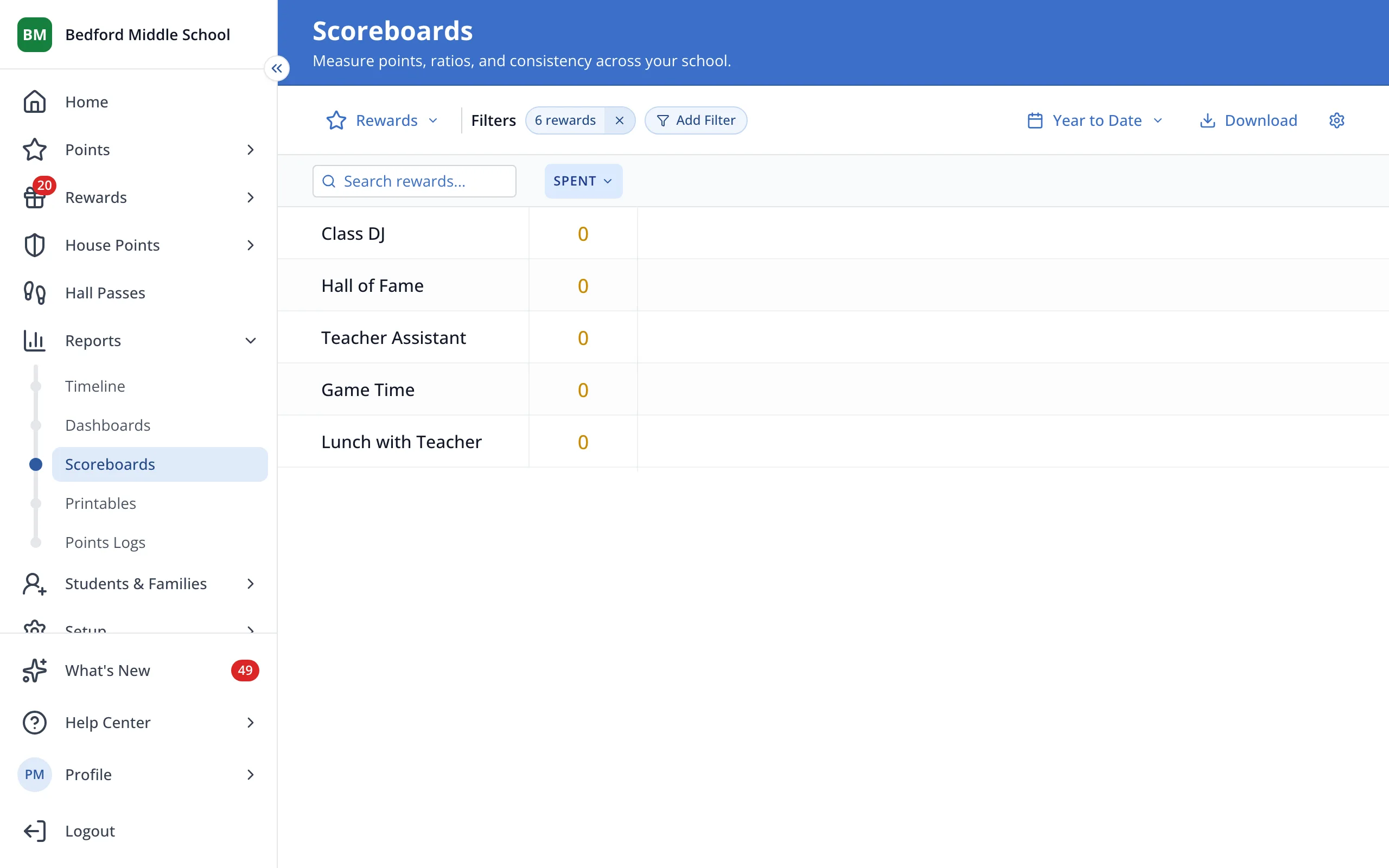
3.Click Spent to rank the rewards by points spent.
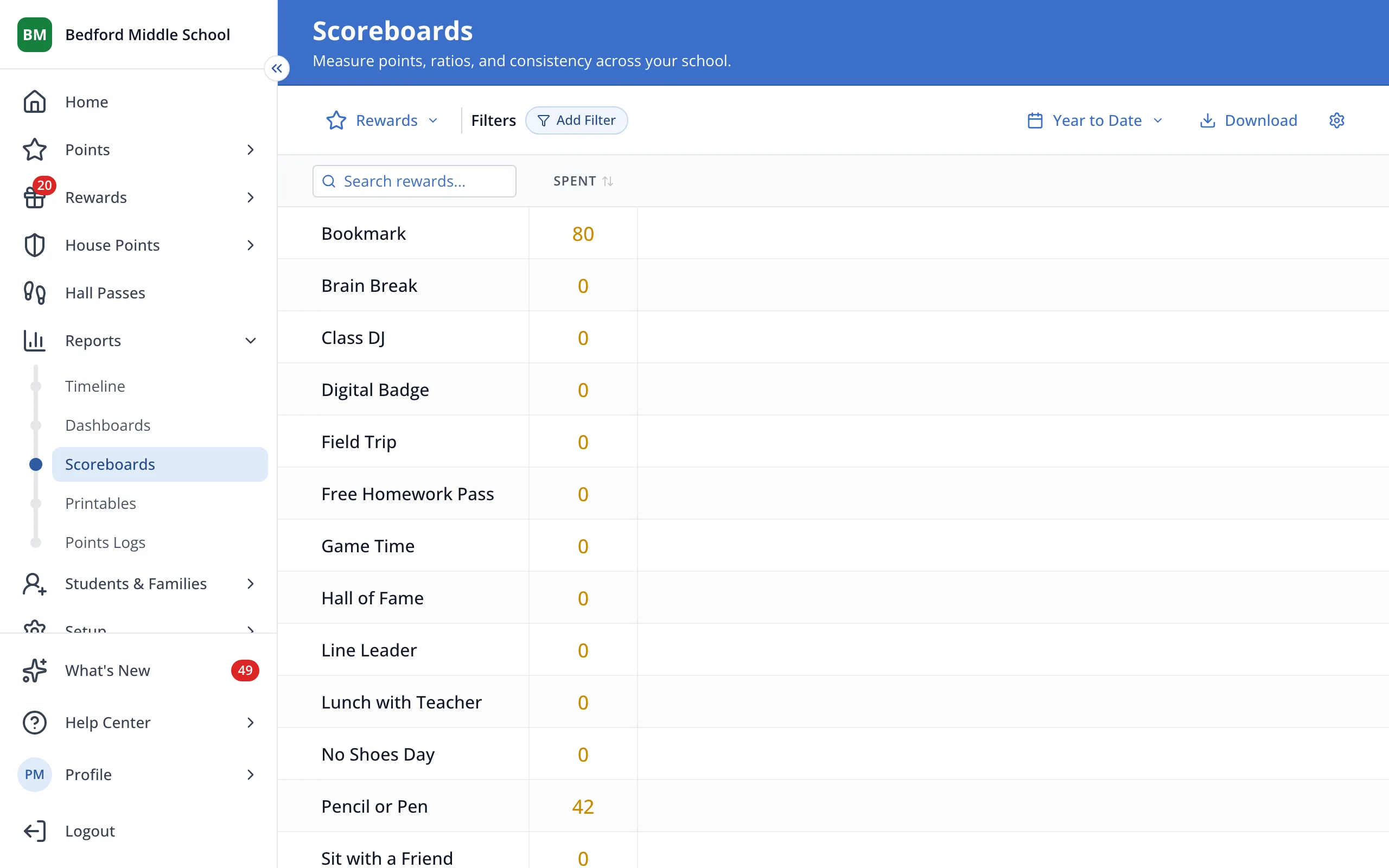
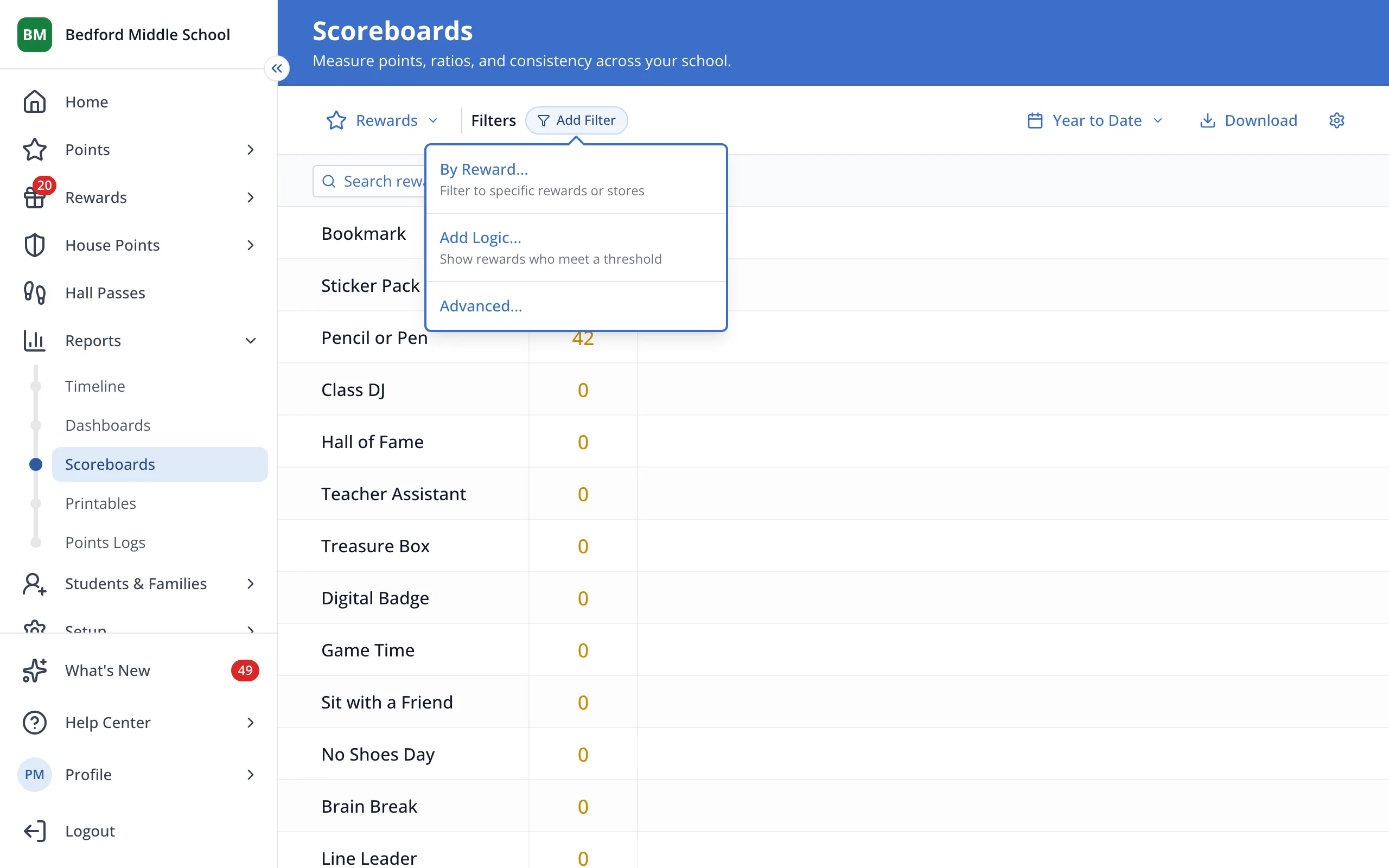
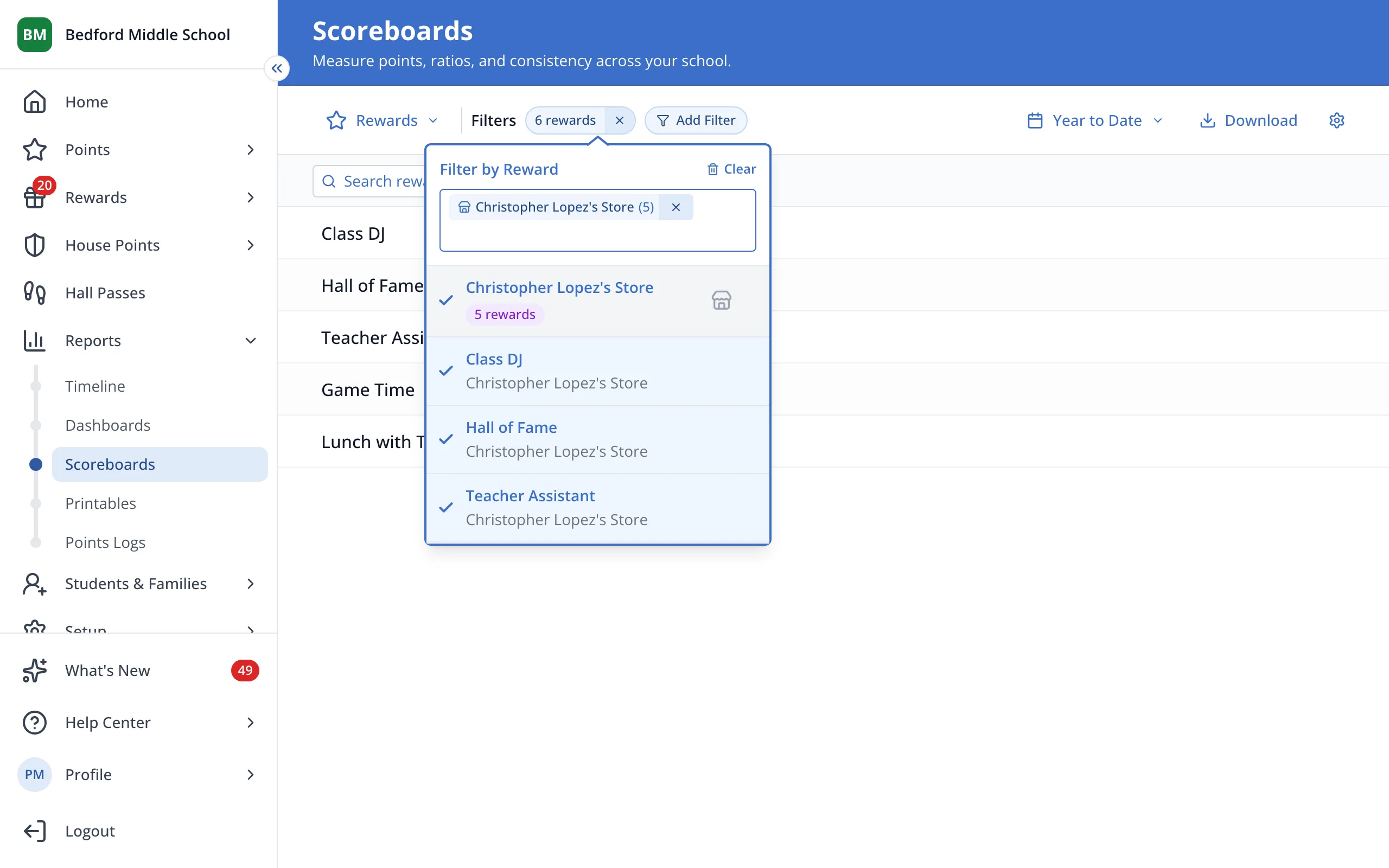
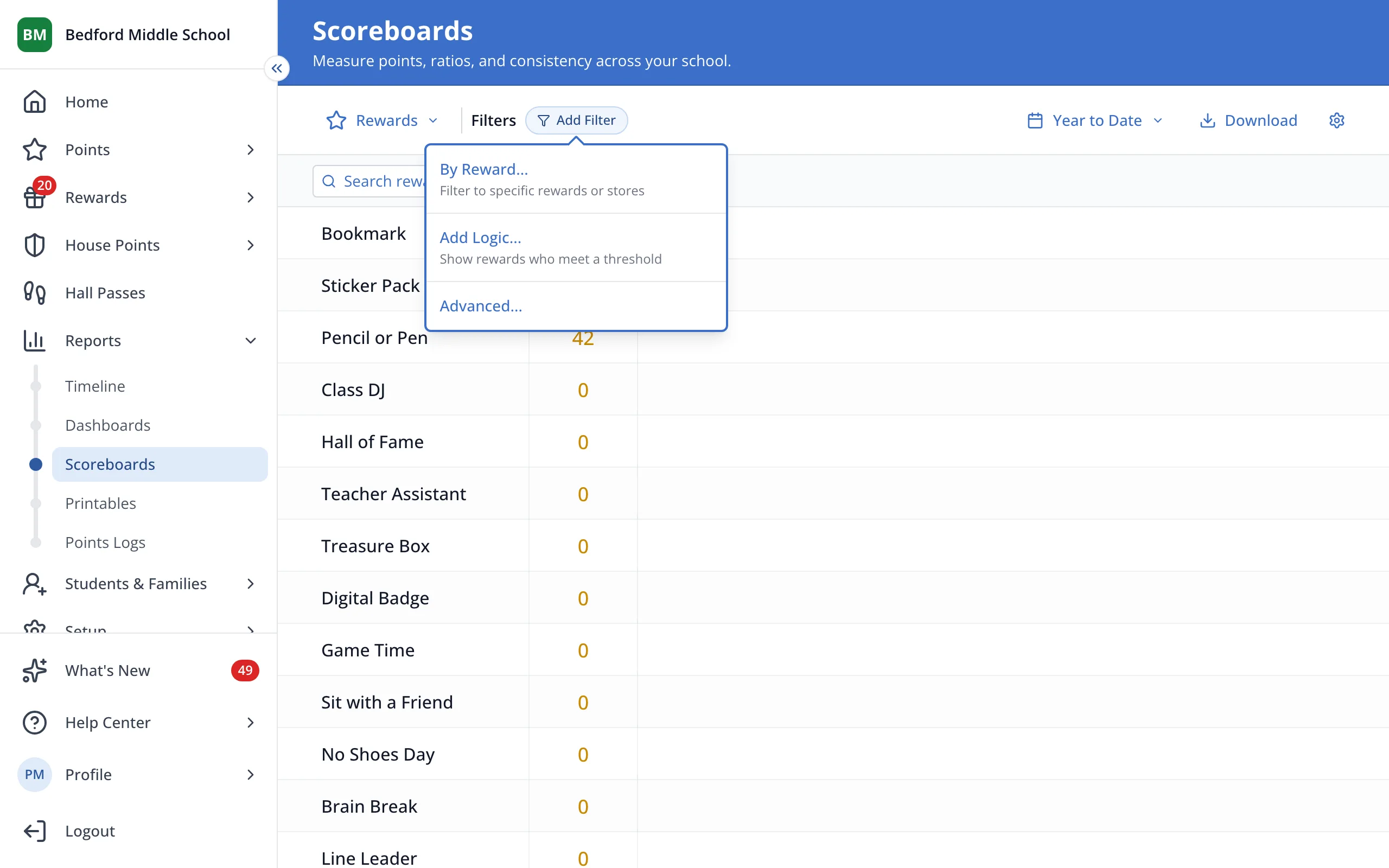
4.To see one store, click Add Filter.
5.Click By Reward....
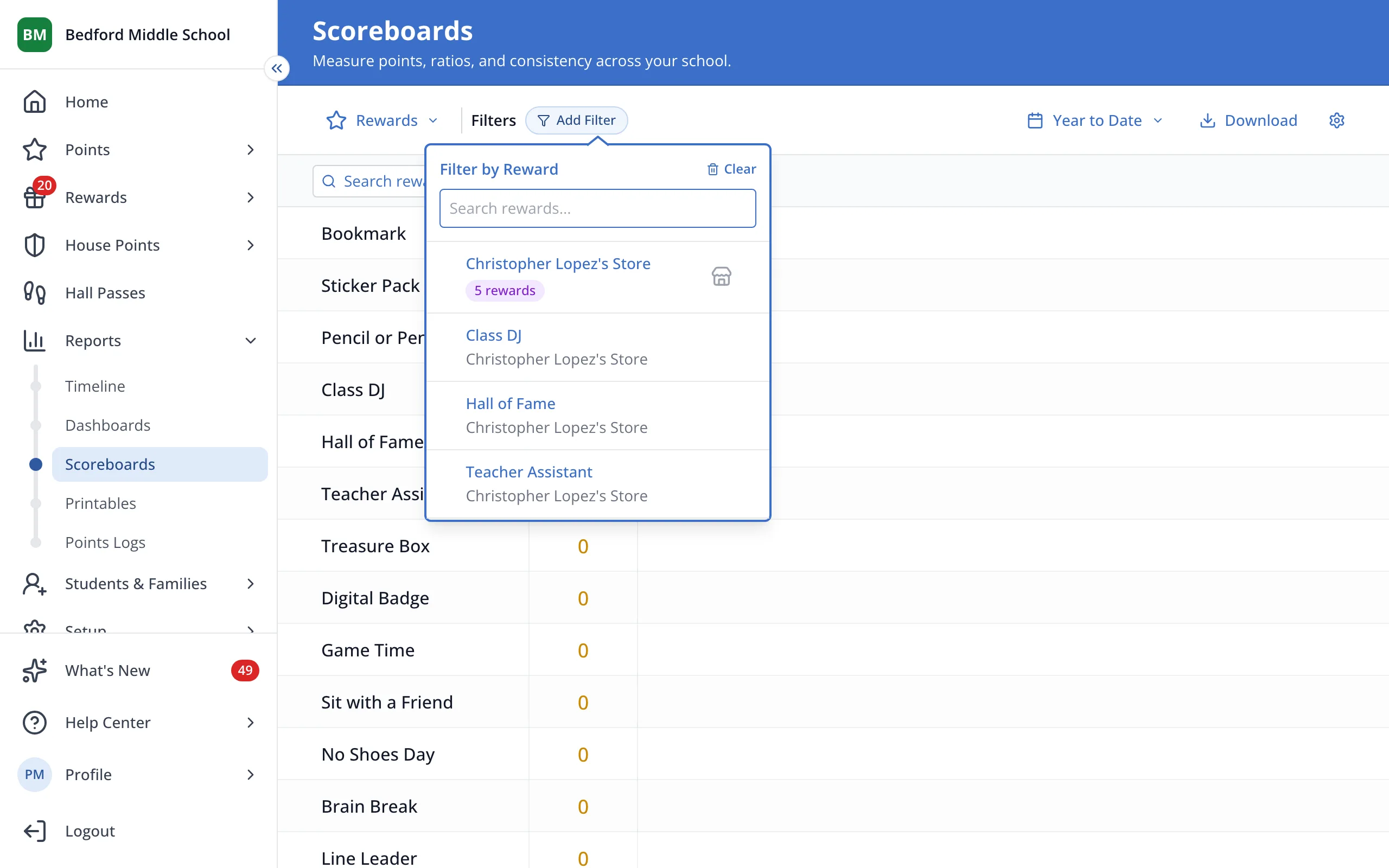
6.Click the store you'd like to see.
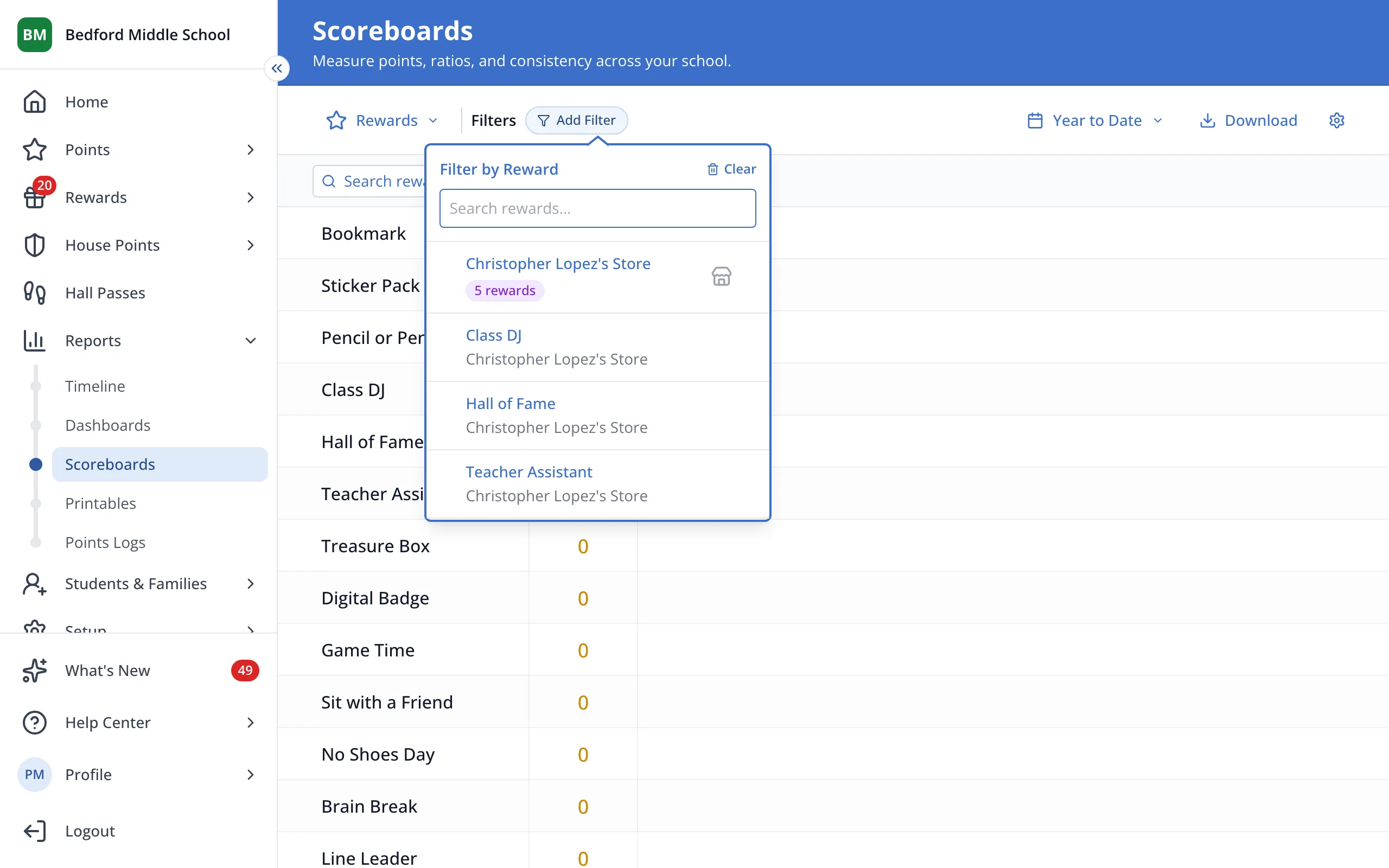
Did you know? You can also pick single rewards from this list.