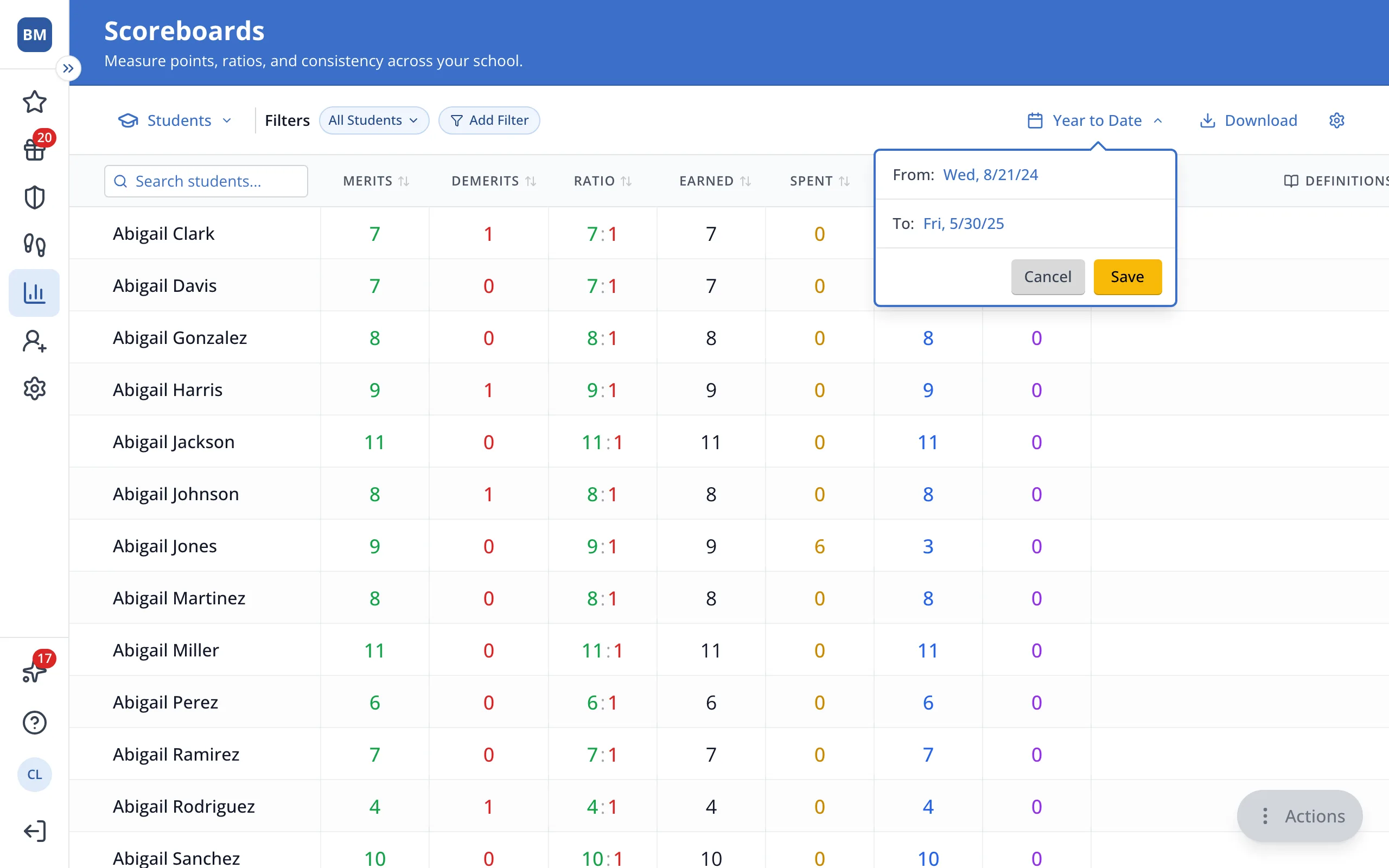
See data from last school year
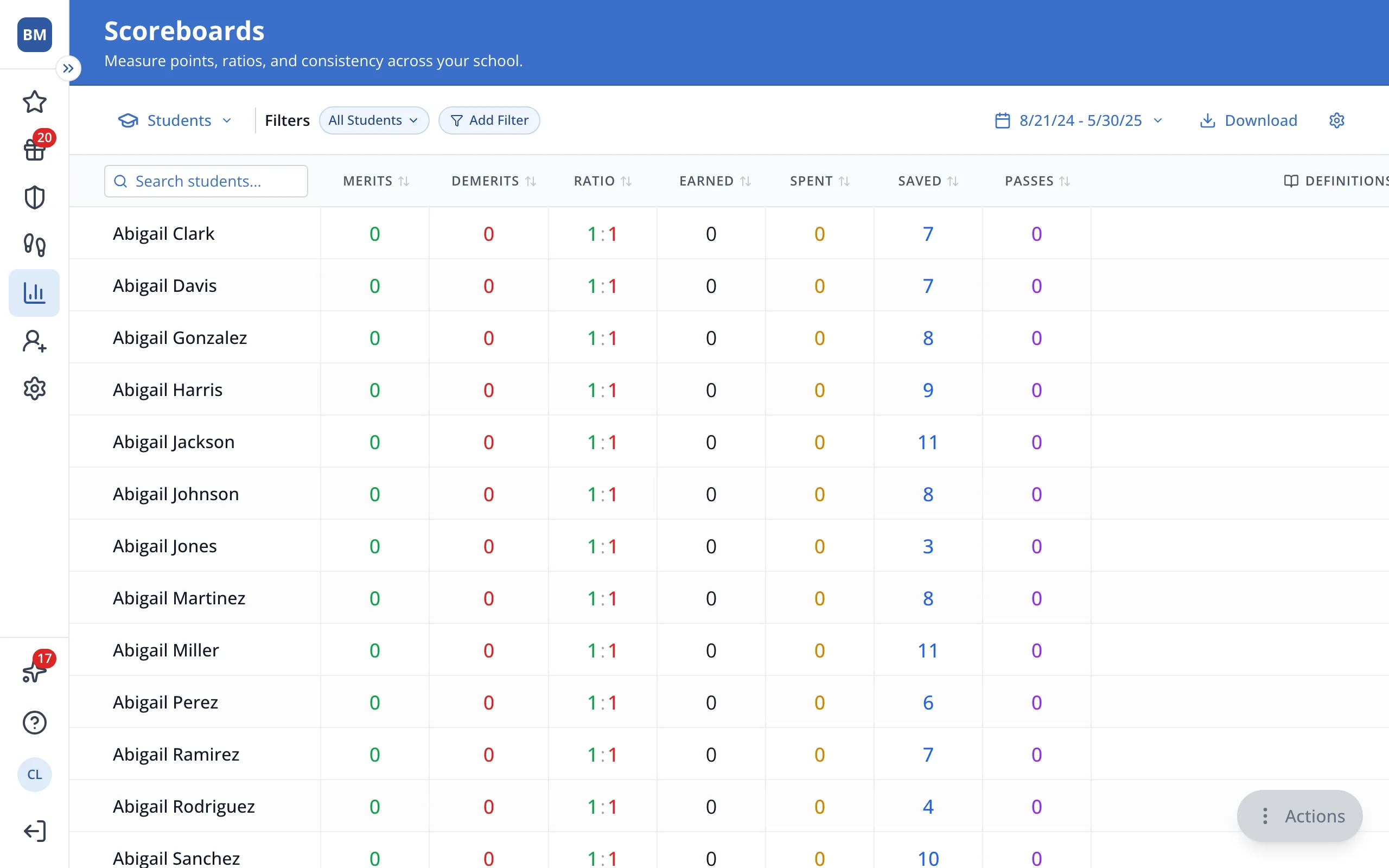
Past years stay in your reports after a new year starts. Set a custom date range to see them.
Use the Left and Right arrow keys to move between steps, and Space to play or pause.
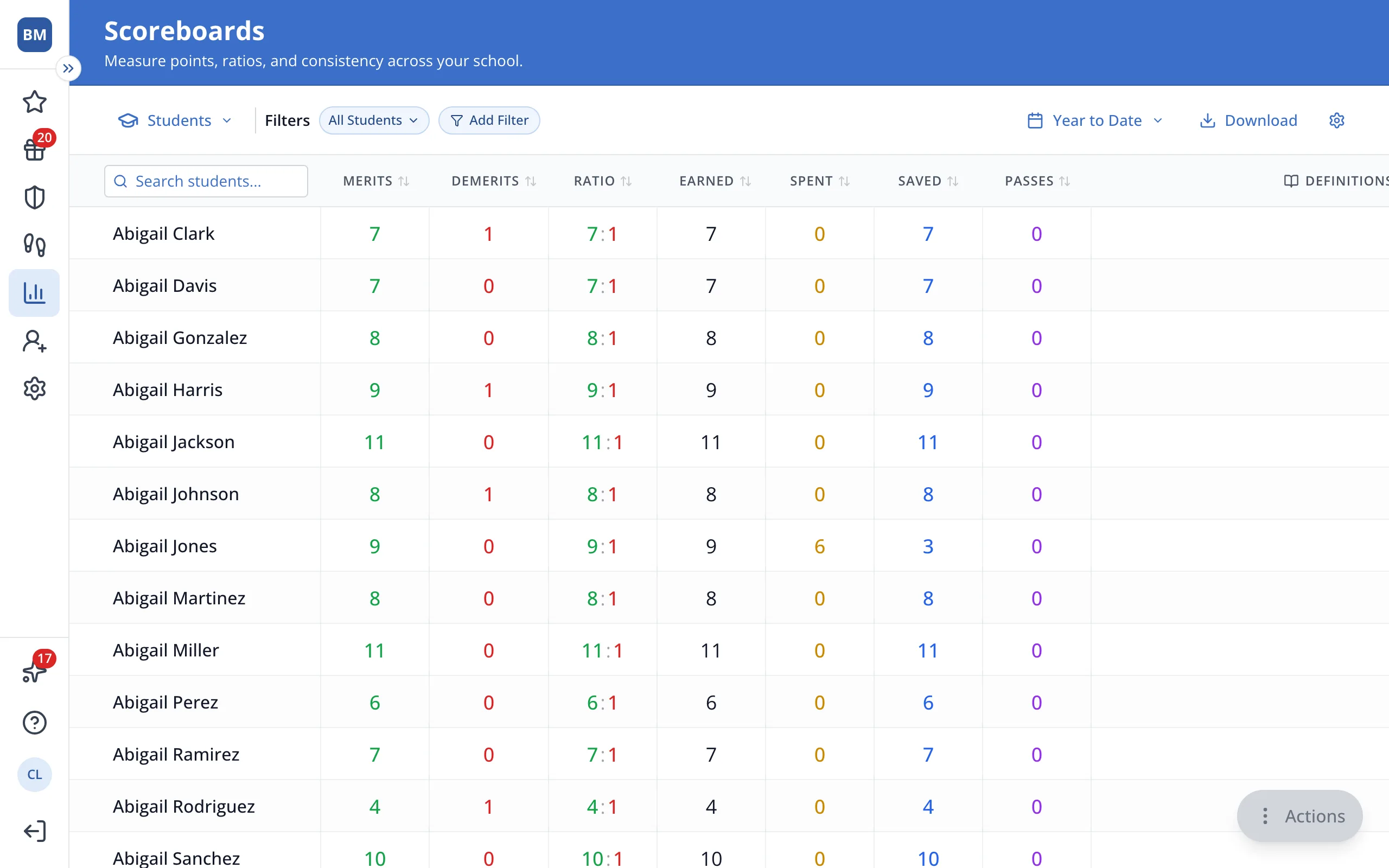
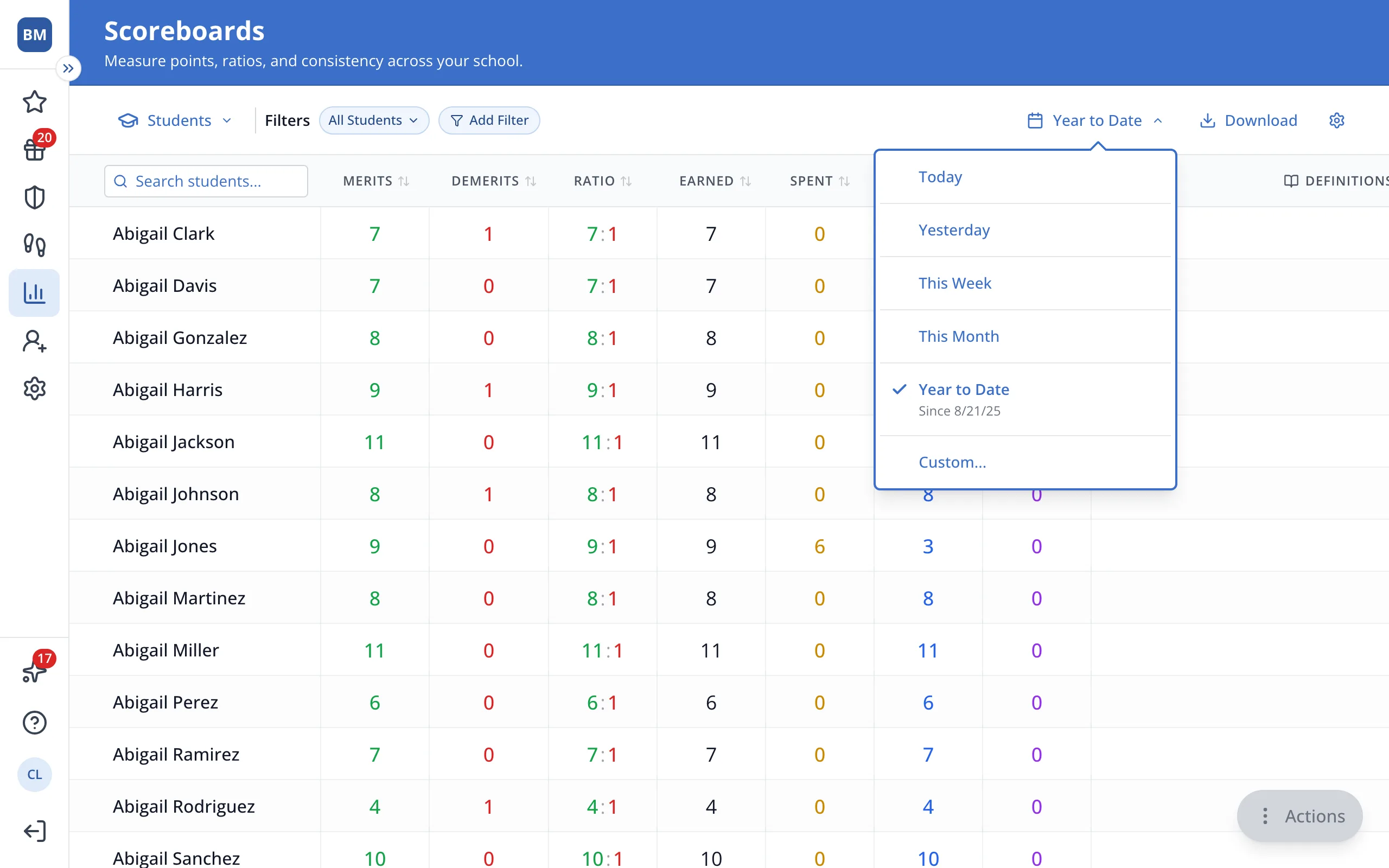
1.At the top right of the report, click Year to Date.
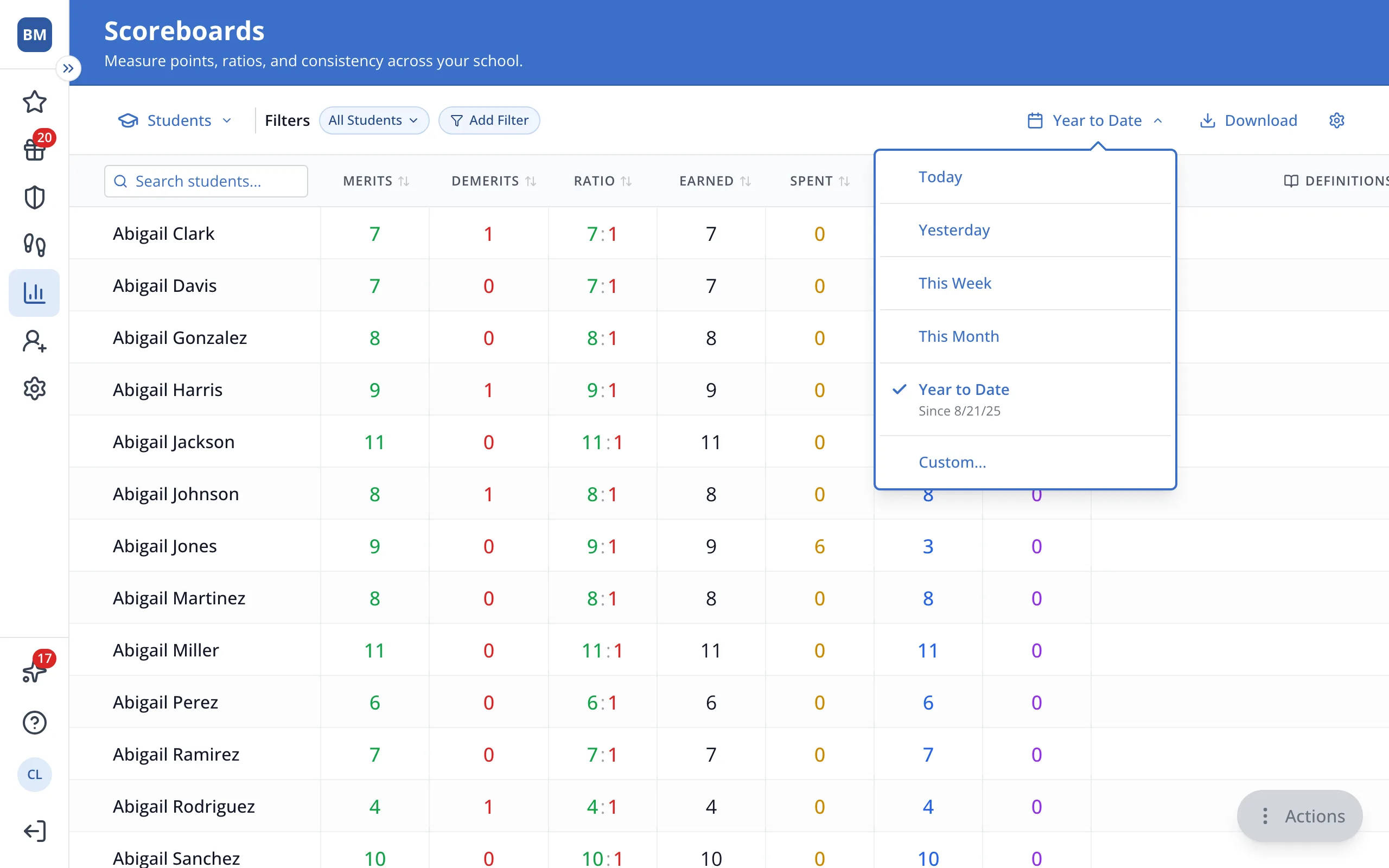
2.Click Custom....
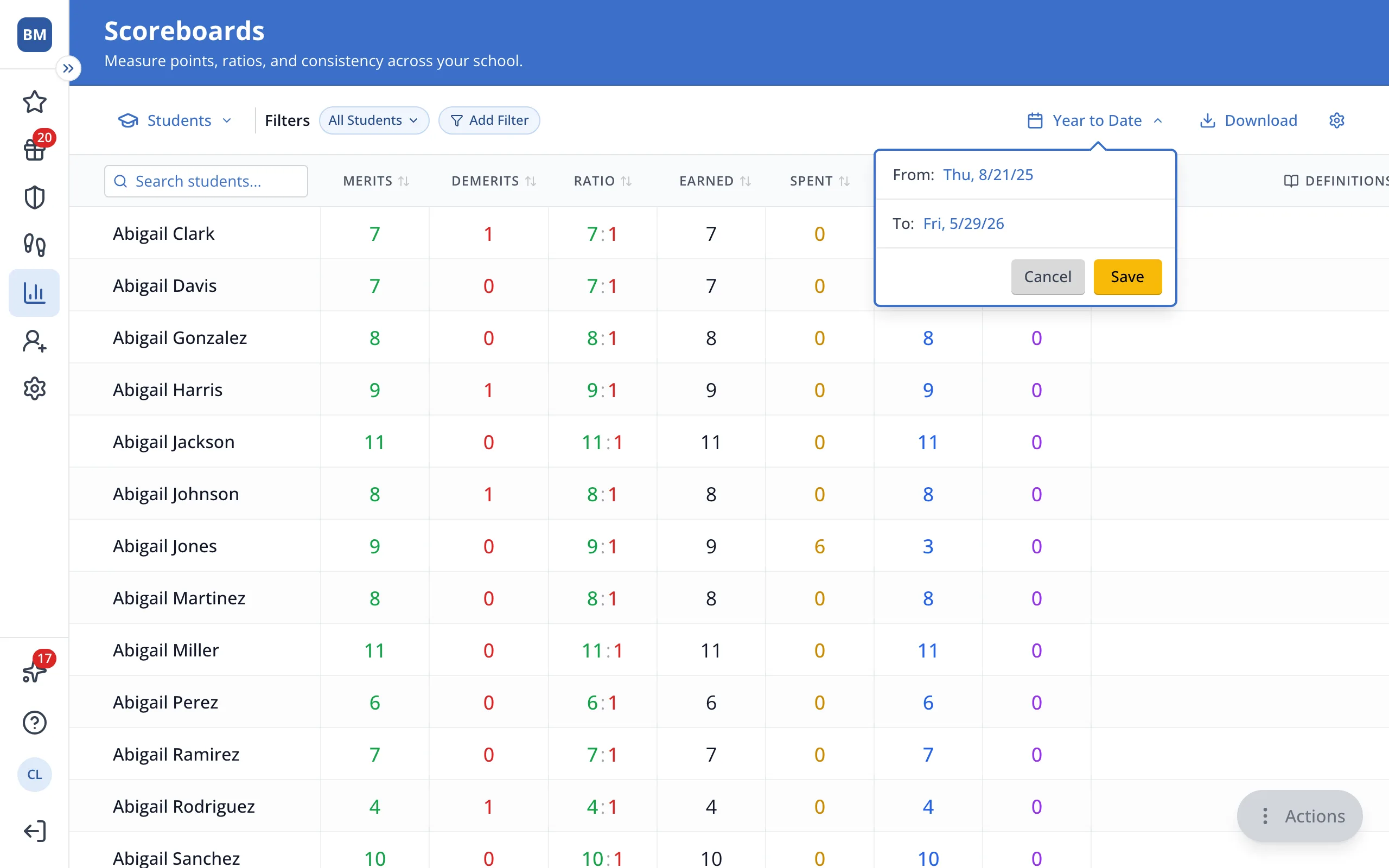
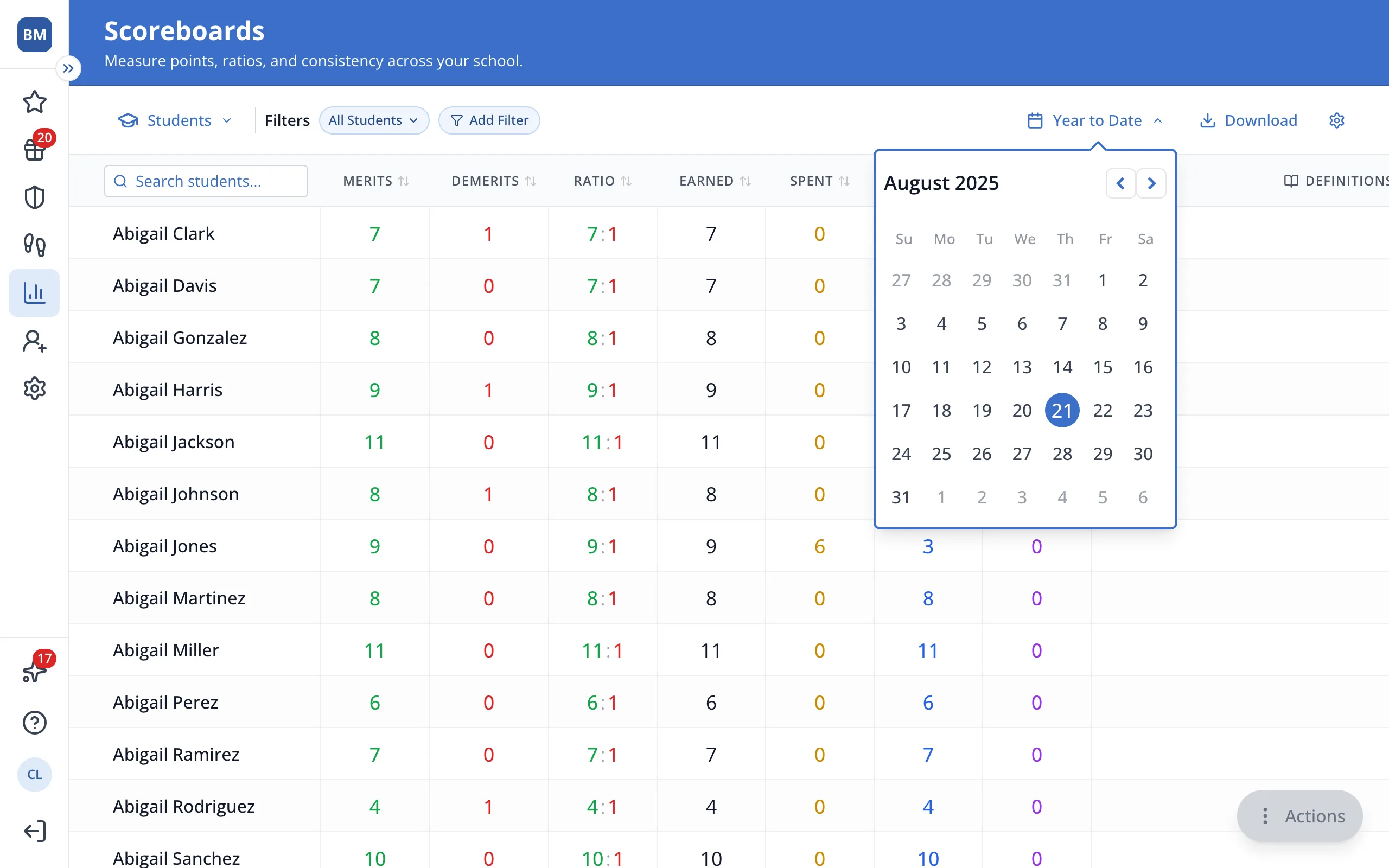
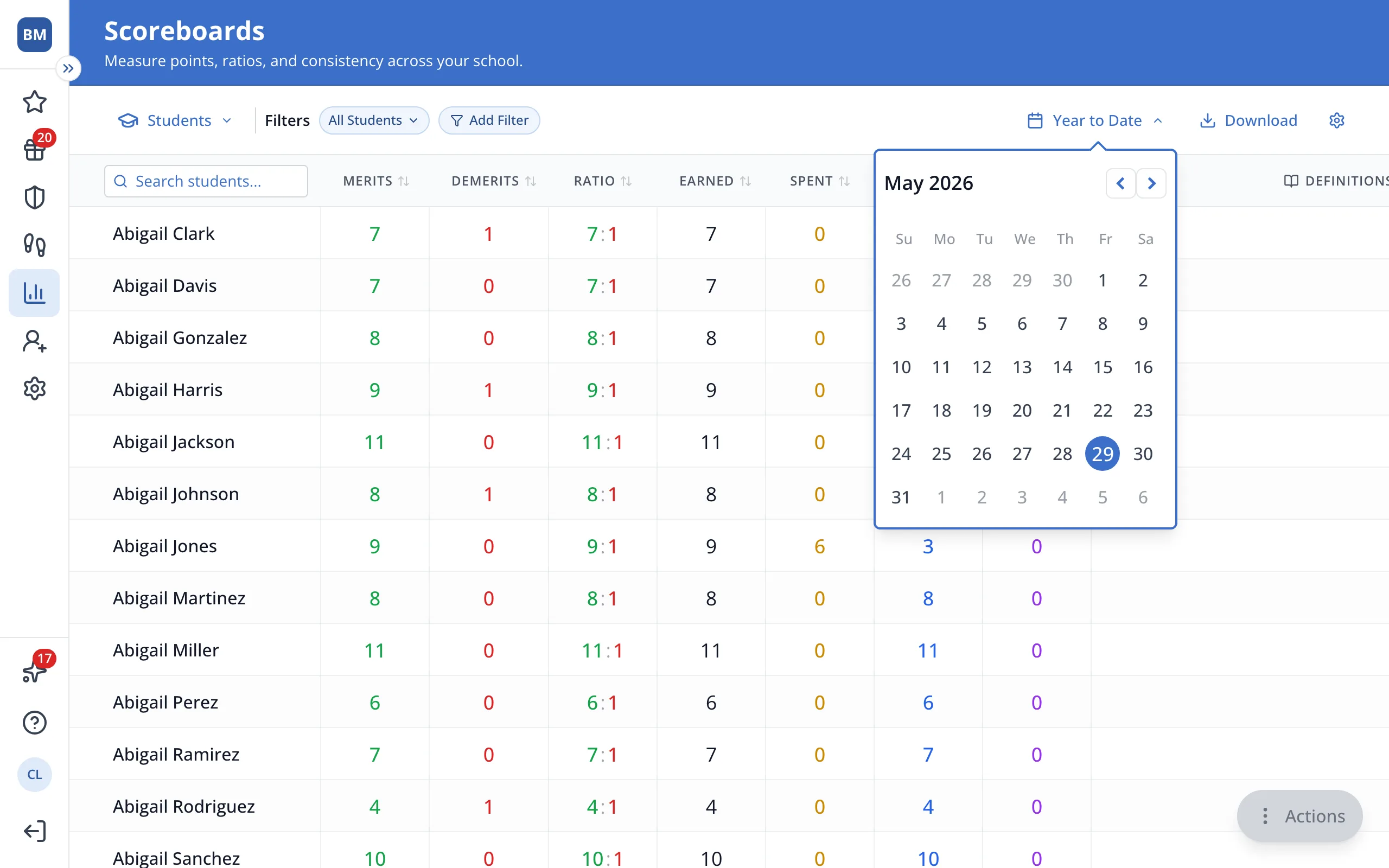
3.Click the date next to From: and pick the first day of last school year.
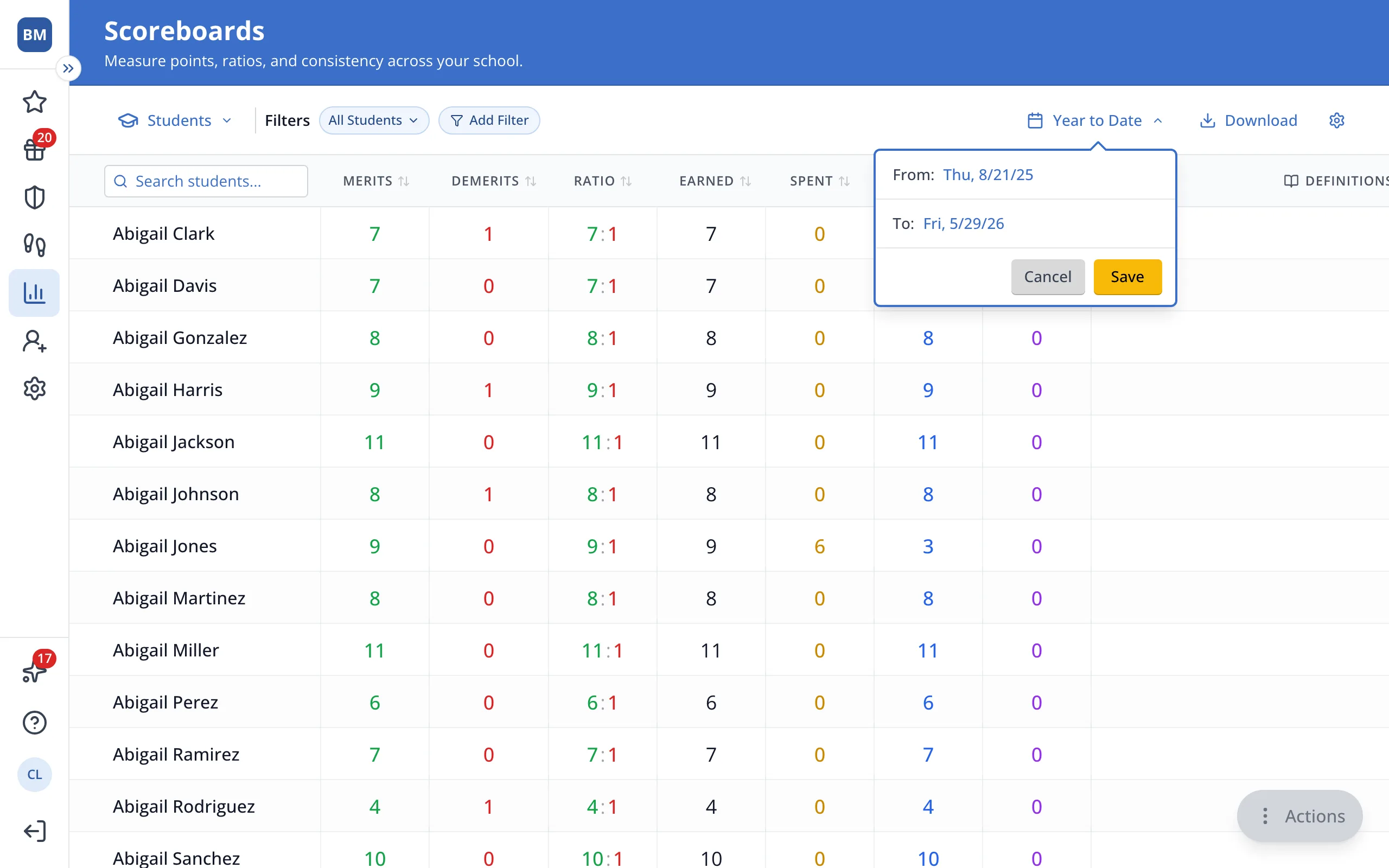
Did you know? Dates before your school cleared its data can't be picked.
4.Click the date next to To: and pick the last day of last school year.
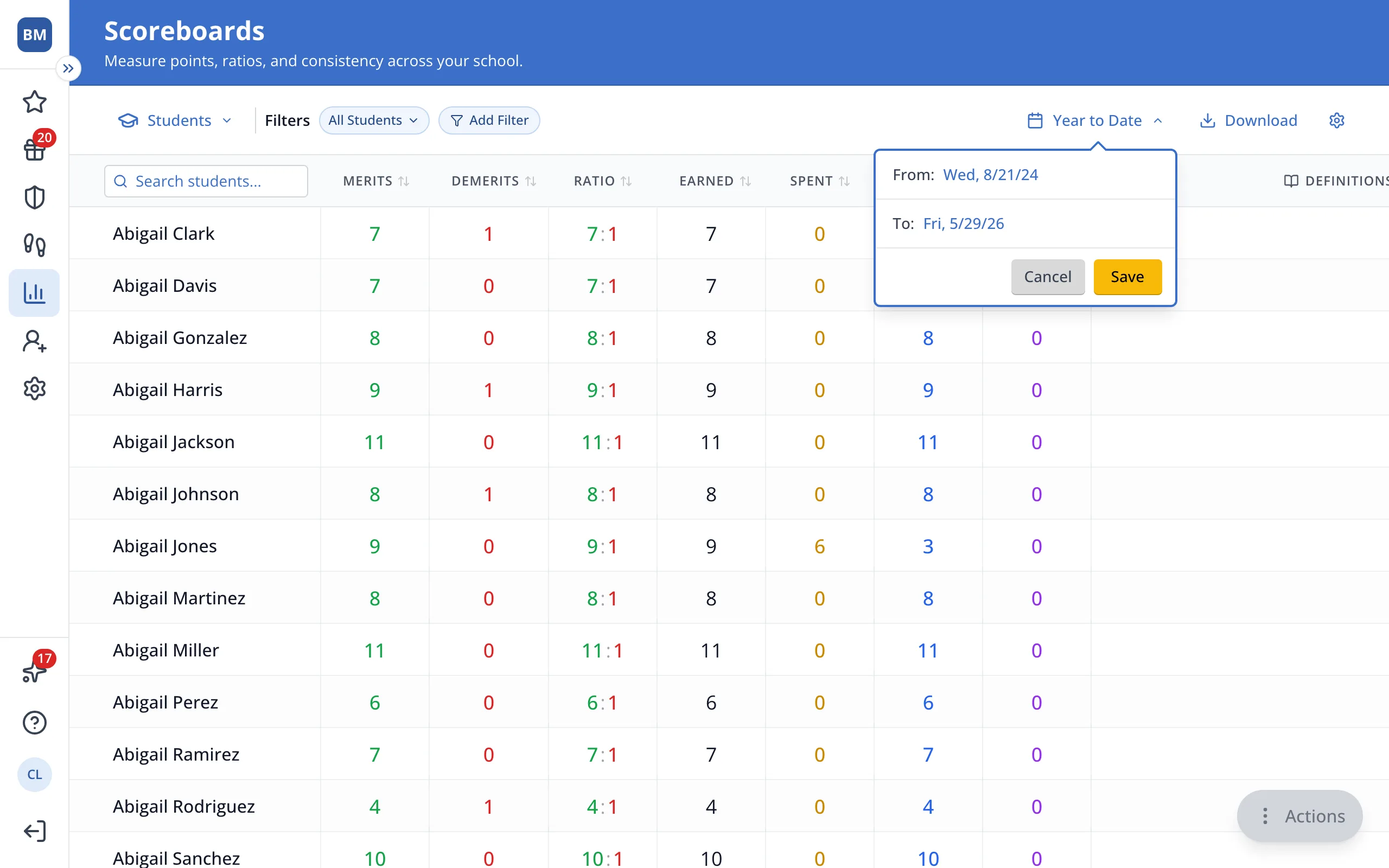
5.Click Save.