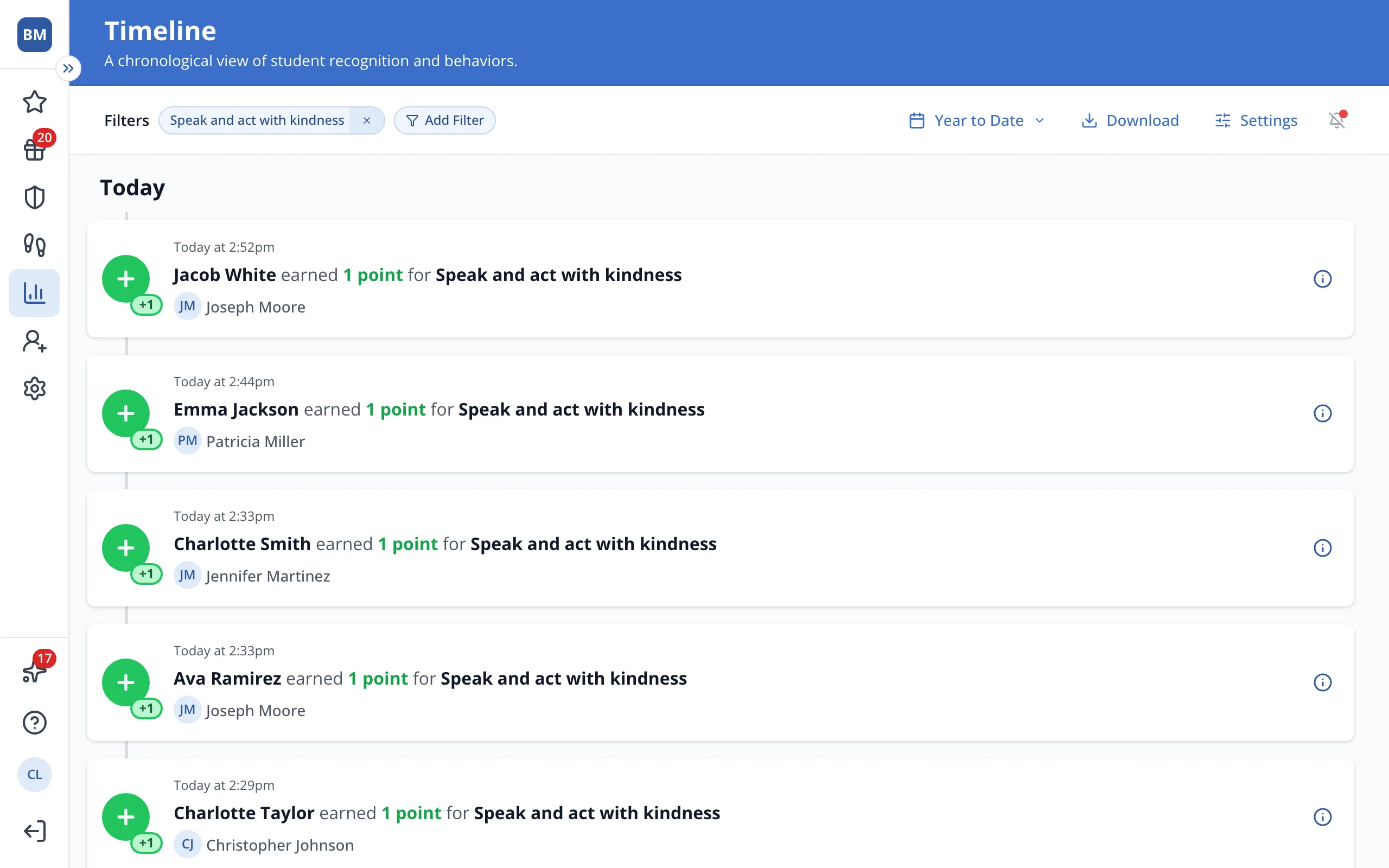
Filter the timeline by student, teacher, behavior, or type
Filters stack, so you can narrow down the timeline to the specific data you're trying to view.
Use the Left and Right arrow keys to move between steps, and Space to play or pause.
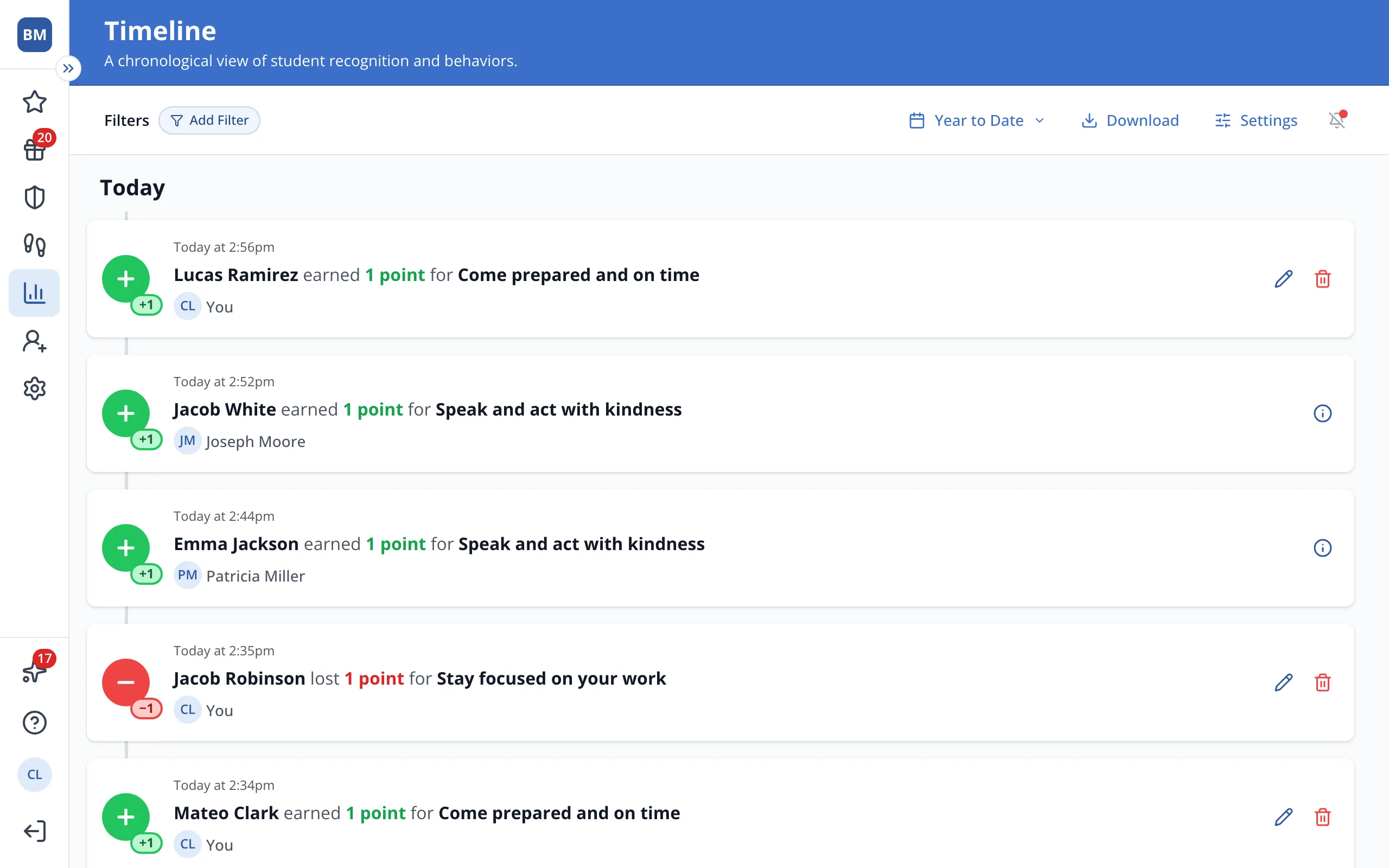
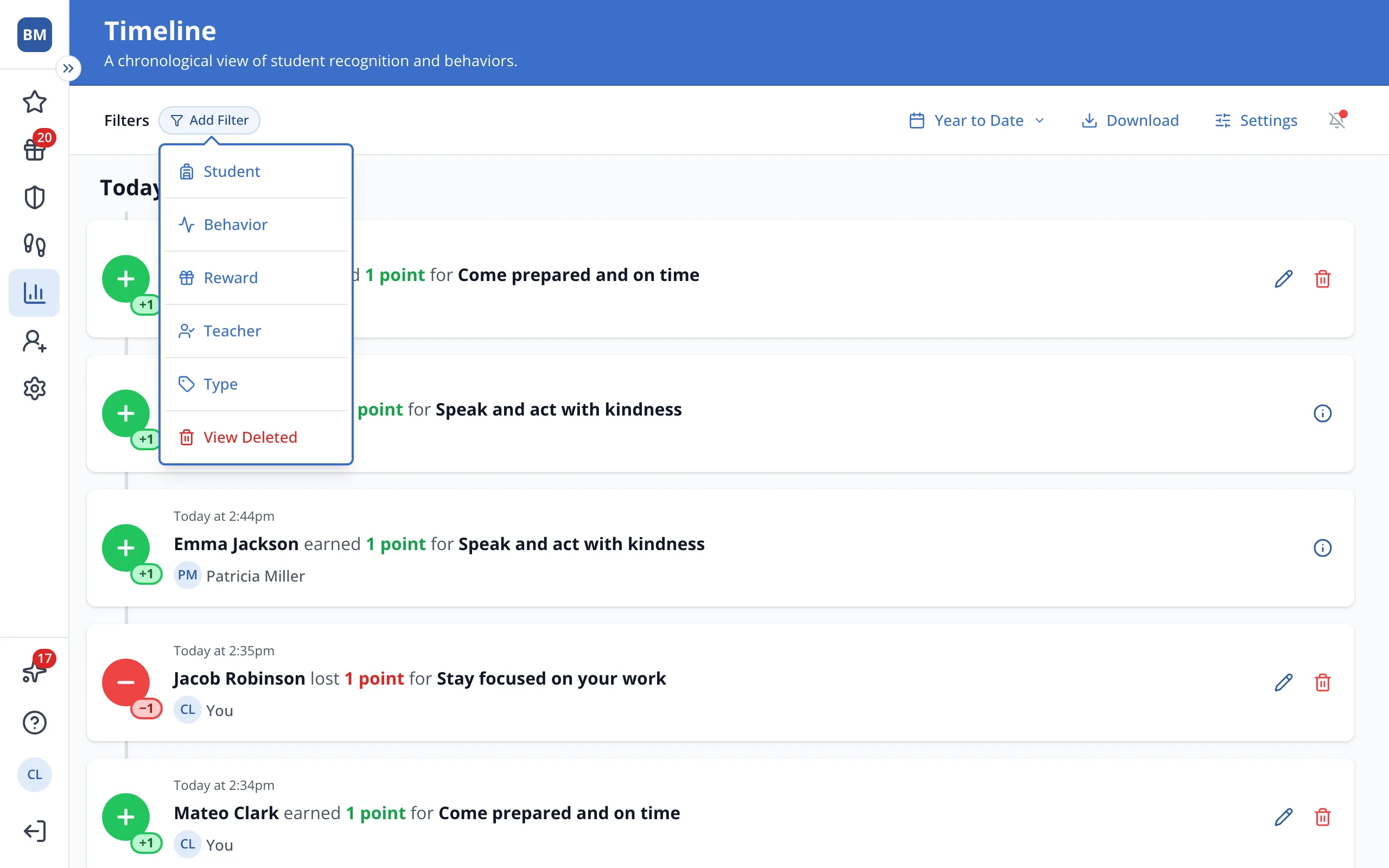
1.On the Timeline page, click Add Filter.
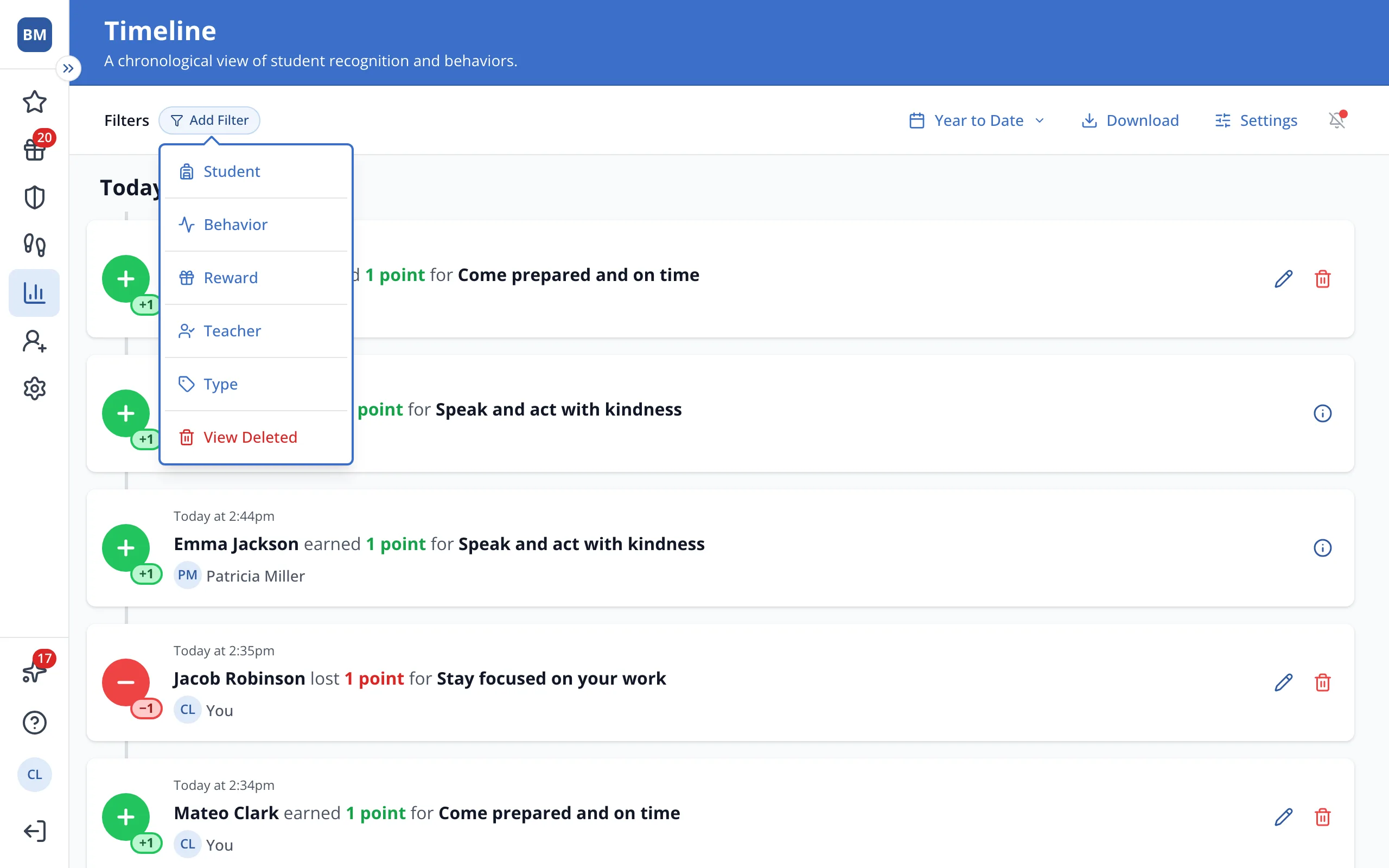
2.Click what you'd like to filter by, like Behavior.
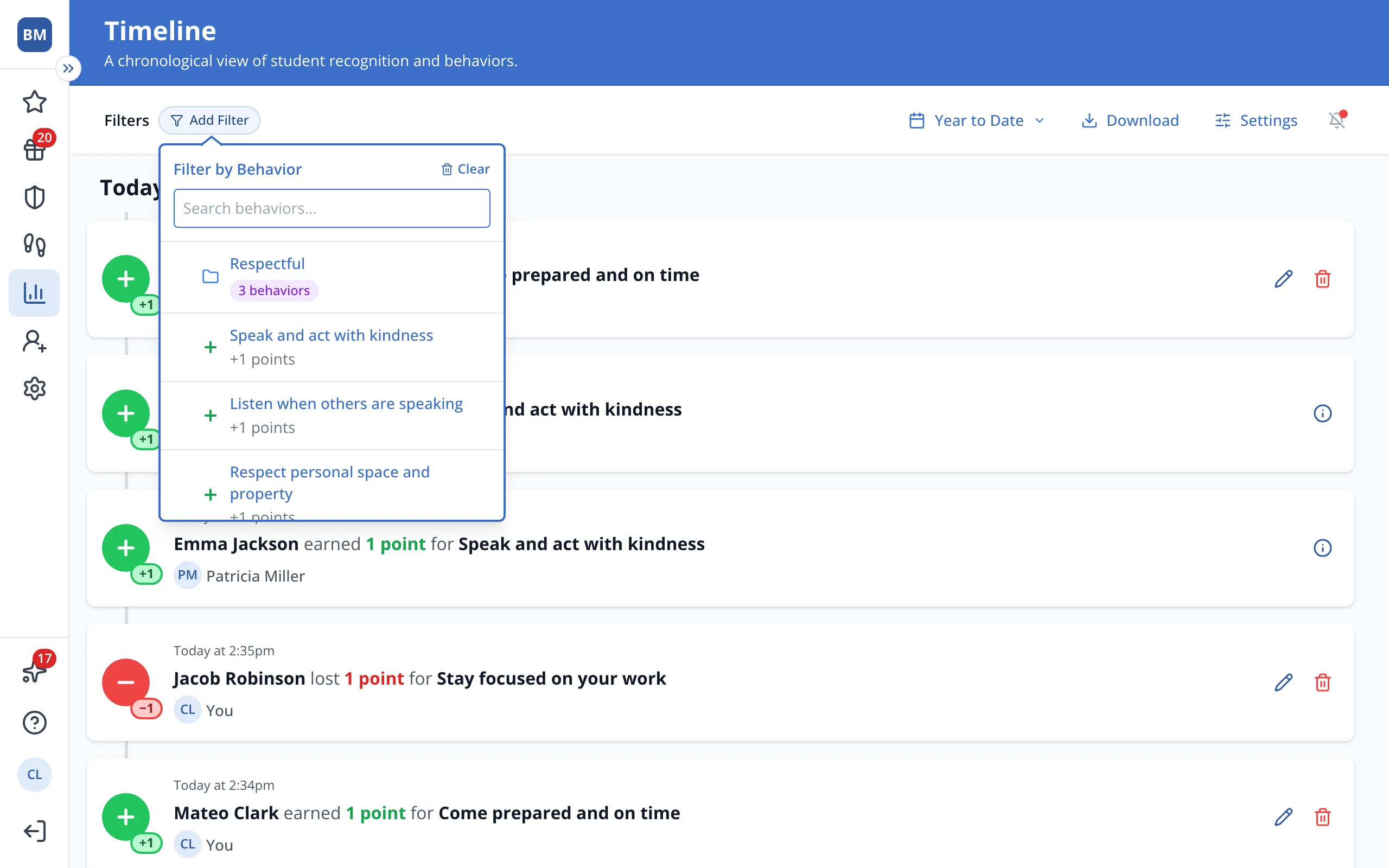
3.Click the behavior you'd like to see.
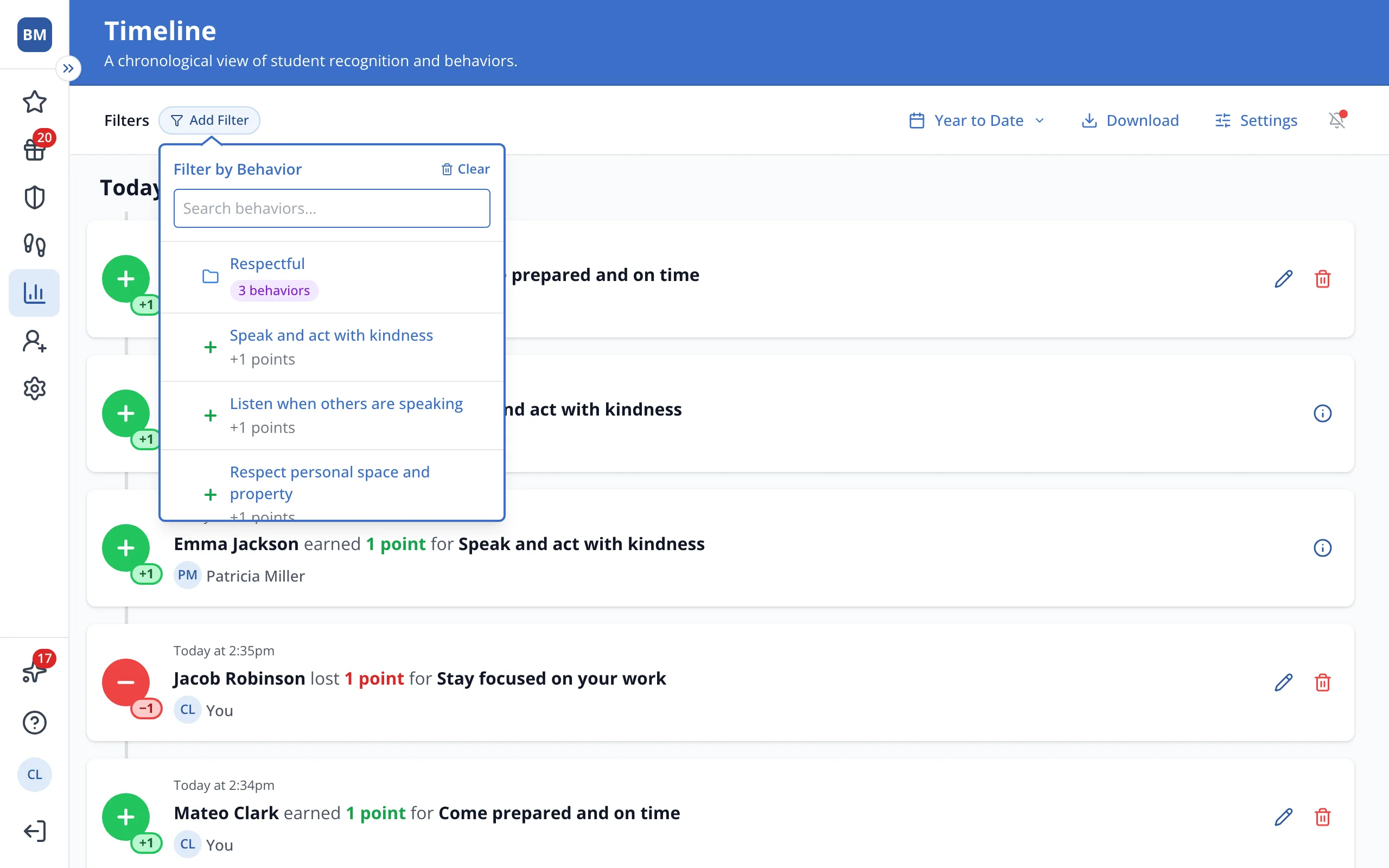
Did you know? Click a category name to pick all of its behaviors.
4.Click Add Filter again to narrow the list further, or click the x on a filter to remove it.