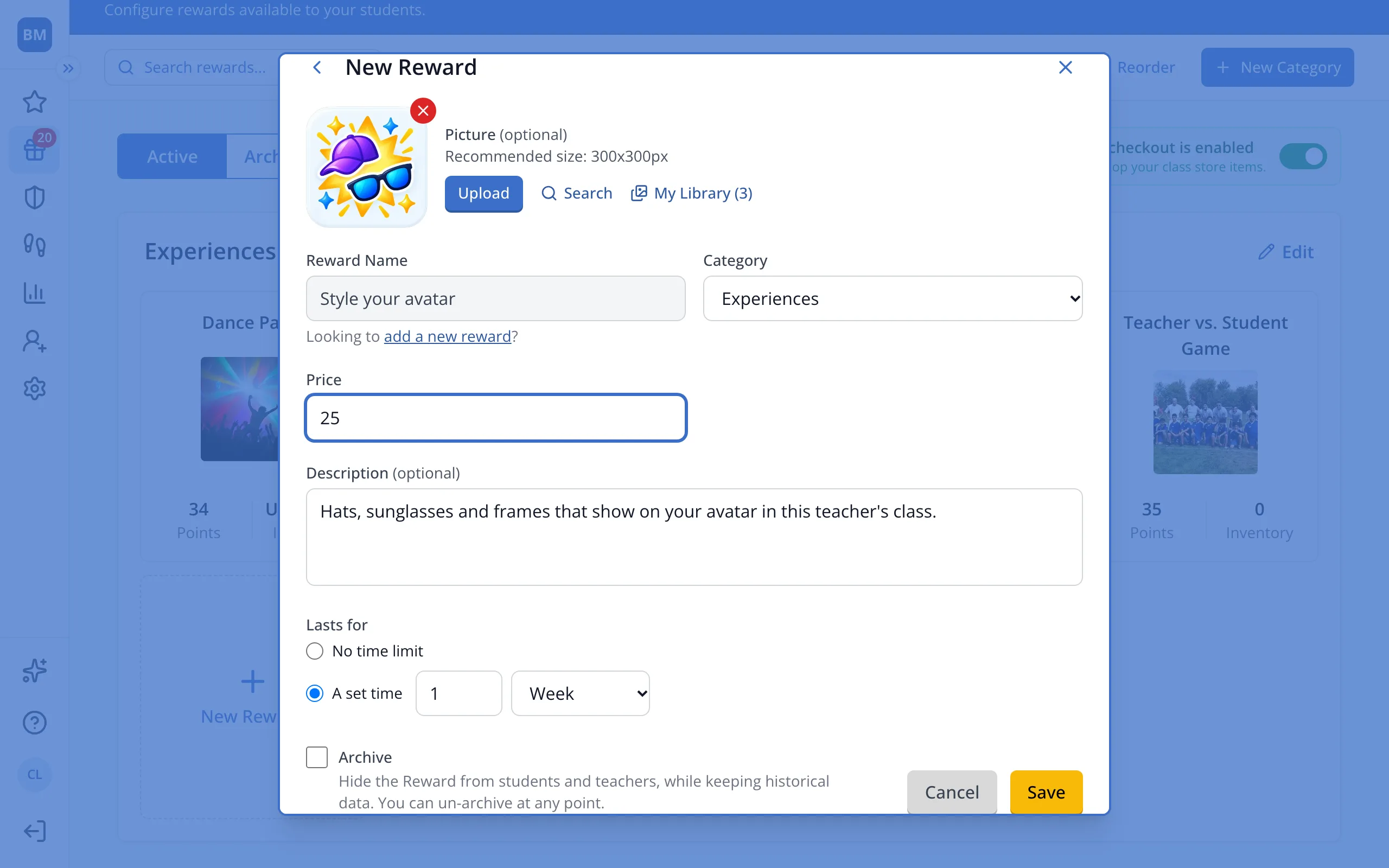
Add the style your avatar reward to your store
Students spend points on hats, sunglasses and frames for their avatar. From a class store, the style shows only in your class.
Open in LiveSchool
Already signed in? Open this guide inside LiveSchool.
Use the Left and Right arrow keys to move between steps, and Space to play or pause.
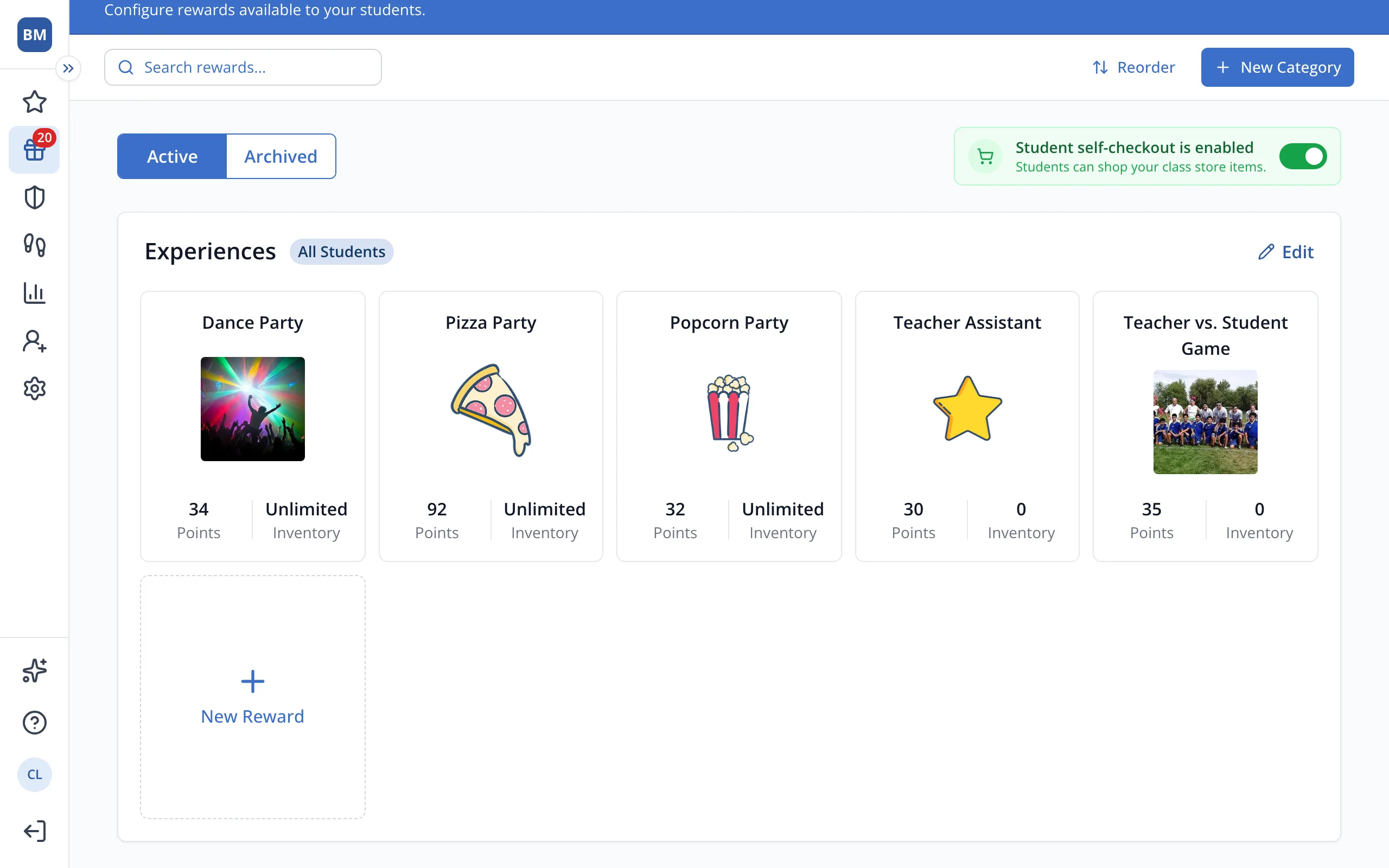
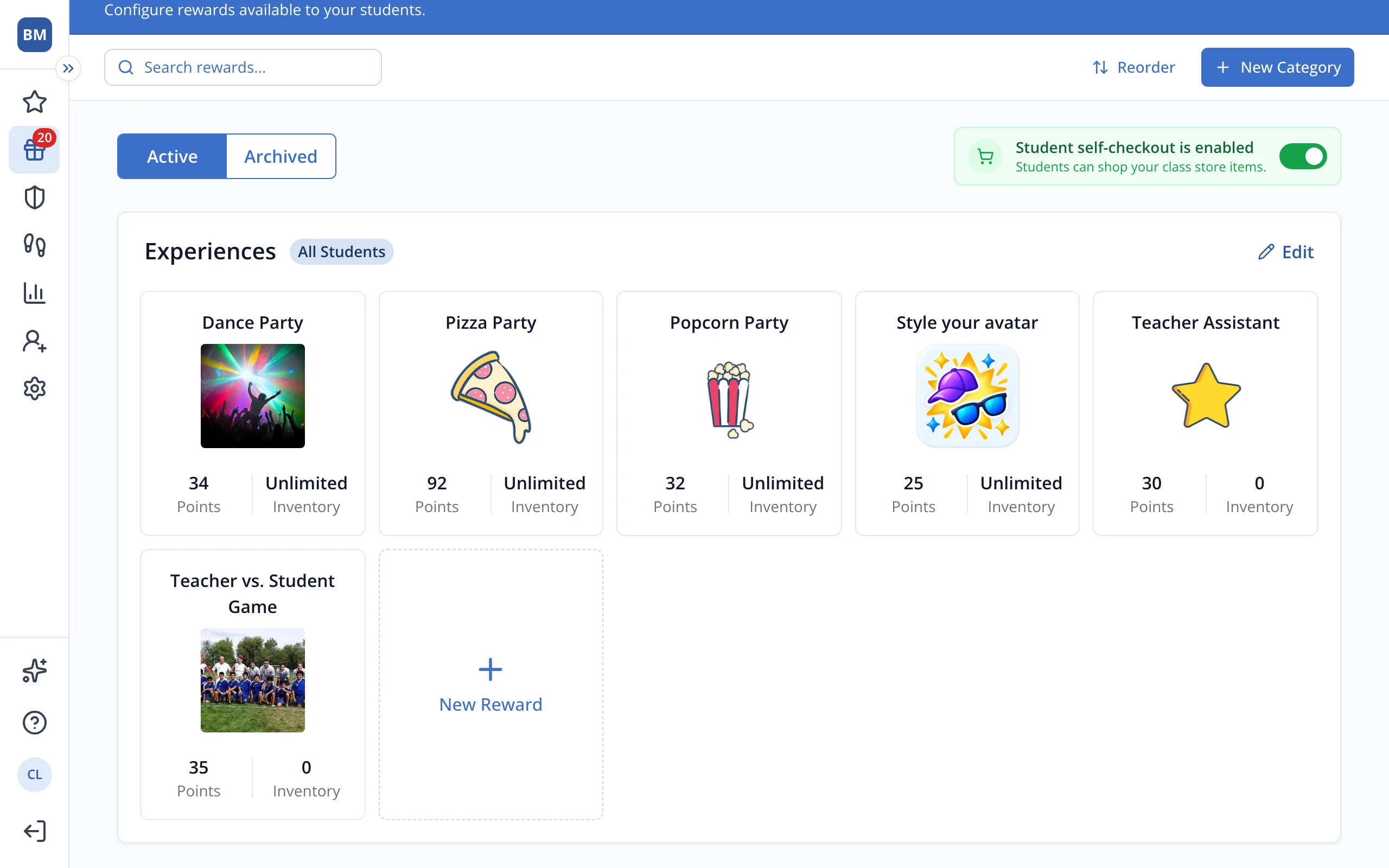
1.In the category you'd like, click New Reward.
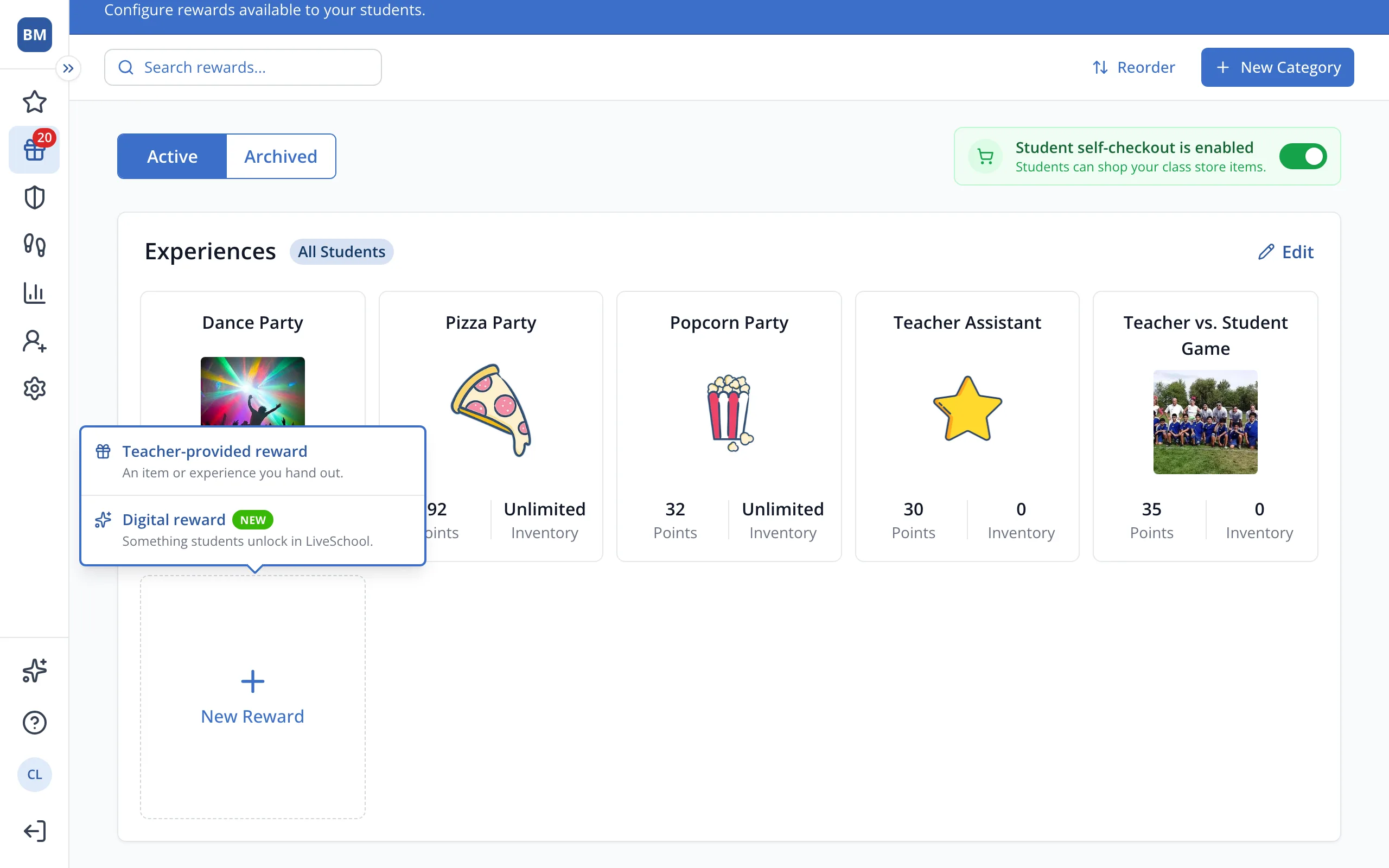
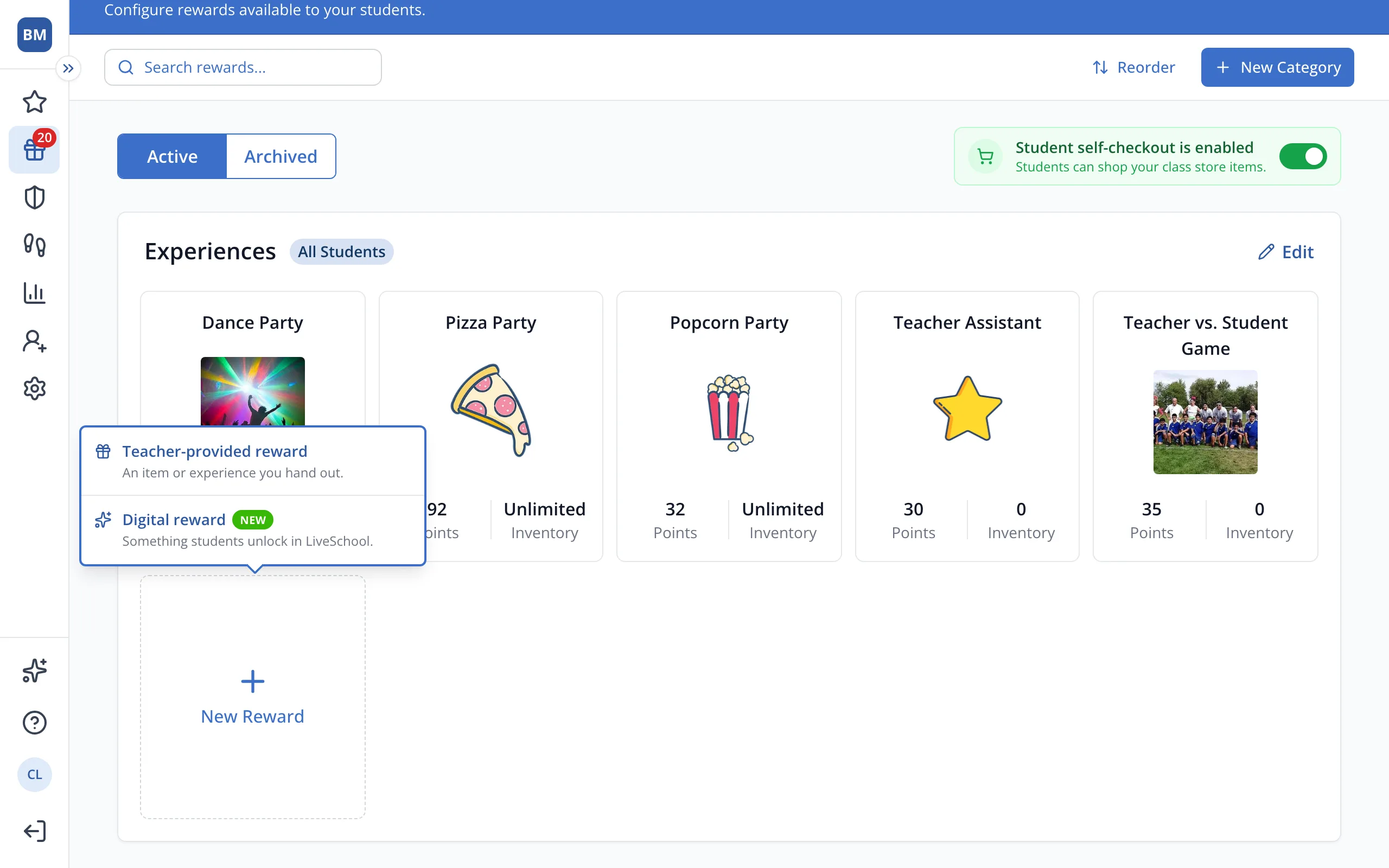
2.Click Digital reward.
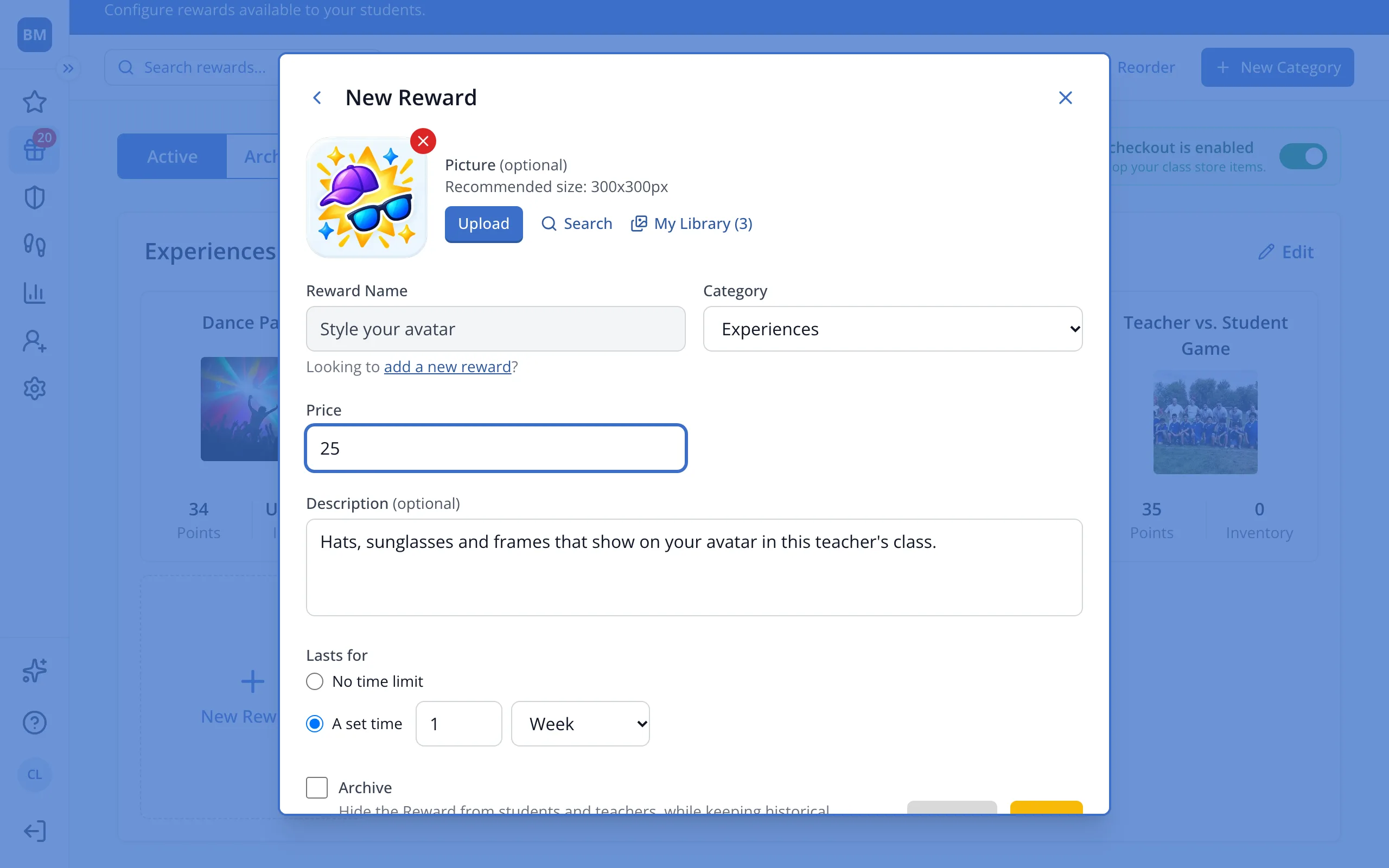
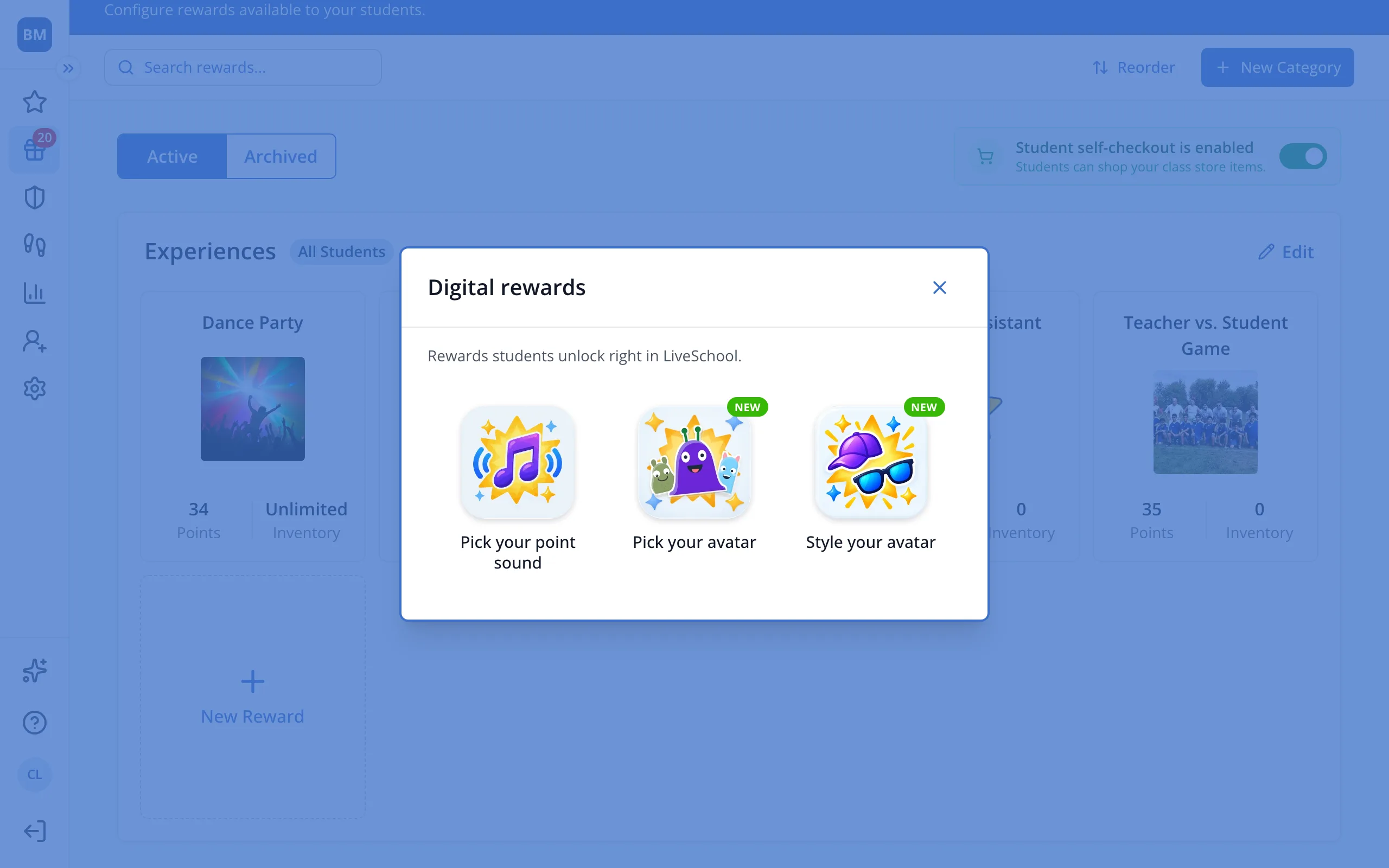
3.Click Style your avatar.
4.Type how many points it costs in the Price box.
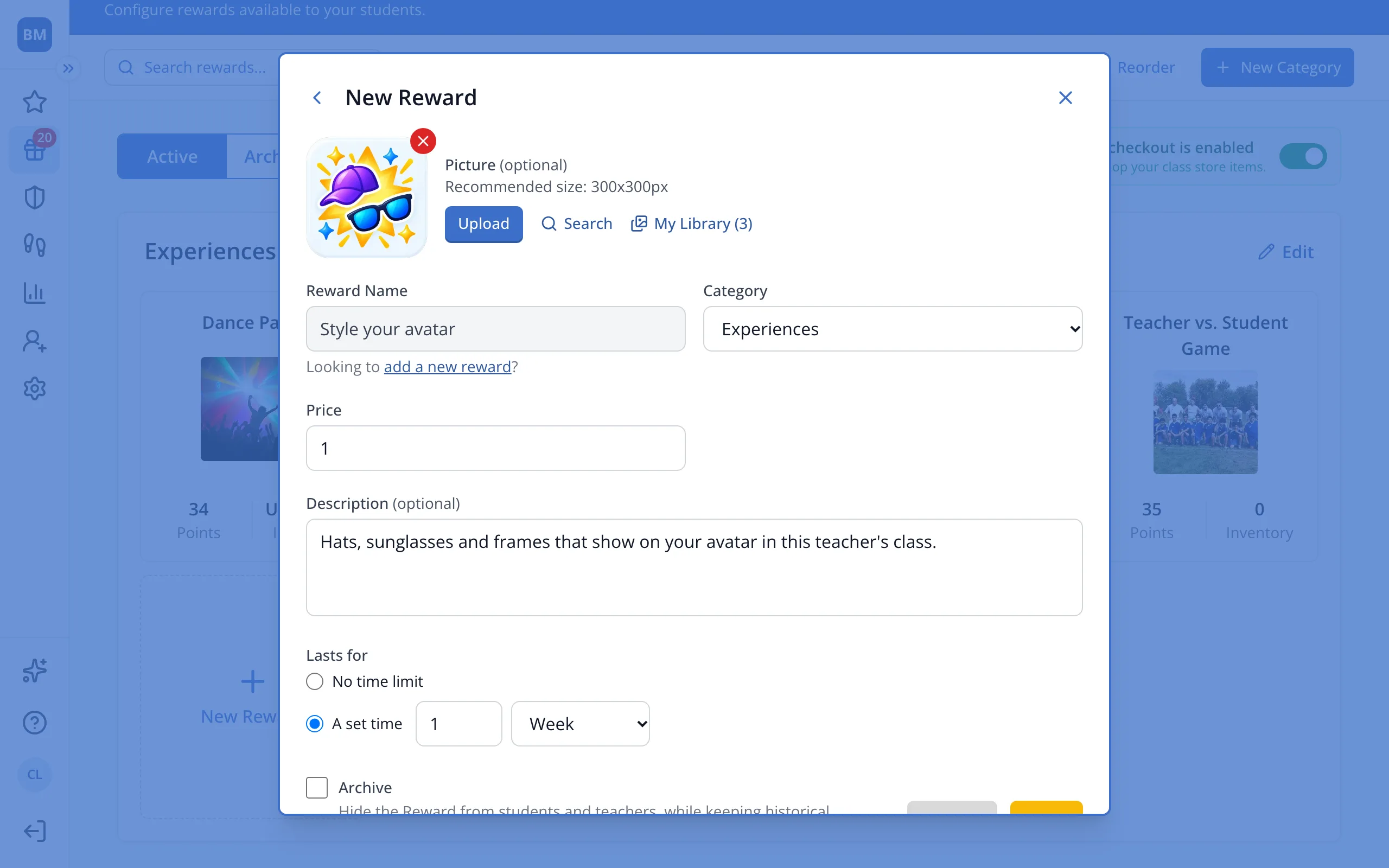
Did you know? Under Lasts for, choose how long students keep their style.
5.Click Save.