
Limit a reward category to certain grades or rosters
Only students in the rosters or grades you pick can buy the rewards in that category.
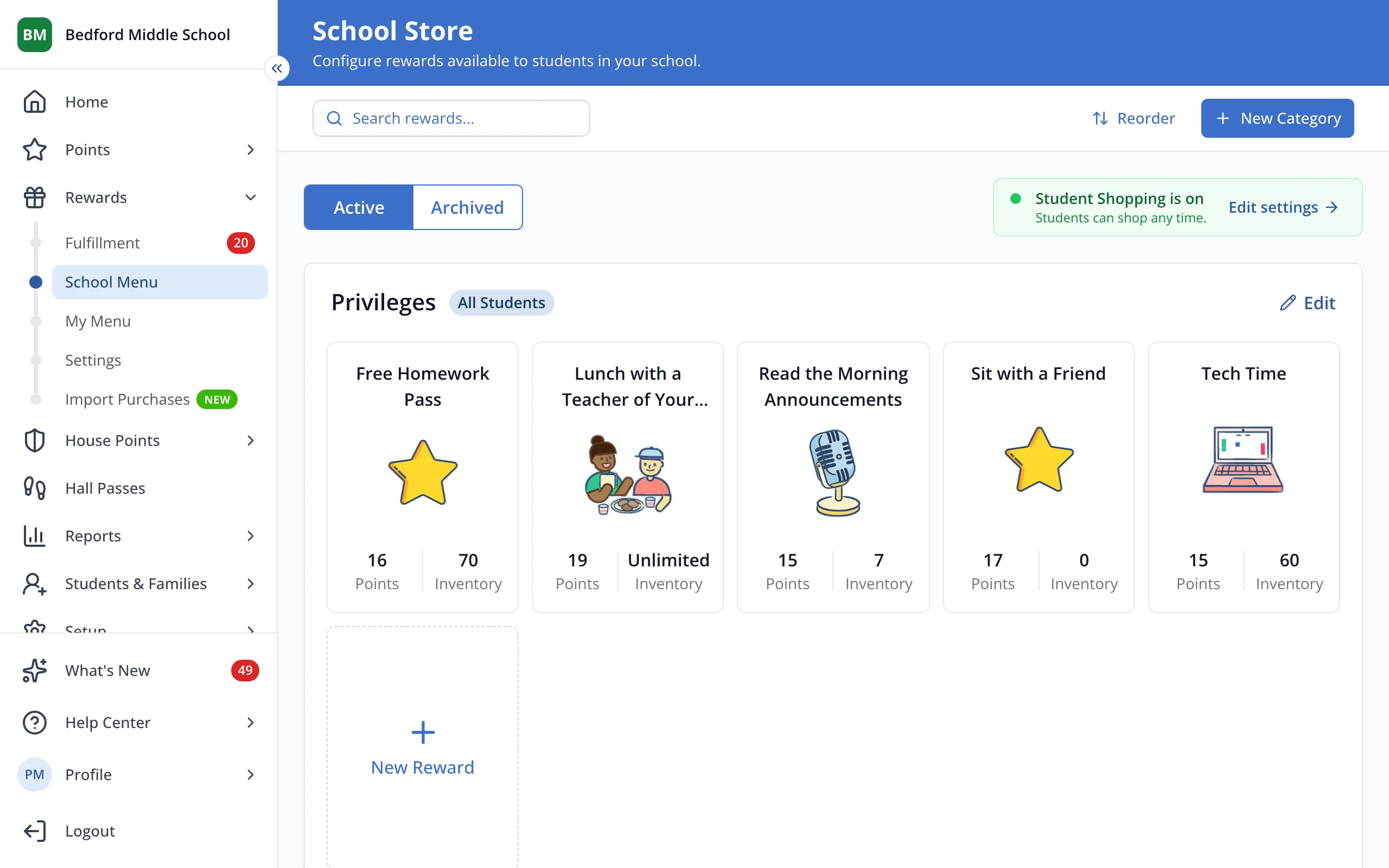
1 / 5On your store page, click Edit next to the category.
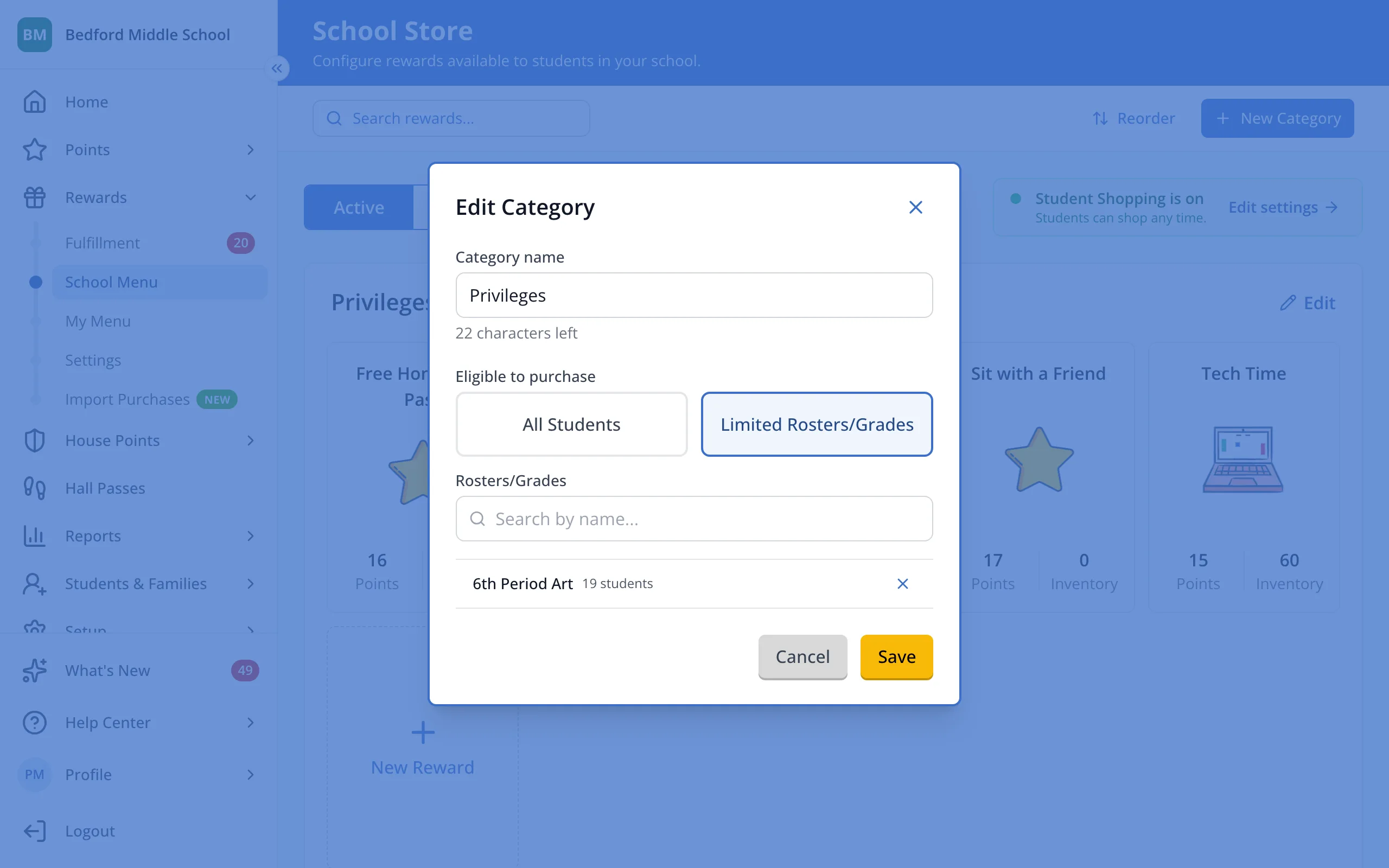
1.On your store page, click Edit next to the category.
2.Under Eligible to purchase, click Limited Rosters/Grades.
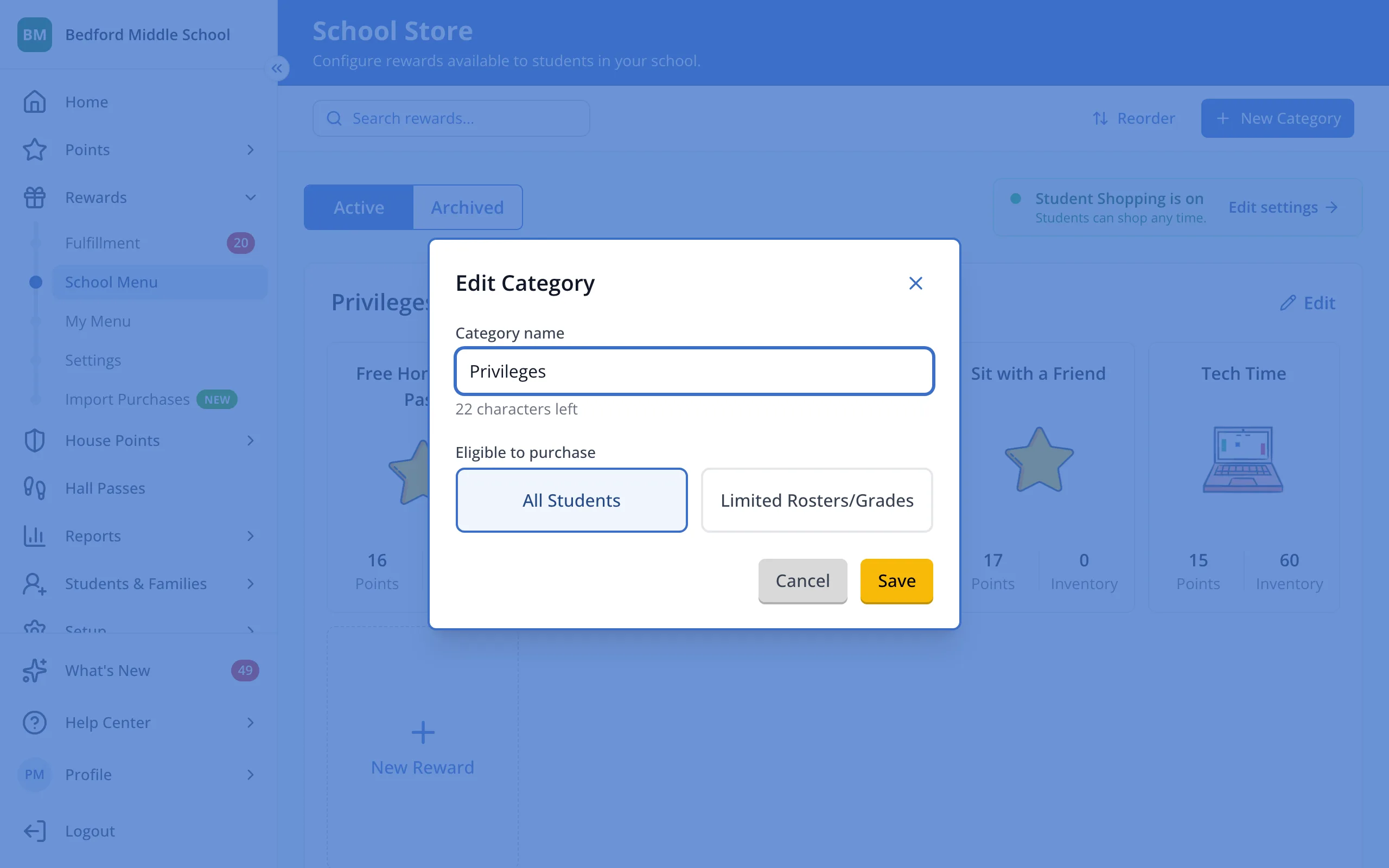
3.Type a roster or grade name.
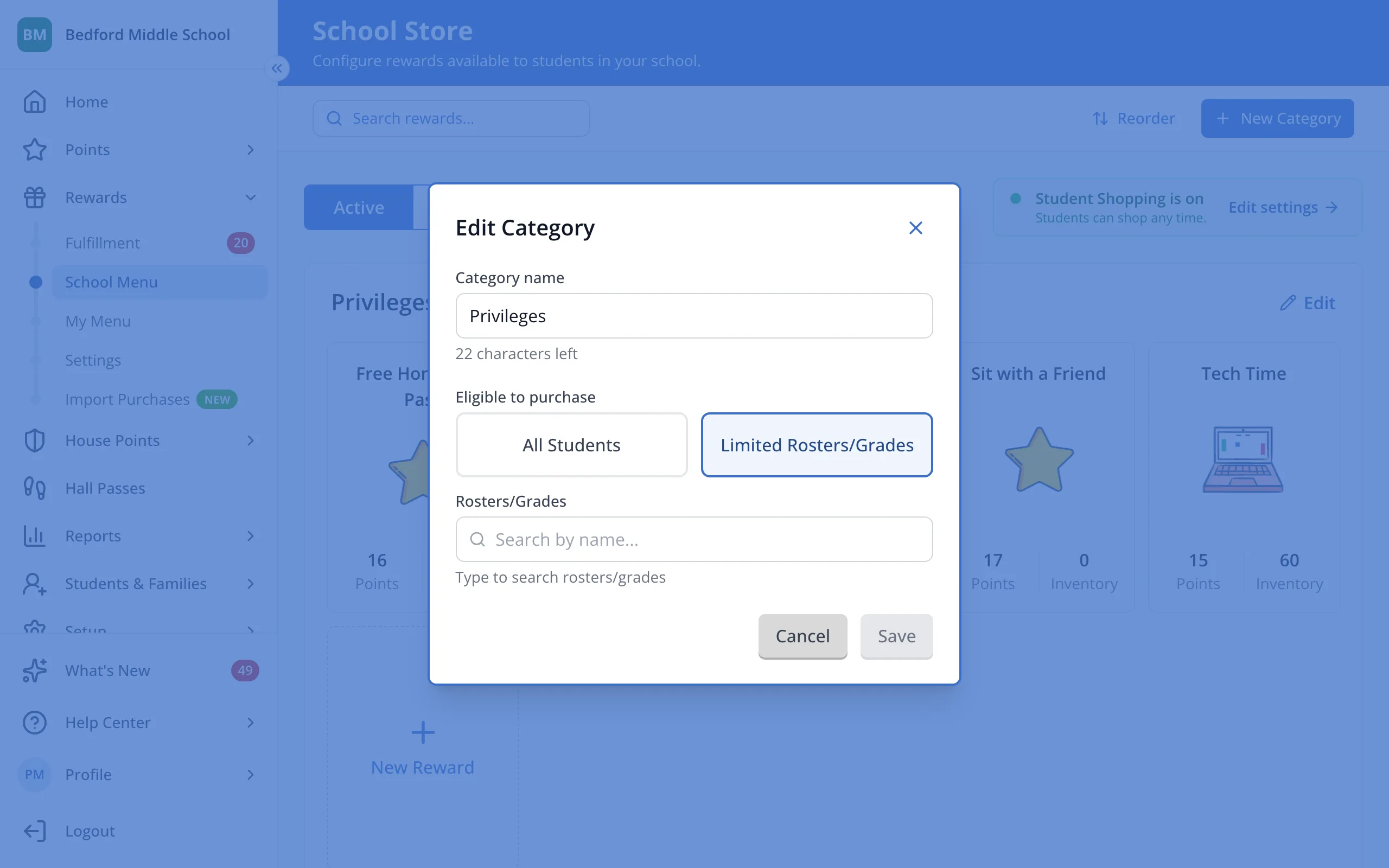
4.Click the roster or grade. Add as many as you need.
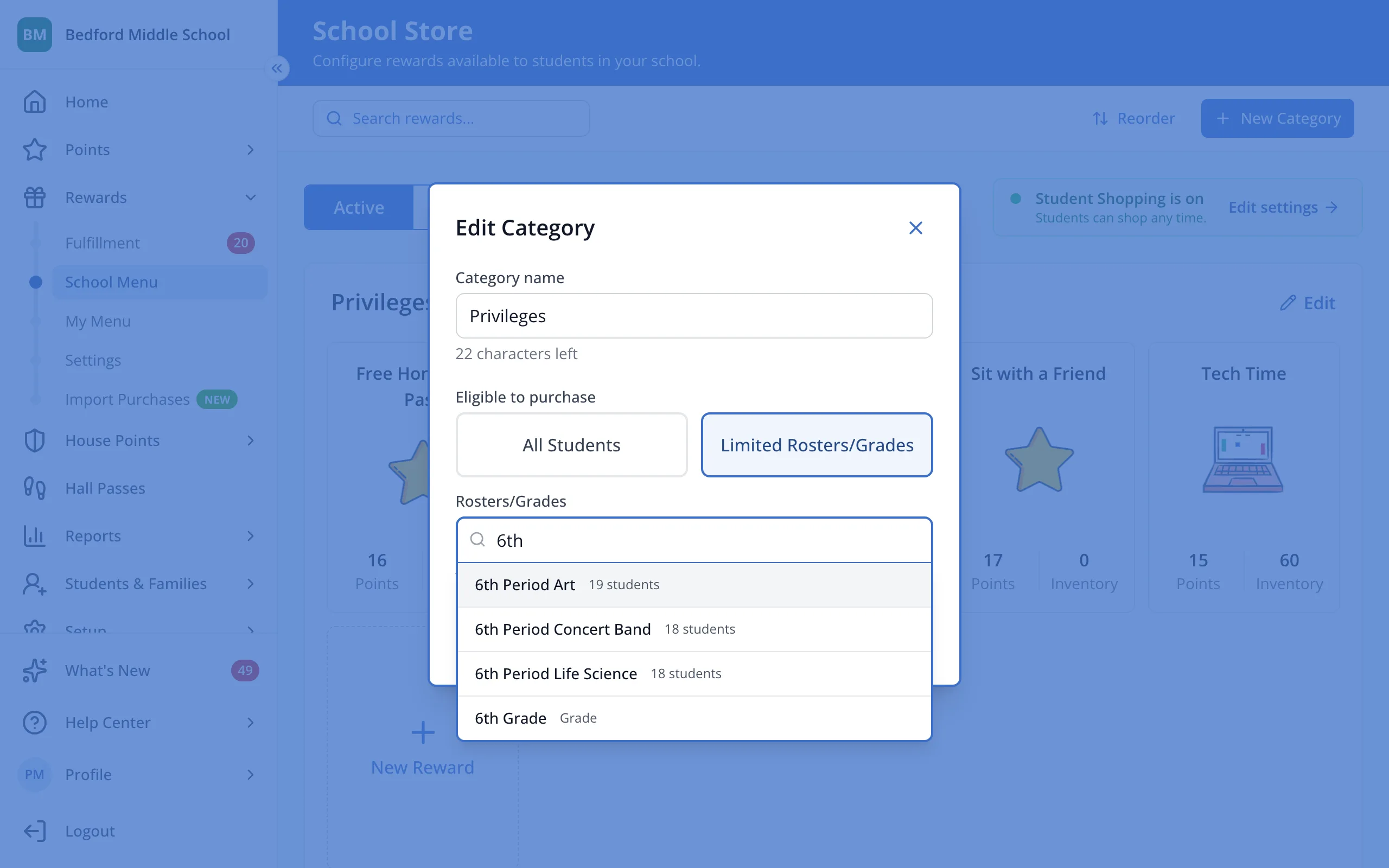
5.Click Save.
Was this helpful?