Schedule a date to hand out rewards
Give purchases a hand-out date, like a monthly reward day, so you know when each one is due.
Open in LiveSchool
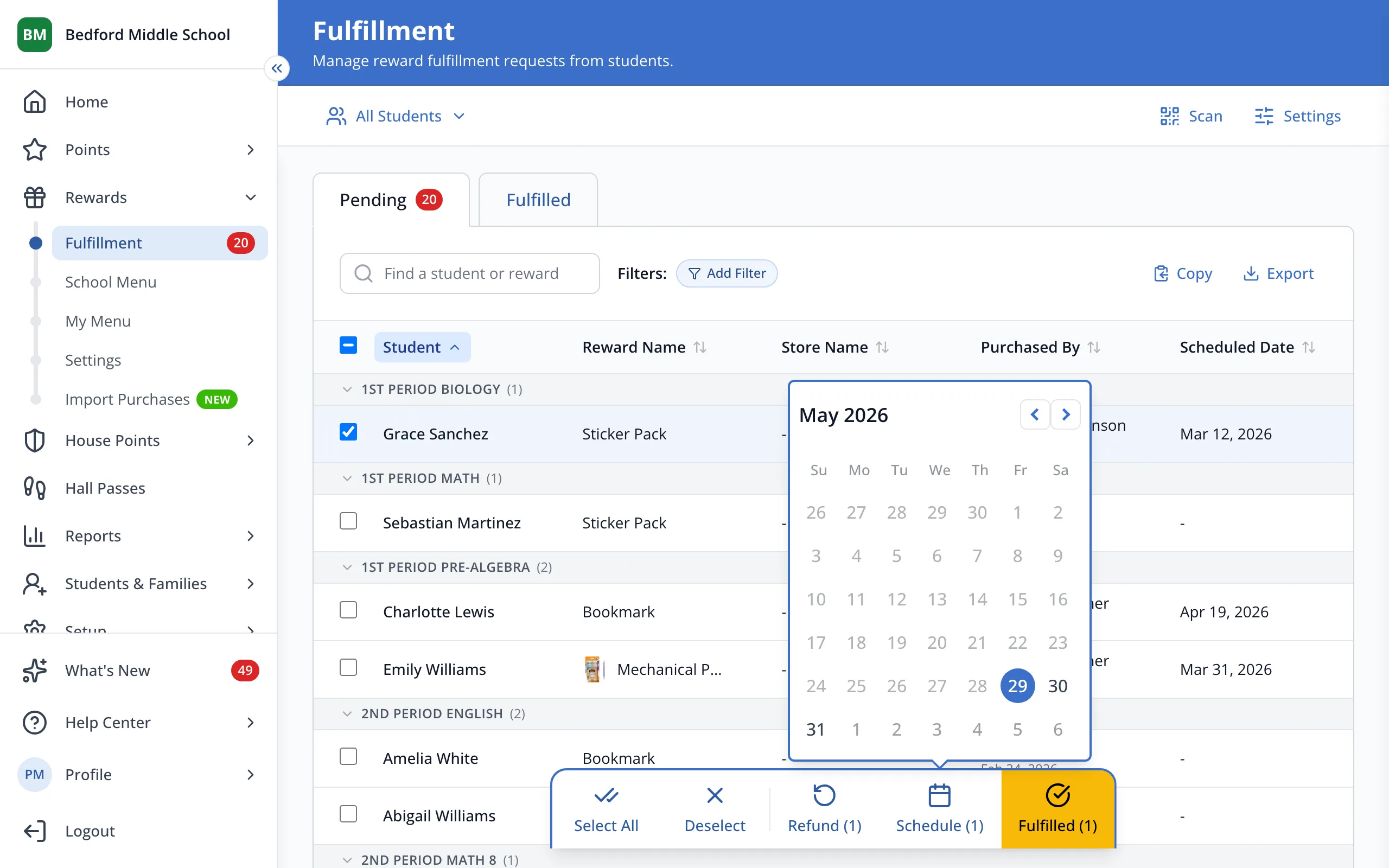
Already signed in? Open this guide inside LiveSchool.
Use the Left and Right arrow keys to move between steps, and Space to play or pause.
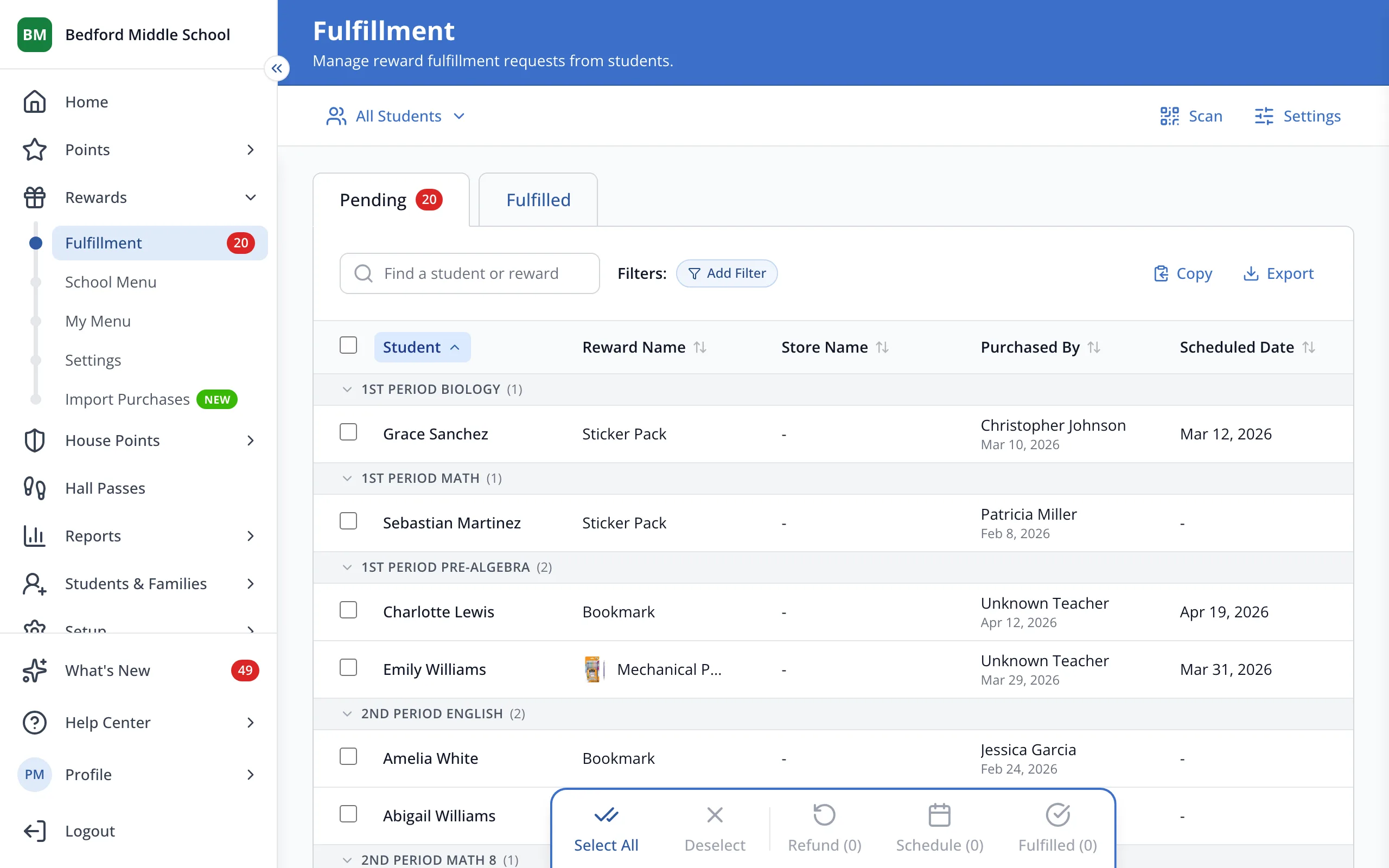
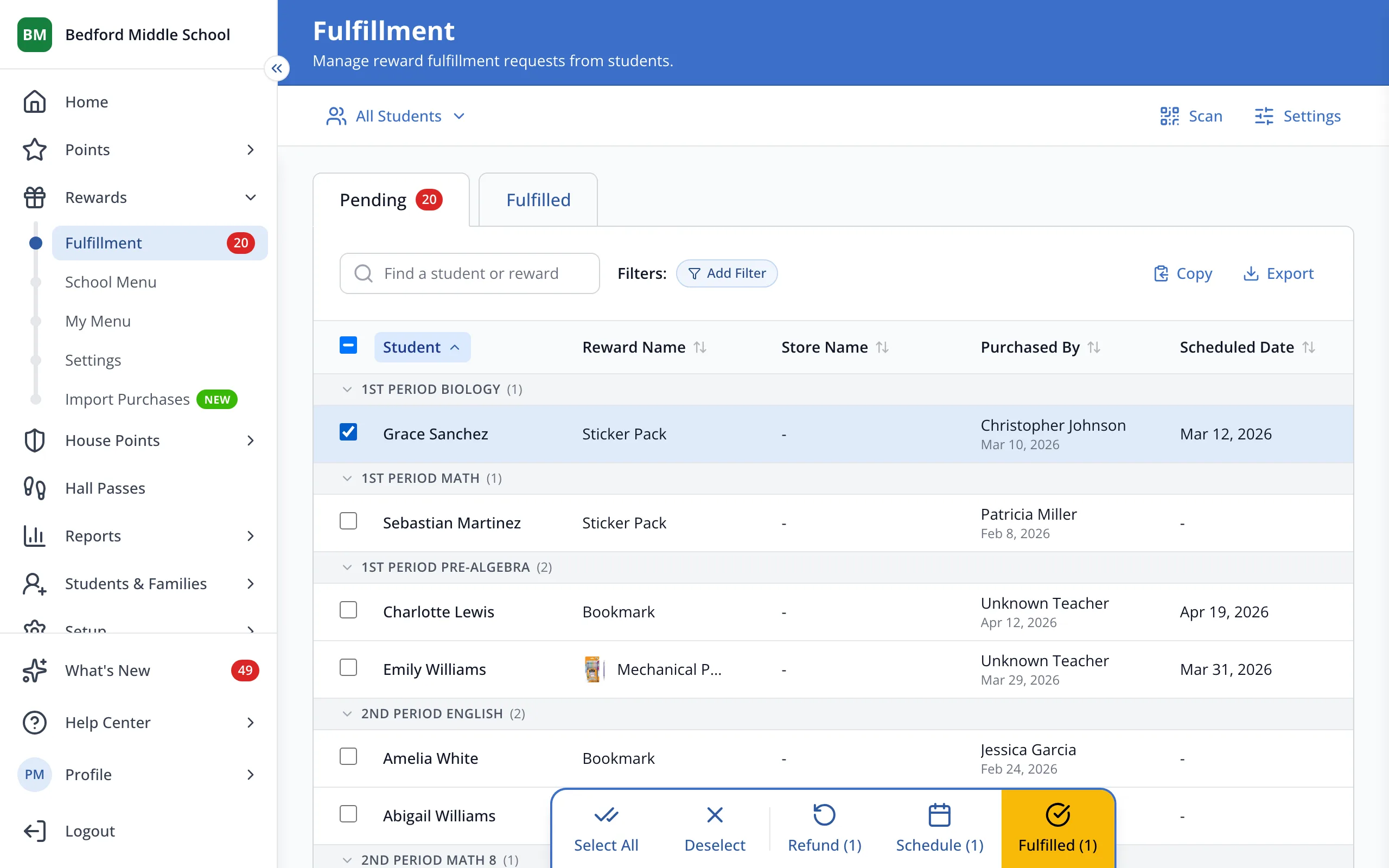
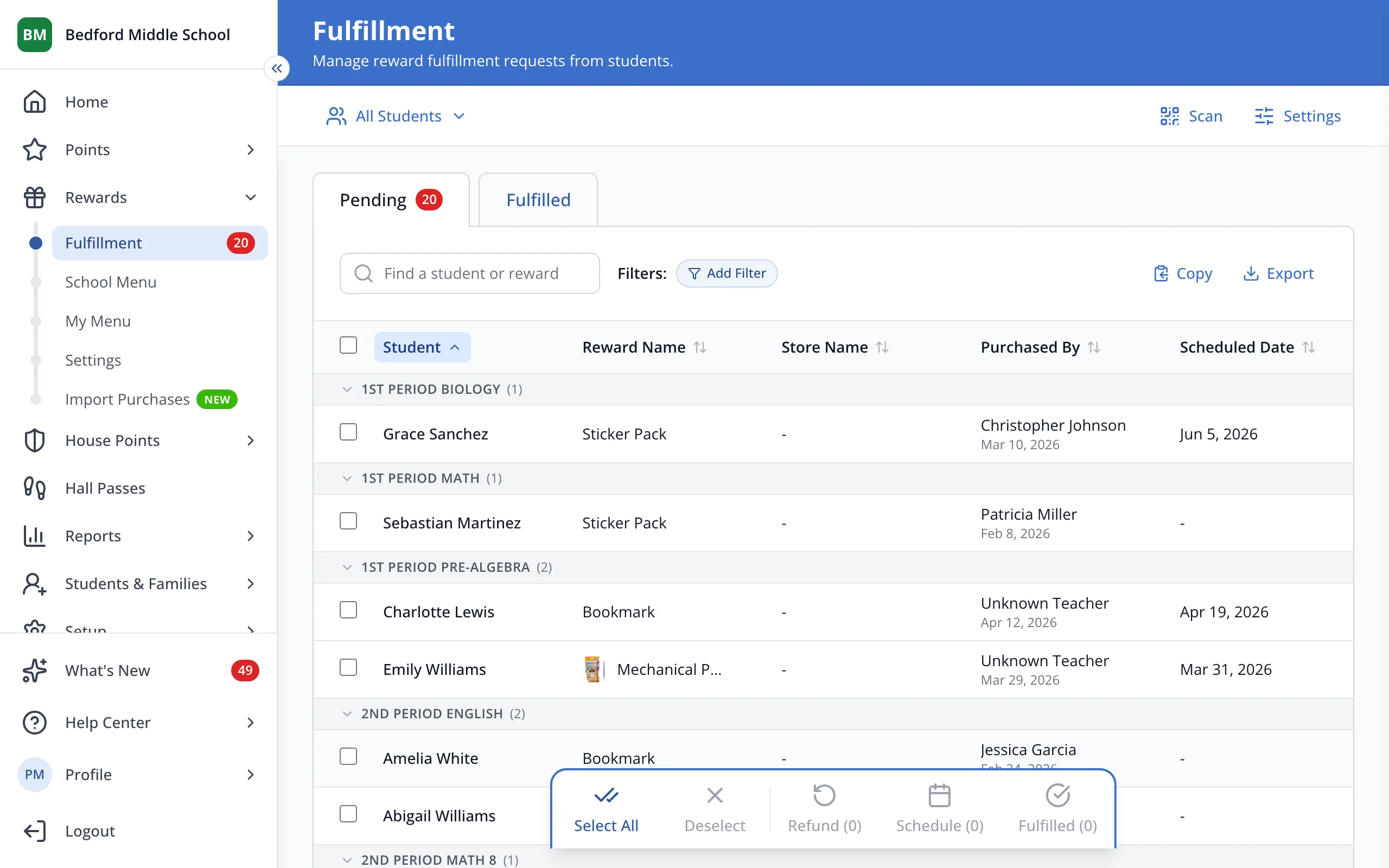
1.On the Fulfillment page, check the box next to each purchase.
Did you know? Check Select all at the top of the list to pick every purchase shown.
2.In the bar at the bottom, click Schedule.
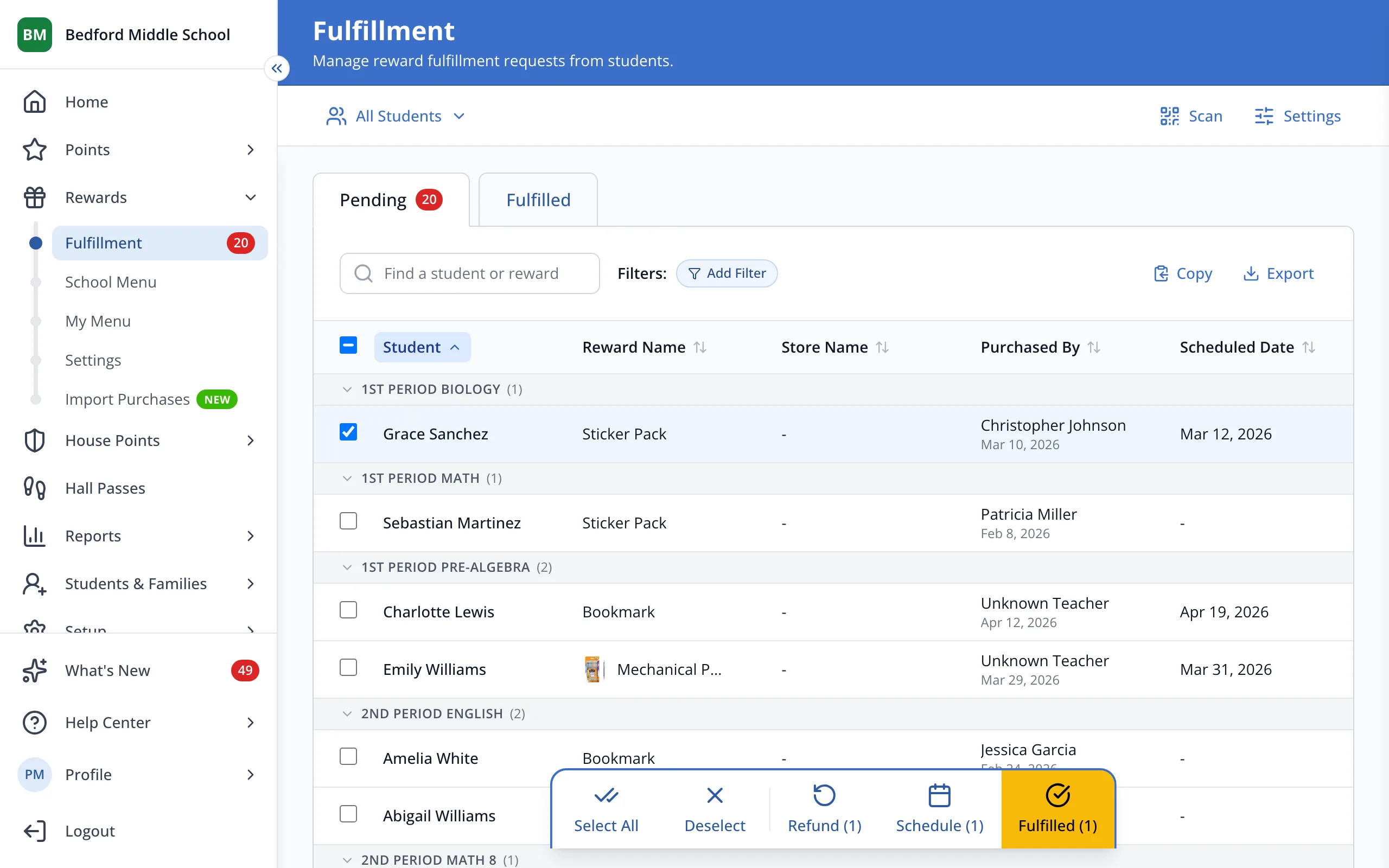
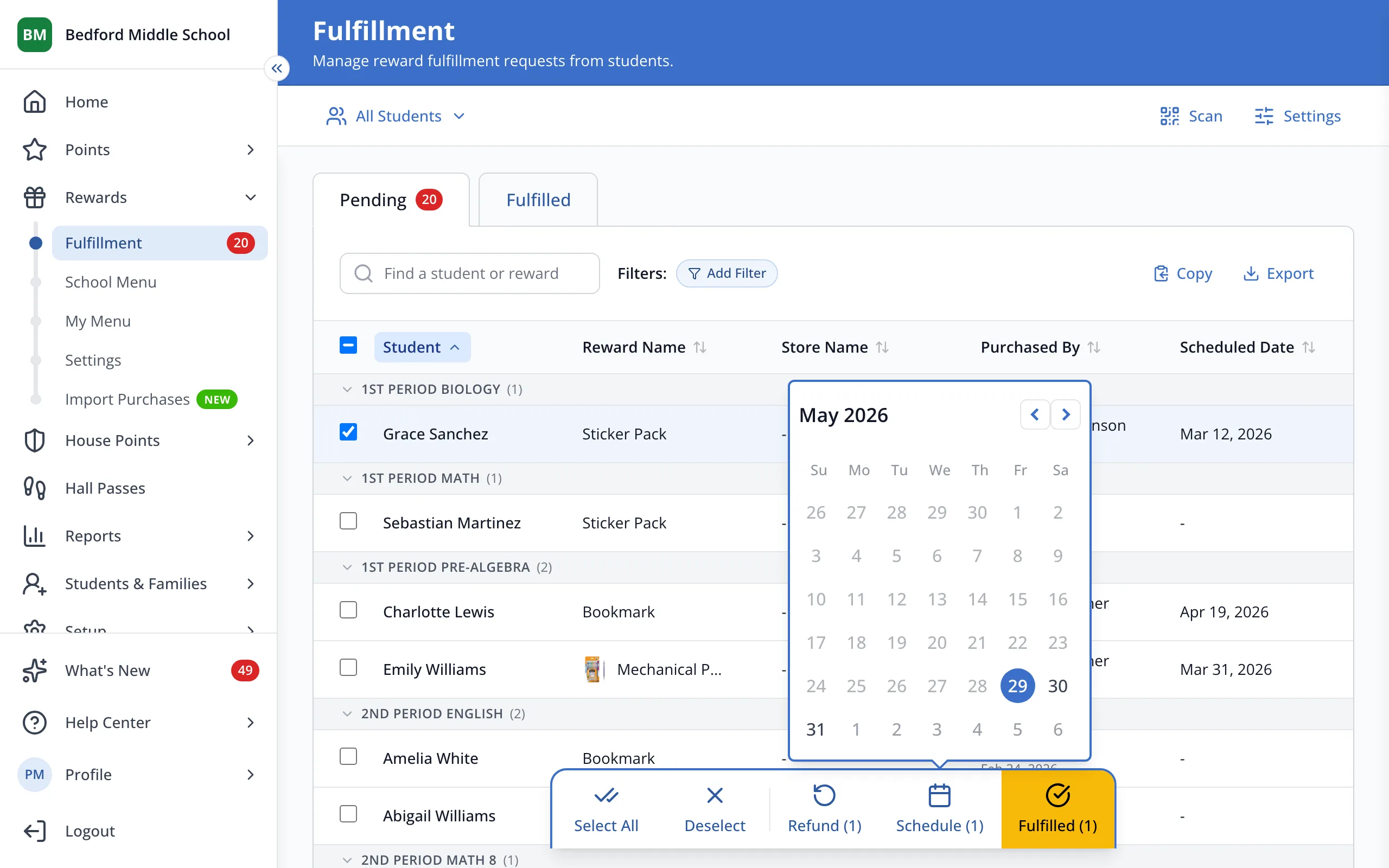
3.Click the date you'll hand it out.