
Set times when students can shop
Students can only shop during the windows you set, and they see a countdown to the next one.
AdminSite Leader
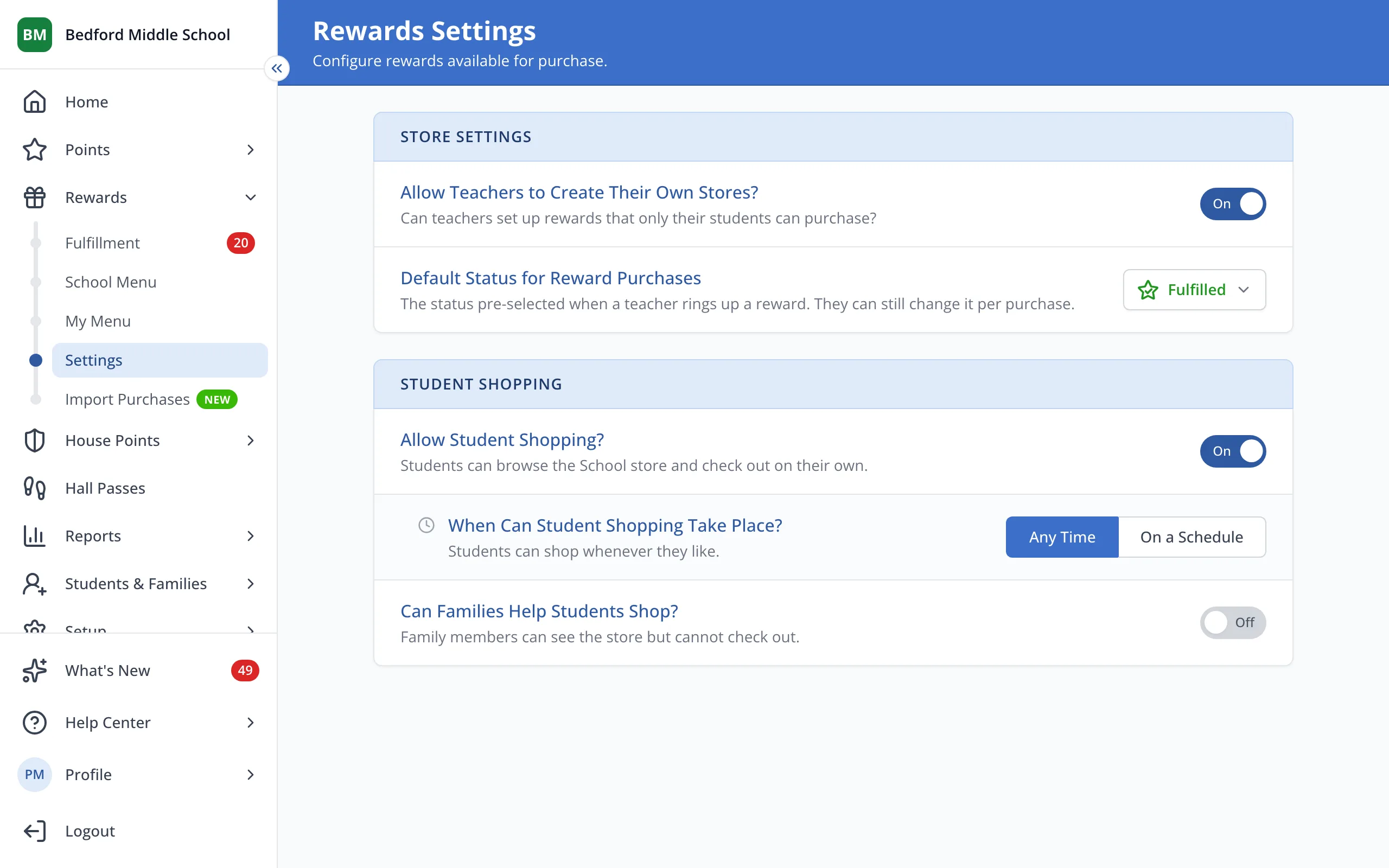
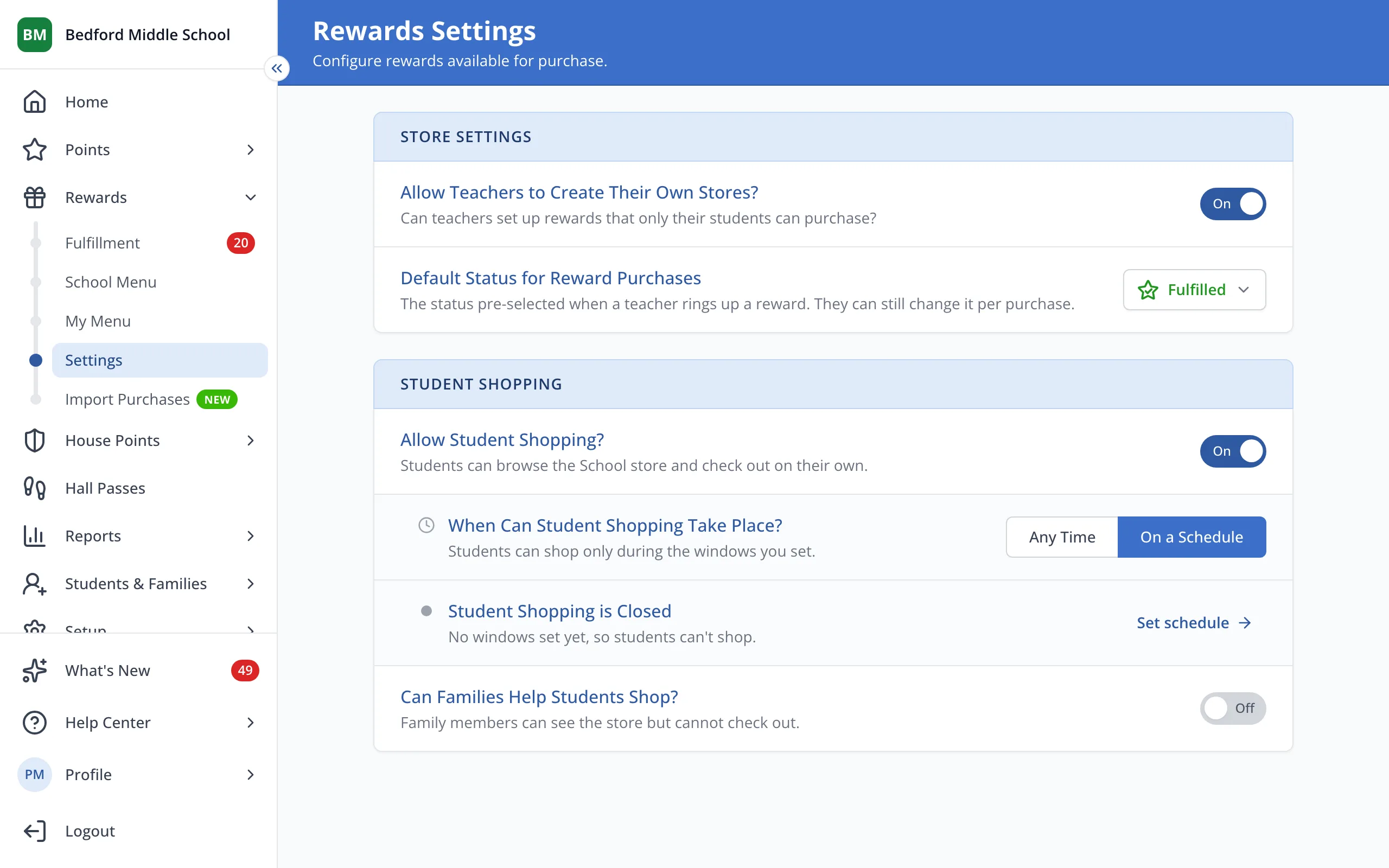
1 / 6On the Rewards Settings page, under When Can Student Shopping Take Place?, click On a Schedule.
1.On the Rewards Settings page, under When Can Student Shopping Take Place?, click On a Schedule.
2.Click Set schedule.
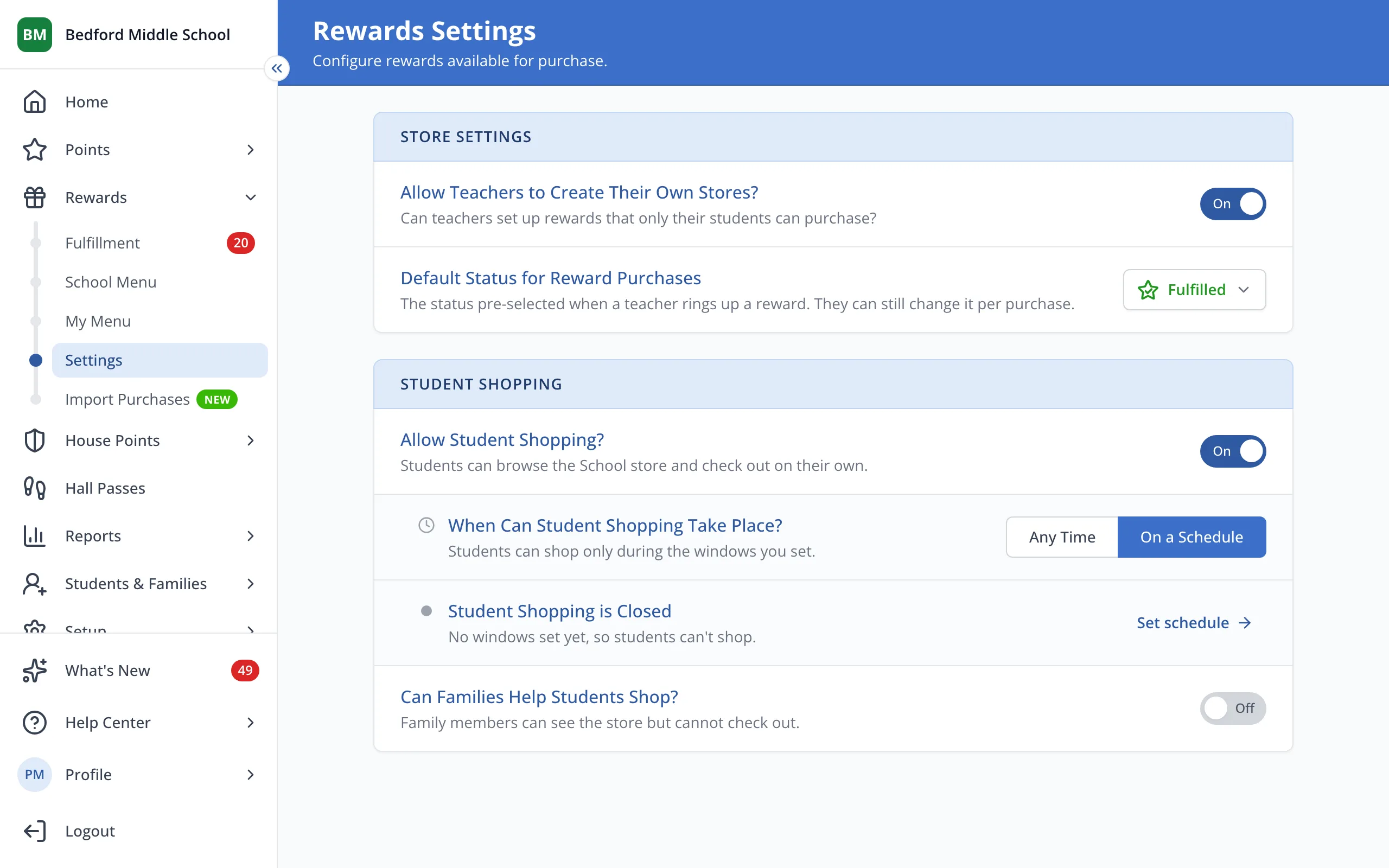
3.Click New.
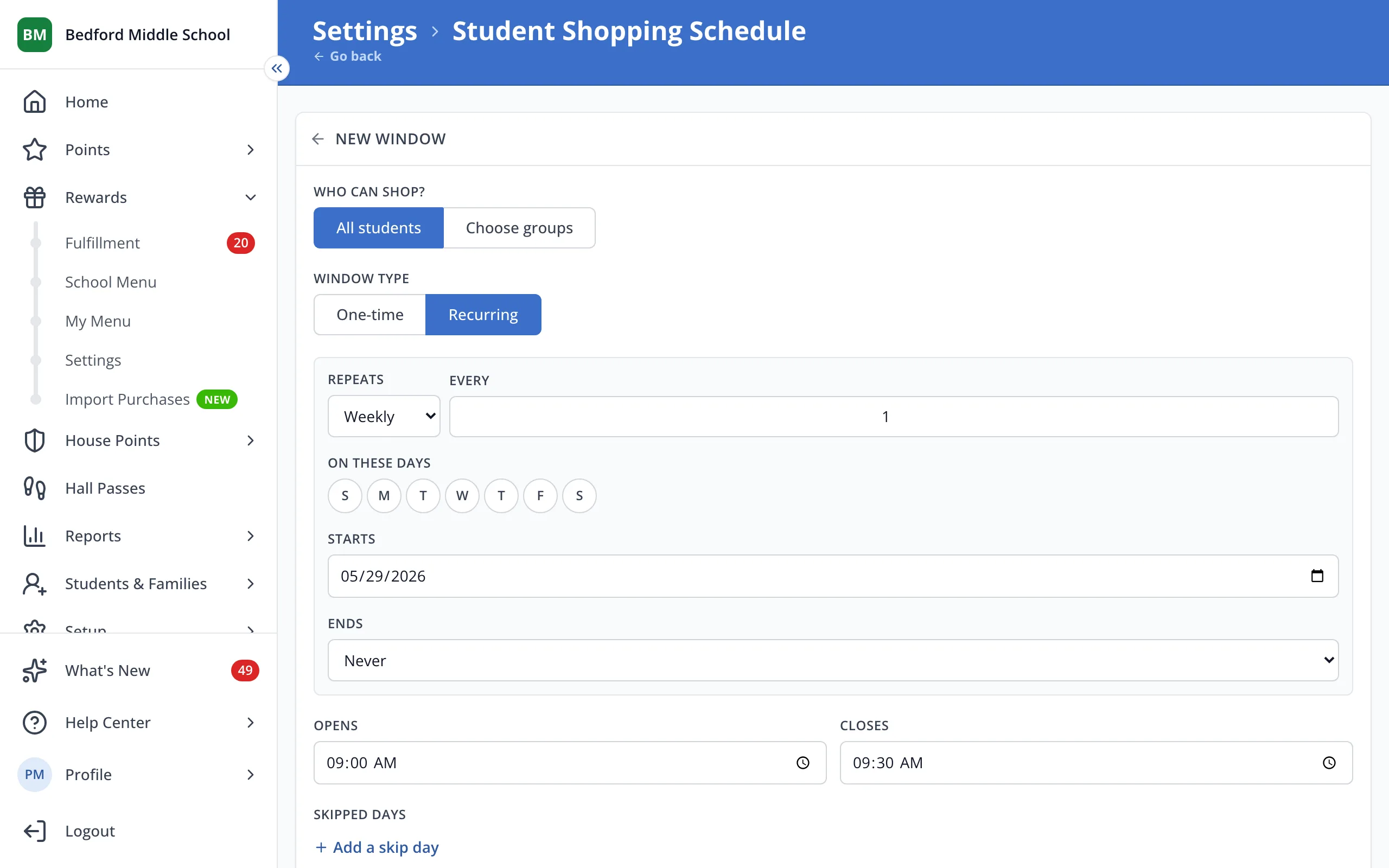
4.Choose One-time or Recurring.
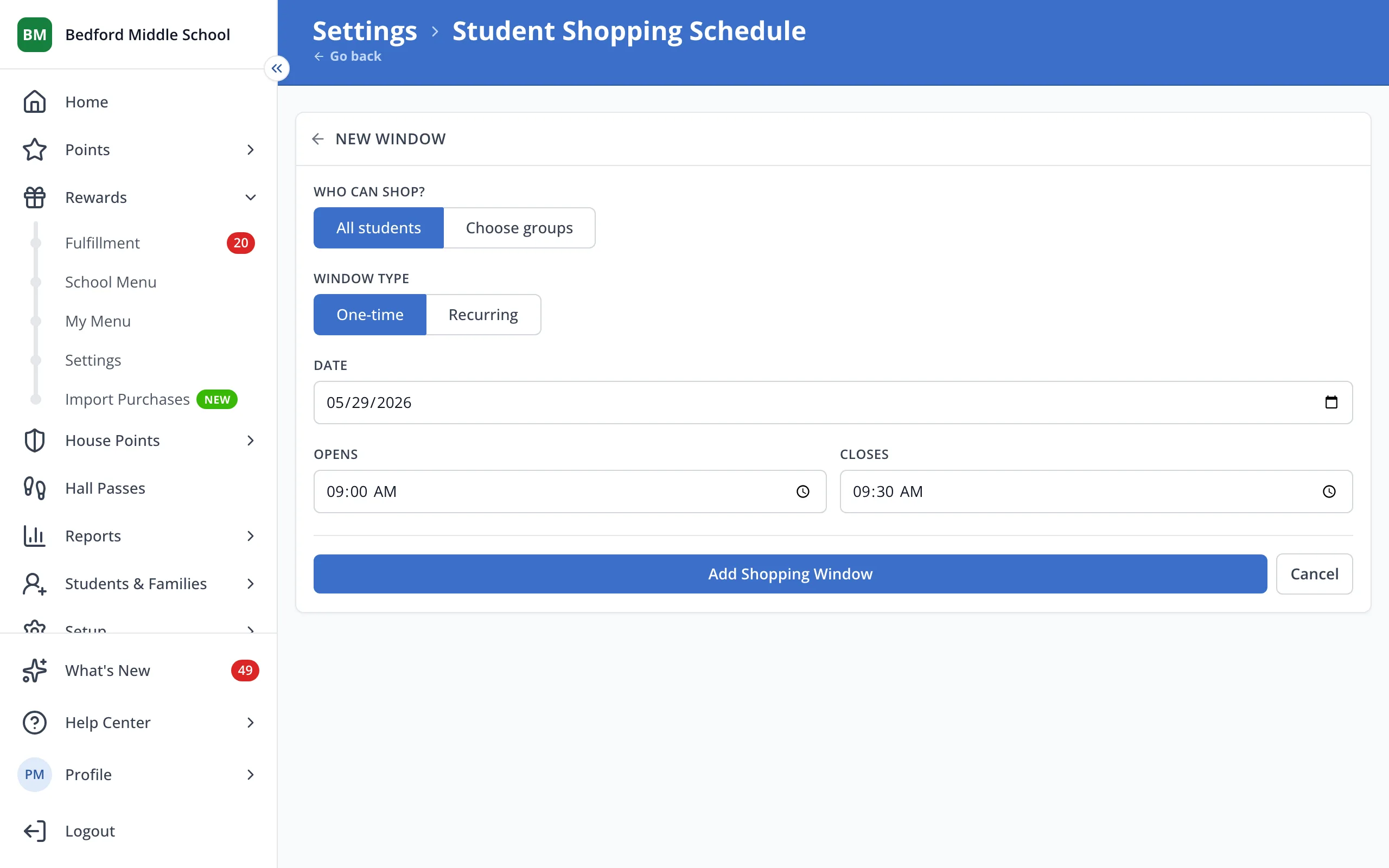
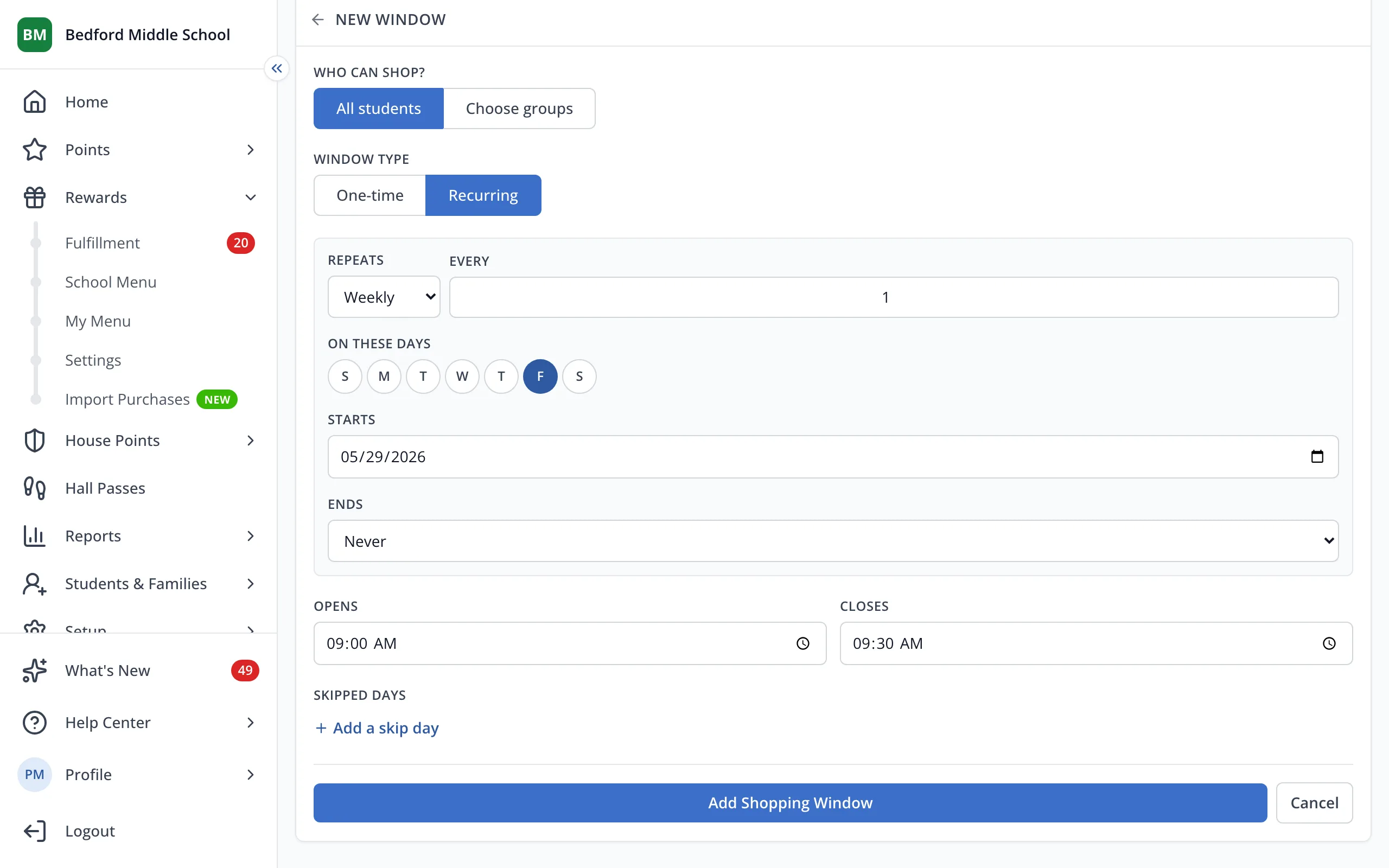
5.Pick the days, then set when it opens and closes.
6.Click Add Shopping Window.
Was this helpful?