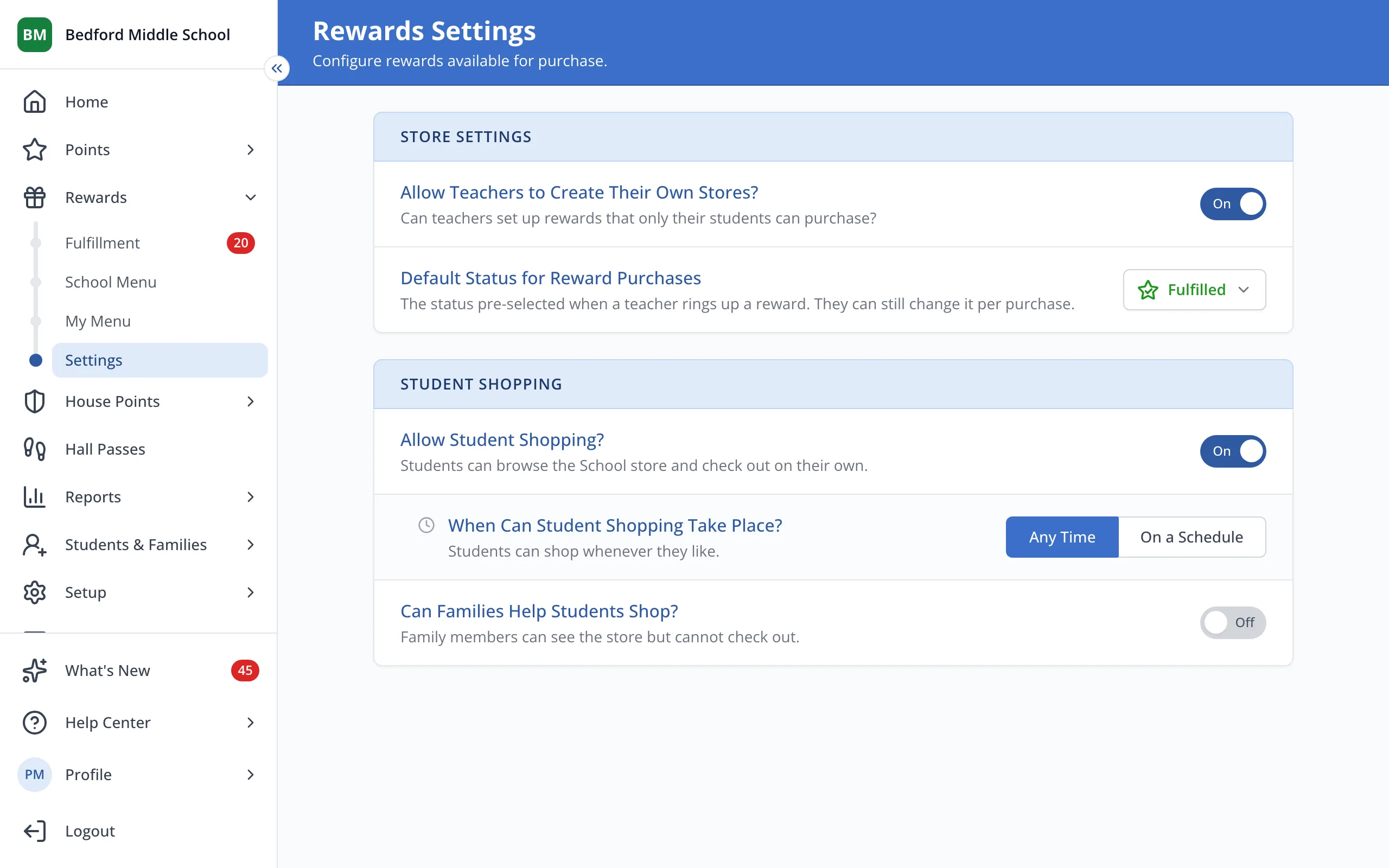
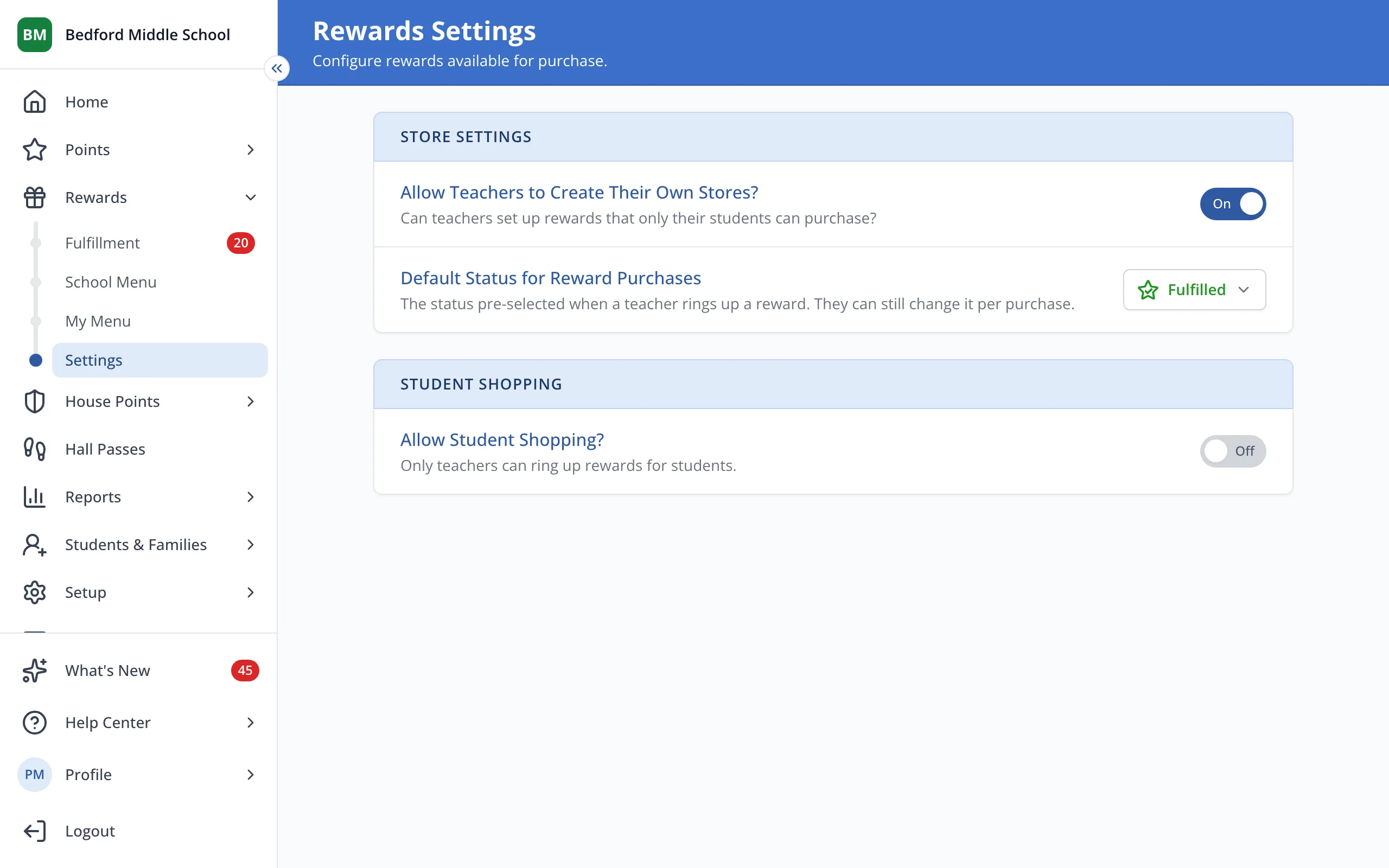
Open or close the school store for student shopping
Students can check out on their own only when student shopping is enabled. When the school store is disabled, teachers can still ring up rewards on the Points page.
AdminSite Leader
Open in LiveSchool
Already signed in? Open this guide inside LiveSchool.
Use the Left and Right arrow keys to move between steps, and Space to play or pause.
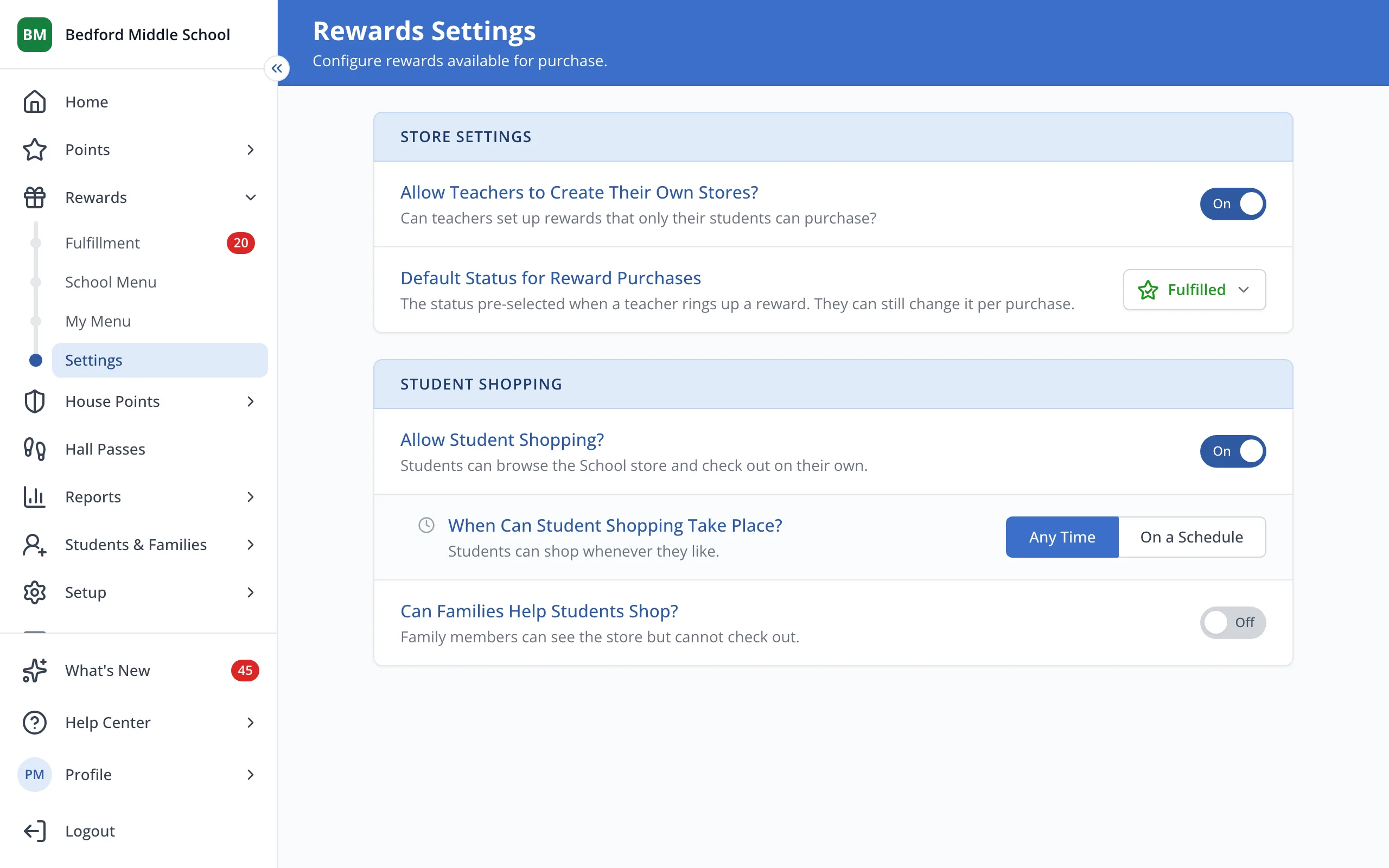
1.On the Rewards Settings page, click the Allow Student Shopping? switch to close the School Store.
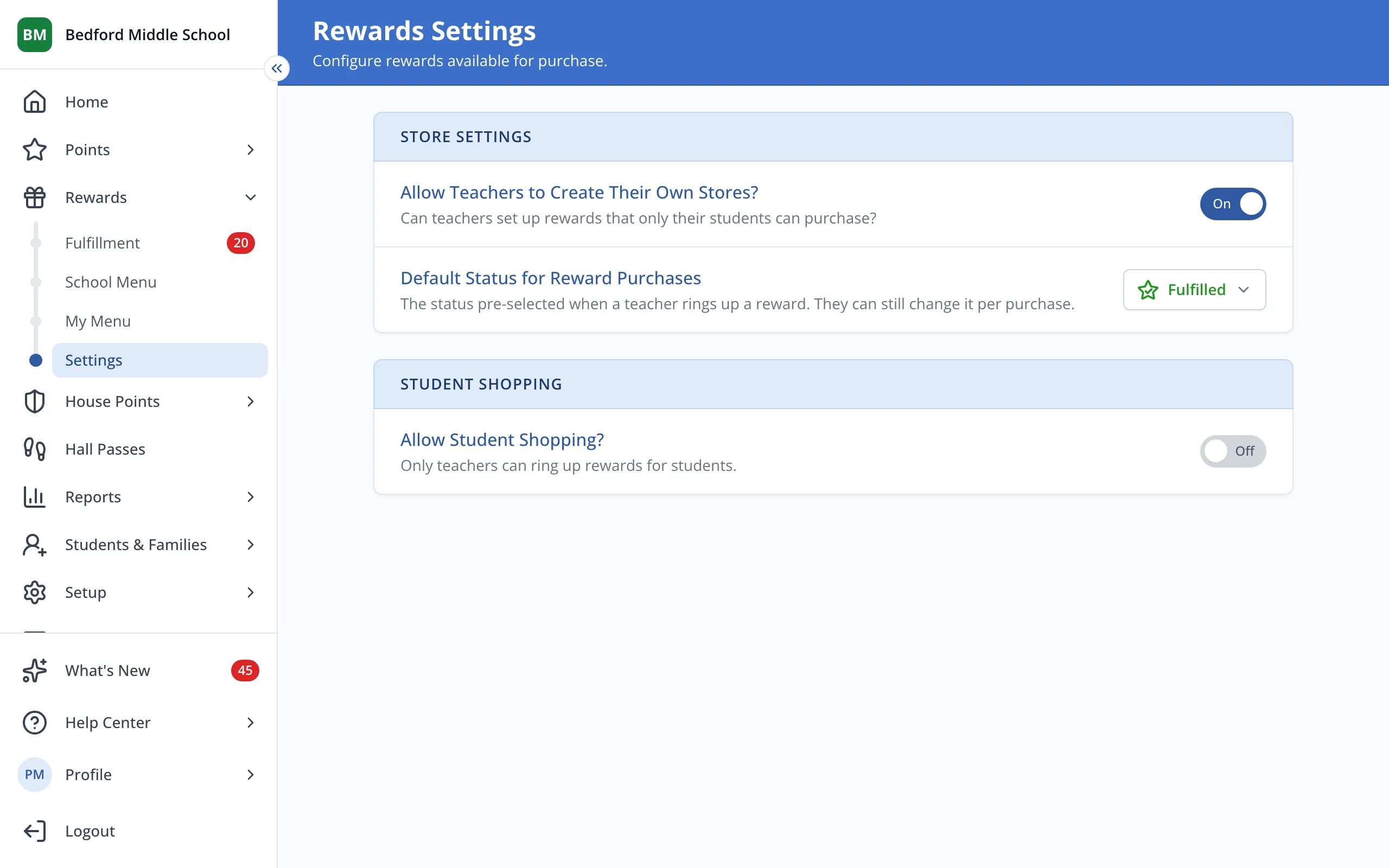
2.Click it again when you're ready to open the store.
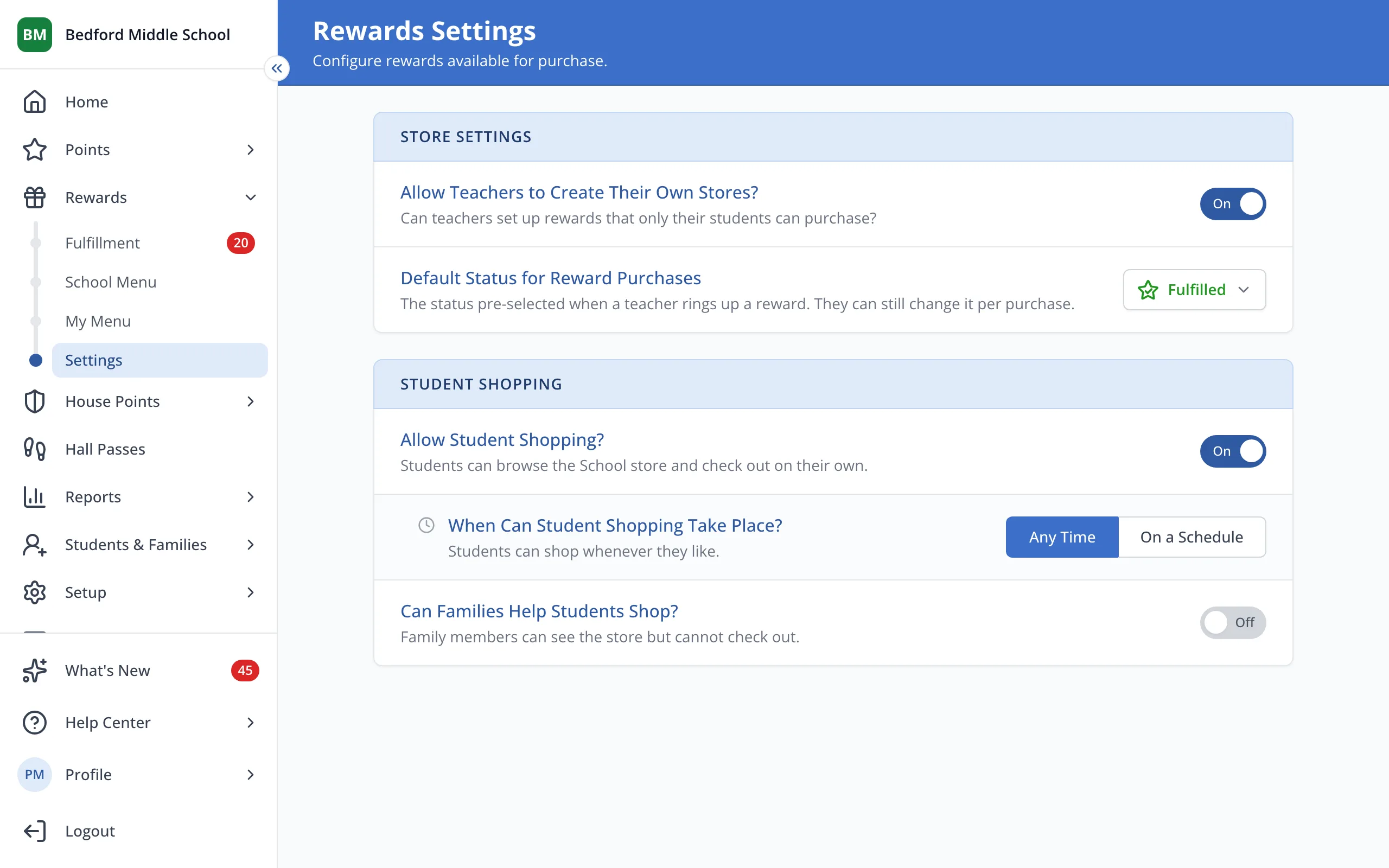
3.Choose Any Time, or On a Schedule to open it only at set times.