
Hide a roster from my rosters
Hide rosters you no longer use to keep your list short. Nothing is deleted, and you can unhide them anytime.
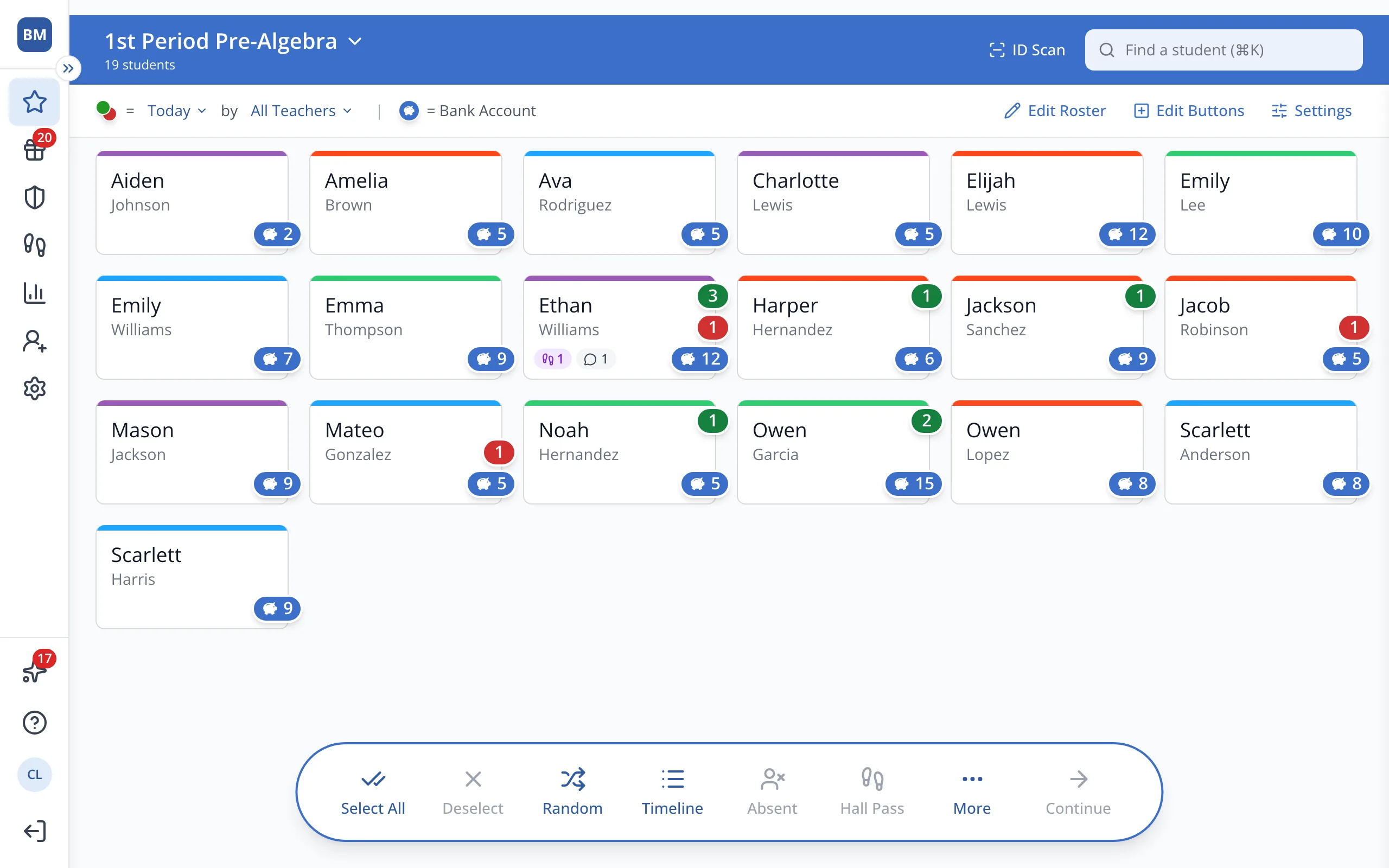
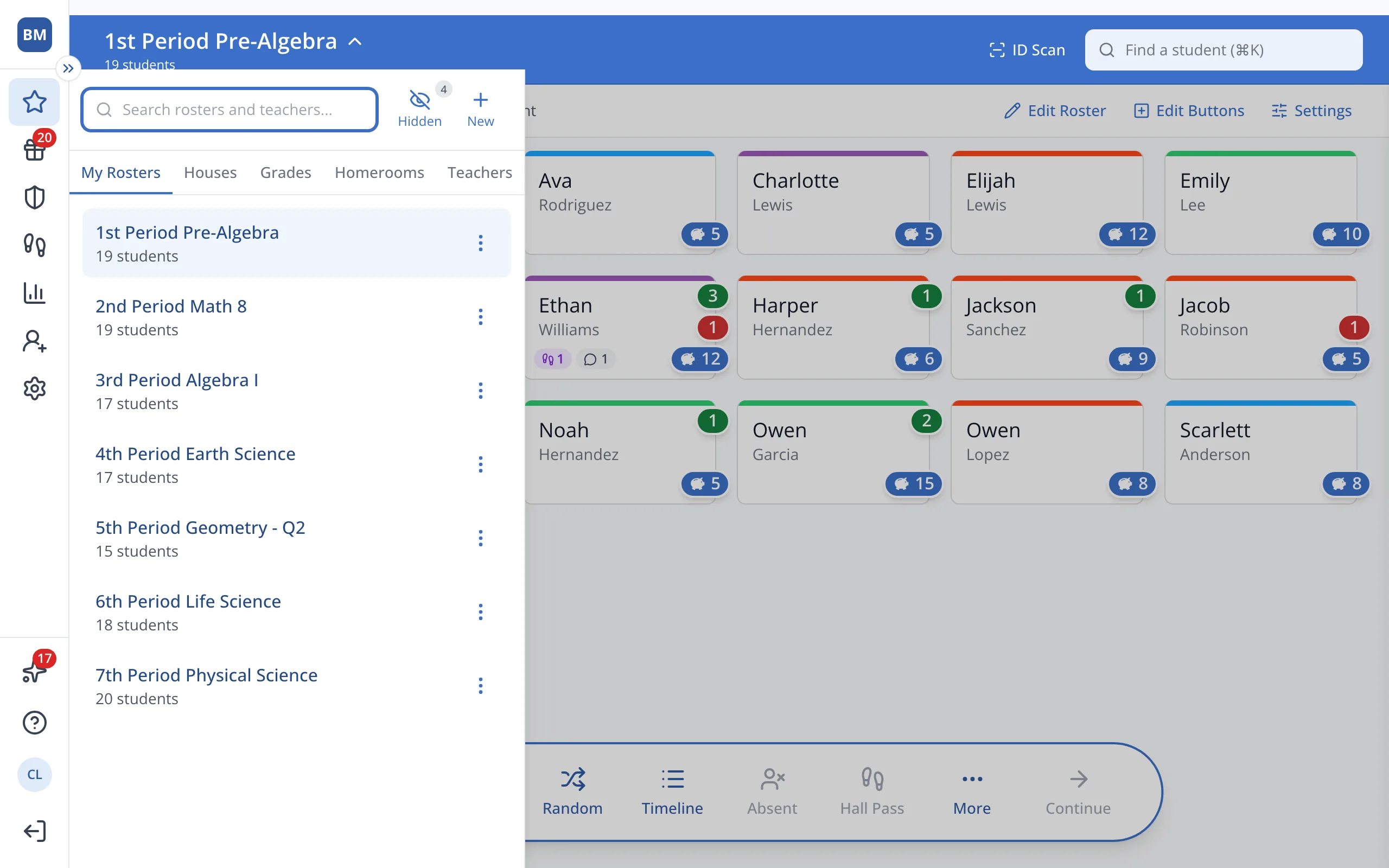
1 / 4At the top of the Points page, open the Roster Picker by clicking on the name of the roster you're currently viewing.
1.At the top of the Points page, open the Roster Picker by clicking on the name of the Roster you're currently viewing.
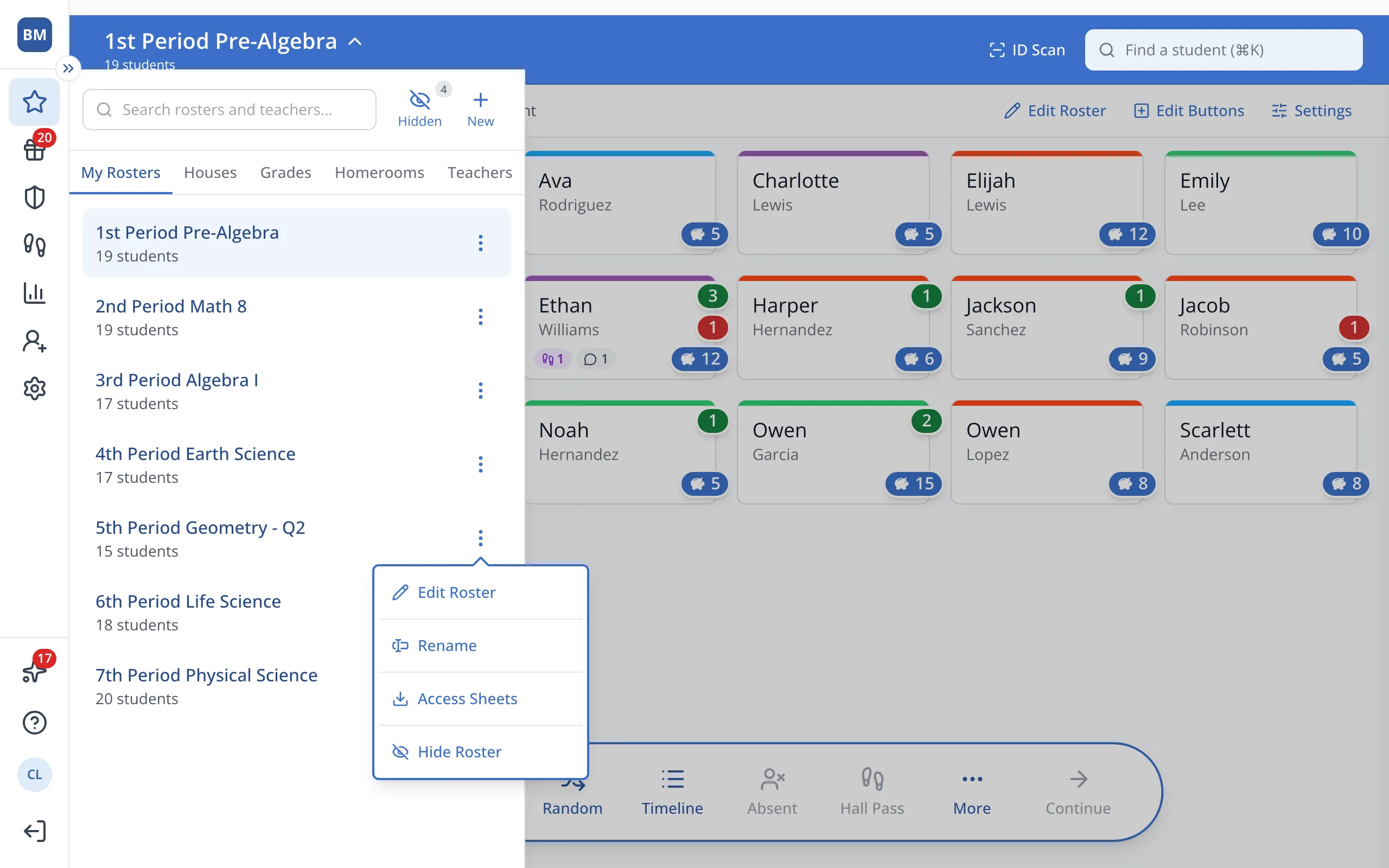
2.Next to the roster you'd like to hide, click the three dots.
3.Click Hide Roster. The roster will disappear from My Rosters.
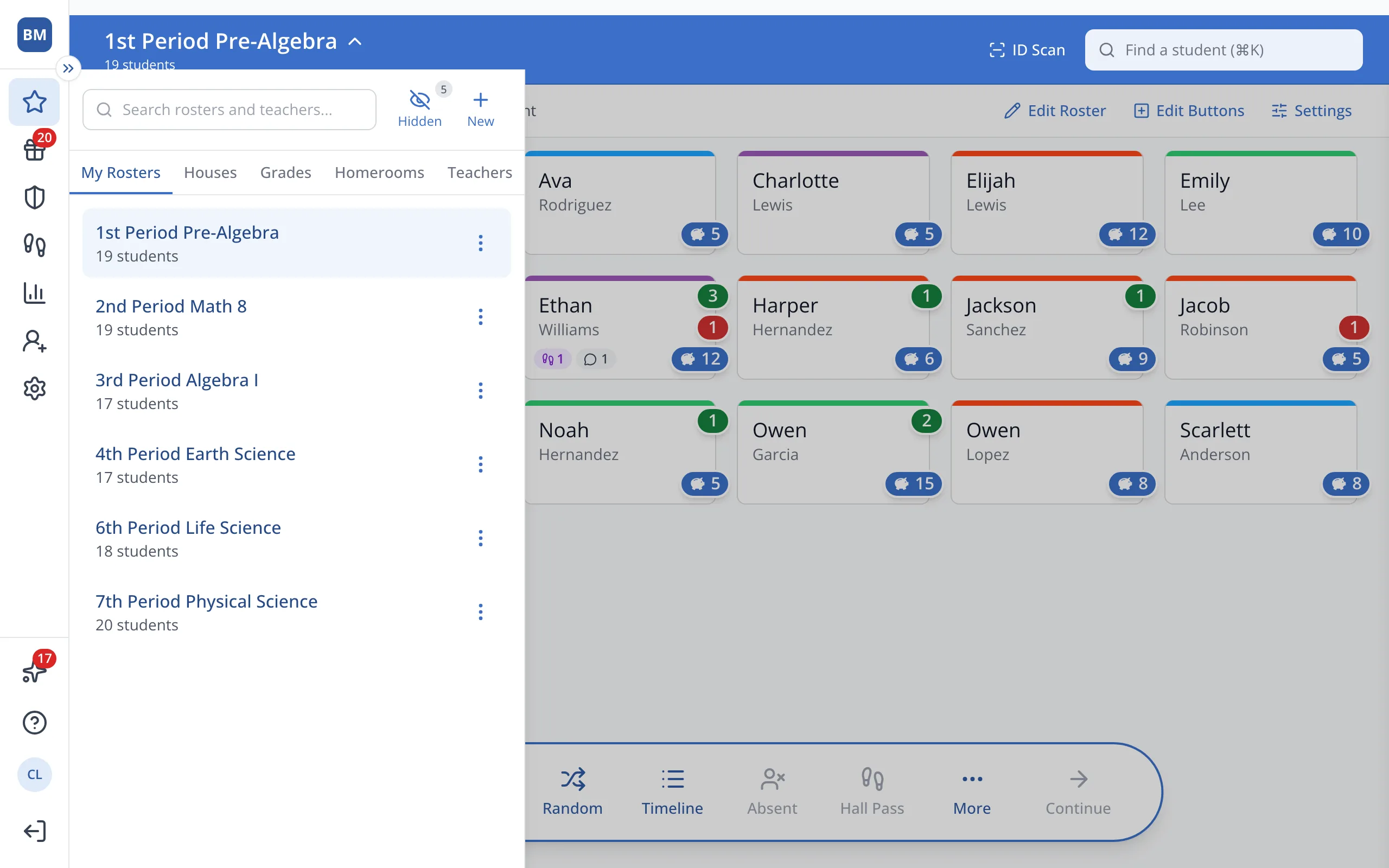
4.Click Hidden to see your hidden rosters and unhide one.
Was this helpful?