
Record where a behavior happened
Each point keeps where it was given, so you can see where behaviors happen.
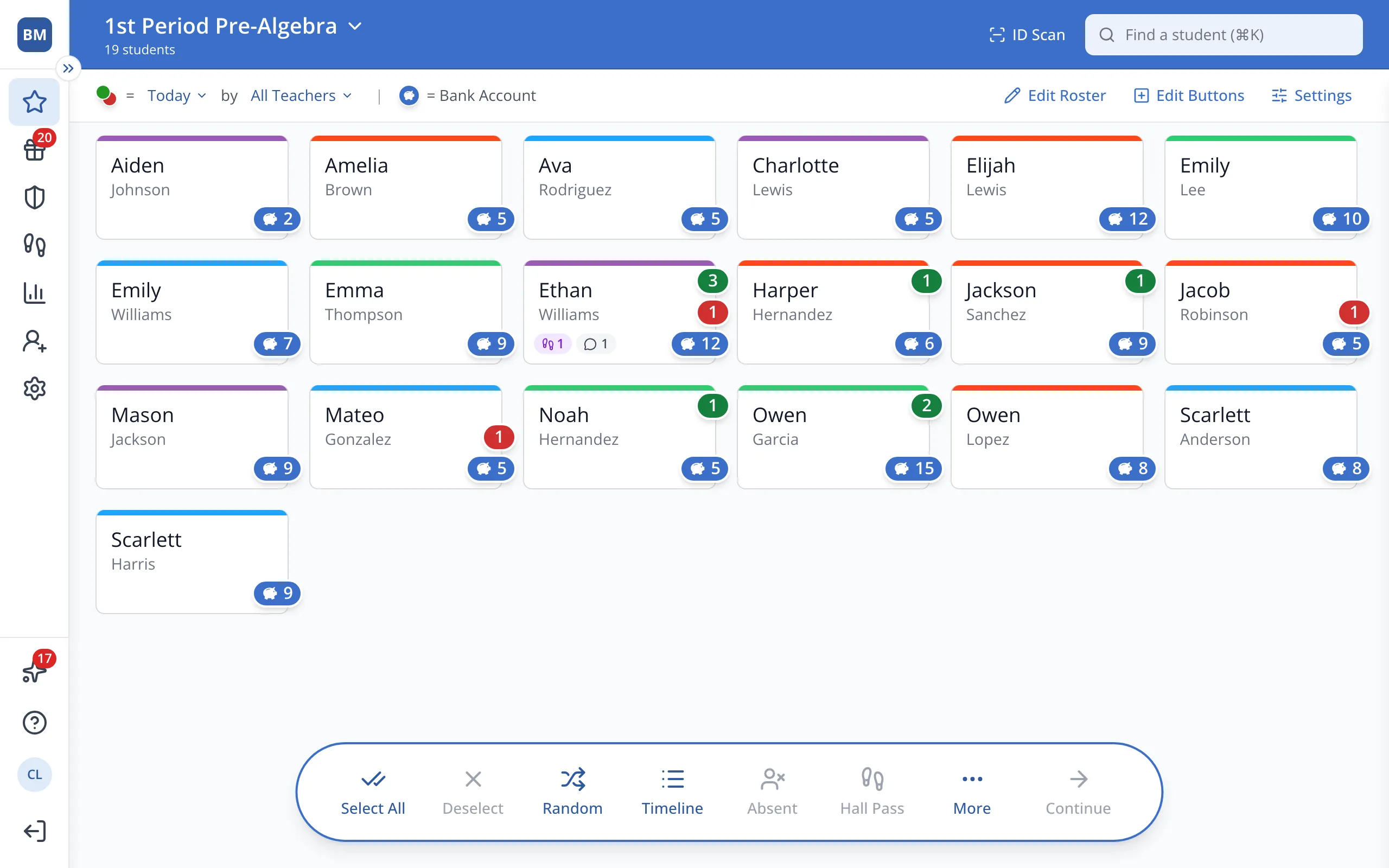
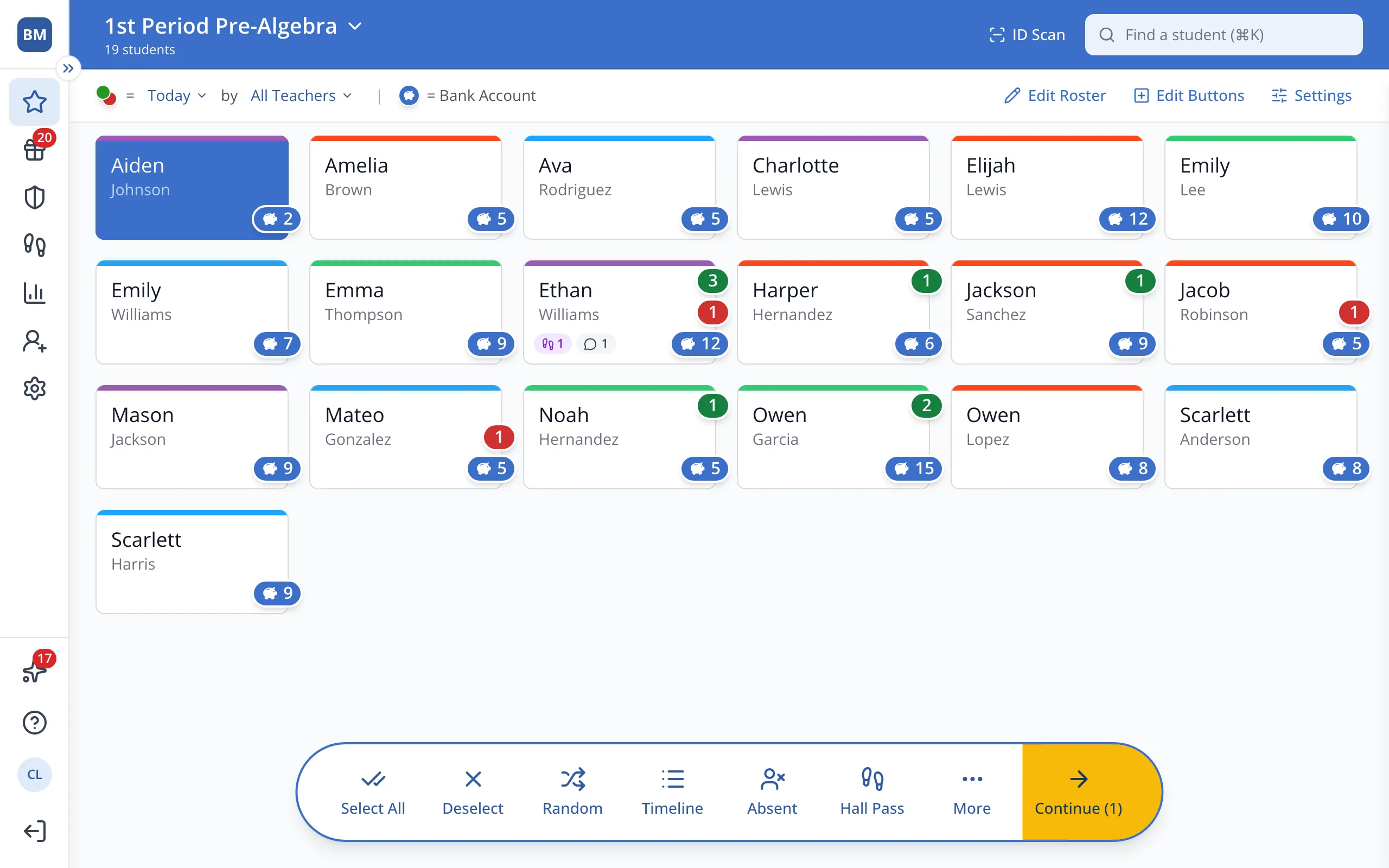
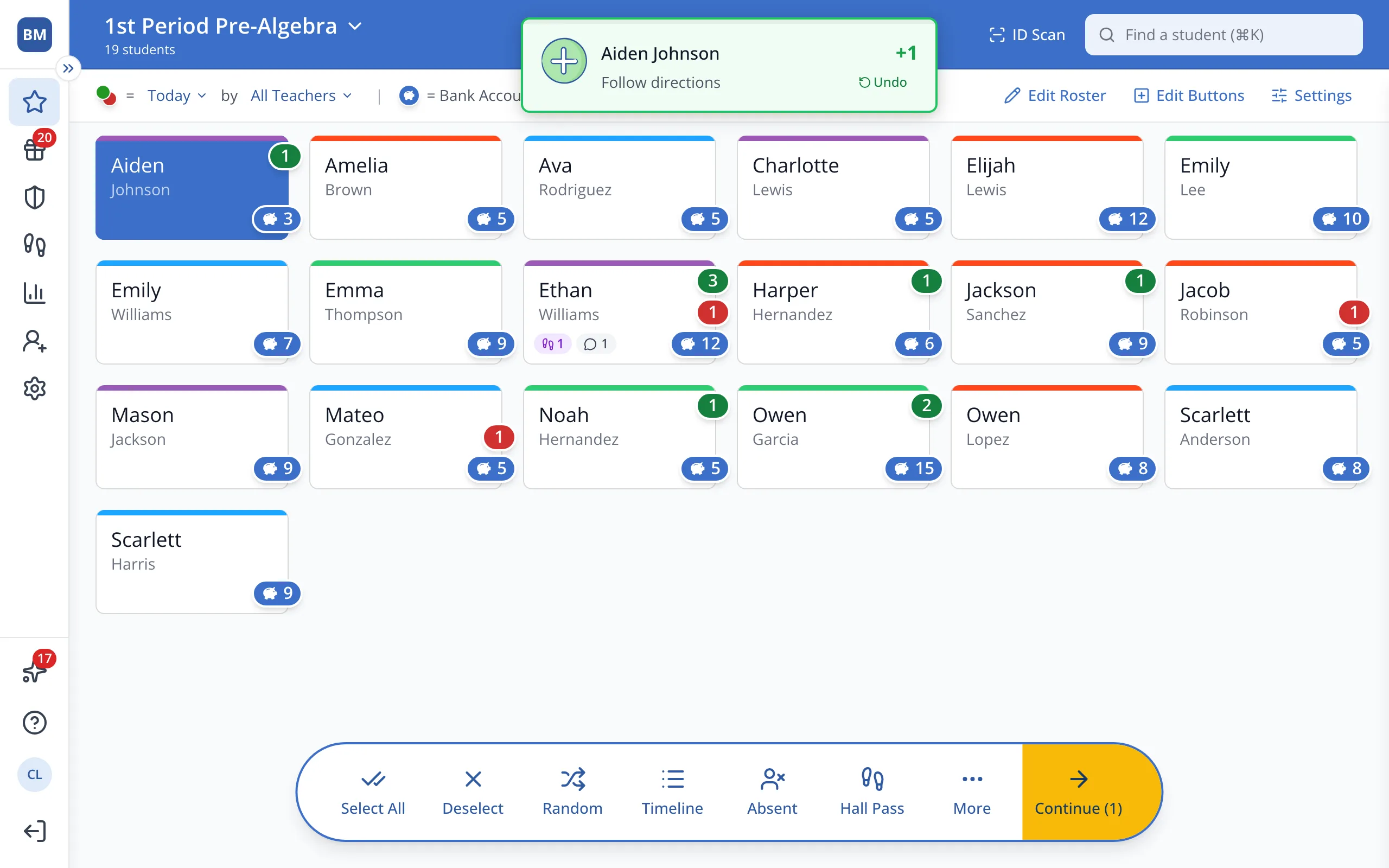
1 / 10On the Points page, click the student.
1.On the Points page, click the student's button.
2.In the bar at the bottom, click Continue.
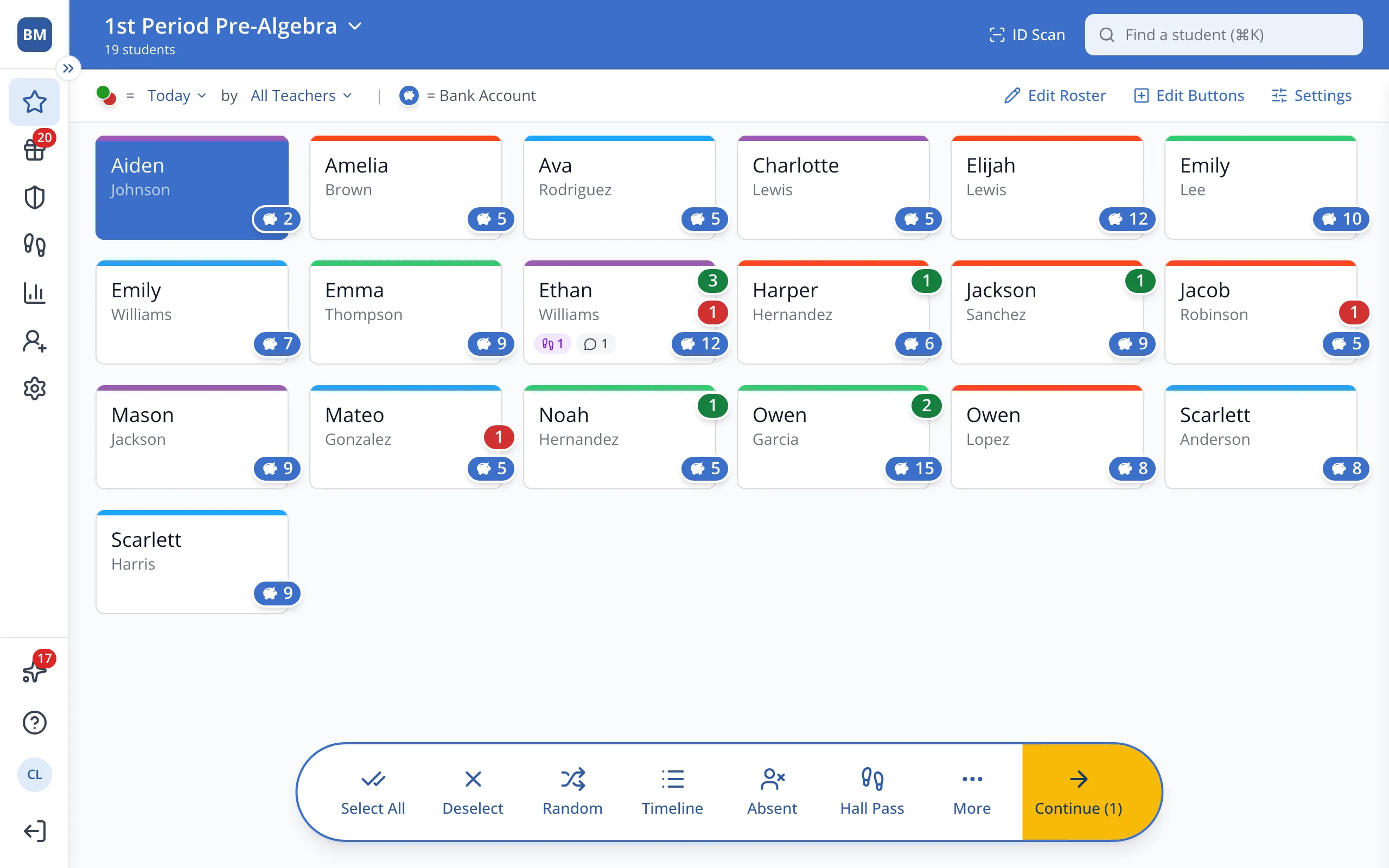
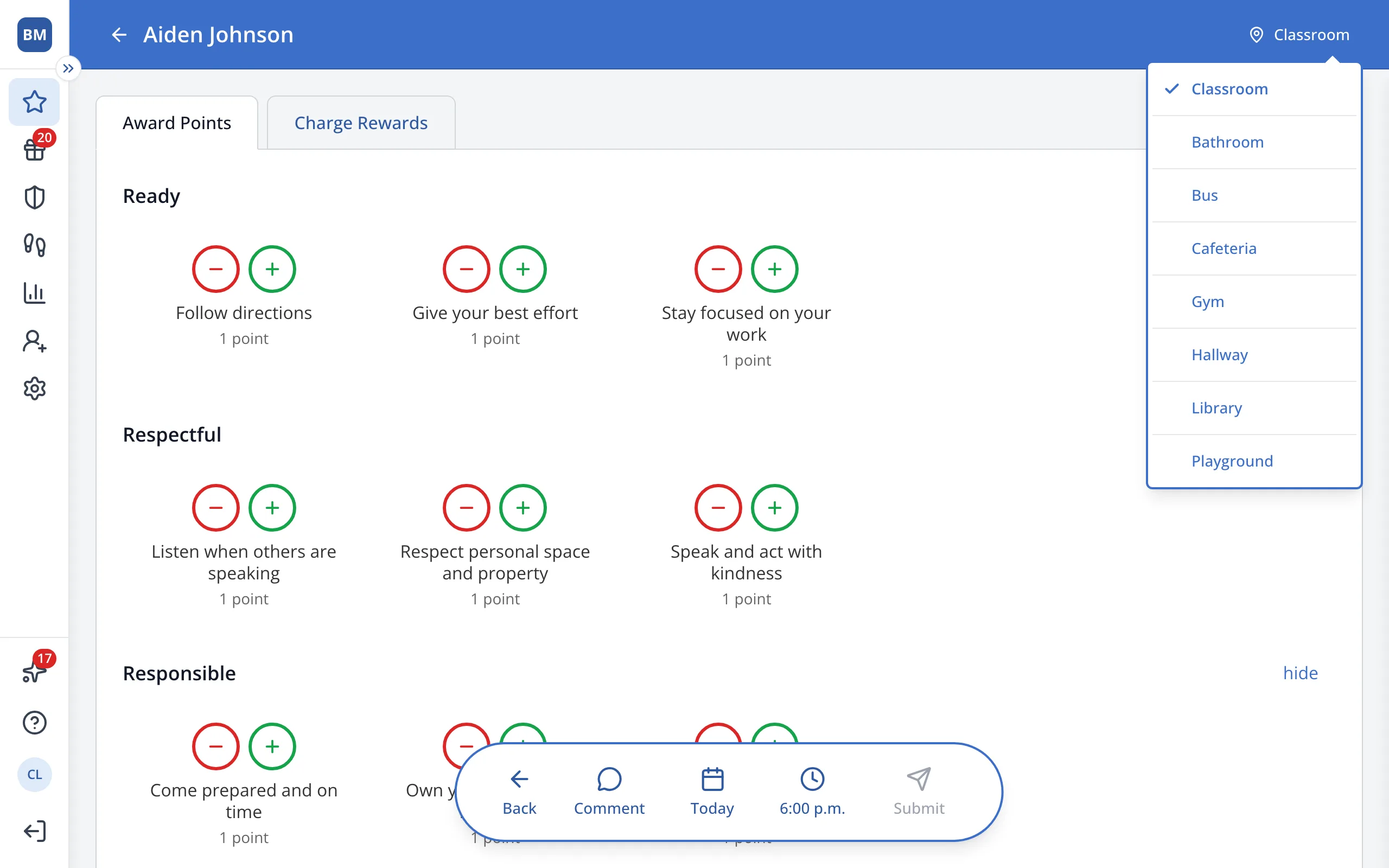
3.In the top right corner, click the location. It shows Classroom until you change it.
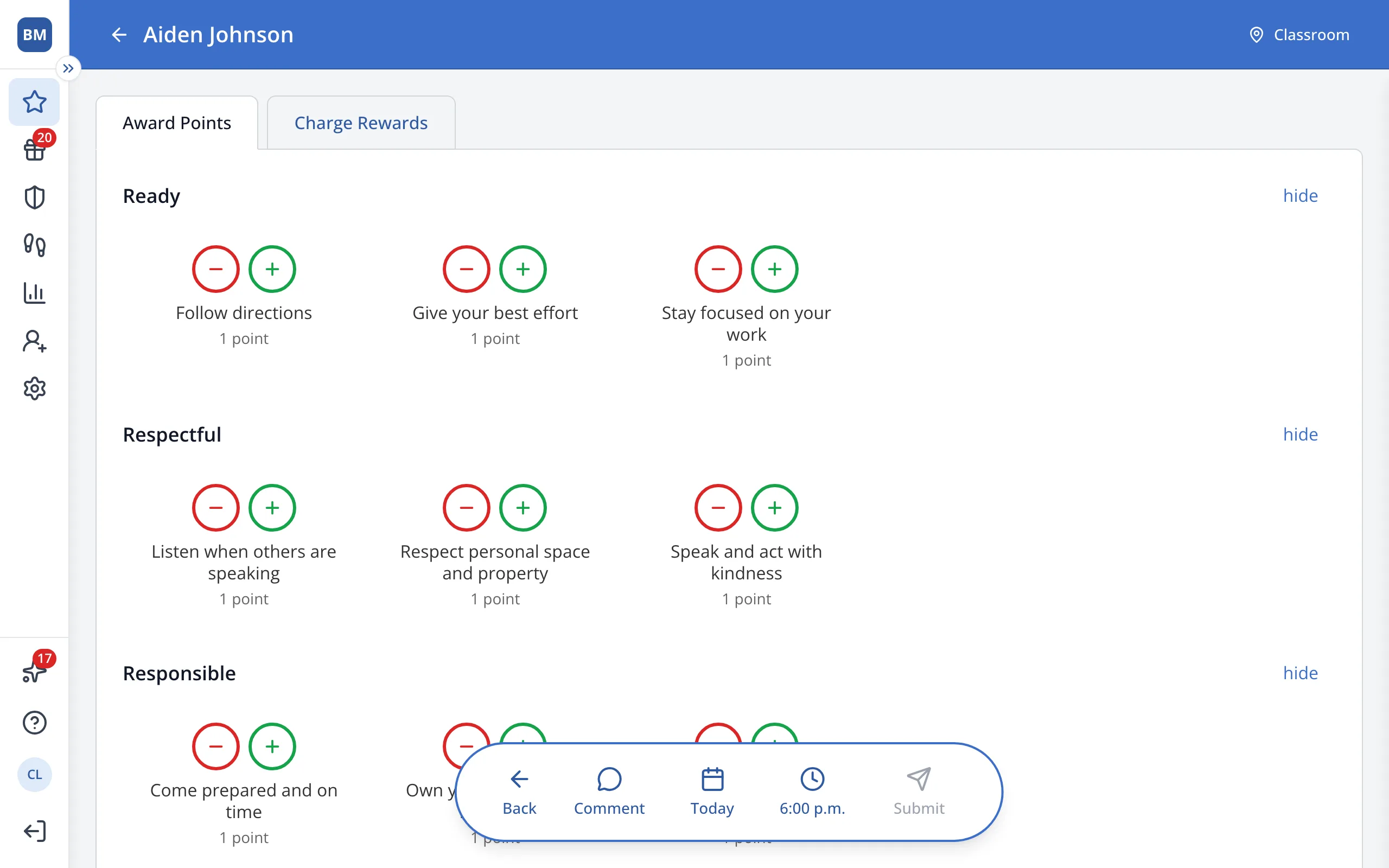
Tip: The location goes back to Classroom each time you open this screen.
4.Click the location you'd like, like Cafeteria.
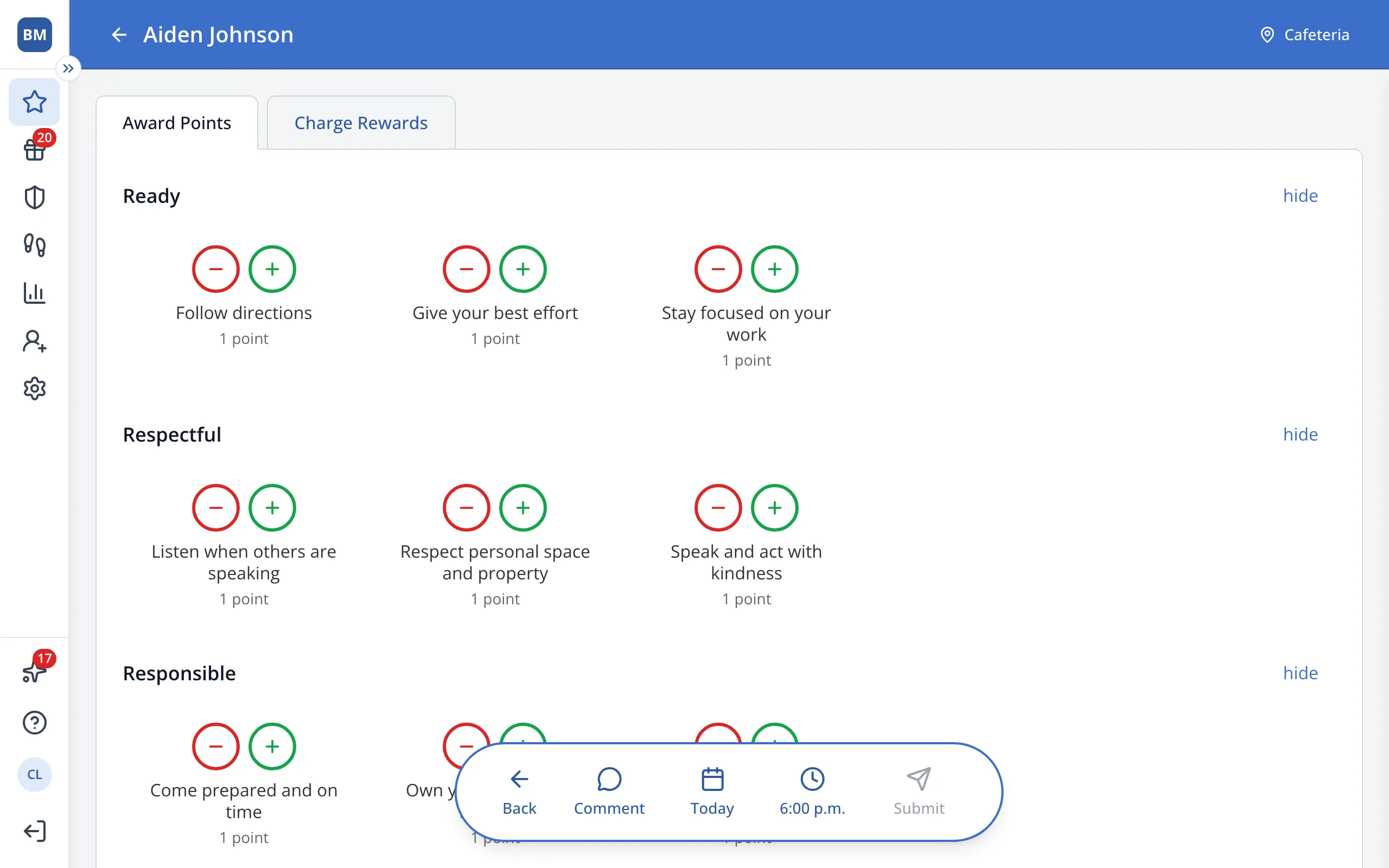
5.Click the green + next to the behavior you'd like to reward.
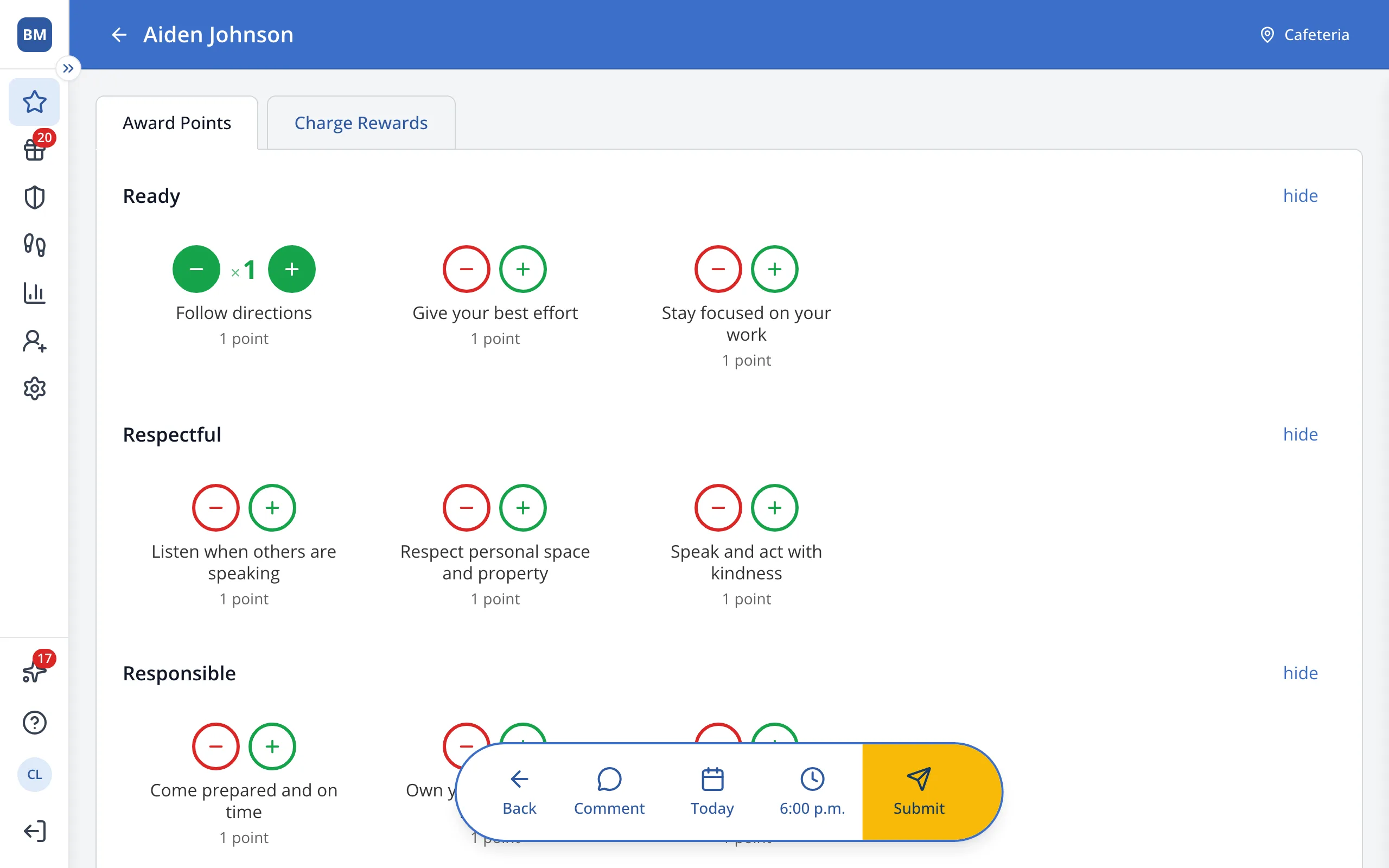
6.In the bar at the bottom, click Submit.
7.To see the location later, click the student's button again.
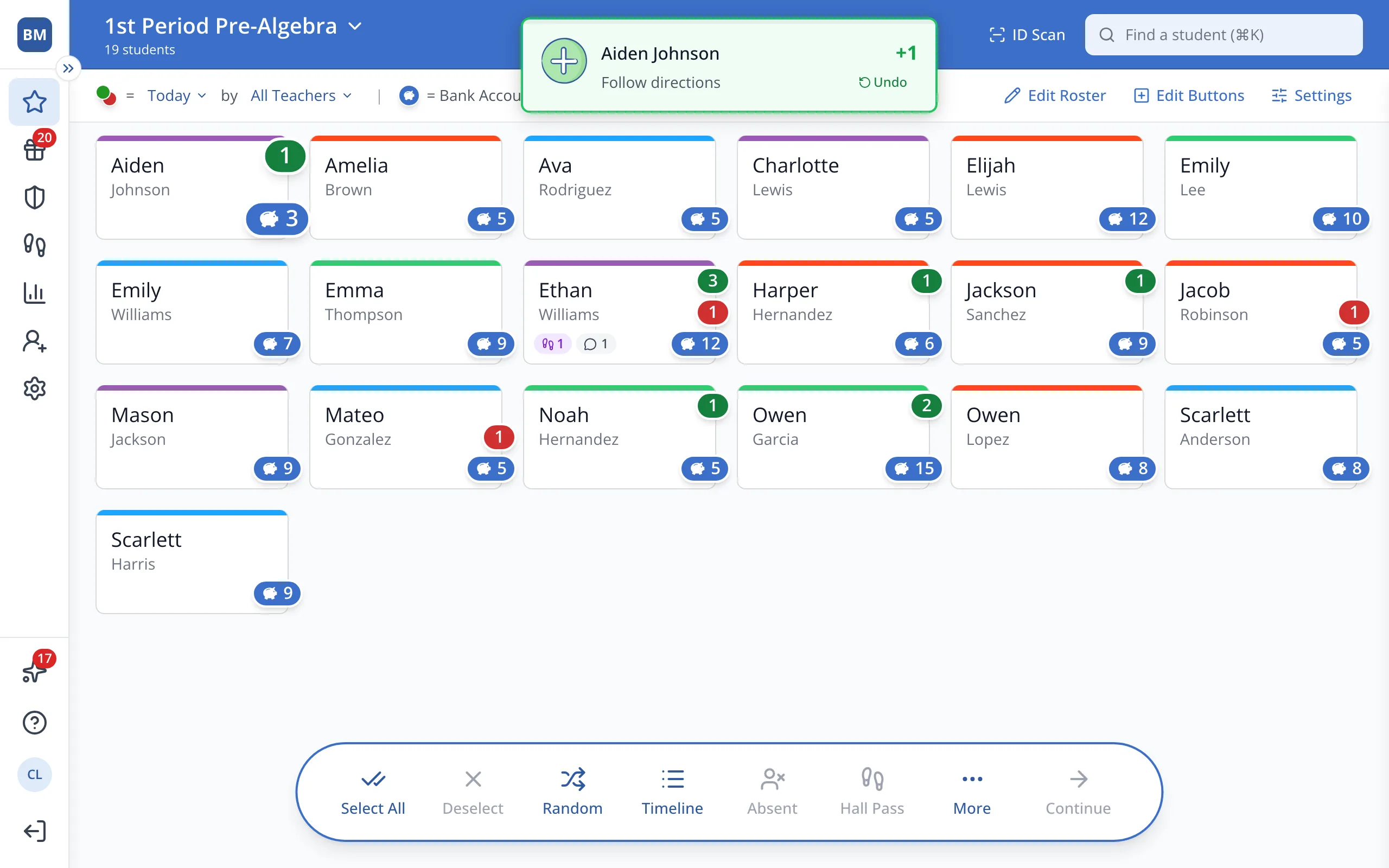
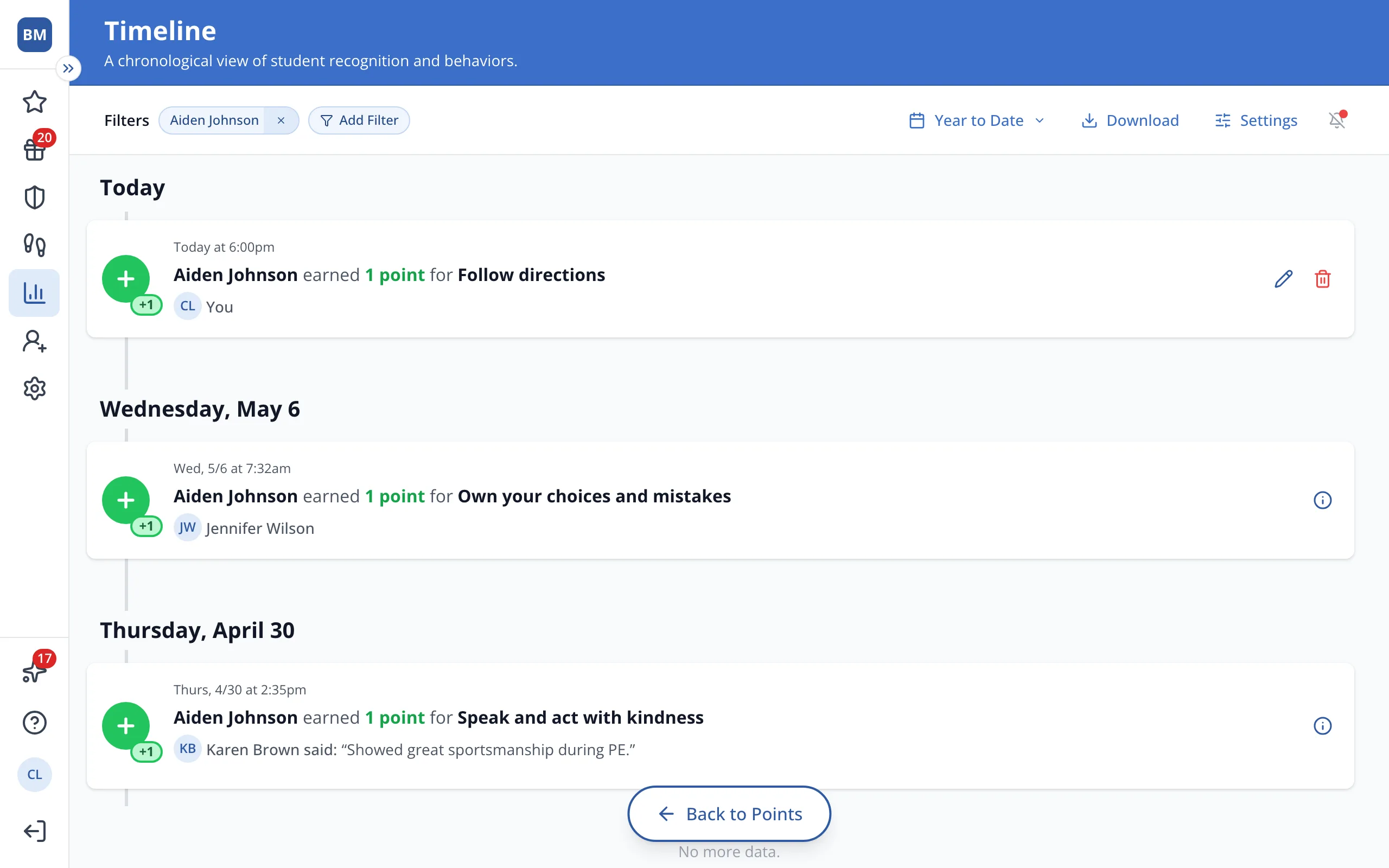
8.In the bar at the bottom, click Timeline.
9.Next to the point you just gave, click the pencil.
10.Under Location, you'll see where the point was given.
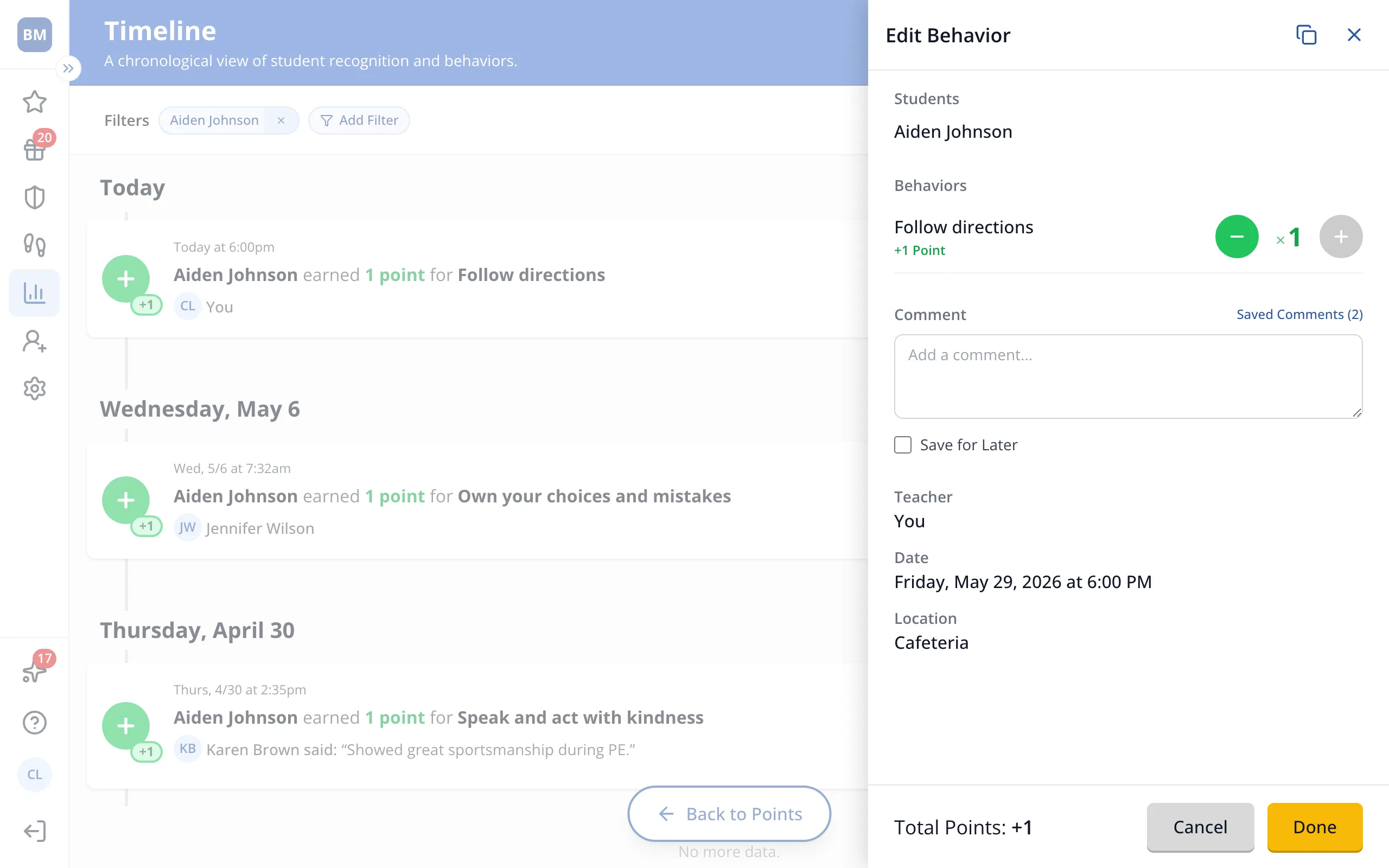
- Locations show in the Timeline and Timeline exports, not on other reports.
Was this helpful?