
Add a new student and add the student to their required rosters
A new student starts with no rosters. After adding them to the system, add them to a roster for easier access when awarding points.
AdminSite Leader
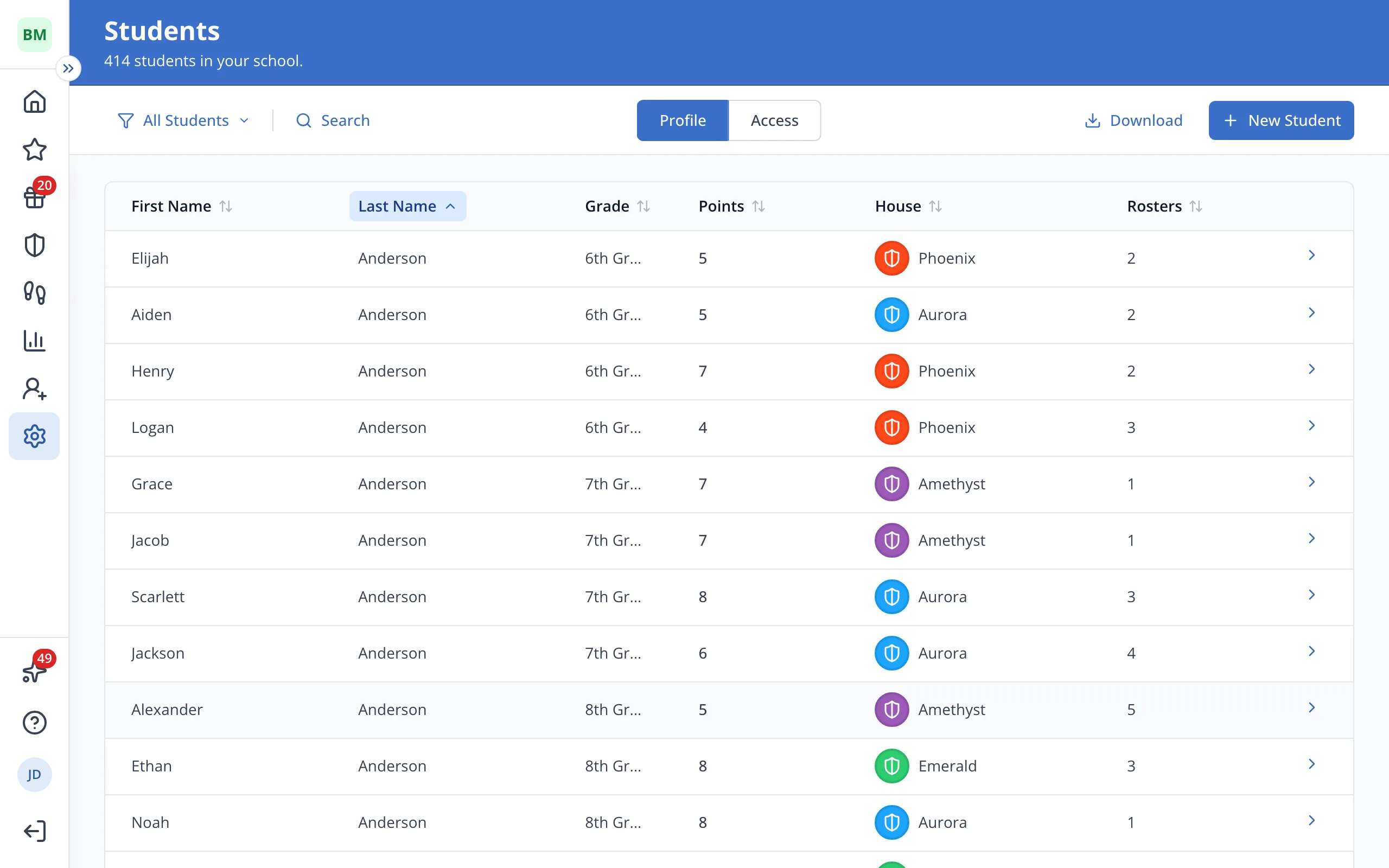
1 / 9In Setup, on the Students page, click New Student.
1.In Setup, on the Students page, click New Student.
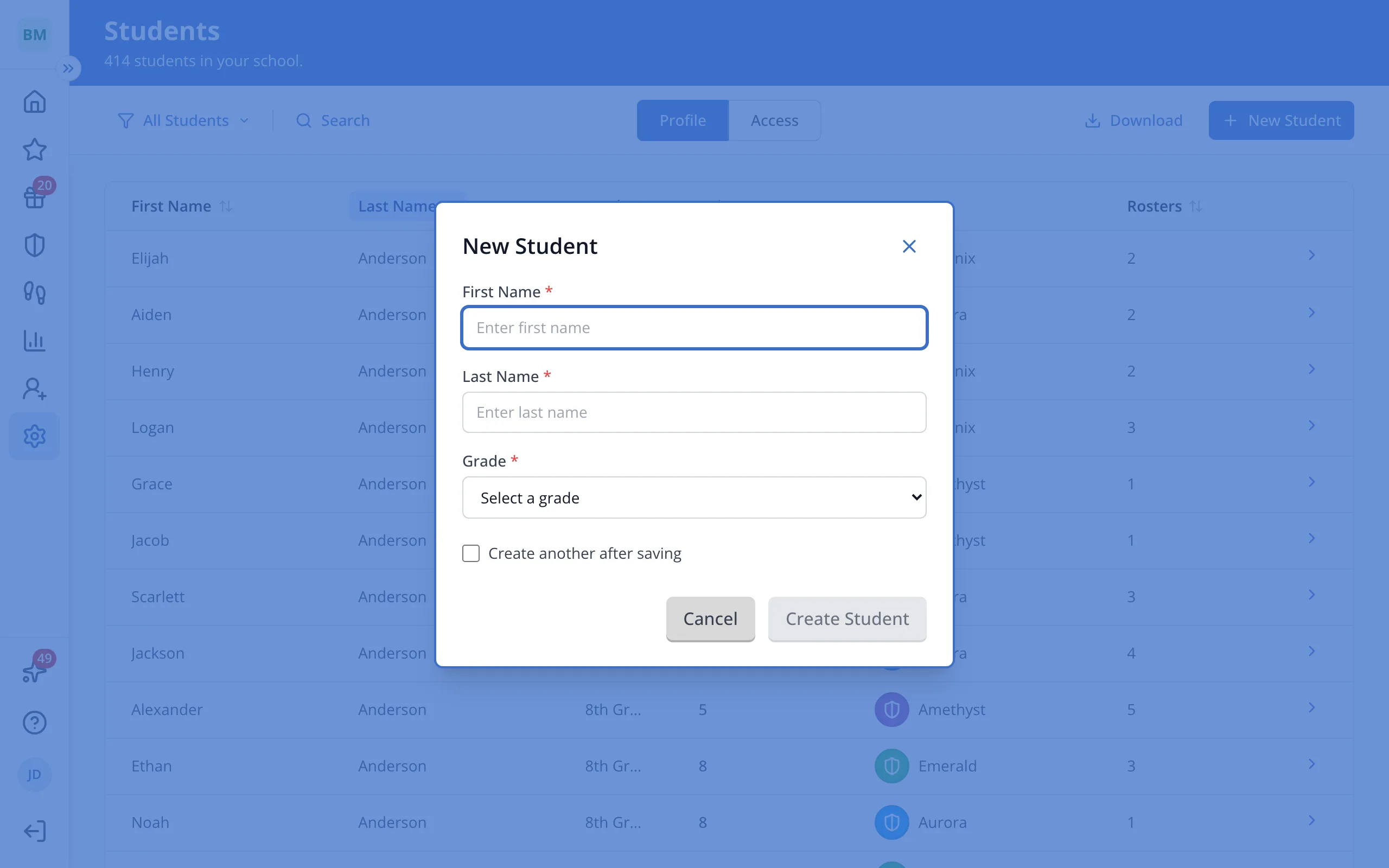
2.Type the student's first name.
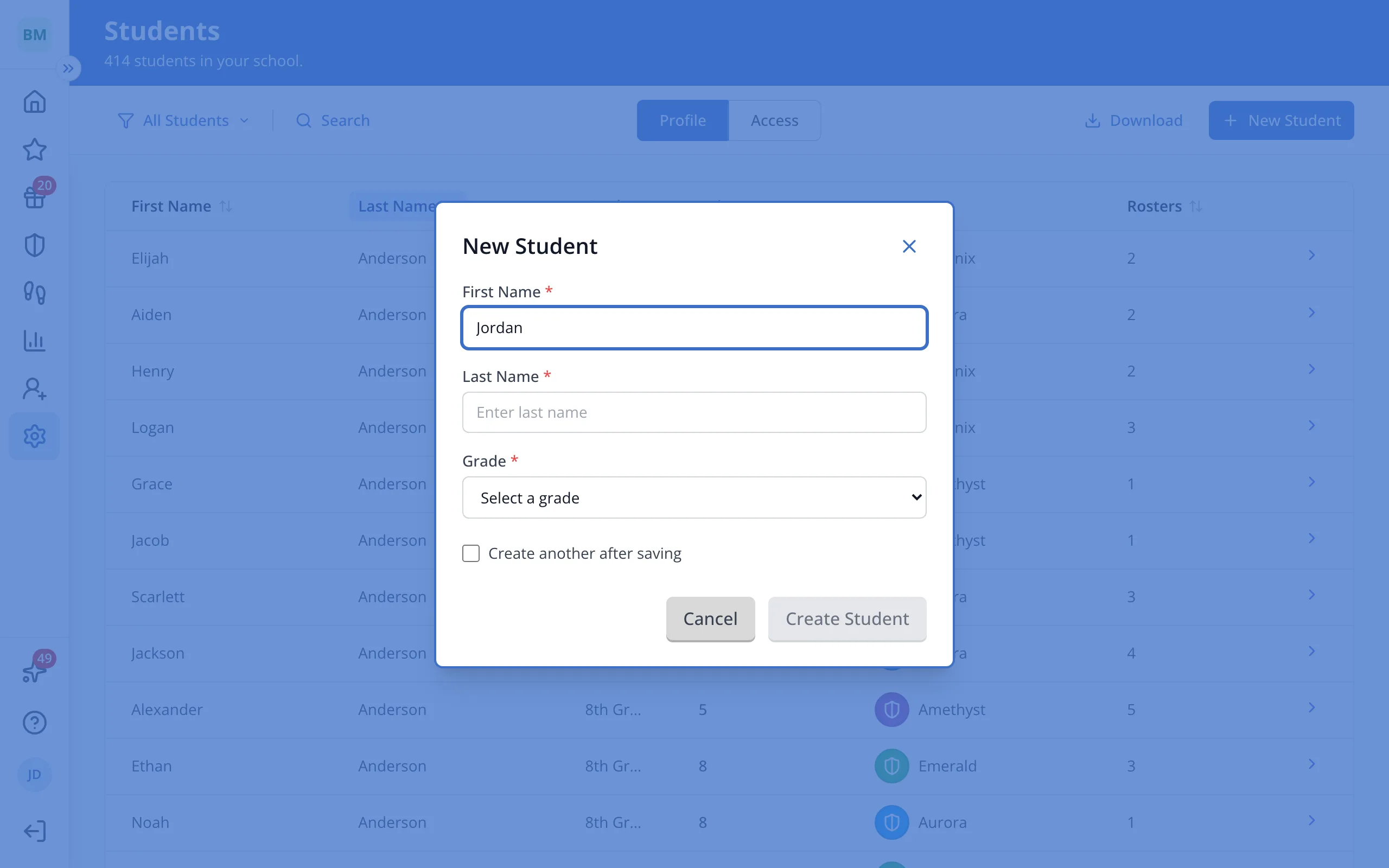
3.Type the student's last name.
4.Choose the student's grade.
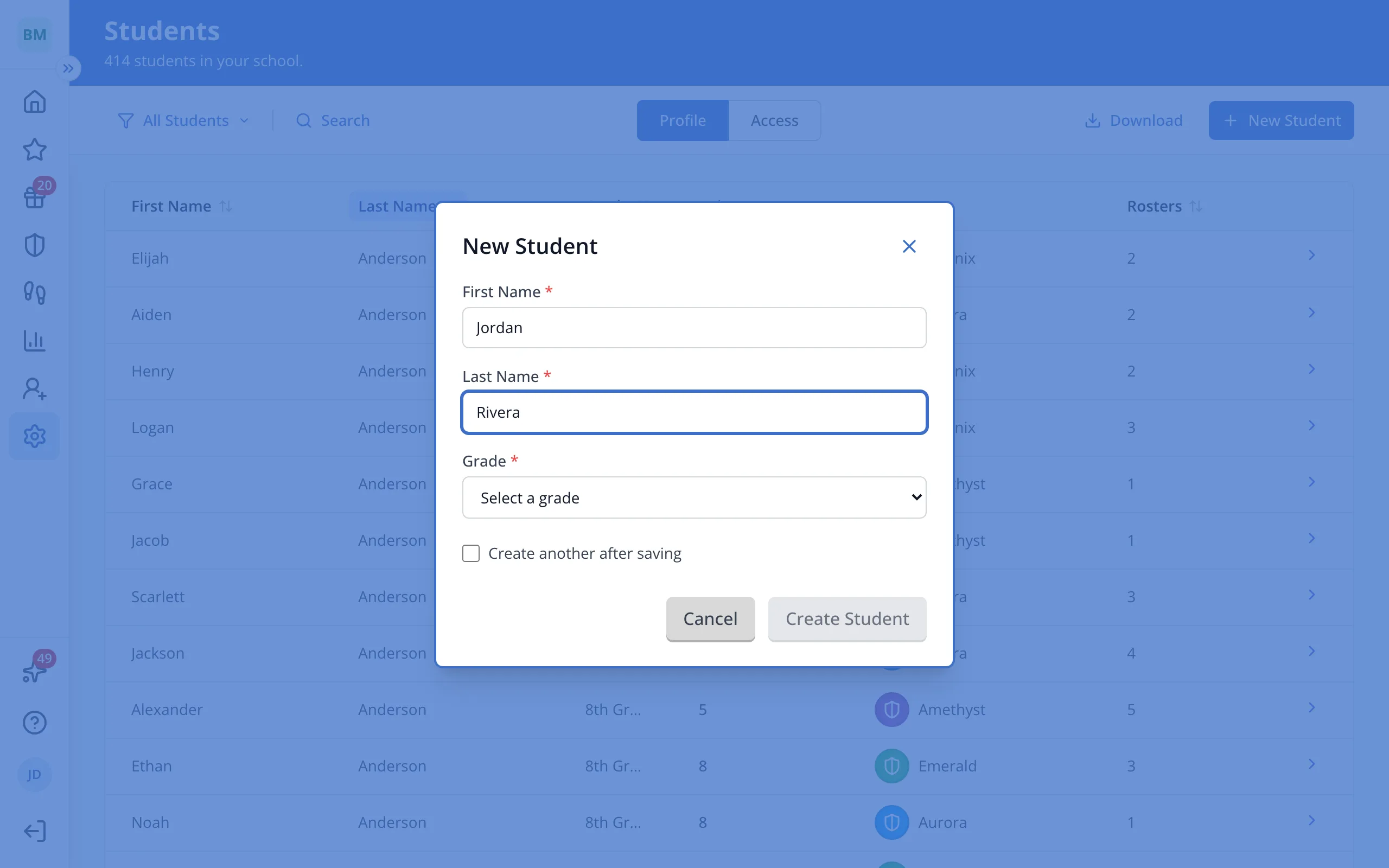
5.Click Create Student.
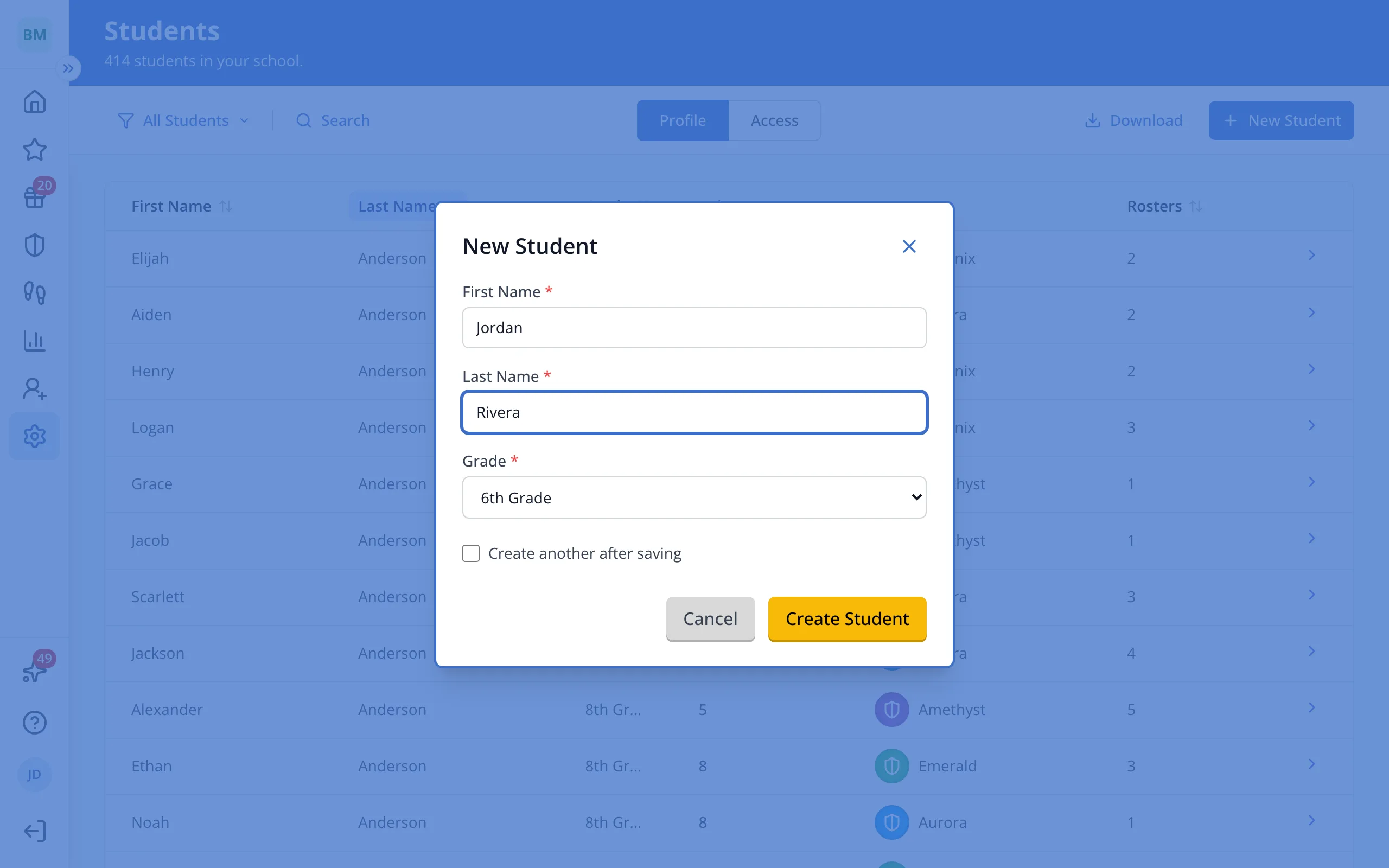
Tip: Check Create another after saving to add several students in a row.
6.On the student's page, click Add To Roster.
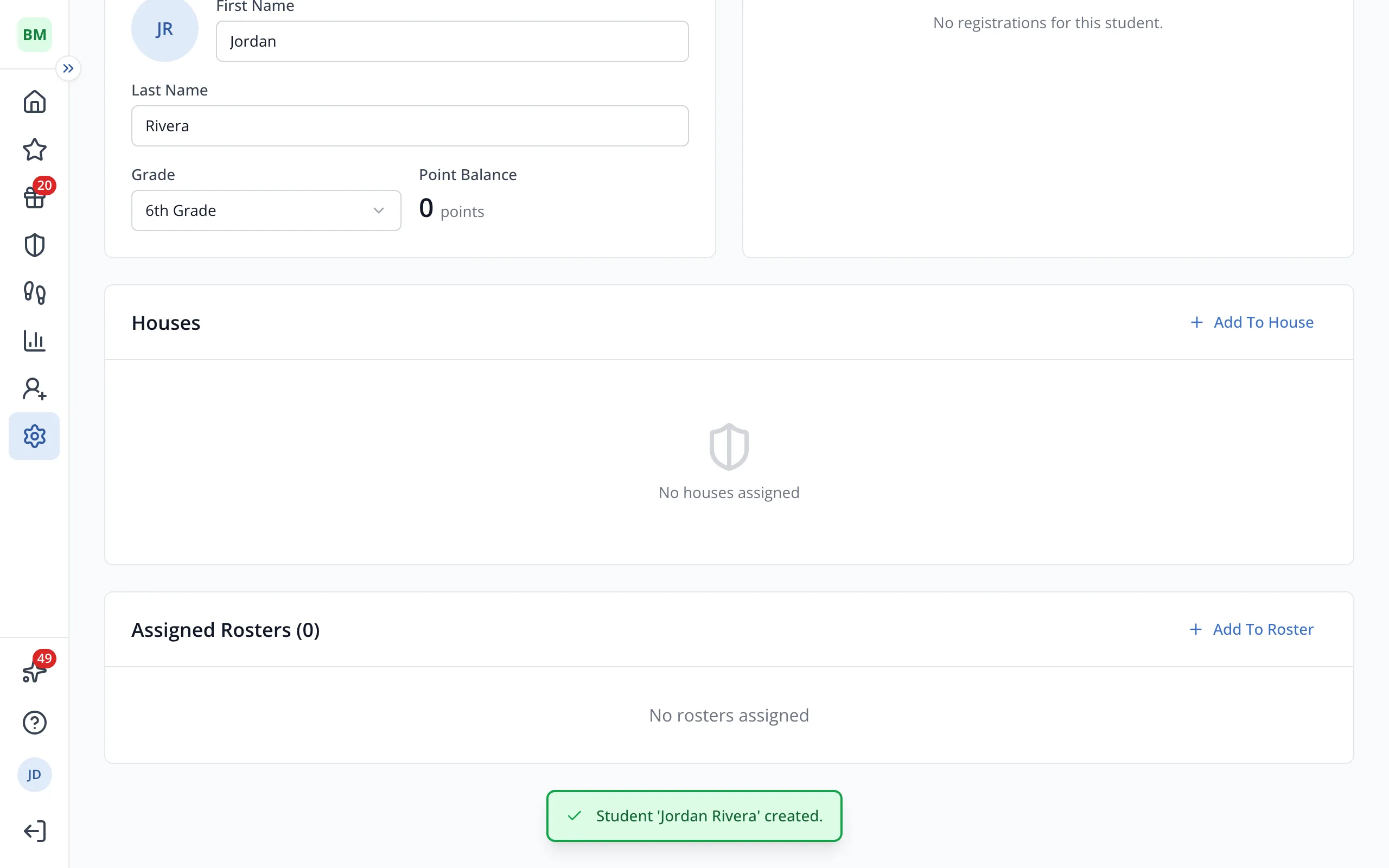
7.Click a roster the student belongs in.
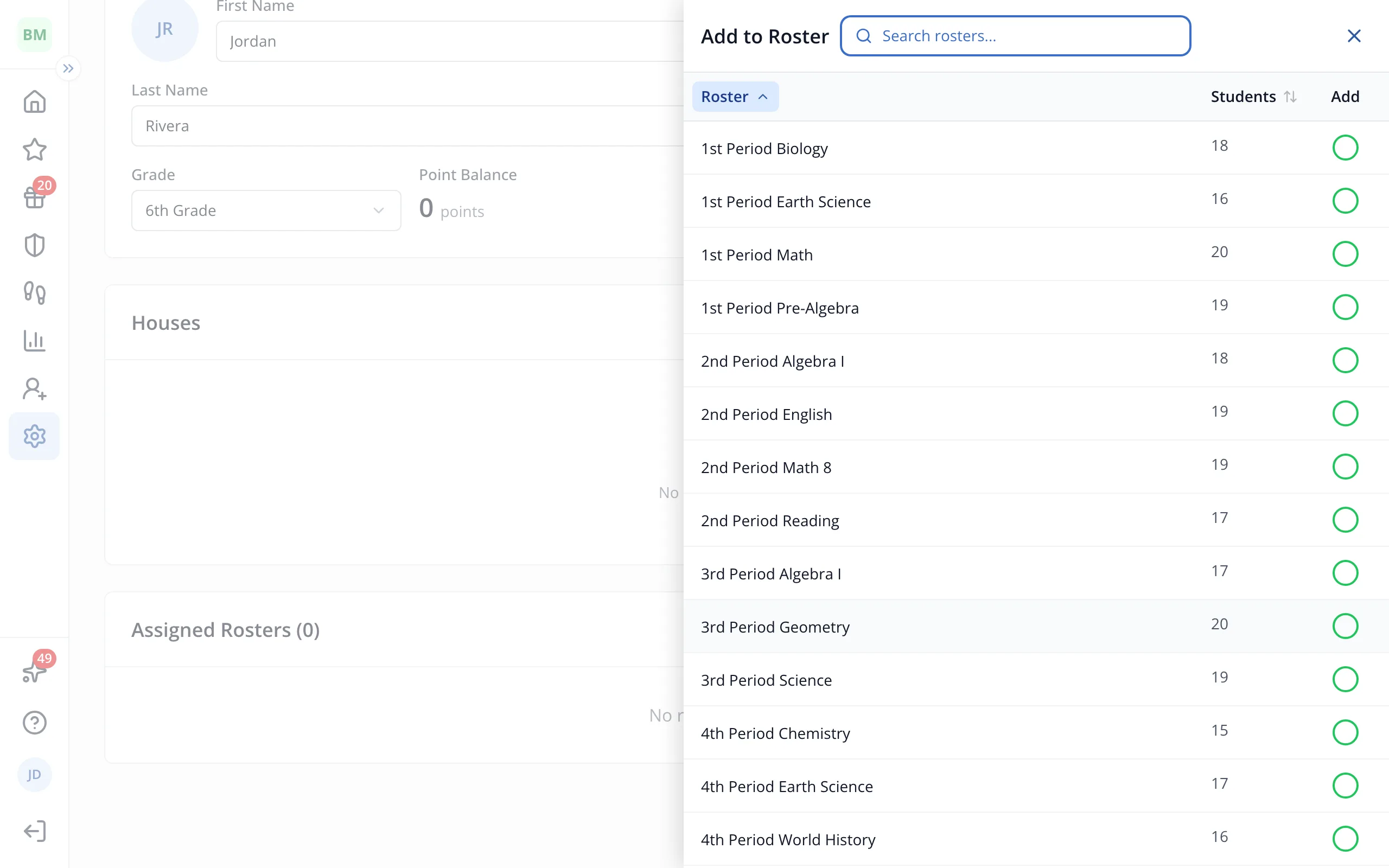
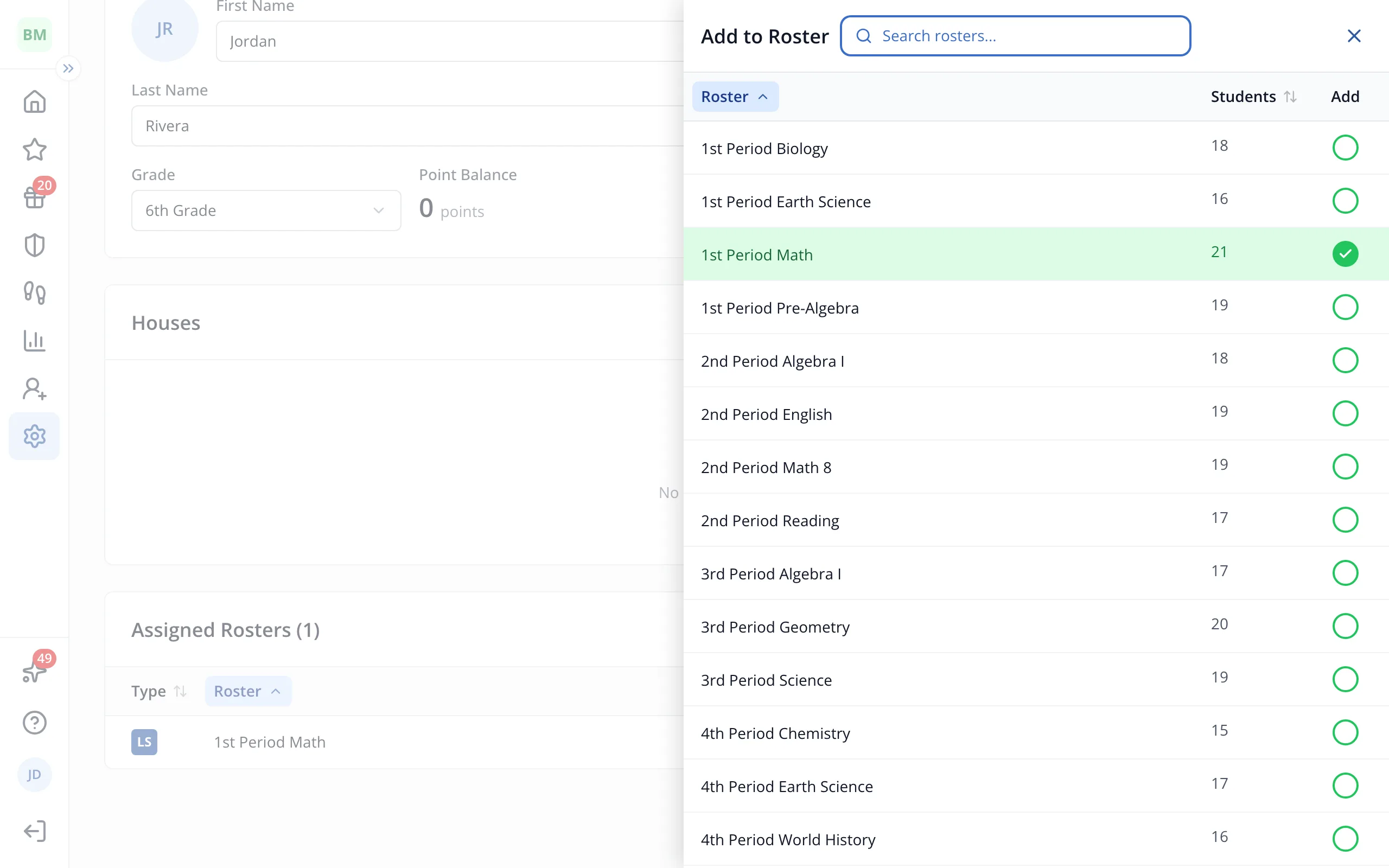
8.Click any other rosters they need.
Was this helpful?