
Turn off student avatars
Go back to photos, or names only, on every student button.
AdminSite Leader
Open in LiveSchool
Already signed in? Open this guide inside LiveSchool.
Use the Left and Right arrow keys to move between steps, and Space to play or pause.
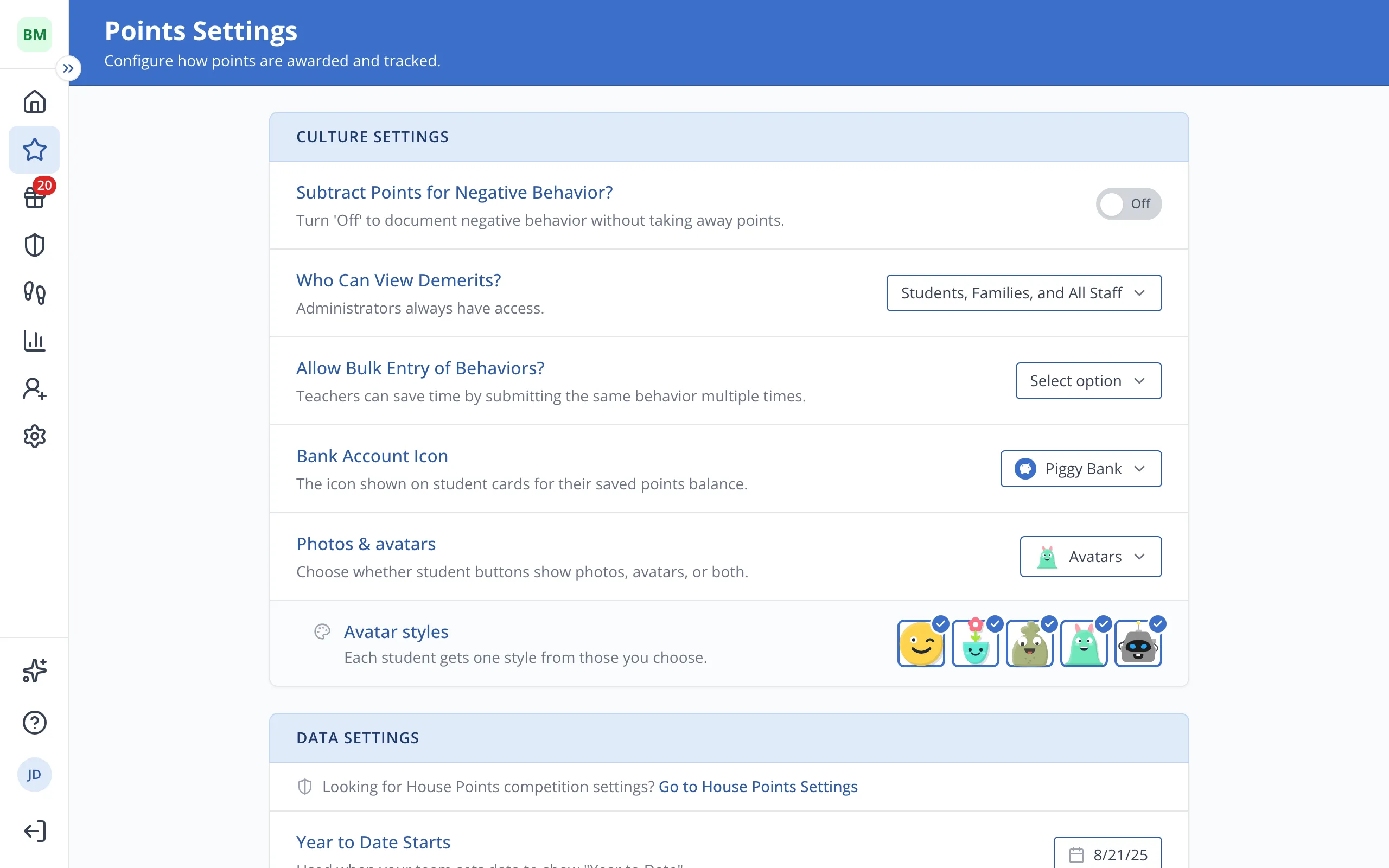
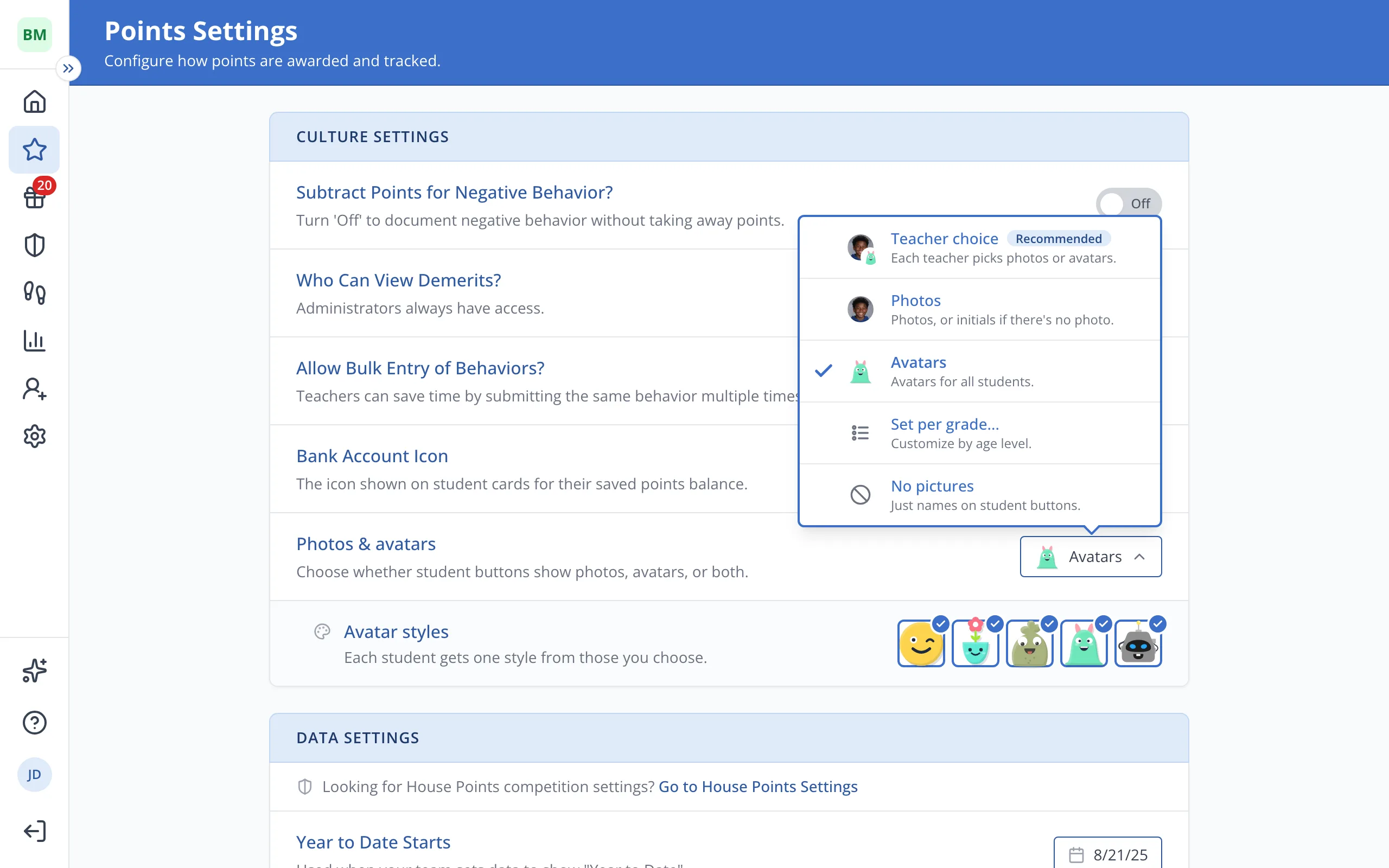
1.On the Points Settings page, click the Photos & avatars menu.
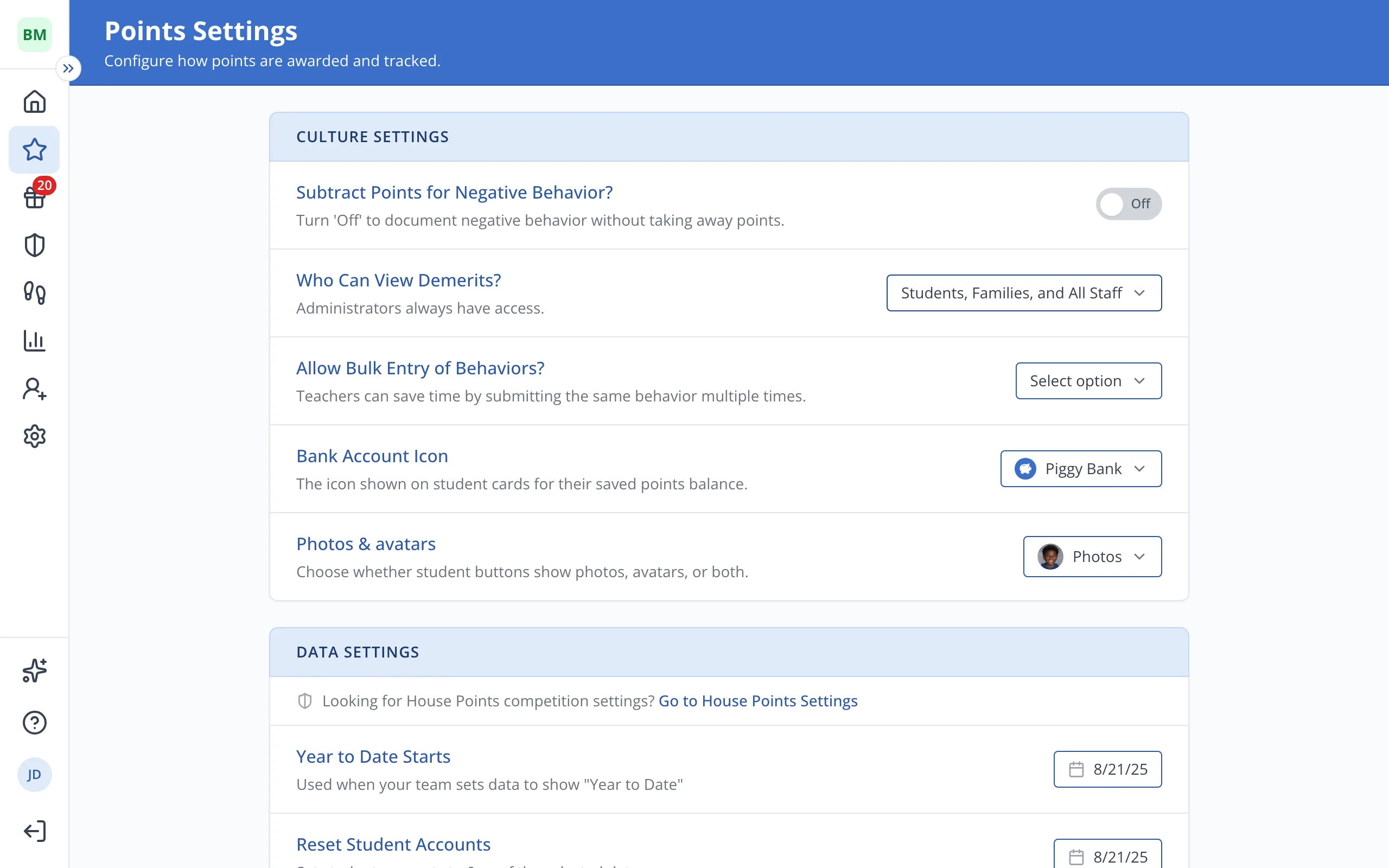
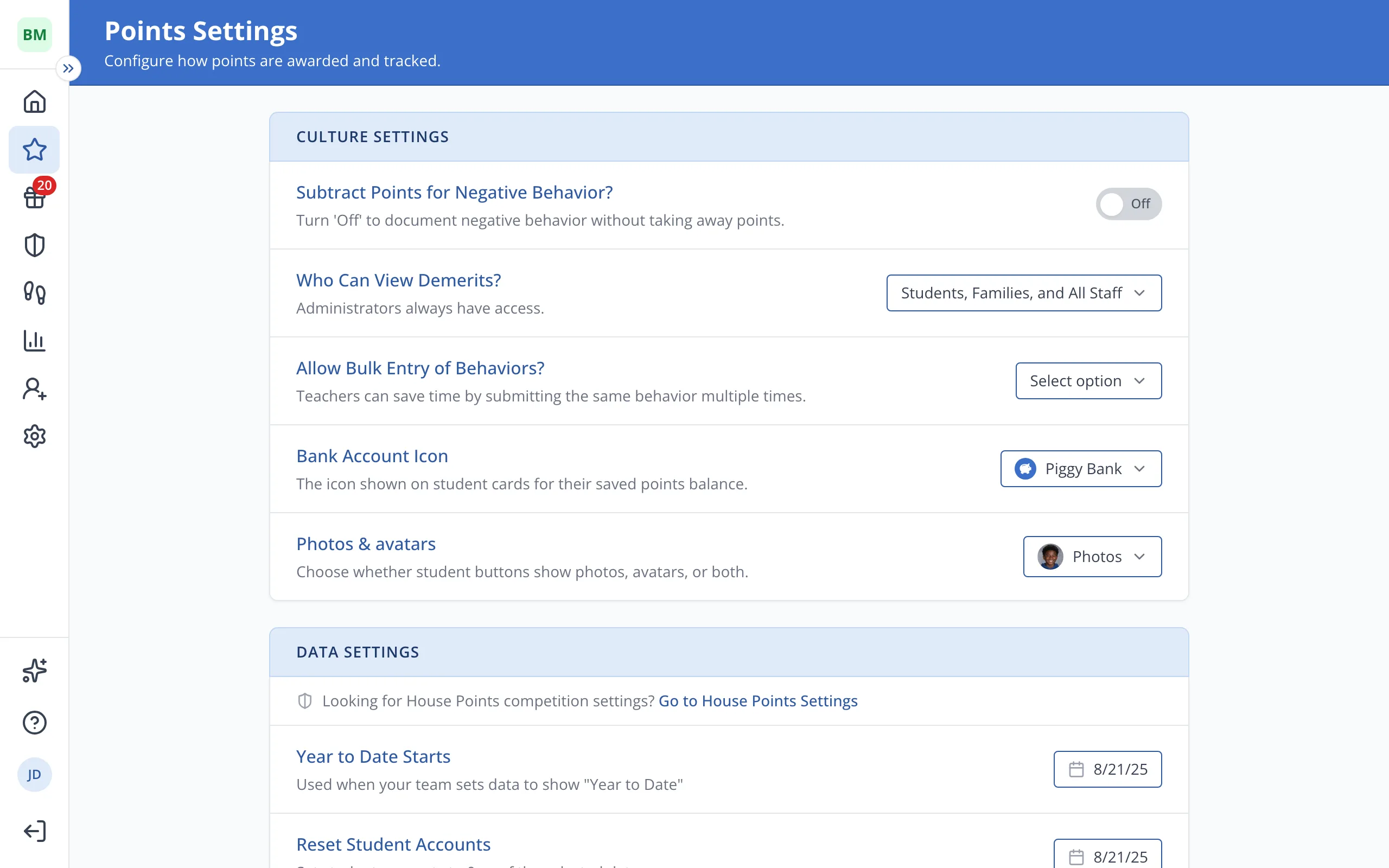
2.Click Photos. Students without a photo will show their initials.
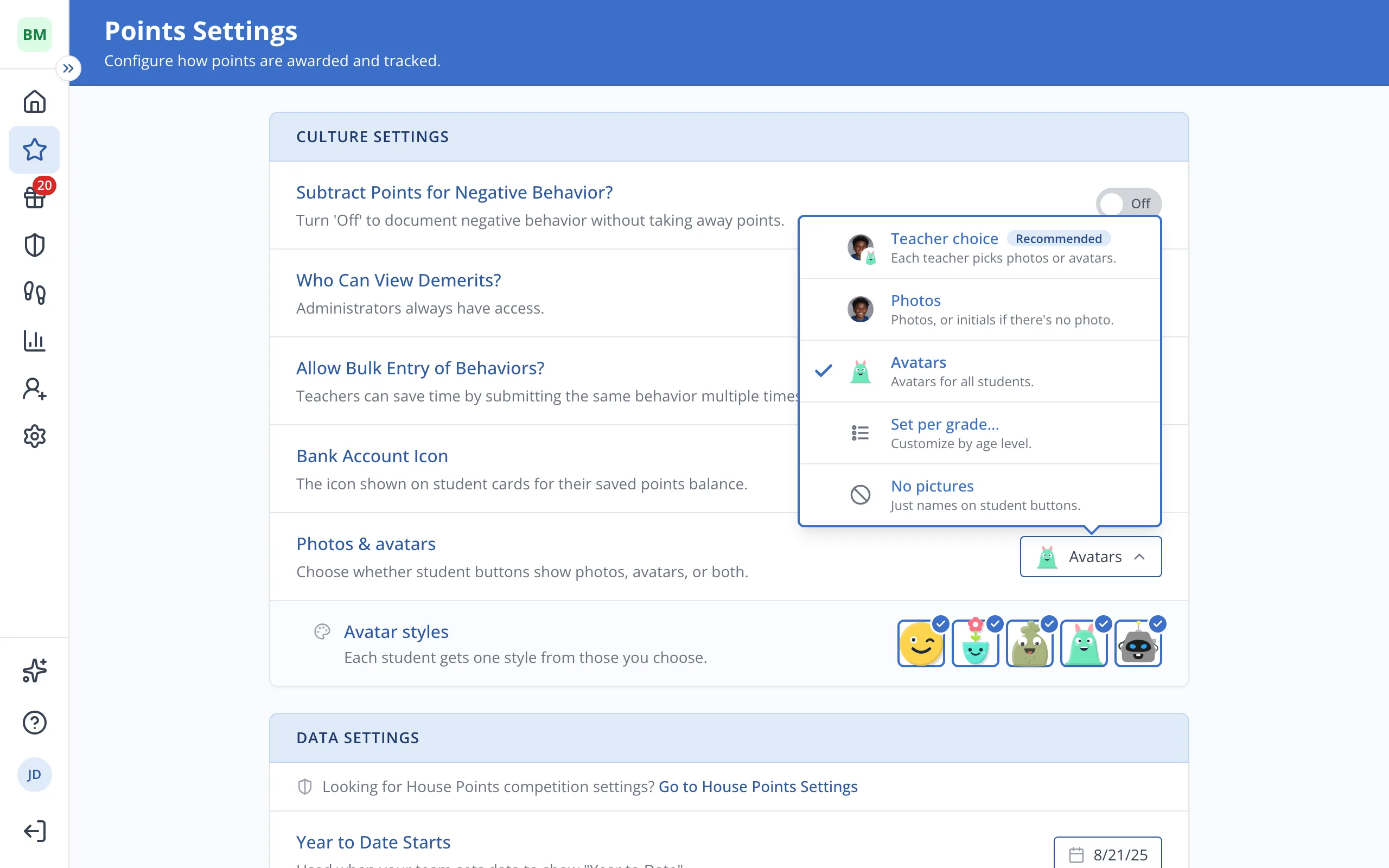
Did you know? Click No pictures instead to show only names on student buttons.