
Understand the bubbles on a student button
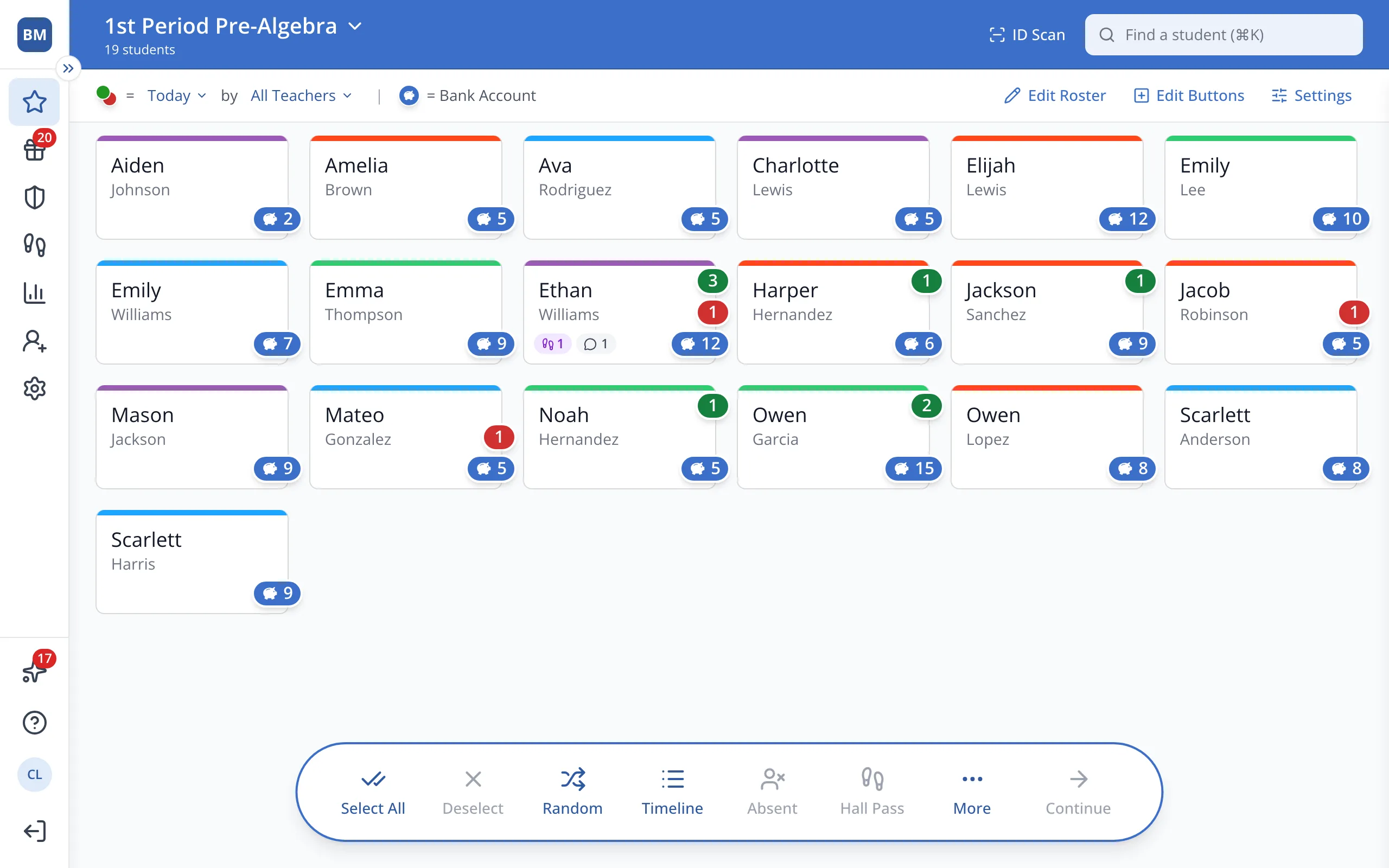
Each student button shows running totals for points, demerits, the Bank Account, hall passes and comments.
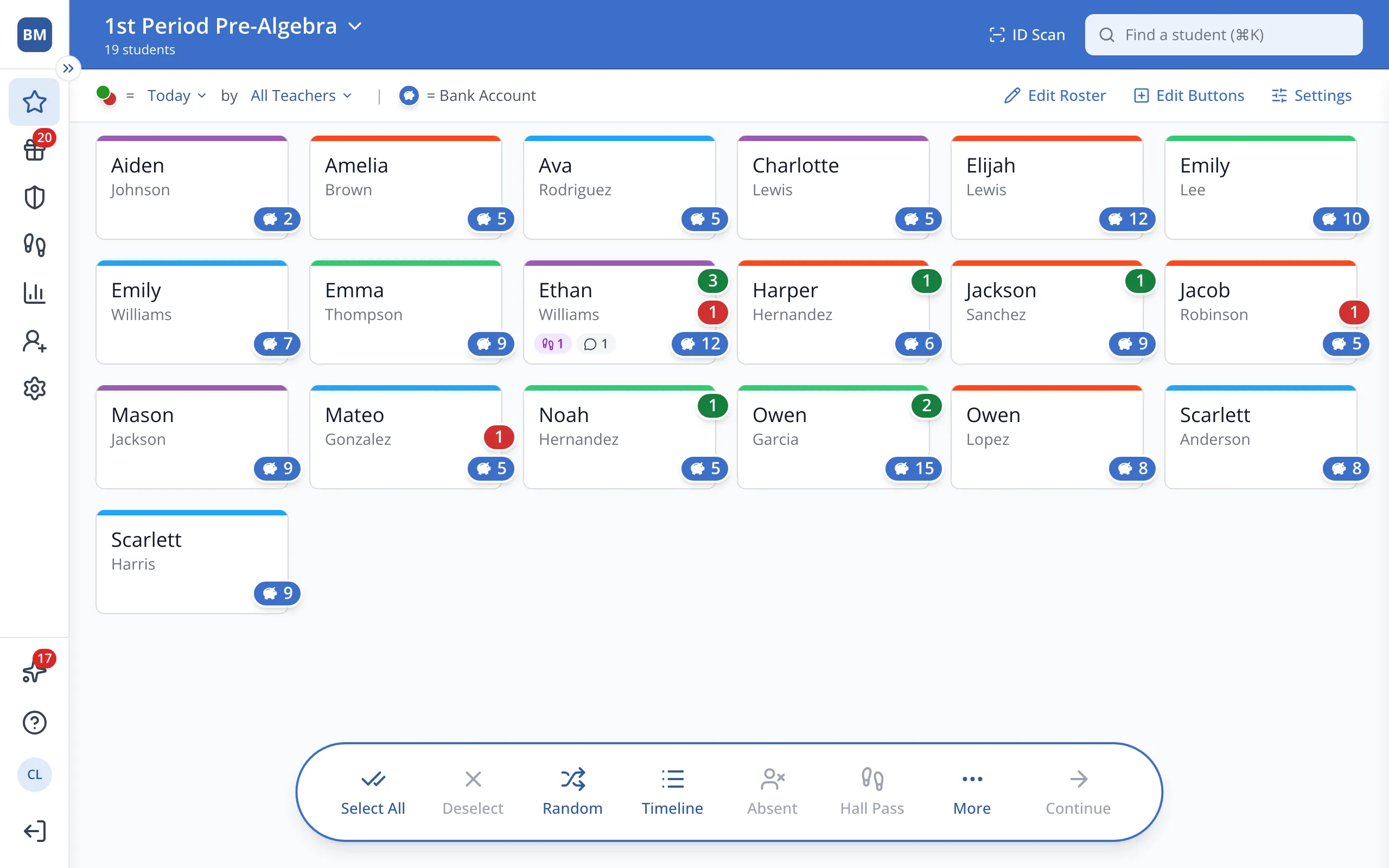
1 / 7The green bubble counts the points the student earned.
1.The green bubble counts the points the student earned.
2.The red bubble counts the student's demerits.
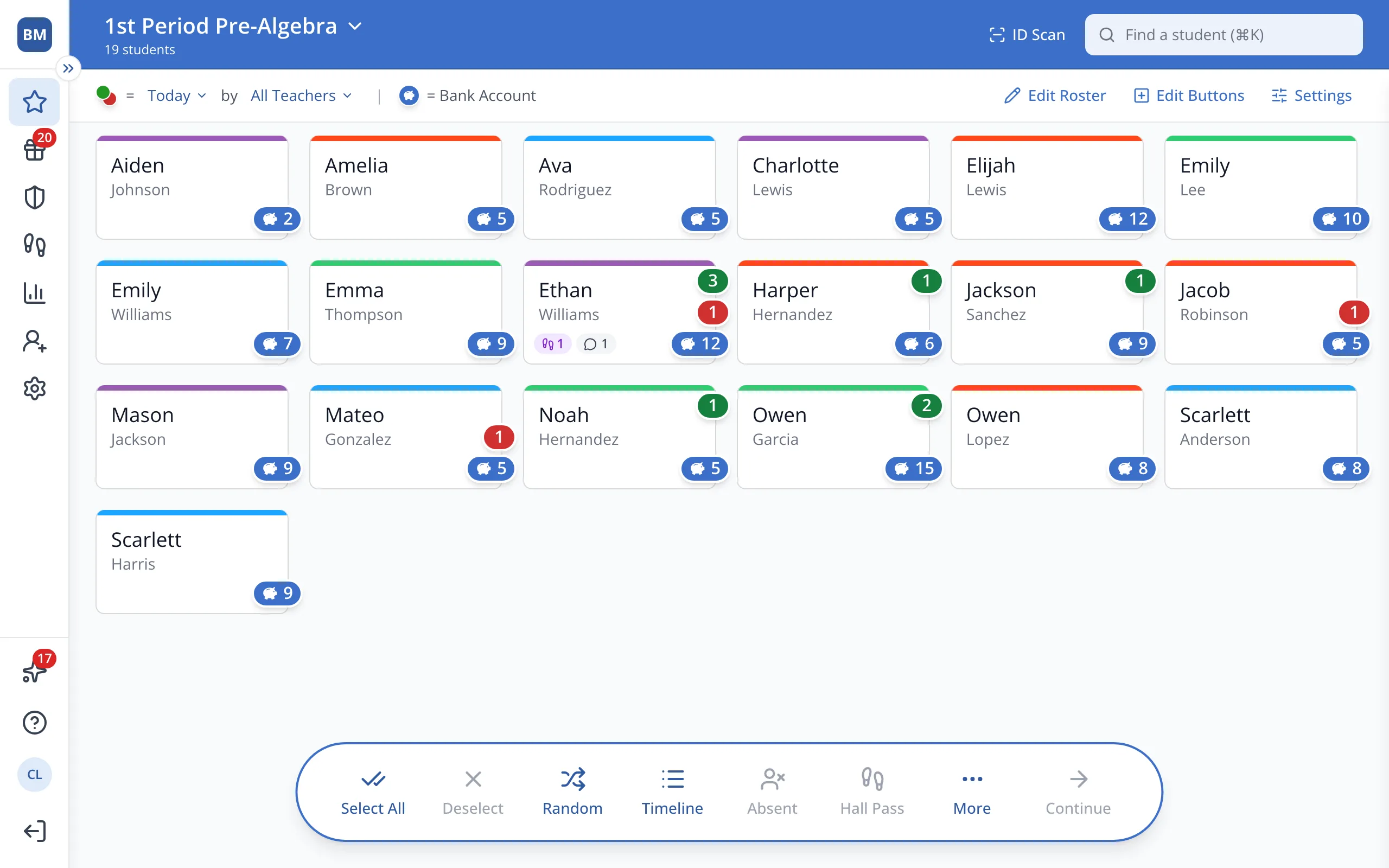
3.The blue bubble is the student's Bank Account, the points they can spend on rewards.
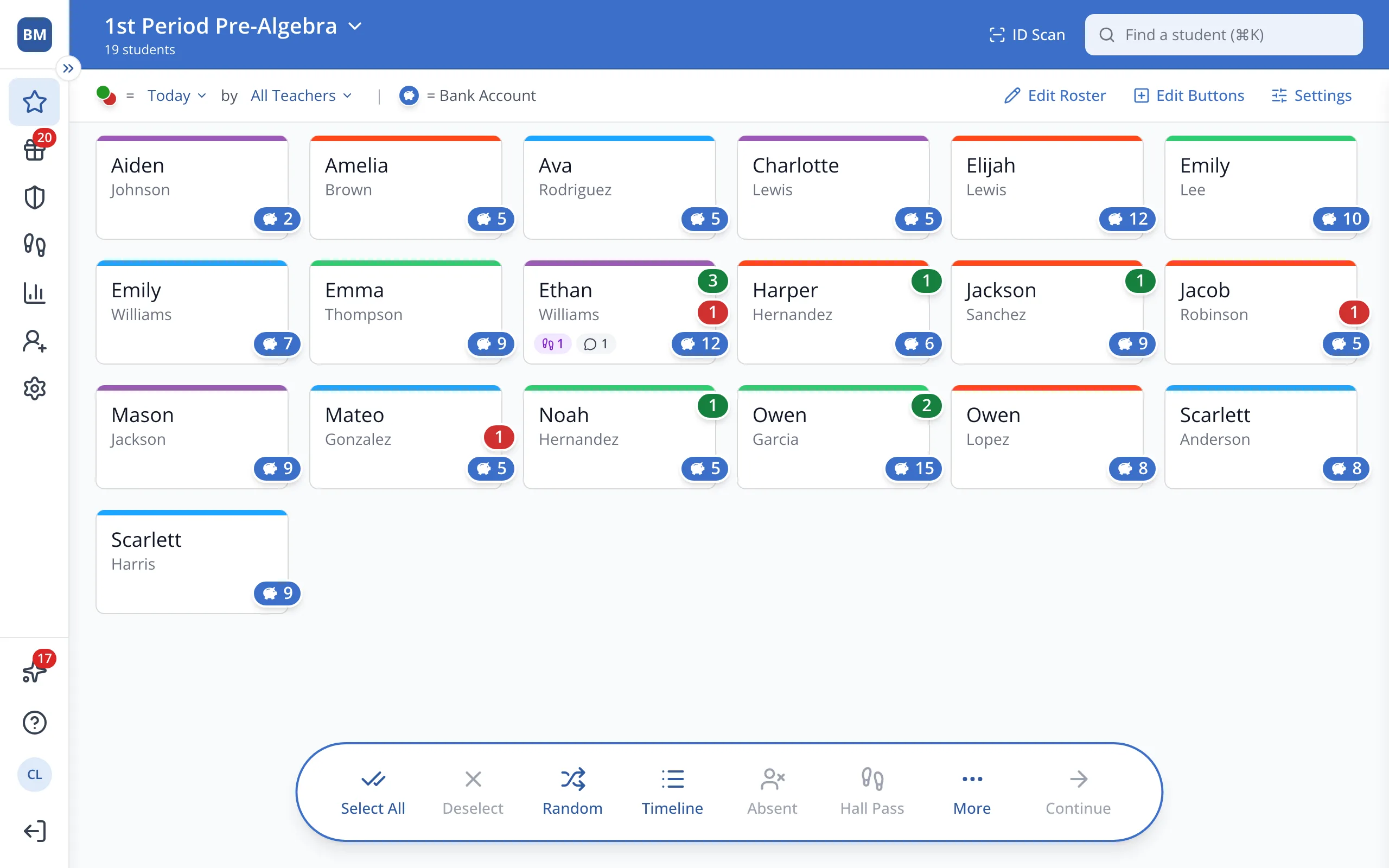
4.If your school uses Hall Passes, the purple bubble counts the hall passes the student took.
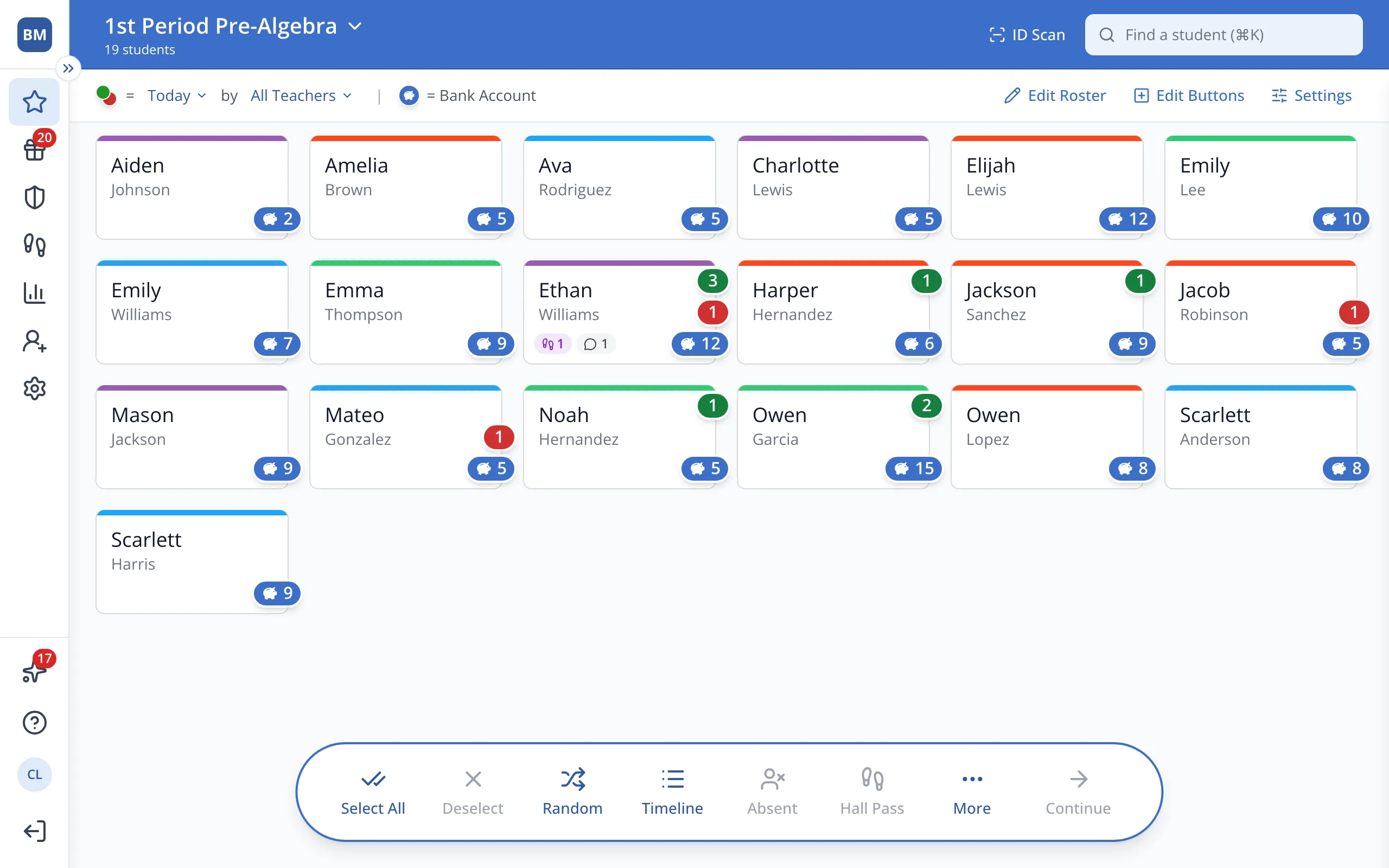
5.The gray bubble counts the comments recorded for the student.
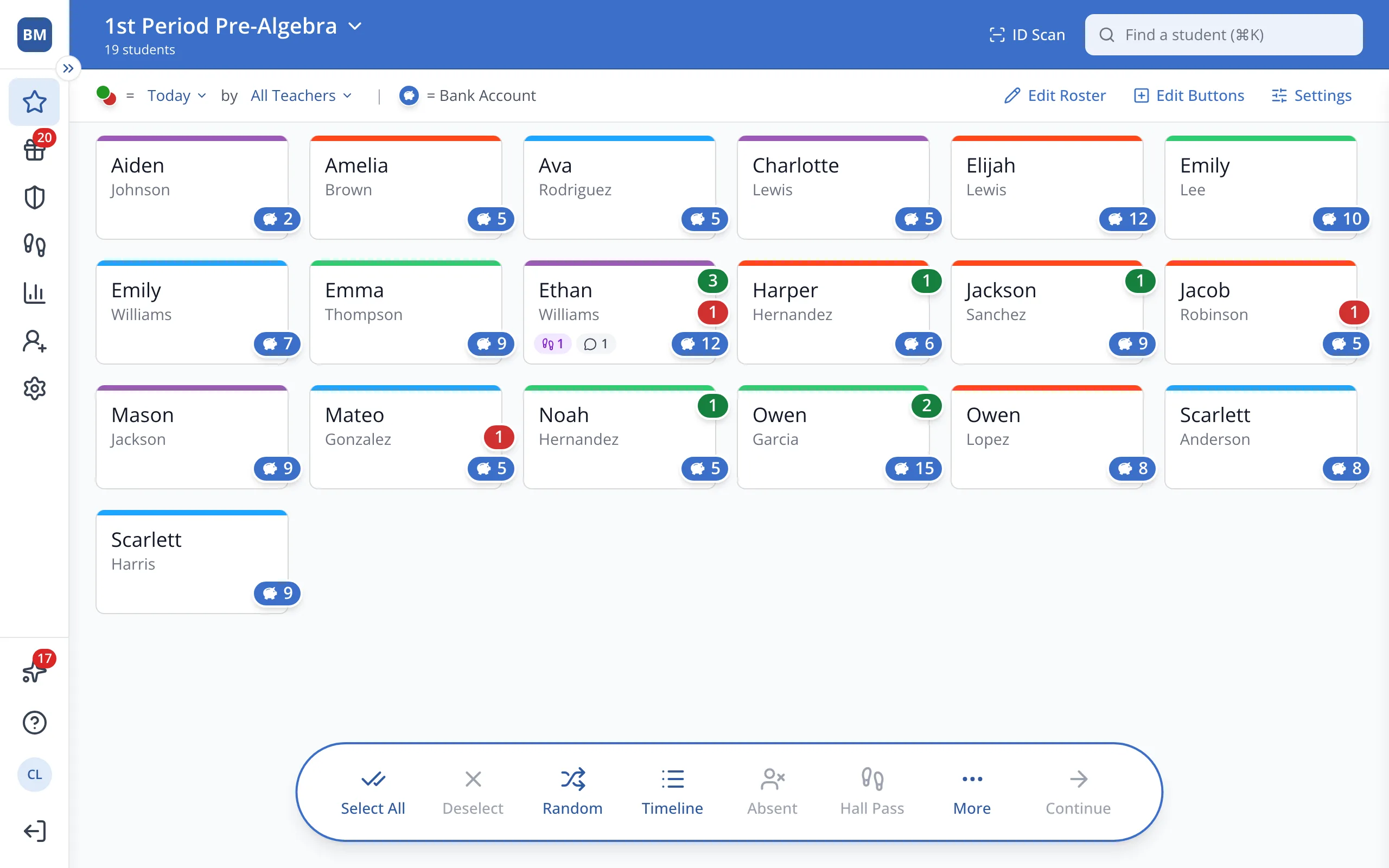
6.At the top of the page, these show which time period and which teachers every bubble except the blue one counts.
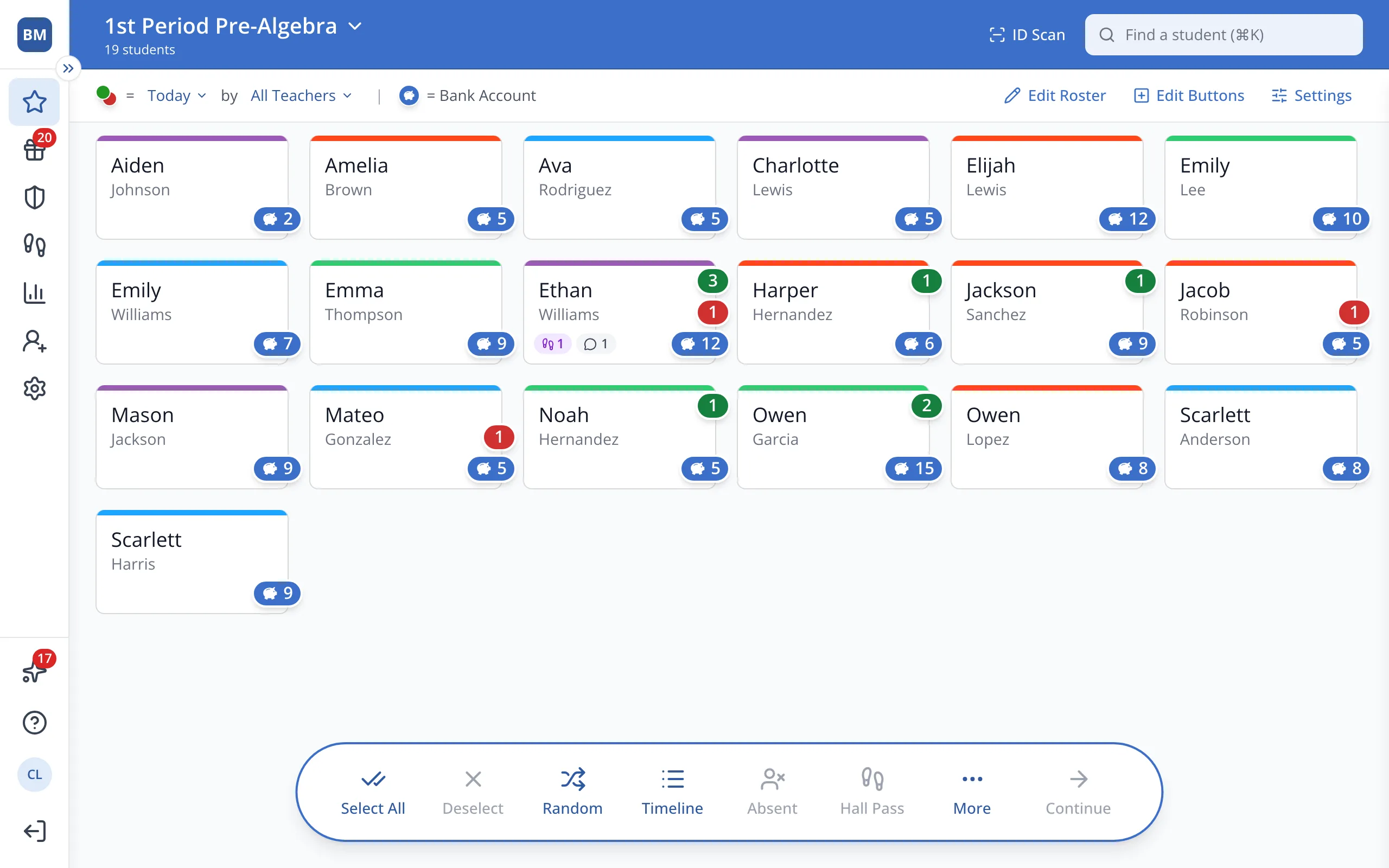
7.To change which bubbles show, click Edit Buttons.
Was this helpful?