Help a student sign in with Clever or ClassLink
Students at your school sign in with Clever or ClassLink, so they don't need an access code or a printed sheet.
Open in LiveSchool
Already signed in? Open this guide inside LiveSchool.
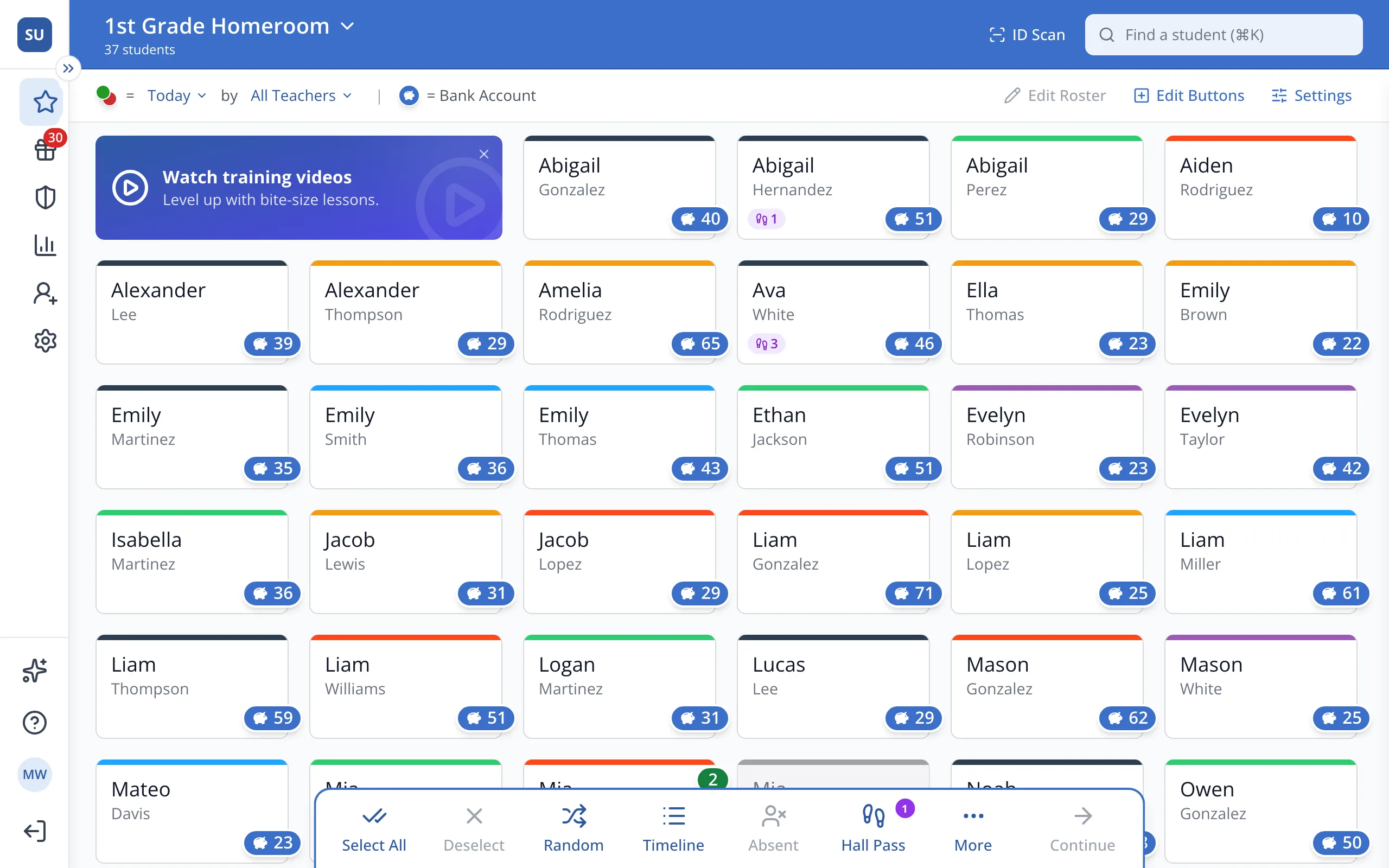
Use the Left and Right arrow keys to move between steps, and Space to play or pause.
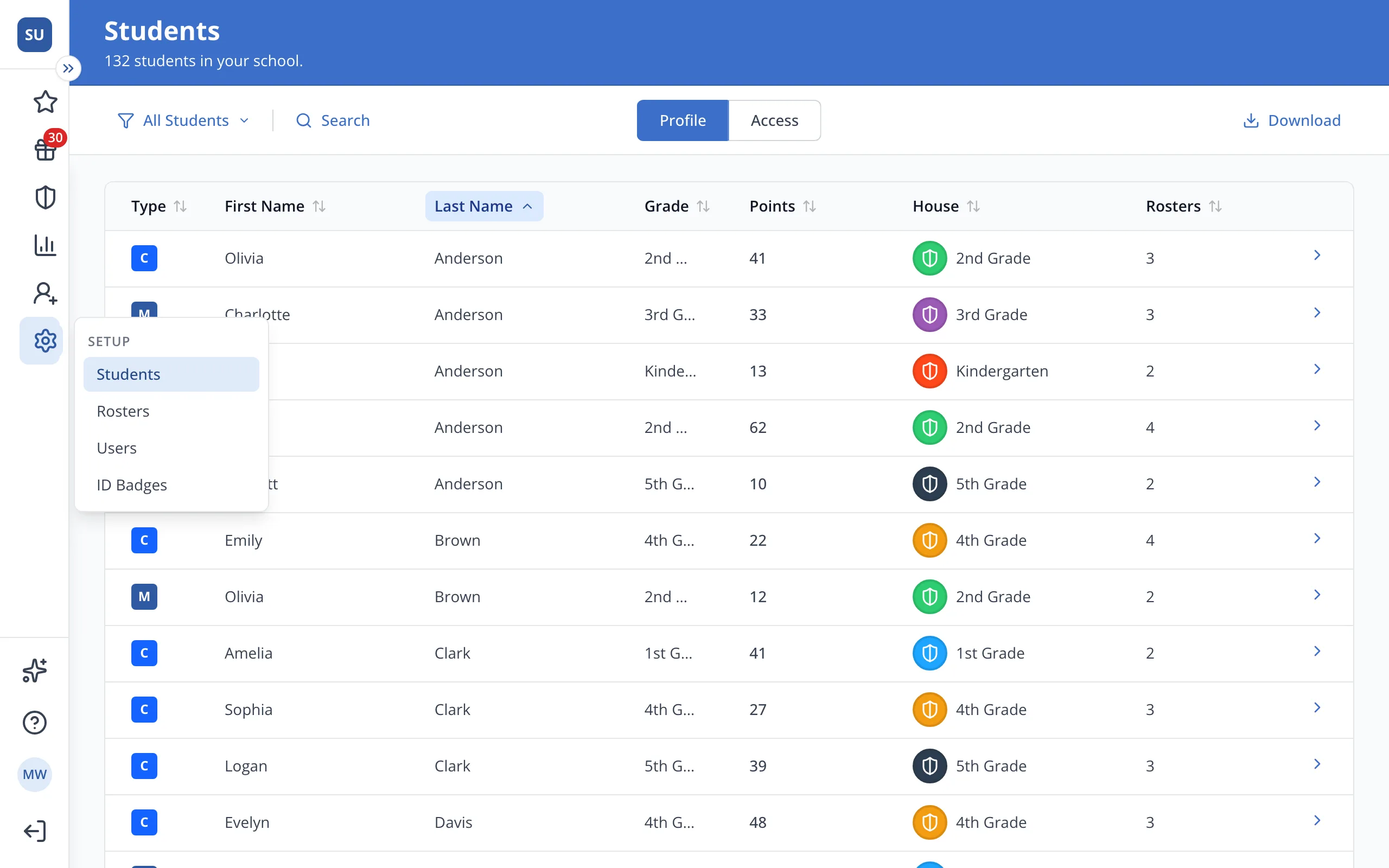
1.In the sidebar, click Setup.
2.Click Students.
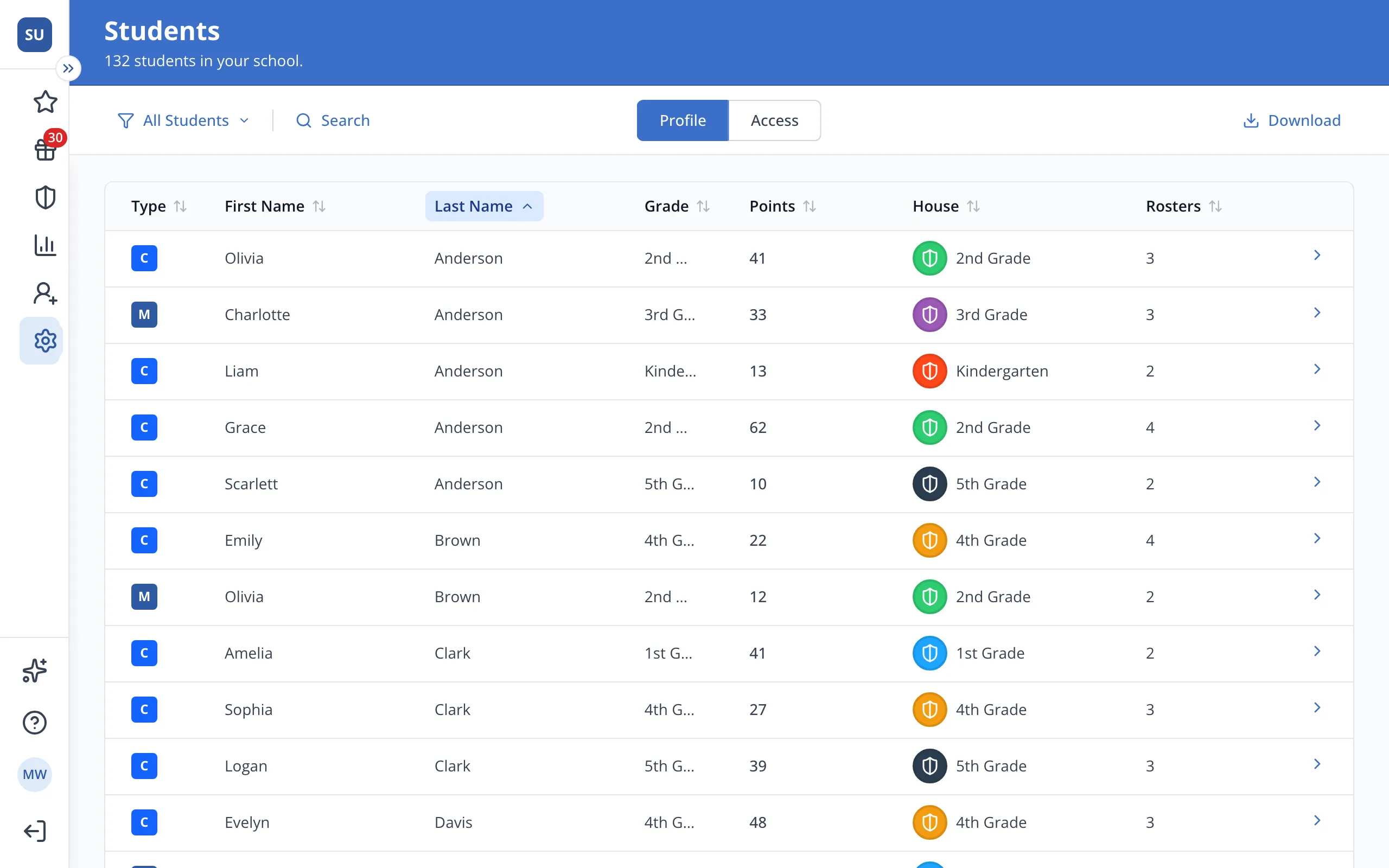
3.Click the student's name.
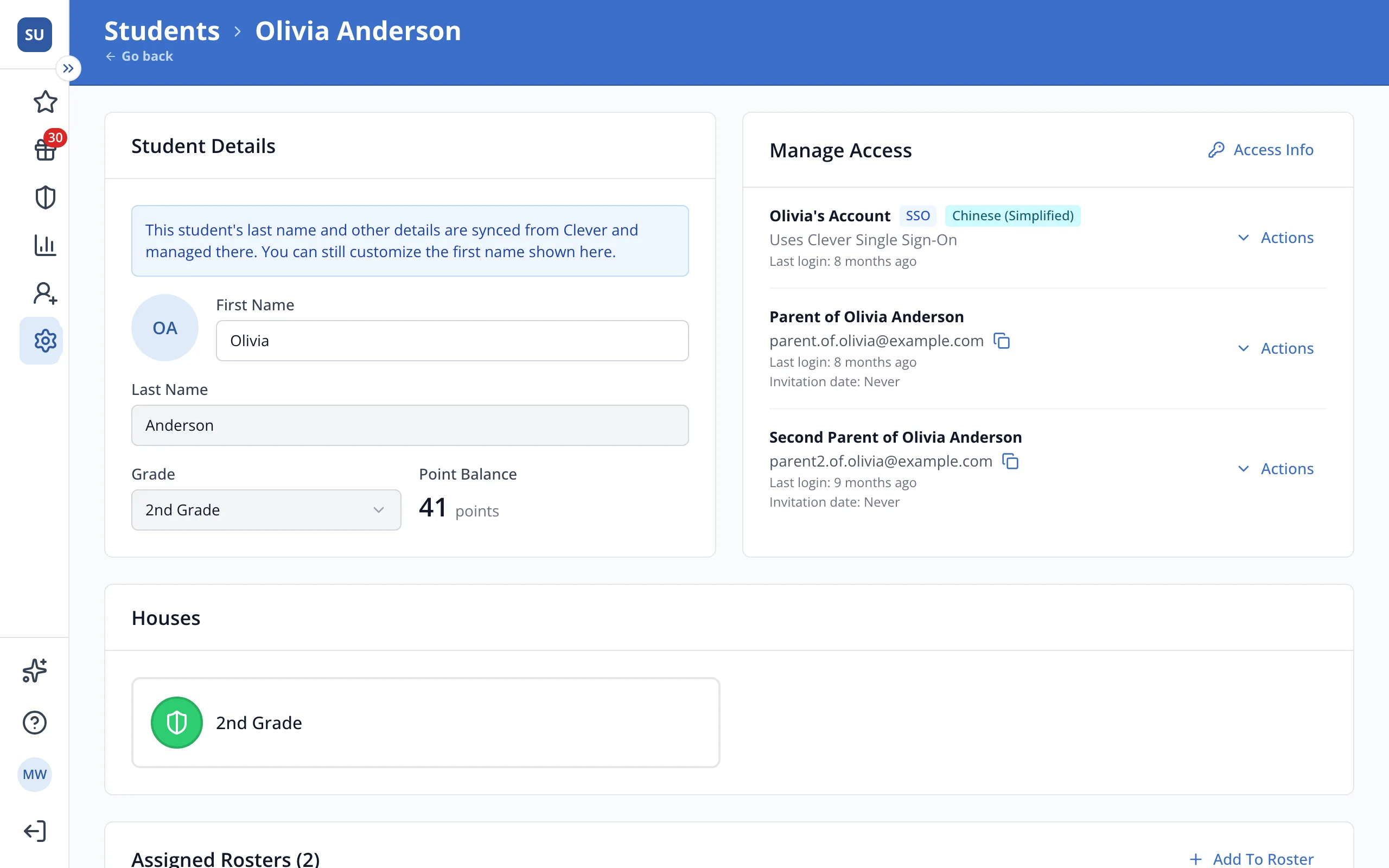
4.The student signs in with Clever, so there's no code to print. Have them click Clever on the sign-in page.
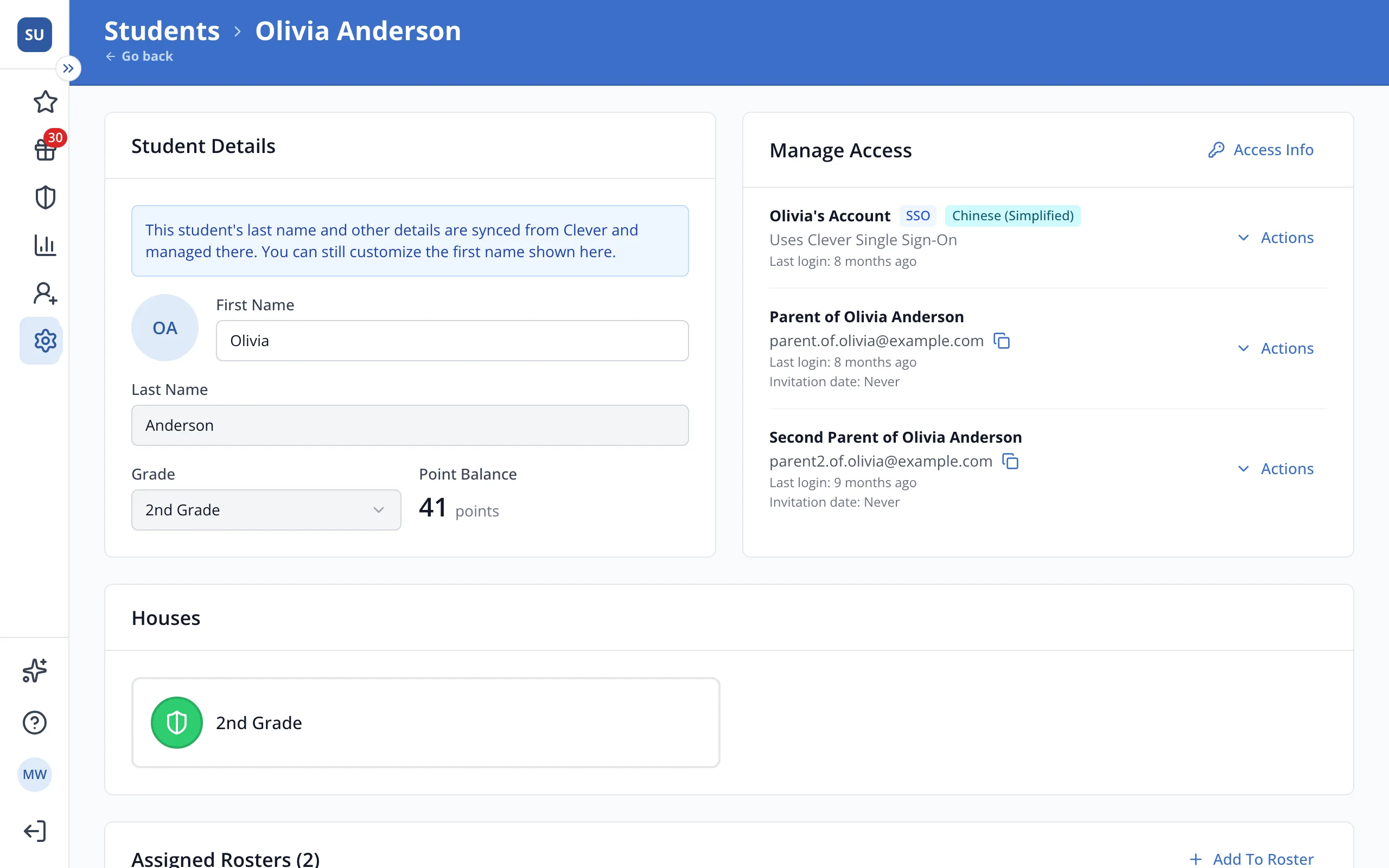
5.Families still sign up with an access code. Click Access Info to copy it or download their access sheet.