Print access sheets for students and families who haven't connected
Save paper by skipping students and families who already have an account.
Open in LiveSchool
Already signed in? Open this guide inside LiveSchool.
Use the Left and Right arrow keys to move between steps, and Space to play or pause.
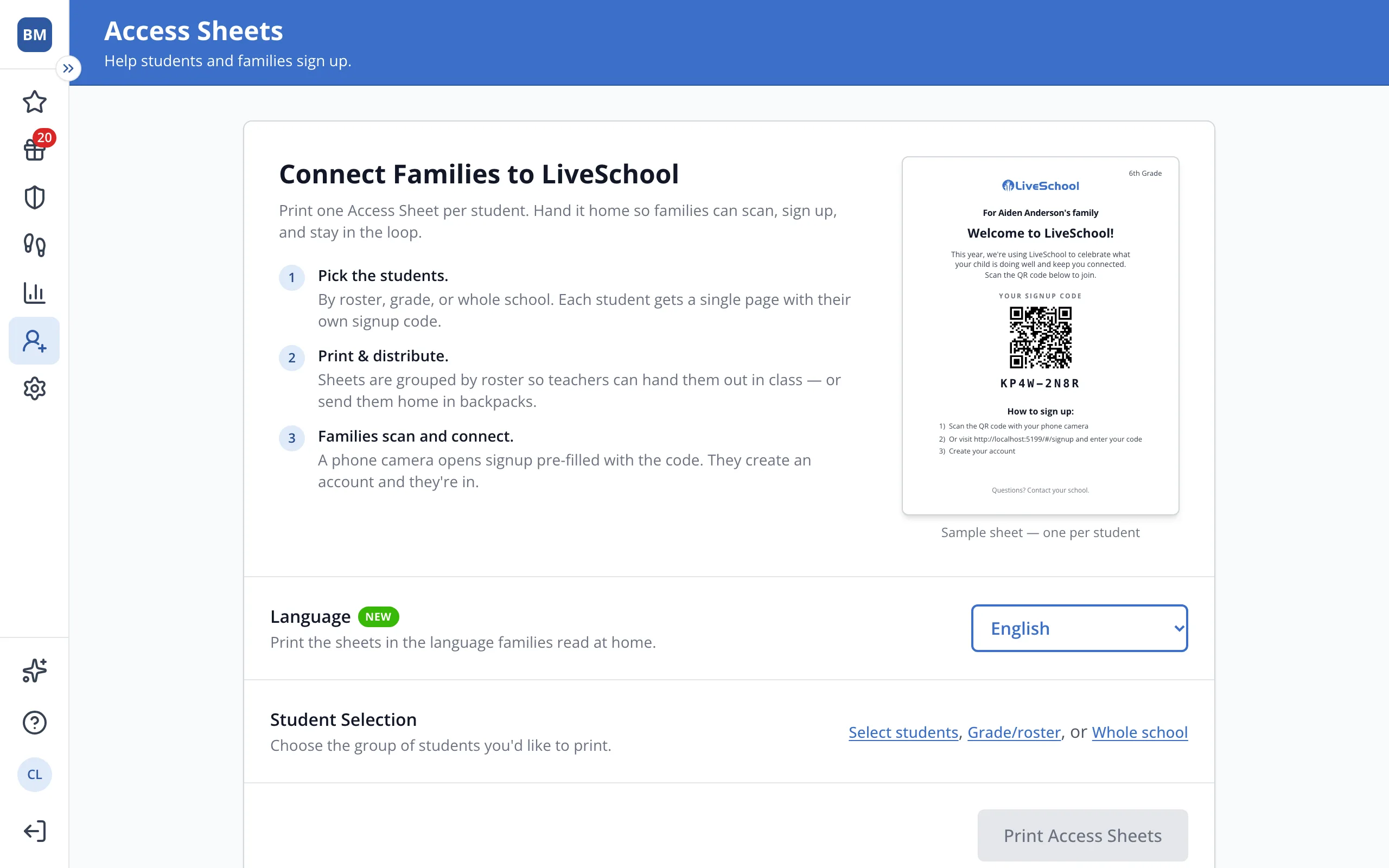
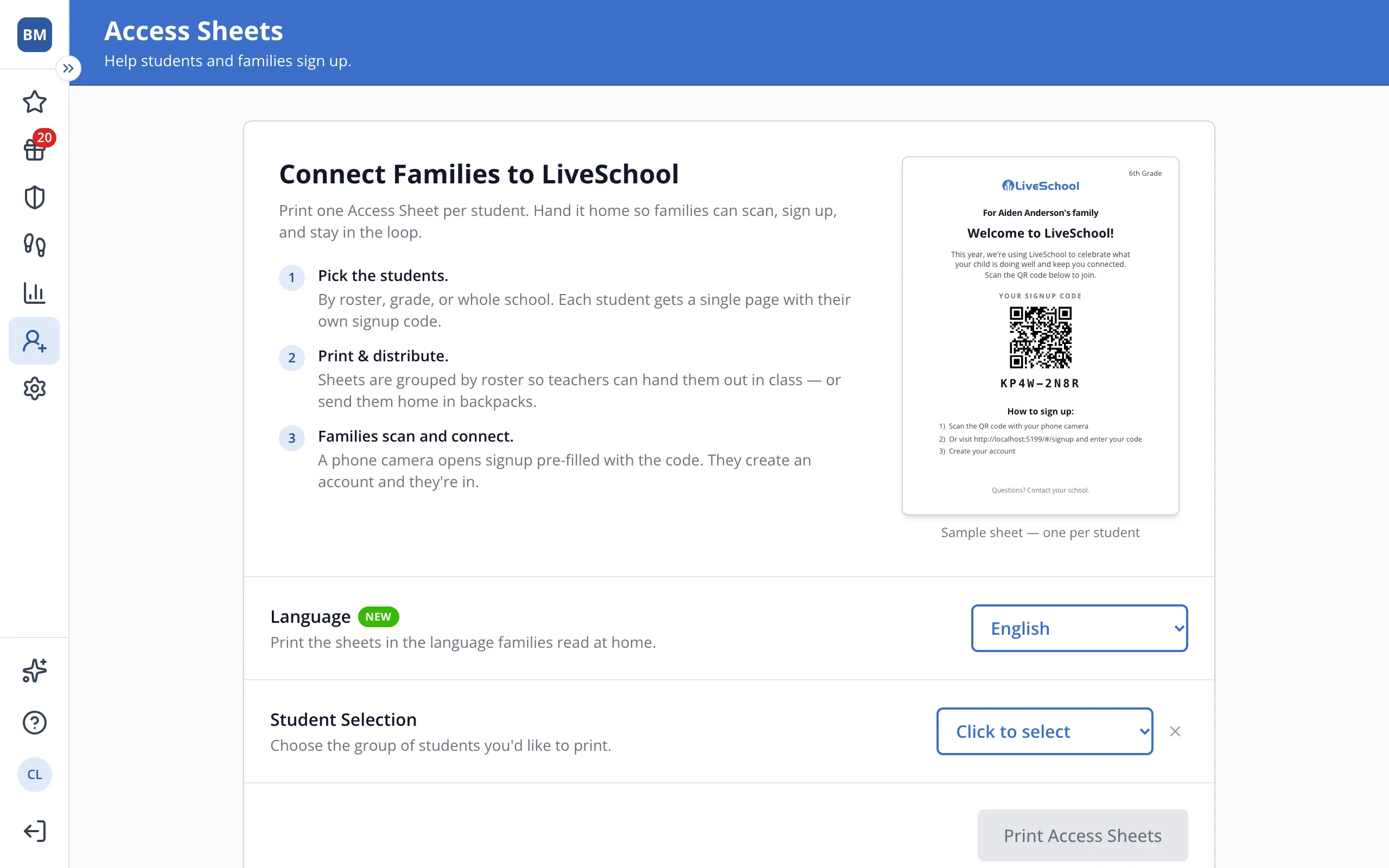
1.On the Access Sheets page under Students & Families, next to Student Selection, click Grade/roster.
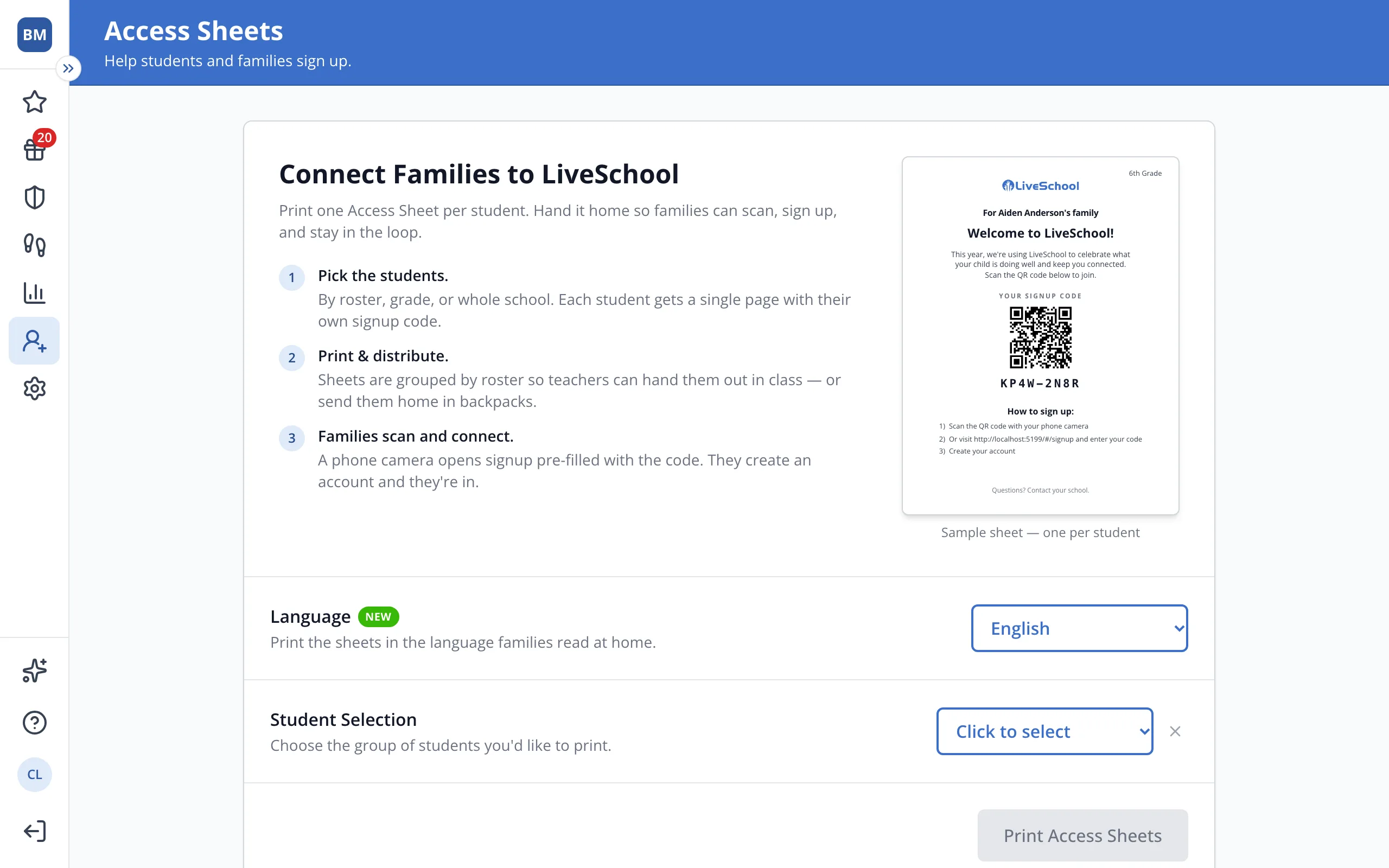
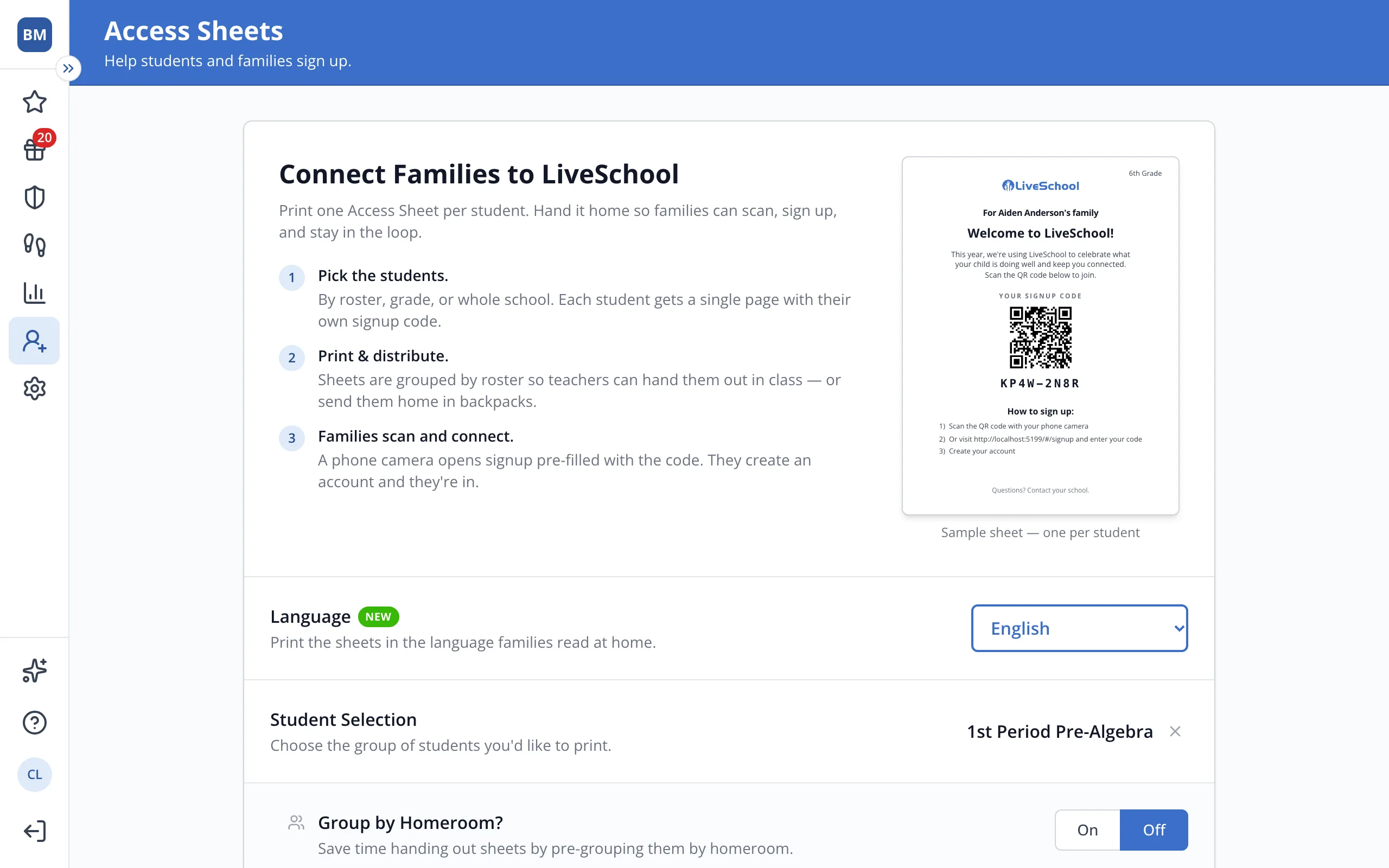
2.Pick the grade or roster you'd like to print.
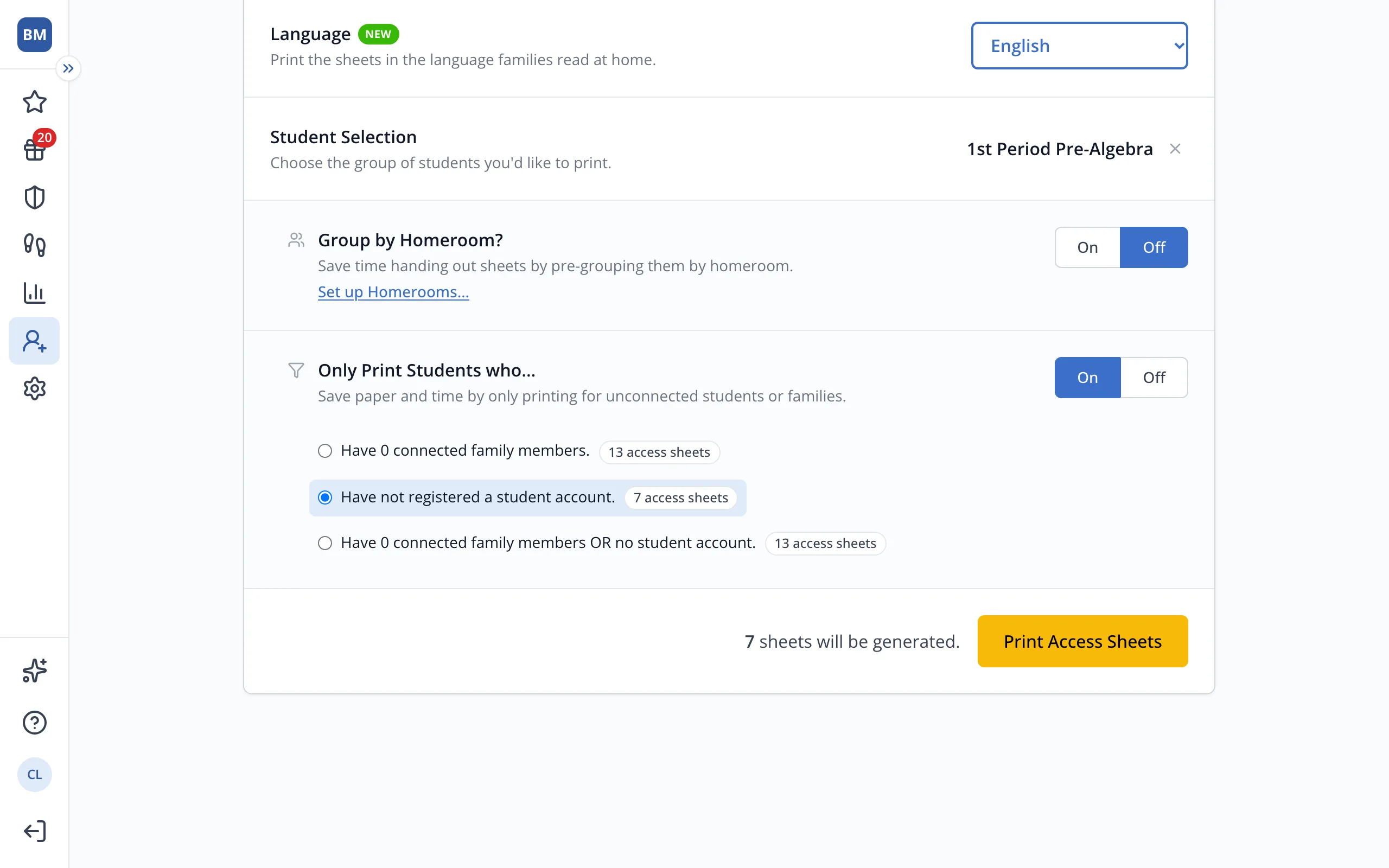
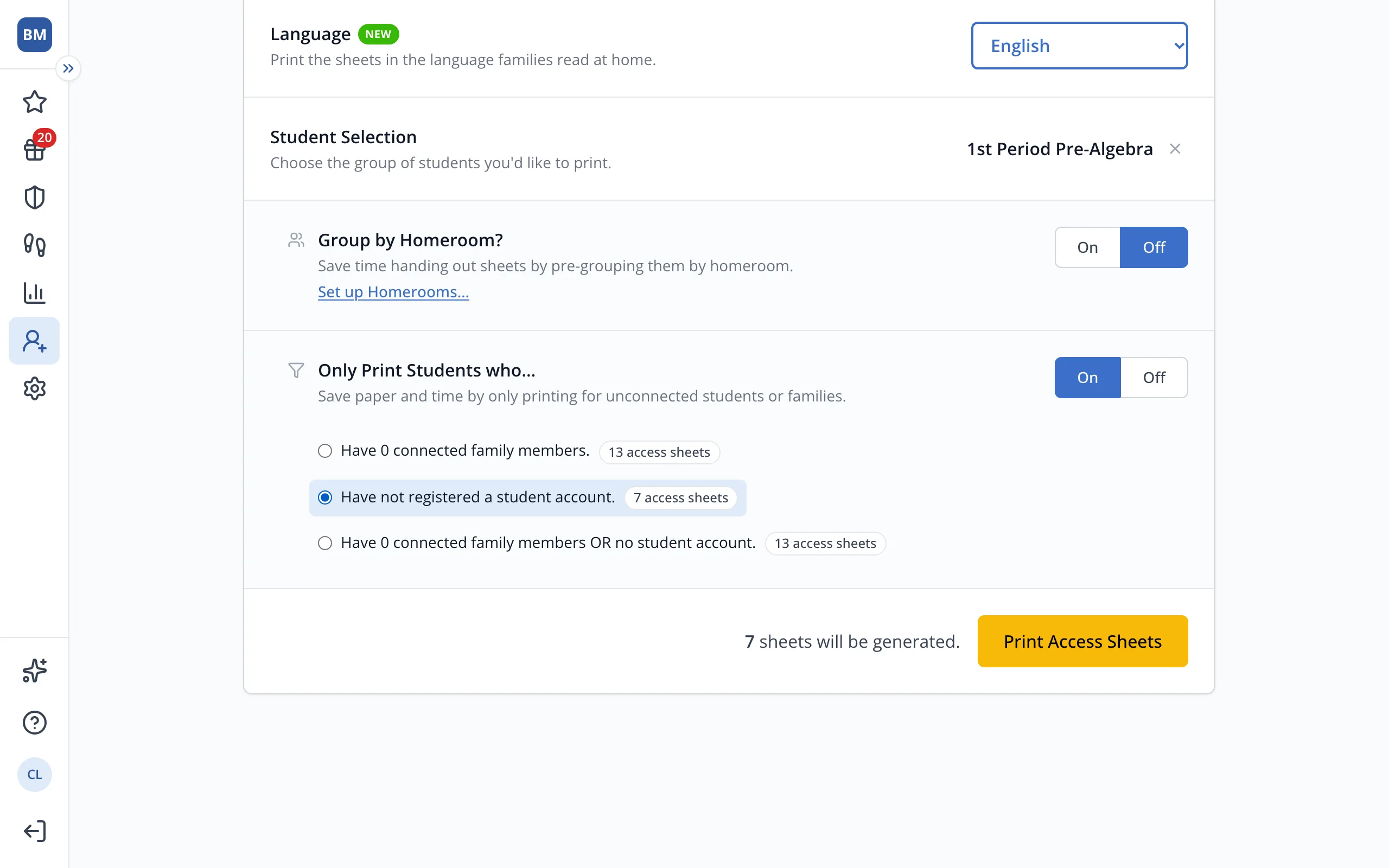
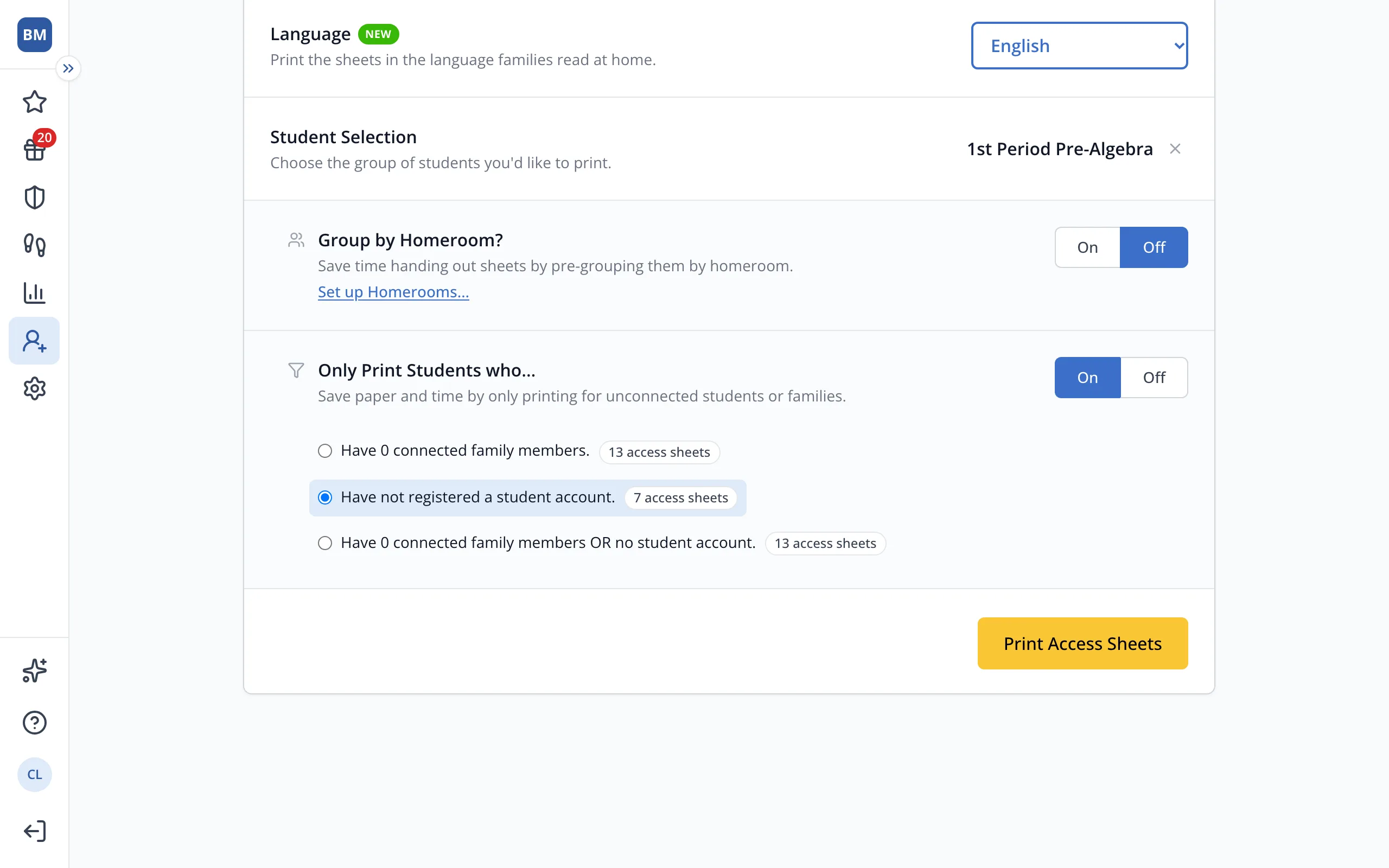
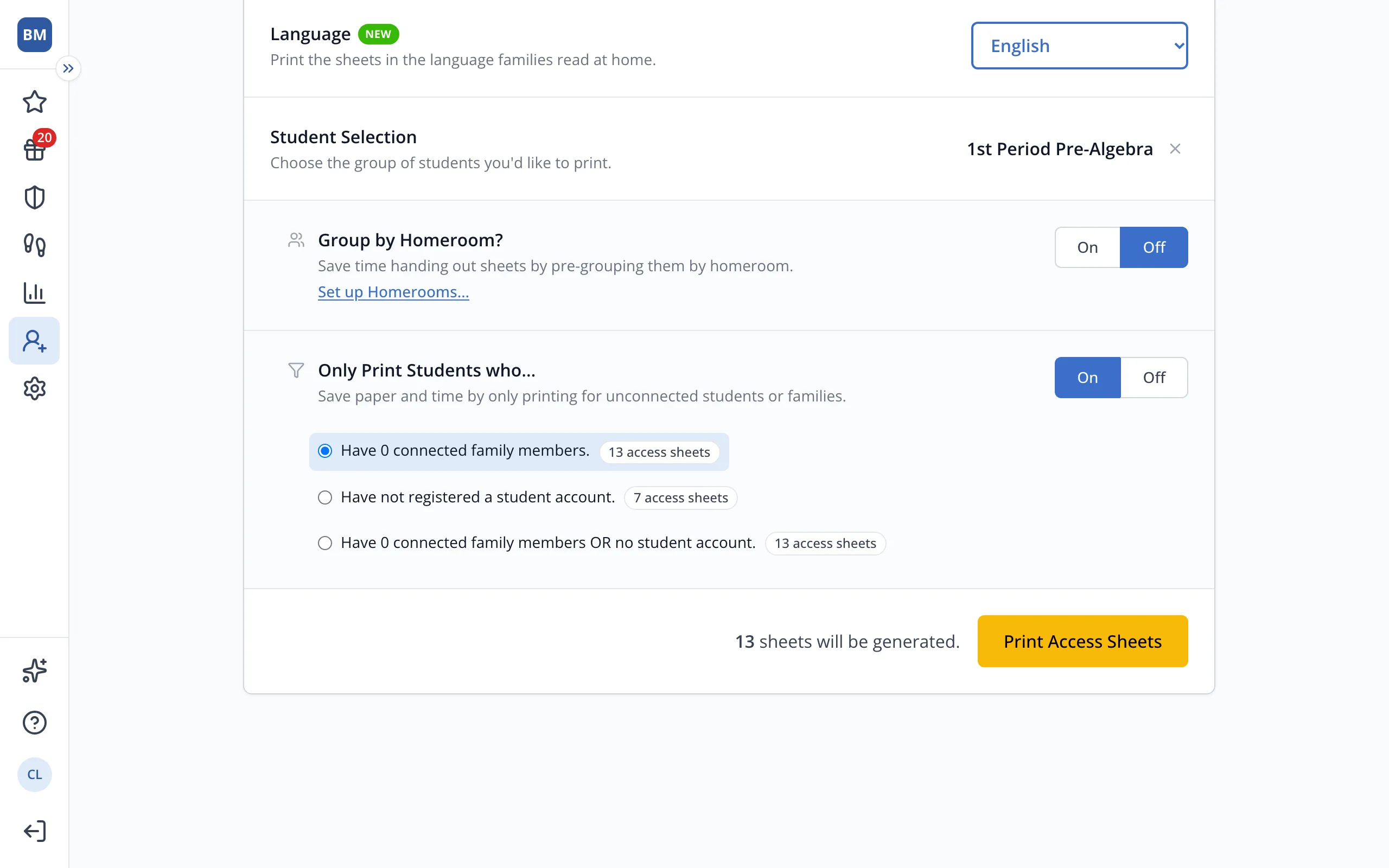
3.Under Only Print Students who…, click who you'd like to print for: no family connected, no student account, or either one.
4.Click Print Access Sheets. A PDF downloads, ready to print.