
Print ID badges on Avery paper
Three layouts match Avery 5371 and 5390 sheets, so each badge lands inside its perforations.
Open in LiveSchool
Already signed in? Open this guide inside LiveSchool.
Use the Left and Right arrow keys to move between steps, and Space to play or pause.
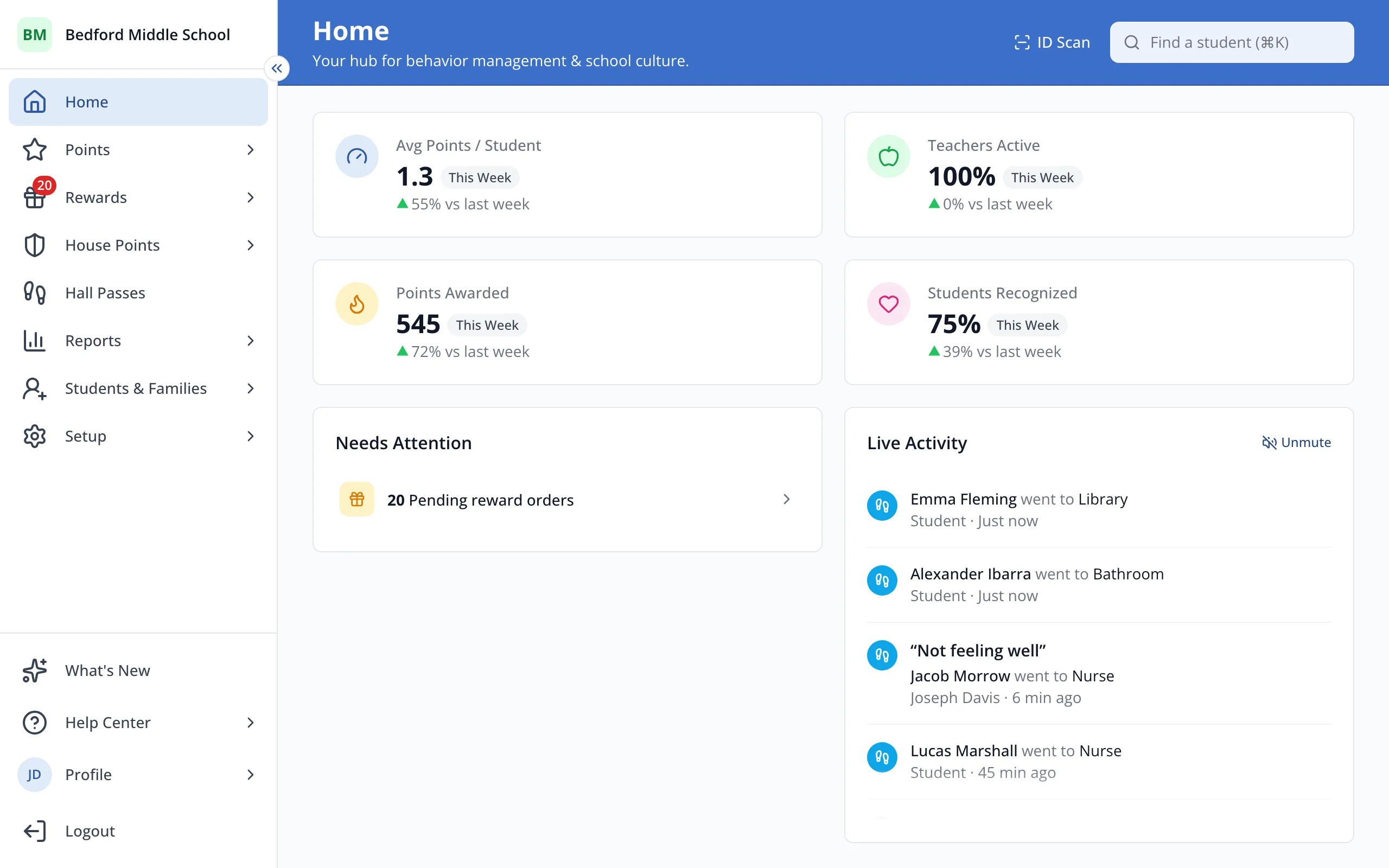
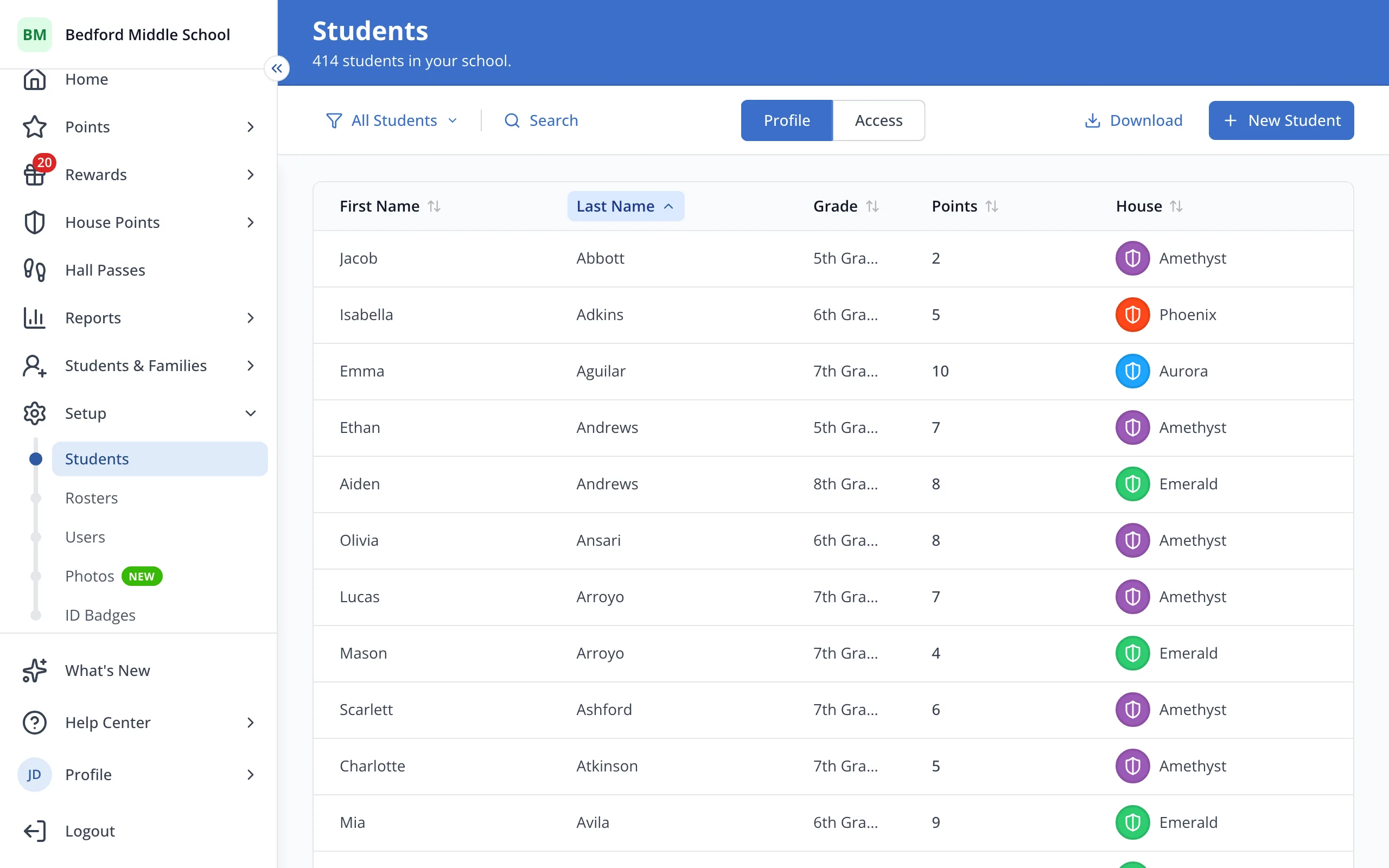
1.In the sidebar, click Setup.
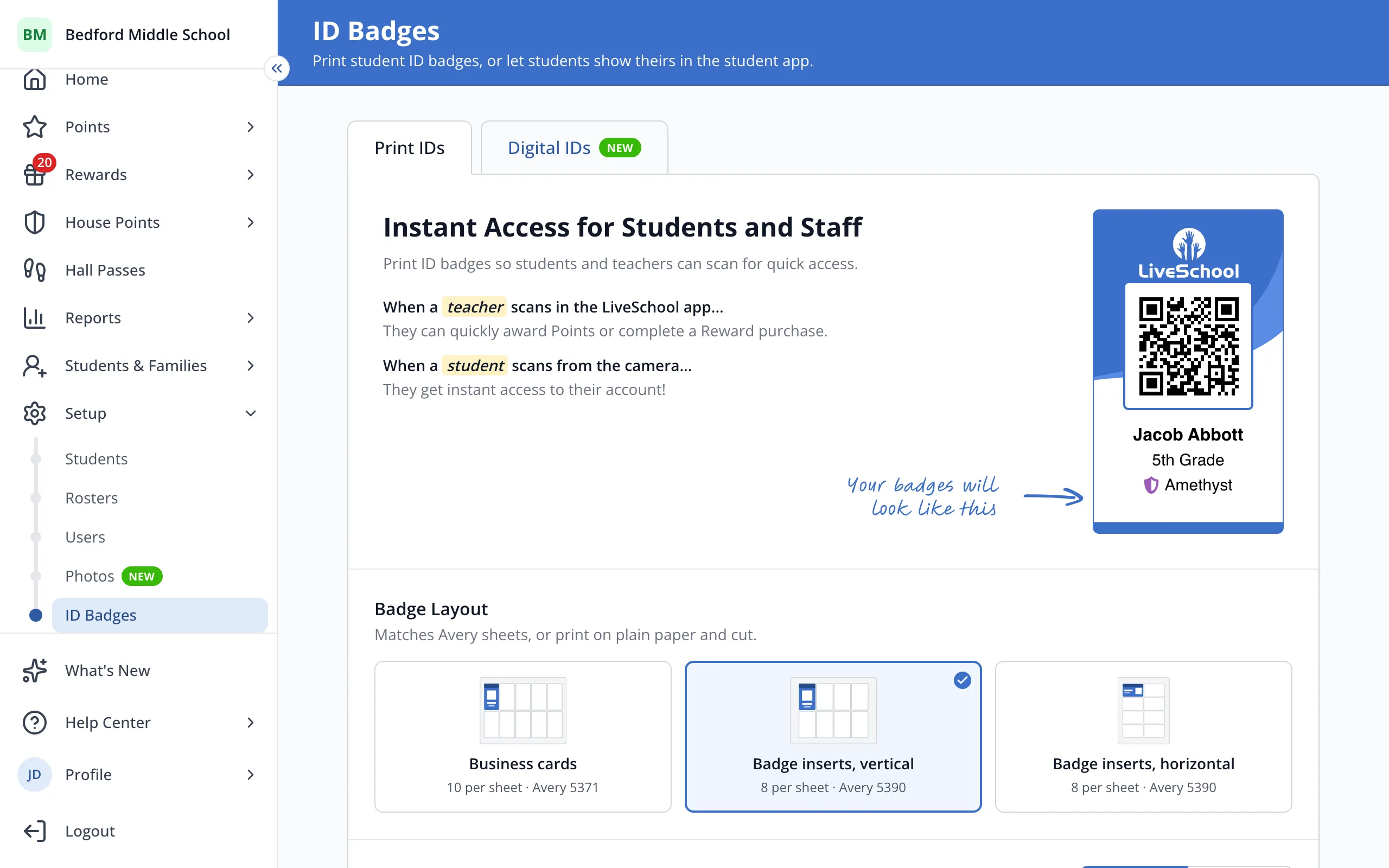
2.Click ID Badges.
3.Under Badge Layout, click the layout that matches your Avery sheets, like Badge inserts, vertical.
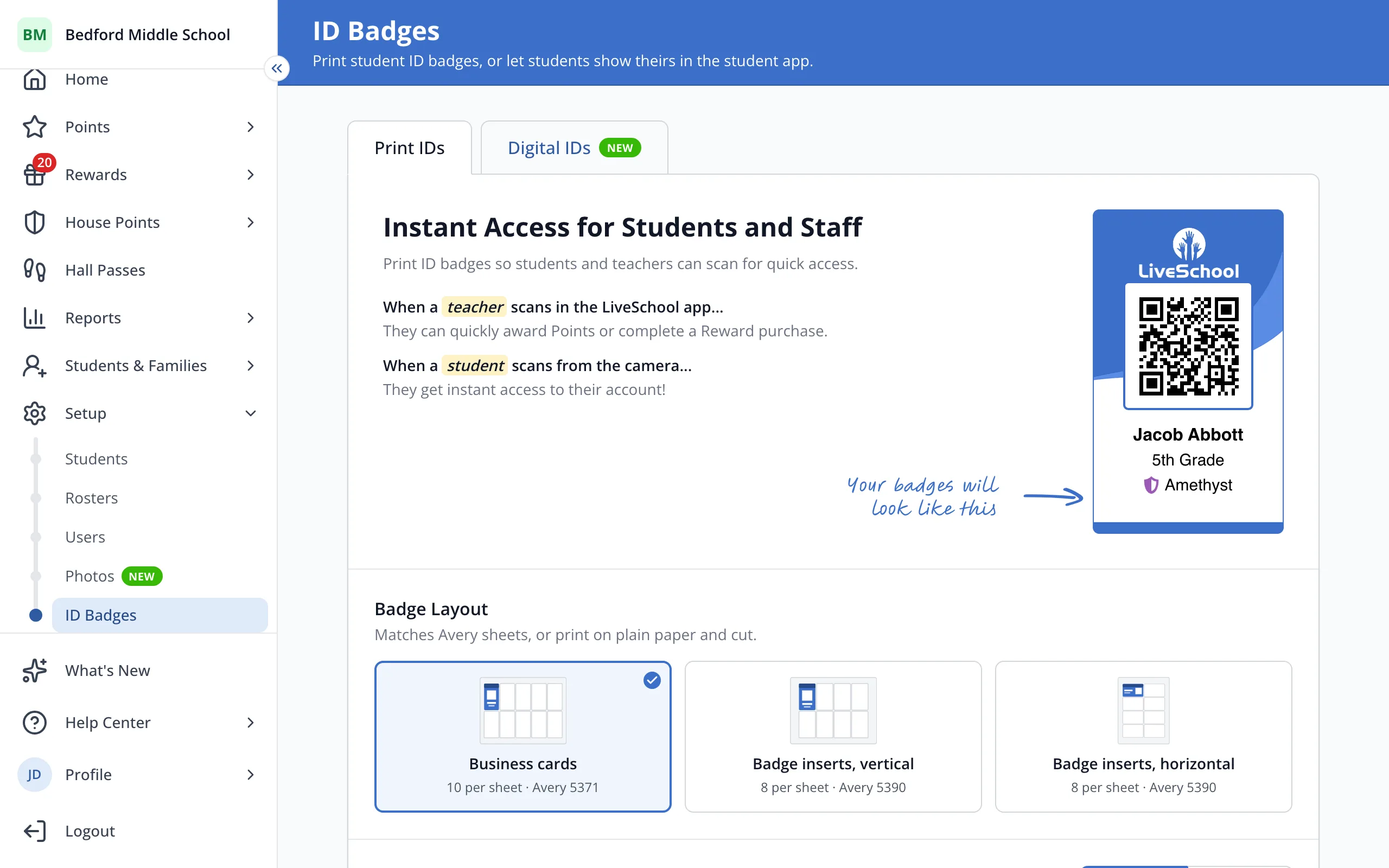
Did you know? Your choice is saved for everyone at your school.
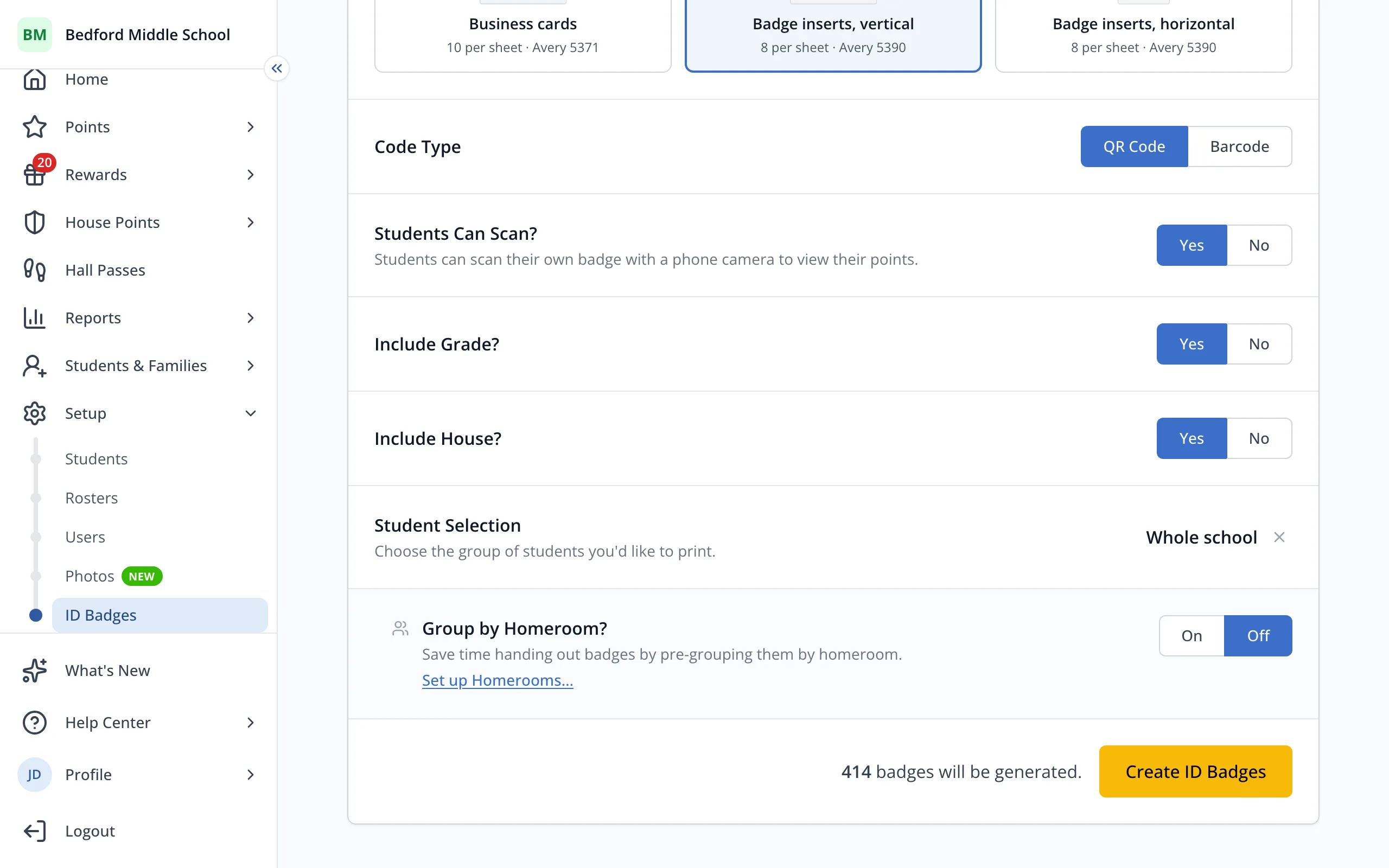
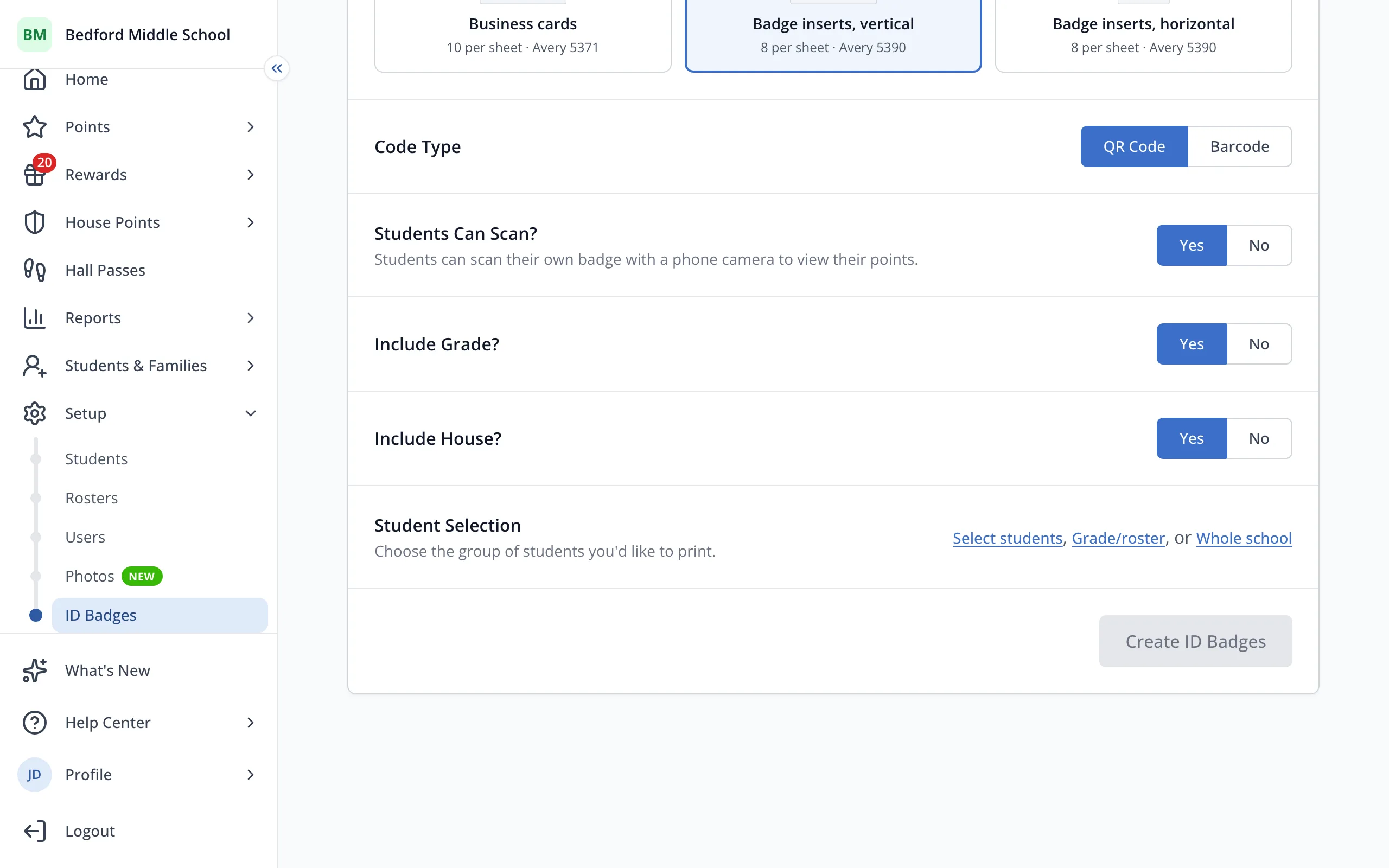
4.Next to Student Selection, choose the students to print for, like Whole school.
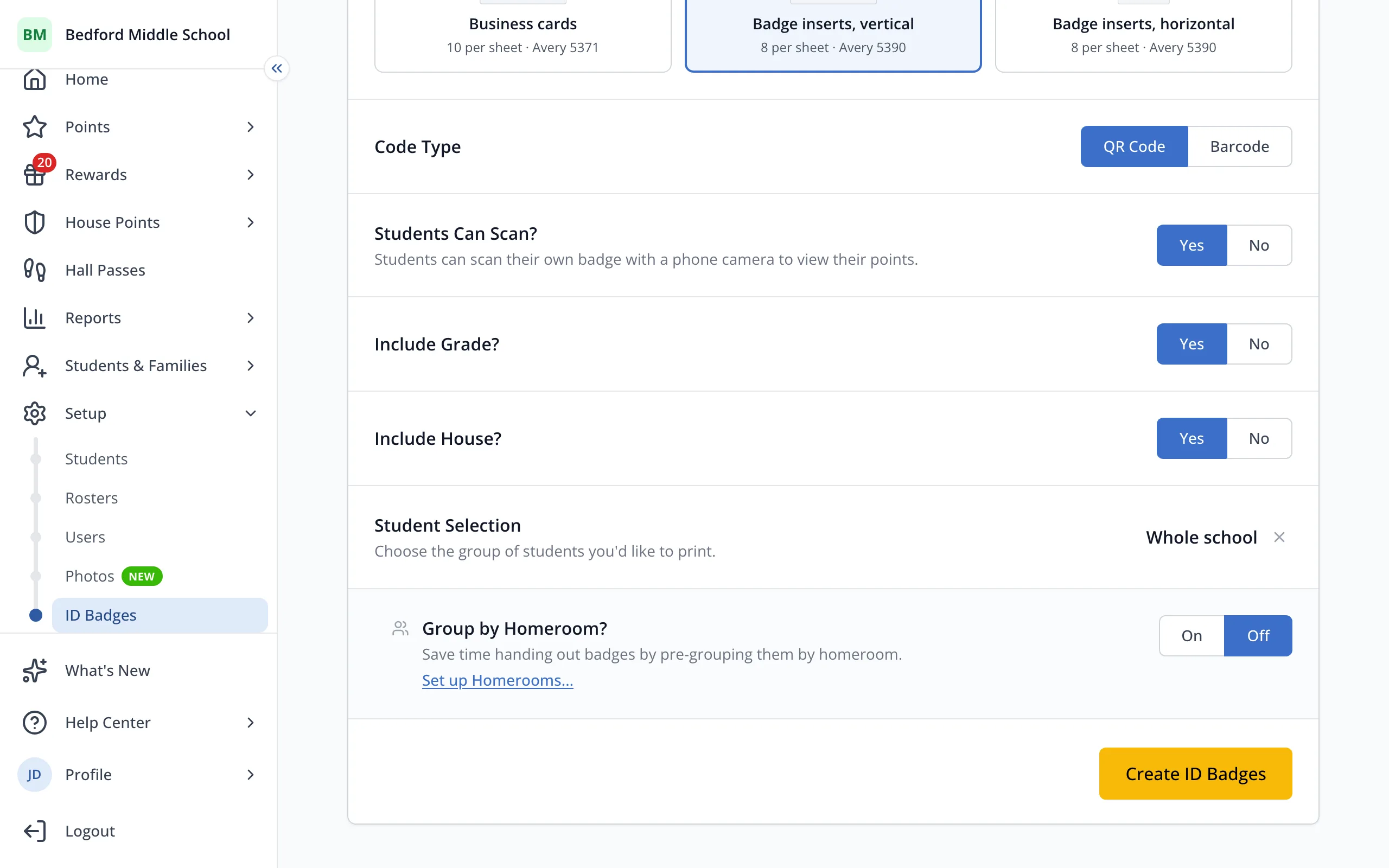
5.Click Create ID Badges to download the PDF.
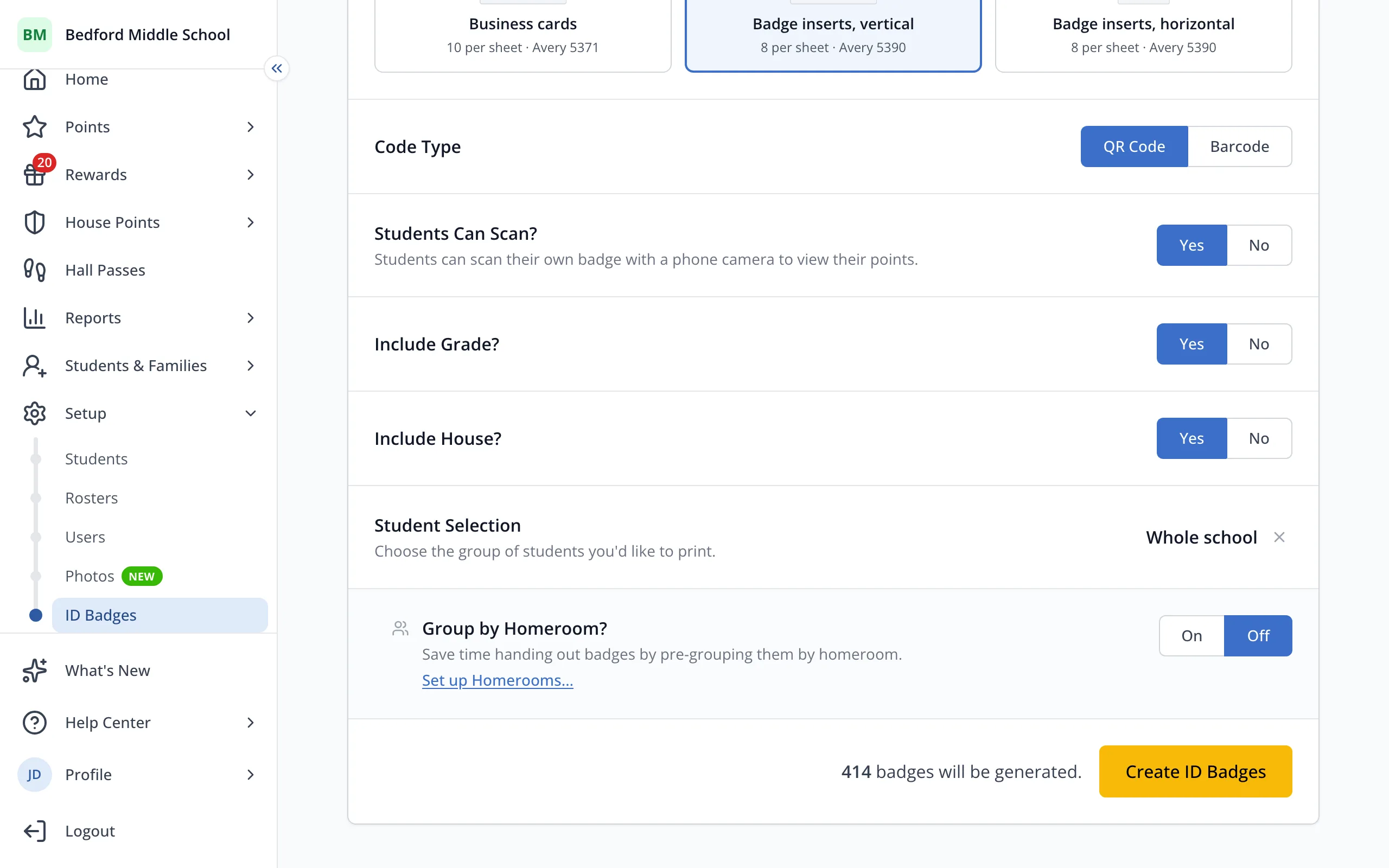
Did you know? Print the PDF at 100% scale so the badges line up with the sheet.