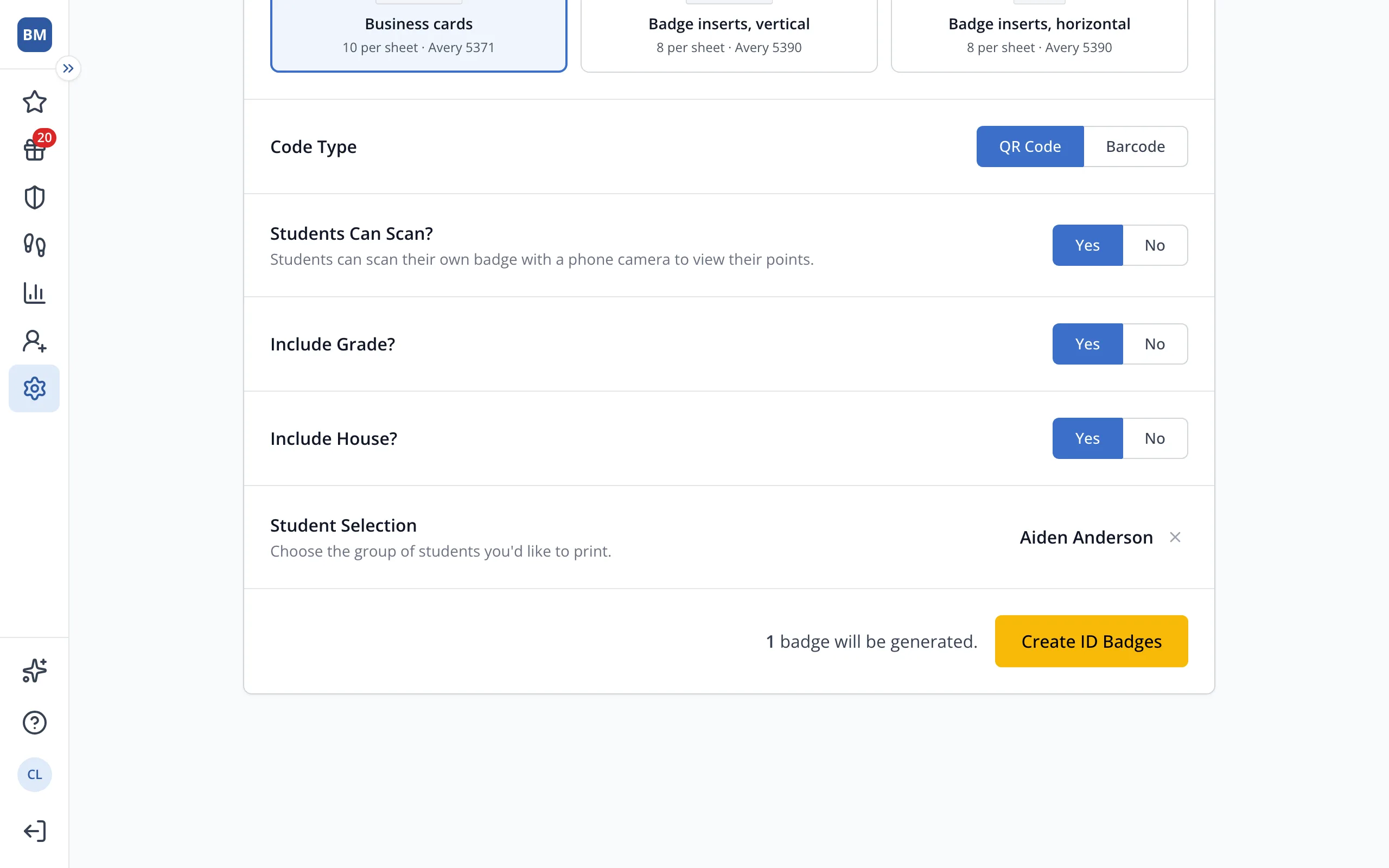
Print a new badge for one student
Lost or damaged badge? A reprinted badge has the same code, so it scans just like the old one.
Open in LiveSchool
Already signed in? Open this guide inside LiveSchool.
Use the Left and Right arrow keys to move between steps, and Space to play or pause.
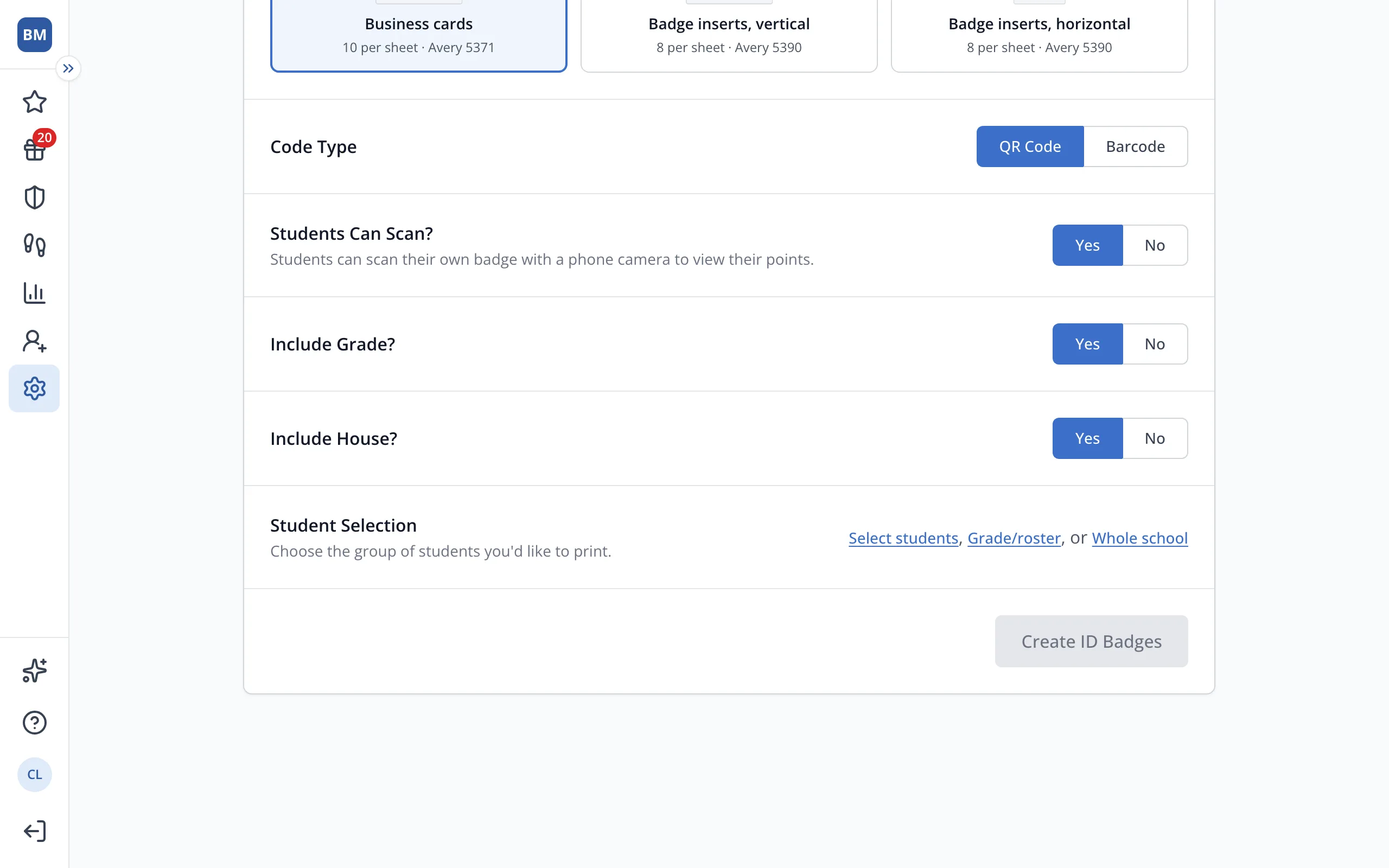
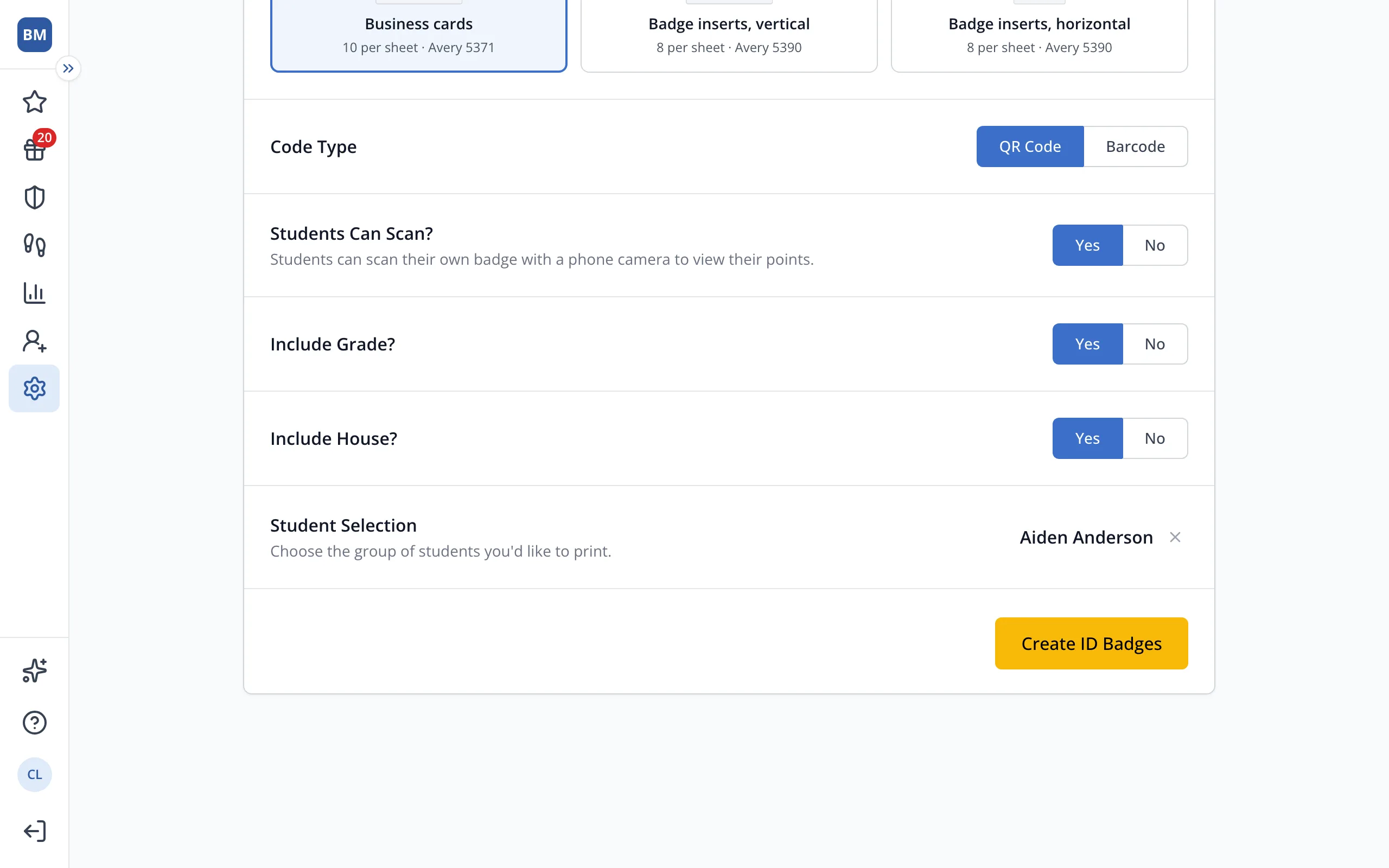
1.On the ID Badges page under Setup, next to Student Selection, click Select students.
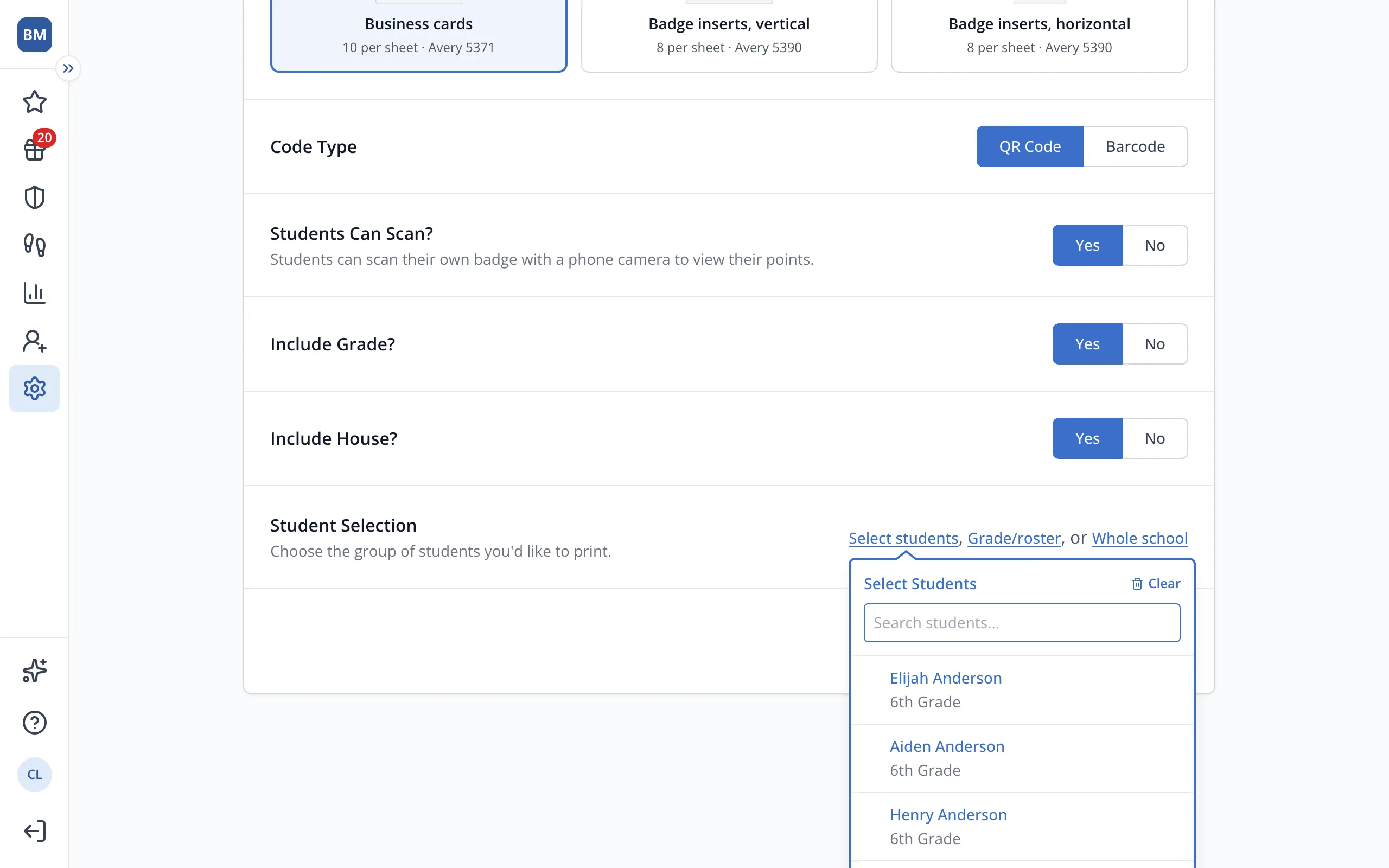
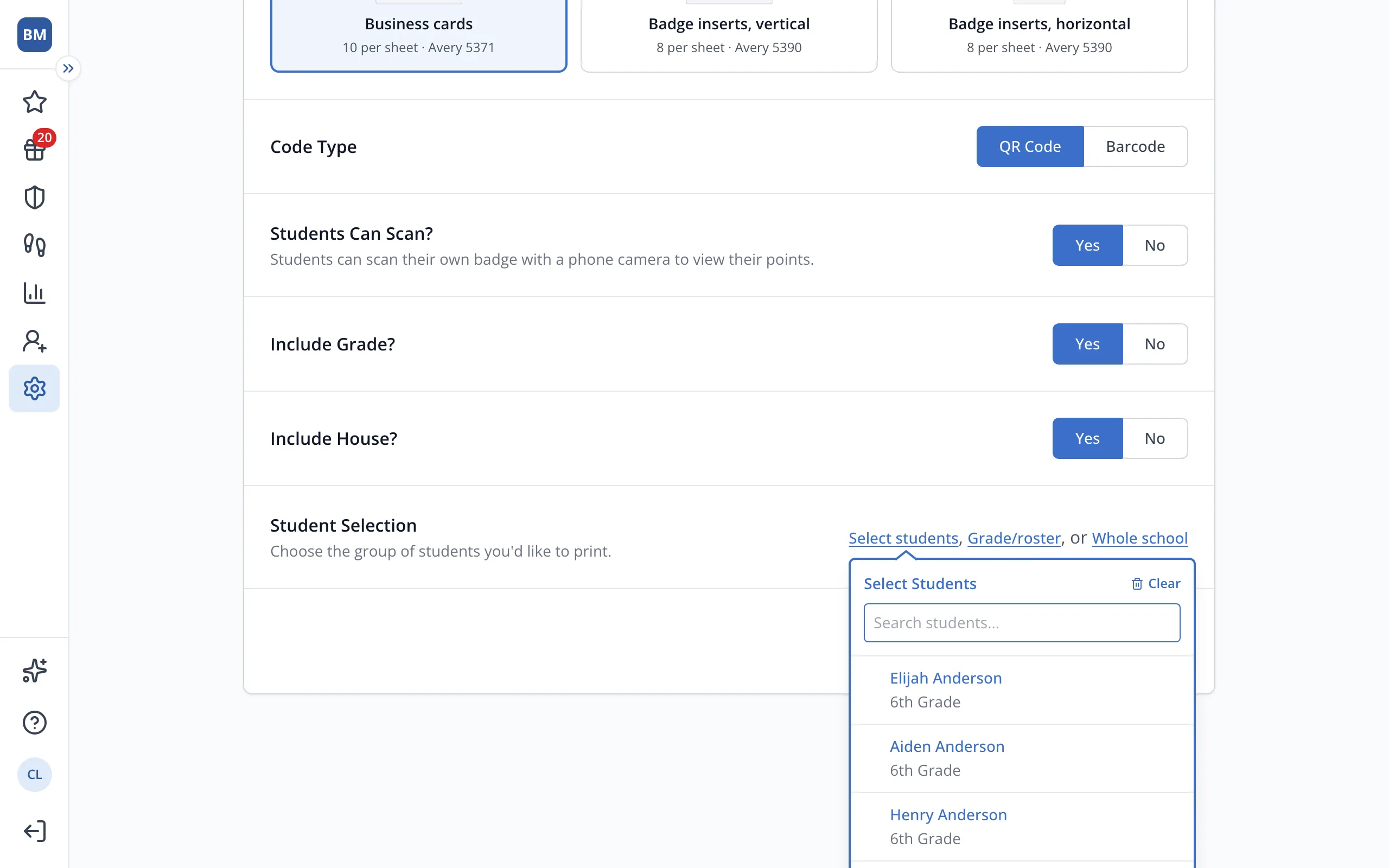
2.Type the student's name.
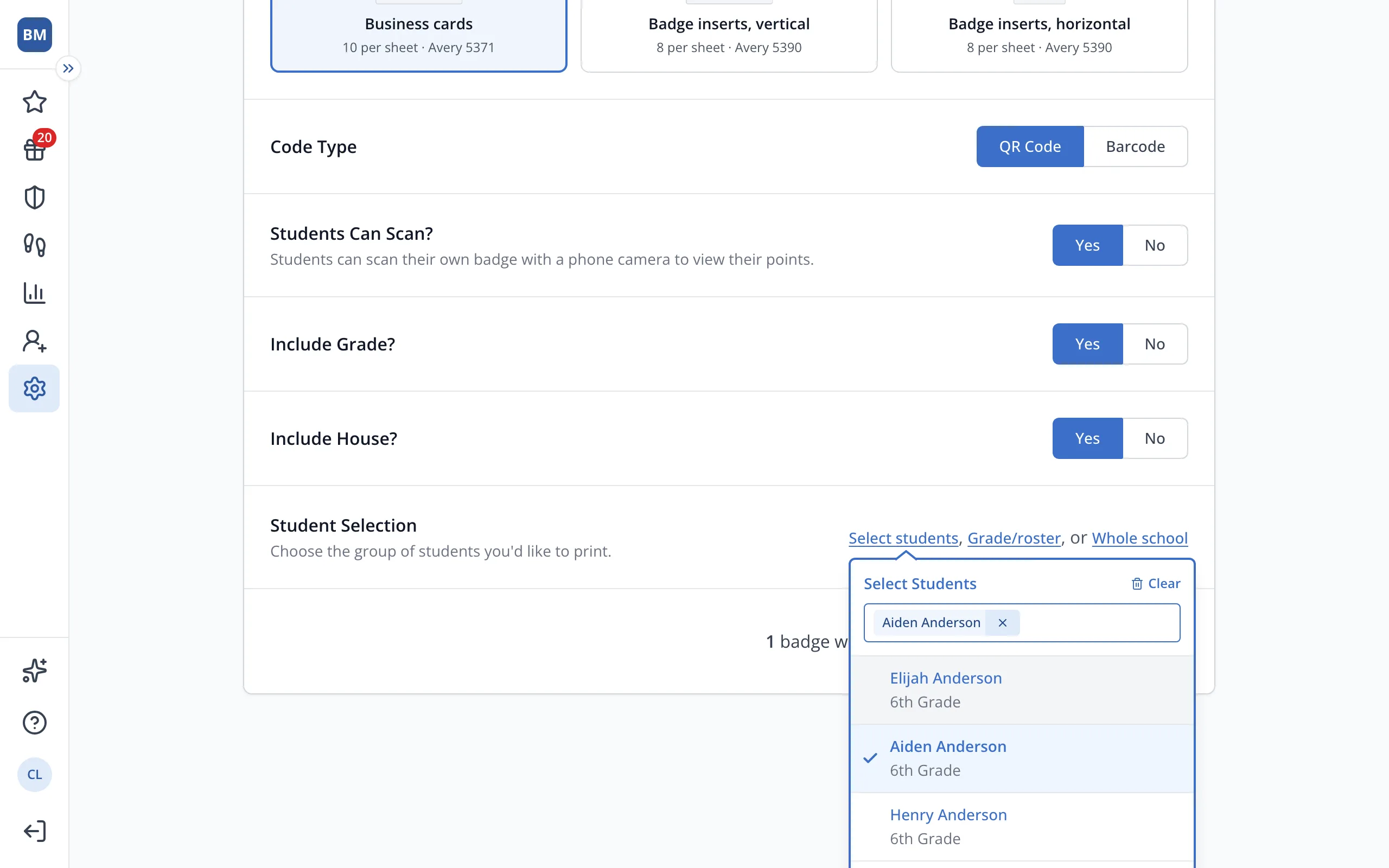
3.Click the student. Click any others who need a badge too.
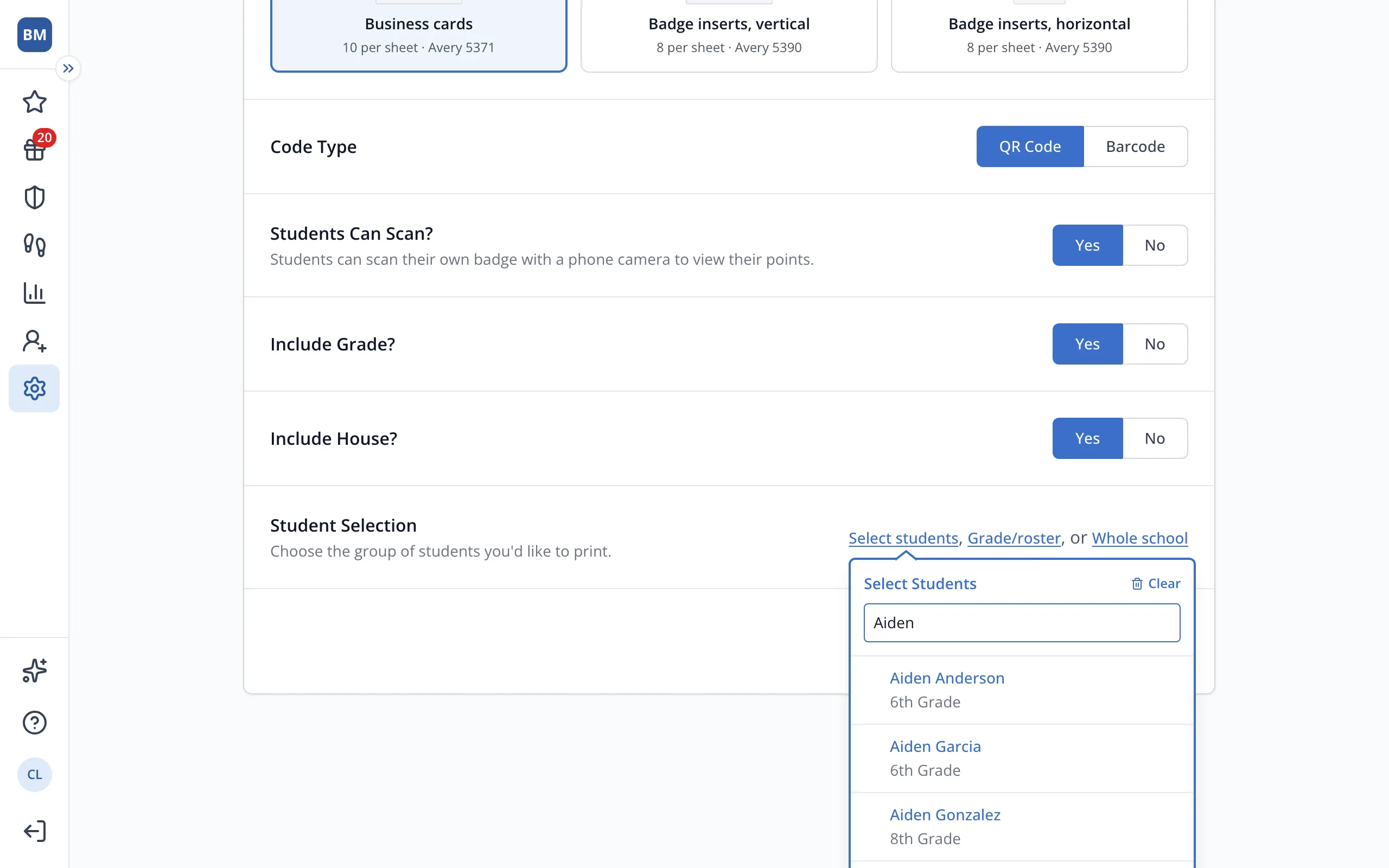
4.Click Create ID Badges. A PDF of the badge downloads, ready to print.