Link your school's existing student IDs
Already have school IDs with a barcode or QR code? Link each one the first time you scan it, and it works like a LiveSchool badge from then on.
AdminSite Leader
Open in LiveSchool
Already signed in? Open this guide inside LiveSchool.
Use the Left and Right arrow keys to move between steps, and Space to play or pause.
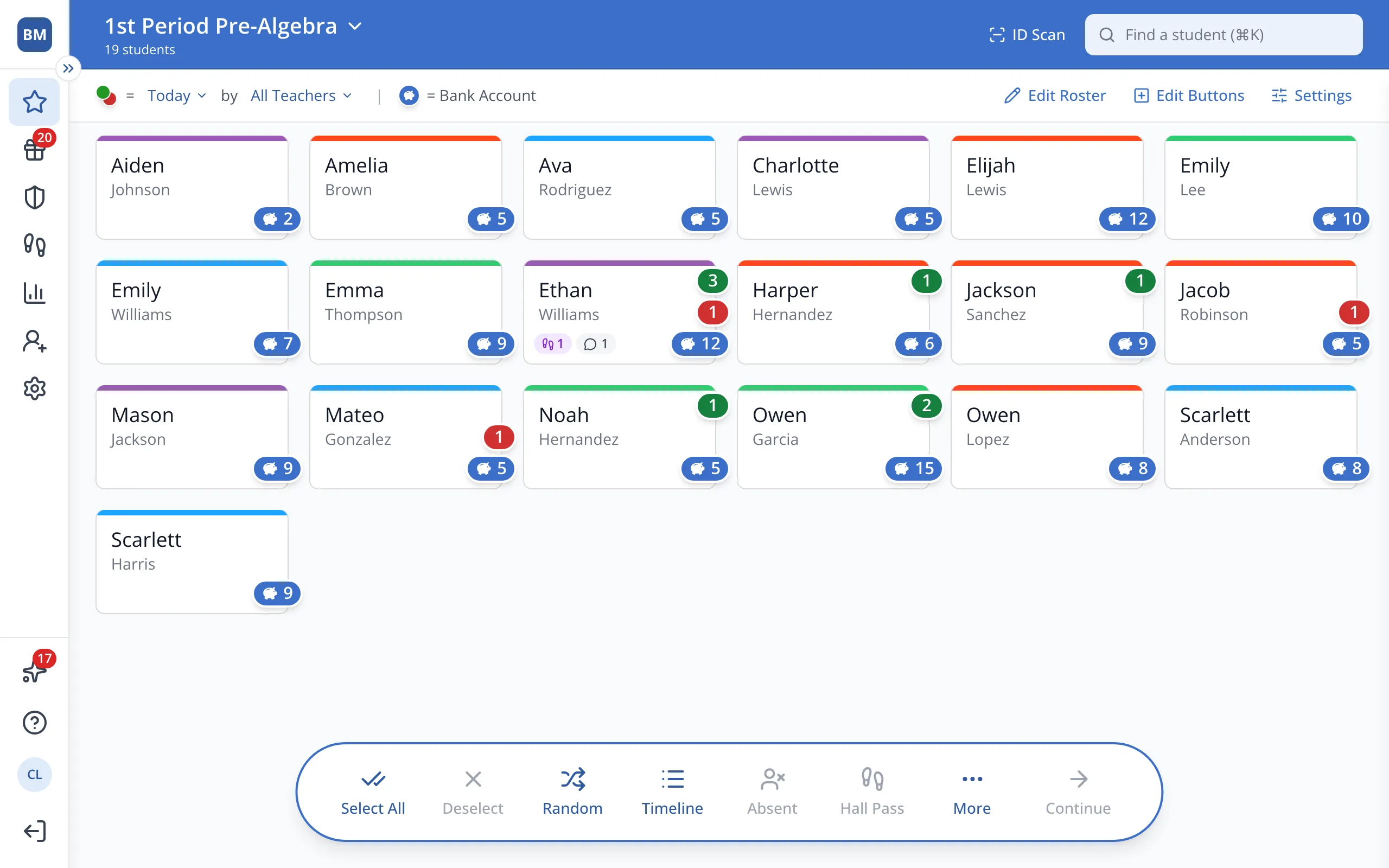
1.At the top of the Points page, click ID Scan.
2.Click Single Scan Mode.
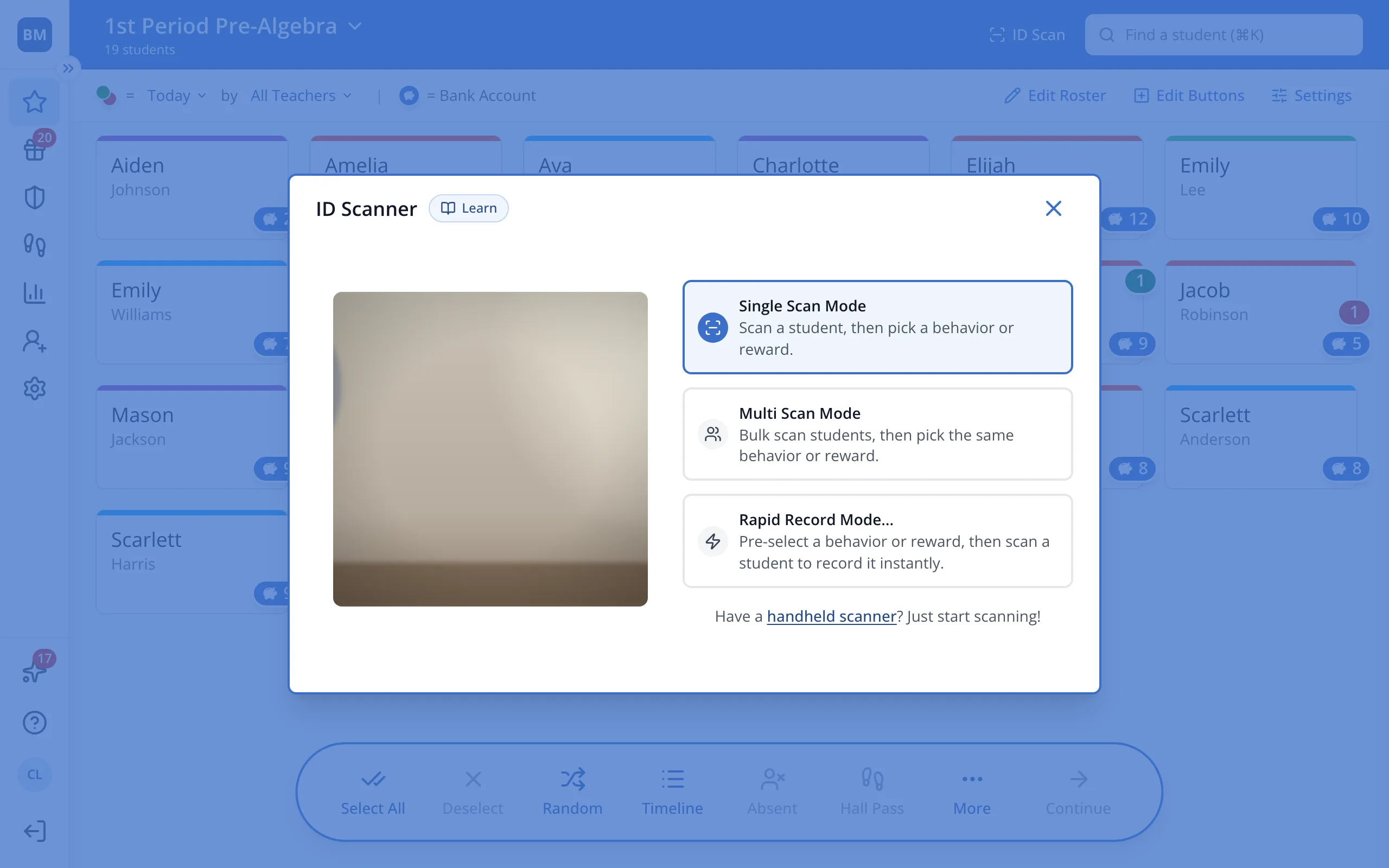
3.Scan the student's school ID with a handheld scanner or your camera.
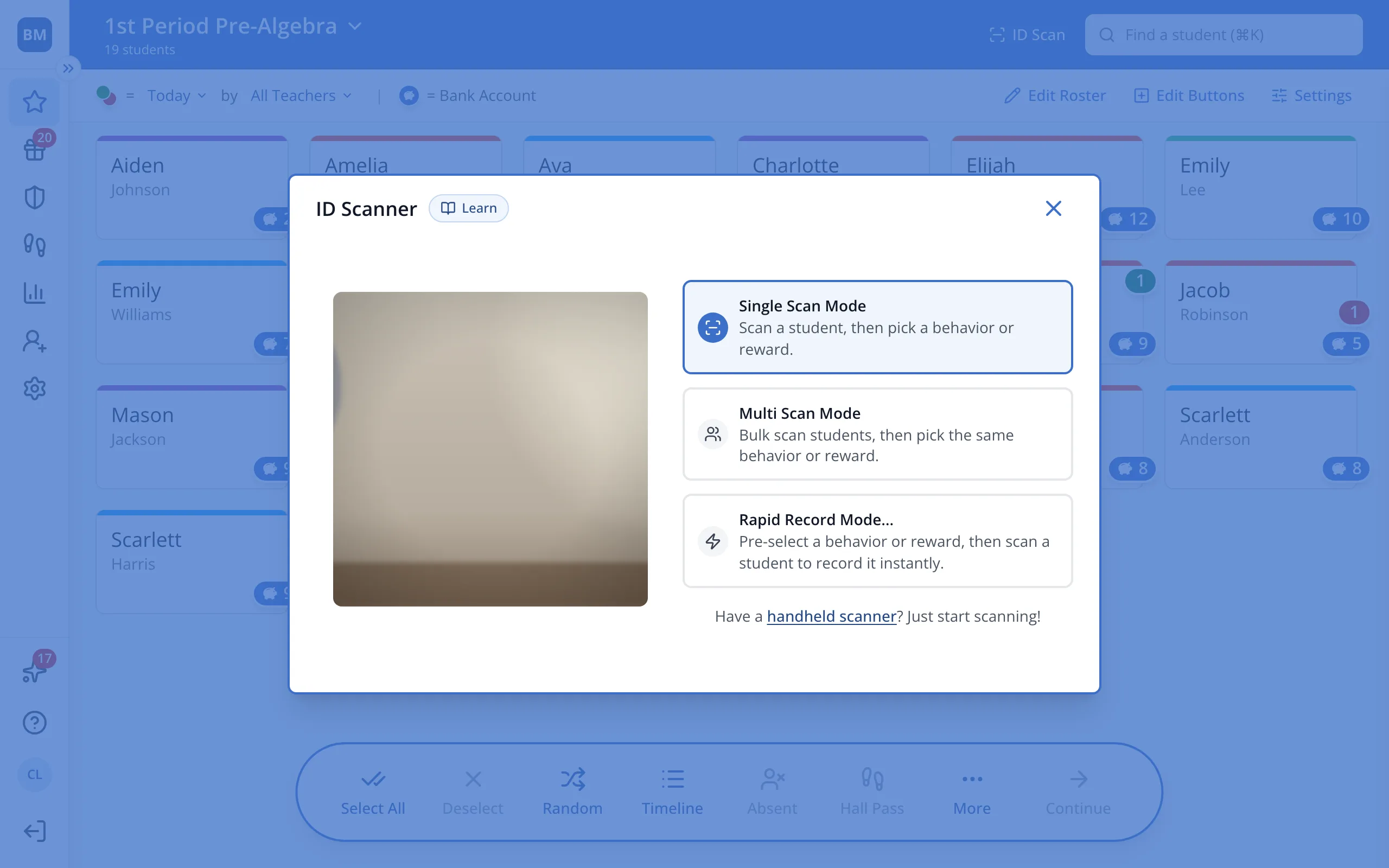
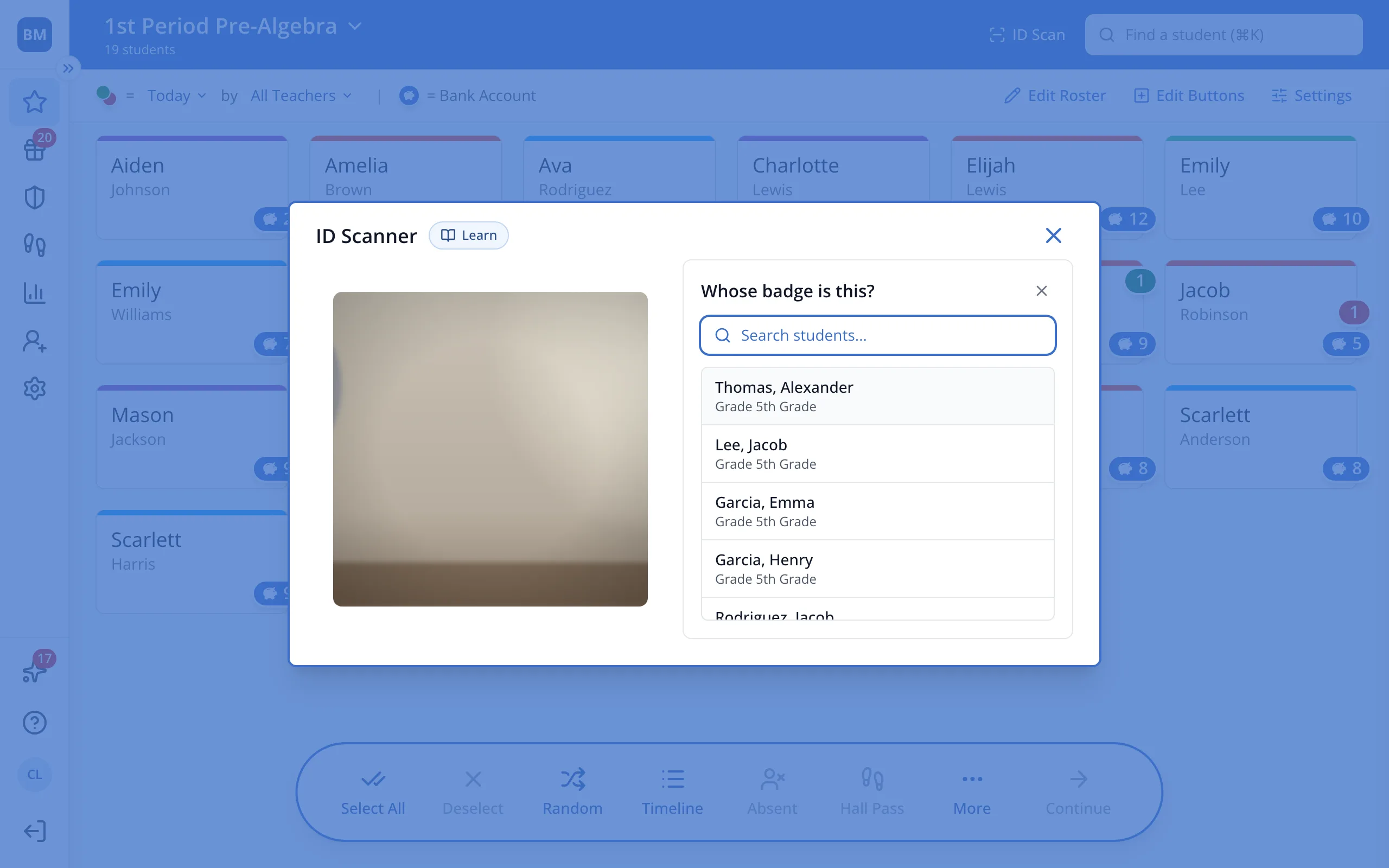
4.You'll see Unrecognized badge. Click Link badge to a student.
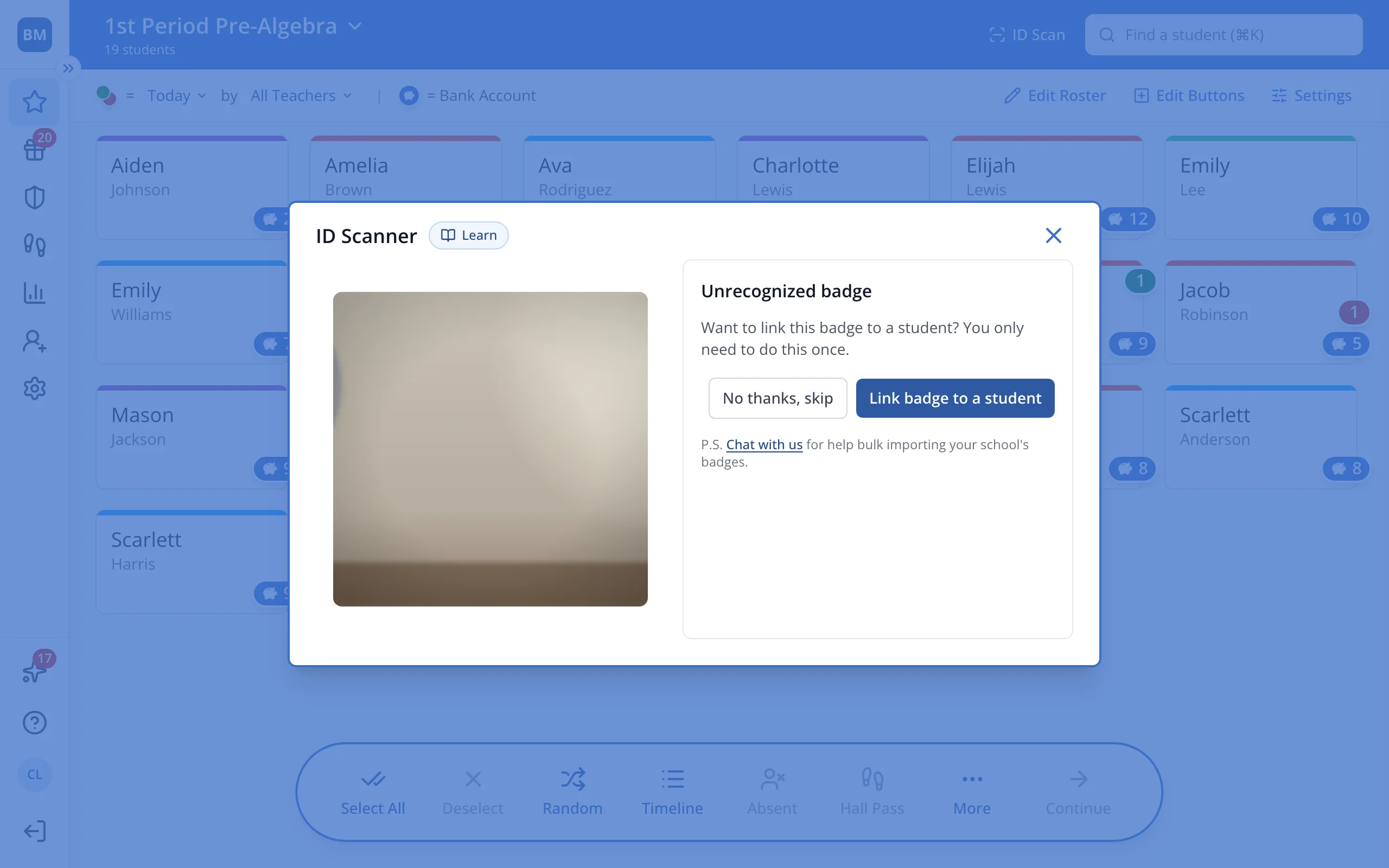
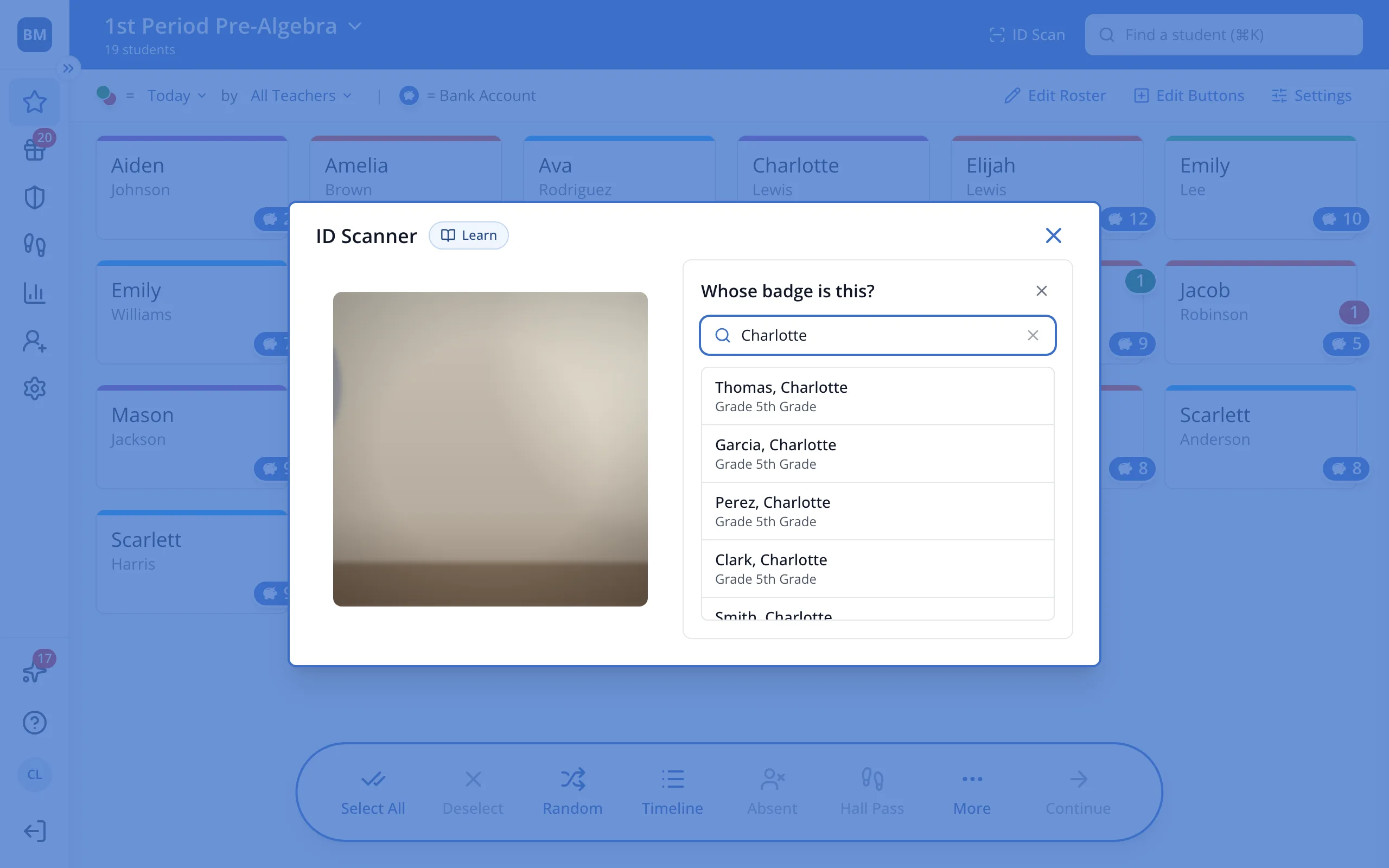
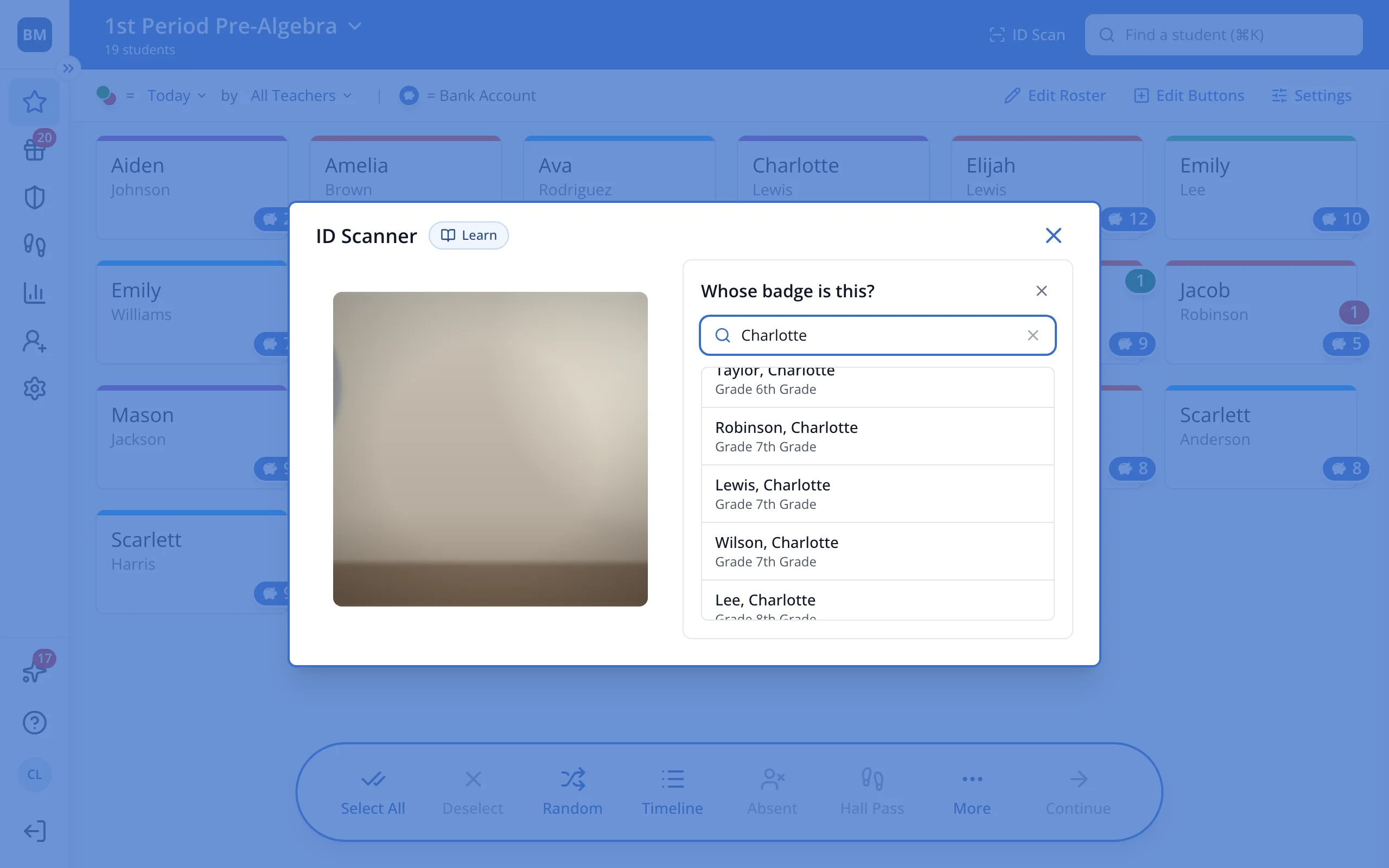
5.Type the student's name.
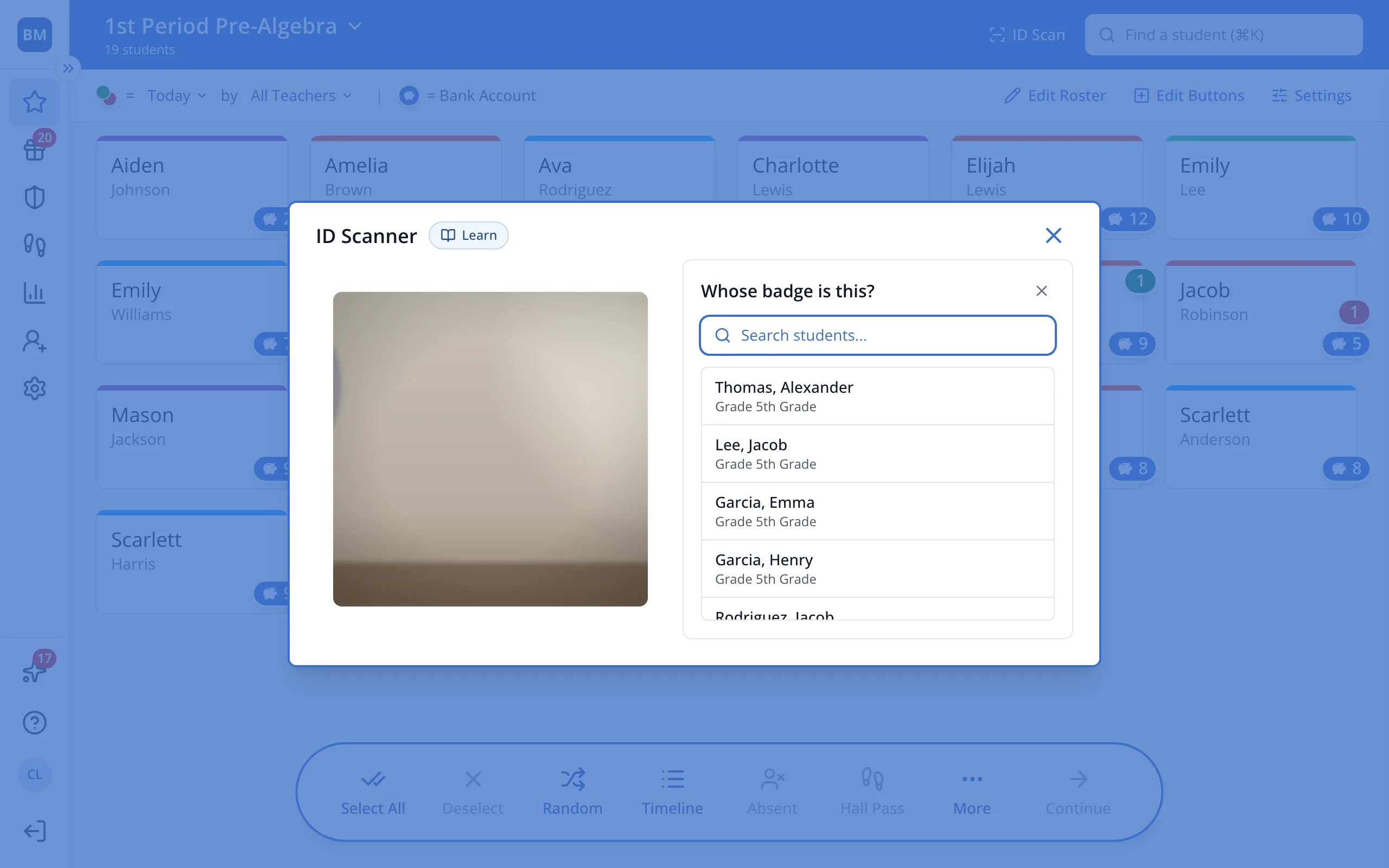
6.Click the student whose ID it is.
Did you know? If the student already has a linked ID, click Replace to use the new one.
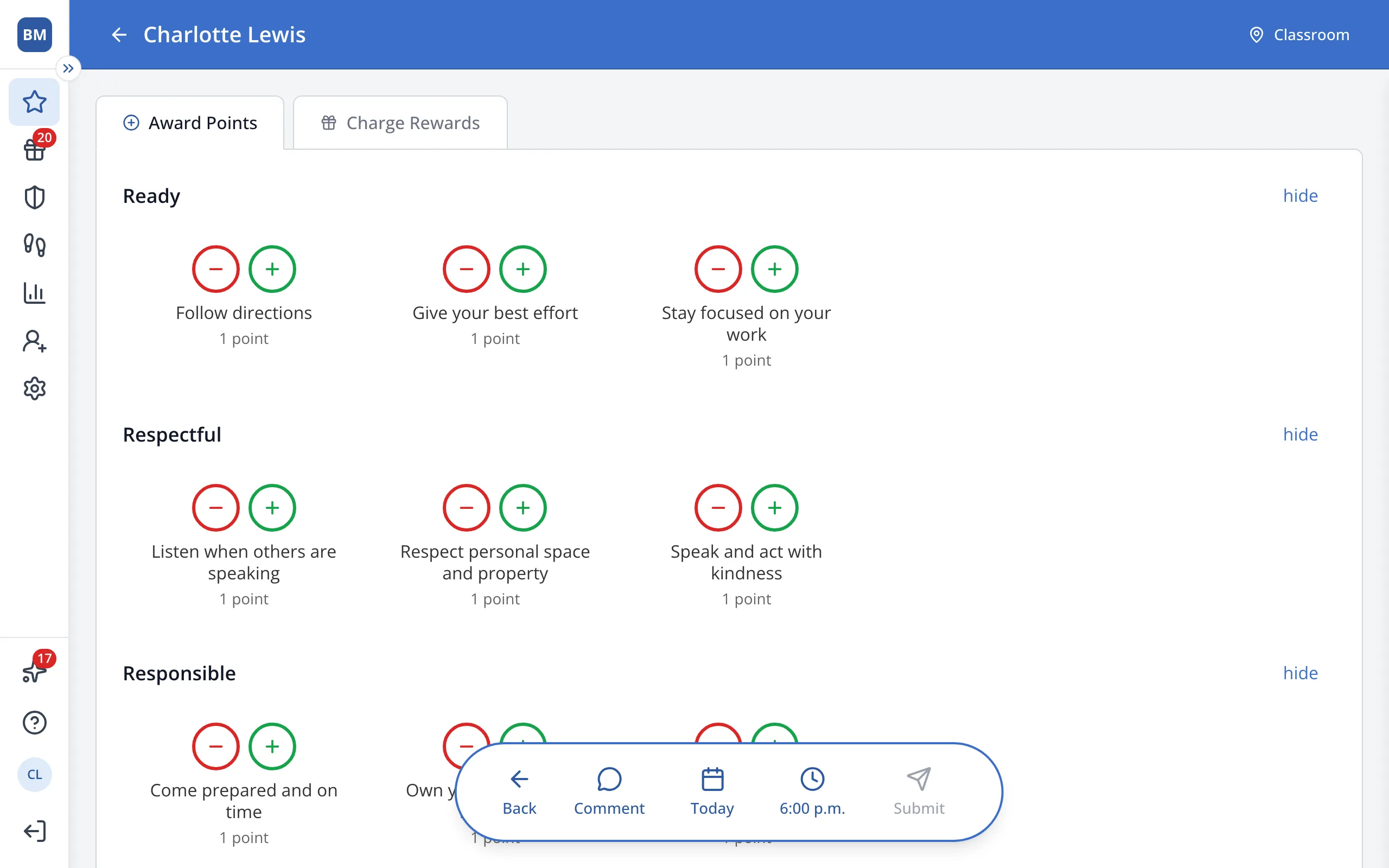
7.That ID is linked now, so the next scan opens the student right away.