Check trends in the activity of your student and family accounts
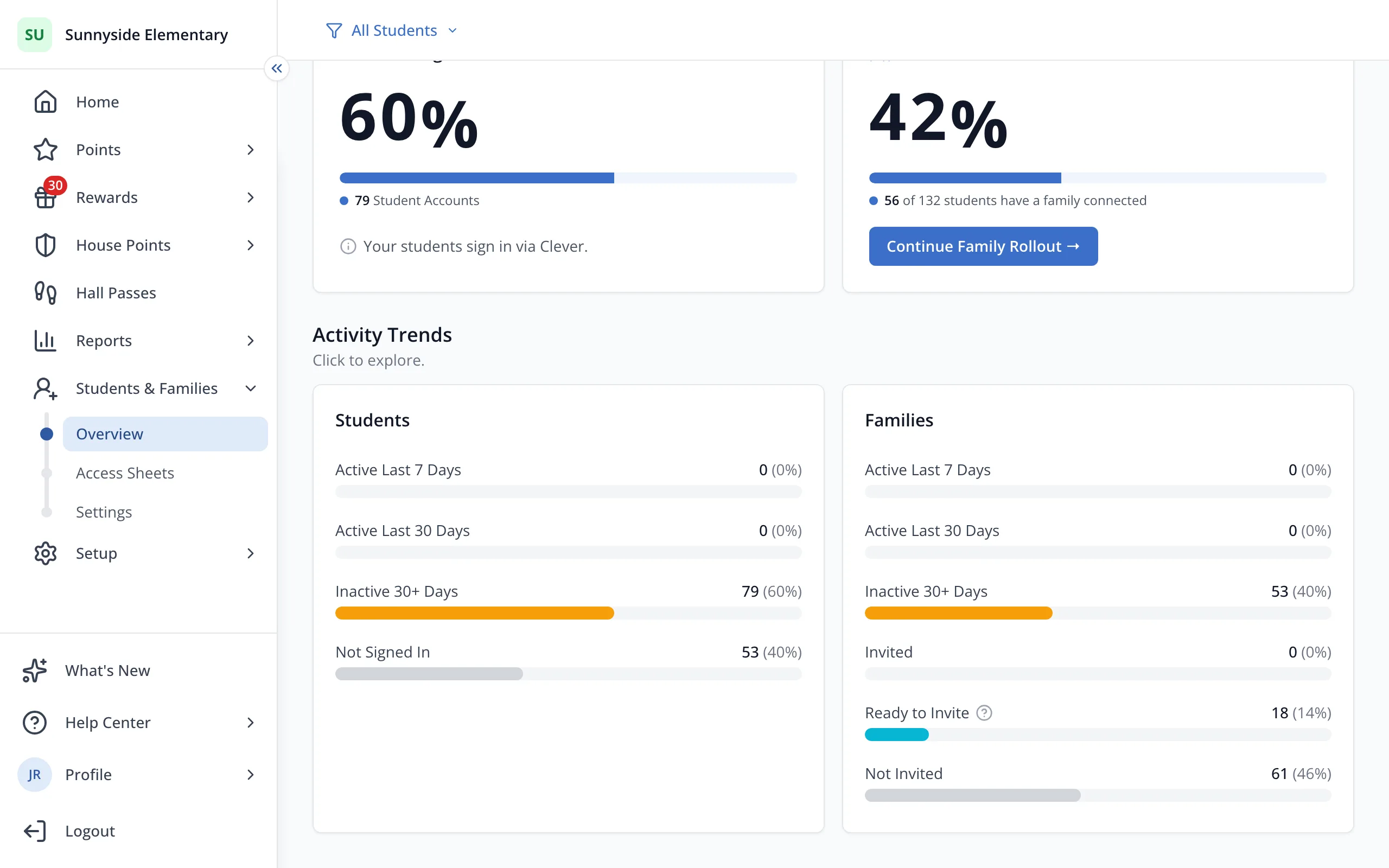
Review the status of your student and family accounts through the Activity Trends bar graph.
Already signed in? Open this guide inside LiveSchool.
Use the Left and Right arrow keys to move between steps, and Space to play or pause.
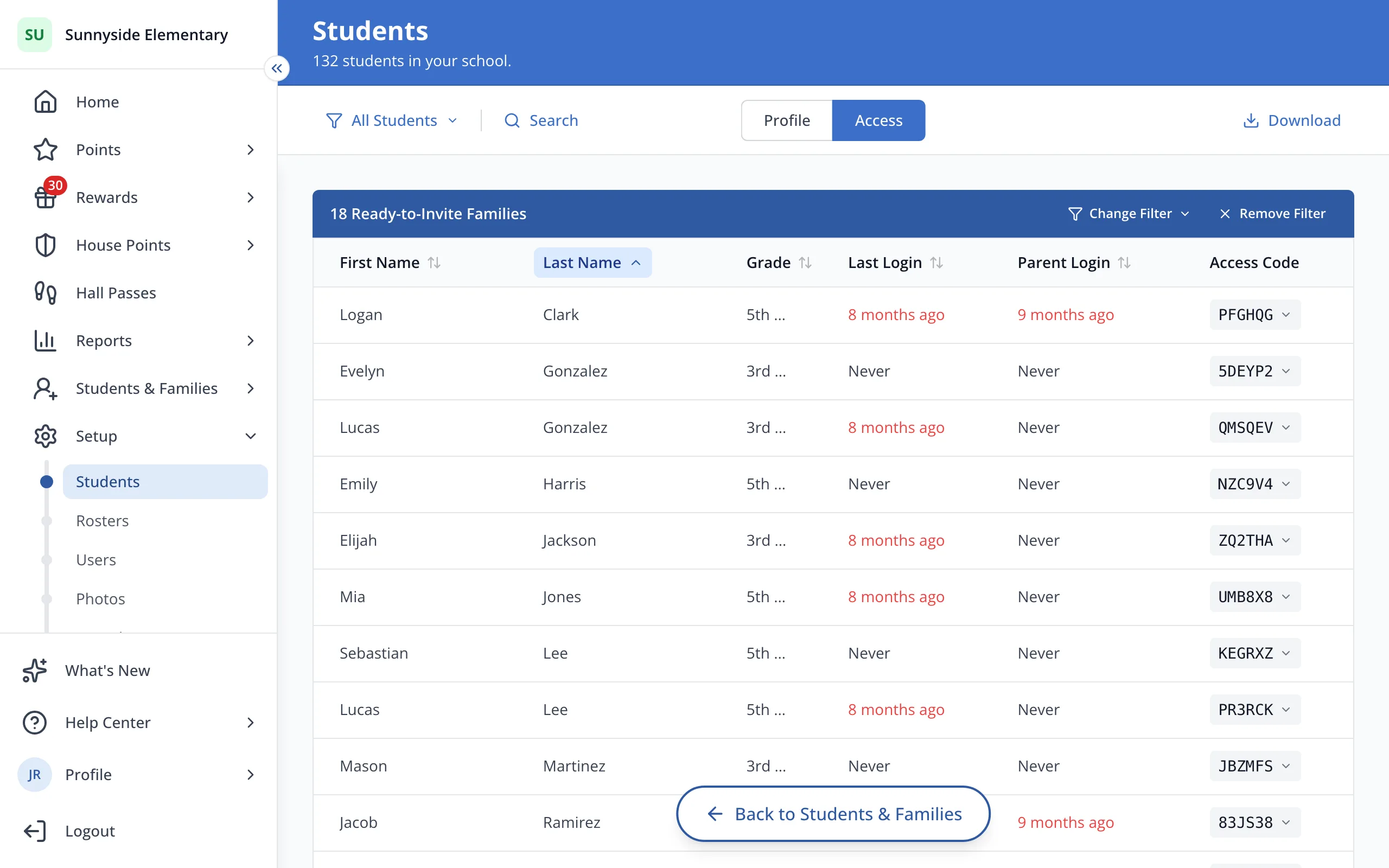
1.In the sidebar, click Students & Families.
2.Under Activity Trends, Students shows how recently each student signed in with a username and password, or through SSO with Clever or ClassLink. Not Signed In counts students who never have.
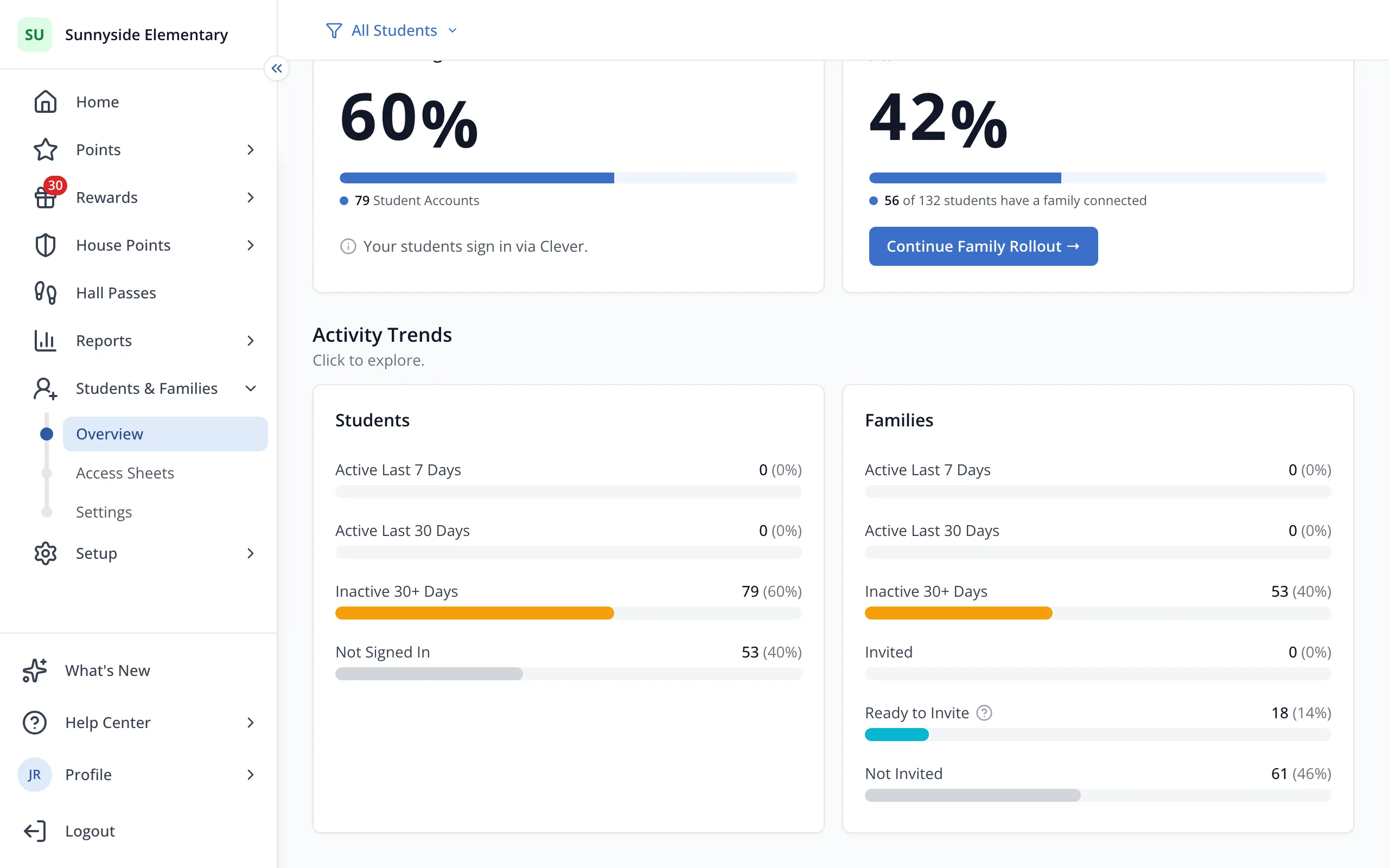
3.Under Families, Invited means they got an email but haven't signed in. Ready to Invite means they have an email but haven't been invited, and Not Invited means there's no email to send them.
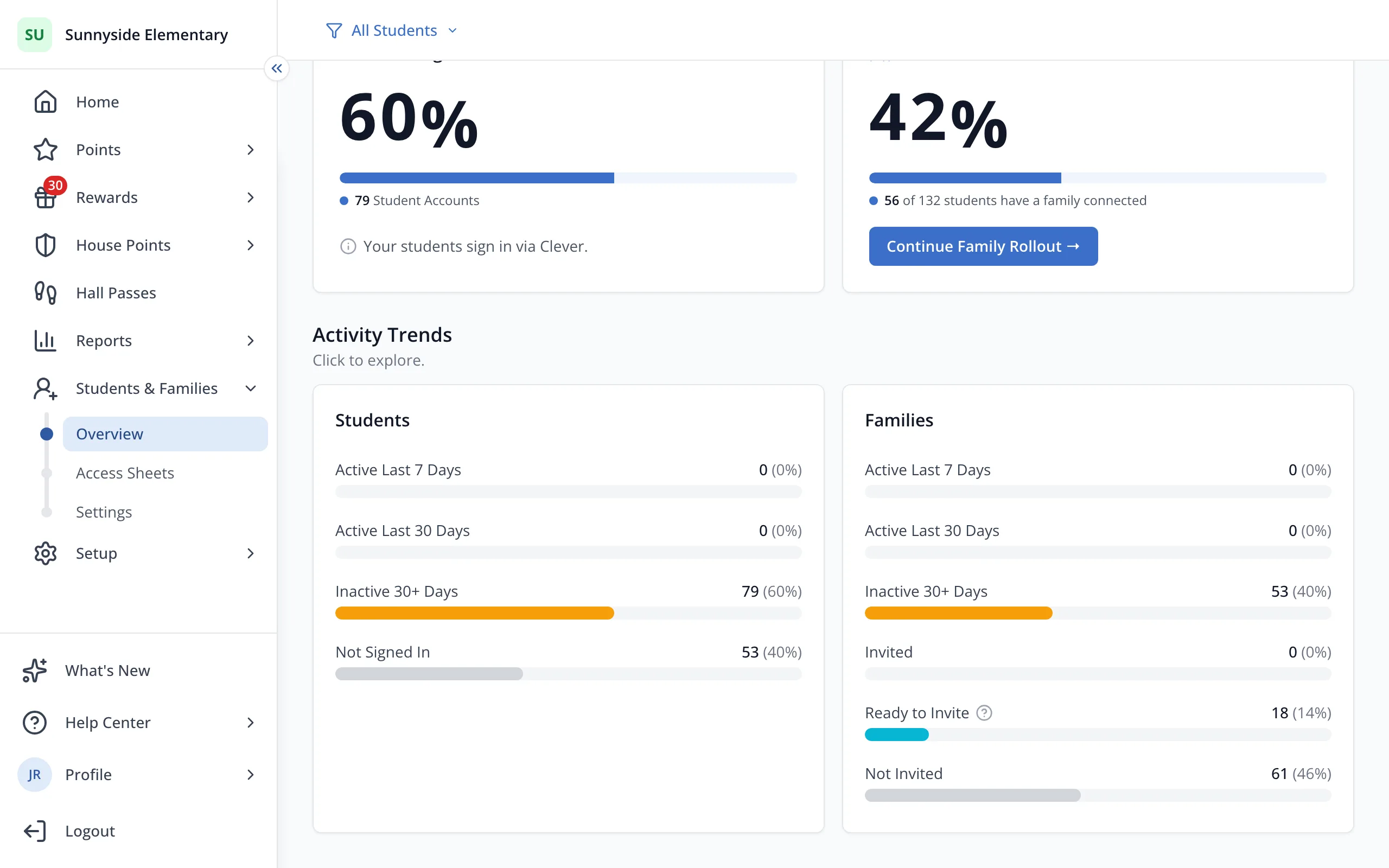
4.Click a bar under Families, like Ready to Invite, to see who's in it.
5.Click Change Filter to switch to another bar.