
Sign up for a family account with a signup code
Your student's school gives you the signup code. It connects your new account to your student.
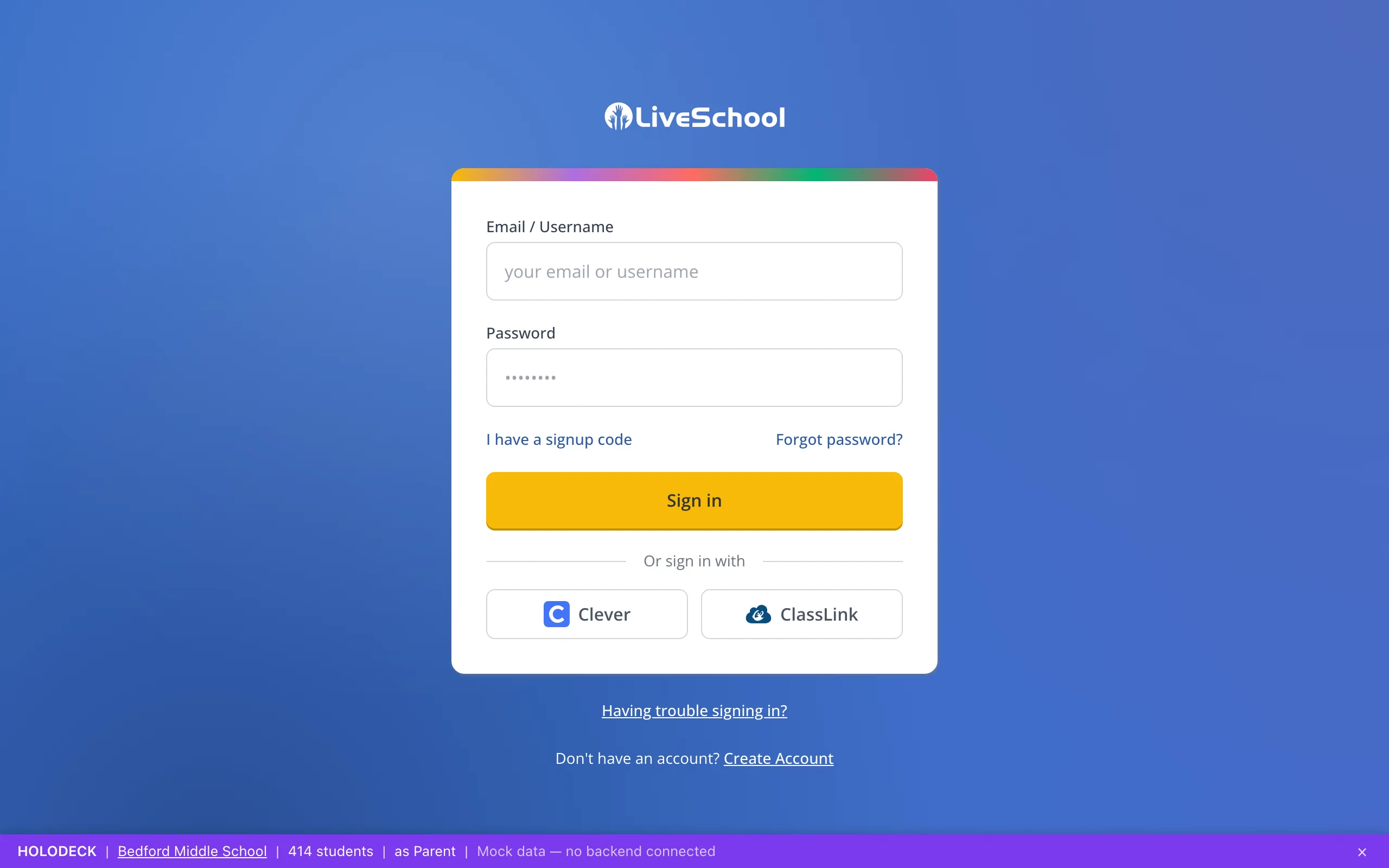
1 / 9On the LiveSchool sign-in page, click I have a signup code.
1.On the LiveSchool sign-in page, click I have a signup code.
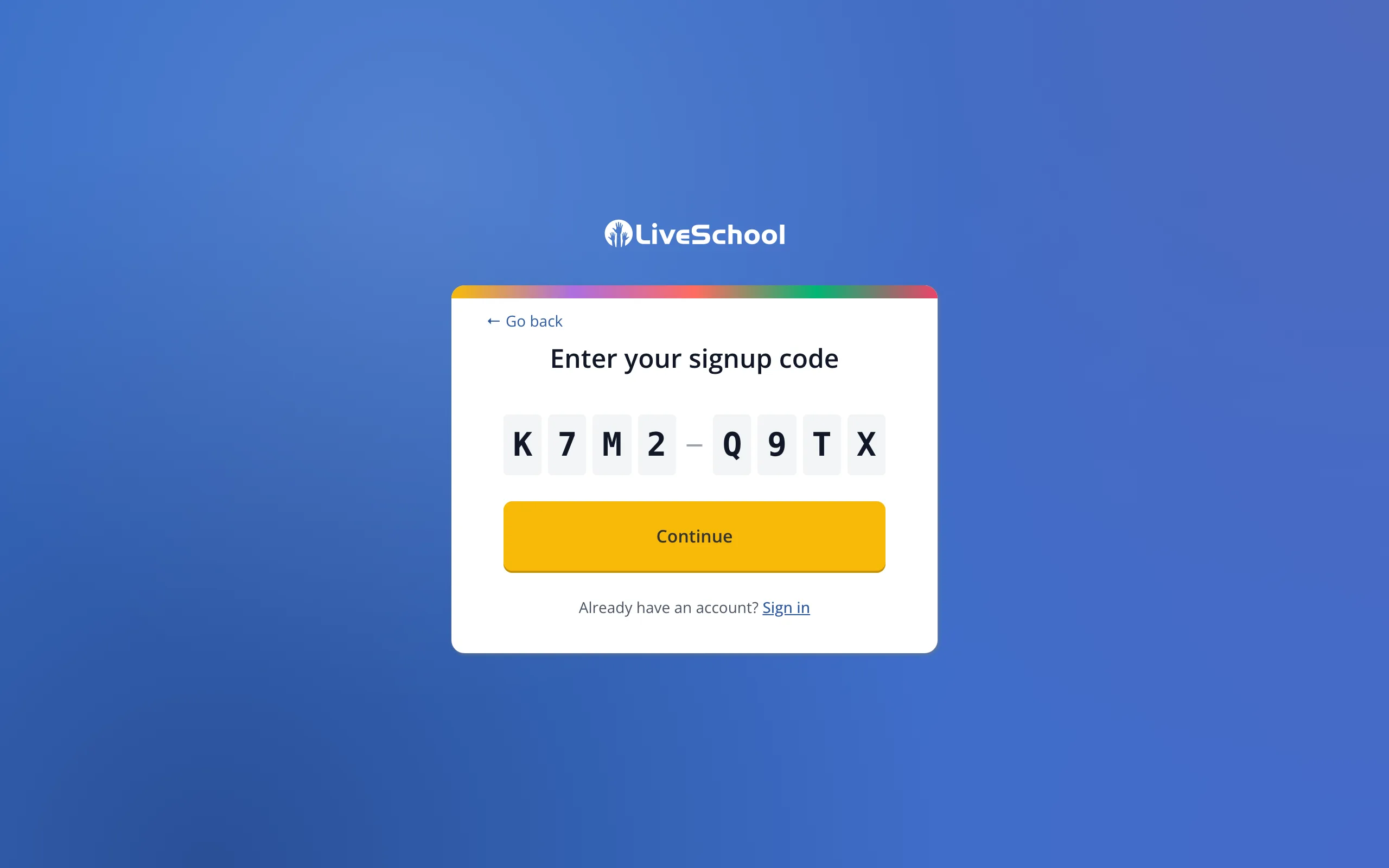
2.Type the signup code from your student's school.
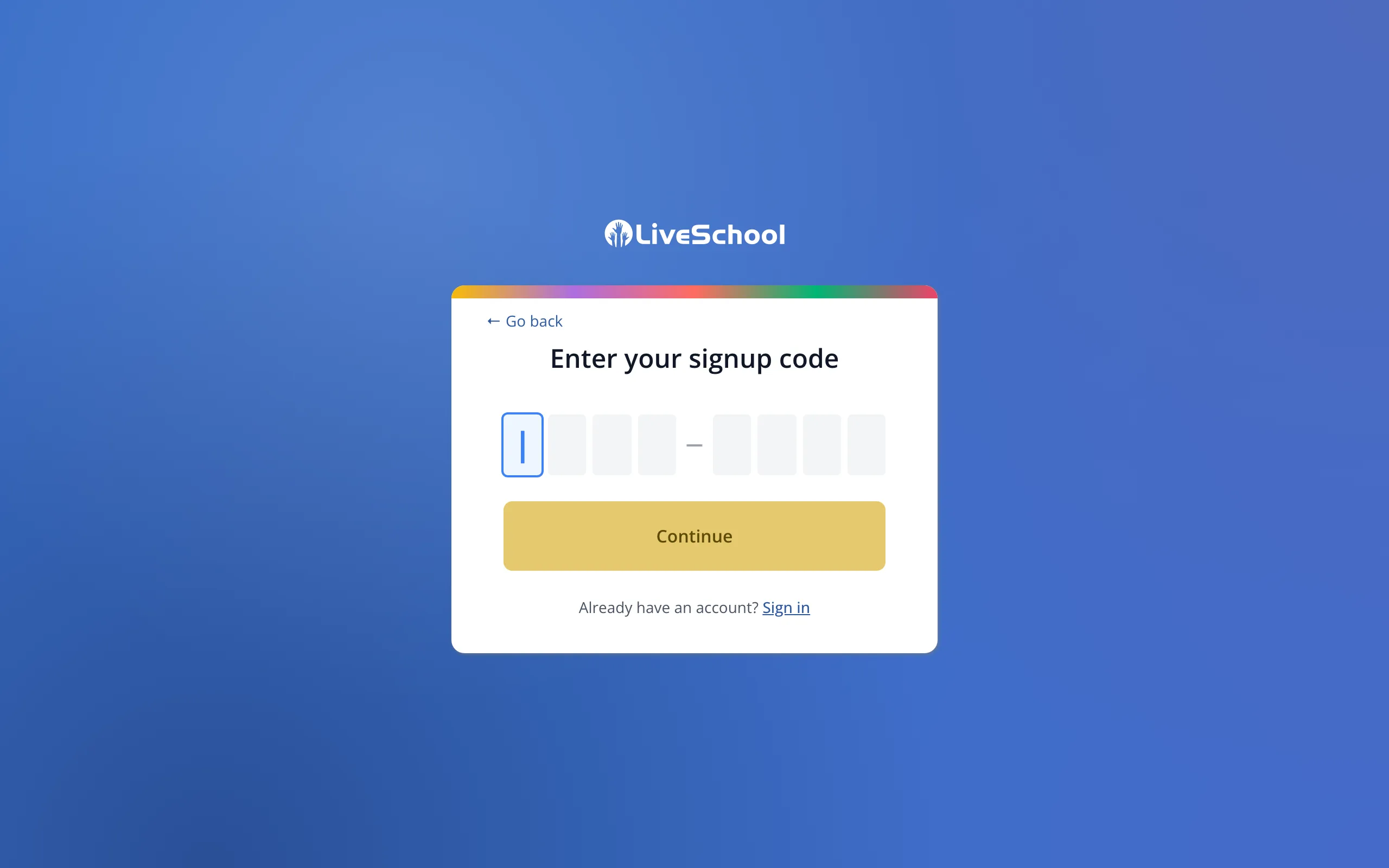
3.Click Continue.
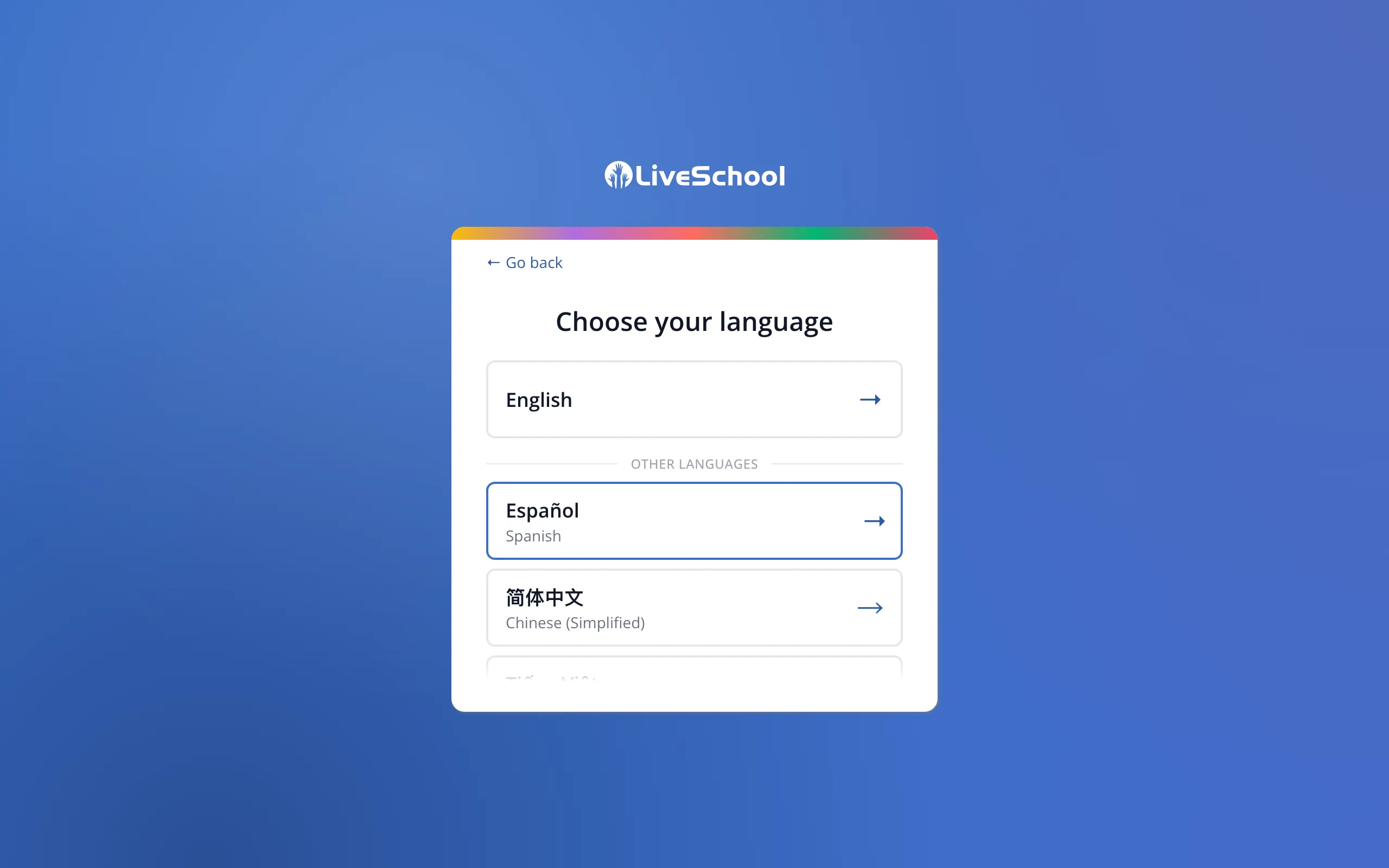
4.Click the language you'd like LiveSchool to use.
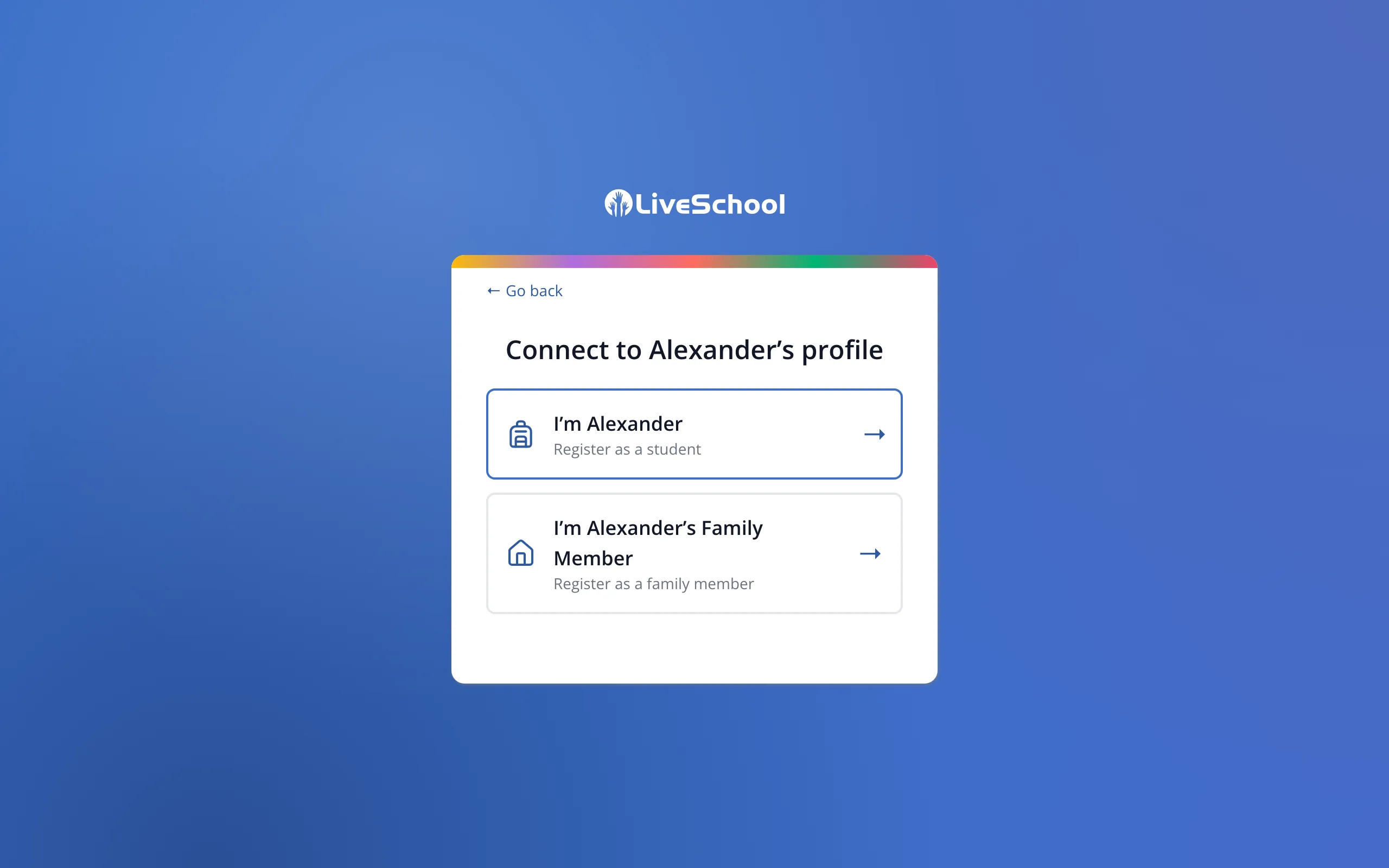
5.Click the button that says you're your student's family member.
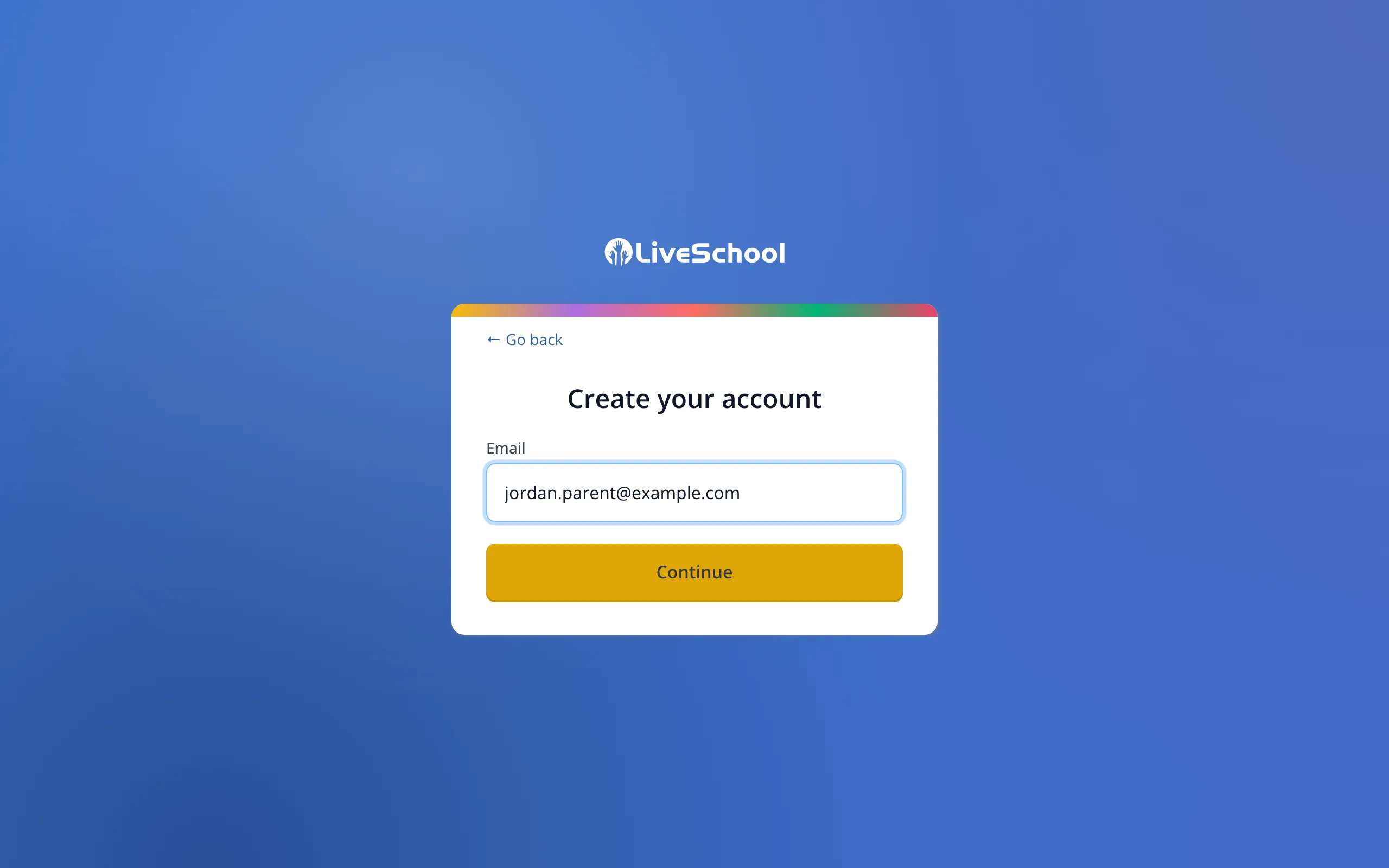
6.Type your email address.
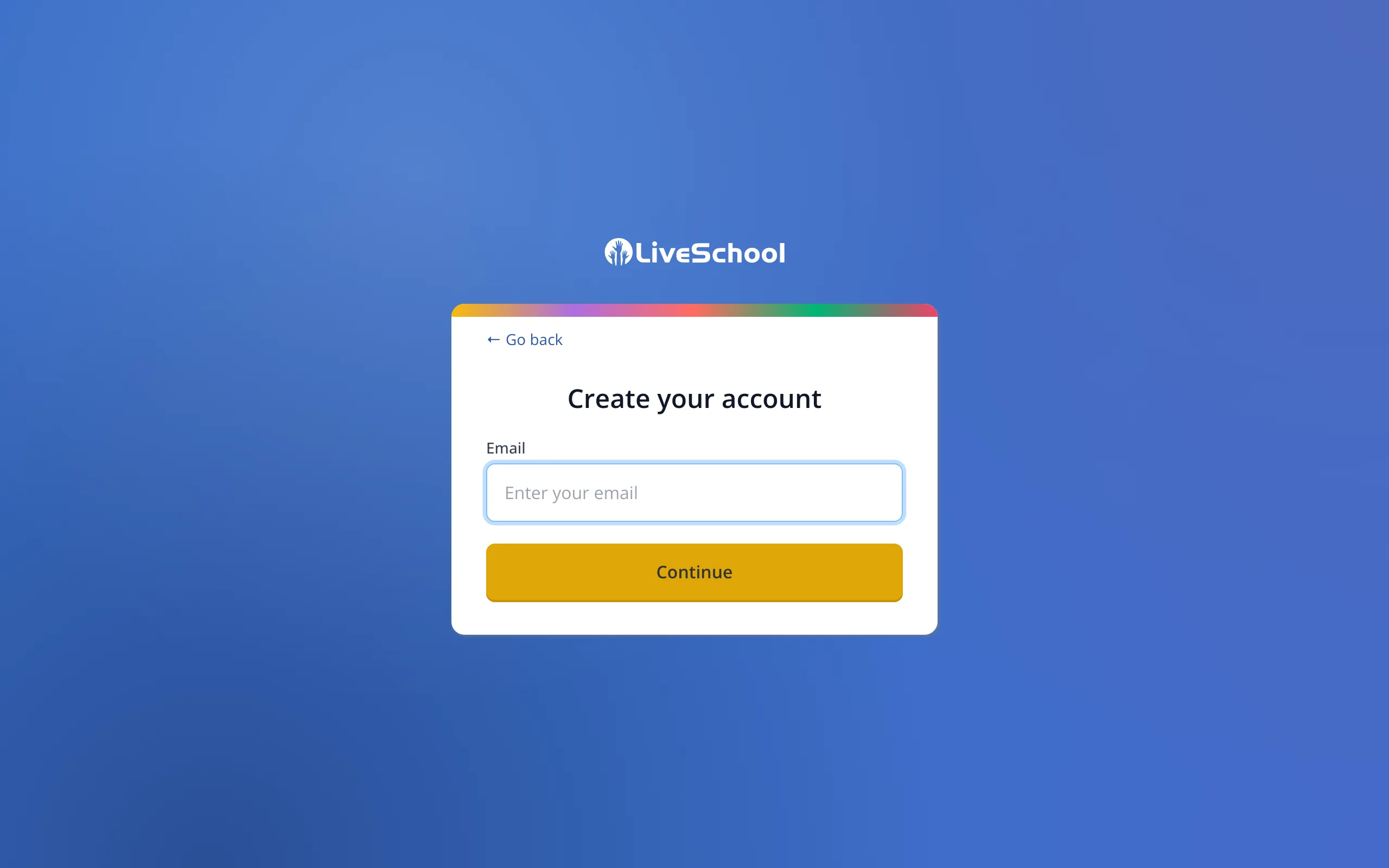
7.Click Continue.
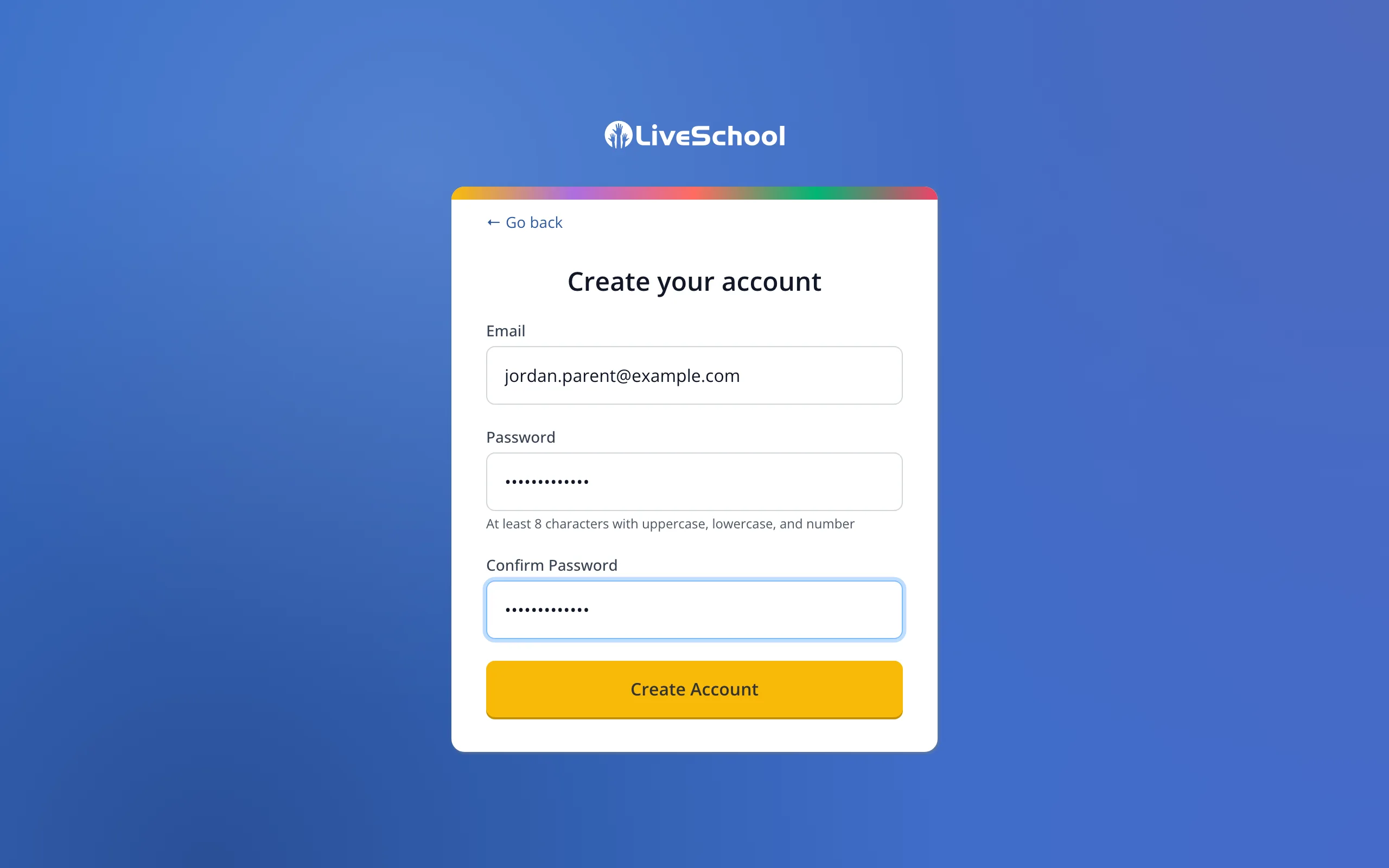
8.Create a password, then type it again under Confirm Password.
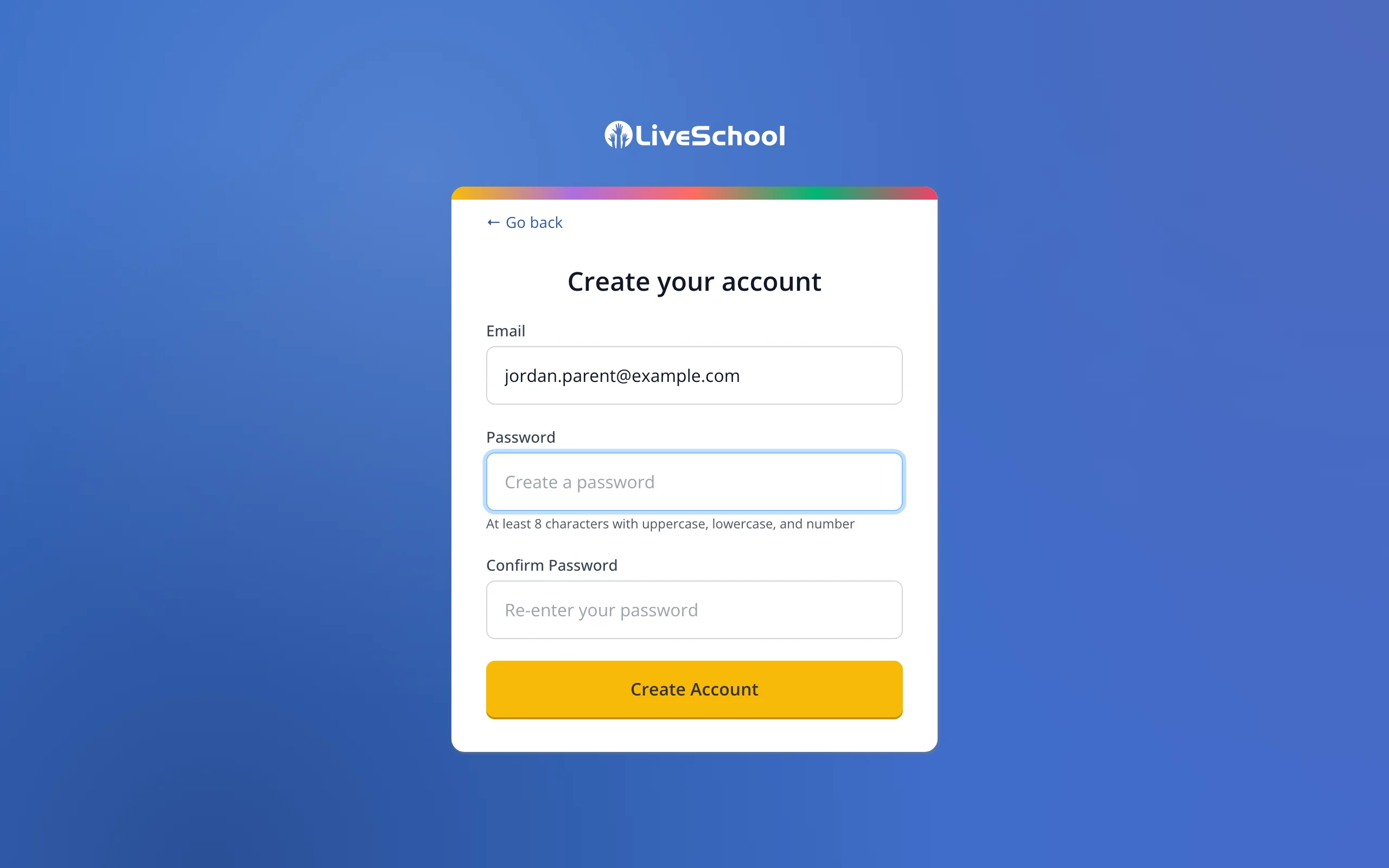
9.Click Create Account. You'll be signed in to LiveSchool.
Was this helpful?