
Change the username or email on a student or family account
Use this when someone signed up with a typo or a new email. They sign in with the new username from then on, and their password doesn't change.
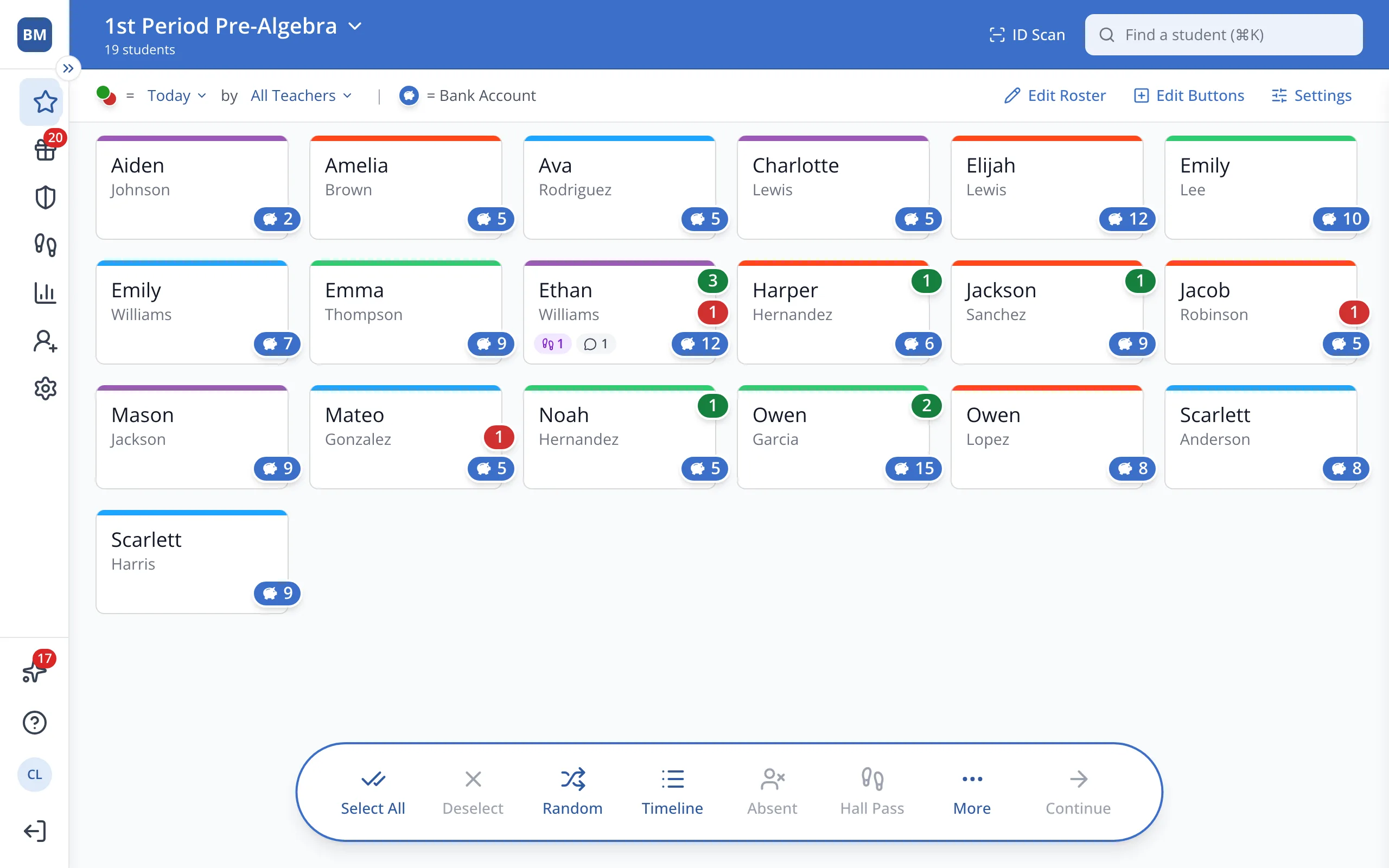
1 / 7In the sidebar, click Setup.
1.In the sidebar, click Setup.
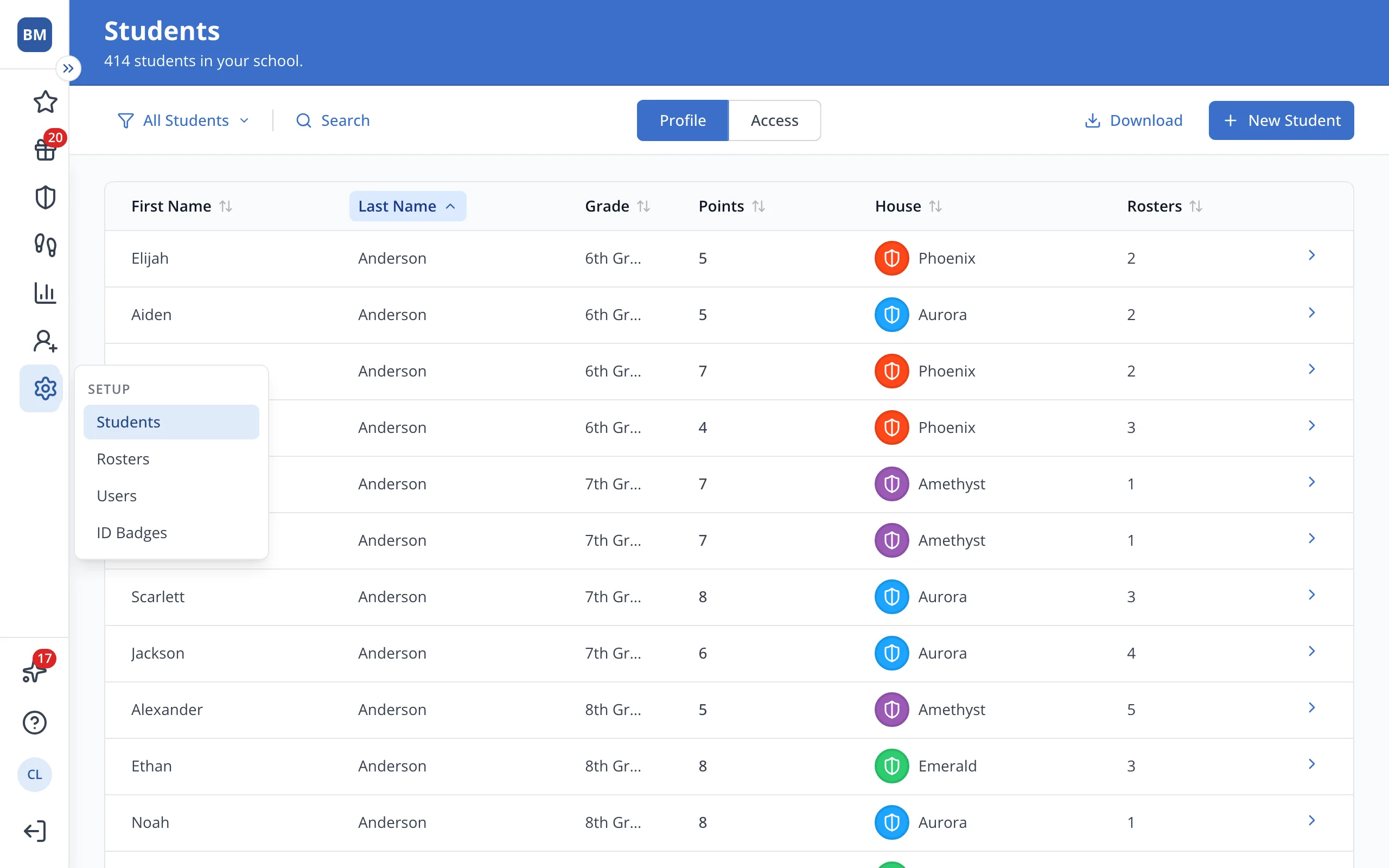
2.Click Students.
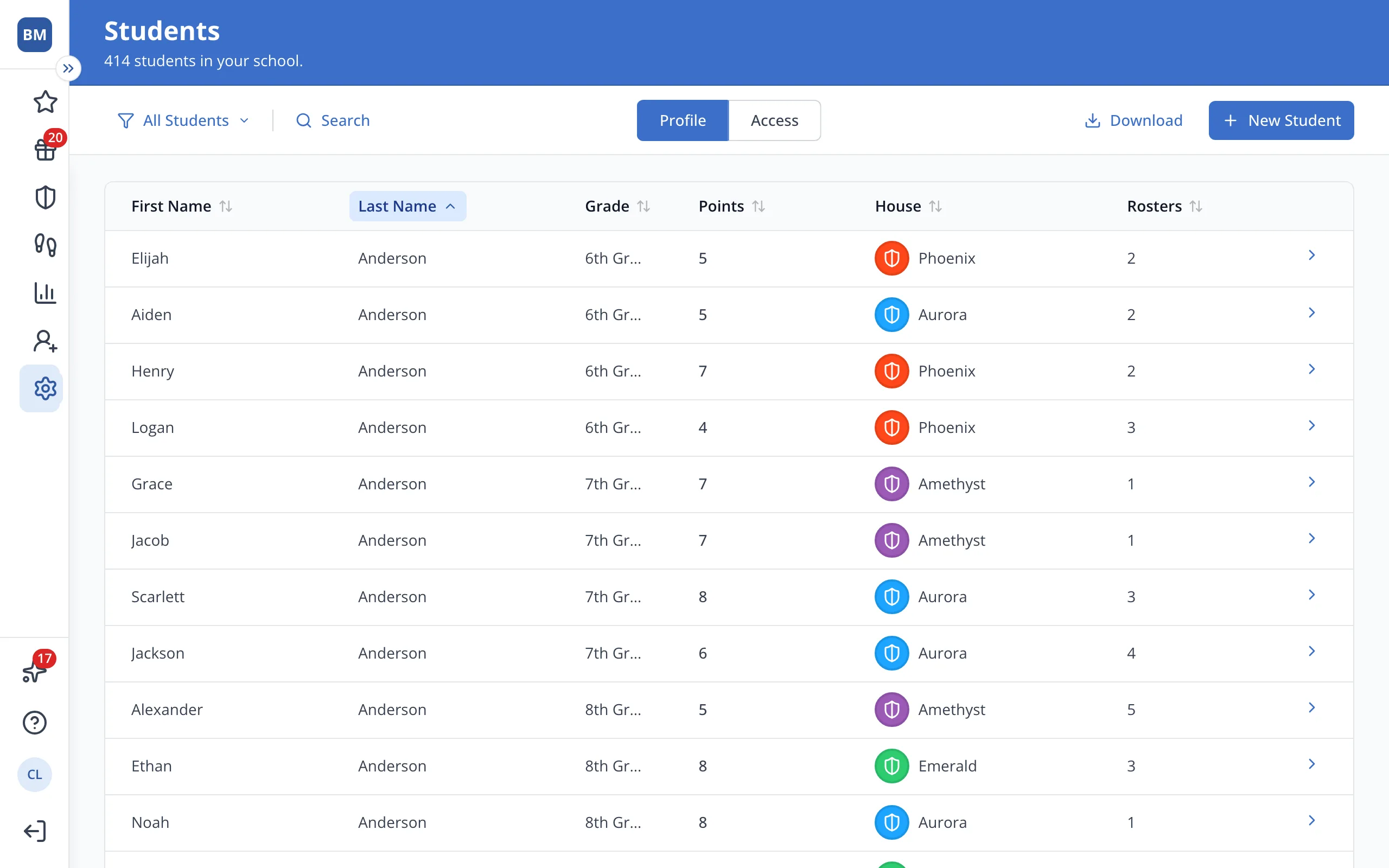
3.Click the student's name.
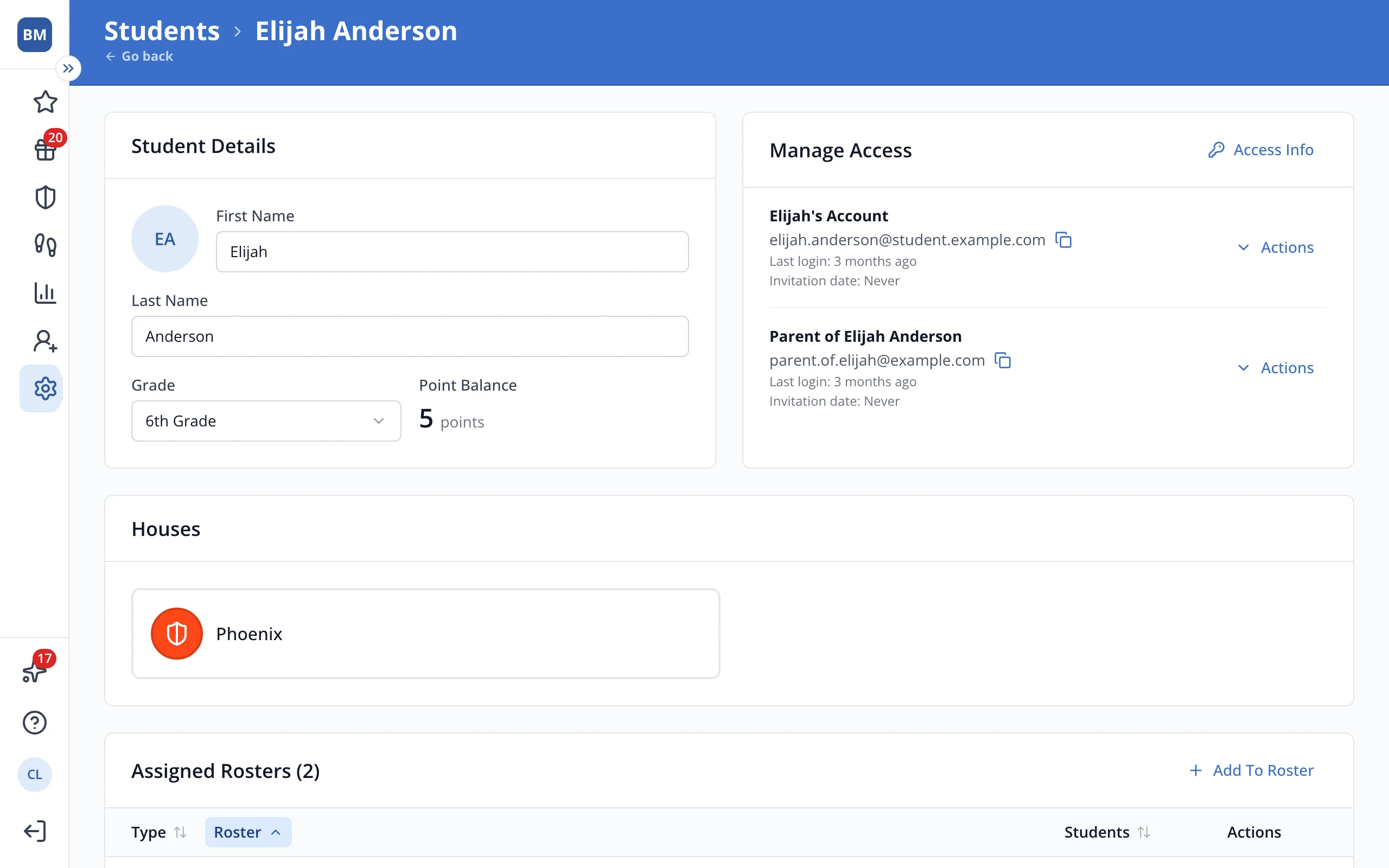
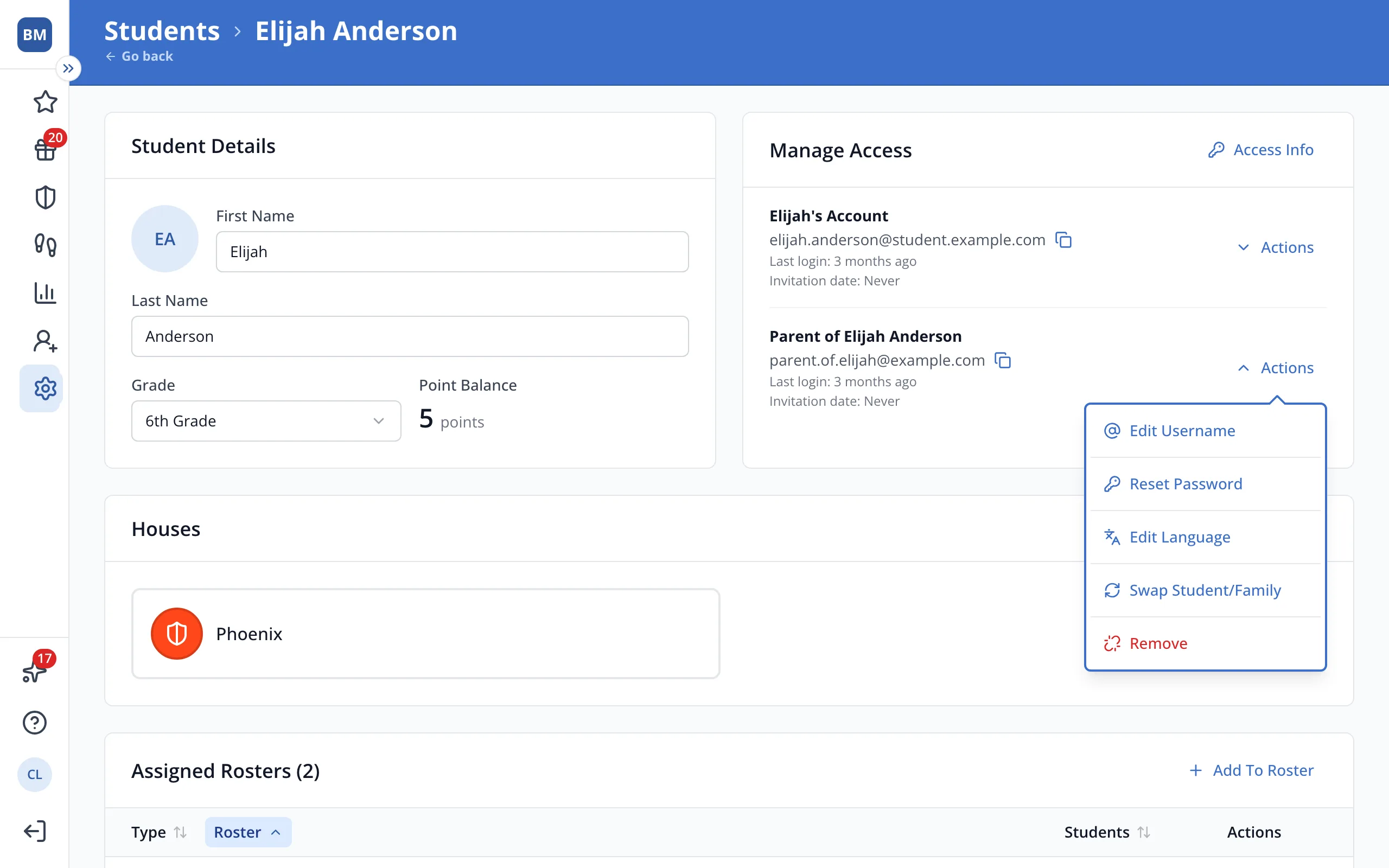
4.In Manage Access, click Actions next to the account you'd like to change.
5.Click Edit Username.
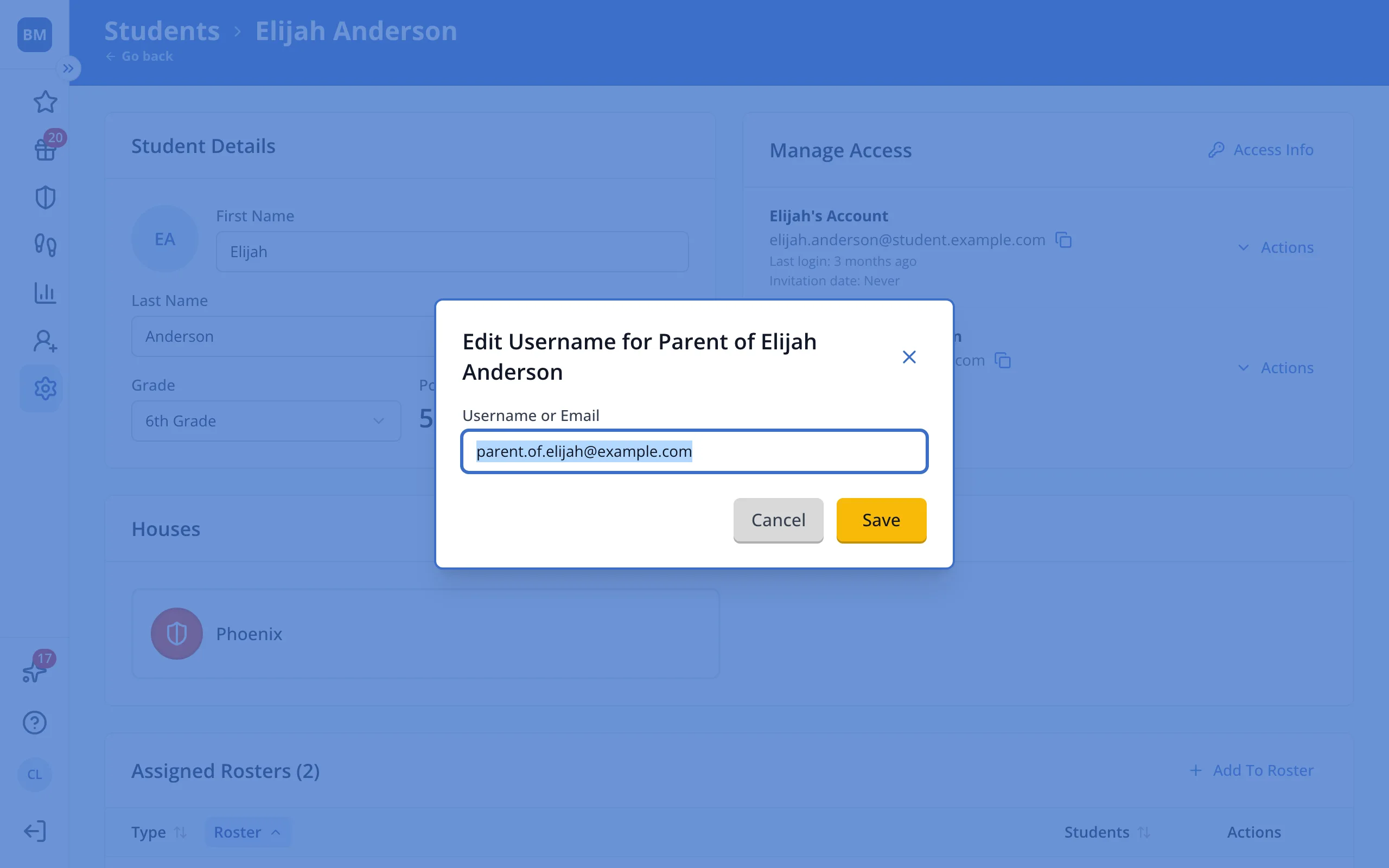
6.Replace the old username or email with the new one.
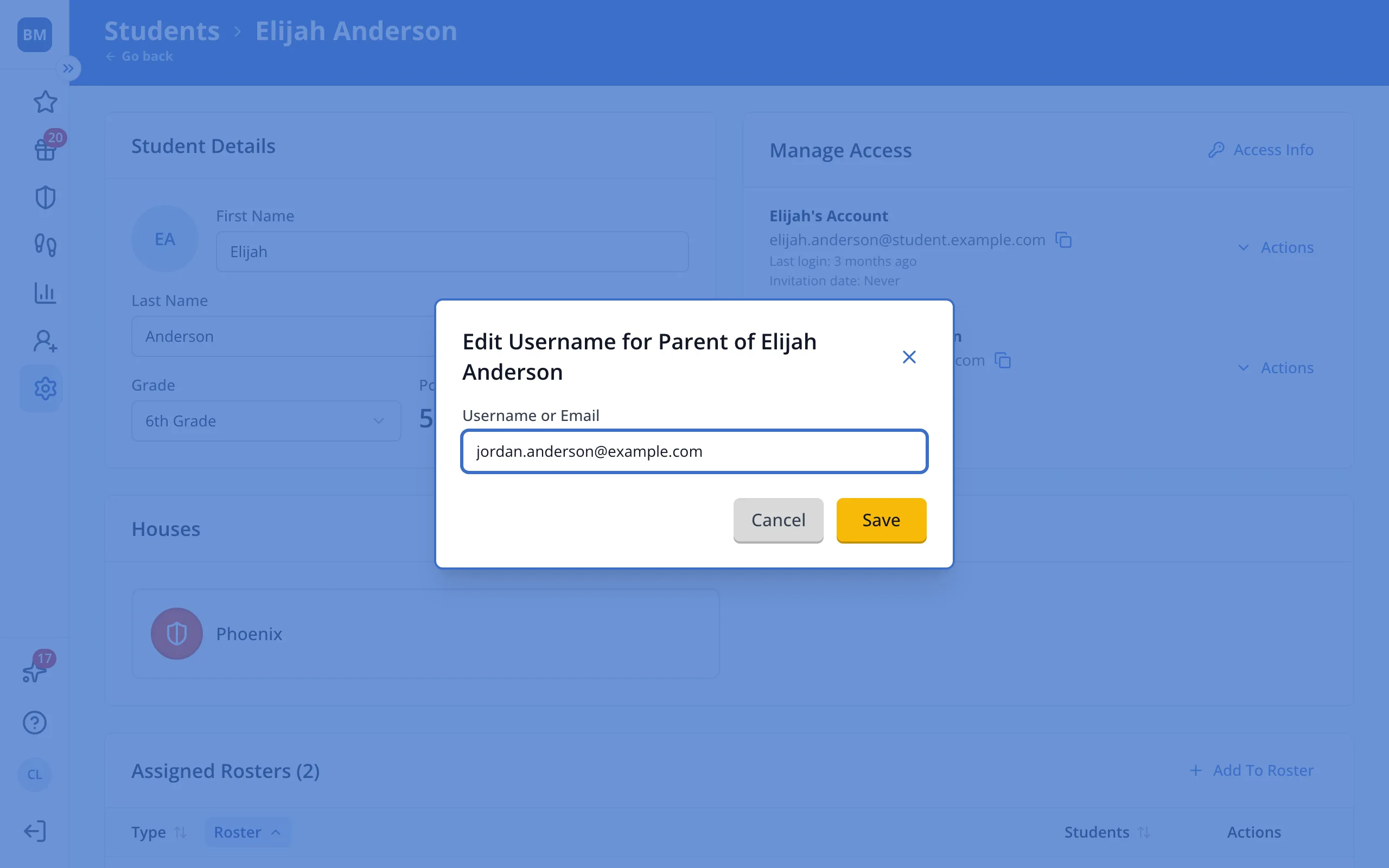
7.Click Save, then let them know their new username.
Was this helpful?