
Understand the student's and family's app's home screen

The Home Screen is a quick look at how your student is doing: recent points, trends, and rewards they can almost afford.

Open in LiveSchool

Already signed in? Open this guide inside LiveSchool.
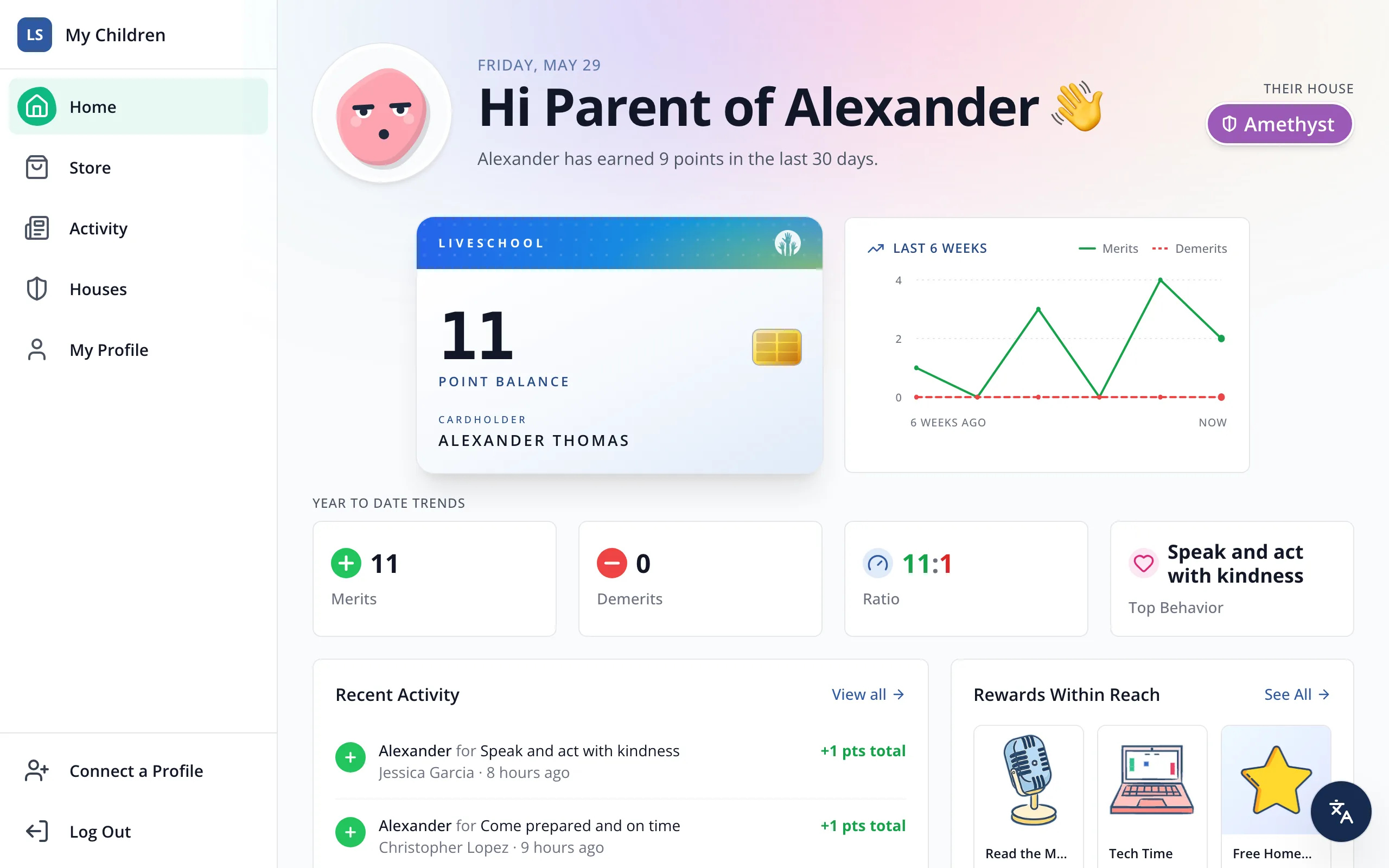
Step 1 of 6: At the top, you'll see how many points your student earned in the last 30 days. Next to it is a photo of your student, or their avatar with its accessories if they use one.

Use the Left and Right arrow keys to move between steps, and Space to play or pause.

  1. 1.At the top, you'll see how many points your student earned in the last 30 days. Next to it is your student's photo, or their avatar with its accessories if they use one.

    Step 1: At the top, you'll see how many points your student earned in the last 30 days. Next to it is your student's photo, or their avatar with its accessories if they use one.
  2. 2.If your student is in a House, their House shows at the top right. Click it to see the House standings.
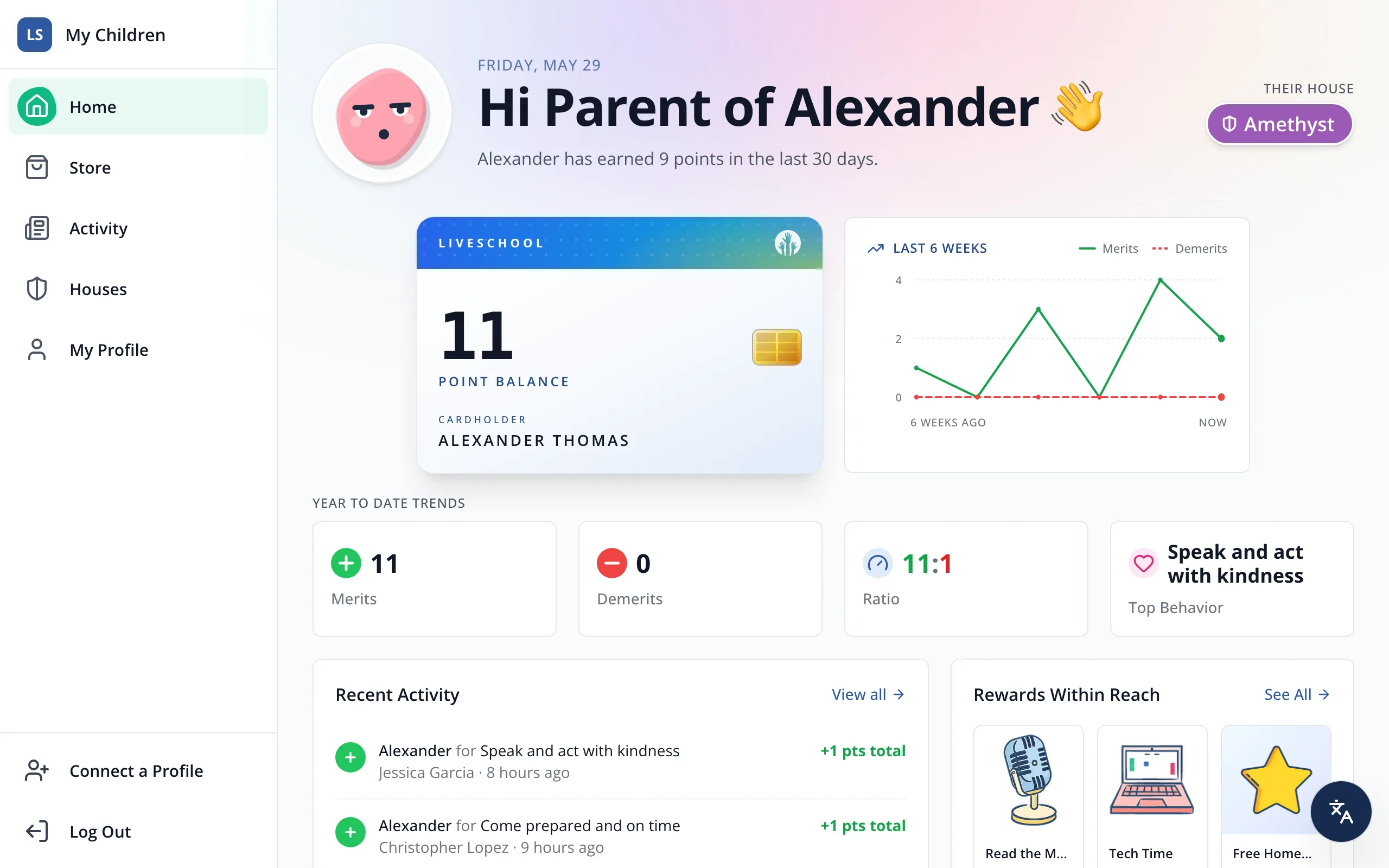
    Step 2: If your student is in a House, their House shows at the top right. Click it to see the House standings.
  3. 3.Last 6 Weeks shows the merits and demerits your student earned each week.
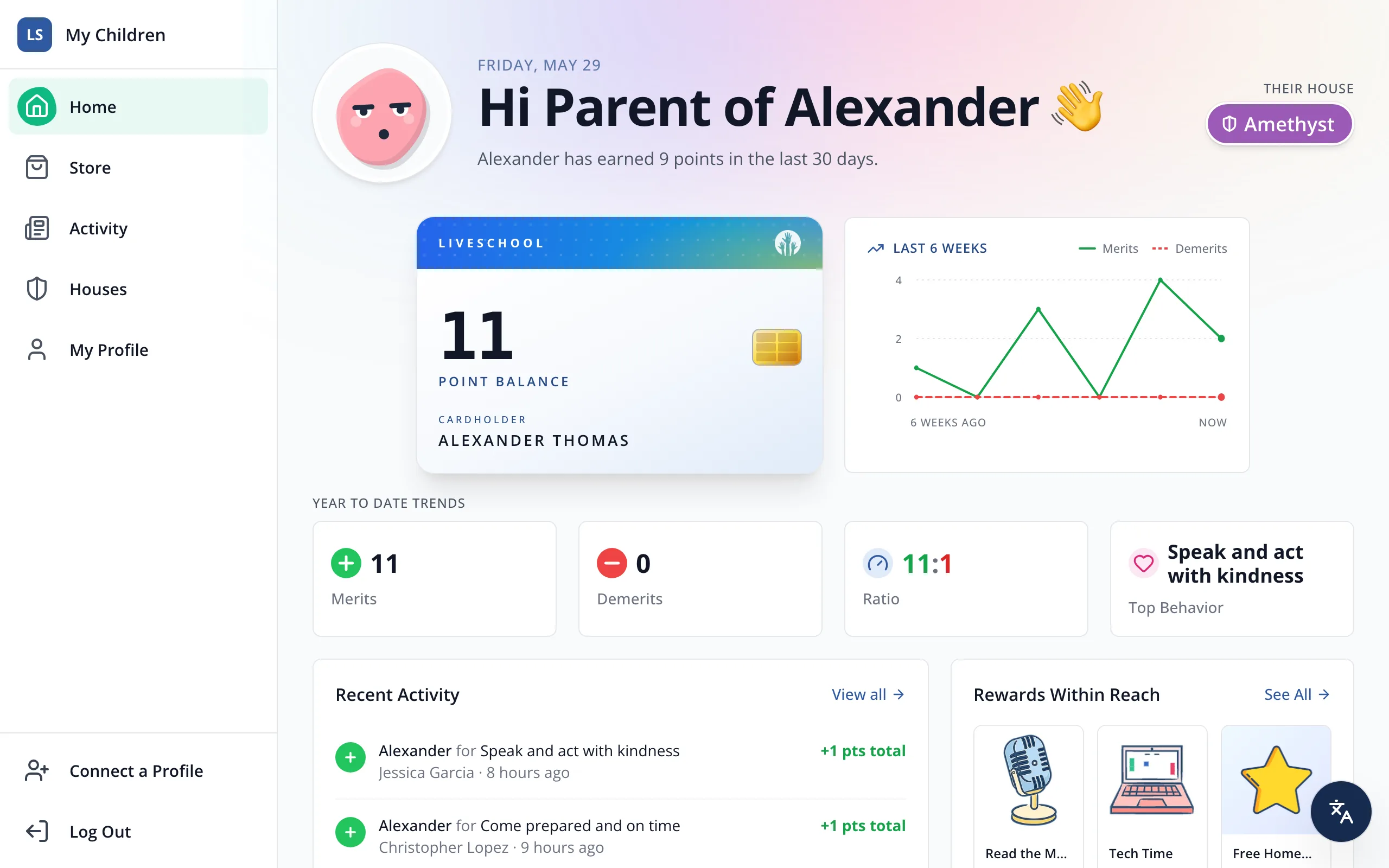
    Step 3: Last 6 Weeks shows the merits and demerits your student earned each week.
  4. 4.Year to Date Trends counts merits and demerits since the start of the school year, the ratio between them, and the behavior your student earns most.
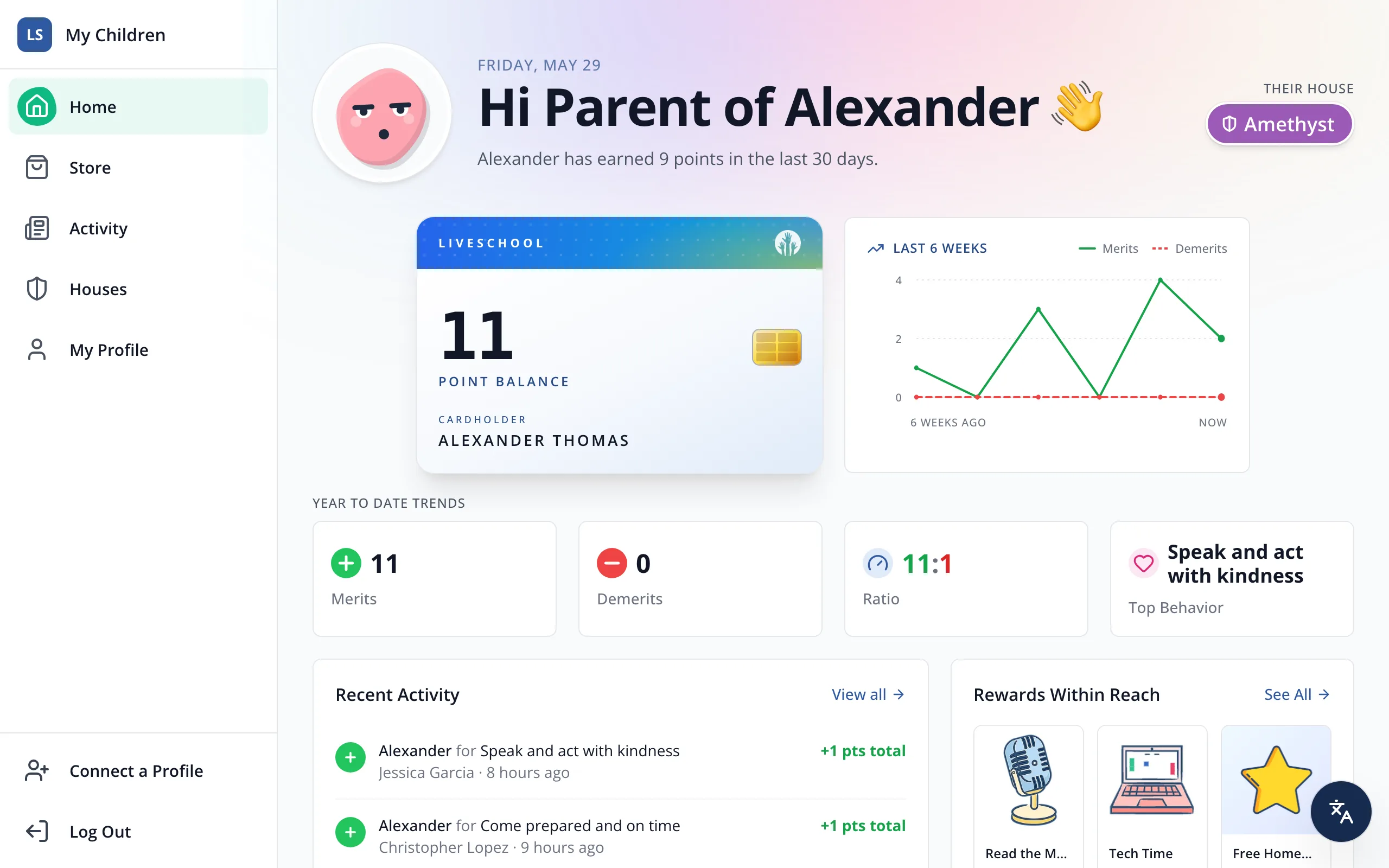
    Step 4: Year to Date Trends counts merits and demerits since the start of the school year, the ratio between them, and the behavior your student earns most.
  5. 5.Recent Activity lists the latest points. Click View all to see everything on the Activity page.
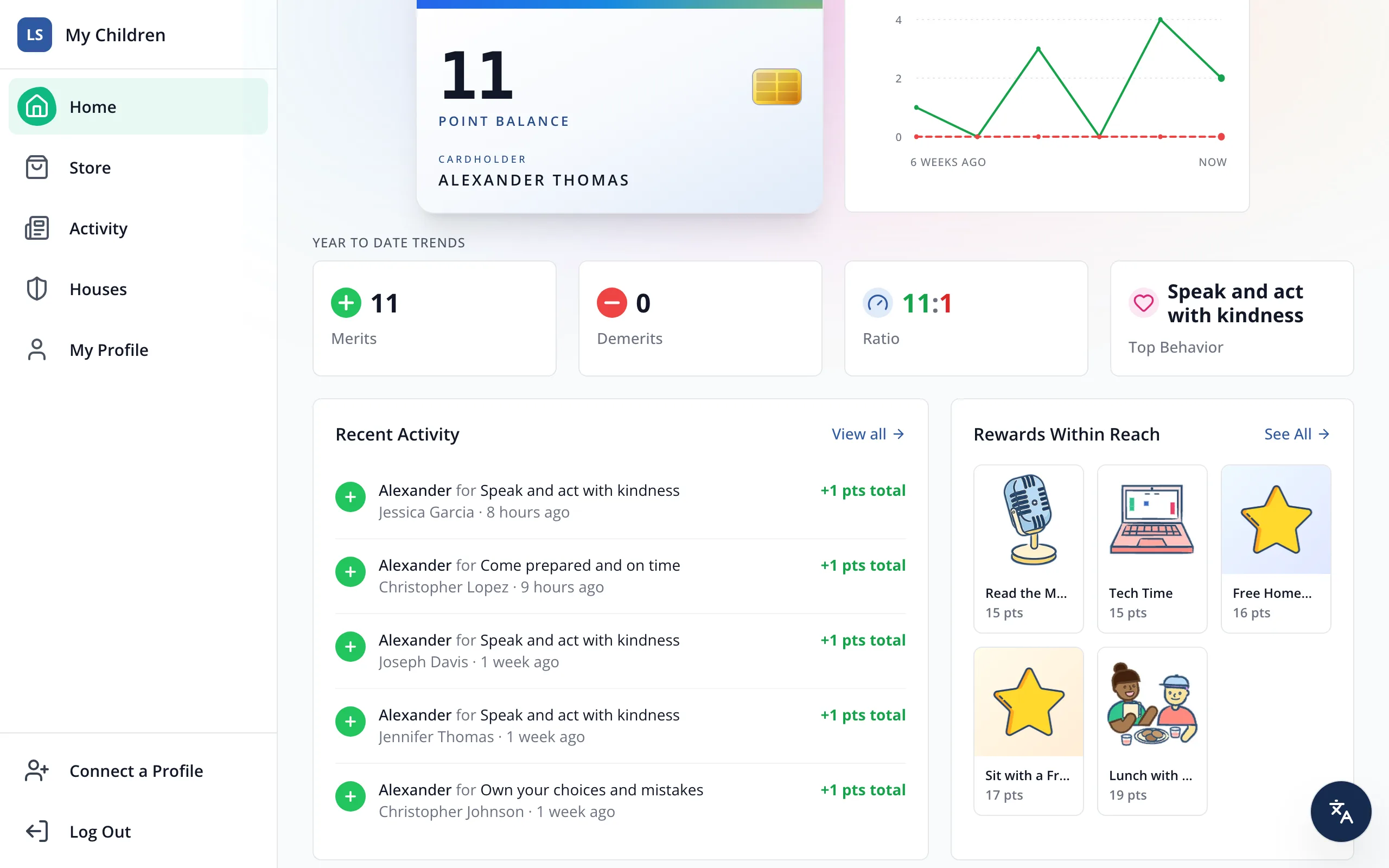
    Step 5: Recent Activity lists the latest points. Click View all to see everything on the Activity page.
  6. 6.Rewards Within Reach shows rewards your student is close to affording. Click See All to open the Store.
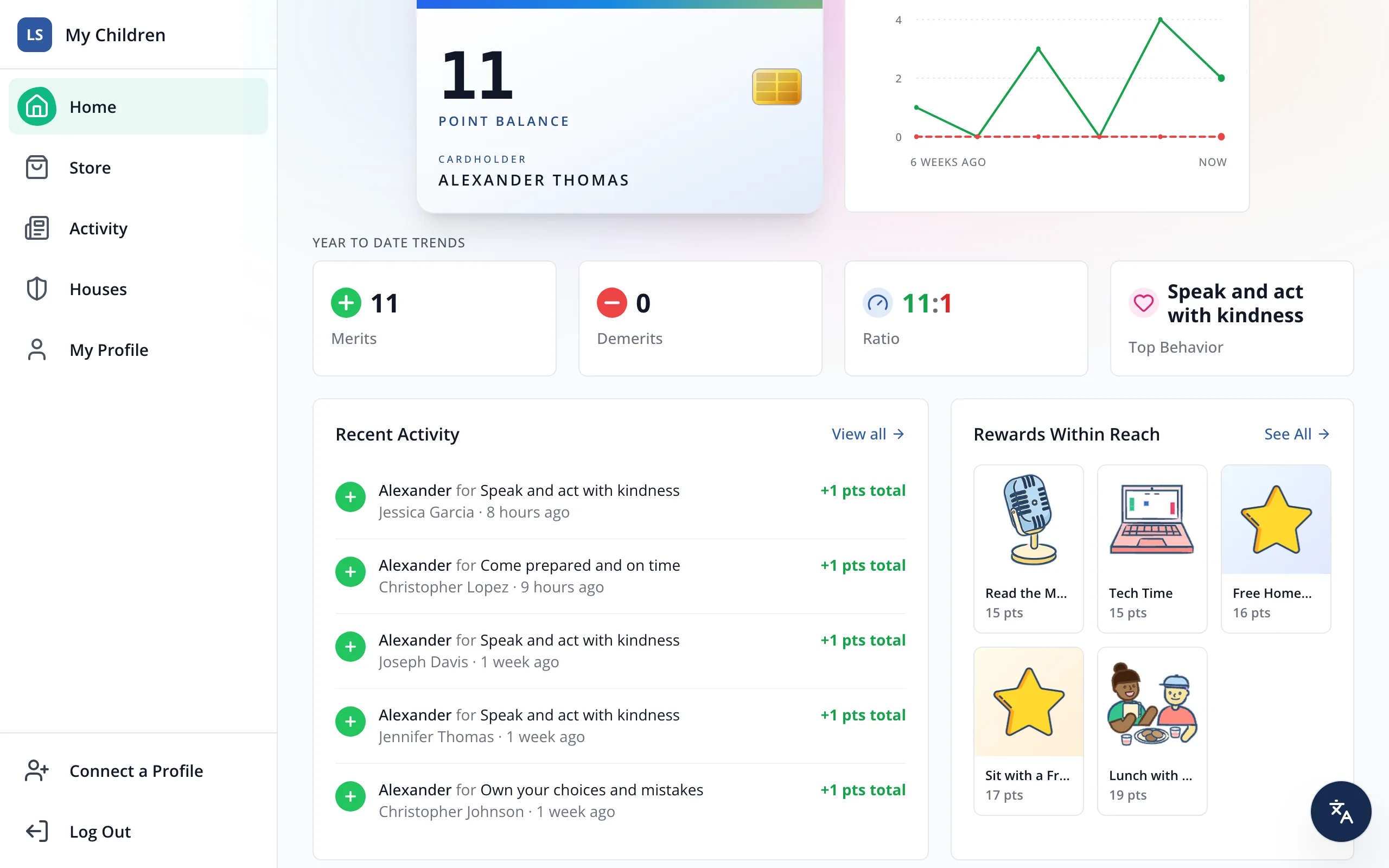
    Step 6: Rewards Within Reach shows rewards your student is close to affording. Click See All to open the Store.

Is this what you need?