
Add your student's account when you sign in with Clever or ClassLink
Claim your student's code from within your staff account.
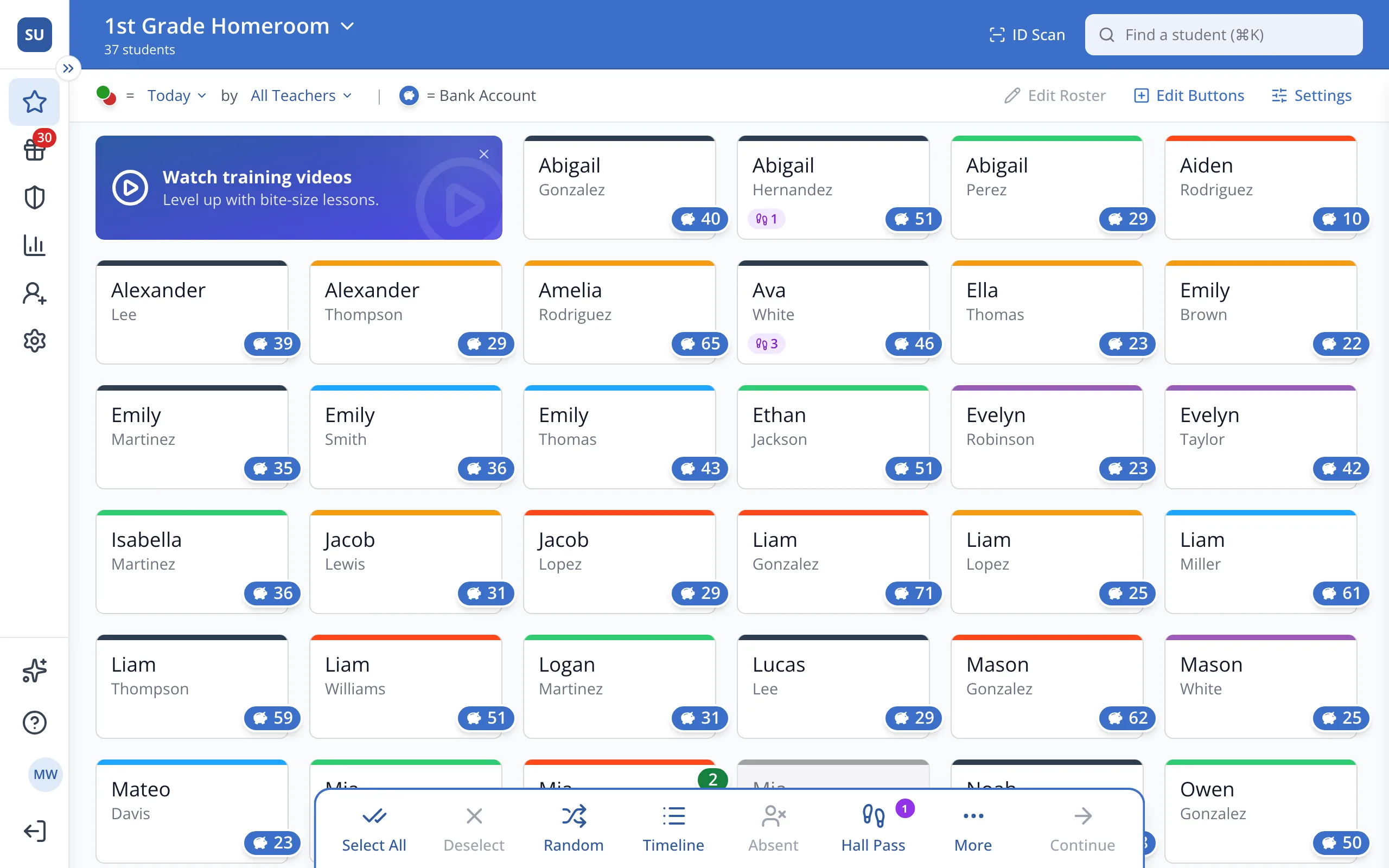
1 / 6After signing in with Clever or ClassLink, click Profile at the bottom of the sidebar, the circle with your initials.
1.After signing in with Clever or ClassLink, click Profile at the bottom of the sidebar, the circle with your initials.
2.Click Claim Student Code.
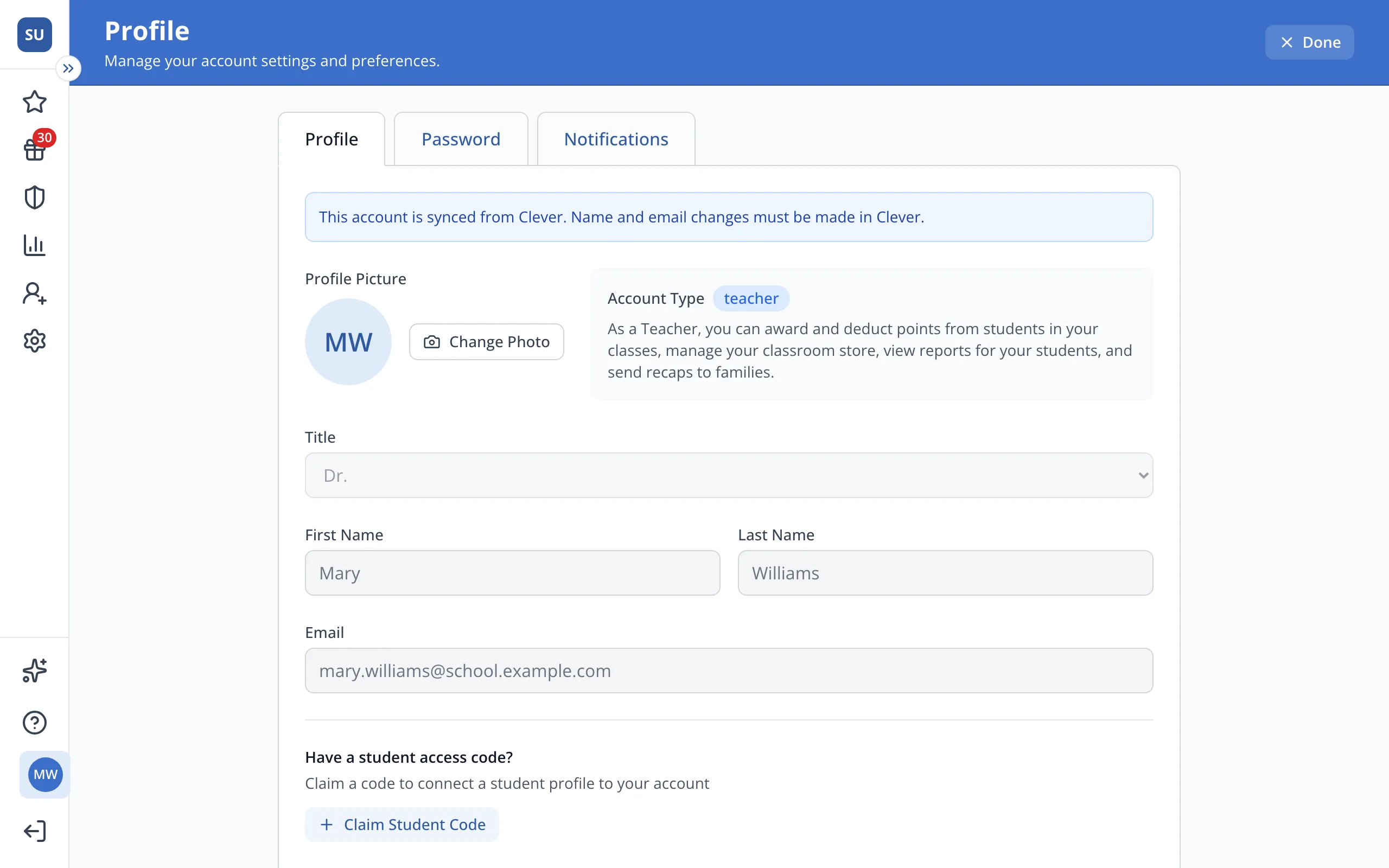
3.Type your student's access code.
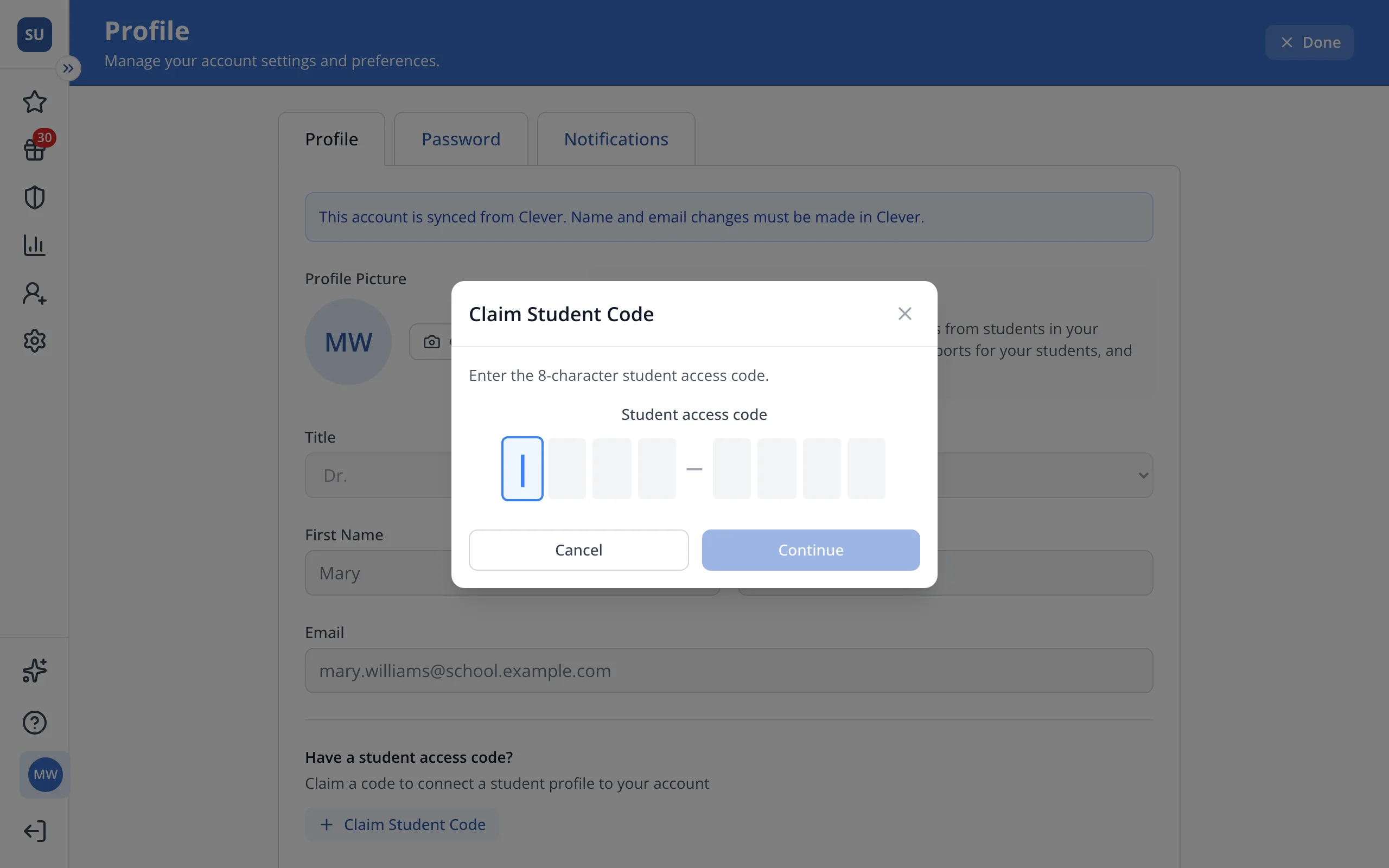
4.Click Continue.
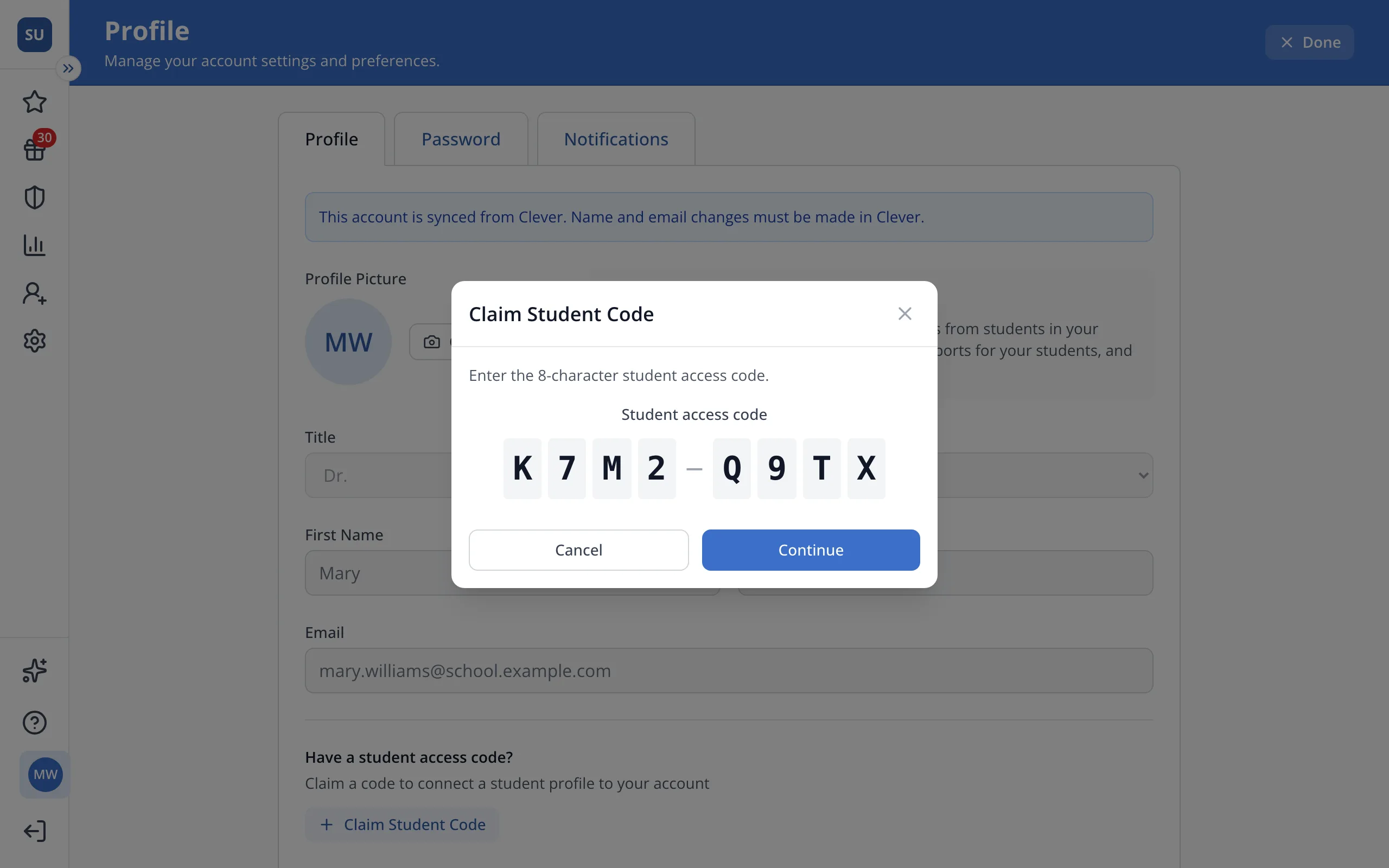
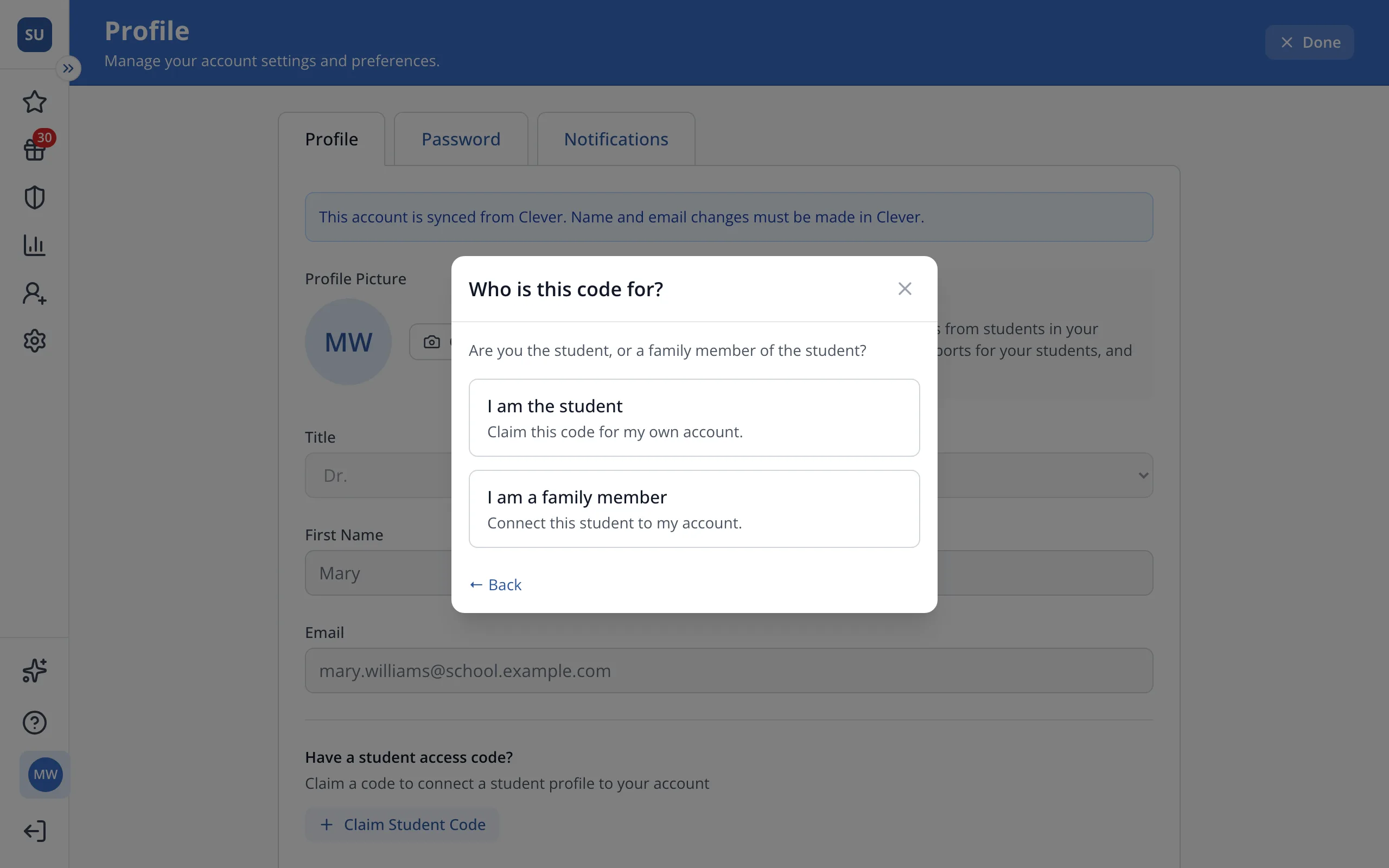
5.Click I am a family member.
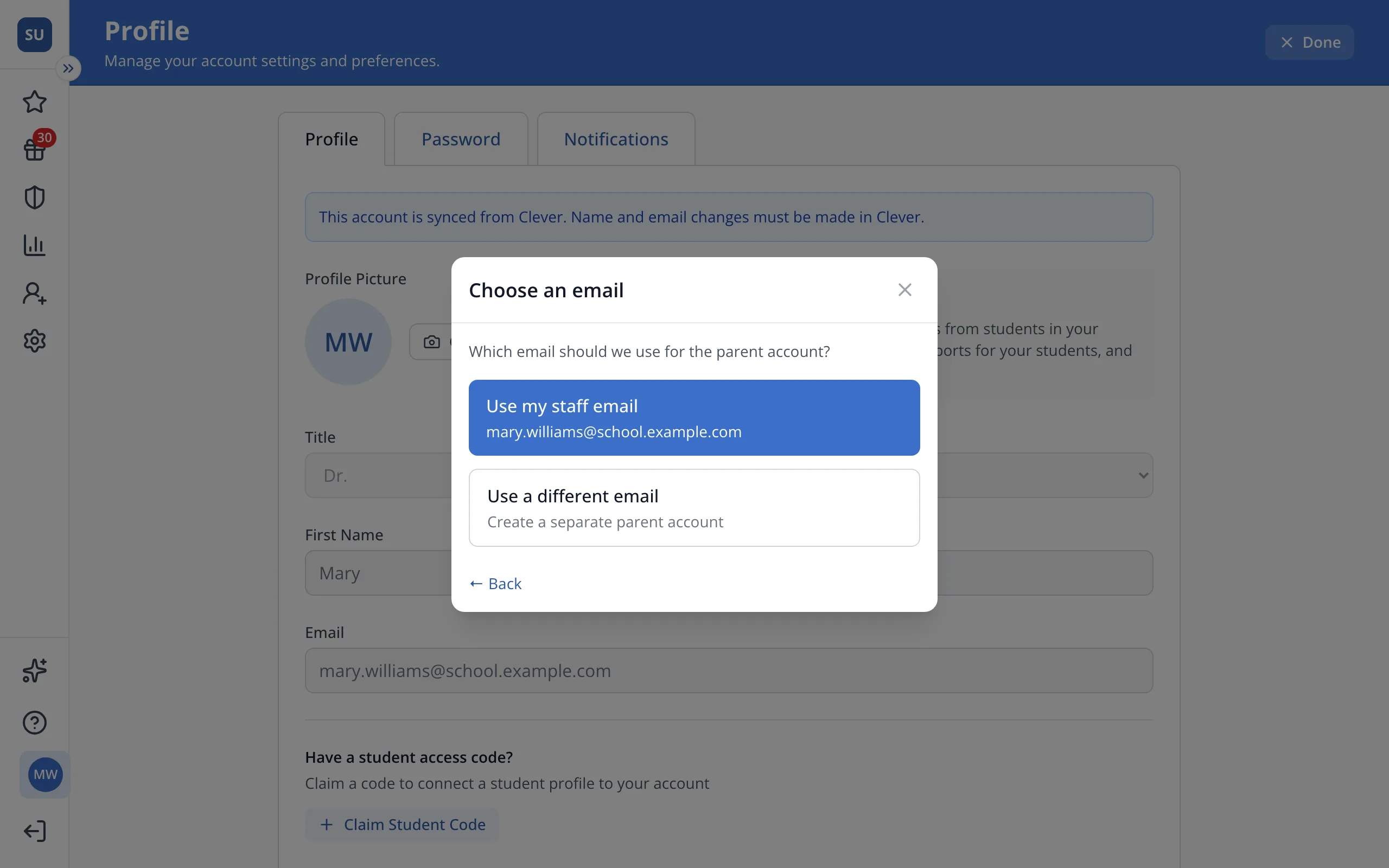
6.Click Use my staff email. Your student will show under your connected accounts, and you can switch to them from the top of the sidebar.
Was this helpful?