
Add student IDs to printables and send them through ParentSquare
ParentSquare reads the ID printed under each student's name to send every page to the right family.
Already signed in? Open this guide inside LiveSchool.
Use the Left and Right arrow keys to move between steps, and Space to play or pause.
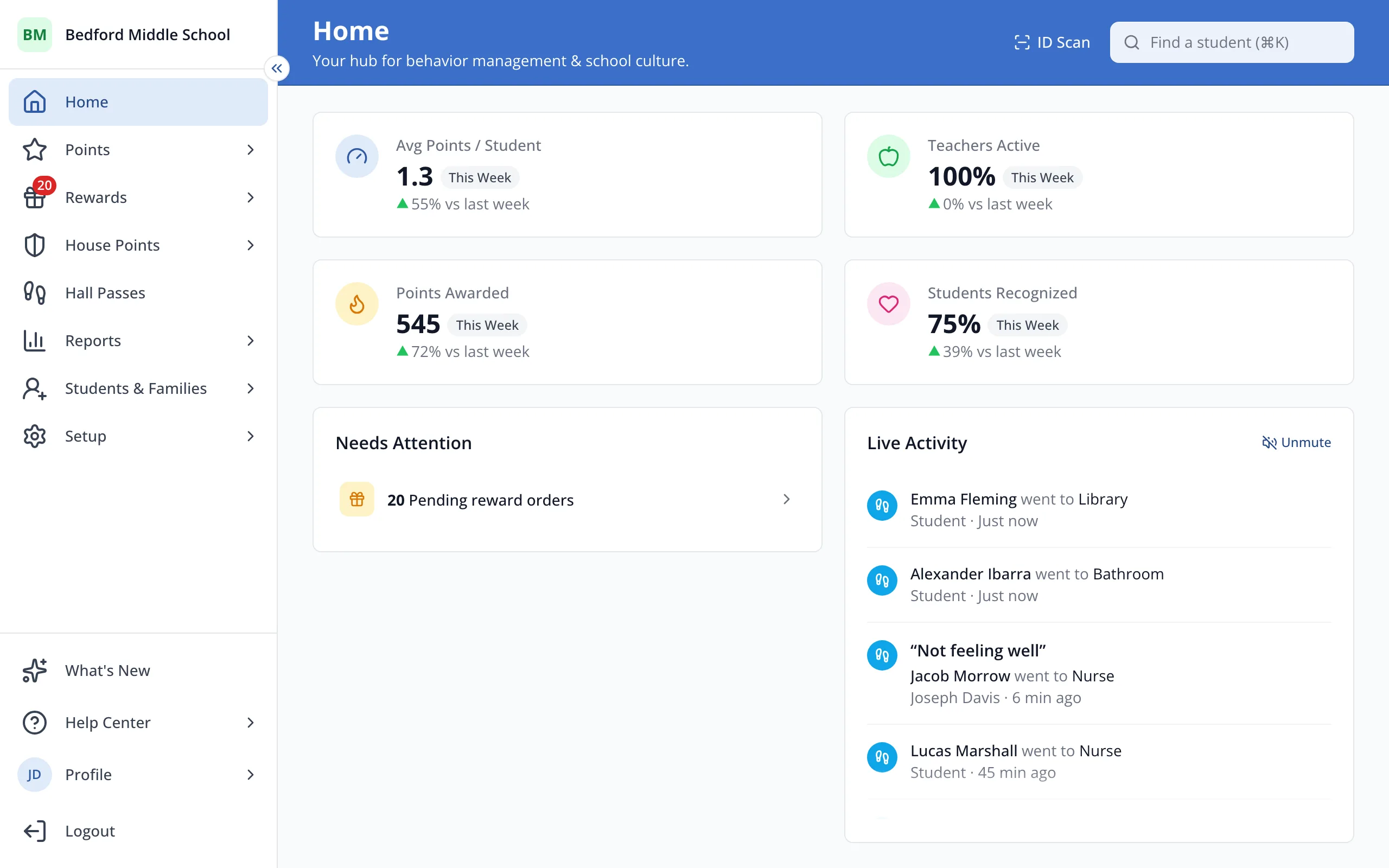
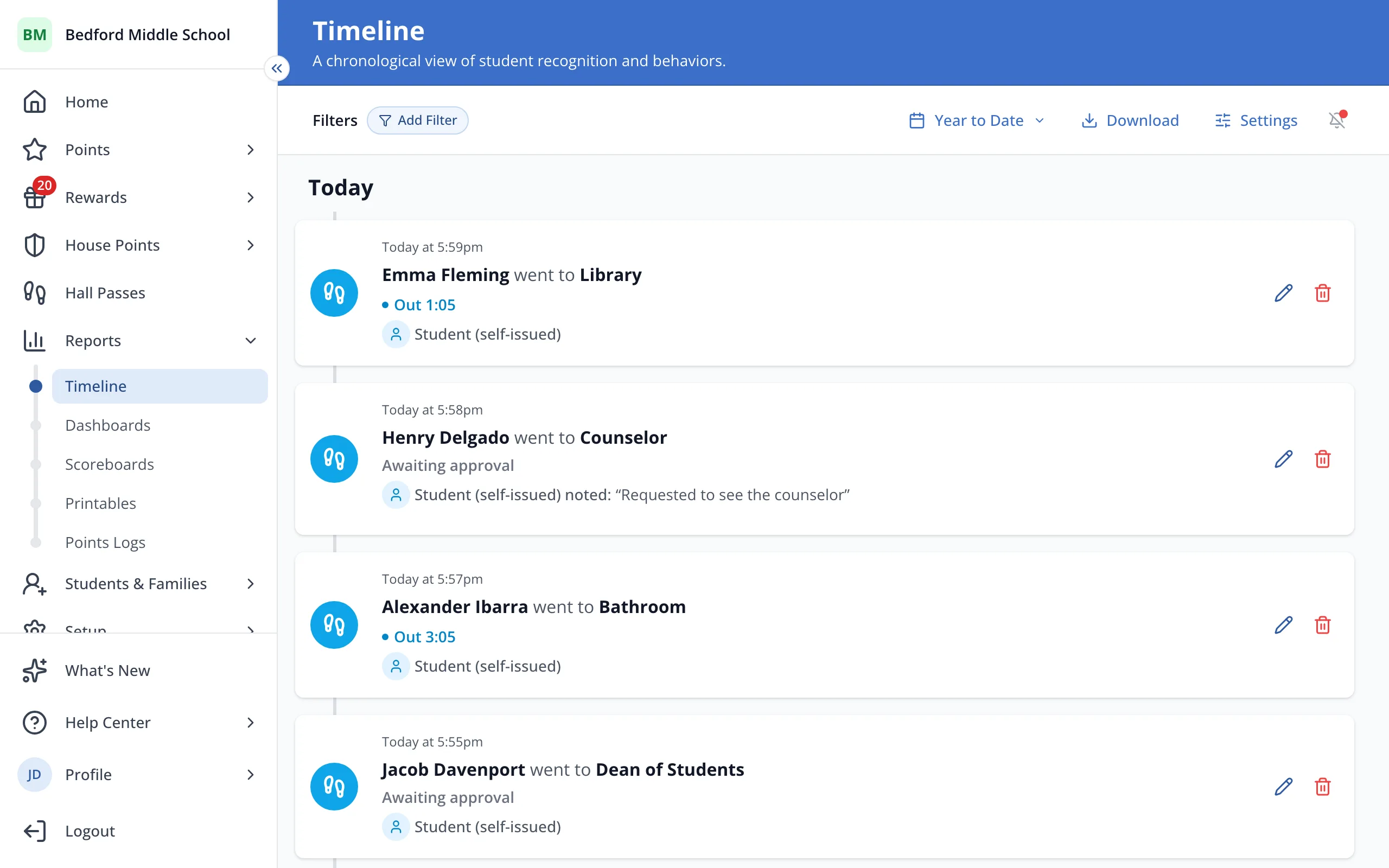
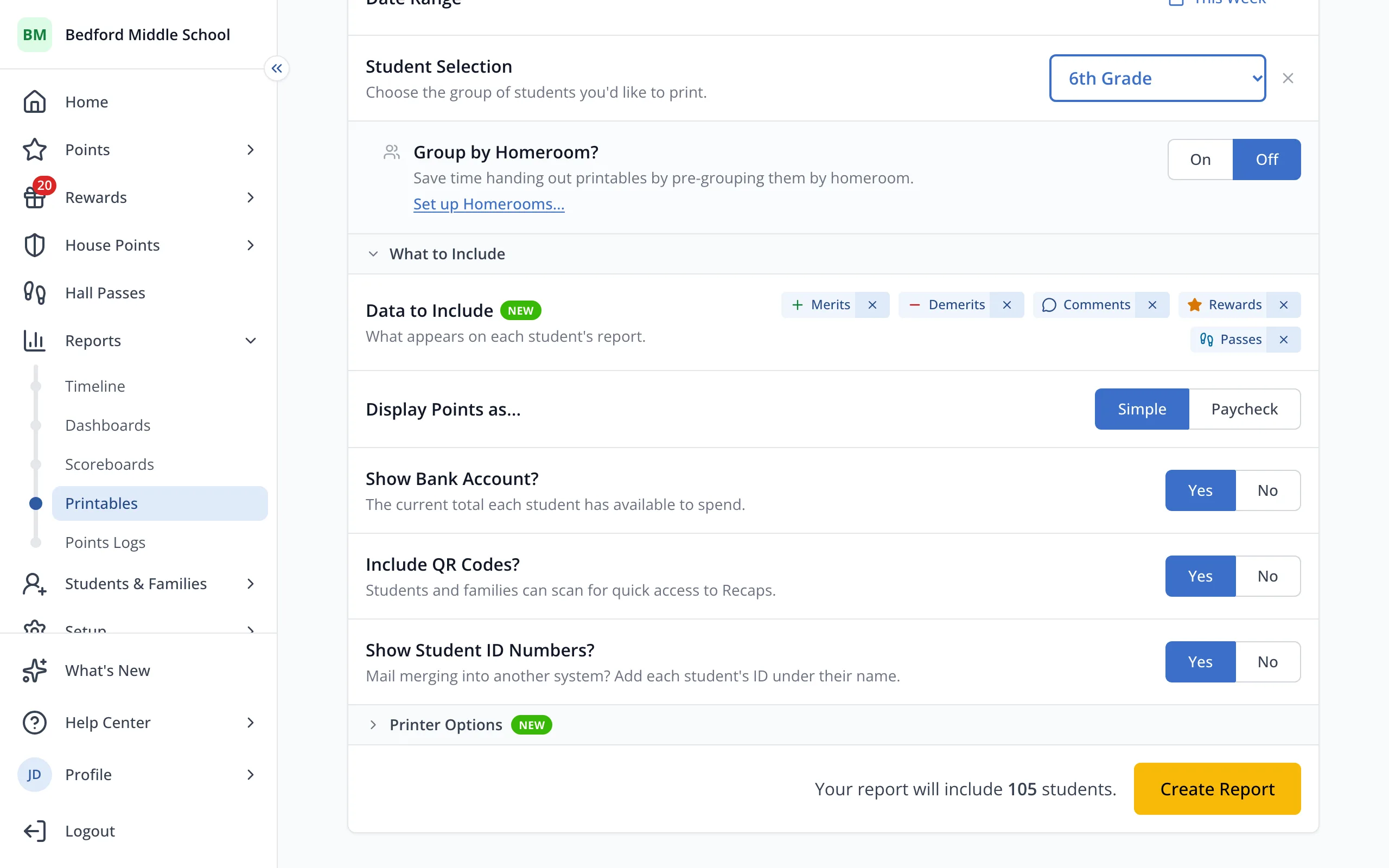
1.In the sidebar, click Reports.
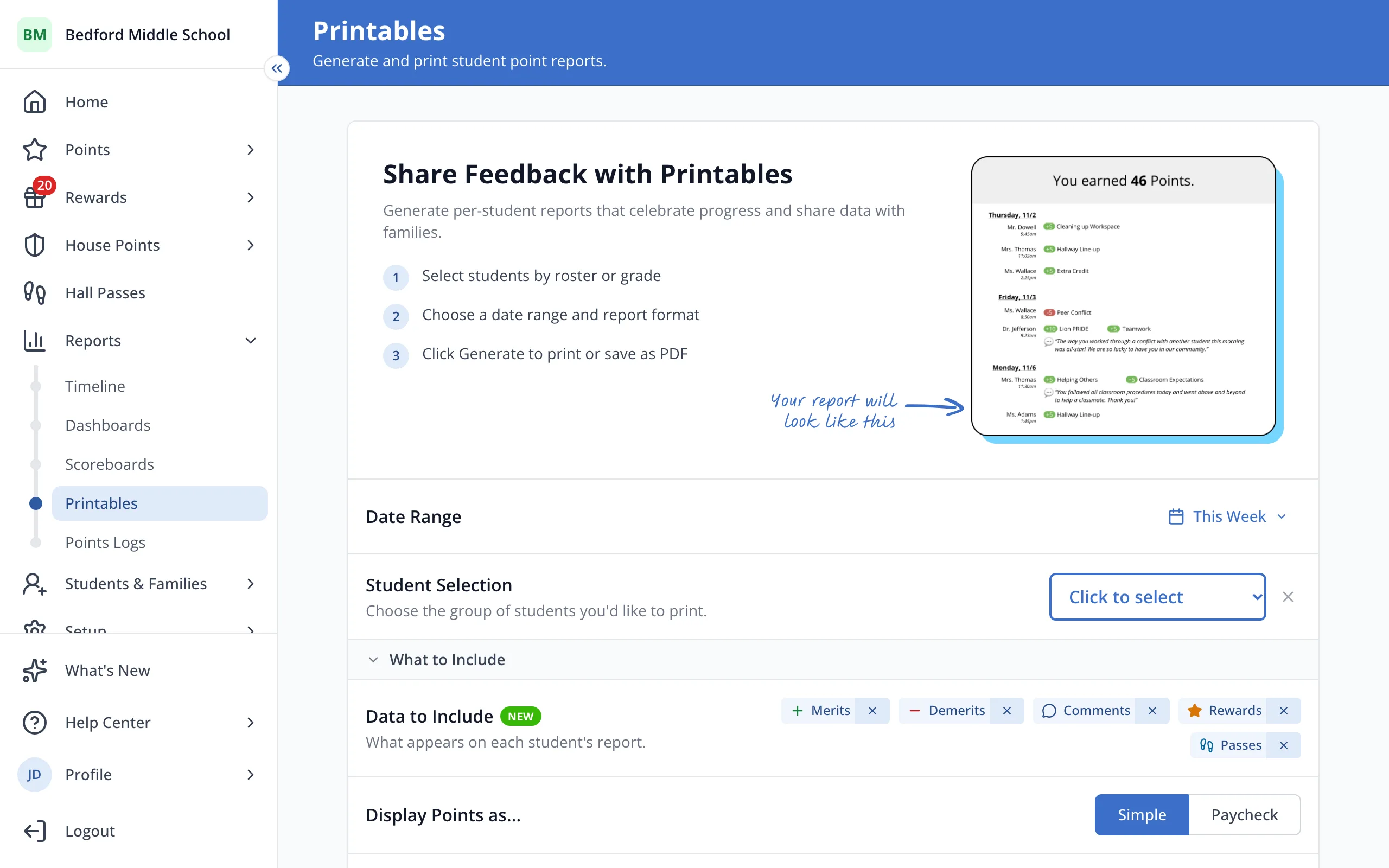
2.Click Printables.
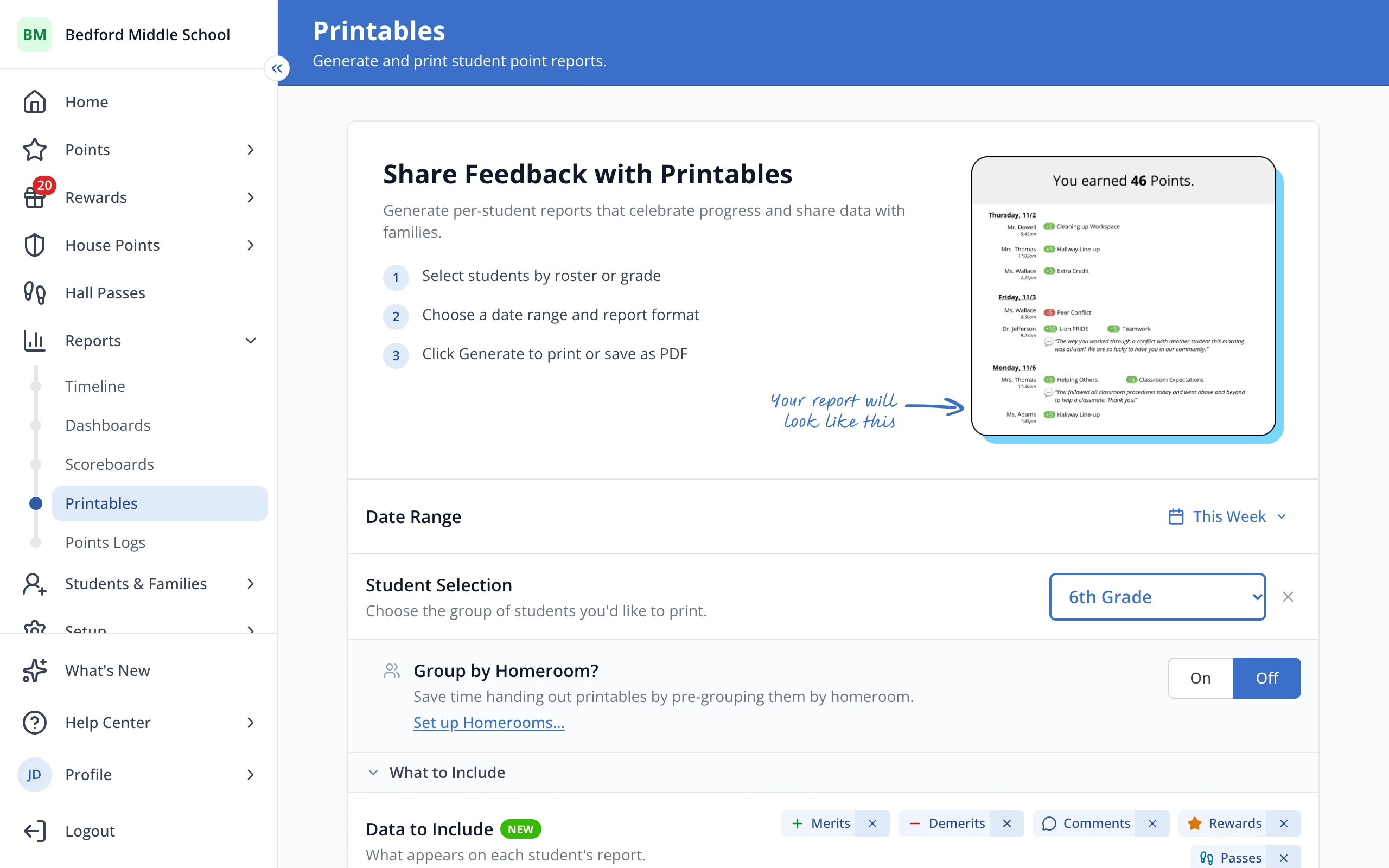
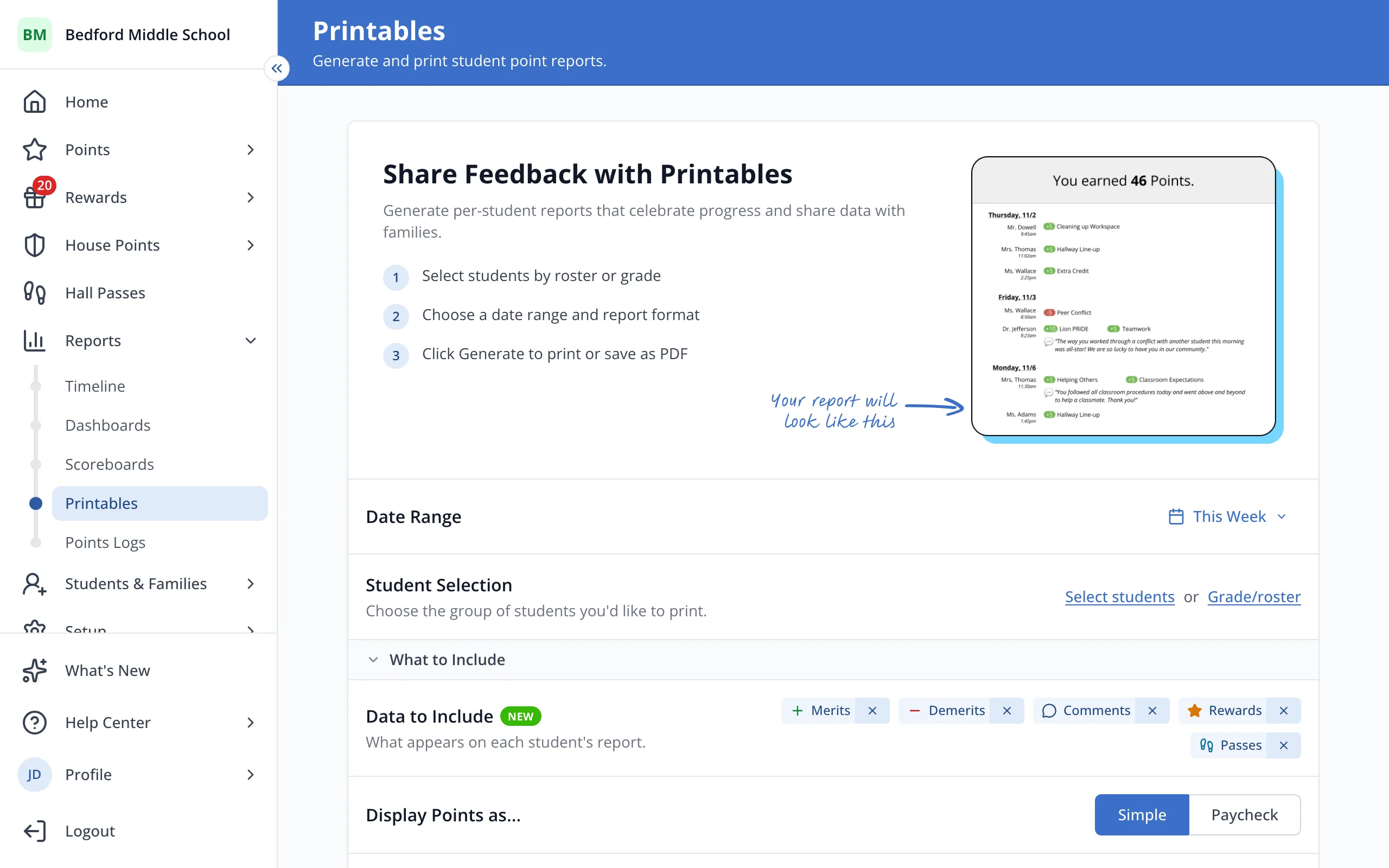
3.Next to Student Selection, click Grade/roster.
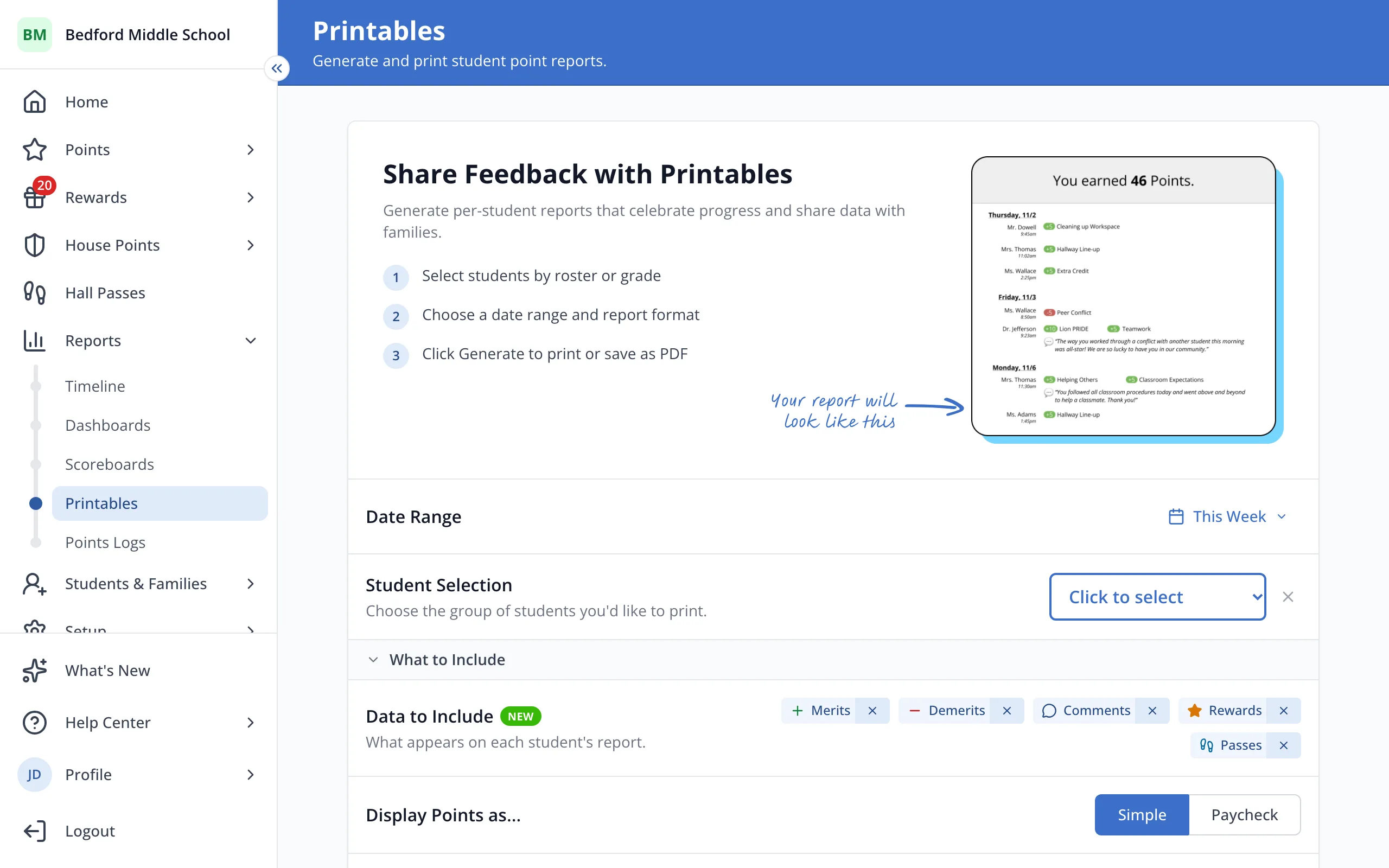
4.Choose the grade or roster you'd like to send reports to.
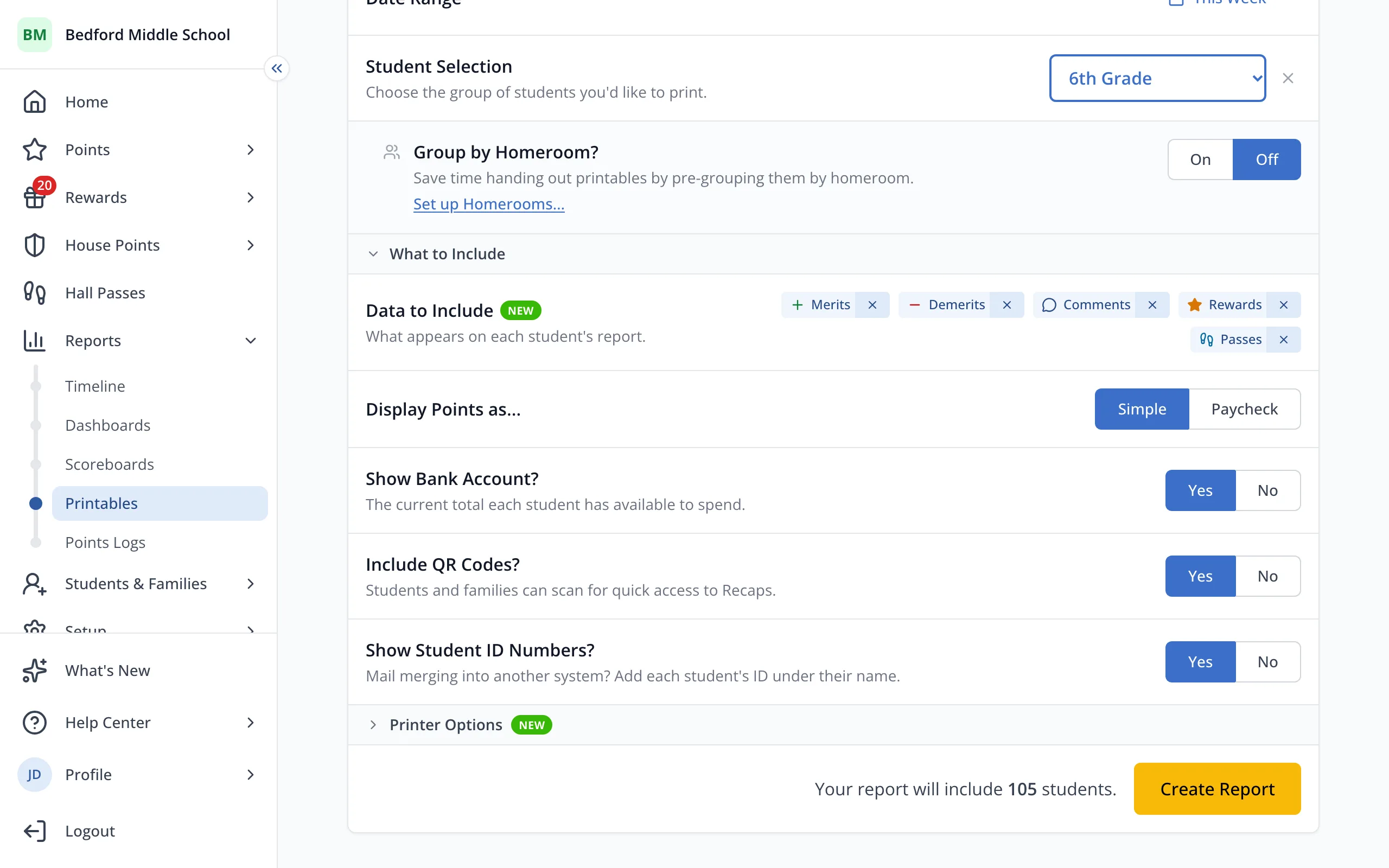
5.Next to Show Student ID Numbers?, click Yes.
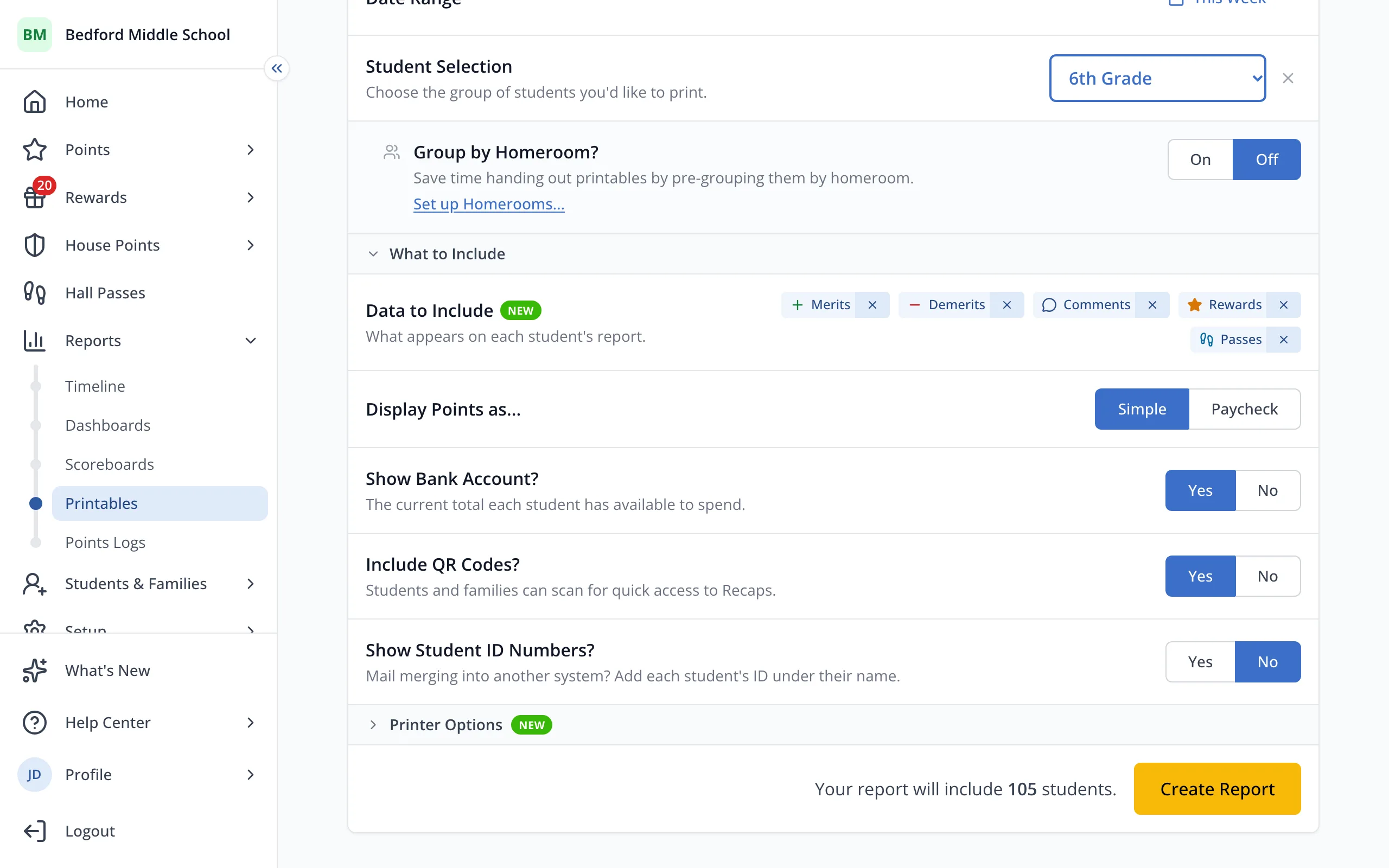
Did you know? A student with no student ID on file prints with their LiveSchool ID instead.
6.Click Create Report. Your reports will open in a new tab.
7.In your browser's print window, save the reports as a PDF.
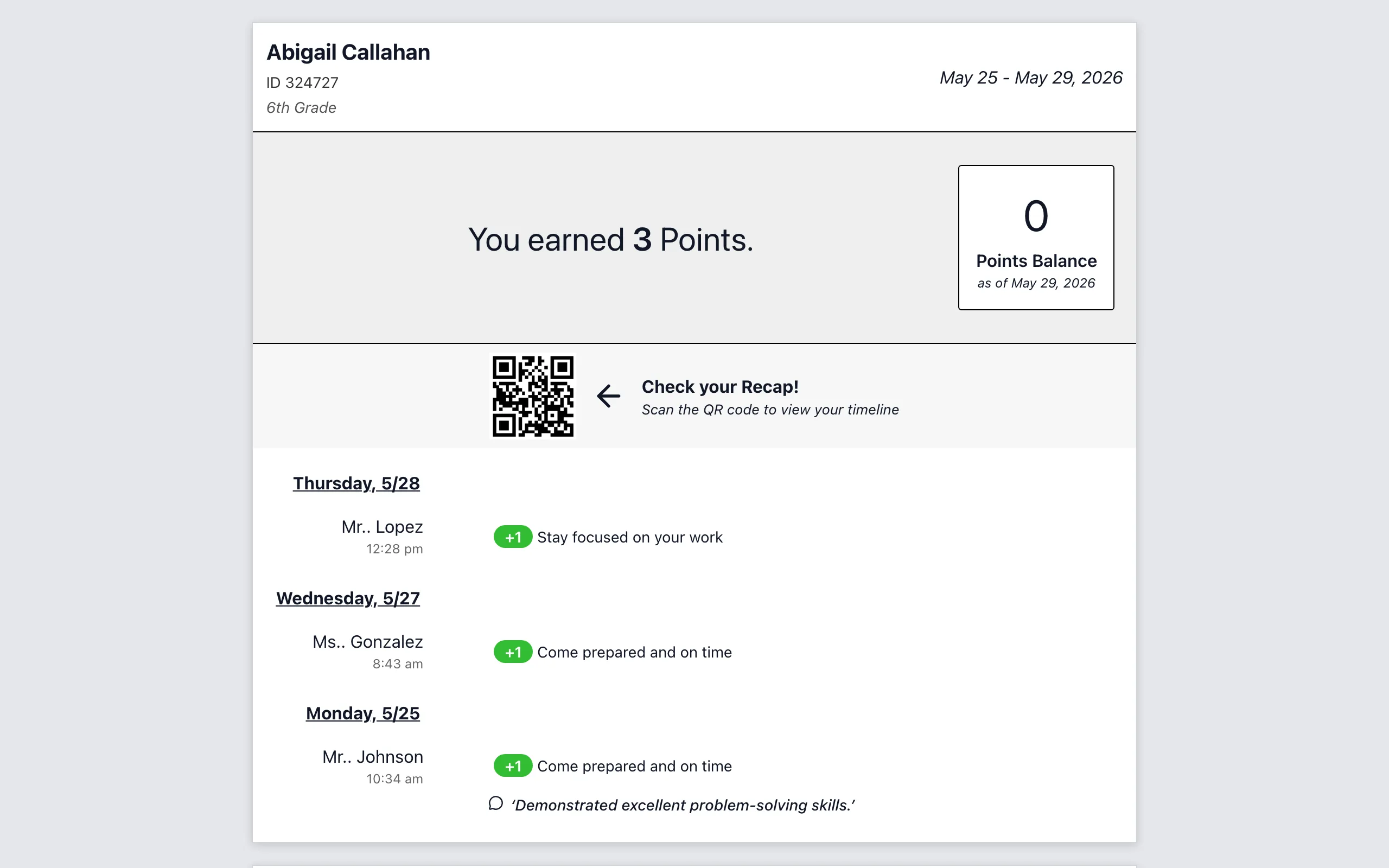
Did you know? Upload the PDF to ParentSquare's Secure Document Delivery to send each family their child's report.