Print point reports for a roster or grade
Each student gets their own page of points for the dates you pick, ready to send home or file.
Open in LiveSchool
Already signed in? Open this guide inside LiveSchool.
Use the Left and Right arrow keys to move between steps, and Space to play or pause.
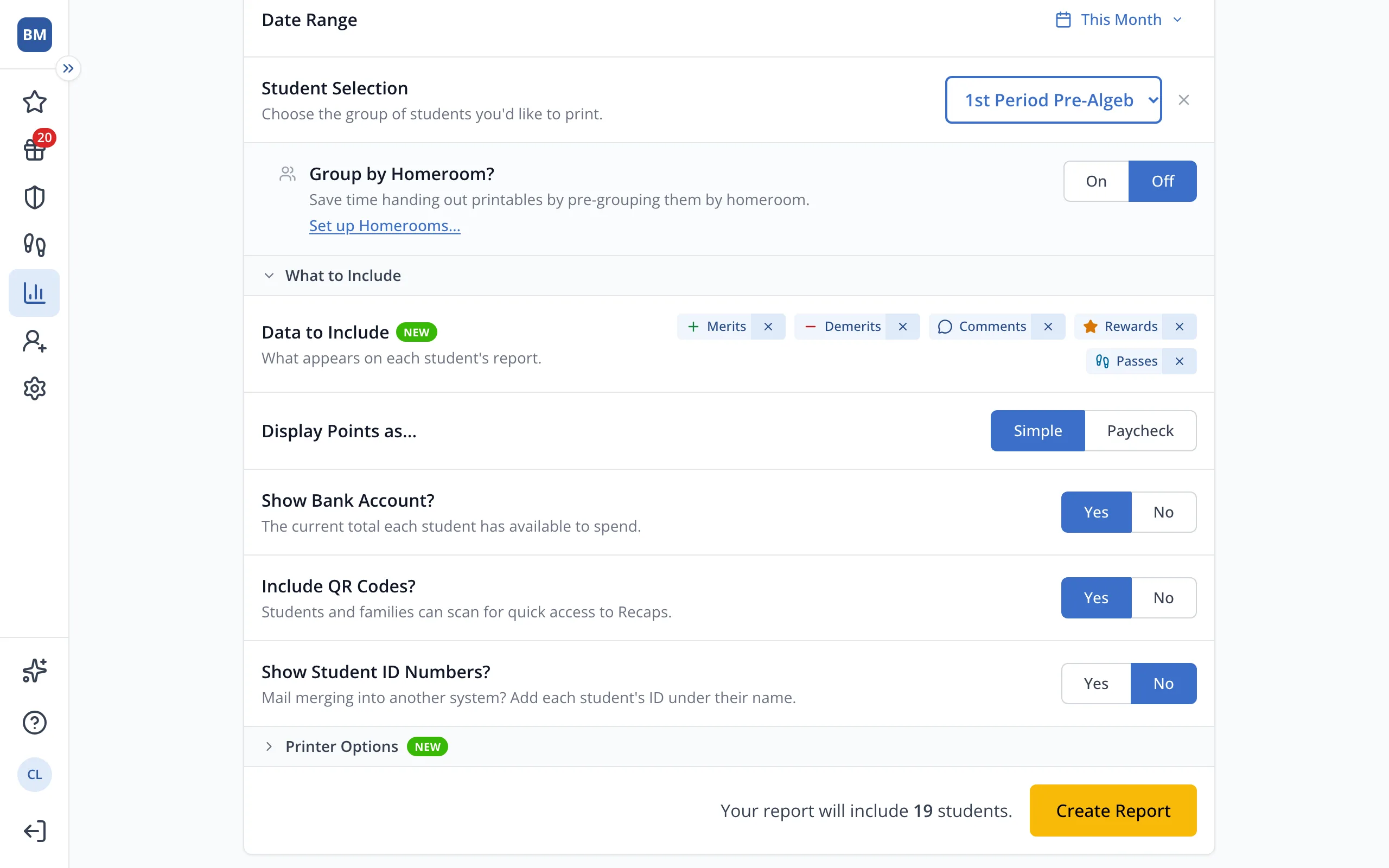
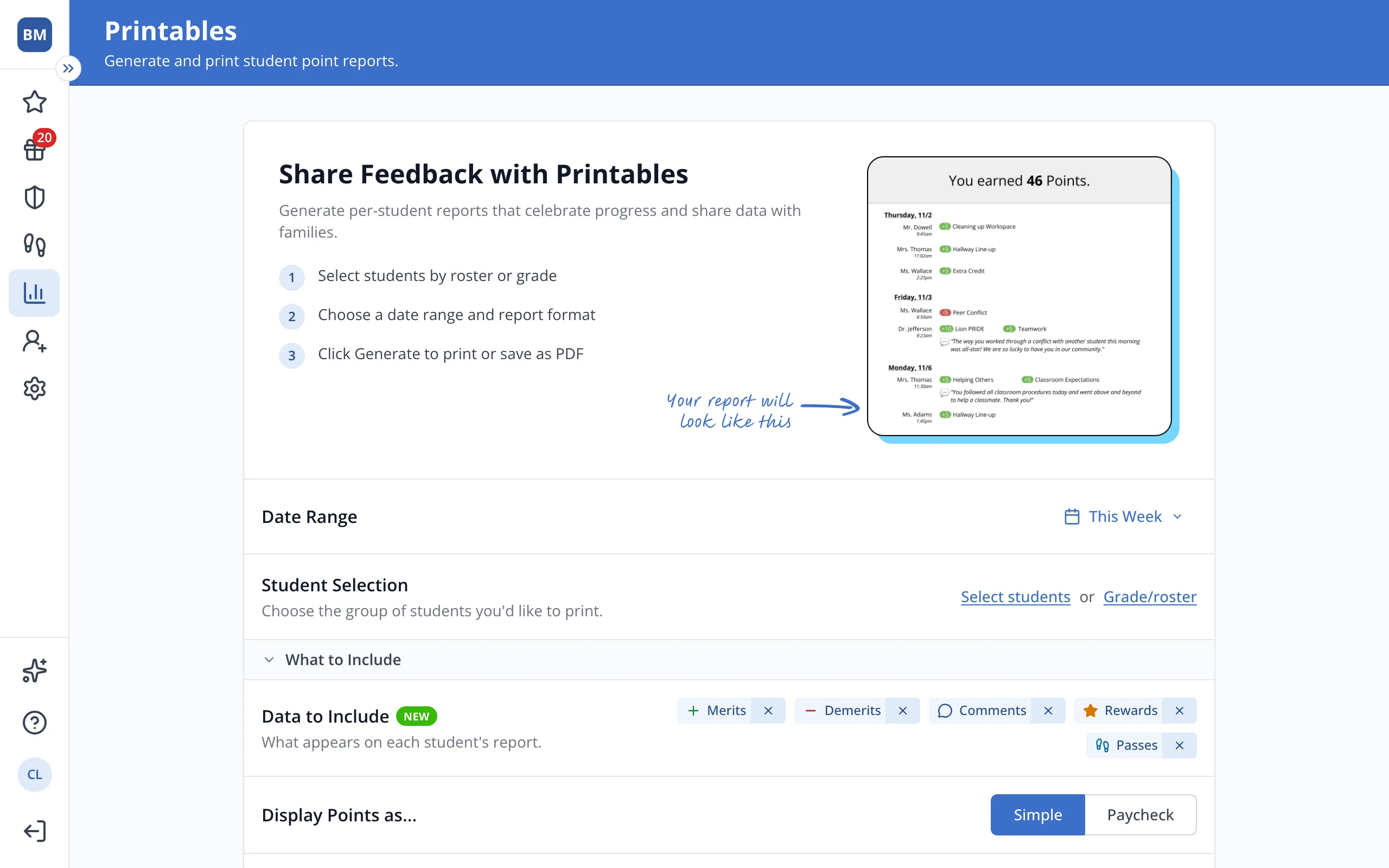
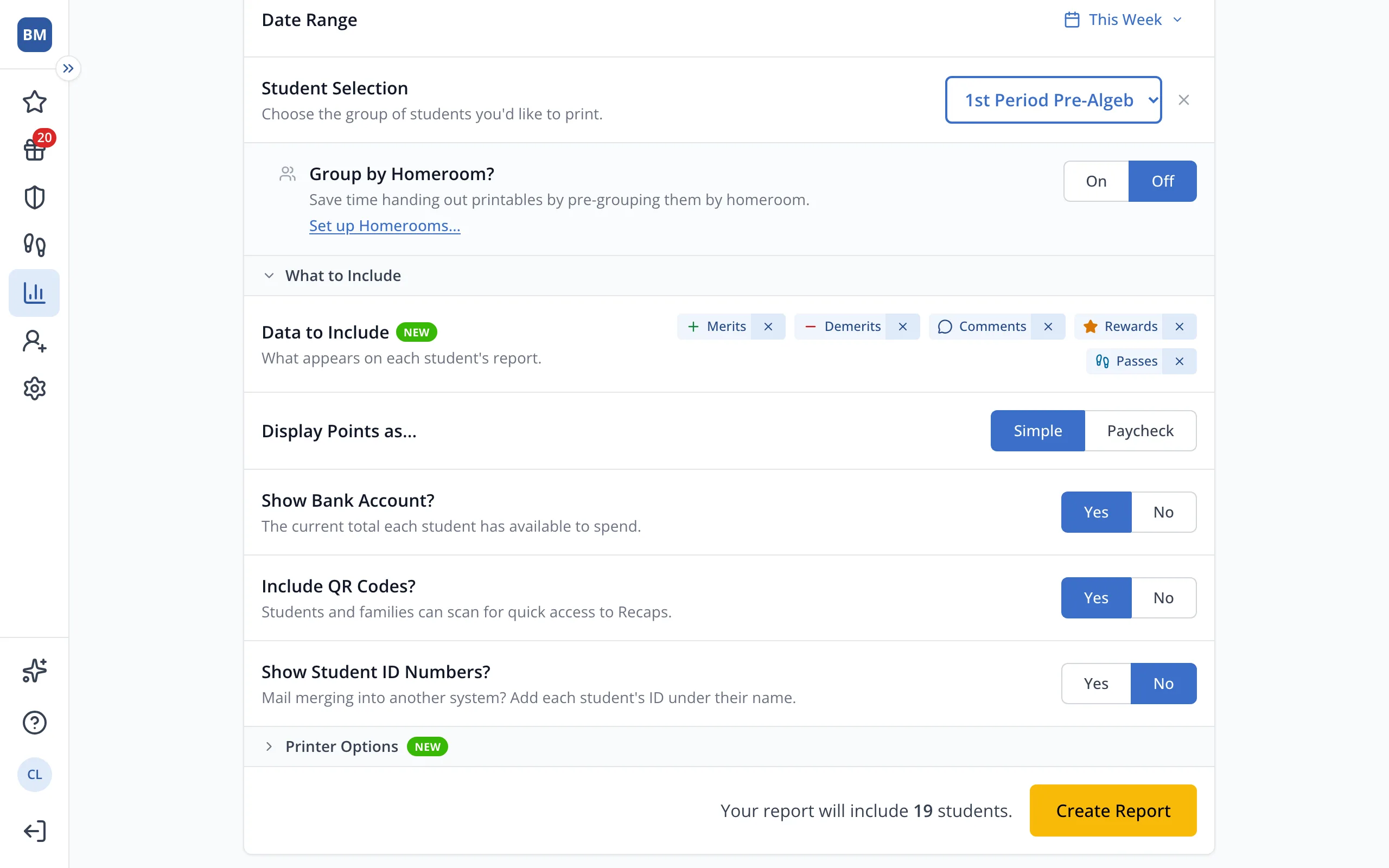
1.On the Printables page under Reports, next to Student Selection, click Grade/roster.
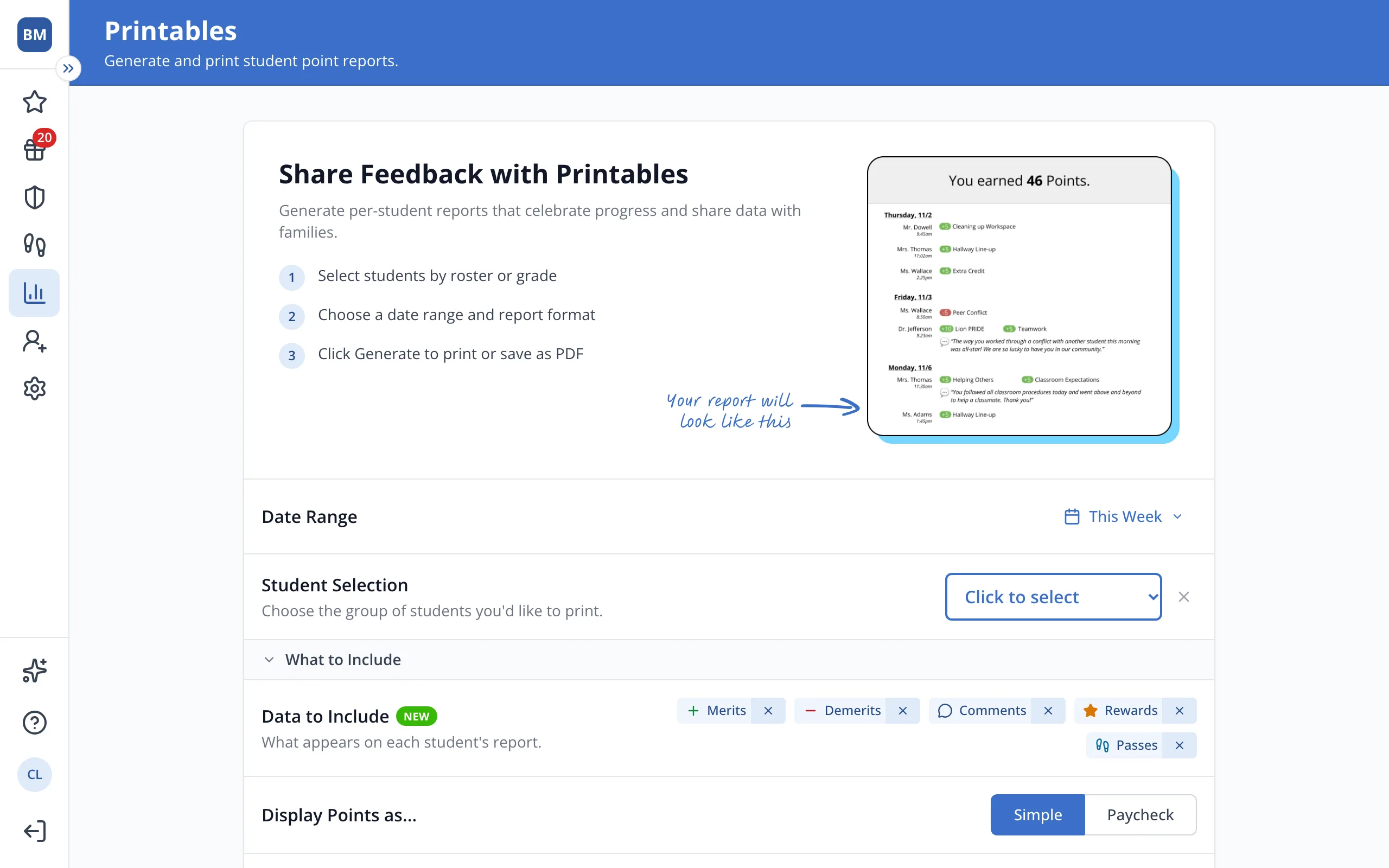
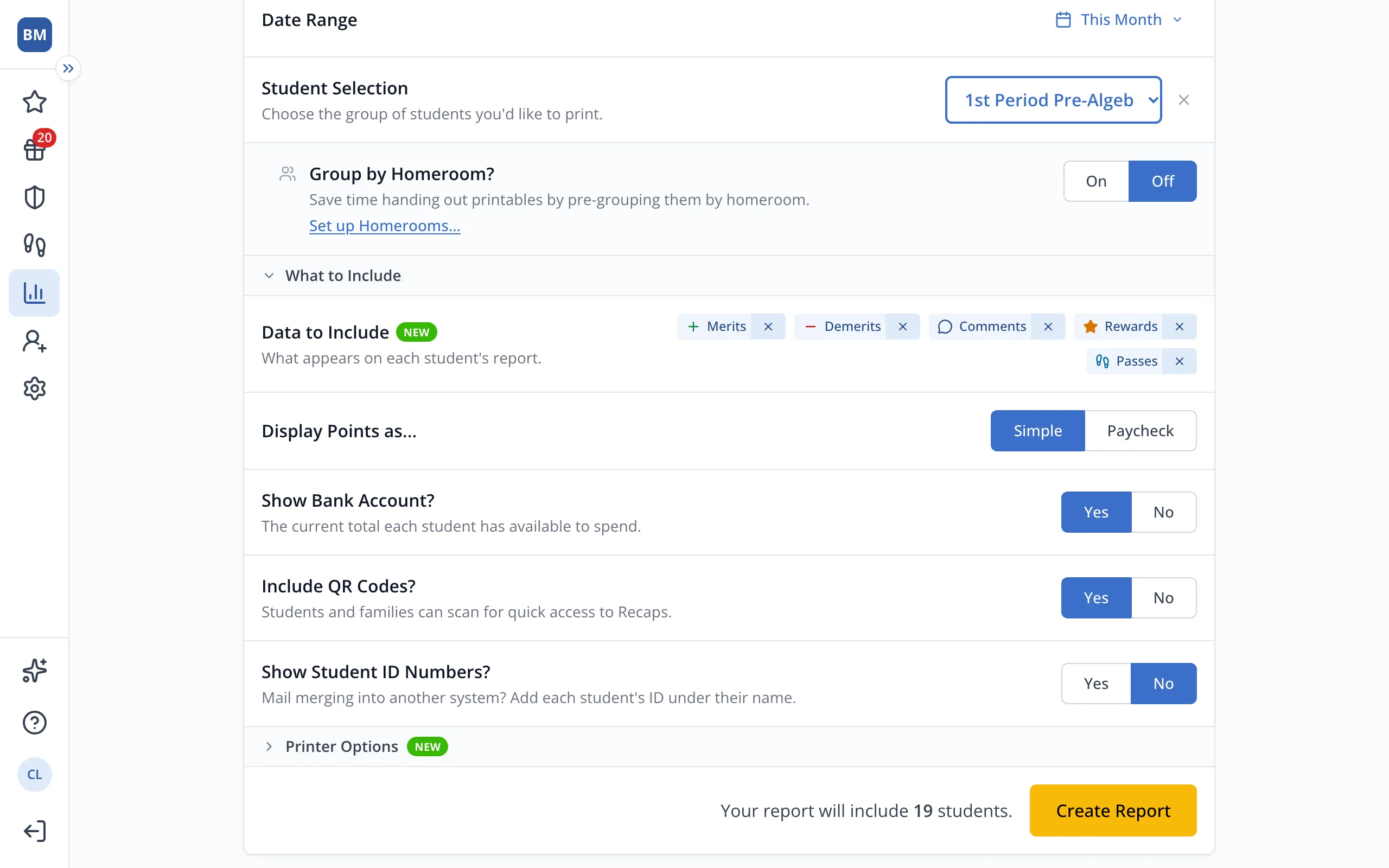
2.Pick the grade or roster you'd like to print.
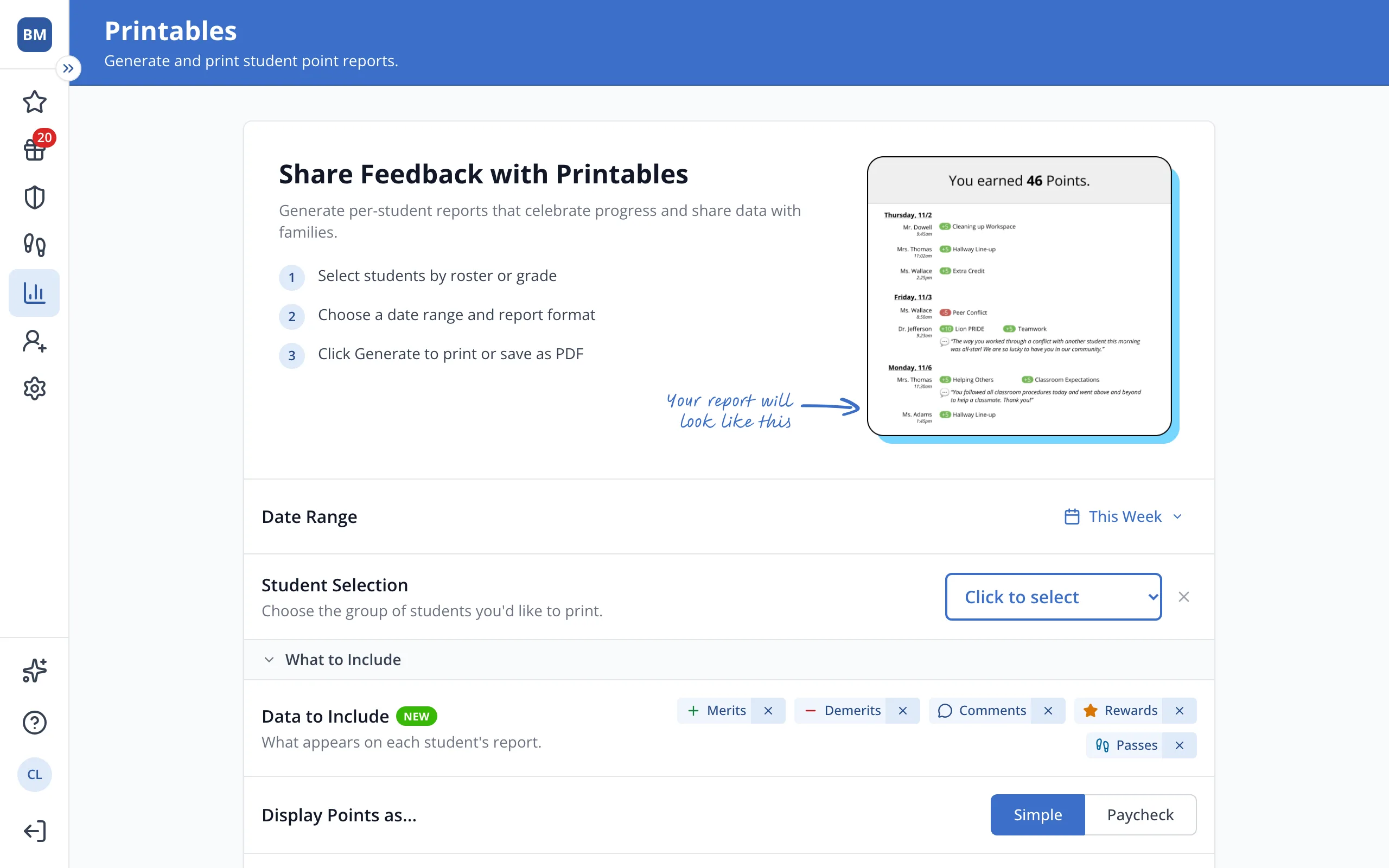
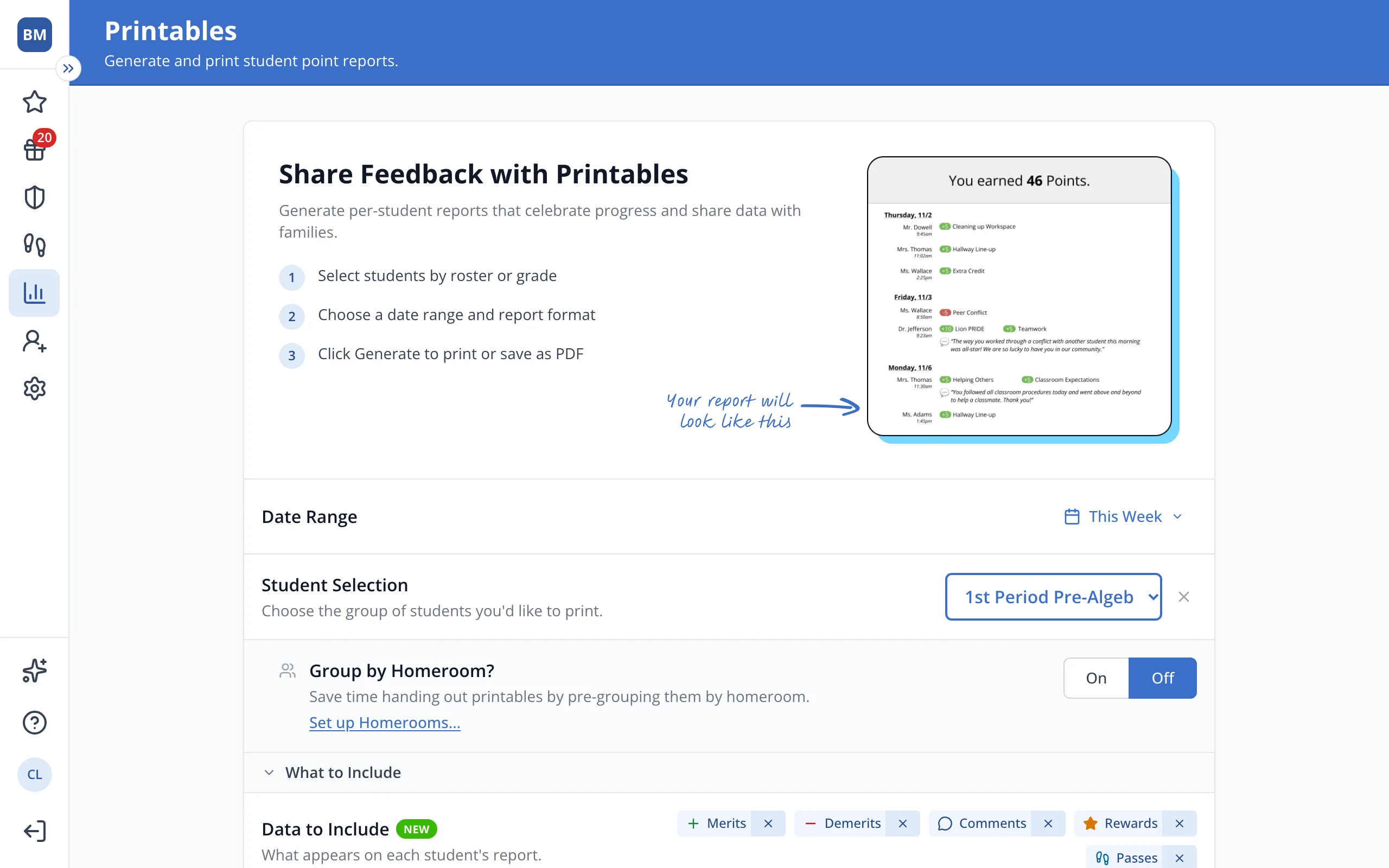
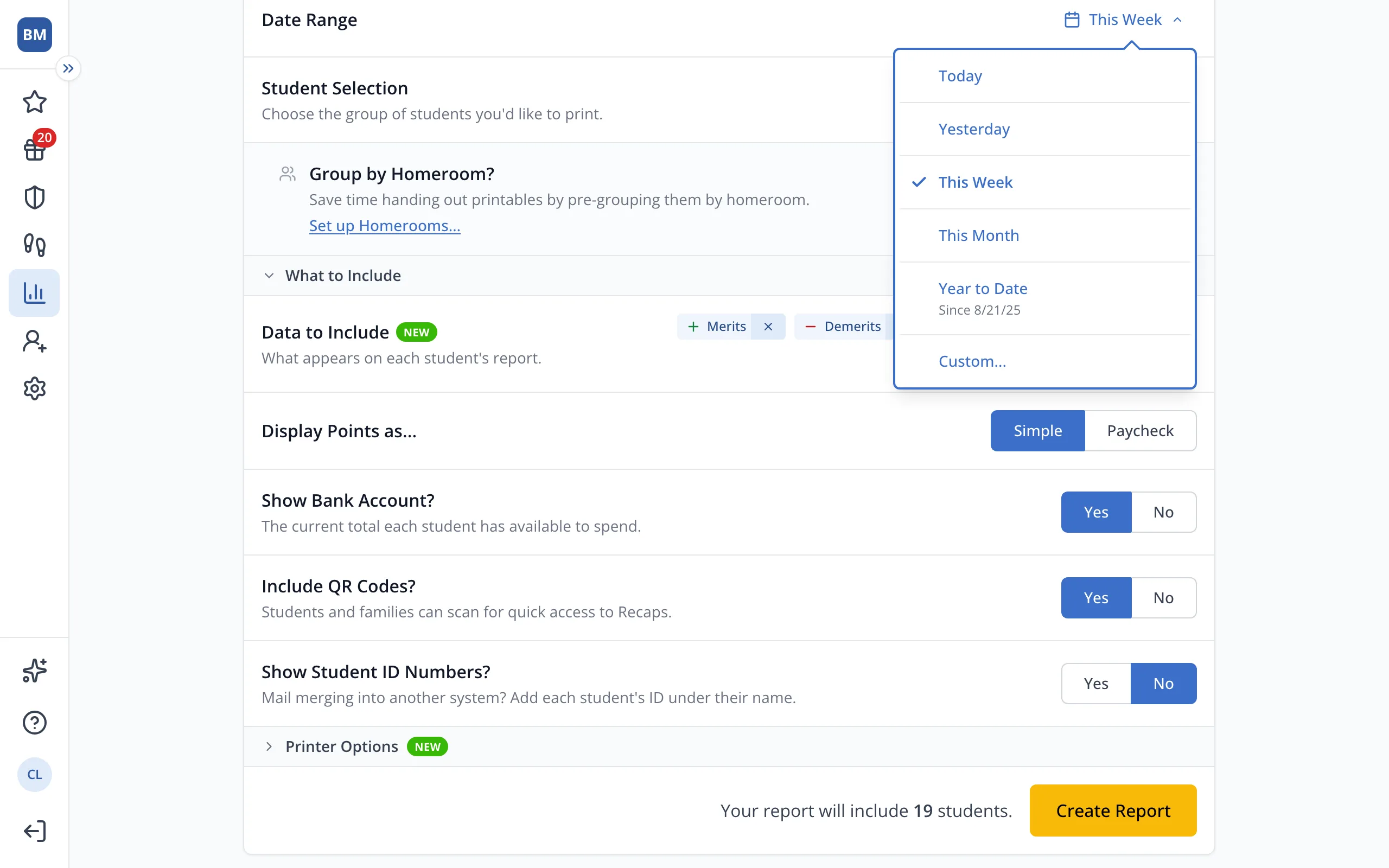
3.Next to Date Range, click the dates.
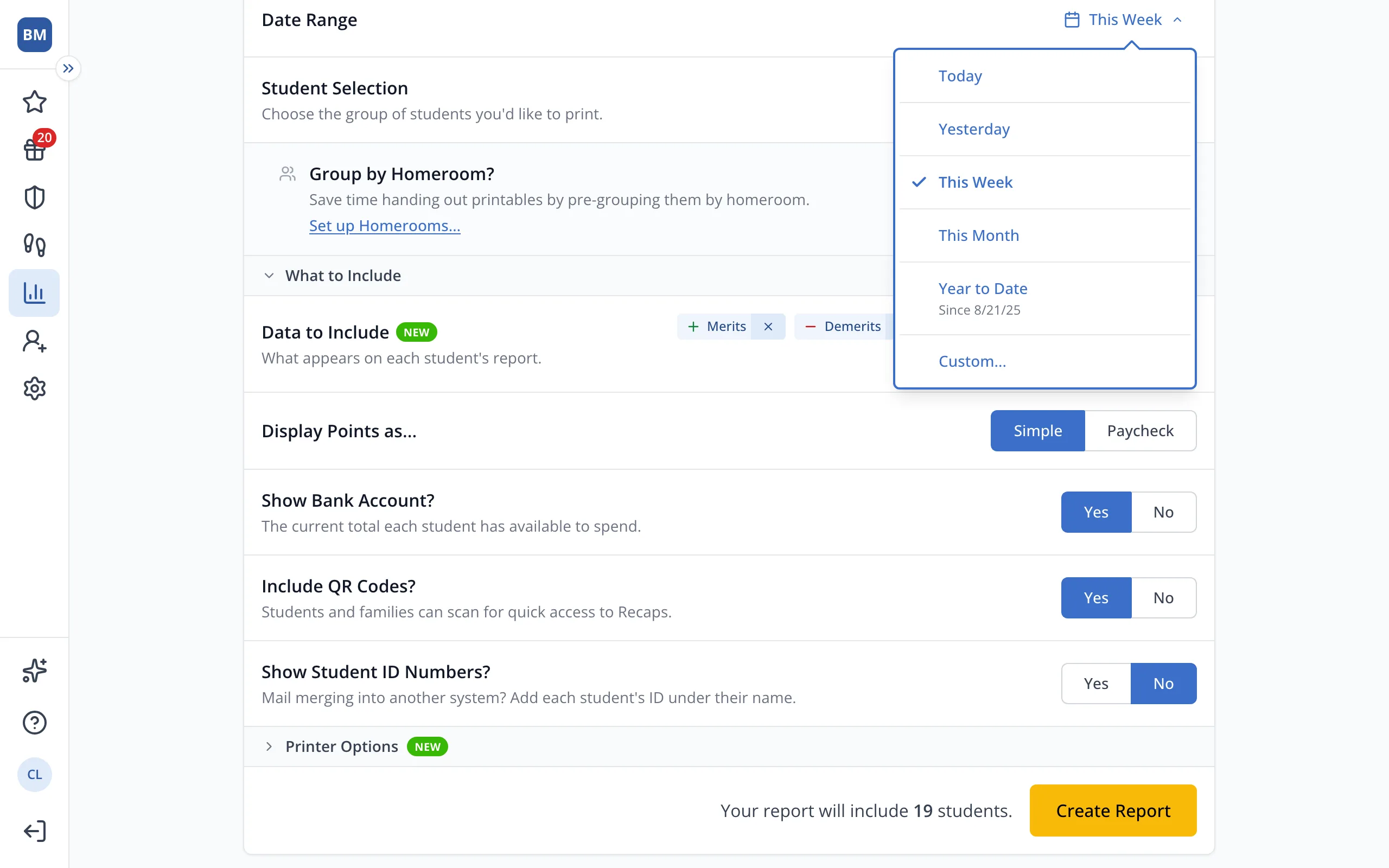
4.Click the time period you would like the reports to cover, like This Month.
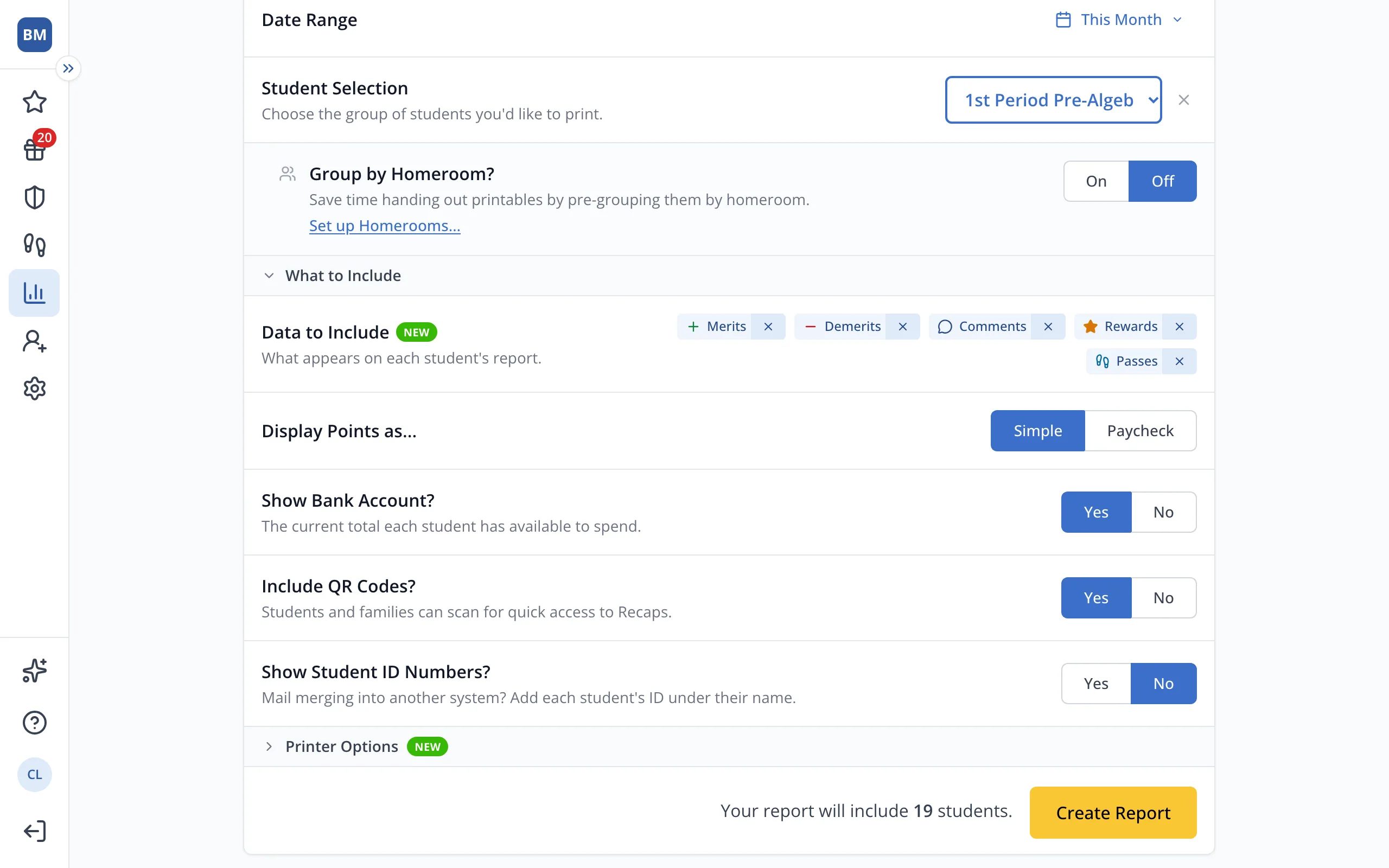
5.Click Create Report. The reports open in a new tab, ready to print or save as a PDF.