Sort, group and print reports double-sided
Set up Printables so that they come off the printer ready to pass out.
Open in LiveSchool
Already signed in? Open this guide inside LiveSchool.
Use the Left and Right arrow keys to move between steps, and Space to play or pause.
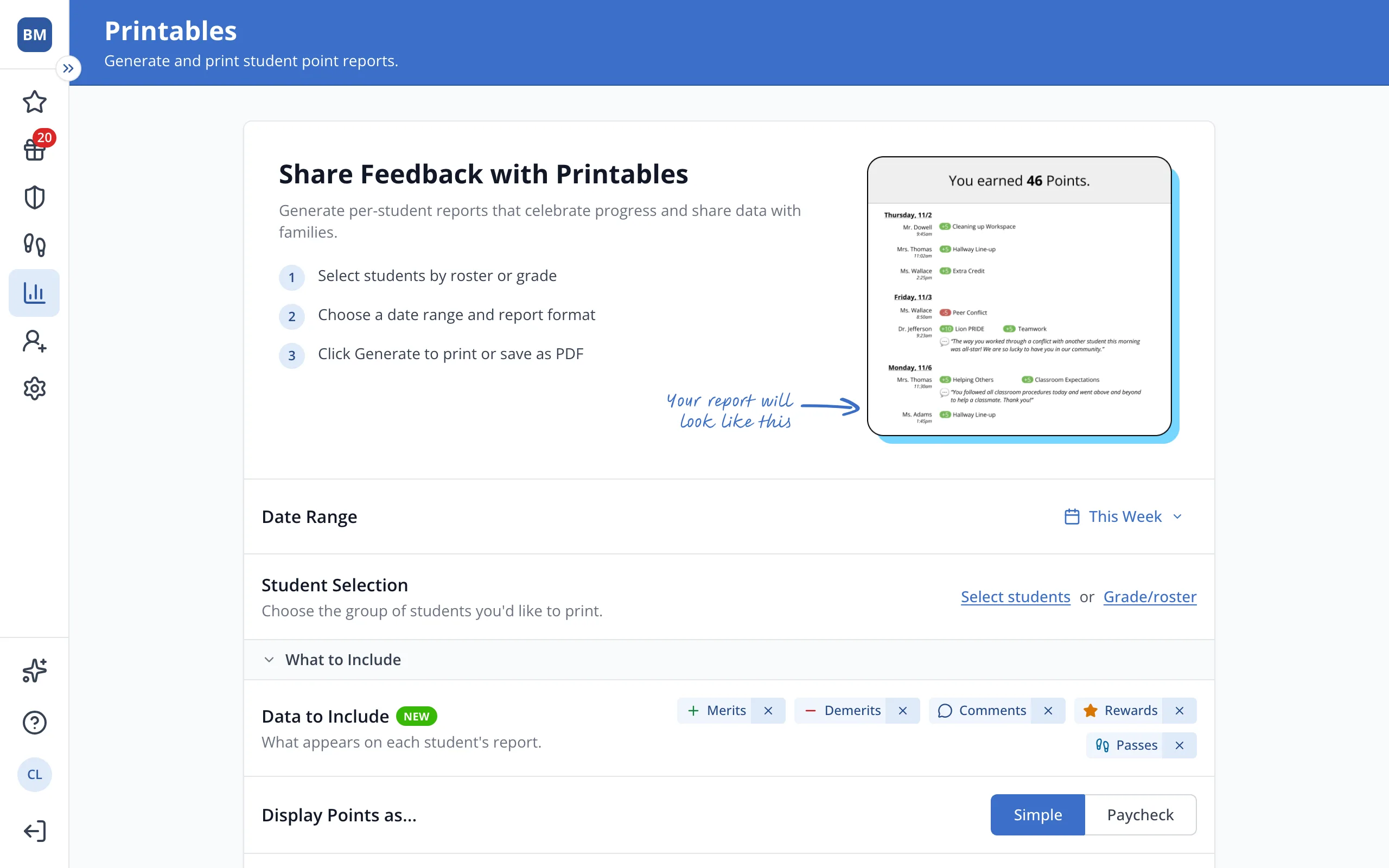
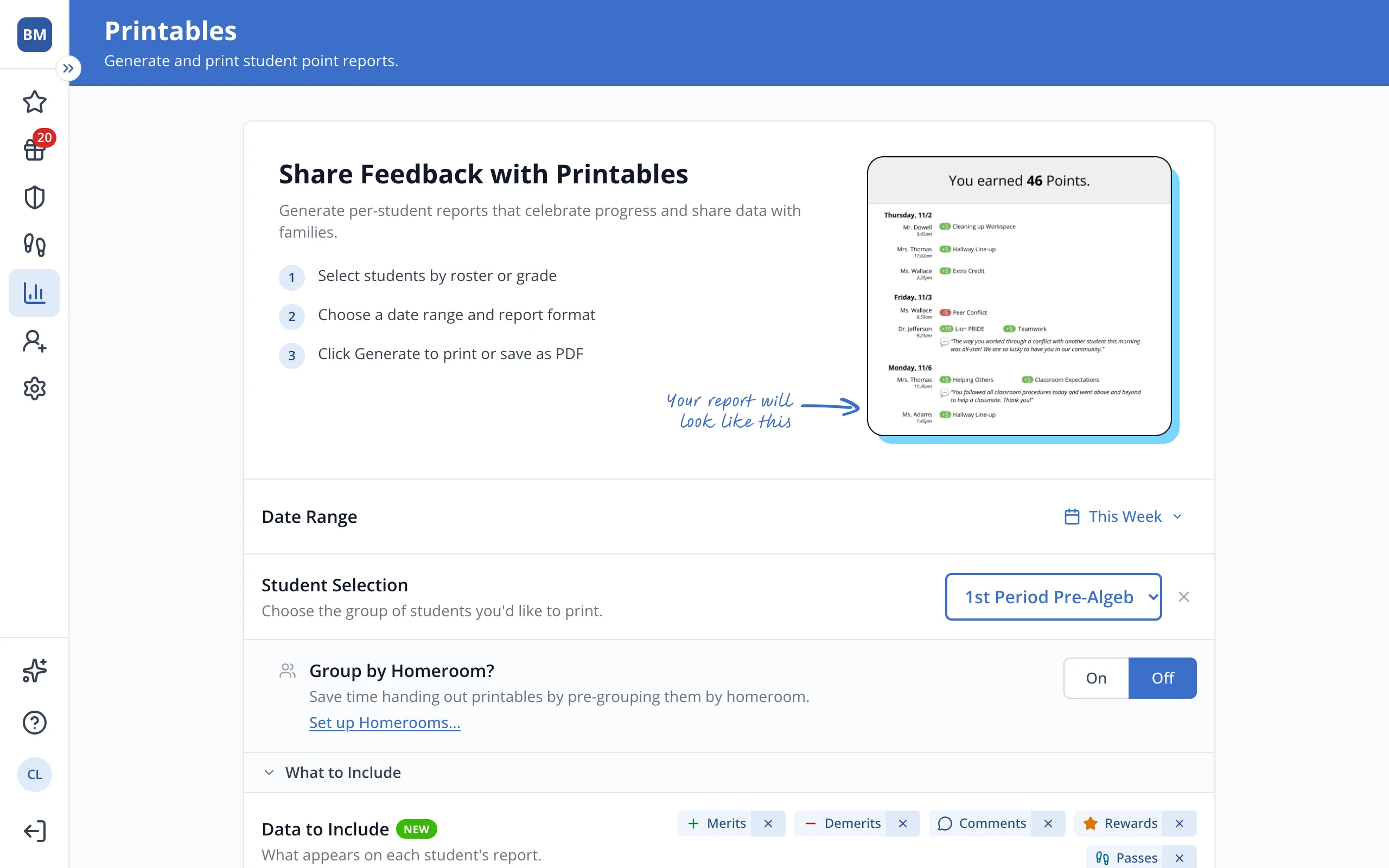
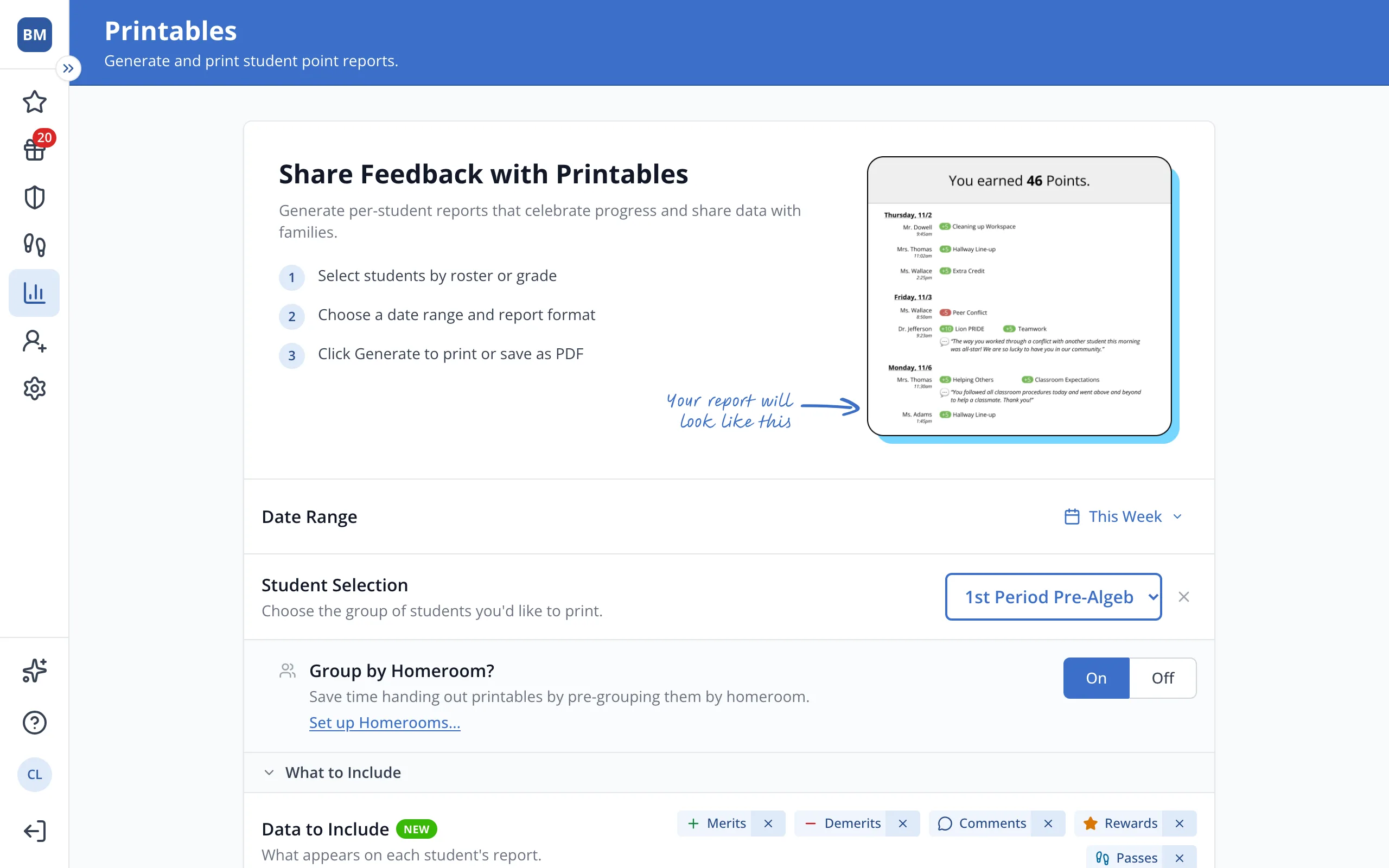
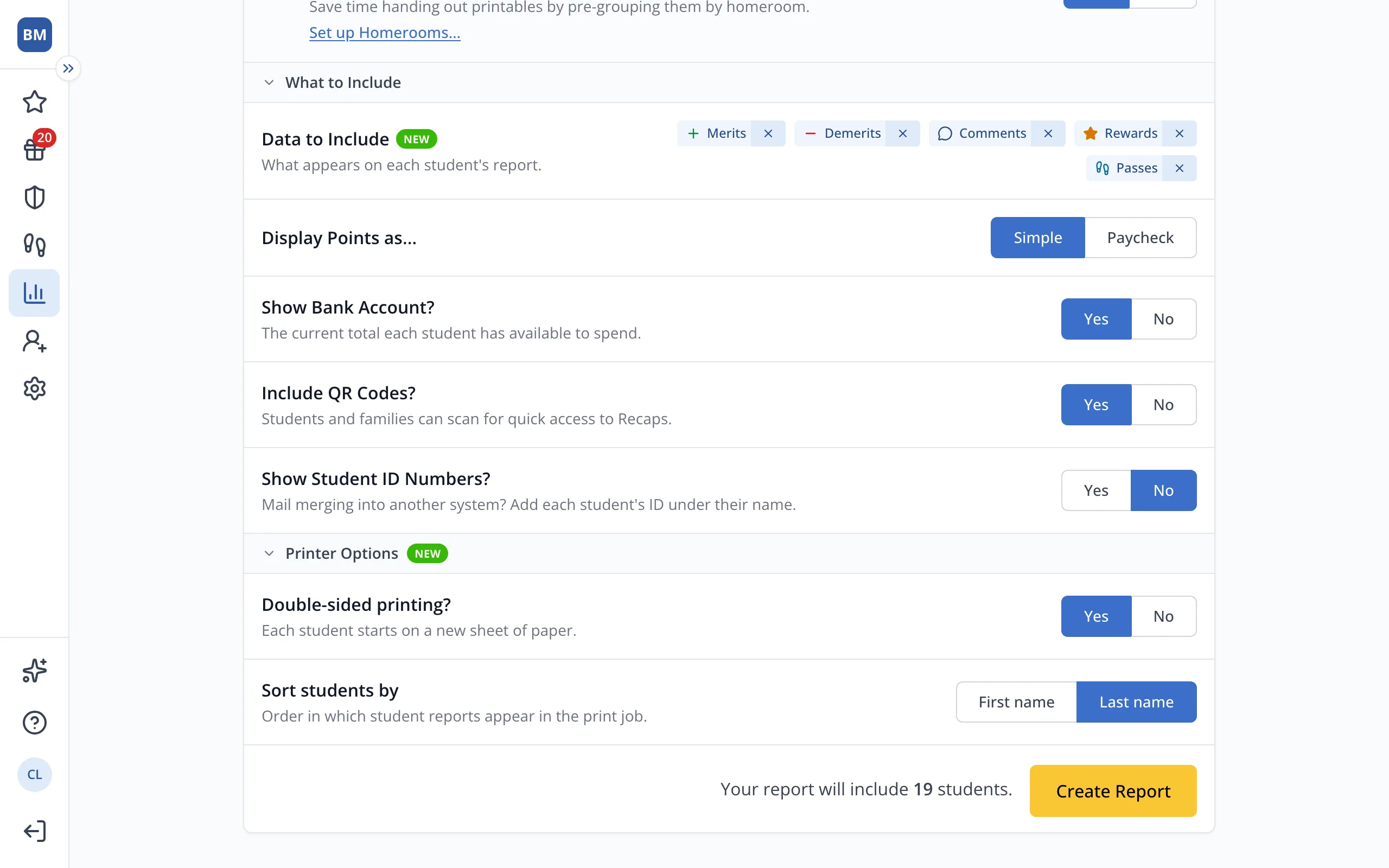
1.On the Printables page under Reports, next to Student Selection, click Grade/roster.
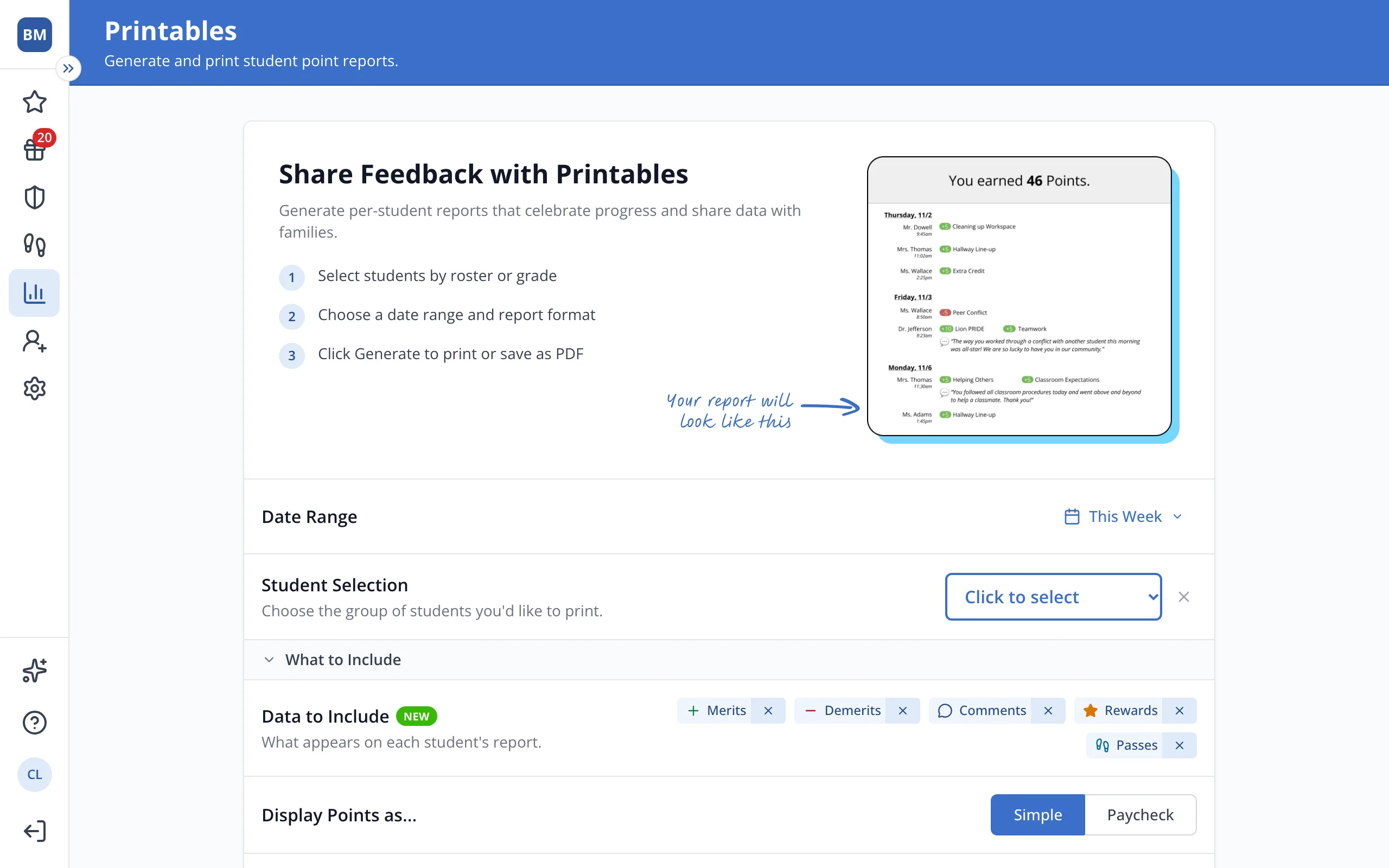
2.Pick the grade or roster you'd like to print.
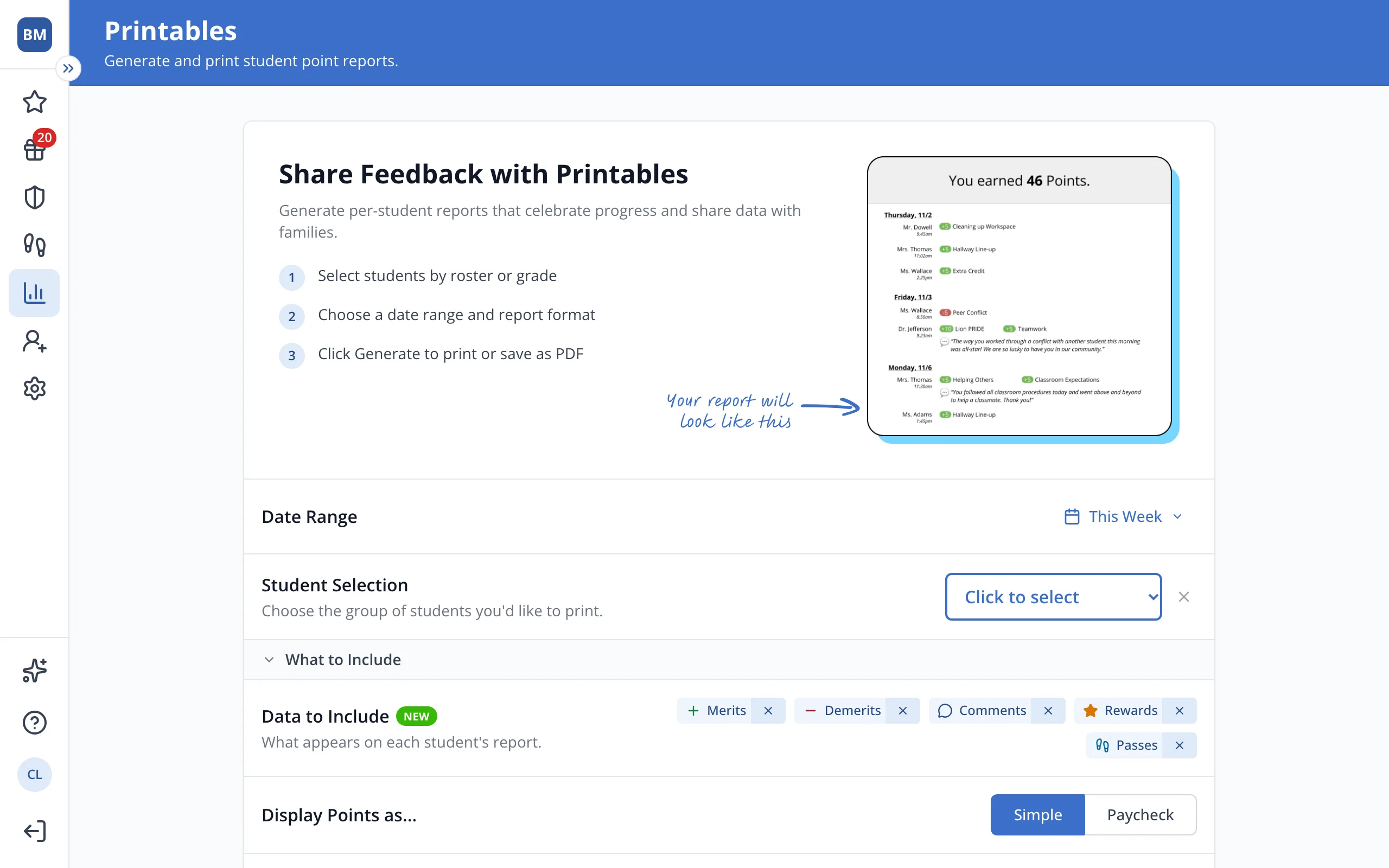
3.Next to Group by Homeroom?, click On to keep each homeroom's reports together.
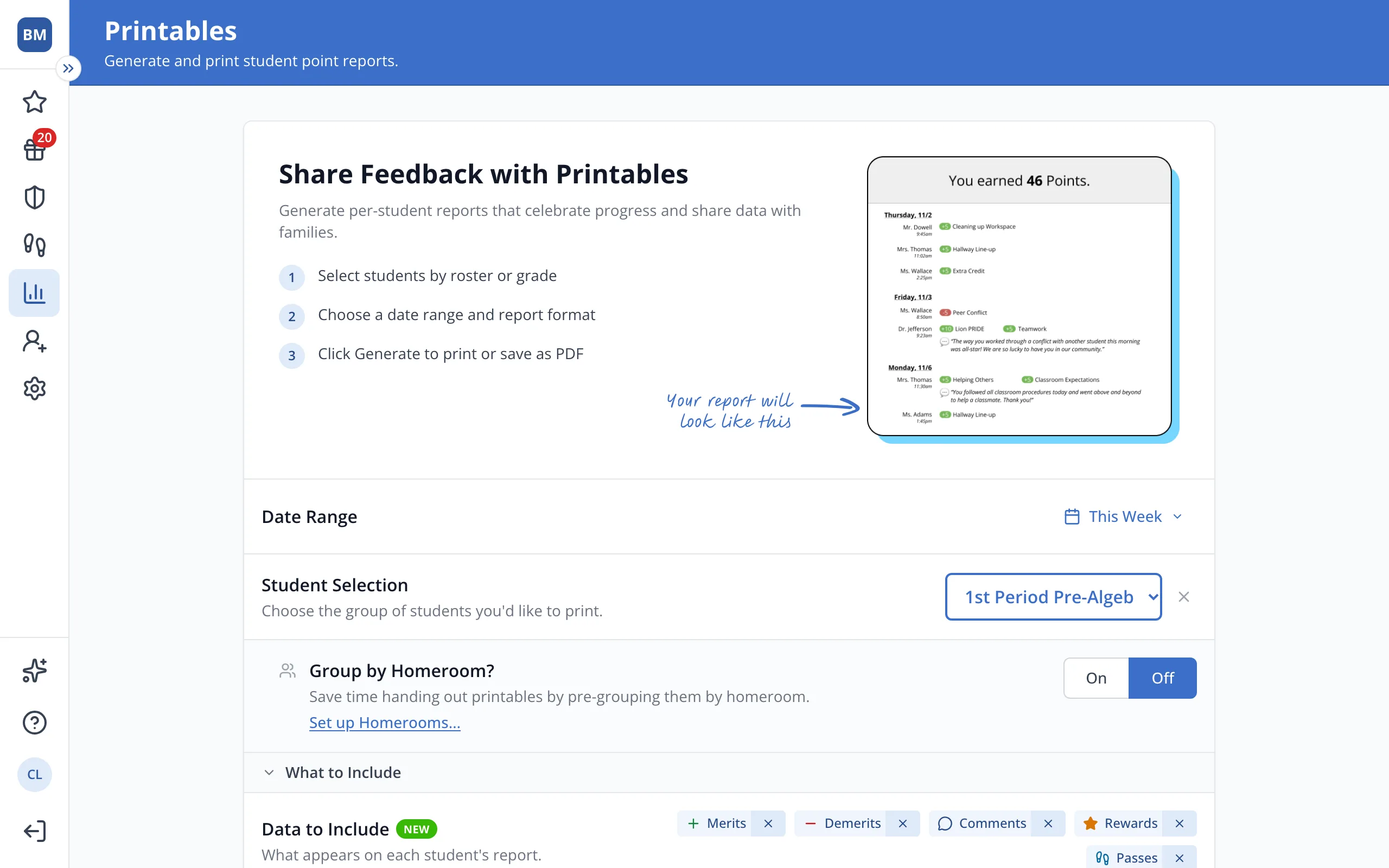
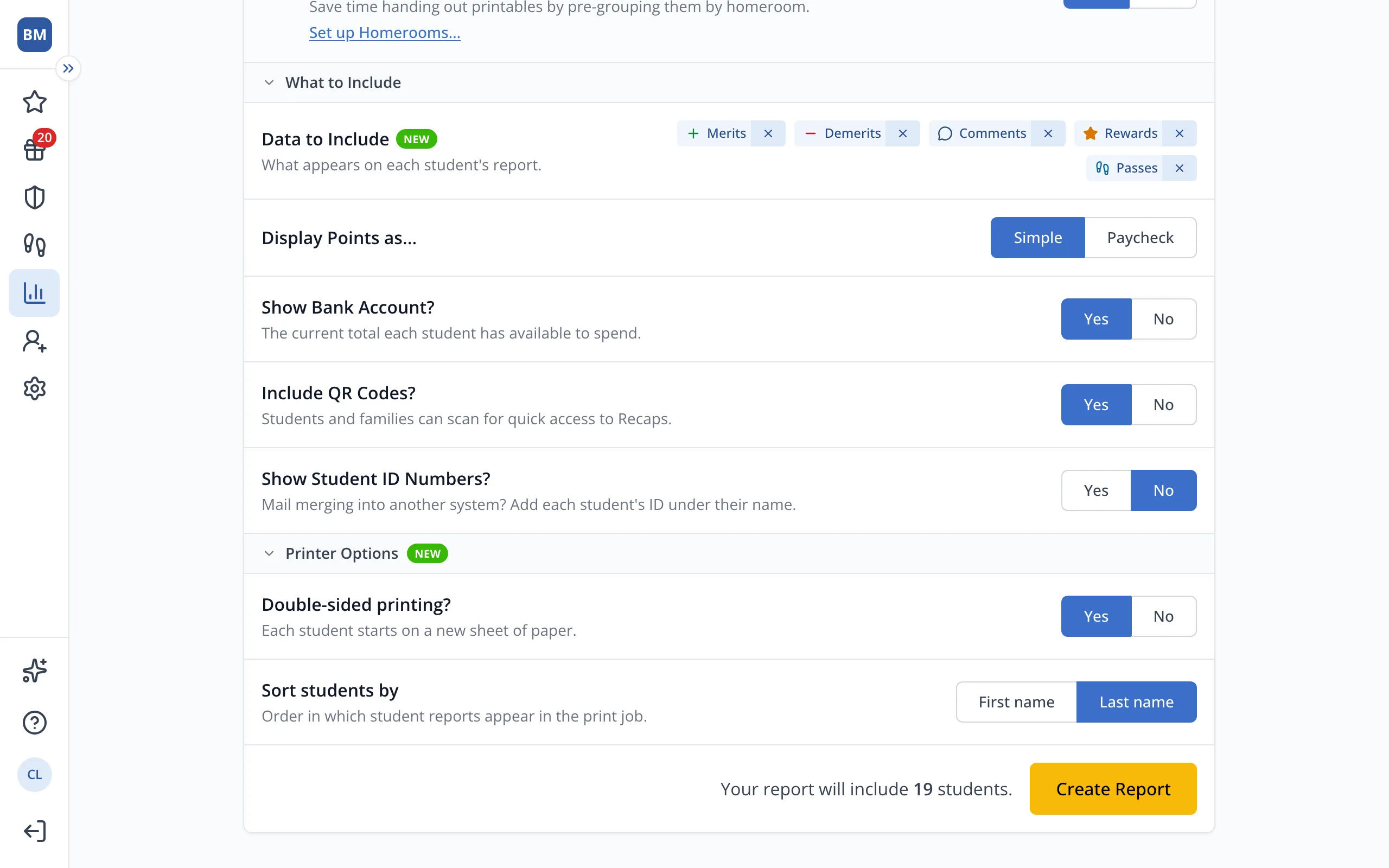
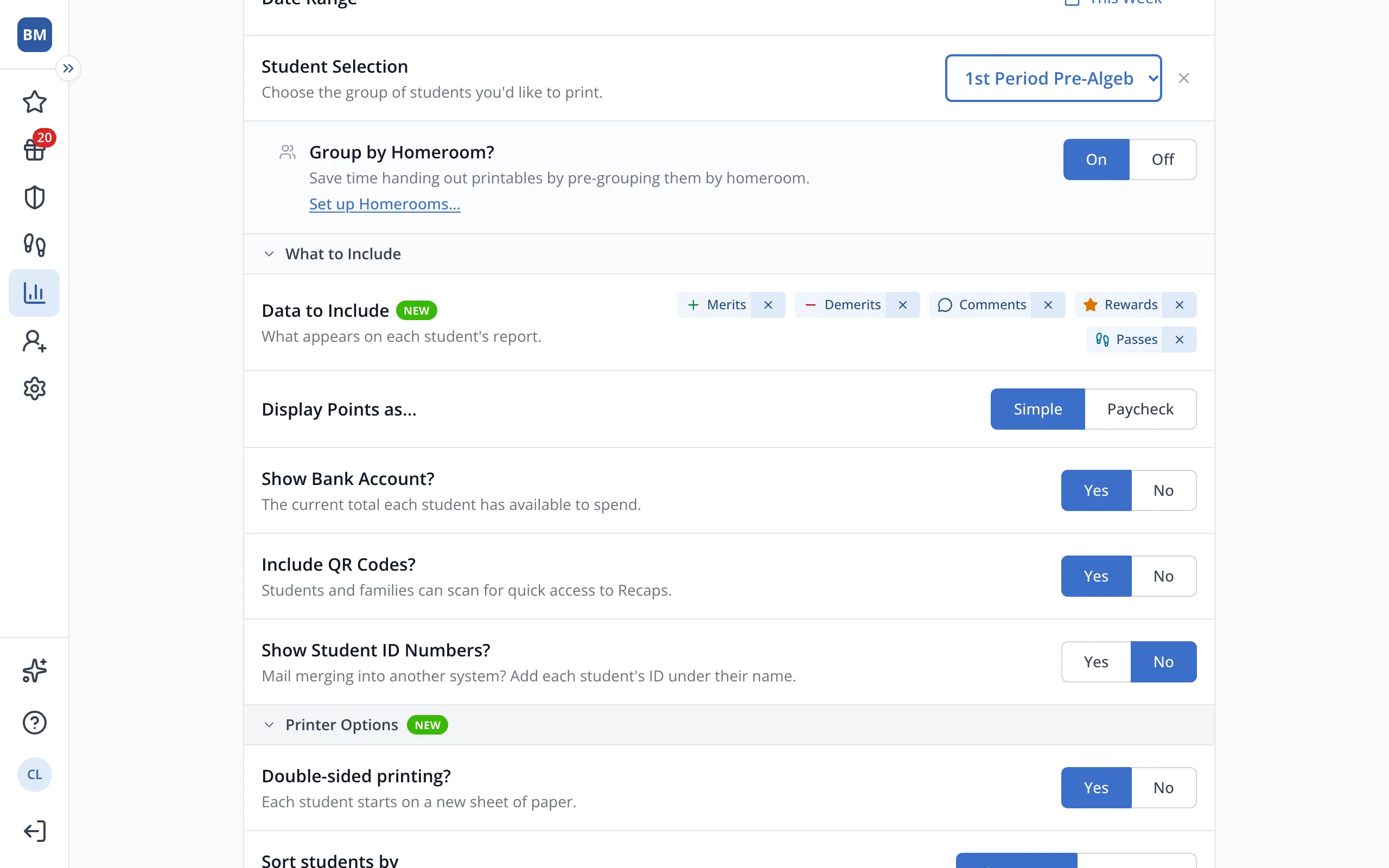
4.Click Printer Options.
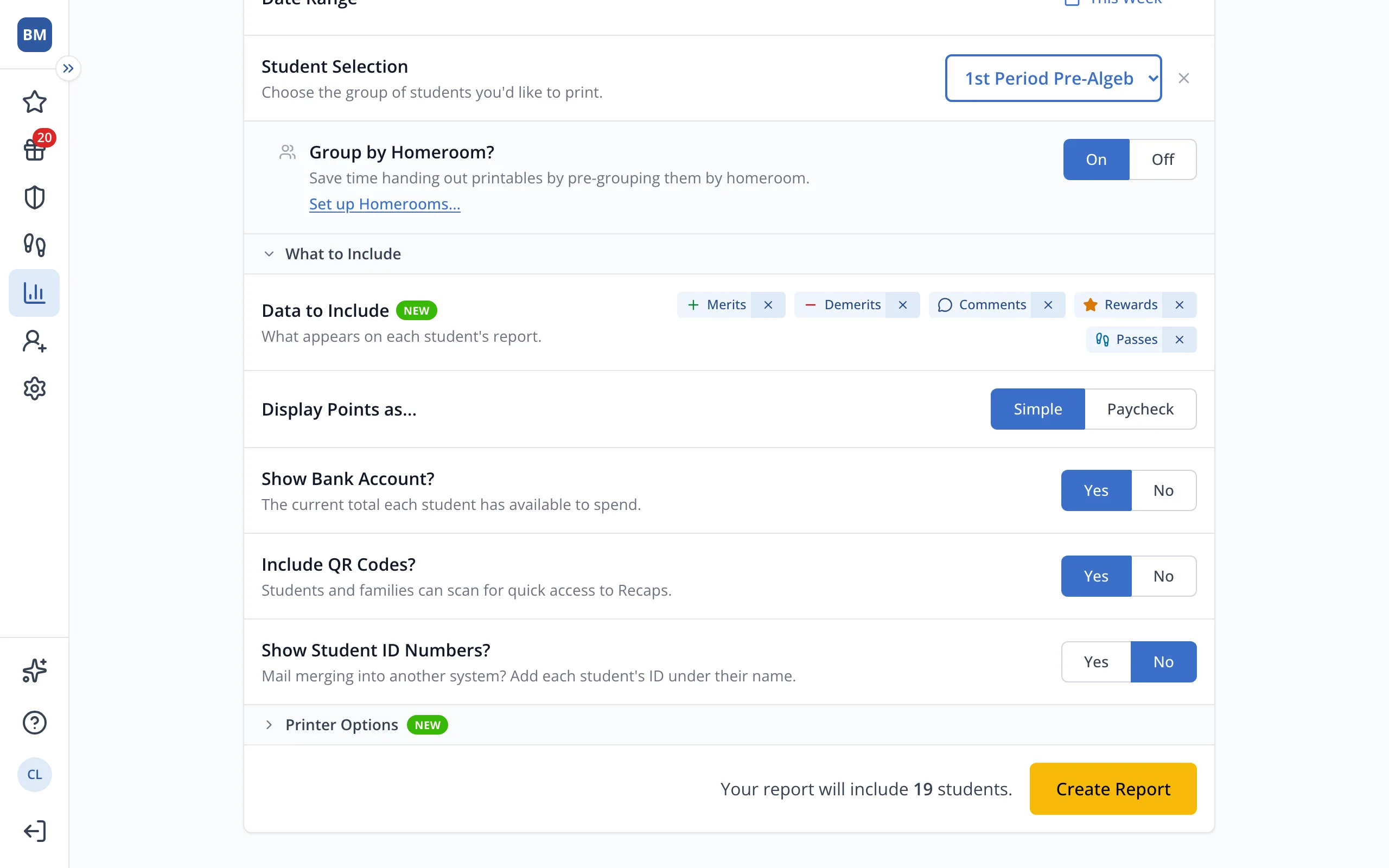
5.Next to Double-sided printing?, click Yes if your printer prints on both sides, so each student starts on a new sheet.
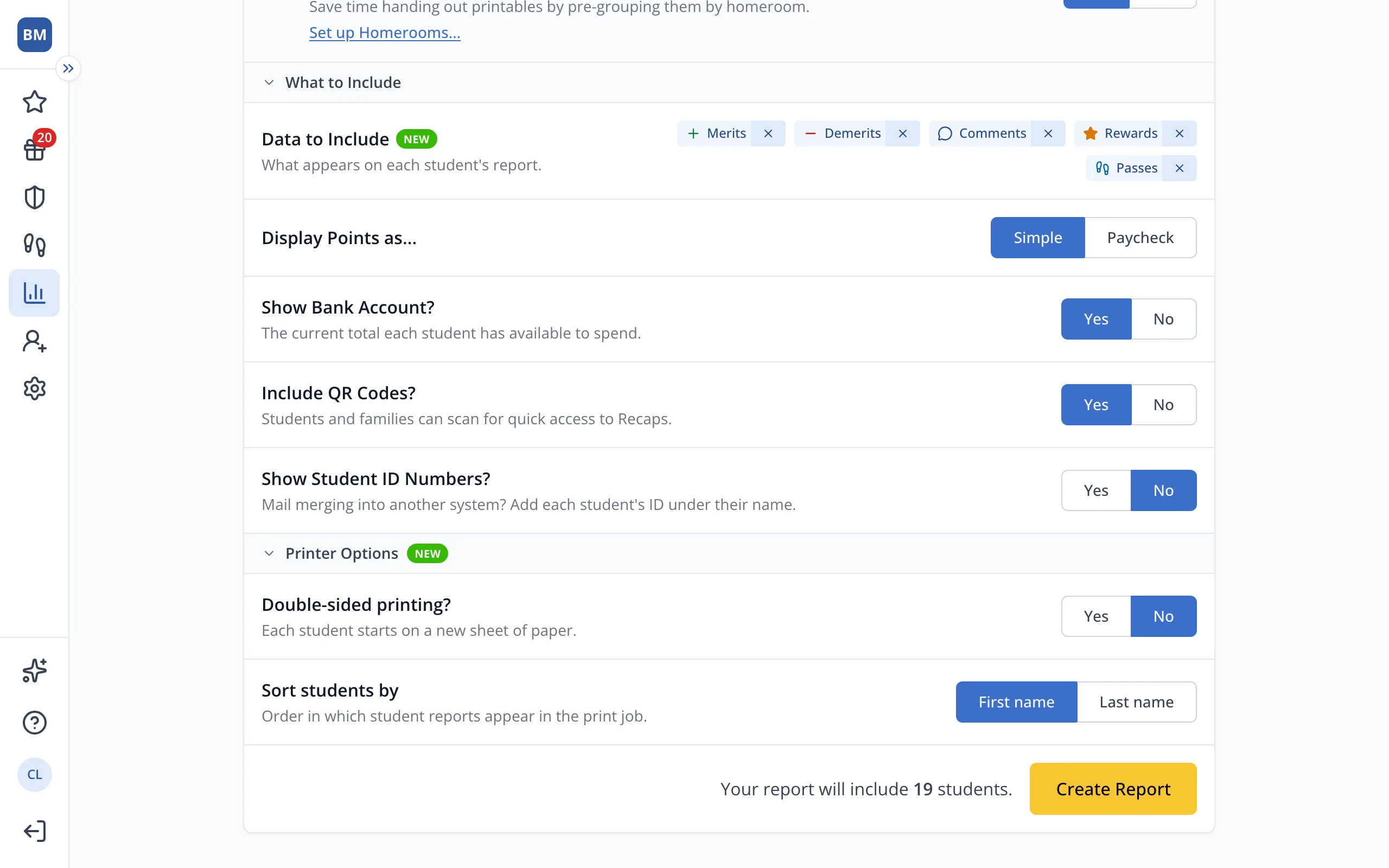
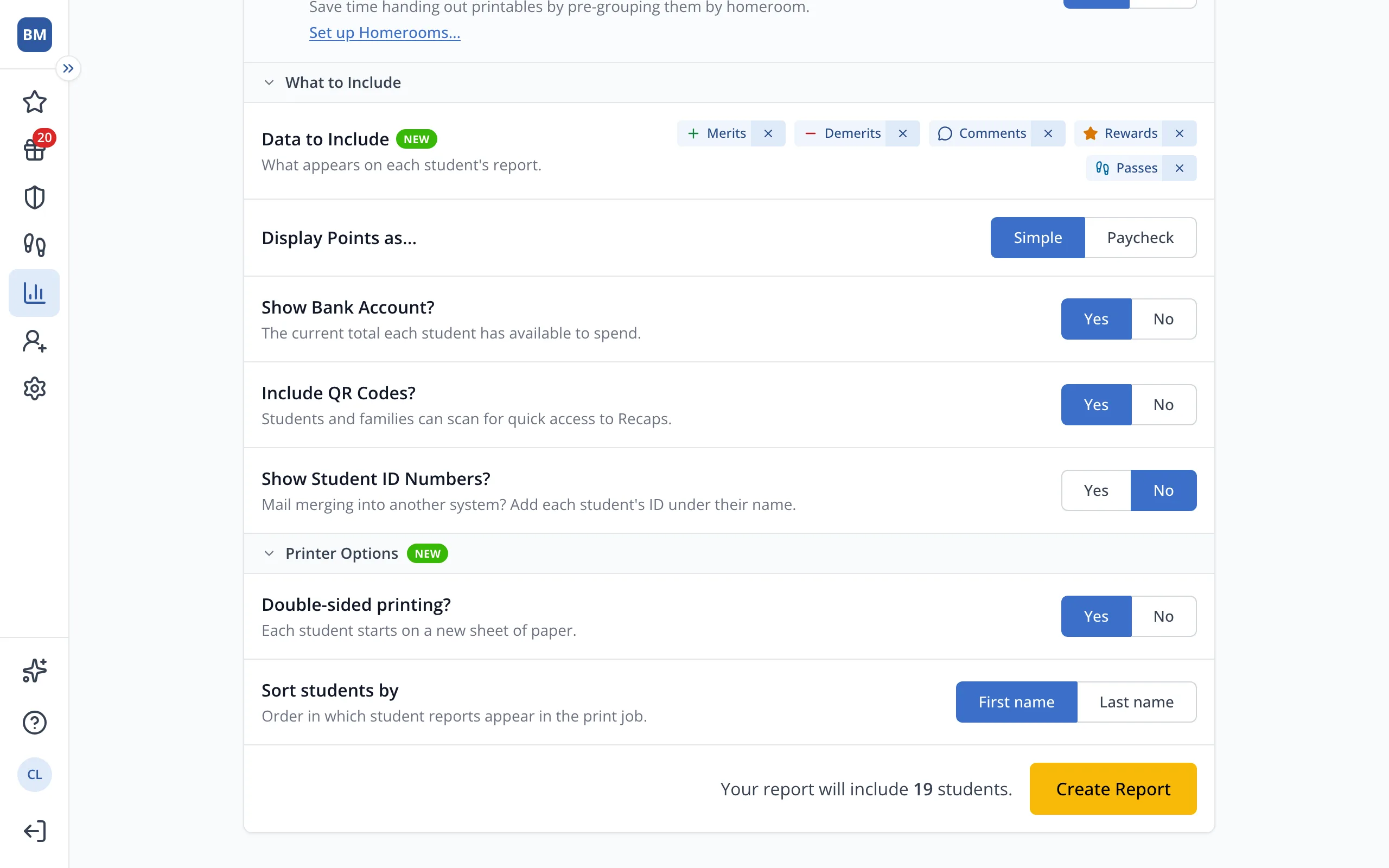
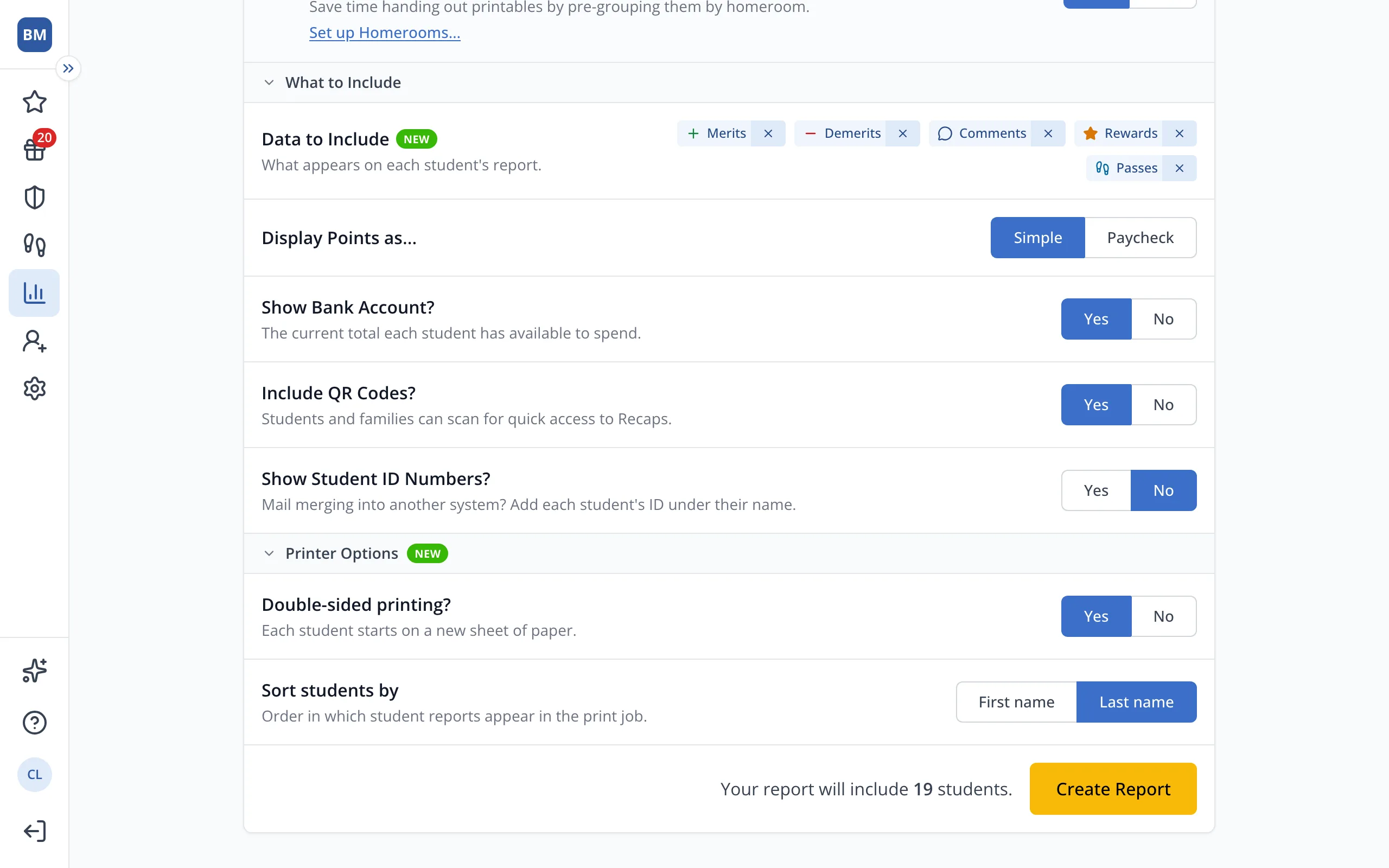
6.Next to Sort students by, click Last name to sort by last name instead of first.
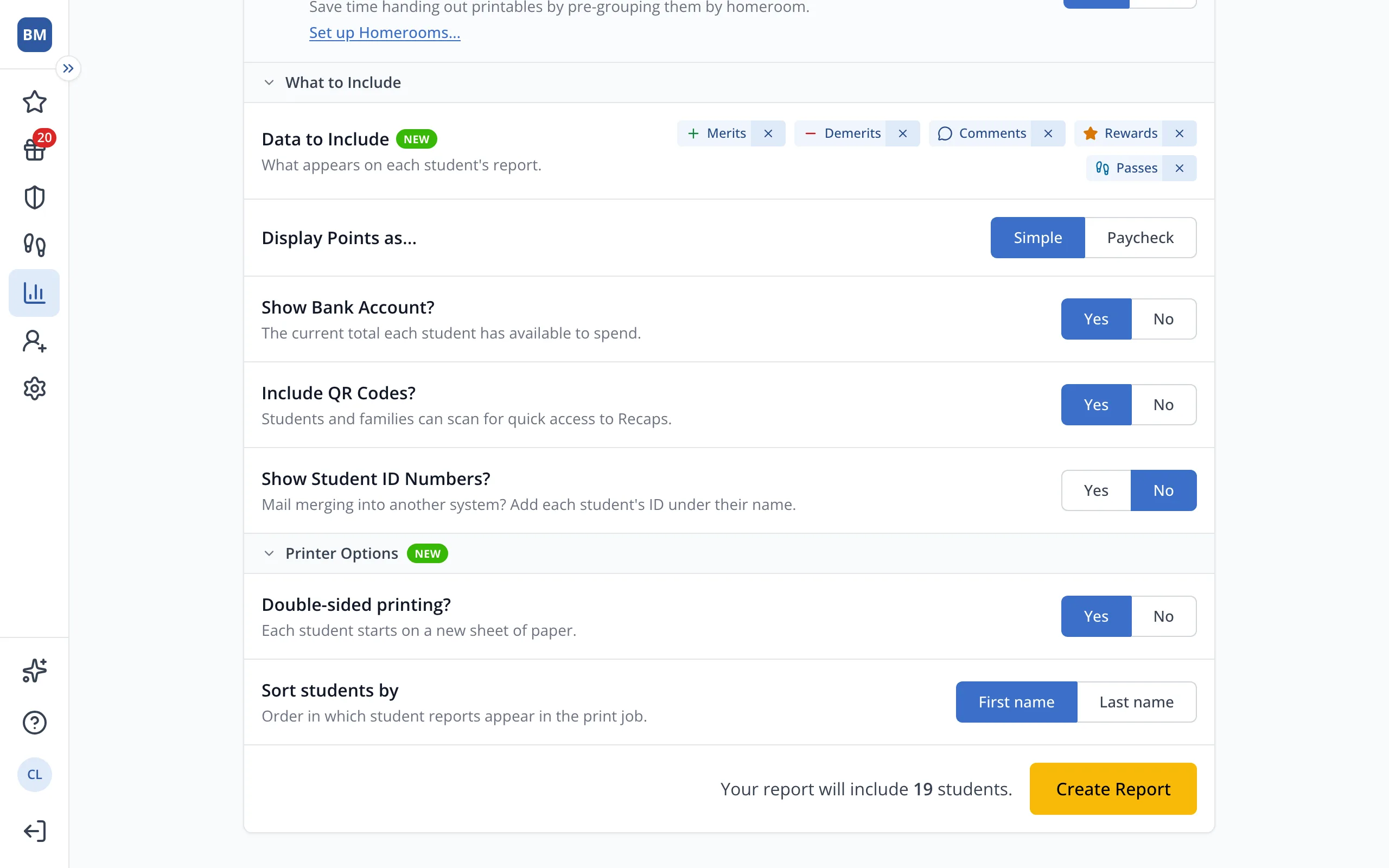
7.Click Create Report. The reports open in a new tab, ready to print or save as a PDF.