Add or remove students from a roster
Change who's on a non-syncing roster right from the Points page.
Open in LiveSchool
Already signed in? Open this guide inside LiveSchool.
Use the Left and Right arrow keys to move between steps, and Space to play or pause.
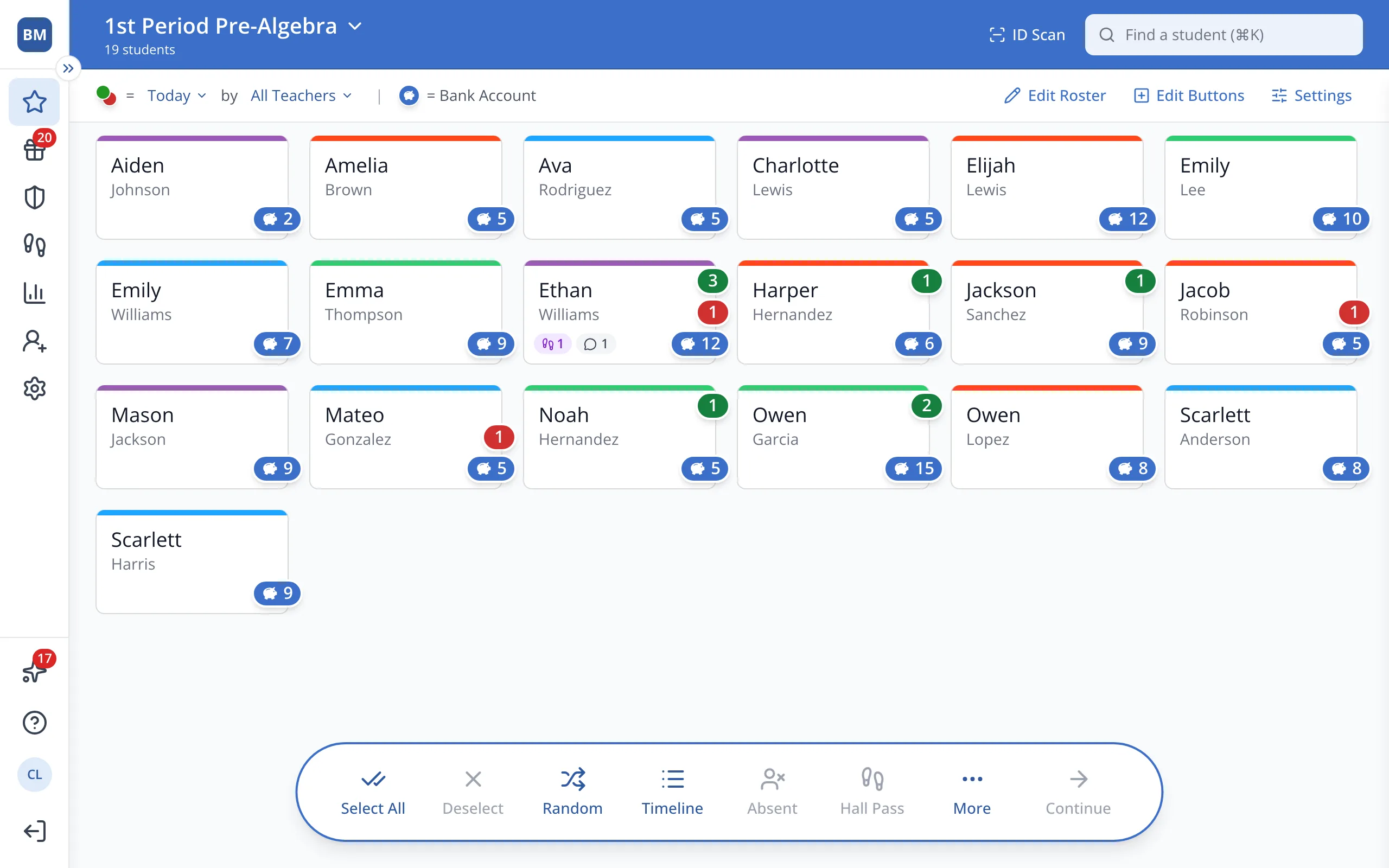
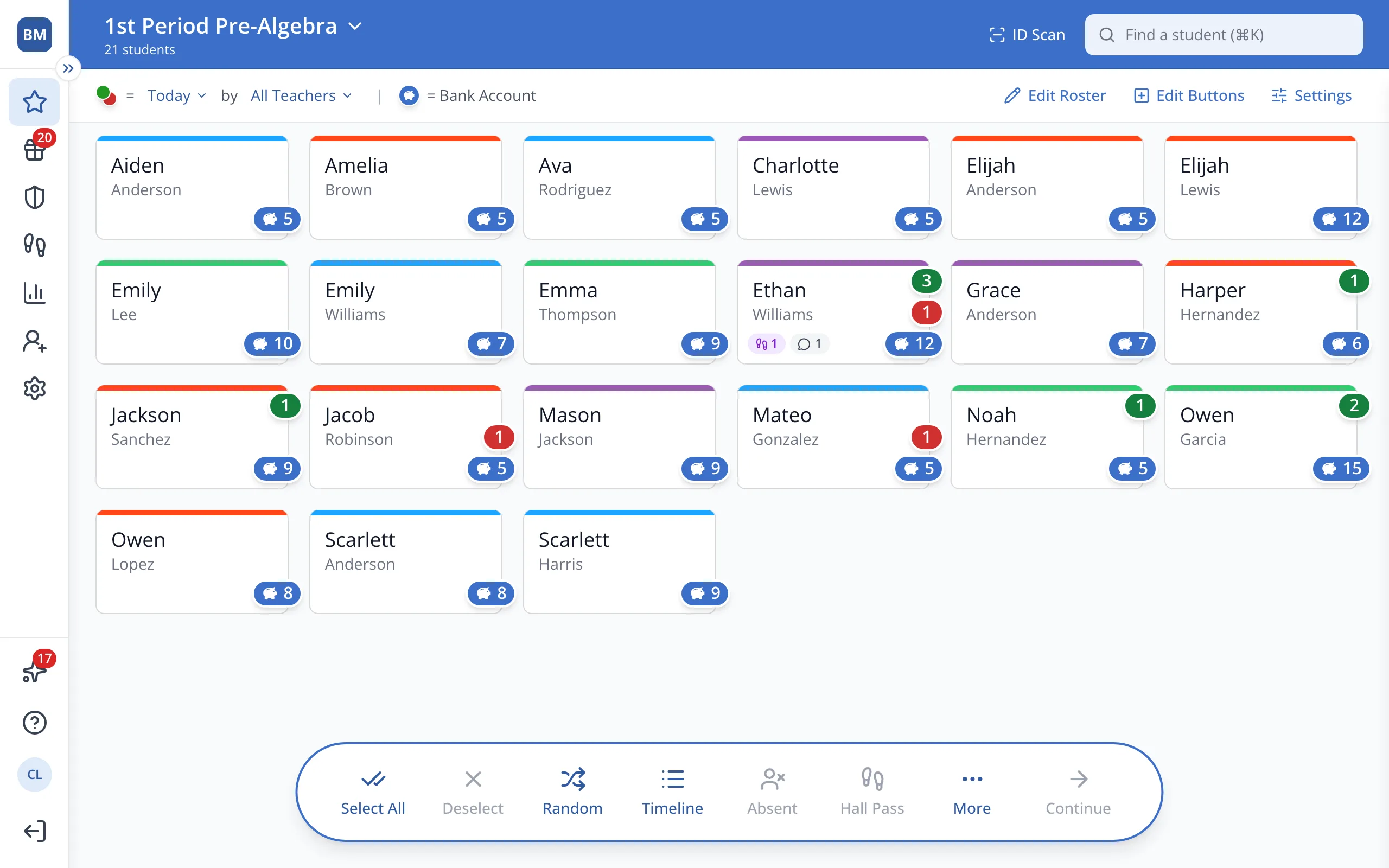
1.With your roster open on the Points page, click Edit Roster.
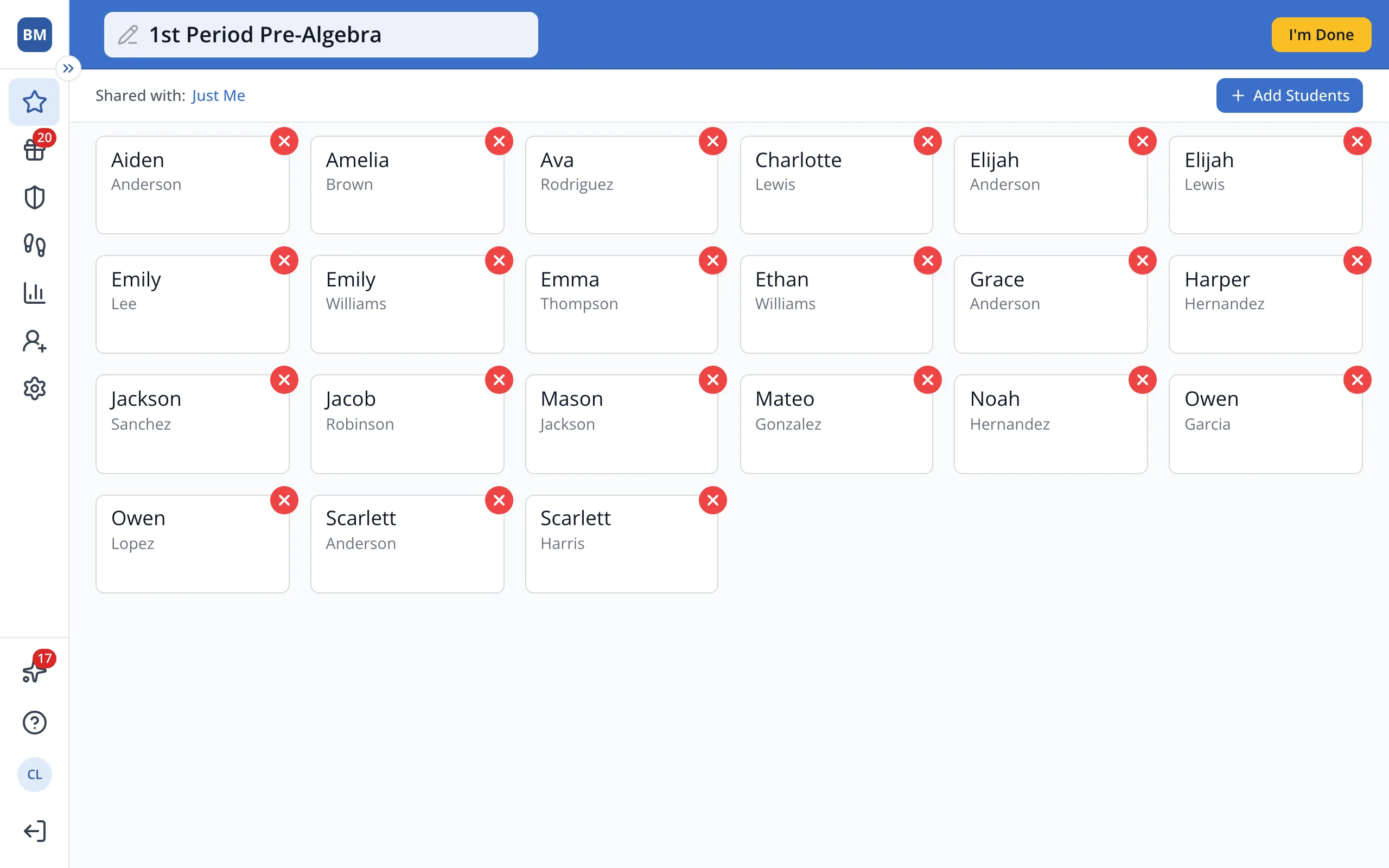
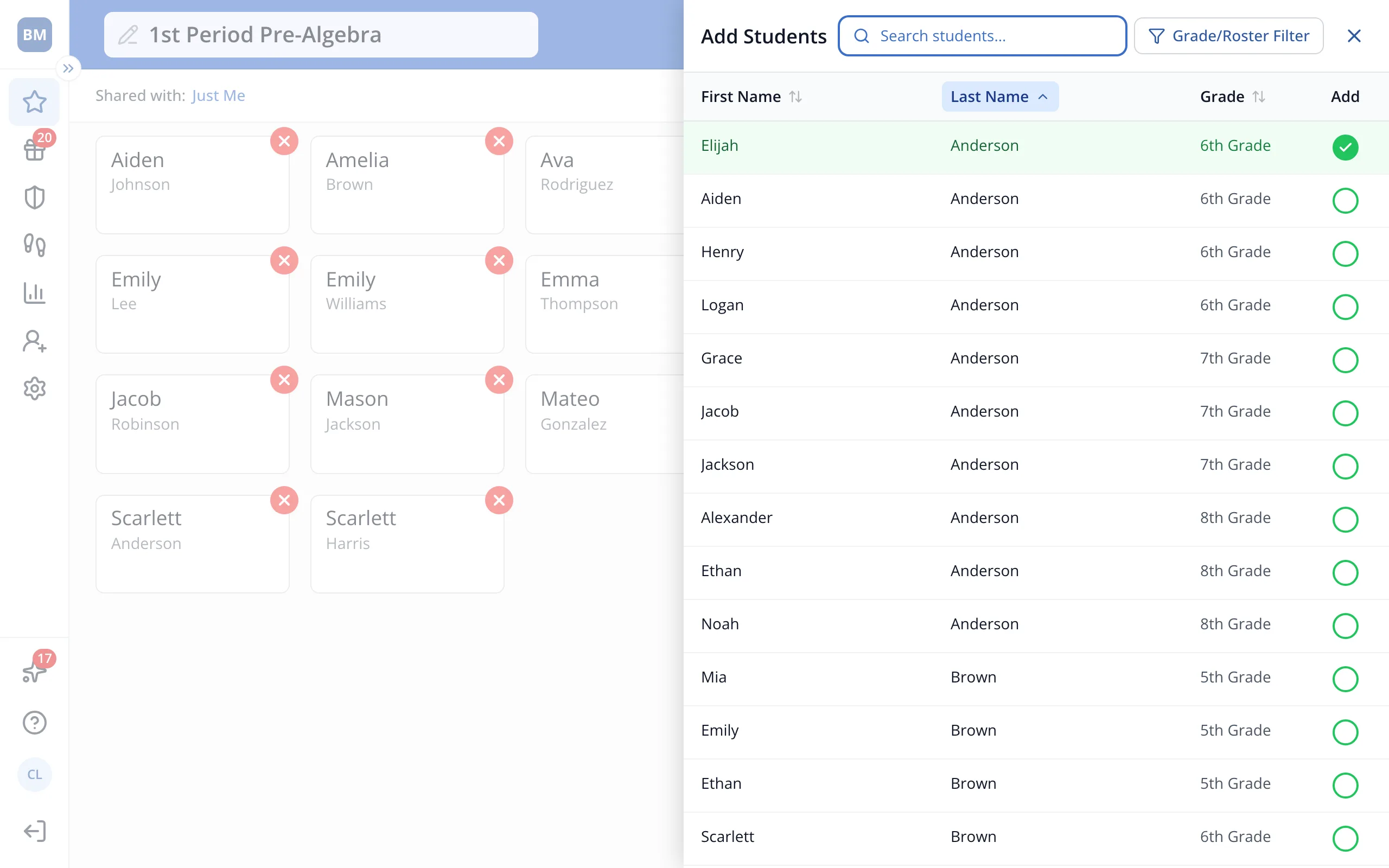
2.Click Add Students.
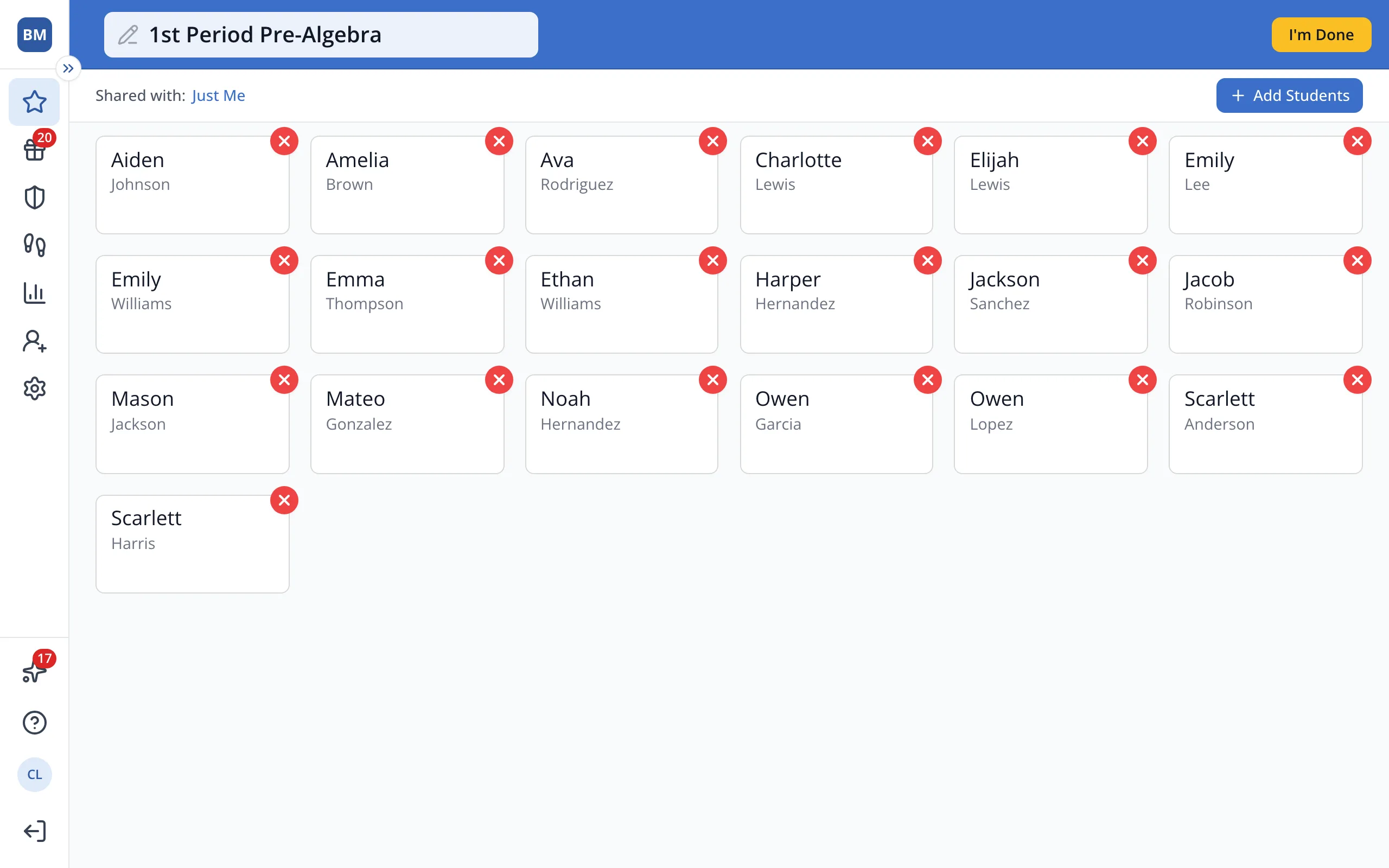
3.Click the student you'd like to add. You'll see a green check next to their name.
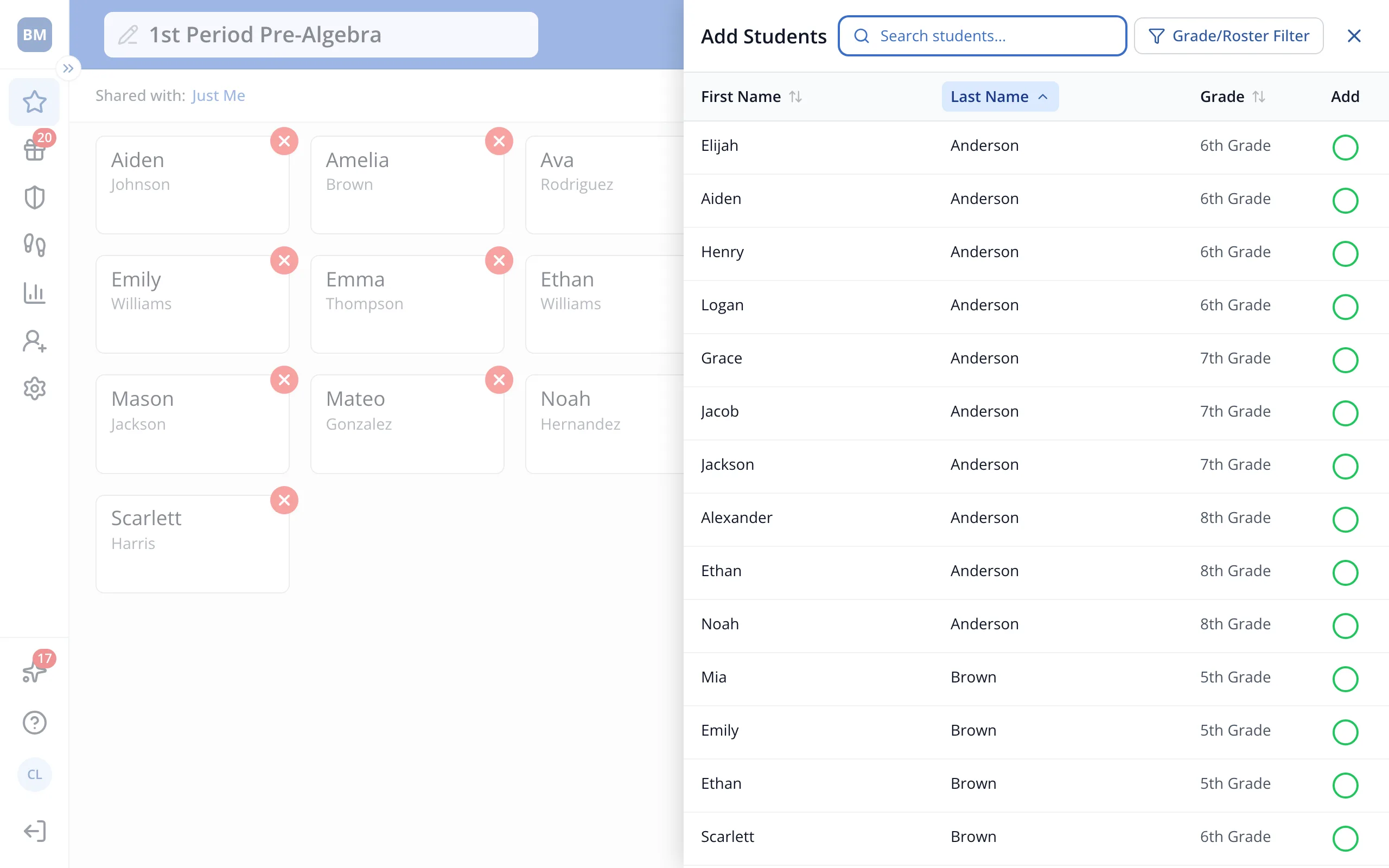
4.When you've added everyone, click the X at the top of the panel.
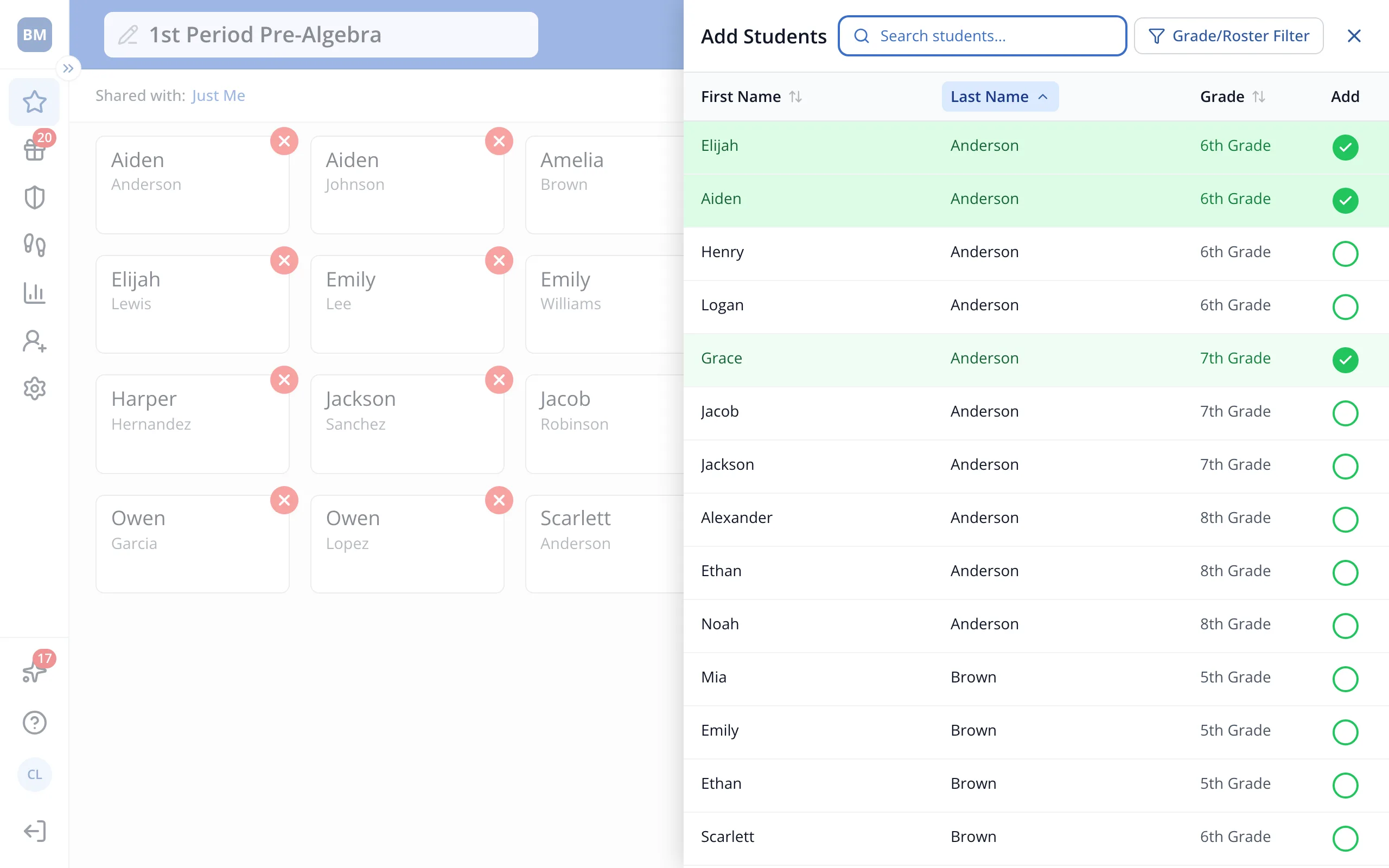
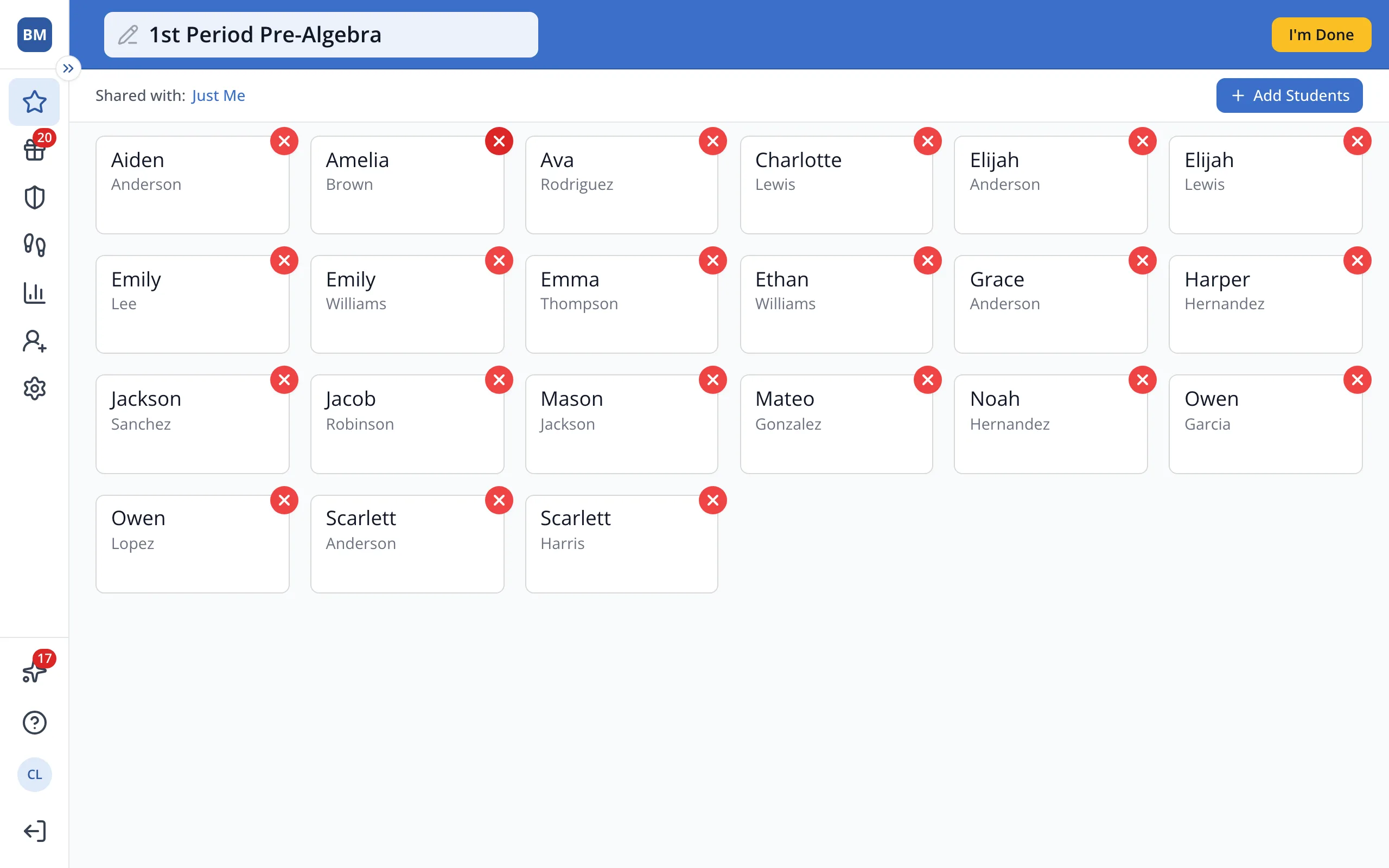
5.To take a student off, click the red X on their student button.
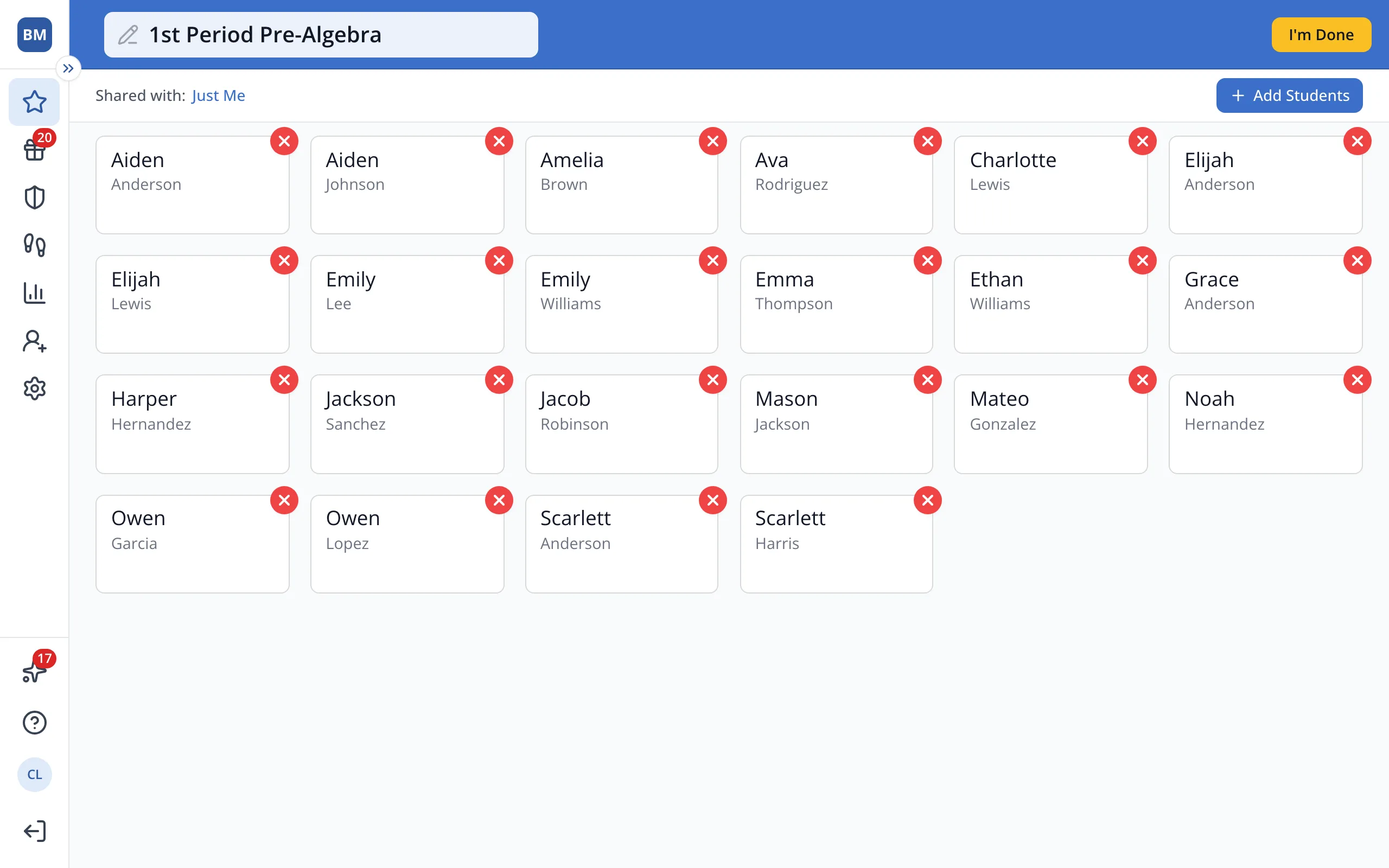
6.Click I'm Done to save your changes.